NEW!
Meet Flyntlok at Equip Expo 2026:
Small frustrations have a way of adding up:
It all takes time your team could be spending helping customers and driving revenue.
This release helps your team keep moving through moments like these, with faster receiving, easier access to service files, cleaner CRM records, and fewer manual steps across the dealership.
And where do we get all of these great ideas? From YOU. We’re thrilled to report we had another successful Office Hours month with 276 signups across 66 dealers, which is more than double the folks and dealers that joined us in July! We cannot thank you enough.
And if you’re looking to share more feedback (keep it comin’!) or see demos of our new features, meet us in person and book your onsite chat at Equip Expo (booth 4023 or education center C001) or AED!
How Stihl/Toro Dealer RJ’s Grew From a $400 Truck into a Thriving OPE Dealership with Flyntlok
Let's get into it!
By Calvin M.
What’s New!
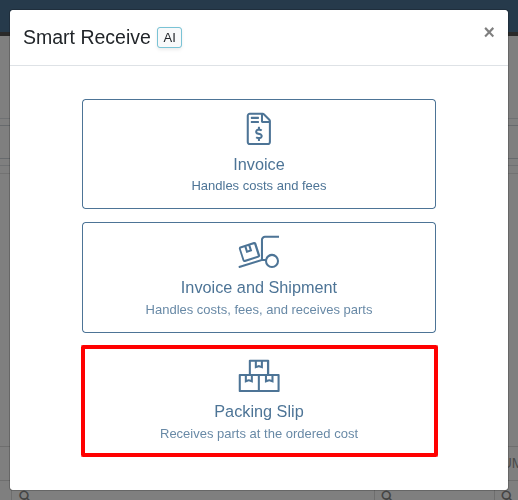
Smart Receive has a new third option: Packing Slip. When you upload the packing slip that came with the shipment, Smart Receive matches the parts and quantities, then receives them at the cost already on the Purchase Order.
Smart Receive also now records which option was used. Every run writes an entry to the history on both the Purchase Order and the Receiving Voucher, so you can see at a glance how a Voucher was created with Smart Receive.
Why It Matters:
Receivers no longer have to wait on the invoice to put stock away. Parts can go on the shelf and become available to sell the day they arrive, with pricing reconciled later when the invoice shows up. Previously, receiving early meant either keying quantities in by hand or holding the shipment until Accounting had the paperwork.
By Calvin M.
What’s New!
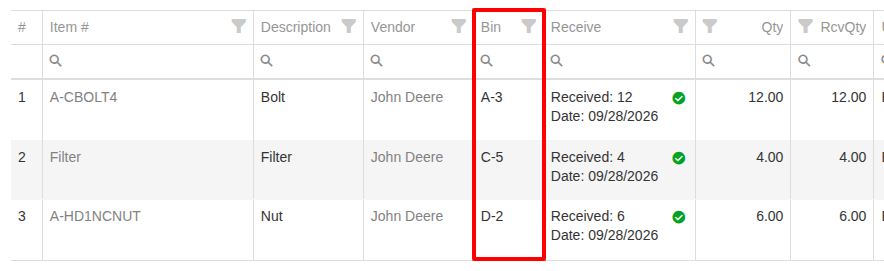
The parts grid on the Part Receiving Voucher now has a column that shows bin locations at the Purchase Order's location. This column appears on your grid by default and you can move, sort, and filter by it like any other column on the Part Receiving Voucher.
Why It Matters:
Before this change, Receivers had to go back to the Purchase Order or print the Receiving Voucher to see bin locations and find where each Part belongs. Now the bin location is on the screen while you receive parts, empowering you to put Parts away in shelf order and making it easier to get your parts on the shelf where they belong.
By Ben C.
What’s New!
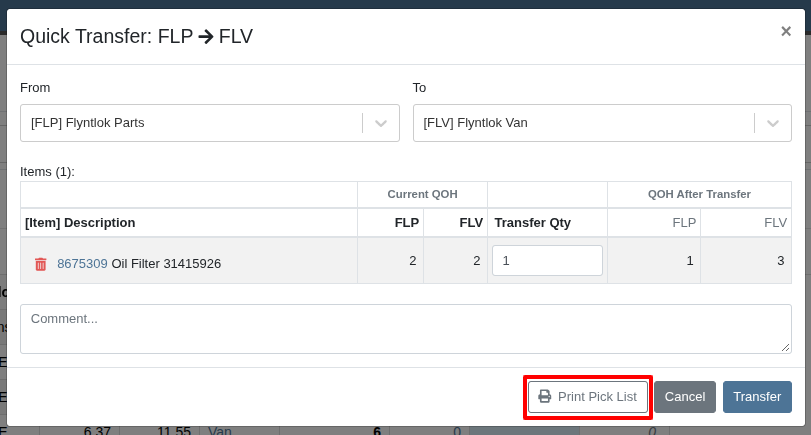
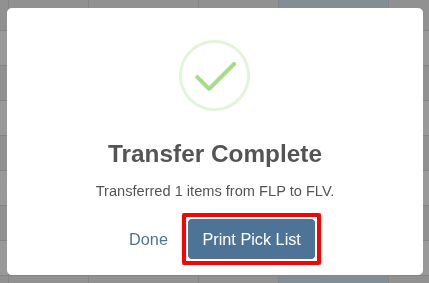
On the Inventory Dashboard, Service Managers can now print a Pick List when transferring Parts between a store location and a truck location. Click Print Pick List in the Quick Transfer window before submitting, or from the confirmation that appears once the transfer is complete.
Why It Matters:
Service Managers restocking trucks had no printed Pick List when Parts were moved from the store location to the truck. Checking what was transferred meant opening each Item one at a time. Now, when a transfer is being done, a Pick List can be generated so Technicians can pull the right parts from the right bins and confirm what went onto the truck.
By Ben C.
What’s New!
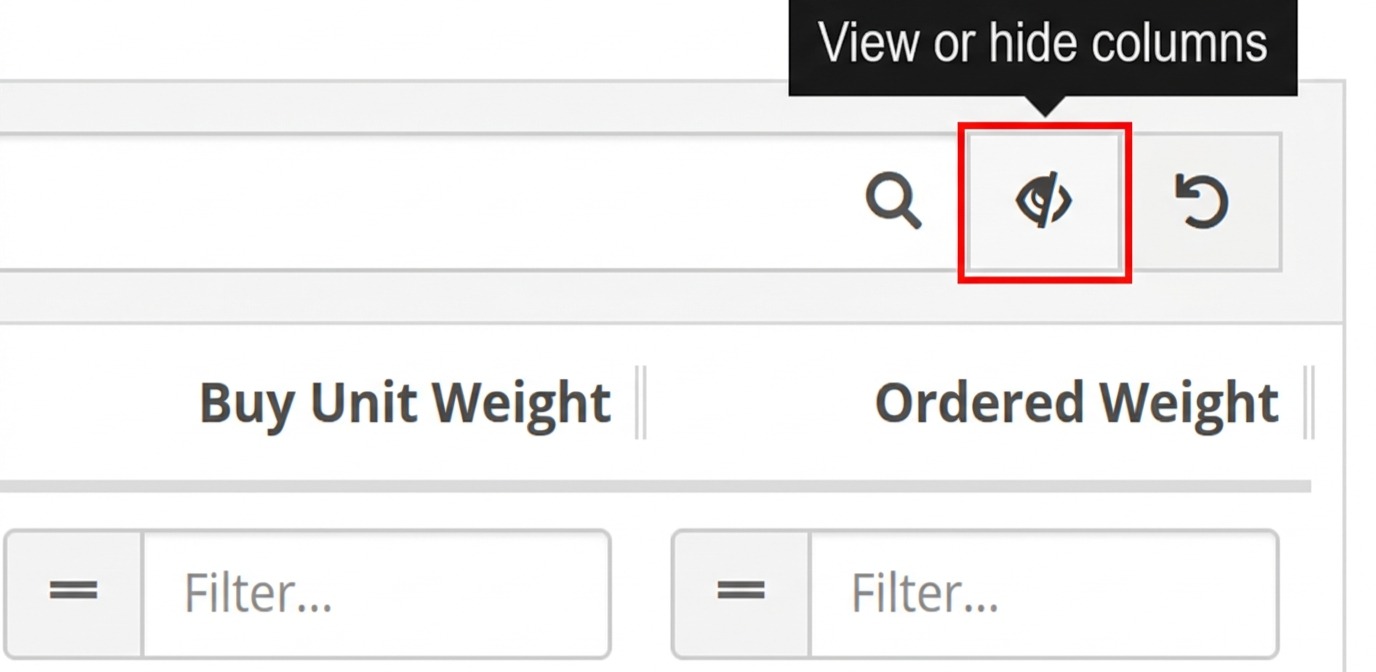
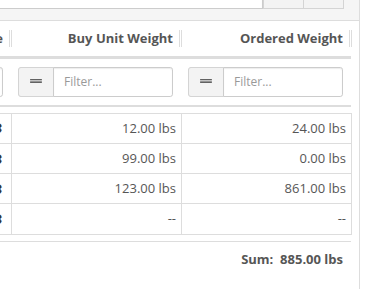
Two new potential columns on the Create New Purchase Order page, Buy Unit Weight and Ordered Weight. One column displays direct item weight information and the other calculates the Ordered weight calculated based on individual item weight and quantity on the Purchase Order.
Why It Matters:
Some Purchase Orders need to meet a minimum weight requirement. Before, Purchasers had to look at each Item Dashboard individually and calculate the total weight by hand. Now the total is calculated automatically as Items and quantities are added to the Purchase Order.
By Bomby K.
What's New!
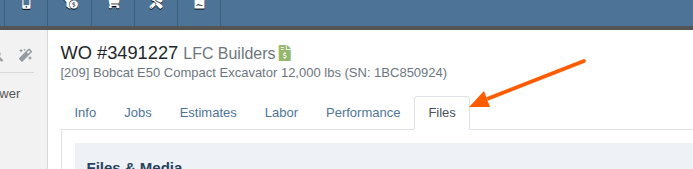
Files attached to a Work Order can now be viewed in a gallery with three views: Tile, List and Carousel. Tile view shows your photos and files as previews in a grid, List view lays them out in rows, and Carousel view lets you page through them one at a time. You can see what a file is without downloading it first.
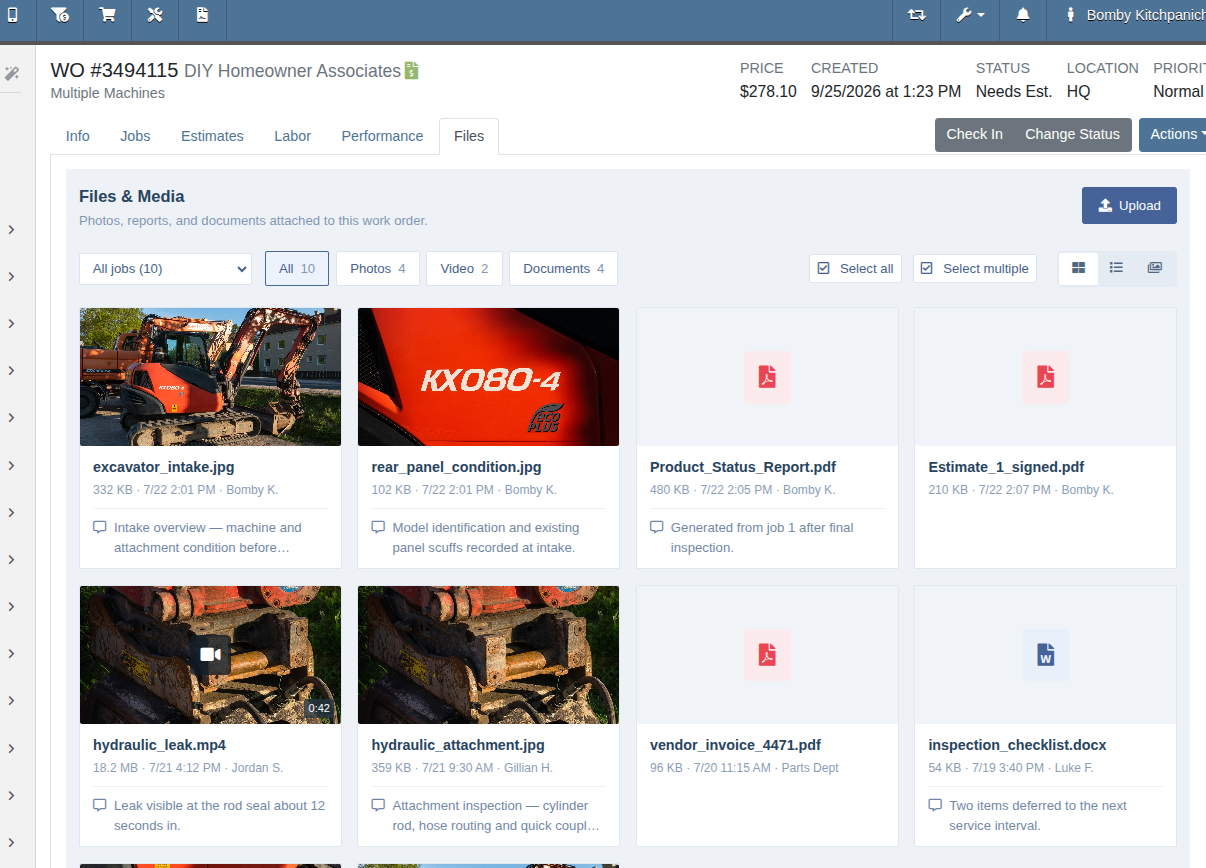
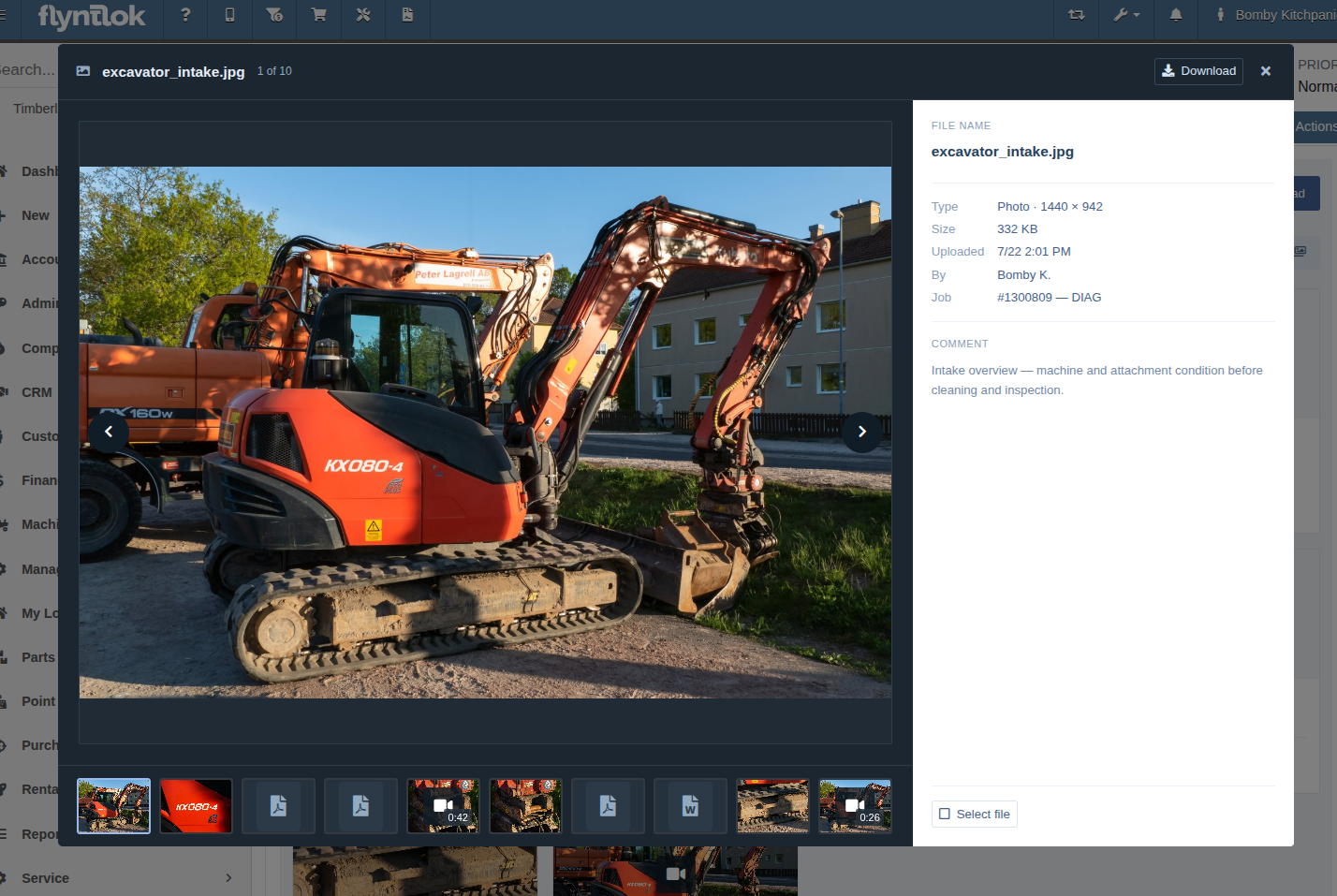
You can also select just the files you need and download them together. Before, the only choices were downloading one file at a time or downloading everything on the Work Order.
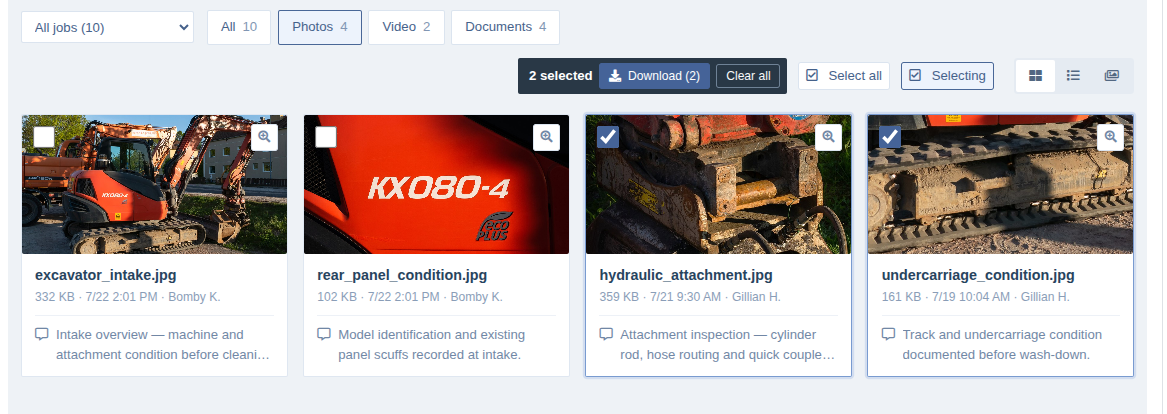
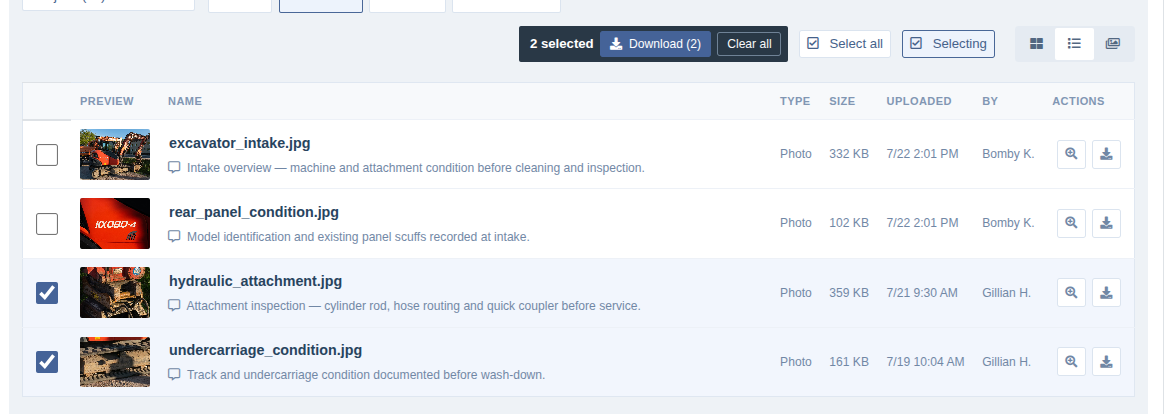
You can view all files associated to the Work Order, or narrow it down by Job. From the Job view's existing Files widget, click on the "View in Gallery" button and it will take you there!

Why It Matters
Work Order files previously appeared as a list of download links, so Technicians and Service Writers had to download each file just to see what it was. On Work Orders with dozens of photos, finding the right one meant downloading them one by one.
Picking only the files you need saves time. For example, a warranty claim often needs just the photos of the damaged unit, not the intake photos, inspection documents and everything else attached to the Work Order. Service Writers can now select those photos and download them in one step.
By Bomby K.
What's New!
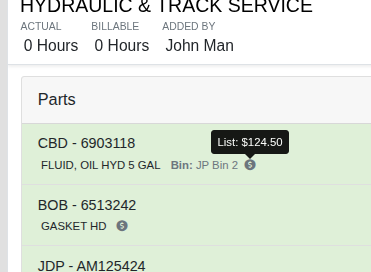
The Parts widget on the desktop Work Order page now shows each Part's bin location next to its description, labeled "Bin:", so you can see where to pull it without leaving the page. The bin shown is the one for the Work Order's location. A small dollar icon also sits beside each Part. Hover over it to see the Item's list price. The same bin and price details appear on Parts listed under the Work Order's Parts Order Invoices.
Why It Matters:
Service Writers and Service Managers had to open the Item Dashboard or Internal Parts Order to find where a Part was shelved or what it sold for. With both on the Parts widget, it's quicker to pull Parts for a Job or quote a price to a Customer.
By Bomby K.
What's New!
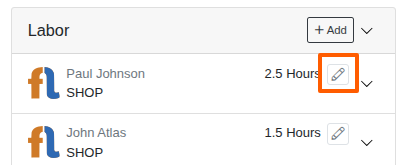
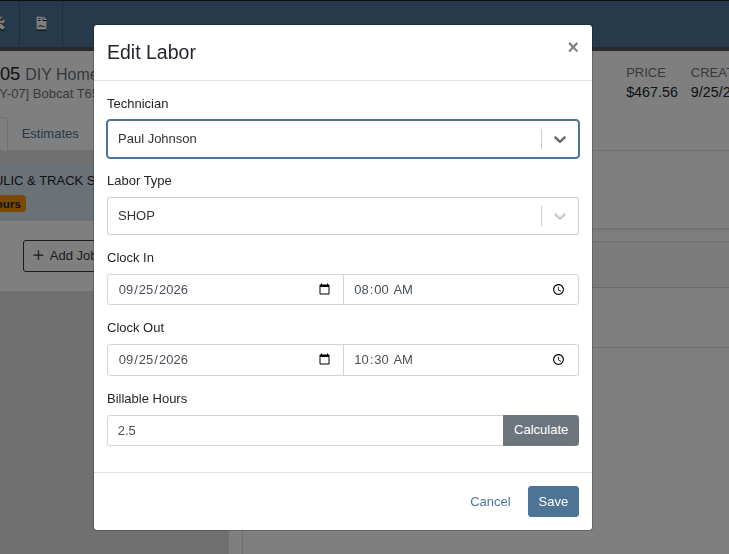
Service Writers, Service Managers and Technicians with labor editing permissions can now edit a Labor line from inside a Job on the Work Order. Each Labor line in the Job's Labor panel has a pencil icon that opens the Edit Labor window: the same form you already use to add Labor, filled in with that line's current details.
From there you can change the Technician, Labor Type, clock-in and clock-out date and time, and Billable Hours, including the button that recalculates Billable Hours. Click Save to apply your changes, or Cancel to close without saving.
Why It Matters:
Before, fixing a Labor line meant leaving the Job, switching to the Labor tab, finding the right line and making the change there. Service Writers and Technicians who are reviewing or closing out a Job can now correct a wrong clock-out time or Labor Type on the spot, without losing their place on the Work Order.
By Bomby K.
What's New!
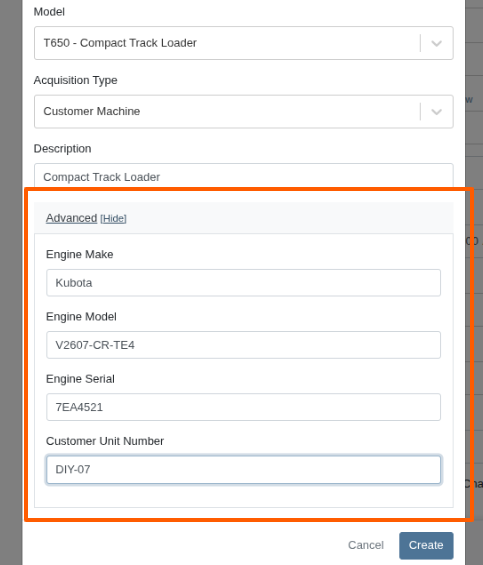
When you click +New to create a Machine from the New Work Order form, you'll now see an Advanced section. Expand it to enter the Engine Make, Engine Model, Engine Serial, and Customer Unit Number for the new Machine. That puts the New Work Order form in line with creating a Machine from a Work Order's Info tab or from a Job.
Why It Matters
Service Writers and Service Managers noticed that the Advanced option showed up in some places they create Machines but not on the New Work Order form. To get engine details onto a Machine, they had to switch to a different workflow or edit the Machine later. Now they can capture everything in one step when they create the Machine and open the Work Order.
By Bomby K.
What's New!
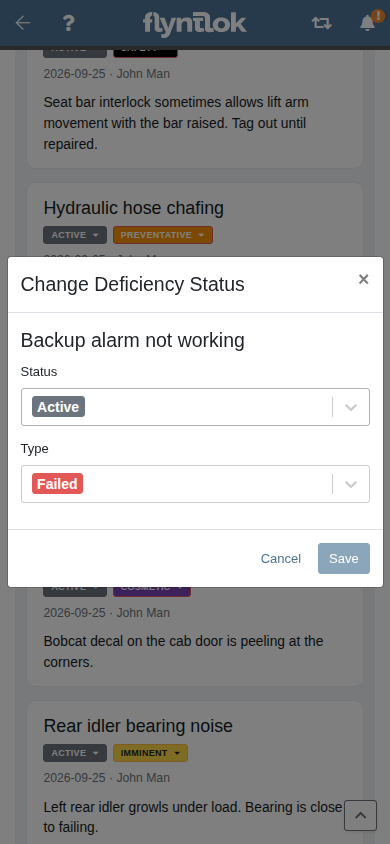
We've made a number of improvements to Machine Deficiencies:
Why It Matters:
By Bomby K.
What's New!
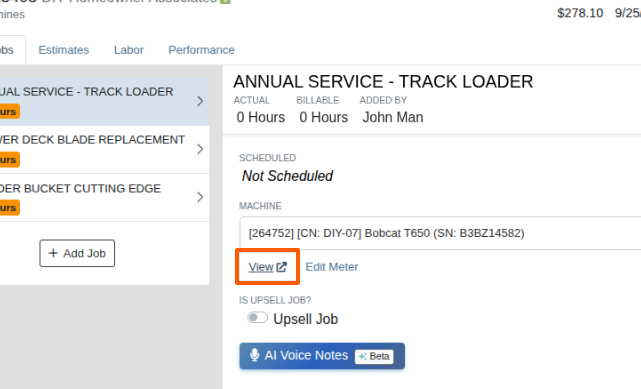
Two new links on the Work Order page take you to Machine information without leaving the Work Order:
View Machine from a Job: When you click the Machine field on a Job and pick a Machine, a View link now appears under the Machine selector. Clicking it opens that Machine's dashboard in a new browser tab, so the Work Order stays open where you left it.
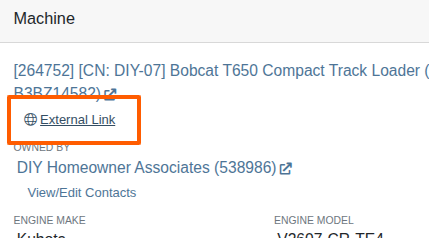
Machine External Link: When the Work Order's Machine has an External URL saved, the Machine section now shows a button with a globe icon. Click it to open the link in a new browser tab, so Technicians and Service Writers can get to a manual, parts diagram or spec sheet. The link comes from the External URL field on the Machine page which can be edited on the Machine dashboard.
Why It Matters
Before, Service Writers and Technicians on Multi-Machine Work Orders had to leave the page and open the Machine page to update meter hours or find a manual. Each Job can carry its own Machine, so they can now open the right Machine straight from the Job, update its hours, and switch back.
With the External Link in the Machine section, Technicians can open the right manual while they work the Job, and Service Writers and Service Managers stop getting asked where it is.
By Bomby K.
What's New!
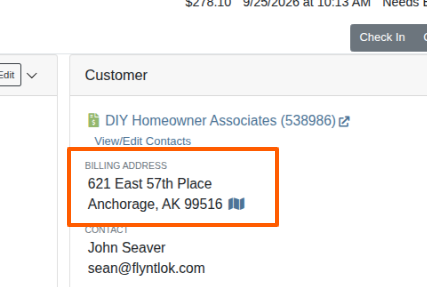
The Customer section on the Work Order's Info tab now displays the Customer Billing Address. Clicking on the map icon will open a new tab with the location shown in Google Maps.
Why It Matters
Service Writers and Service Managers used to open the Customer record or print the Work Order to check where a Customer is billed. That's the address printed in the "Bill To" section of the Work Order PDF, and now it's right on the Work Order.
By Alex E.
What's New!
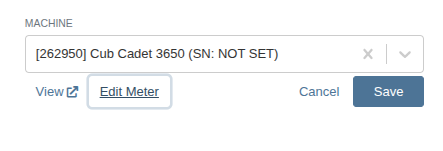
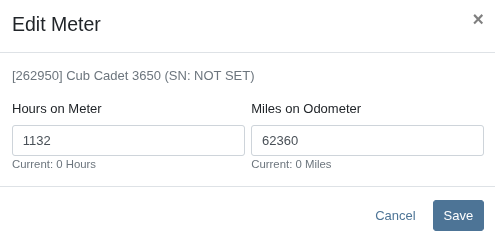
On Work Orders that have multiple Machines, you can now update a Machine's hours and miles directly from a Job. Open the Job's Machine field and select a Machine. Click the new Edit Meter button. A small window opens that shows the Machine's current readings. You can enter new Hours and Miles values and save them directly to the Machine.
Each saved reading appears in the Machine's meter history on the Machine Dashboard, with the Work Order listed as the source.
Why It Matters:
On Work Orders where each Job has its own Machine, the Check In window has no place to enter readings for the individual Machines. That left Technicians and Service Writers with no way to record hours or miles for them. Technicians usually work one Job at a time, often hours or days apart. They can now record each Machine's reading when they actually reach it, and the meter history shows which Work Order each reading came from.
By Alex E.
What's New!
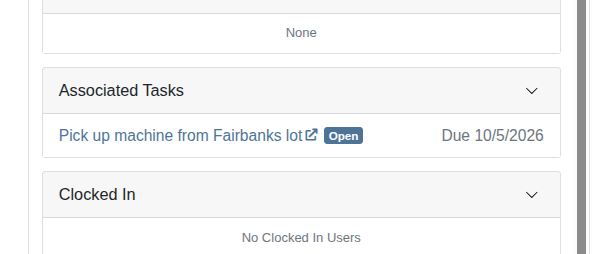
When a Task is linked to a Work Order, the Work Order's Info tab now shows an Associated Tasks card. Each Task in the card shows its name, its current status, and its due date. Click a Task's name to open that Task in a new browser tab.
Tasks in progress come first, with the soonest due date at the top, and completed Tasks follow. If no Tasks are linked to the Work Order, the card doesn't appear.
Why It Matters:
You could already link a Task to a Work Order from the Task itself, but the Work Order had nowhere to show it. Now Service Writers and Service Managers can see the follow-up tied to a job, and when it's due, right on the Work Order they're working in. They no longer have to search for the Task separately.
The Technician Shortage Is Costing Equipment Dealers Revenue. Technology Can Help.
By Alex E.
What's New!
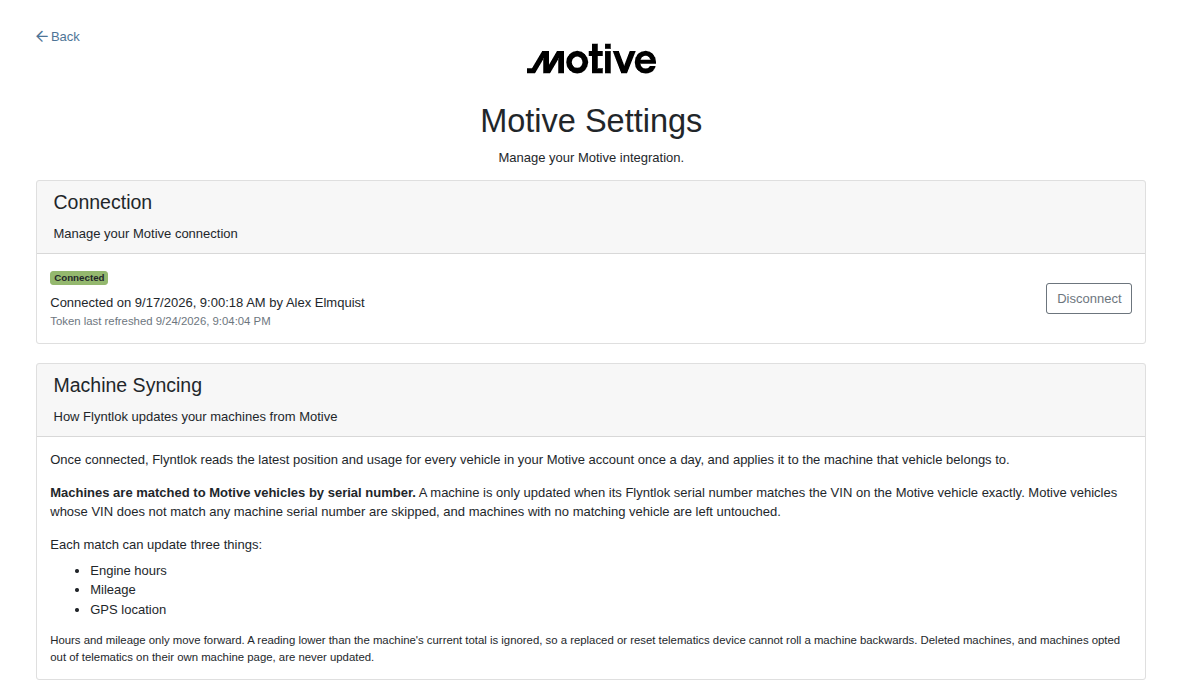
You can now connect your Motive telematics account to Flyntlok. Once you're connected, Flyntlok pulls your Motive fleet data every night and updates the engine hours, mileage, and GPS location on the matching Machines, so nobody has to enter meter readings by hand.
To get started, an administrator opens the Integrations page, chooses Motive, and clicks Connect to Motive. Sign in to Motive, approve the connection, and you're set. The Motive Settings page shows when the account was connected and who connected it, explains how Machine syncing works, and lets you disconnect at any time.
If you don't want a particular Machine updated from Motive, check Telematics Opt Out when editing that Machine.
Why It Matters:
Service Managers schedule maintenance by engine hours, and keeping those meters current has meant chasing readings from the field or keying them in by hand. Now that Motive sends hours and mileage to Flyntlok every night, service intervals are based on current meters. Shop Owners can also see where each piece of equipment last reported its location.
Flyntlok OEM Integrations and 400+ Price Files
By MA S.
What’s New!
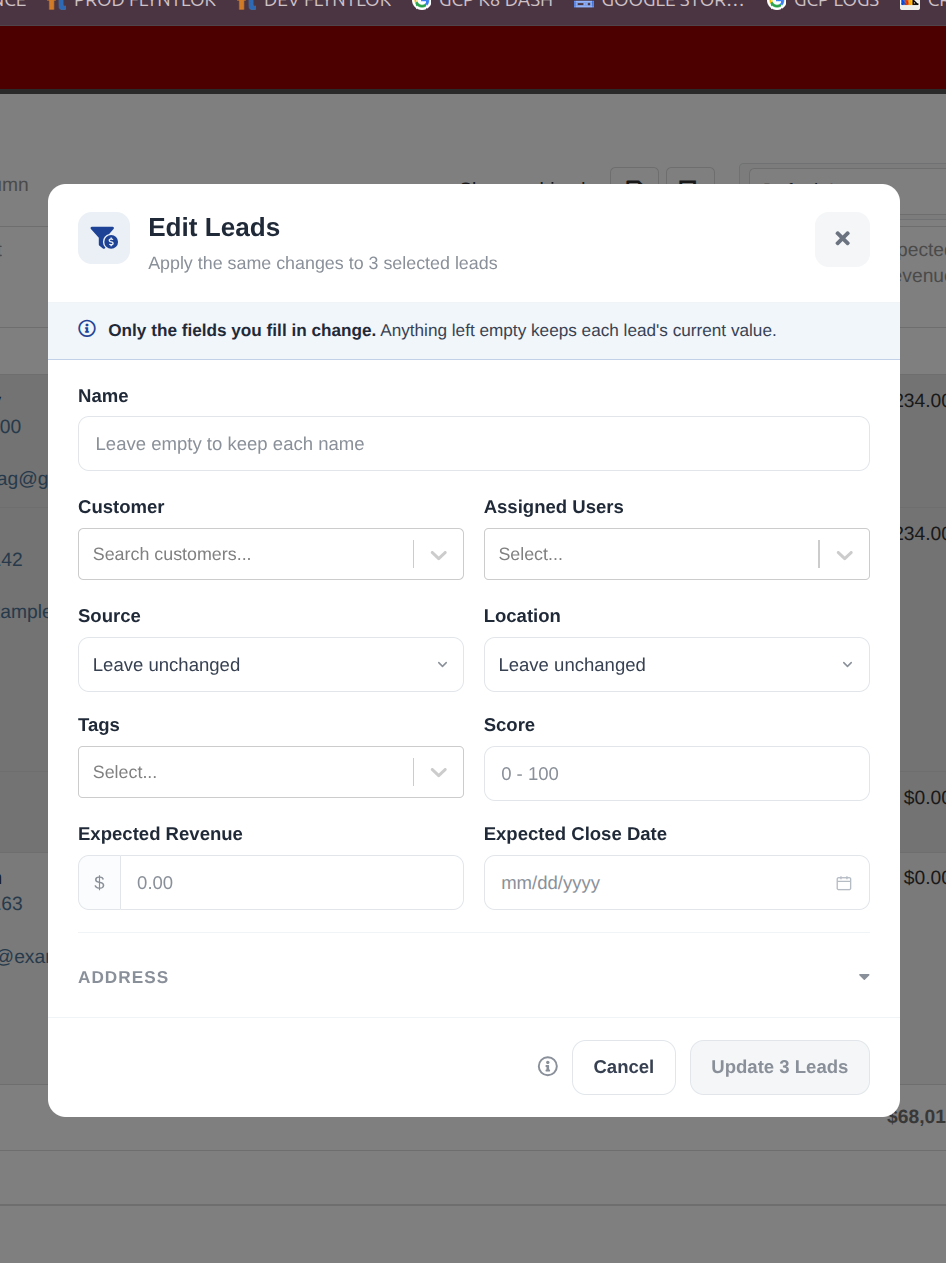
You can now update several Tasks & Leads at once from each page. Select up to 20 items, then click “Bulk Edit” in the top right. You can change many of the important attributes in one quick action. Only the fields you change get updated and any field left unchanged keeps the current value.
Why It Matters:
Salespeople and Sales Managers who needed to reschedule a batch of follow-ups or reprioritize a list had to edit each item by hand. Bulk Edit now handles these common changes in one save.
By Ula L.
What’s New!
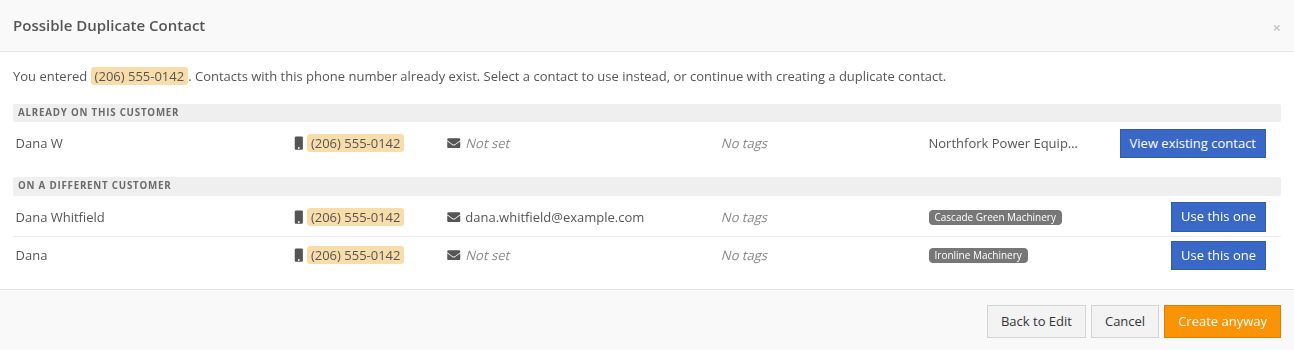
When you add a contact to a Customer and the phone number or email address already belongs to someone in your system, a warning now opens before the contact is saved. It shows each matching contact, their details, and the Customers they already belong to. From there you can open the one that is already on this Customer, attach an existing contact from another Customer to this one, or go ahead and create the new contact. An attached contact stays a single record, so a later change to the phone number, email address, or notification settings appears on every Customer that contact belongs to.
Why It Matters:
Two records for the same person leave everyone guessing which one is right. One carries the old cell number, the other carries the new email address, and the notes and notification settings are split between them. Salespeople work from whichever record they open first, and Customers hear the same thing twice from two people who each think they are the only one on it. A single contact record means every Customer shows the same current information.
By Ula L.
What’s New!
The reviews page now has a "Phone Number" column. It shows the primary phone number of the Customer matched to each review, and you can click the number to start a call. The column sorts and filters like the other columns. A review with no matched Customer, or a Customer with no primary phone number, reads "Not set".
Why It Matters:
A poor review needs an answer the same day. Salespeople now see who left it and call straight from the reviews page, instead of searching the Customer up first. Faster replies protect the dealership's public rating and turn a complaint back into repeat business.

By Ula L.
What’s New!
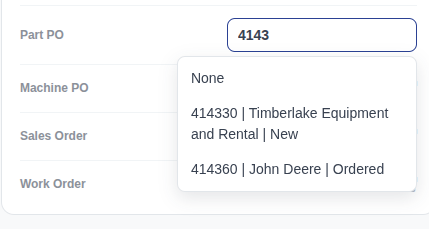
Salespeople can now find a Part Purchase Order from a Task by typing only part of the Purchase Order number, instead of the whole number from the start.
Why It Matters:
Salespeople rarely have the full Purchase Order number in front of them when they log a follow-up. A few remembered digits are now enough to attach the right Part Purchase Order to a Task, so the Customer record stays complete and nobody has to leave the page to look the number up.
CRM Command Center with Michael Sharp and Ula Lapkus: Tune in for a demo and discussion!
How Equipment Dealers Connect Their Website, CRM, and AI-Powered Marketing To Drive Revenue
By Yara H.
What’s New!
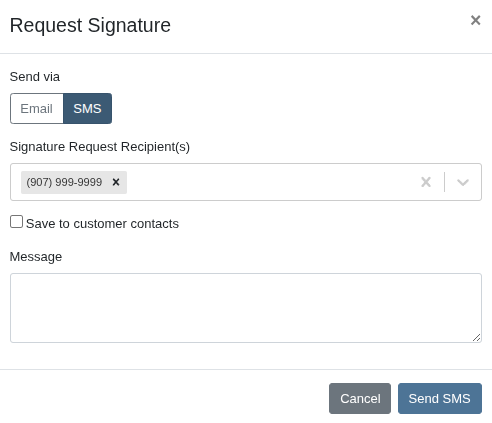
The Request Signature window on the Rental Contract page now has a Send via toggle, so you can text a signature request instead of emailing it. Choose SMS, pick the Customer's mobile number from the suggested list or type a new one, add an optional message, and click Send SMS. The Customer receives a text with a link that opens the Rental Contract on their phone, where they can review it and sign on the spot.
Why It Matters:
Rental Clerks have been printing Rental Contracts so Customers could sign at the counter, then filing the paper afterward. Emailing a signature request wasn't a practical alternative because emails could take several minutes to arrive while the Customer waited. A text arrives right away, so the Customer can sign on their phone at the counter and the dealership keeps an electronic record without the paper.
By Yara H.
What’s New!
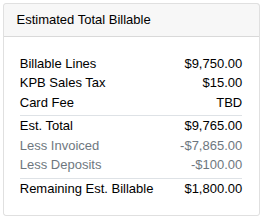
The Estimated Billable card on a Rental Contract now shows how much of the estimate is left to bill. Once a Rental Contract has an Invoice or a Deposit, the card adds rows under the Est. Total. Less Invoiced shows what has been billed so far. Less Deposits shows any Deposits collected but not yet applied to an Invoice. The last row, Remaining Est. Billable, is the estimated amount still to bill.
Why It Matters:
Rental Clerks often need to tell a Customer how much they still owe on a rental. Until now they had to subtract the Deposits and Invoices from the estimate themselves. The card now does the math and counts the final estimated amount.
By Brenden Boehme
What's New!
The Journal Entry spreadsheet importer now has a Download Template button, right below the list of expected columns.
Why It Matters:
Accountants getting a Journal Entry ready for import had to build the spreadsheet by hand from the column list, and a heading that was slightly off meant mapping it manually. Starting from the template lets Accountants paste in their lines and upload with less setup and fewer mapping fixes.
By Brenden B.
What's New!
When you open Review Transactions from the Actions menu on the Item Dashboard, the Location dropdown now lists every Location on your account — including ones that have been deleted.
Why It Matters:
Closing or deleting a Location doesn't erase the Item history recorded there. Until now, though, that Location couldn't be selected in Review Transactions, so any activity tied to it was out of reach from the Item Dashboard. Purchasers tracing where stock moved, or reconciling current counts against past activity, can now pull up that history directly instead of working around the gap.
Parts Inventory Reconciliation with Michael Holland: Tune in for a demo and discussion on this new tool!
By Alex E.
What's New!
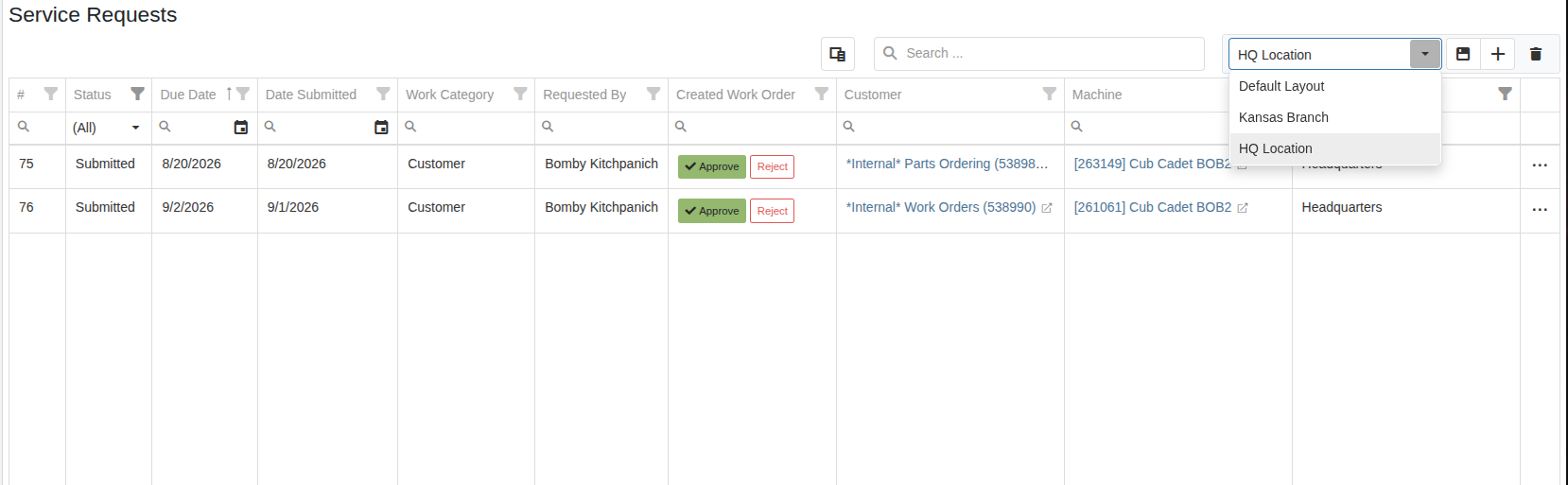
You can now save layouts on the Service Requests page. Set up the grid the way you like it, including filters, sorting, grouping, and visible columns, then use the layout controls in the grid toolbar to save it as a named layout. Switch between your saved layouts from the layout dropdown. Whichever layout you pick last opens automatically the next time you visit the page.
Layouts are saved to your own login, so everyone can keep their own view without changing anyone else's.
Why It Matters:
Every location sees the same Service Requests, so the page lists requests from all of your stores. Service Managers had to filter by Location every time they opened the page, and without that filter, it was easy to approve or reject a request that belonged to another location. With a saved layout filtered to your location, the list only shows the requests your location is responsible for.
By Christian E.
What’s New!
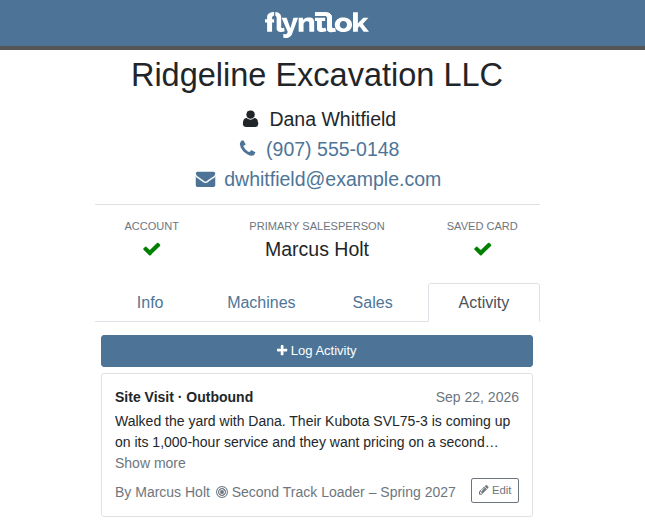
The activities tab on a customer’s dashboard now has a button to directly log a new activity at the top of the list of activities.
Why It Matters:
While reviewing previous activity for a customer, sales reps can now directly log a new activity without having to go back to the mobile home page and searching for the customer on the new activity form.
By Yasmine C.
What’s New!
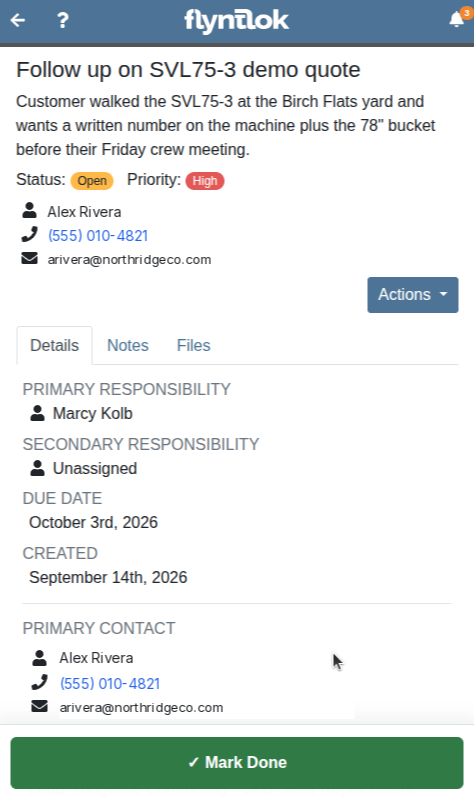
The mobile Task page now has a “Mark Done” button pinned to the bottom of the screen which flips the status of the task to ‘done’.
Why It Matters:
Finishing the task should be the hard part, not marking it done! Now one tap marks the Task complete — no opening the edit form, no scrolling to find the status field.
By Christian E.
What’s New!
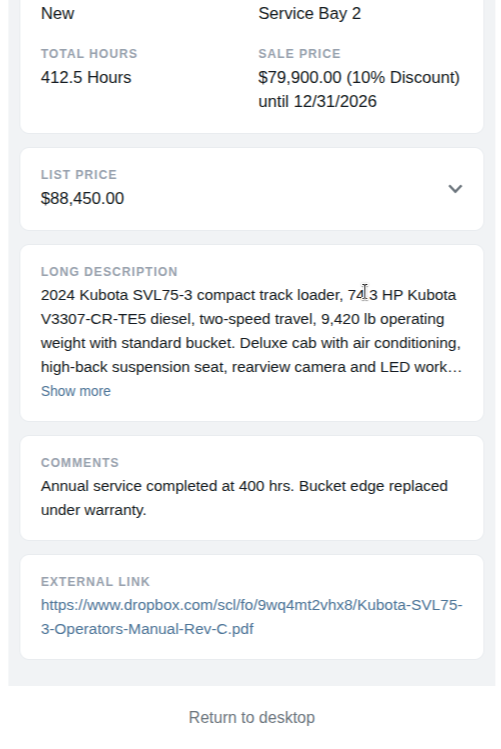
The Machine Dashboard on Mobile now shows the Machine's External Link on the Info tab. When a Machine has an External Link set, it appears as a tappable link at the bottom of the Info tab and opens in a new tab. Machines without a link won't show the section at all.
Why It Matters:
The External Link field allows users to associate machines with reference material that lives outside Flyntlok — manuals, spec sheets, parts diagrams, warranty documentation. Now it’s easily accessed in the field instead of desktop-only.
By Yasmine C.
What’s New!
The recent job note editing feature added auto-expanding input boxes, but the box for new notes didn't expand when text exceeded its size. Both note input boxes now grow to fit notes that are larger than the default box
Why It Matters:
Users can now see their full note as they type, without text getting cut off or hidden. This makes it easier to review and edit longer notes without scrolling or guessing at what's there.
By Yara H.
Complaint: Salespeople reported that Parts assigned a non-sellable Item type still appeared in the parts searcher when building an Invoice
Correction: Fixed. The parts searcher now respects the Item type's sellable setting for price file linked Parts, so only sellable Parts are offered on a sale.
By Yara H.
Complaint: Accountants reported that they could not finish receiving a payment on account. After entering a cash payment on a Sales Order with nothing else on it, the button at the bottom still read "Process" rather than "Receive Payment on Account", so the payment could not be completed. This affected dealerships that have the setting to show tax lines at $0.00 turned on.
Correction: Fixed. A $0.00 tax line is now added only when the Sales Order has at least one line besides payments, notes, and card fees, so a payment-only order is recognized as a payment on account and processes normally.
By Yasmine C.
Complaint: Users reported that clicking on the work order link in a mobile work order form would not bring them back to the mobile work order page.
Correction: Fixed. The link now brings users to the correct page.
By Yasmine C.
Complaint: Service technicians reported not being able to find work orders when they searched by tags, upon investigation it was discovered that tag searching was case-sensitive and tags were being displayed with uppercase letters and stored with lowercase letters.
Correction: Tag searching is now case-insensitive to provide a better search experience.
By Calvin M.
Complaint: Purchasers reported that Items showed up twice on the All Items report after a store location was closed.
Correction: Fixed. Closed locations with no stock no longer appear on the report.
By Alex E.
Complaint: Service Writers reported that the pre-approved amount warning on Work Orders showed inaccurate values. It appeared on Work Orders that hadn't gone over the pre-approved amount, and it didn't update when Parts were added.
Correction: Fixed. The pre-approved amount is now checked against the Work Order's full Price, the same total shown in the Work Order header. That Price includes labor, Parts, fees, pickup and delivery charges, and tax, and the warning updates as the Work Order changes. We also fixed several tax and fee calculations on the Work Order dashboard so they agree with the pre-approved amount check. For example, Parts on rejected Jobs no longer count toward percentage-based fees. As a result, Service Writers should see fewer pricing discrepancies across the Work Order.
By Nick V.
Complaint: Accountants at dealerships using Canadian QuickBooks Online reported that some Invoices wouldn't post to QuickBooks, with a tax calculation error.
Correction: Fixed, these Invoices will now post correctly. The exempt amounts are recorded in the QuickBooks tax breakdown, so it matches the tax on the Flyntlok Invoice.
By Yara H.
Complaint: Rental Clerks reported that the Suggested Options window didn't appear when they added a Machine or Model to a Rental Contract from the Timeline or Category Timeline views. It only appeared from the List view.
Correction: Fixed. Adding a Machine from the Timeline view, or a Model from the Category Timeline view, now opens Suggested Options whenever that Model has suggested Items set up. The window's title now also shows the Model name, so it's clear which Machine or Model the suggestions belong to.
By Ula L.
Complaint: Salespeople reported that the due date calendar on CRM Tasks did not let them pick a day in a later month. Clicking the arrow to move forward set a date one month out and closed the calendar immediately, instead of showing the next month to choose a day from.
Correction: Fixed. Salespeople can now move to any month and pick the exact day they want. The calendar stays open until a day is selected. It also has a "Today" button and a "Clear date" button.