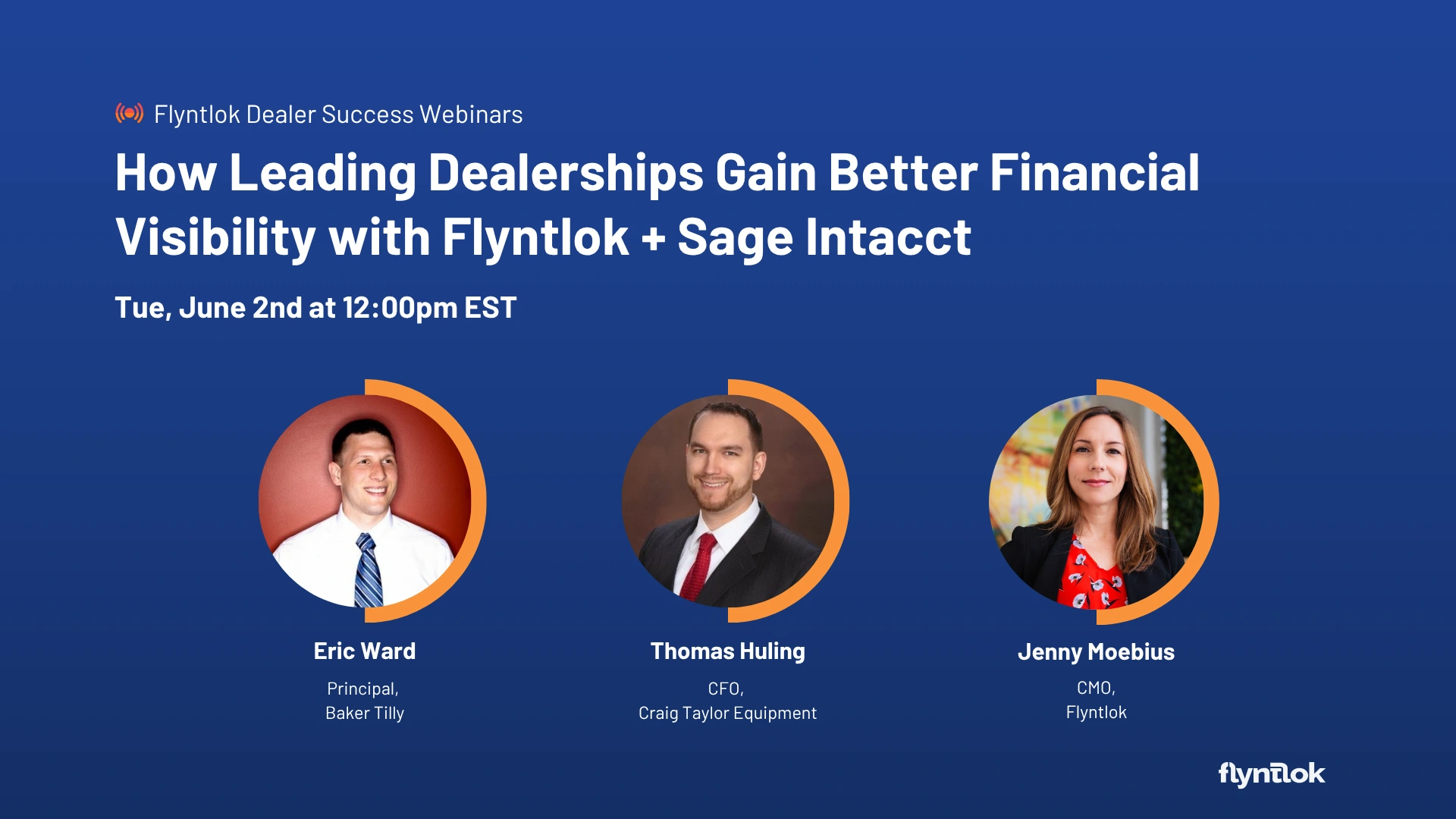
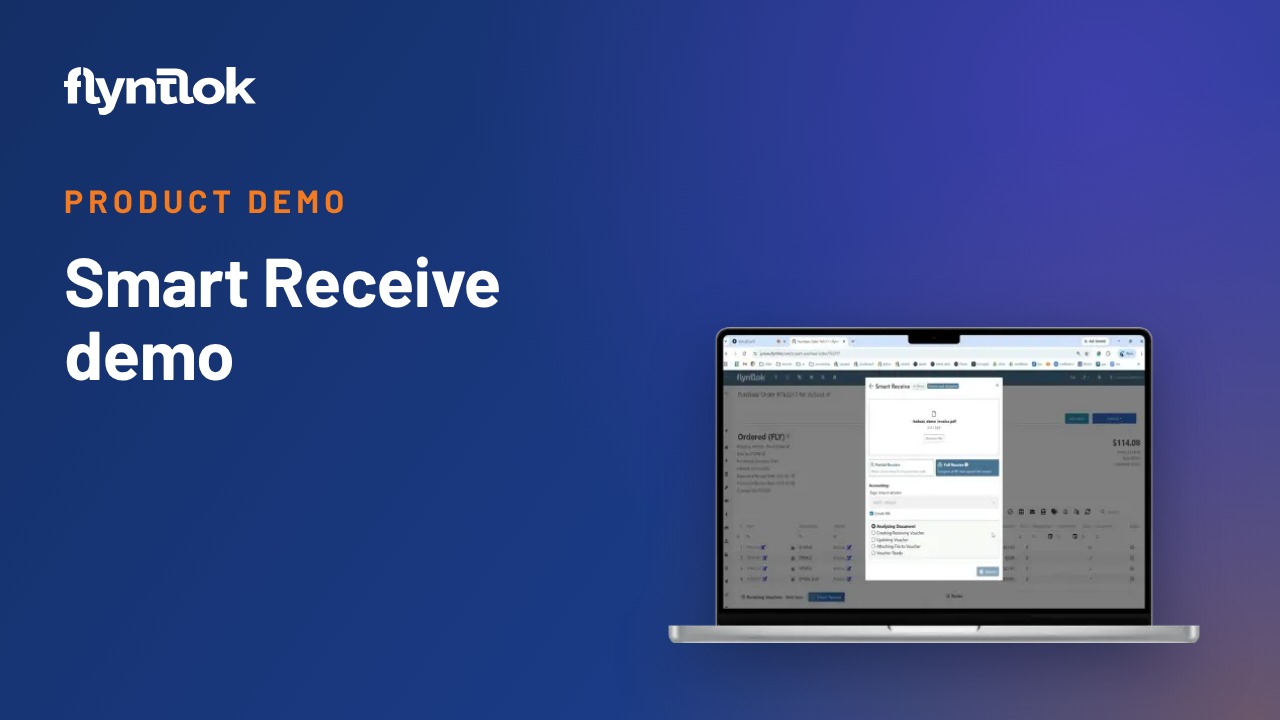
WATCH HERE:
Our Equip Expo AI Session is Now On-Demand!
Flyntlok CRM: Two-Way Email Enters Beta.

From the Flyntlok team
Flyntlok release notes
Hi everyone,
Good customer service starts with a team that has the full picture.
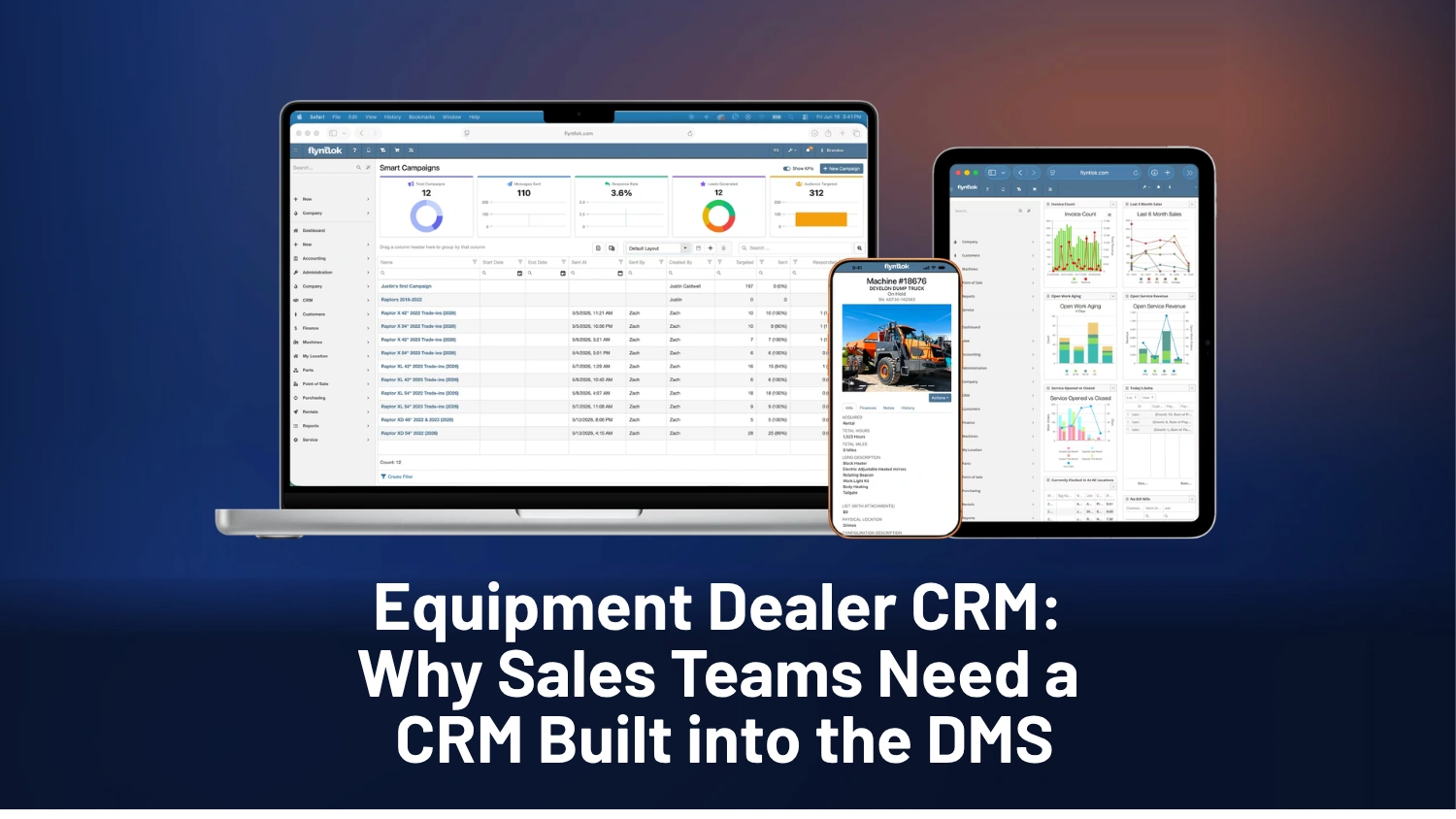
We have a big update that’s been a long time coming: two-way email in Flyntlok CRM is entering beta! Starting with Microsoft 365, the beta lets you send and receive email from your own mailbox, keep conversations connected to customer and lead records, and assign threads to teammates… all from your CRM Inbox. We’re excited to get this into your hands.
What’s more: Same notes. New look. You shared that our release notes were less than easy to navigate, so we’ve added a table of contents and clearer categories to help you jump straight to the updates that matter to your team. Your feedback shapes how we share what’s new, too!
Across the dealership, Smart Receive now works directly from a Receiving Voucher, rental teams can check estimated out-the-door pricing before creating a contract, and service teams get practical improvements that cut clicks and keep work moving.
*Please Note: There will be no release notes on Thanksgiving. For all those who celebrate, enjoy this special time with your families! Our next release is scheduled for Thursday, December 3rd.
Let’s dive in!
Talk soon,
Jenny Moebius
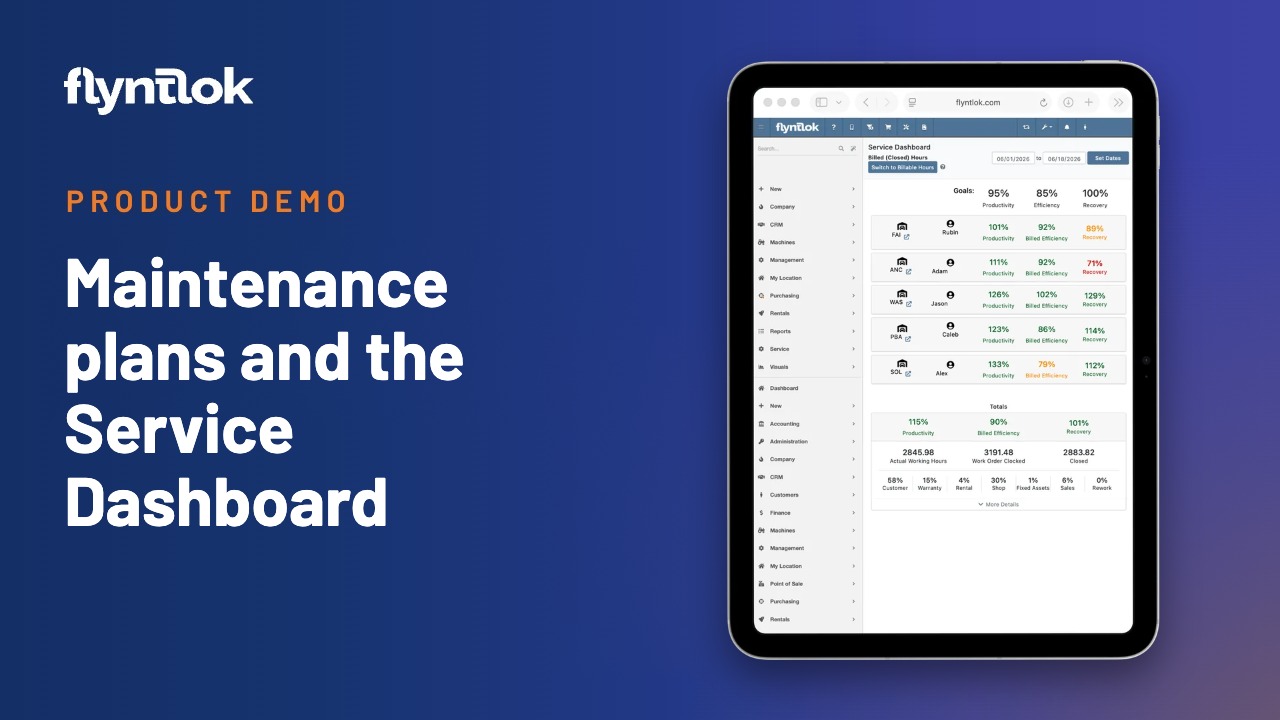
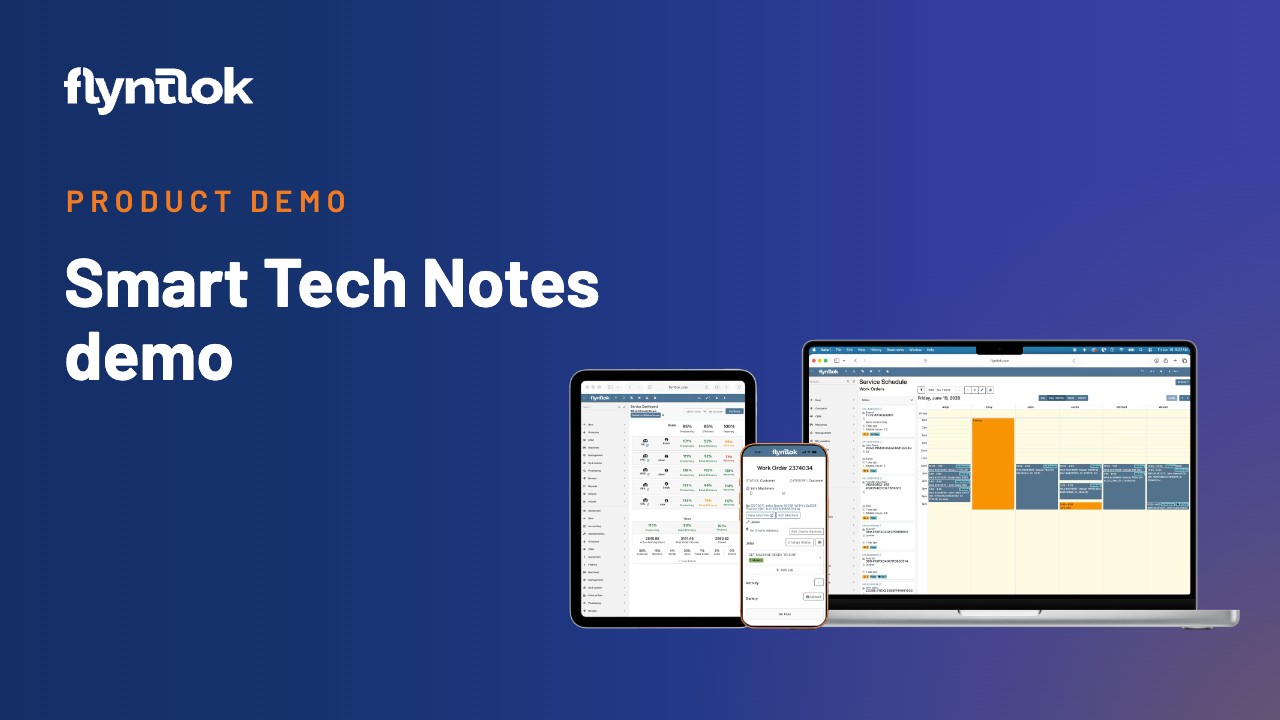
Watch These New 4-10 Minute Product Demos You’ve Been Asking For
Check Out Where Equipment Dealers Can Take Control in an Uneven Market
By MA S. · For Salespeople
What's new
We're excited to open a beta for Two-Way Email, a new way to email customers and leads right from the Flyntlok CRM Inbox.
Here's what it does:
Only mail to and from contacts already in your Flyntlok CRM is stored, and nothing in your mailbox gets changed, moved or deleted. One-way email, quotes and invoices keep working just like they do today.
For now, the beta is focused on Microsoft 365 (Outlook) users, with Google Workspace coming soon!
Want an early look? Open a support ticket and tell us which email provider your dealership uses. We'll take it from there.
By Ula L. · For Salespeople and Service Writers
What's new
You can now find and merge duplicate contacts from one screen. In the Customer Dashboard, click "Scan for duplicates" under the "Customer Information" section. Flyntlok checks every contact in your system and shows the total number of possible duplicates it found, so you can see the full size of the cleanup before you start. From there, you decide which ones to merge.
Contacts that share a phone number, email address, or other details are grouped together, and each group shows side by side, so you can pick the name, phone number, and email address to keep, preview the result, and merge. Weaker matches are flagged for a second look, and when you're sure, you can merge every group on screen at once. Nothing gets lost along the way: the merged contact keeps every Customer and tag, plus all linked records of the original contacts (e.g. Work Orders, Invoices, etc.).
You also decide who on your team can scan and merge. Click the wrench icon in the top right, hover over "Users", and click "Access Control". Under CRM, turn the "Contact Merge Tool" permission on or off.
Why it matters
Duplicate contacts split a customer’s history across several records, so salespeople and service writers miss past conversations, text the wrong number, or log a new contact for someone who is already in the system. Cleaning them up one by one takes hours. Now you can clean up the whole contact list in one session, and each customer’s full history stays attached to one record.


By MA S. · For Salespeople
What's new
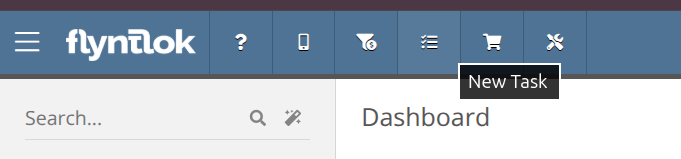
The top navigation bar now has a "New Task" button, next to "New Lead". Click it on any page to open the Tasks page in a new browser tab, with the new task form already open. "New Lead" also opens in a new tab now, so the page you are working on stays open.
Why it matters
Now you can record the task in one click at that moment, and then go back to your work. Fewer follow-ups get forgotten.
By MA S. · For Salespeople
What's new
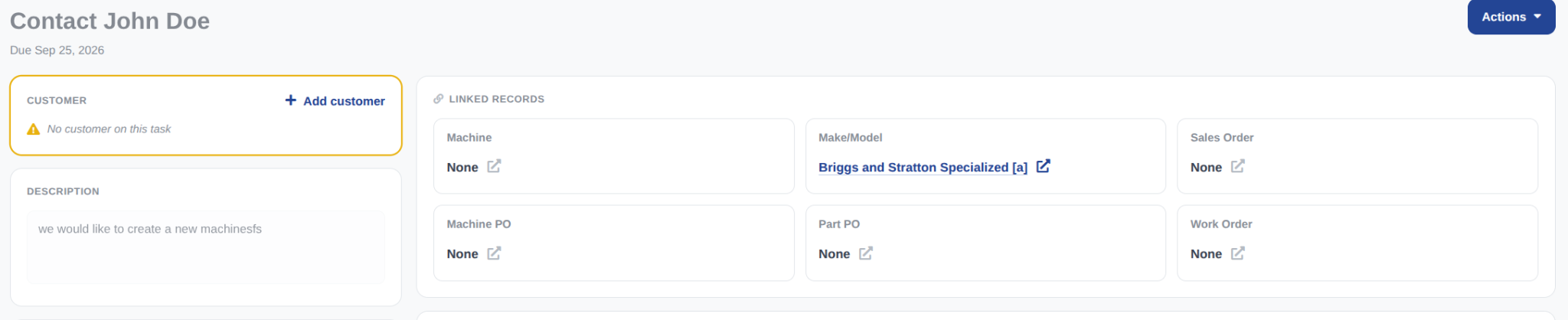
On the Task and Lead details pages, Linked Records now show in a row at the top of the page, above the tabs. Before, they were in the left panel with the other fields. On a Task, each record type (Machine, Make/Model, Sales Order, Machine PO, Part PO, and Work Order) has its own tile, and you can add or change a link from that tile. On a Lead, the same row shows Sales Orders, Models, and Machines. The customer also has its own card near the top of the left panel, and on a task the card warns you when no Customer is linked.
Why it matters
Linked records tell you what a Task or Lead is about: which Machine, which Sales Order, which Work Order. Before, you had to search the left panel to find them. Now they are the first thing you see, above the activity history, so you understand a Task or Lead faster. Empty tiles also show what is not linked yet, so it is easy to add the missing record.

By MA S. · For Salespeople and back-office teams
What's new
Flyntlok can now create a setup Task each time someone adds a new Customer. This includes Customers added from the Customer page, an invoice, a rental contract, or a converted Lead. The Task name shows the Customer, for example "Complete Customer setup for: Acme Rentals". The Task links to the new Customer and has no assignee, so anyone on your back-office team can take it from the Task list. This feature is on by default. If you’d prefer to turn it off, open the Wrench menu > Flyntlok > Flyntlok Settings, and under Sales, turn off "Create a Setup Task for New Customers".
Why it matters
Salespeople often add new Customers out in the field. Then someone in the back office must finish the setup: link the Customer to QuickBooks, and set up taxes and discounts. Before, nothing told that person about the new customer, so the setup was easy to miss. Now each new Customer comes with a task, so the setup does not get lost.

By Calvin M. · For Receivers and Purchasers
What's new
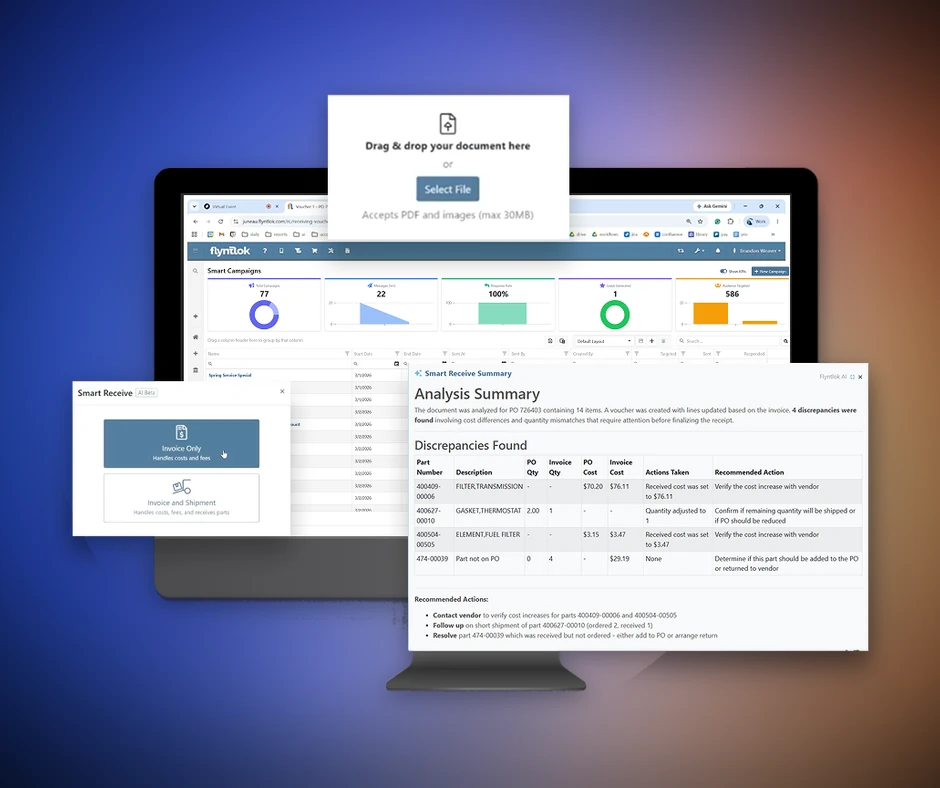
You can now start Smart Receive right from a Receiving Voucher. The Smart Receive button sits next to Receive All and Mark Closed. Choose Invoice, Invoice and Shipment, or Packing Slip, then upload the document. Smart Receive applies it to the voucher you’re on, so there’s no voucher to pick.
Packing Slips and Invoice and Shipment documents now update received quantities on an existing Receiving Voucher, not just costs. Each line’s received quantity is set to match the document. Parts already received on other Receiving Vouchers for the same Purchase Order still count, so nothing gets received twice.
You can also run Smart Receive more than once on the same Receiving Voucher, for example a Packing Slip when the Parts arrive and the Invoice later. The Smart Receive Summary has arrows to step through each run, and each run is labeled with its document type and time. Every run has its own summary and its own thumbs up or down.
Why it matters
Vendors often send the Packing Slip and the Invoice separately, or send a corrected Packing Slip after the first one. Before, Receivers could only use Smart Receive on an existing Receiving Voucher to update costs. Any quantity changes still had to be keyed in by hand. Now Receivers and Purchasers can bring every document for a shipment into the same Receiving Voucher and keep it in sync, with a separate record of what each document changed.

How-to guide: Smart Receive Guide. Run Smart Receive on a Purchase Order or Receiving Voucher and review what each document changed.
By Ben C. · For Purchasers and Receivers
What's new
Mark Ordered, Submit Return, Smart Receive and New Voucher now have their own buttons next to the Actions menu on the Purchase Order. Before, you had to open that menu to find them. All four actions work the same as before.
Each button shows only when it applies to the Purchase Order's current status. This applies to the Receive All and Mark Closed buttons on the Receiving Voucher too.
Why it matters
These are the steps Purchasers and Receivers take most often to move a Purchase Order from ordered to received, but they were in the Actions dropdown. Having them on the page saves a few clicks on every Purchase Order.
On a New Purchase Order:

On an Ordered Purchase Order:

By Calvin M. · For Purchasers and Receivers
What's new
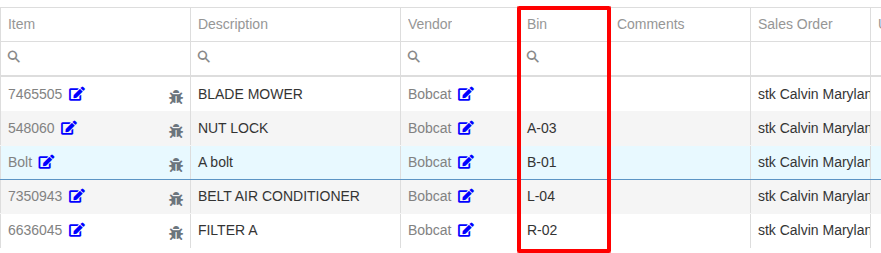
Part Purchase Orders now have a Bin column that shows each line’s bin location. It appears by default at the far right of the grid, and you can drag it anywhere you like to reorder the columns. You can sort and filter by Bin, and the grid search will find Bins too. The Bin column is also included when you export the Purchase Order to Excel.
The Bin location no longer shows in parentheses at the end of the Description.
Why it matters
Before this addition, the Bin location was tacked onto the end of each line’s Description, so Purchasers and Receivers had no way to sort or group lines by Bin. Now that it has its own column, you can sort a Purchase Order by Bin and put received Parts away shelf by shelf instead of moving back and forth across the stockroom.
By Calvin M. · For Receivers and Purchasers
What's new
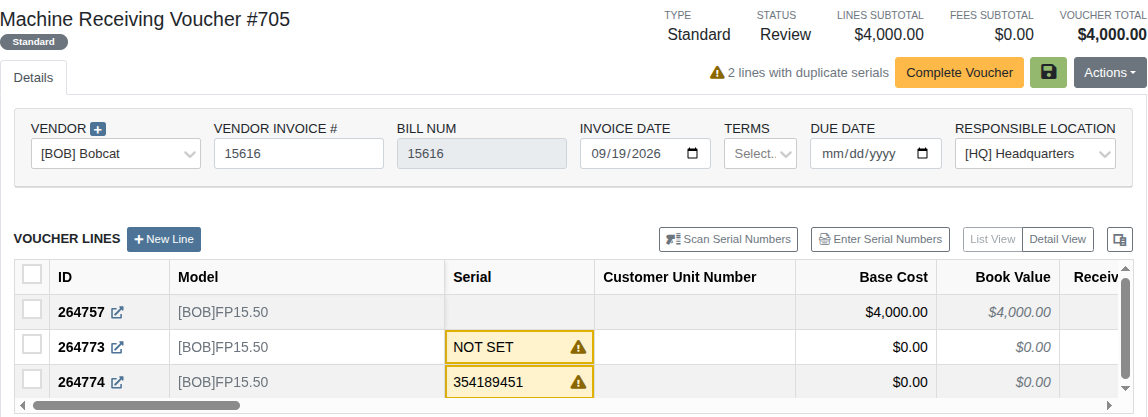
Machine Receiving Vouchers now check serial numbers for duplicates automatically. The check runs when you open a Draft or Review voucher and again each time a serial number change is saved. You no longer need to click the “Validate Serial Numbers” button, so it has been removed.
If a serial number is already on another Machine, the serial cell turns amber and shows a warning icon. A count such as “2 lines with duplicate serials” appears under the voucher summary section in the top right of the page. In Detail View, the Serial field on the affected line shows “Duplicate Serial Number.”
Why it matters
Receivers sometimes entered a serial number that was already in the system, and nothing flagged it unless they remembered to run the check by hand. That could leave the same serial number on two Machines. Now duplicates show up while the voucher is being worked, so Receivers and Purchasers can fix them before completing it. This matches how the New Machine page already flags duplicates.
By Ben C. · For Purchasers
What's new
Vendors now have a Return Cap field on the Vendor edit page, under Minimum Order. When a Vendor has a cap, it shows under the Items total on every Return of Goods for that Vendor. It also shows on the Vendor Dashboard.
If the Items total on a Return of Goods is over the cap, the cap turns red with a warning icon. It's only a warning, so you can still submit the return.
Why it matters
Some Vendors limit the dollar amount of Parts a dealership can return. Before, Purchasers had to remember each Vendor's cap or look it up. Now it's on the Return of Goods, next to the total, the same way Minimum Order shows on a Purchase Order.


By Yara H. · For Rental Clerks
What's new
You can now give an out-the-door quote while you build a Rental Contract. Once you've picked rentable equipment, a location and rental dates, an Estimated Total card prices the rental for you. It appears while you search for and add equipment, and stays on screen when you fill in the contract details.
It updates as you make changes, such as turning Damage Waiver or delivery on or off, changing dates or adding equipment. If a line has no rate set up, the card says so and leaves that line out of the total. Amounts that can't be worked out yet, such as a delivery fee that hasn't been entered, show as TBD.
Why it matters
Before, Rental Clerks had to create a Rental Contract just to see the estimated total. Now they don't need to create a Rental Contract at all. When a Customer asks "what will this cost me out the door?", Rental Clerks can answer right away. They can also try different options to see how the total changes, and spot equipment that's missing a rate before the Customer sees it.

By Yara H. · For Rental Clerks
What's new
Rental Contracts now have an Auto Best Rate option. When it's on, each piece of equipment on the Rental Contract is charged the least expensive mix of its monthly, weekly, daily and hourly rates that covers the rental period. You don't have to work out the least expensive combination yourself.
For example, if a Machine's weekly rate costs less than six daily rates, a six-day rental is charged one week instead of six days.
To have Auto Best Rate on by default for every new Rental Contract, turn on Auto-Select Best Rate Tier in the Billing section of Rental Settings. You can still turn Auto Best Rate on or off while building a Rental Contract, and the Estimated Total updates to match. On an existing Rental Contract, you can switch it from the Billing panel.
Why it matters
Rental Clerks used to compare rate combinations by hand to ensure a Customer was receiving favorable pricing, especially when a Rental ran just short of a full week or month and the weekly or monthly rate would have cost less. Auto Best Rate does that comparison for every line automatically.


By Nick V. · For Rental Managers
What's new
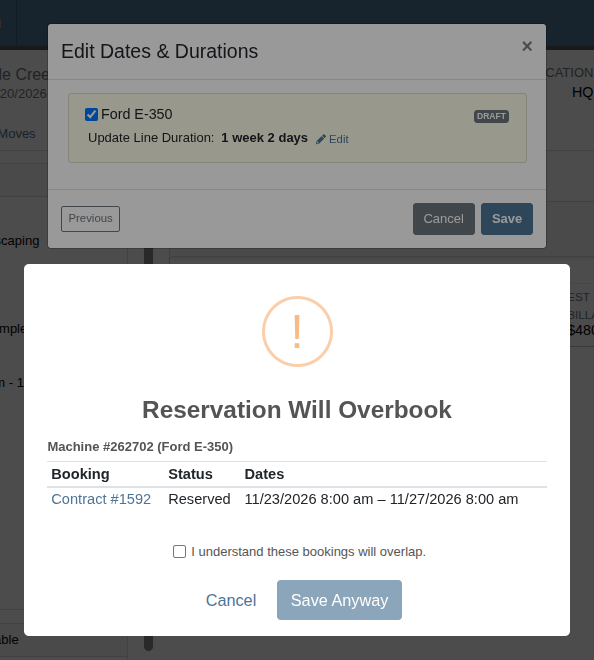
Flyntlok now warns you before a change would double-book a Machine. If the Machine is already on another Rental Contract, a Reservation, or a Work Order for those dates, a warning lists each conflicting booking with its status and dates. Each booking in the list is a link, so you can open it in a new tab and check it before deciding what to do.
The warning appears when you:
Class and Model lines are included in the same warning when you create or reserve a Rental Contract.
You can still proceed when you need to. Check "I understand these bookings will overlap" to confirm. The override is recorded in the Rental Contract's logs along with the bookings it conflicted with, so you can always see who overrode a warning and when:

When creating a new Rental, equipment you've selected additionally shows a warning icon if it's already booked for your dates. Hover over the icon to see what it conflicts with before you create the Rental Contract.

These warning popups are part of the overbooking warning option in Rental Settings. If you already have it turned on, you'll see them right away.
Why it matters
Customers often call to extend a Rental, and it was easy to push the dates into the next Customer's booking without noticing. Changing the dates on a Rental Contract showed no warning at all, and adding a Machine that was already booked only showed a small "Conflict" label. A double-booked Machine might not be found until the next Customer arrives to pick it up.
Now Rental Managers see the conflict as soon as they make the change, with enough detail to decide whether to move the other booking, pick a different Machine or go ahead anyway, while leaving a paper trail.
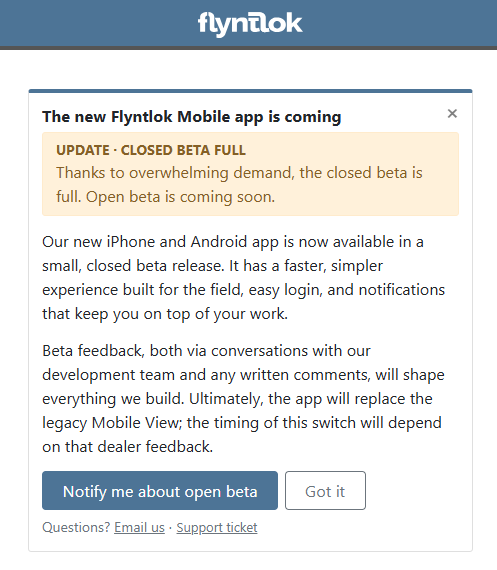
Thank you to everyone who raised a hand for the new Flyntlok mobile app beta! We were honestly overwhelmed by the response, and we're so grateful that so many of you want to help shape what comes next.
We're working on ways to include as many of you as possible, and we'll be in touch with next steps soon. Thanks for your patience and your enthusiasm.
As a reminder, our main focus for this beta launch will be on CRM and Service workflows, with further functionality to follow.
Want to stay in the loop? You can now let us know you'd like updates right from the mobile views in Flyntlok. Just click the Notify button on the existing mobile views to tell us you're interested, and we'll keep you posted as the beta grows. This is for additional interest only; if you’ve filed a support ticket already, we’ve got you!
By Bomby K. · For Service Writers
What's new
When you search for a Job Template in the Add Job window on a Work Order, you can now scroll down the list to load more results. Previously, the list stopped at the first 50 matches. Creating a Job on the mobile Work Order works the same way.
Why it matters
Service Writers with large template libraries couldn't reach templates past the first 50 matches, for example when many templates share the same prefix. They had to guess a more specific search to find the right one. Now every matching template is a scroll away.
By Alex E. · For Service Writers
What's new
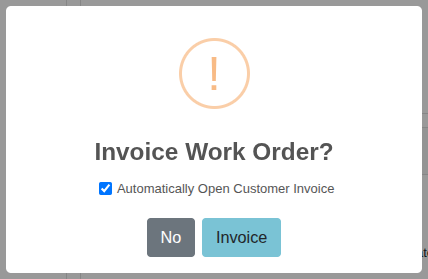
When you invoice a Work Order, the confirmation now has a checkbox that opens the Invoice in a new tab as soon as invoicing finishes. Flyntlok remembers your choice for next time.
Why it matters
Service Writers usually go straight to the Invoice after invoicing a Work Order to take payment or print it. This saves them a few clicks every time.
By Bomby K. · For Purchasers
What's new
Parts request notifications in the notification bell are now shorter and easier to scan. Each one says who requested Parts for which Work Order and job, lists each Part with its quantity on its own line, and then shows the Customer, Machine and shipping method when they're set.
Why it matters
The old notification sometimes repeated the requester, Work Order and job details several times, so Purchasers had to read through a long block of text to find the Parts they needed to pull. The new layout puts the Parts list front and center.

By Bomby K. · For Service Writers
What's new
You can now enter or change the Warranty Claim Number on a Warranty Job after the Work Order has been invoiced.
Why it matters
Manufacturers often issue the claim number after the warranty claim is submitted. Previously, Service Writers had to delete the Invoice just to add the number, then invoice the Work Order again. Now they can fill it in whenever it arrives.
By Bomby K. · For Service Writers and Technicians
What's new
The Parts and Parts Invoices panels on the desktop Work Order now show each Part's list price next to its description and bin. You no longer need to hover over the $ icon to see it.
Why it matters
Service Writers and Technicians check prices constantly while they build a Job. Showing the price inline saves a hover for every Part and makes it easy to compare several Parts at a glance.

By Bomby K. · For Service Writers and Technicians
What's new
On the Work Order Files tab, select the files you want and click Download zip to save them all in one zip file. The Download option still saves each file separately.
Why it matters
Service Writers and Technicians often need every photo from a Work Order on their computer, for example to send with a warranty claim. Saving them one file at a time was slow, and the files ended up scattered across the Downloads folder.

By Bomby K. · For Service Writers
What's new
When you transfer a labor punch to a different Job or a different Work Order, the clock-out note on that punch is now copied to the destination Job. The original Job keeps its copy, so its history stays intact.
Why it matters
Service Writers often split a Job to file a warranty claim. Before, the labor time moved but the Technician's explanation stayed behind, so someone had to retype it. Now the note travels with the labor.
By Bomby K. · For Service Managers
What's new
The Create a Service Truck window now has a Short Code field. Leave it blank to use the first three letters of the truck name, or type your own code. If another location already uses that code, you'll be asked to choose a different one.
Why it matters
Every location needs its own short code. Setting it when the truck is created makes sure a new truck never starts out sharing a code with an existing store and is quickly and easily identifiable.

By Alex E. · For Service Writers
What's new
Invoicing a Work Order that covers multiple Machines is now about 4 to 5 seconds faster.
Why it matters
Service Writers invoicing multi-Machine Work Orders were waiting several seconds longer than for single-Machine Work Orders. Now they finish in about the same time, so less time is spent waiting on a loading screen.
By Alex E. · For Technicians and Service Writers
What's new
Work Order QR codes on PDFs now check what device scanned them. Scanning with a phone opens the mobile Work Order. Scanning with a tablet or computer opens the full desktop Work Order.
This applies to QR codes on the Work Order Worksheet, the internal Work Order report, Work Order labels, Machine tags, and thermal receipts.
Why it matters
Technicians scanning from a phone in the shop get the mobile view built for small screens, while Service Writers and Technicians on a tablet or computer get the full Work Order. Everyone gets the view that suits how they're working, with no settings to manage.
Note: This applies to newly printed documents. QR codes printed before this update are not affected.
By Bomby K. · For Accountants and Sales Managers
What's new
The Cost of Sale section of the Machine balance sheet now includes trade-in overallowance. Each overallowance line shows the date and the Sales Order number, and links to that Sales Order.
Why it matters
Overallowance is part of what a Machine really cost the dealership. Accountants and Sales Managers can now see it on the balance sheet next to the other Cost of Sale lines, without pulling up the Sales Order separately.
By Ben C.
Complaint: Inventory Managers reported that the Allocated quantity showed 0 for Items with allocated quantities while counting an inventory sprint.
Correction: Fixed. The allocated quantity for each Item now displays properly when doing sprints.
By Nick V.
Complaint: Rental managers reported that in some cases, checking in a replacement unit could add an extra day to the Billable Duration.
Correction: Fixed. The Billable Duration for a replacement Machine now starts the day after the last period already billed on the Rental Contract. The last billed day is no longer charged twice.
By Nick V.
Complaint: Rental managers reported that in some cases, checking in a replacement unit could be underbilled if it was covered by a second billing from the original Machine.
Correction: Fixed. Check-In workflows now start the replacement Machine's duration from the last day the original Machine itself was billed for, instead of the previous billing period's end.
By Nick V.
Complaint: Managers reported that the Rental Utilization report showed too few rented days, sometimes zero, for Machines still out on long-term Rental Contracts or on Rental Contracts with a mid-rental rate change.
Correction: Fixed. The report now shows the correct rented days and amounts.
By Nick V.
Complaint: Rental managers reported that hourly rentals charged an overage even when usage was within the rental schedule's allowance.
Correction: Fixed. Machines and Items added to a Rental Contract now respect the schedule's hourly allowance.
By Nick V.
Complaint: Rental managers reported that closing a Rental Contract didn't apply the full deposit to fees and taxes on the final Invoice.
Correction: Fixed. The deposit now applies up to the full total of the final Invoice.
By Nick V.
Complaint: Salespeople reported that copying a Sales Order for a Customer billed in a foreign currency created a new Sales Order in the dealership's own currency.
Correction: Fixed. Copied Sales Orders now keep the original's currency.
By Ben C.
Complaint: Purchasers reported that special-order Parts were showing on the To Be Ordered list after they had been removed from the Sales Order, which made it hard to tell what still needed to be ordered.
Correction: Fixed. If a special-order Part is removed from a Sales Order while it's on a Purchase Order, it is now cancelled when it's extracted from that Purchase Order or the Purchase Order is cancelled. It no longer goes back to the To Be Ordered list.
By Bomby K.
Complaint: Managers reported that generating an Invoice from the Consignment Dashboard always showed a "Couldn't Invoice Changes" error, even though the Invoice was created.
Correction: Fixed. The new Invoice now opens without an error, and the Location Invoices list updates right away without a page reload.
By Bomby K.
Complaint: Service Managers reported that a Work Order and the All Work Orders report stopped loading after a labor punch was saved with an invalid year, such as 0206.
Correction: Fixed. When you add or edit labor, the clock in and clock out times must now be on or after January 1, 2000 and no more than one year in the future.
By Bomby K.
Complaint: Technicians reported that a Tech Notes voice recording stopped at about one minute without warning, and that recording again replaced what they had already said.
Correction: Fixed. When a recording reaches the time limit, you can now continue recording, and the new part is added to the first one instead of replacing it. This works on both the desktop and mobile Work Order.
By Bomby K.
Complaint: Service Writers reported that Parts on a Work Order quote showed up on the thermal pick ticket, even though the Customer hadn't approved them yet.
Correction: Fixed. Pick tickets now leave out Parts from quotes that haven't been accepted.
By Bomby K.
Complaint: Managers reported that a Machine attached to another Machine could be moved by itself, which left the attachment at a different location than the Machine it belongs to.
Correction: Fixed. When assigning a machine for a move, attached Machines are now blocked with a message to move the parent Machine instead, or to detach the attachment first.
By Bomby K.
Complaint: Service Managers reported that some Jobs on the Service Scheduler couldn't be resized. Jobs that ended after 6 PM, or started before 6 AM, were cut off at the edge of the day and had no resize handle.
Correction: Fixed. The day view now stretches to show the whole Job, so you can drag its end to resize it.
We ship a release about every two weeks, so the next one isn’t far off. In the meantime, click the ? icon anywhere in Flyntlok to open a support ticket, and you can expect a reply from our help desk within minutes.
The Flyntlok team
Two-way email in the Flyntlok CRM Inbox is entering beta, starting with Microsoft 365. The release also adds a tool to find and merge duplicate contacts, Smart Receive directly on a Receiving Voucher, and estimated out-the-door totals and Auto Best Rate for Rental Contracts, plus 14 fixes.
Open a support ticket and tell us which email provider your dealership uses. For now, the beta is focused on Microsoft 365 (Outlook) users, with Google Workspace coming soon.
Users with the Contact Merge Tool permission. To change it, click the wrench icon in the top right, hover over Users, click Access Control, and turn Contact Merge Tool on or off under CRM.
No. The merged contact keeps every Customer and tag, plus all linked records of the original contacts, such as Work Orders and Invoices.
About every two weeks. The five most recent releases came out on September 17, October 1, October 15, October 29 and November 12, 2026. See every release.
Every release note shows what changed and why it matters. A lot of it starts with dealers, in office hours and support tickets.
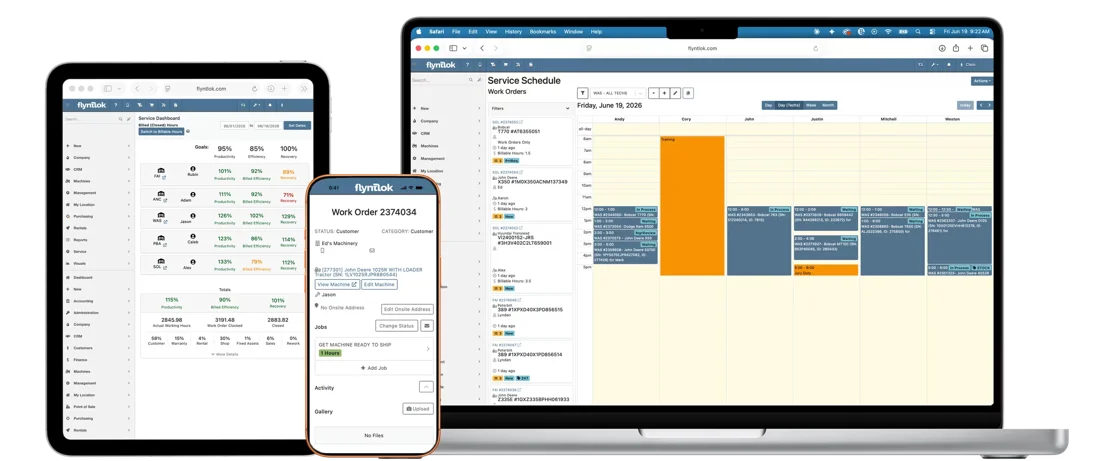
Flyntlok Mobile enters closed beta, starting with Sales and CRM. Plus Inbox conversation assignment, clearer rental availability, warranty Labor Types that fill in on their own, a new Payment Types editor and 17 fixes.