WATCH HERE:
Our Equip Expo AI Session is Now On-Demand!
This week's Flyntlok lineup is set.
From the Flyntlok team
Flyntlok release notes
Your fantasy lineup might still be a work in progress, but this week’s Flyntlok lineup is set. 🏈
We’re starting AI-powered Spanish-to-English Tech Notes, smarter SMS tools for sales, new accounting controls, better rental estimates, and plenty of workflow improvements across the dealership.
Here are a few worth putting in your starting lineup:
Let’s get into it!
What's New!
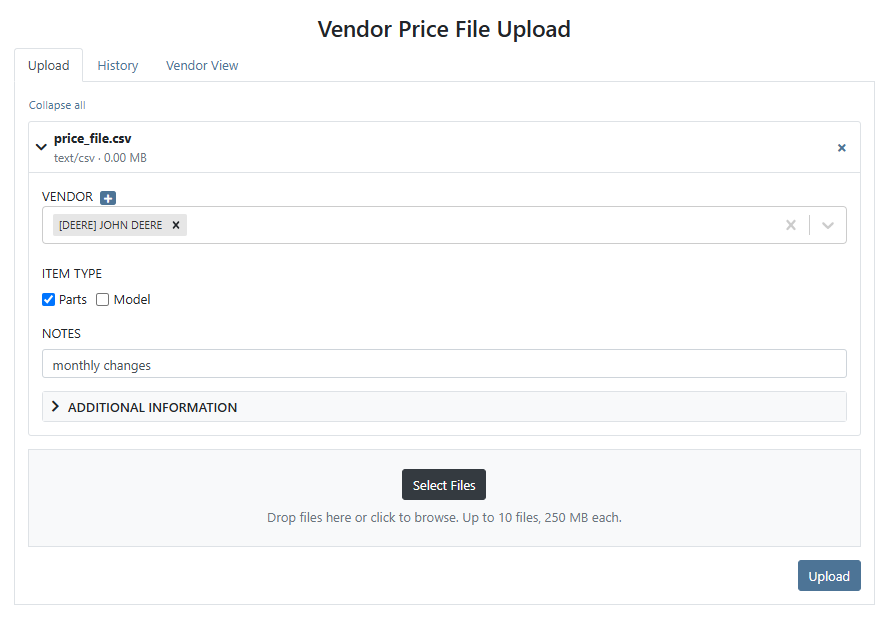
The Price File Portal is your new home for submitting vendor price files to Flyntlok. Instead of emailing files to us and waiting to hear back, upload directly through the portal, confirm its receipt and see status changes as they happen.
More than half of our dealerships have already made the switch, and the results speak for themselves: files are processed faster, issues are caught sooner, and there's no more wondering whether an email attachment landed in the right place.
The portal also keeps a full history of every price file you've submitted — who uploaded it, when, and what happened to it — so you can look back at any time without digging through email threads.
Why It Matters:
Price file updates touch every part the dealership sells and every quote a salesperson builds. When a file sits in an email inbox waiting to be picked up manually, pricing across the system stays stale until someone gets to it. The portal removes that wait by feeding files directly into automated processing, which means your catalog reflects current pricing sooner.
Real-time status tracking means no more follow-up emails asking "did you get my file?" or "when will it be loaded?" — you can see exactly where your file stands at any point. And with the full submission history available on demand, auditing a past price change or retracing a vendor update is a quick lookup instead of a search through old emails.
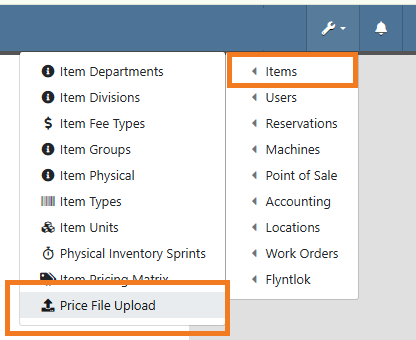
While we are continuing to accept price files via email, over the next several months we will be shifting further towards the price file portal, so this is a great time to check it out if you haven’t already. Admin users can find the portal in the wrench menu in the upper-right corner, under Items.
By Bomby K.
What’s New!
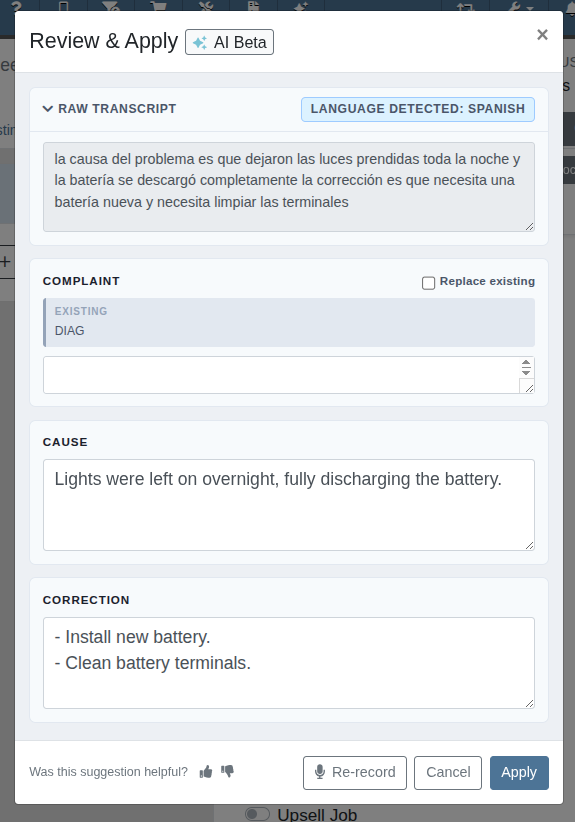
Tech Notes now officially support Spanish-to-English translation. Technicians who dictate or type their notes in Spanish (or mix Spanish and English) will receive clean, professional English service-writer prose from the AI enhancement.
This works across all Tech Notes entry points: voice dictation, typed Complaint, Cause, Correction, and Job Notes. Mixed-language input is handled naturally, so common English shop terms like part names and repair abbreviations are preserved as-is while the surrounding Spanish is translated.
Why It Matters:
In many shops, technicians are most comfortable describing repairs in Spanish, but Work Orders need to be readable by the entire service team: Service Writers, Managers, and Customers. Previously, Technicians either had to write in English or rely on someone else to translate their notes. Now they can document repairs in the language that comes naturally, and the AI enhancement handles the rest!
By Bomby K.
What’s New!
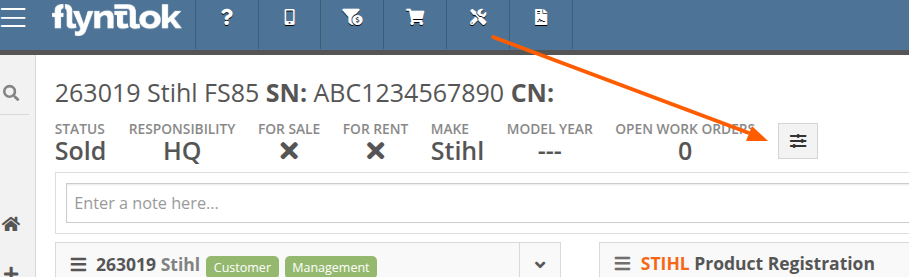
The Machine Dashboard now features a fully customizable stats layout. Instead of a fixed set of fields, Managers and Salespeople can choose exactly which data points appear in the header area at the top of a Machine's dashboard. Want to see Advertise status front and center with a clear visual indicator? Add it. Prefer to highlight days on lot, physical location, or any other stat? Configure the header to match how your team actually works.
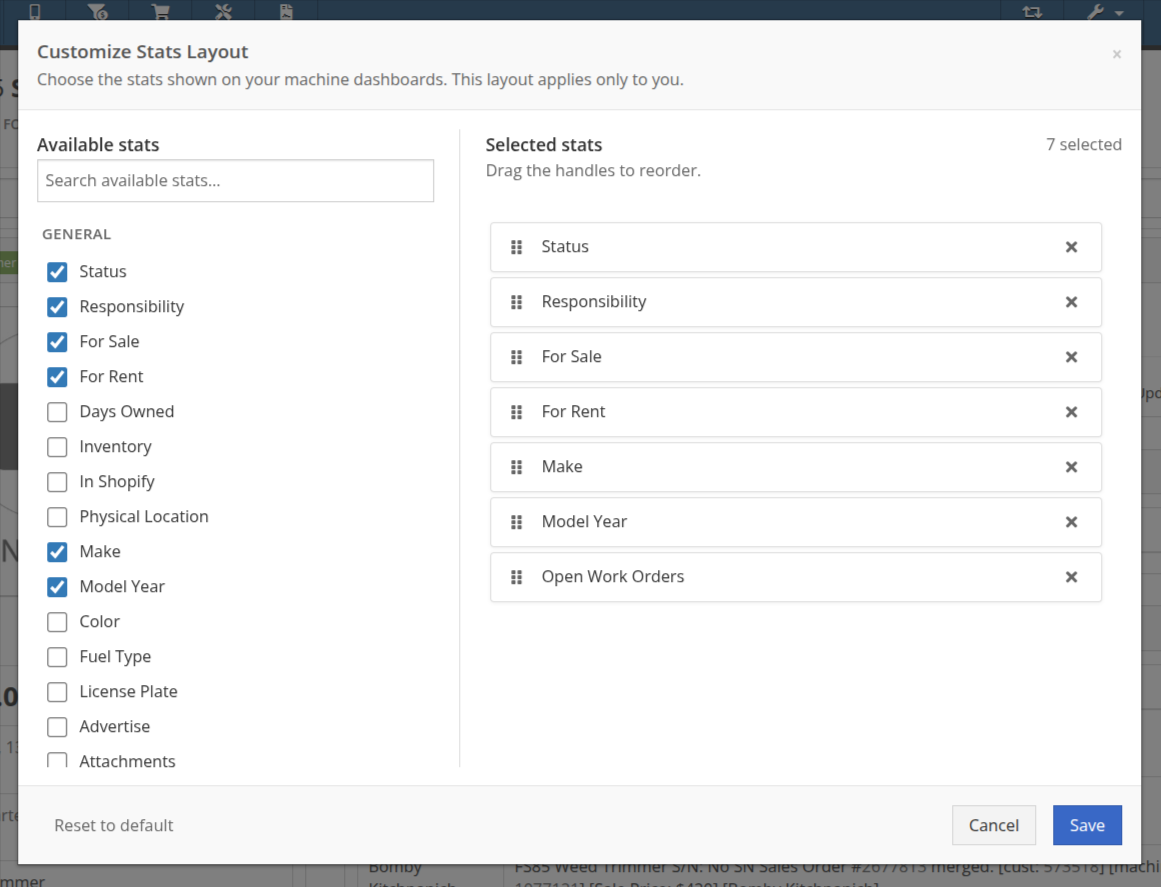
Why It Matters:
Every dealership prioritizes different information when reviewing their Machines. A rental-heavy operation might want to see availability and contract status up front, while a sales-focused team cares more about days on lot and margin. Until now, the header showed the same fields for everyone. With this customizable stats bar, each team can tailor the Machine Dashboard to surface the metrics that drive their decisions -- no more scrolling past irrelevant data to find what matters.
By Bomby K.
What’s New!
Work Order barcodes on Machine Tags, Thermal Pick Tickets, and Thermal Tickets now optionally include a "W" prefix in the barcode payload, so scanning any of these printed documents routes directly to the Work Order in the search bar.
Why It Matters:
Service Writers and Technicians who scan printed Work Order documents at the shop counter or on the floor can now scan any of these printouts and land on the right Work Order immediately by using the search bar from any page.
Currently, you must enable this via a new Prefix Work Order Barcode setting available under Flyntlok Settings. In the coming weeks, the change will be applied at all dealerships.
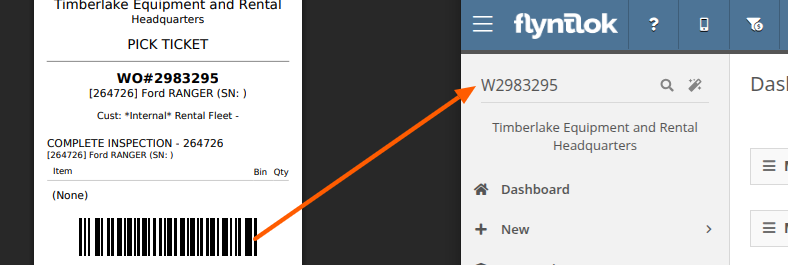
By Bomby K.
What’s New!
Admins can now grant Technicians the ability to add, edit, and delete labor lines on Work Orders while restricting them to only their own time entries. Three new permissions are available in the access control settings under Work Order:
Why It Matters:
Previously, labor editing was all-or-nothing: a Technician could either edit everyone's labor or no one's, including their own. Shops where Technicians accidentally logged hours under the wrong name had no way to prevent it without also taking away the ability to correct their own entries. Service Managers can now give Technicians self-service control over their own time while keeping other Technicians' records protected.
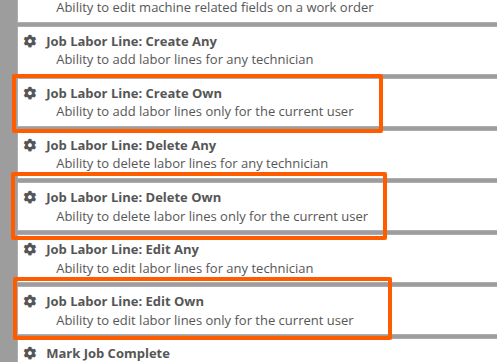
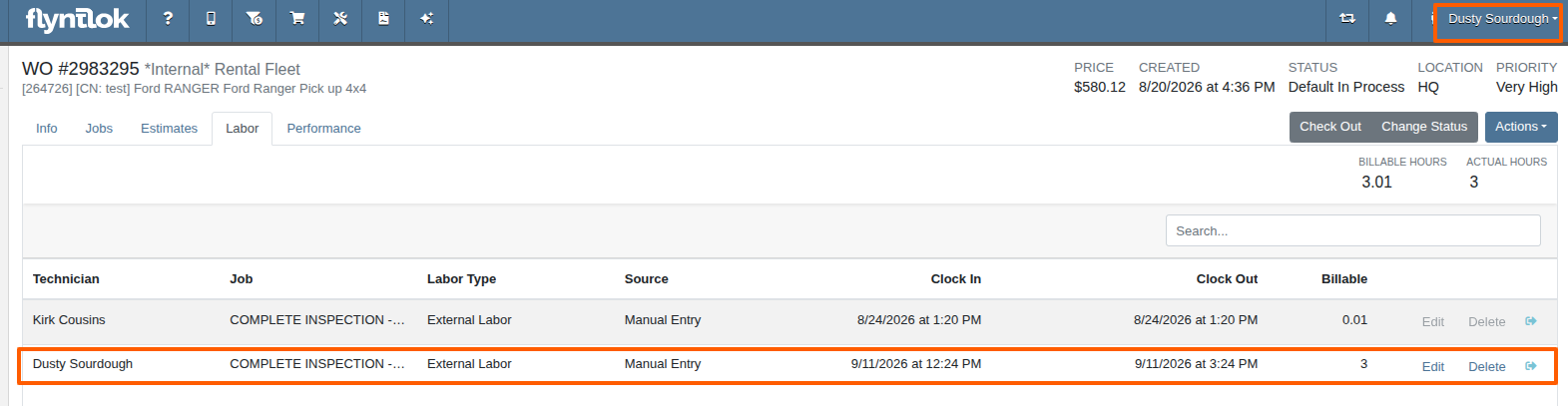
With the "edit own" permission enabled, users can edit their own labor records. The others are restricted.
Bomby K.
What’s New!
The Request Parts modal on Work Orders now supports a streamlined keyboard-driven workflow. After selecting a Part in the search field, pressing Tab moves the cursor to a quantity field where the quantity can be set before adding the line. After adding, the cursor returns to the Part search field, ready for the next entry. This matches the familiar tab-to-quantity behavior on the Point of Sale page. The flow respects the existing user setting for whether Tab or Enter triggers the add action.
Why It Matters:
Technicians and Service Writers requesting Parts from a Work Order previously had to search for a Part, add it, then scroll down to adjust the quantity separately. For multi-line requests, this back-and-forth added up. The new flow lets Technicians stay on the keyboard, entering Part after Part with the correct quantities without reaching for the mouse between each line.
By Alex E.
What's New!
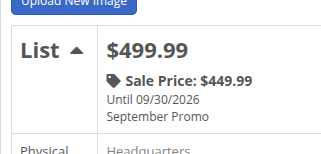
The Machine Dashboard now shows an active Sale Price directly beneath the List Price, along with the date the sale runs through and any note attached to it.
Sale pricing set at the Model level is now included as well. If a Machine doesn't have its own sale price, but its Model is on sale, that Model sale price is what appears on the Machine Dashboard.
Why It Matters:
Salespeople had to expand the financial details on the Machine Dashboard to see whether a Machine was discounted, and a sale set on the Model never appeared on the Machine at all — meaning a Machine could be on sale with nothing on its dashboard to show it. Now the sale price sits right under the list price, so anyone pulling up a Machine sees the current selling price and how long it's good for without digging.
Note: When both the Machine and its Model have an active sale price, the Machine's own sale price takes priority.
By MA S.
What's New!
The SMS Inbox now works the way salespeople actually do — filtered, saved, notified, and mobile.
User Filters — Filter the SMS Inbox by any dealership user who took part in a conversation. Salespeople see only their own threads; Sales Managers filter to one team member to check on outreach.
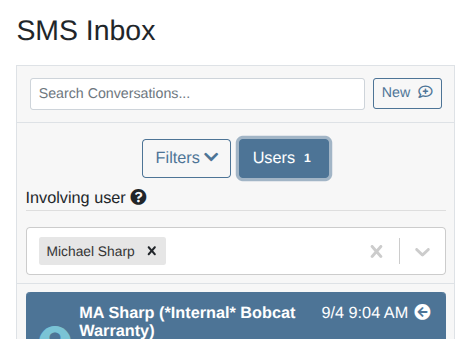
Deeplinks and Direct Bookmarks — Every filter you apply now appears in the Flyntlok URL. Copy it, send it to a teammate, or bookmark it and come back to the same view tomorrow morning.

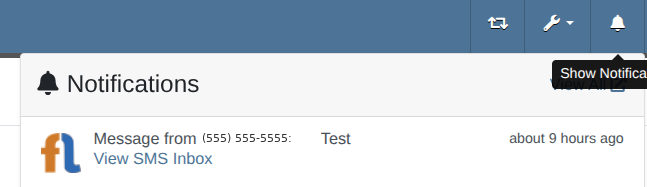
Primary Salesperson Notifications — Flyntlok now sends a notification to a Customer's Primary Salesperson whenever your dealership receives a text from any Contact on that Customer. To set one, open the Customer, choose Edit in the actions dropdown, go to Associated Salesperson, and check "primary."
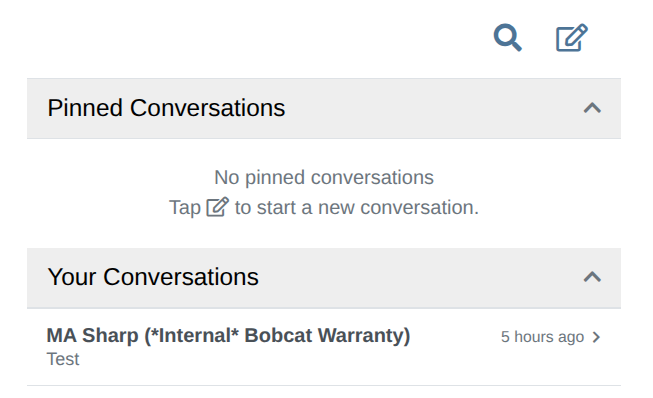
Your Conversations on Mobile — Mobile SMS Conversations has a new "Your Conversations" section. It collects the conversations you have taken part in, plus every conversation with a Customer that names you as the Primary Salesperson.
Why It Matters:
An inbound text used to wait for somebody to open the SMS Inbox and find it. Now the Salesperson who owns the relationship gets notified as the message arrives, can find the conversation instantly with a saved filter or a single tap on mobile, and can share that view with a manager by sending a link. On your highest-value accounts, that turns a missed text into a live conversation.
By Ula L.
What’s New!
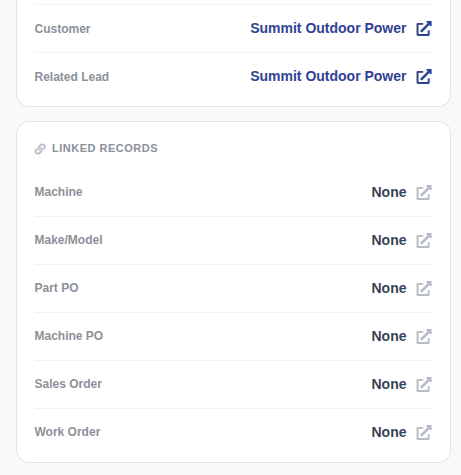
The CRM task details page has a new "Linked Records" card in the left panel. It holds the Machine and make/model links, plus four new links: Sales Order, Work Order, Machine PO, and Part PO.
Why It Matters:
A CRM Task now points at the record the work is really about, and one card holds every link in one place. One click opens that record, so a follow-up call, a parts question, or a delivery check stays a single step. When a Task changes hands between sales, parts, and service, the context travels with it.
By Ula L.
What’s New!
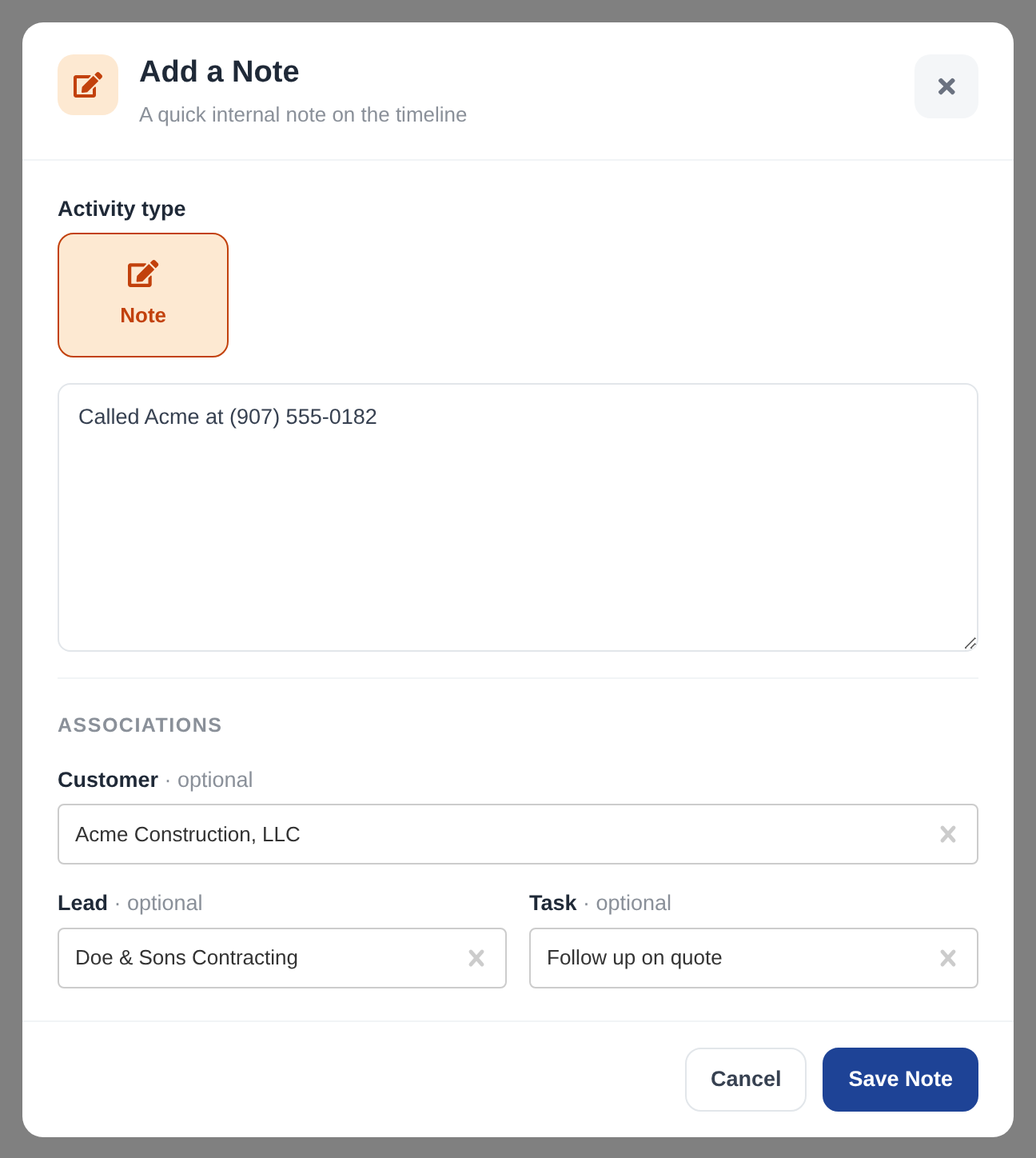
The log activity dialog already opened on its own for a click-to-call on the Tasks pages. It now does the same on the Leads pages: the Leads table and the Lead dashboard header. The dialog opens with the Customer and Lead that the record carries already selected as associations, and with the call note already written. The salesperson can add more text to the note and also optionally choose a Task to associate it to. The saved note then appears as an activity on every record it associates to.
Why It Matters:
Salespeople forget to log a call, because the next deal takes their attention first. The activity dialog now opens on the screen while the call happens, and it already holds the associated Customer and Lead. The salesperson types the result of the call and saves, with no trip to another page. Call notes reach the correct Customer and Lead the same day, so Sales Managers read a true record of the outreach instead of an empty one.
By Ula L.
What’s New!
The customer edit page now has two buttons under the last name field: "Update Primary Contact Name" and "Update Accounting Contact Name". Each button copies the first name and the last name into each contact field in one click. A button is disabled when the contact field already matches the customer name, and its tooltip shows the exact value the click will set.
Why It Matters:
When a Customer is also their own primary contact and accounting contact, the same name sits in three fields. Users can now correct the name once and copy it to both contact fields in two clicks, instead of retyping it in each field and risking a mismatch.

Equipment Dealer CRM: Why Sales Teams Need a CRM Built into the DMS
By Bobby S.
What's New!
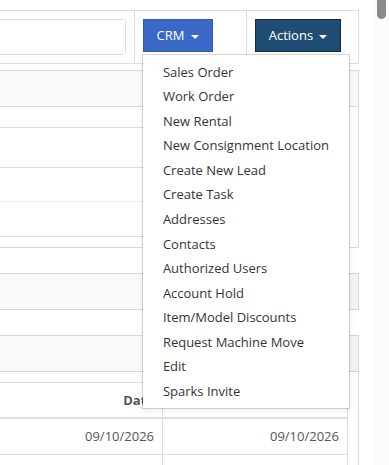
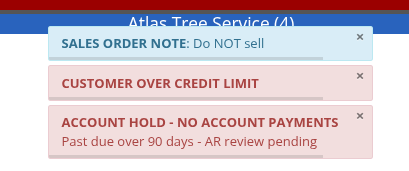
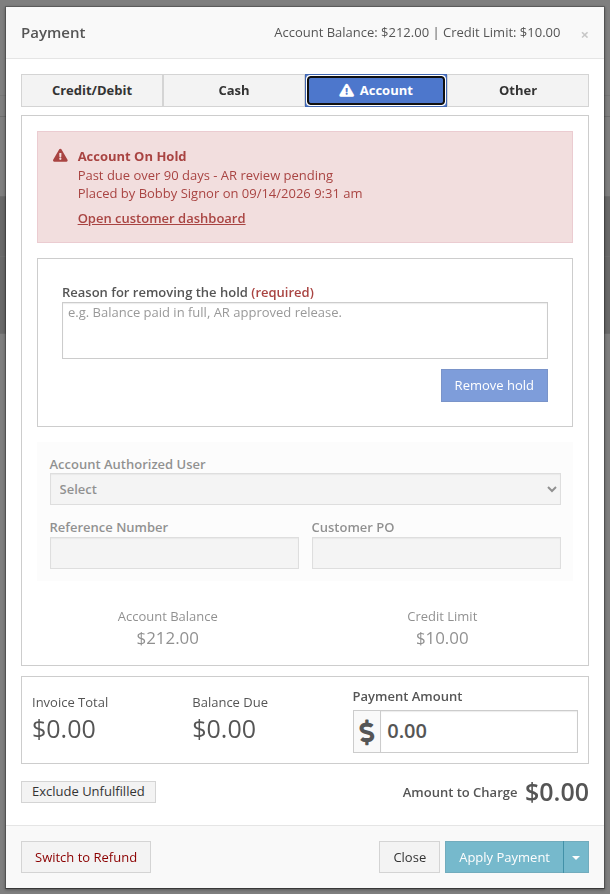
You can now place an Account Hold on a Customer to stop charge-to-account payments without deactivating the Customer’s account. The hold is placed from the Customer Dashboard action menu, and a reason is required — that reason travels with the hold everywhere it appears. Releasing the hold works the same way, and every place and release is recorded in the Customer's hold history and Action Log, so there's a permanent record of who blocked the account, when, and why.
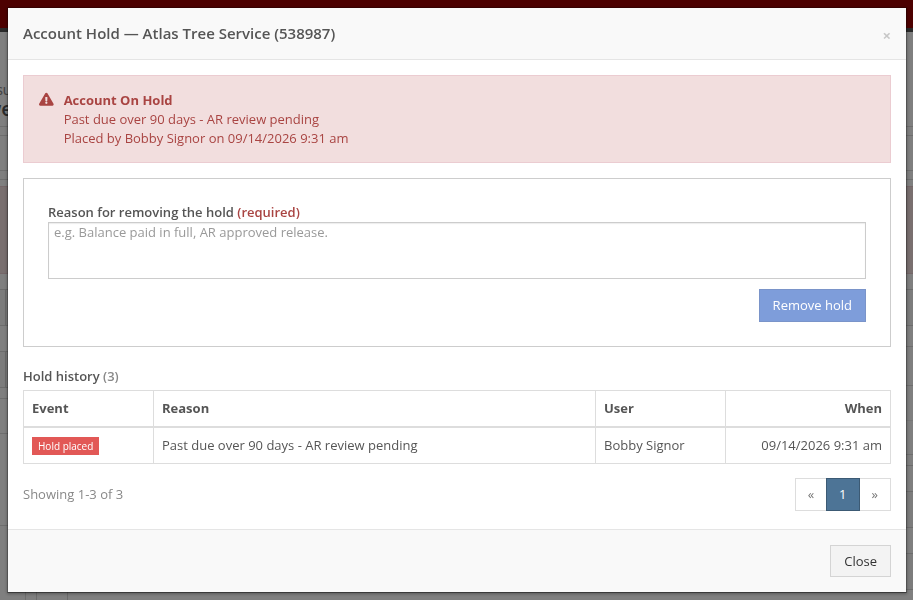
Once a hold is in place, the Customer shows an "Account Hold — No Account Payments" alert with the reason in the Point of Sale Customer drawer, so Salespeople see it before they get to the payment step. The Account payment tab stays reachable and explains why the payment is being refused rather than silently hiding the option, and anyone with permission can release the hold right there on the Point of Sale.
Why It Matters:
Accountants needed a way to freeze charge-to-account privileges for a Customer who was past due or in dispute, and previously the only tool available was disabling the Customer’s account. Account Holds narrow the action to address this specific issue. Salespeople find out about the restriction at the counter, with the reason attached, instead of discovering a payment failure mid-transaction. The hold history gives Managers a clear audit trail when a Customer asks why their account was restricted.
By Brenden B.
What's New!
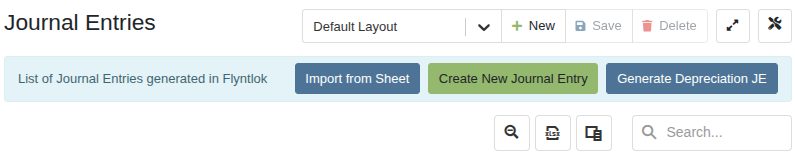
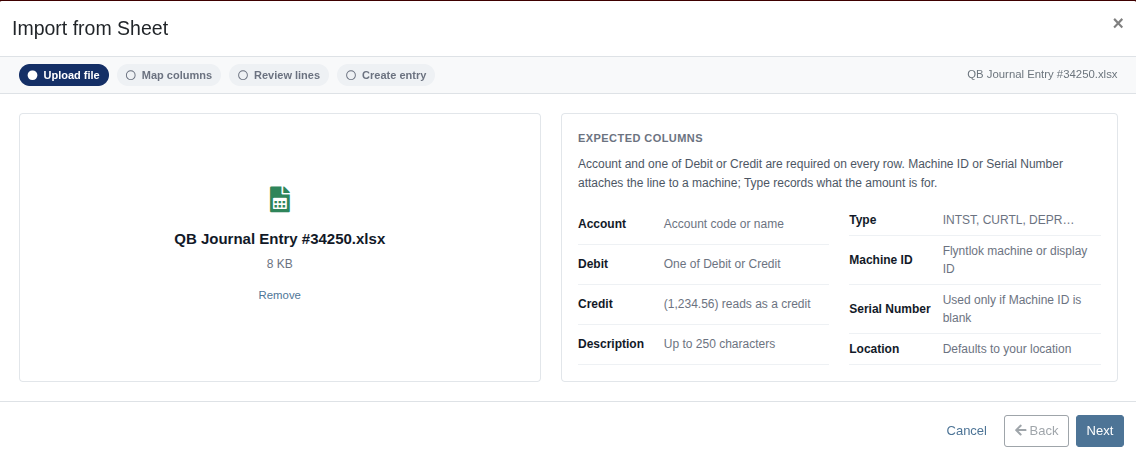
The Journal Entries page has a new Import from Sheet button. Drop in a spreadsheet and Flyntlok does the work for you: it reads the sheet, matches your column headers to the journal entry fields, matches each row's text against your records, and then creates the journal entry draft with every line filled in.
Flyntlok matches the values in your sheet to the real records behind them — the Account, Type, Machine (by Flyntlok ID, display ID, or Serial Number), Location, Customer or Vendor Name, and Class or Department. Anything it can't match with confidence is flagged on the Review Lines step, where you can edit the fields or exclude the row entirely. A running total shows Debits against Credits so you know whether the entry balances before you create it.
Why It Matters:
Accountants posting monthly floor plan interest were hand-keying a separate line for every financed machine — often more than 100 lines a month, across several lenders, where the only thing changing row to row was the amount and the machine. That work now comes straight off the lender statement you already downloaded.
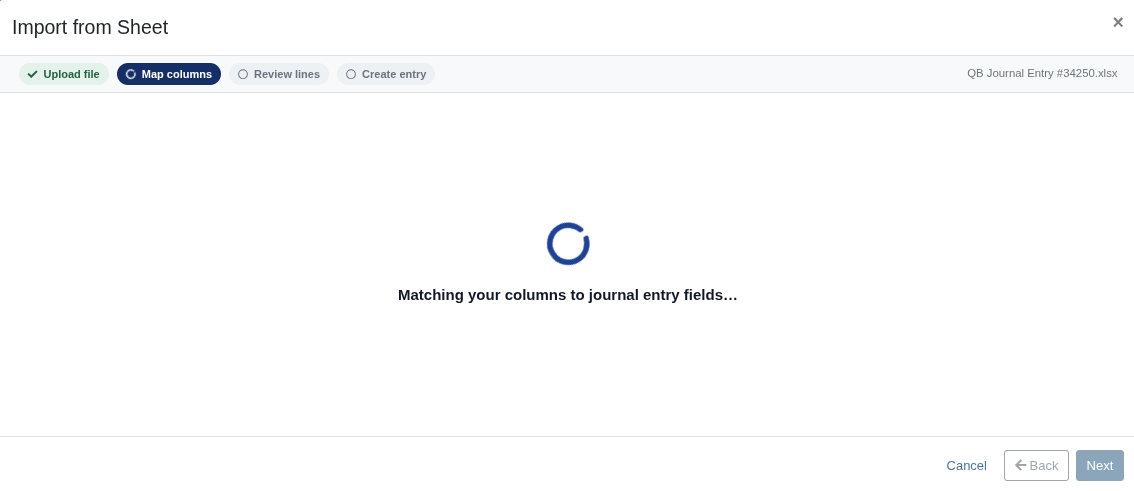
Watch the 20-second video walkthrough here!
How Multi-Location Equipment Dealers Can Grow Without Losing Visibility or Control
By Yara H.
What’s New!
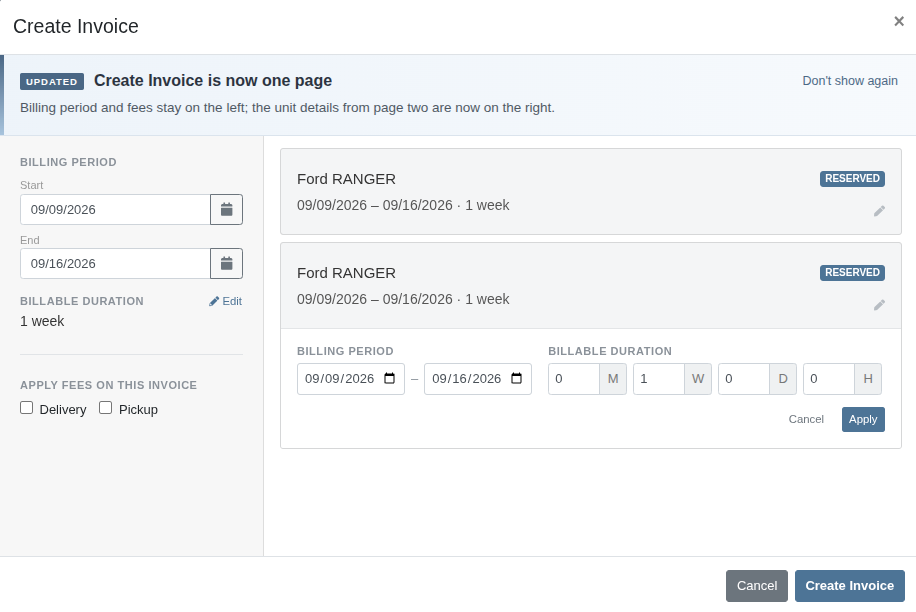
Creating an interim Invoice from a Rental Contract is now a single screen instead of a two-step form. The billing period, billable duration, and fees sit on the left. The units on the contract sit on the right, each showing its billing period and duration at a glance. The billable duration is now calculated for you from the billing period you enter. If you need something different, an Edit option lets you set the exact months, weeks, days, and hours you prefer.
Why It Matters:
Rental Clerks previously entered the same dates and durations in several places across two pages before they could review and create the Invoice. Consolidating everything onto one page means fewer clicks, less retyping, and less chance of the header and the individual lines disagreeing with each other.
By Yara H.
What’s New!
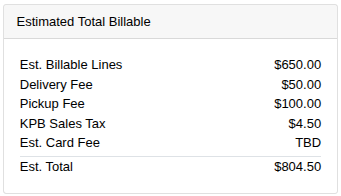
The Estimated Total Billable on the Rental Contract page is now an out-the-door number. Alongside the line totals, damage waiver, delivery, and pickup fees you saw before, the estimate now adds the concession fee, estimated taxes, and the card fee where those apply. Each is shown as its own row in the Est. Billable Totals card, and the total in the page header has an info tooltip that spells out what's included. When an amount can't be known in advance, the estimate says so instead of leaving it out silently.
Why It Matters:
Rental Clerks are often asked for an out-the-door price at reservation and check-out, but the previous on-screen number only covered lines, damage waiver, delivery, and pickup. Taxes, concession fees, and card fees showed up on the final Invoice, so the amount billed could be noticeably higher than what was quoted.
By Calvin M.
What’s New!
The daily Bobcat Parts Trading Network export now includes your dealership's name in the email subject line to support recent updates to the Parts Trading Network. Managers requested this change due to recent changes from Bobcat allowing automatic uploads.
Why It Matters:
Bobcat changed how they handle uploads for the Parts Trading Network. They now allow automatic uploads but require the submitting company's name in the subject line for the inventory CSV file to be accepted. Without these changes, dealers may have their daily parts availability file rejected.
By Ben C.
What’s New!
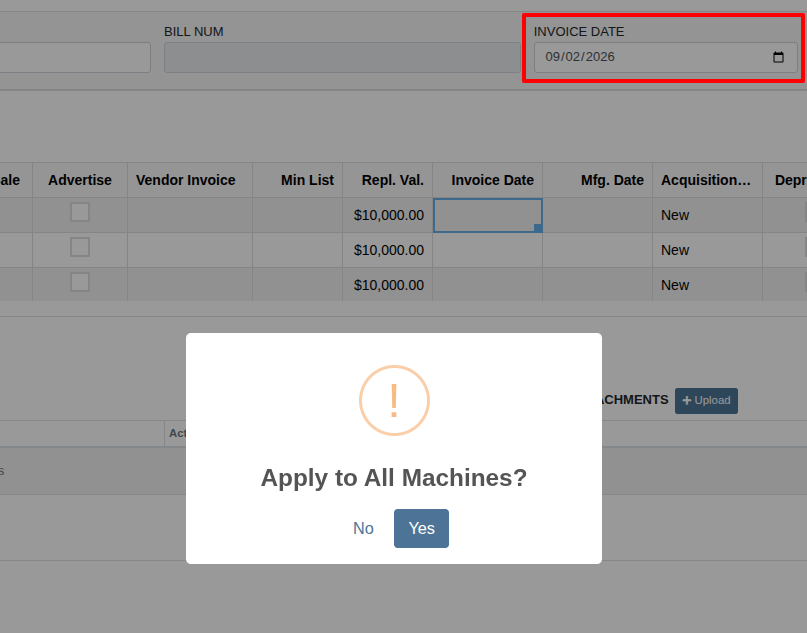
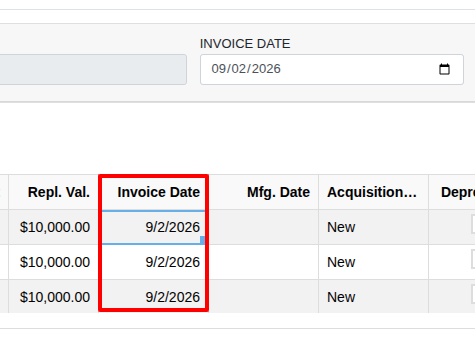
Setting the invoice date on the Machine Receiving Voucher header now asks if you’d like to apply the date to every machine on the voucher.
Why It Matters:
Receivers reported that they had to enter the same invoice date on multiple Machines while the Vendor Invoice column already does this. This resulted in a slow and repetitive process of typing in the same date on each line. Now, entering or choosing the date with the calendar option will ask the receiver if they want to “Apply to All Machines”.
By Calvin M.
What’s New!
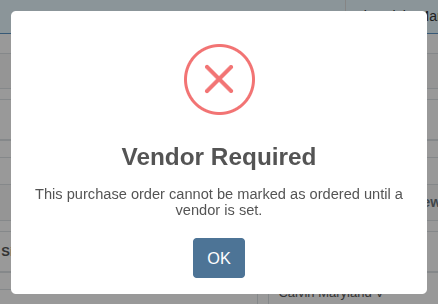
Part Purchase Orders can no longer be marked as ordered without a Vendor: attempting to mark a PO as ordered without a vendor stops the action and tells you a Vendor is needed. The same check now applies when submitting a return.
Why It Matters:
Purchasers occasionally marked Purchase Orders as ordered before selecting a Vendor, leading to issues once shipments arrived. For example, Accountants didn’t know the Purchase Order needed to be paid. The problem usually surfaced later when the supplier called about an unpaid invoice, and the Purchaser had to rebuild the Purchase Order.
Catching the missing Vendor at the moment you order keeps your payables accurate from the start and removes the rework that came with fixing it after the fact.
By Christian E.
What’s New!
The history tab on a Lead’s details page on Mobile now displays the event’s date and time, while previously events were just displayed in chronological order without any reference of their completion time.
Why It Matters:
Now Salespeople are more easily able to distinguish between similar events that may have sequentially or between events within a similar timeframe by being able to distinguish between them by date and time.
By Christian E.
What’s New!
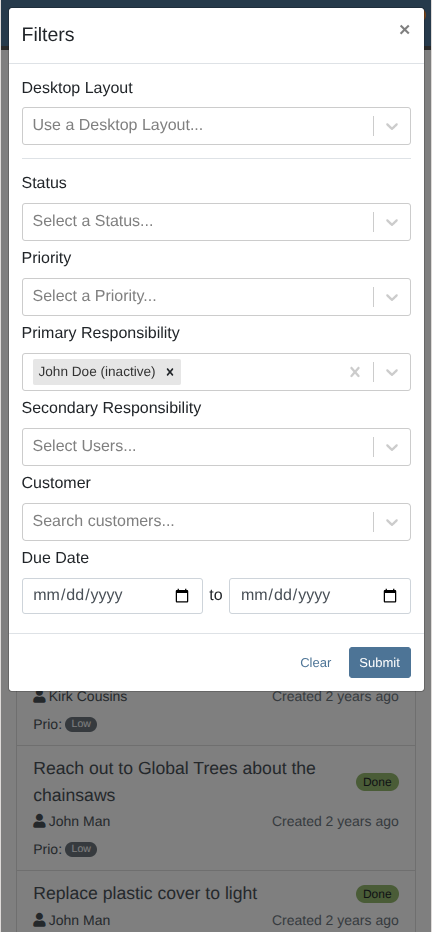
The primary and secondary responsibility filters in the search Mobile tasks page now includes inactive employees who are still named on a task. Each inactive employee is labeled "(inactive)" in the filter list.
Why It Matters:
Inactive employees were previously removed from the available options when filtering by responsibility of Tasks, now open Tasks can be easily reassigned amongst active team members while on the move.
By Christian E.
What’s New!
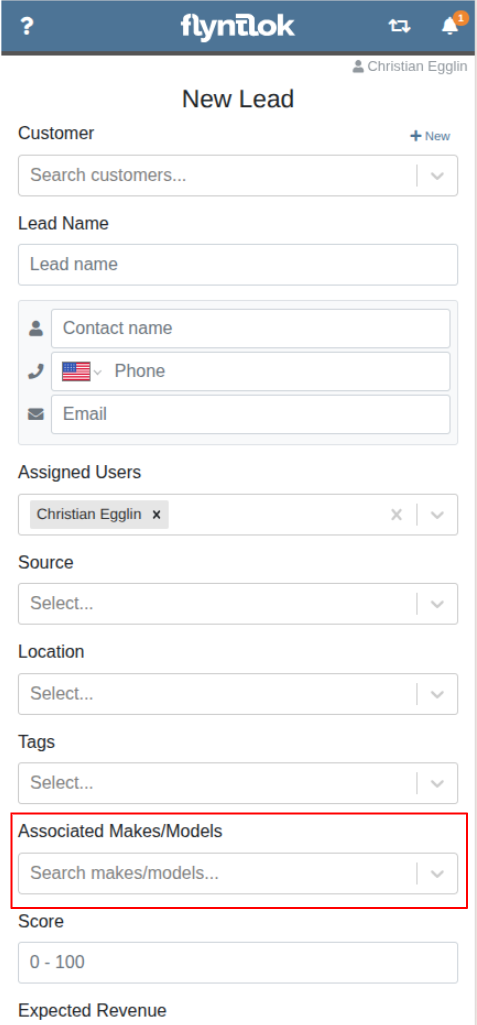
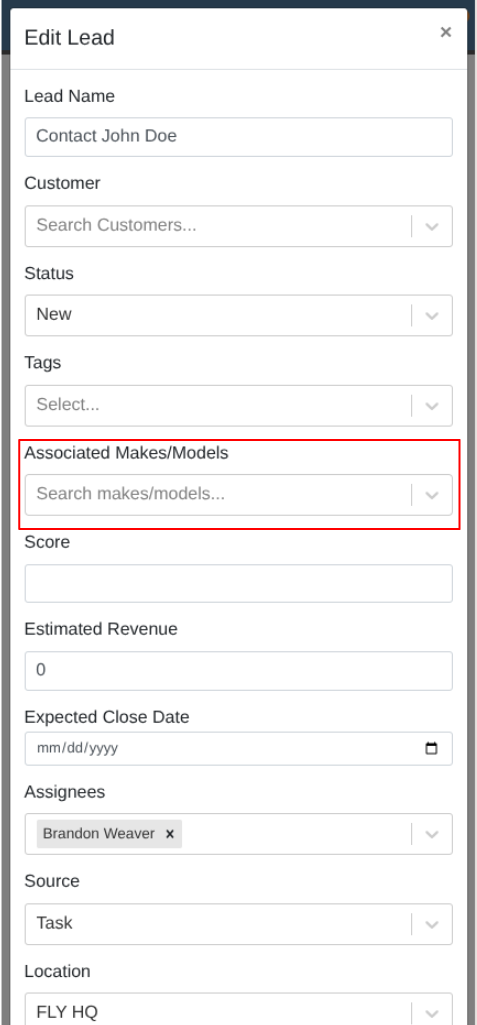
The Machine make/model field is now available in the create and edit Leads pages on Mobile. They remain as separate fields from the existing machine field, so a Lead can point at a specific unit, at a make/model, or both.
Why It Matters:
Salespeople are now able to capture the model a customer is interested in when creating a Task from the Lead page, instead of leaving the Lead to update it later on the Tasks page. This saves time by eliminating an extra step in the Task creation workflow.
By Yasmine C.
What’s New!
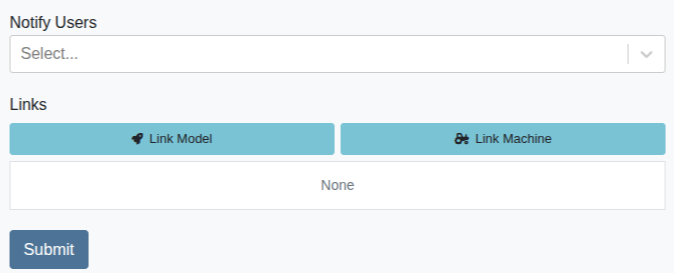
There is now a ‘Notify Users’ field in the ‘New Customer Activity’ page and dialog on Mobile. This option was previously only available on desktop.
Why It Matters:
Keeping team members informed is now baked into the customer activity logging workflow instead of a separate step that can be forgotten.
By Yasmine C.
What’s New!
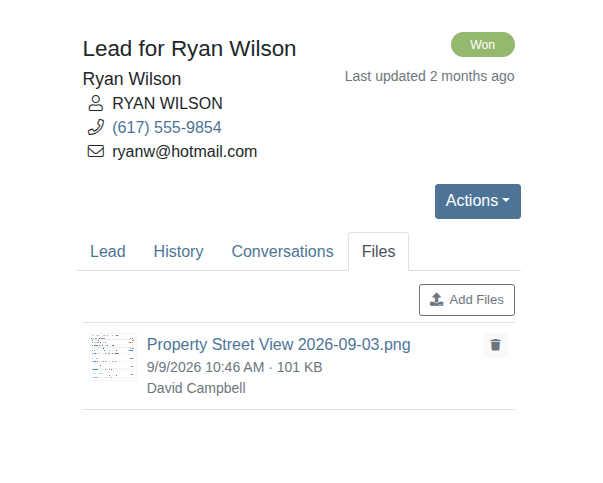
Users are now able to upload files to a lead and view files associated with a lead on the mobile lead dashboard.
Why It Matters:
Taking photos and uploading them can now be done on a mobile device, no need to transfer the files from mobile to desktop!
By Yasmine C.
What’s New!
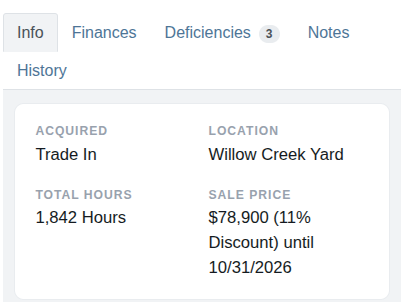
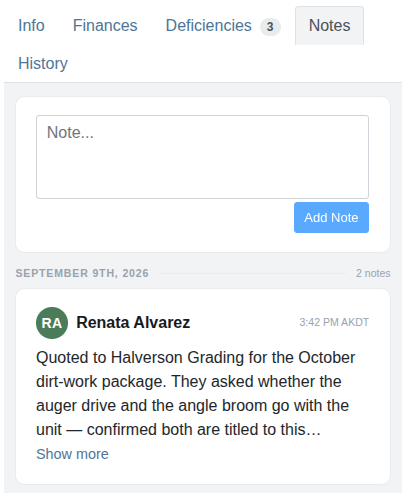
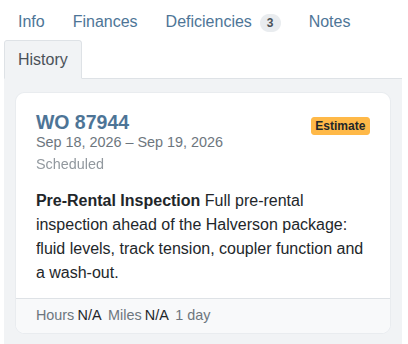
Design improvements to the ‘Info’, ‘Finances’, ‘Deficiencies’, ‘Notes’ and ‘History’ tabs in the Mobile machine dashboard. The biggest change is to the ‘History’ tab which has the card layout that is standard in other pages. Text collapsing/expanding is now available on all text fields.
Why It Matters:
The Mobile machine dashboard is now easier to scan and find relevant information.
By Calvin M.
Complaint: Receivers reported that when a Purchase Order had more than one Receiving Voucher, Parts that were fully received on one voucher showed the date of the most recent voucher instead of the date they were actually received.
Correction: Fixed. On a Receiving Voucher, Part lines now display the date of their most recent receipt.
By Ben C.
Complaint: Purchasers reported that the manufacturer part number was missing from their Purchase Order PDFs even though the "Display Manufacturer Number on Parts Purchase Order" setting was enabled.
Correction: Fixed. The manufacturer number prints on Purchase Order PDFs.
By Brenden B.
Complaint: Accountants reported that after taking a payment on account and posting it to Sage Intacct, the Customer's outstanding balance didn't change on the Customer Dashboard. The only way to correct it was to open the Sage Intacct Controls page and reload all Customers, and until someone did, the stale balance also showed on the Invoice page and the Work Order Dashboard, and drove the credit limit warning.
Correction: Fixed. Posting a customer payment to Sage Intacct now refreshes that Customer's balance automatically, so the Customer Dashboard reflects the payment without anyone reloading Customers by hand.
By Brenden B.
Complaint: Accountants could find a Customer's outstanding balance out of date after related activity in Sage Intacct, with a manual reload from the Sage Intacct Controls page needed to bring it current.
Correction: Fixed. Data synchronization is now more accurate.
By Bomby K.
Complaint: Managers reported that when they configured their user's left-hand navigation to exclude machine purchasing pages, the user was still able to access the page directly via links or bookmarks. The expectation was that this permission restricted the user from viewing these pages entirely.
Correction: Added new permissions: View Machine Purchase Order and View Machine Receiving Voucher. When these permissions are not granted to a role, those pages are completely inaccessible. Managers can assign these permissions via the Wrench Icon -> Users -> Access Control.
By Bomby K.
Complaint: Managers reported the Upsell option was only available on the desktop Work Order view, requiring a switch to desktop mode to add upsell recommendations while on the shop floor.
Correction: Added Upsell option to mobile work order.
By Bomby K.
Complaint: Managers reported that cost information on the Machine Dashboard was visible to team members who did not have the Machine cost permission enabled.
Correction: Fixed. Roles without that permission will no longer see any Machine cost data.
By Bomby K.
Complaint: Managers noted that the Upsell option was only available on the desktop Work Order view, requiring a switch to desktop mode to add upsell recommendations while on the shop floor.
Correction: Added Upsell option to mobile work order.
By Bomby K.
Complaint: Service Writers reported that submitting a Service Request would silently fail -- clicking Submit did nothing, with no error message or indication of what went wrong.
Correction: Fixed.
By Alex E.
Complaint: Salespeople reported that creating an Invoice from a Lead with a linked Machine did not apply the Model discount. Even when an active discount was set on the Machine's Model, the Invoice came through at full price.
Correction: Fixed. Invoices created from a Lead now price Machines the same way the rest of Flyntlok does; an active discount on the Machine is used first, and if there isn't one, an active discount on the Machine's Model is used instead.
By Alex E.
Complaint: Salespeople reported that creating an Invoice from a Lead with a linked Machine priced the Machine using its list price without attachments. Machines configured with attachments came through underpriced compared to everywhere else an Invoice is created.
Correction: Fixed. Invoices created from a Lead now use the Machine's full list price, including attachments, matching the rest of Flyntlok.
By Ula L.
Complaint: It was reported that the date picker on the due date field of a CRM Task stayed open on screen after they picked a date. The problem appeared on Safari on tablet devices.
Correction: Fixed. The due date field now closes the date picker as soon as a date is selected, in every browser and on tablets.
By Ula L.
Complaint: It was reported that a new Task created from the actions menu on a Lead page showed only "Unassigned" in the assignee picker. No other people were listed.
Correction: Fixed. The Tasks dialog on the Lead page now loads the full list of people, so an assignee can be set when the Task is first created.
By Ula L.
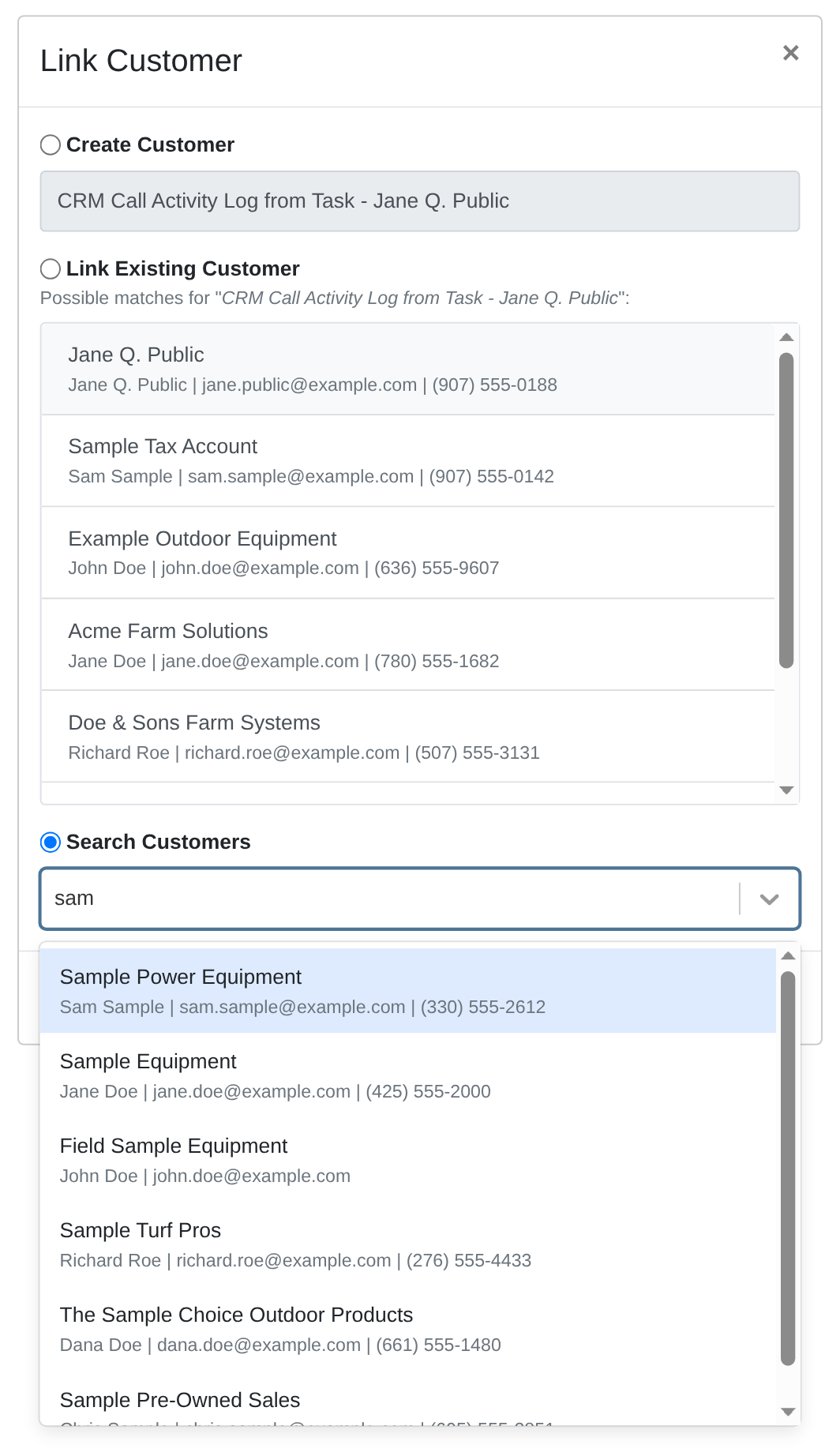
Complaint: Salespeople reported that the link Customer action on a Lead returned no results. The suggestion list stayed empty, and a Customer search by name found no match even for a Customer that exists in Flyntlok.
Correction: Fixed. The link customer action on a Lead now runs the shared Customer search. Suggested matches and search results appear again, and the same search now returns consistent results across the Lead page, the contact page, and mobile Customer search.
By Ula L.
Complaint: It was reported that a new Customer Activity added a duplicate Contact to the Customer, even though the "Create New" contact fields were left empty. The duplicate appeared only when the same activity also created a Lead.
Correction: Fixed. A Customer Activity that also creates a Lead now attaches the selected Contact to the Lead instead of creating a second copy of it. The Contact list on the Customer stays clean.
We ship a release about every two weeks, so the next one isn’t far off. In the meantime, click the ? icon anywhere in Flyntlok to open a support ticket, and you can expect a reply from our help desk within minutes.
The Flyntlok team
Every release note shows what changed and why it matters. A lot of it starts with dealers, in office hours and support tickets.




%2520(2).webp)



.webp)
.webp)
.webp)
%20(2).webp)
.webp)
.webp)
%20(1).webp)
%20(2).webp)
%20(1).webp)


