WATCH HERE:
Our Equip Expo AI Session is Now On-Demand!
There’s a newer version of this video. This one stays up for reference, and it no longer shows on product pages or in the library.
Watch the newest versionEvery follow-up in one list, tied to the customer.
Michael Sharp, Engineering Lead for Flyntlok's CRM team, walks through CRM Tasks: the follow-up list tied to each customer, machine and contact, with calls, texts, files and one-click promote to lead.
Plays right here. No form to fill out.
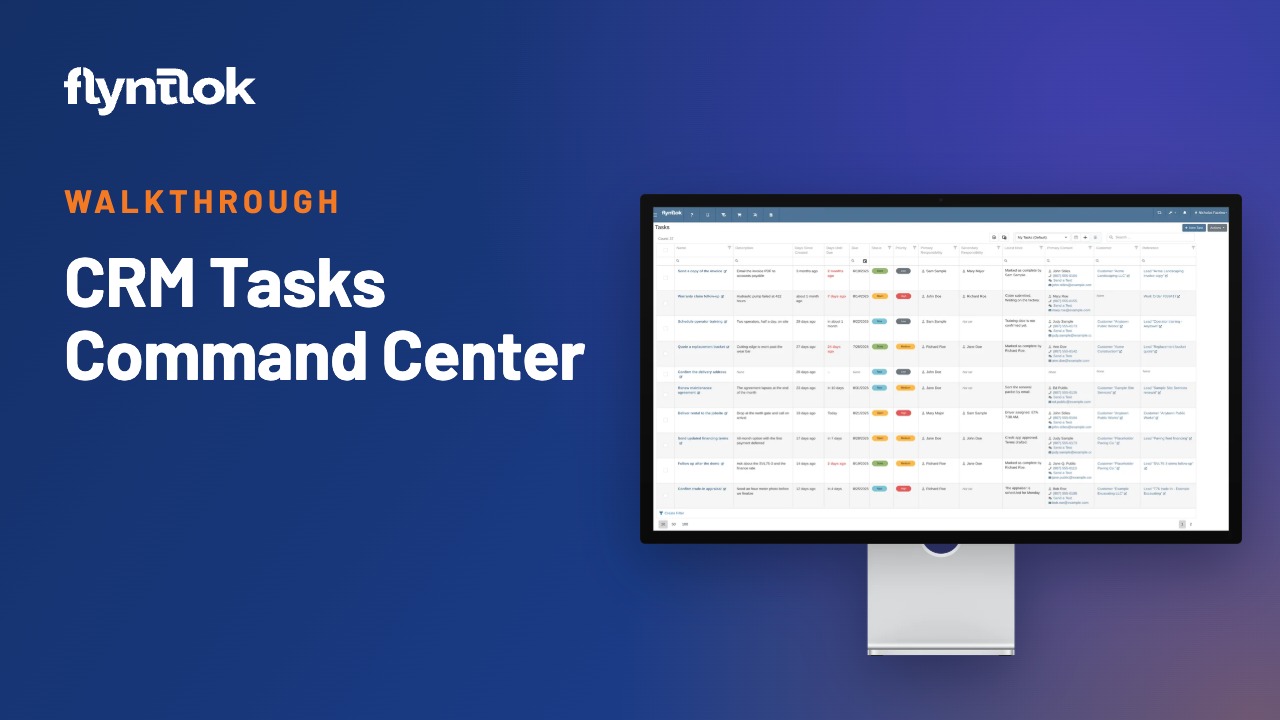
A four-minute walkthrough of CRM Tasks, the follow-up list built into Flyntlok's CRM. Michael Sharp, Engineering Lead for the CRM team, shows how every follow-up stays in one list, tied to the real customer, machine and contact, so whoever picks it up has the full story.
It came out with the September 3, 2026 release of the revamped CRM Tasks and covers the task list, creating and editing a task, calls, texts and files, and promoting a task to a lead.
Every update below shipped after this video was recorded. Each one links to its release notes.
A Linked Records card on the task details page holds the machine and make and model, plus links to a sales order, work order, machine PO and part PO.
Select up to 20 tasks or leads and update them in one save. Fields you leave alone keep their values.
A work order's Info tab lists the tasks linked to it, with status and due date, so service sees the follow-up tied to the job.
The mobile task page has a Mark Done button pinned to the bottom of the screen.
Save a task contact to its customer and the two stay linked. Edit the name, email or phone on either one and both update.
Flyntlok ships a release every two weeks. See every release note
The task list is a running to-do list for follow-ups: a quote a customer is waiting on, a delivery to confirm, a part order to chase down. It opens filtered to your tasks, and status and priority tags show what's urgent at a glance. Any column with a filter icon can be filtered, and clicking a header like days since created sorts the list. You can call a contact or open the full text conversation straight from the list.
New task sits at the top right. Give it a title, a description and a priority, and the assignee defaults to you. Associations tie the task to a customer, lead, machine or make and model, all searchable, and you can add a contact with name, phone and email so whoever works it has what they need.
An open task shows a full activity timeline. The title and due date edit in place and save when you click away, and every association can be swapped the same way. Add as many contacts as the account needs and mark one as primary.
Clicking a contact's number opens a call note already filled in with who you called, linked to the customer and the task. Saved notes land at the top of the timeline with a timestamp, and you can edit your own notes later. The Conversations tab holds every text tied to the task, with quick responses that fill in the customer's name and yours, and the Files tab holds attachments.
When a follow-up turns into a real opportunity, Promote to lead carries the contact, customer, machine and even a close date into a new lead. With Archive task checked, the task closes out and shows an archived badge that links back to the new lead.
Tasks put every callback, quote follow-up, and promise to a customer in one list that sorts itself by what's due.
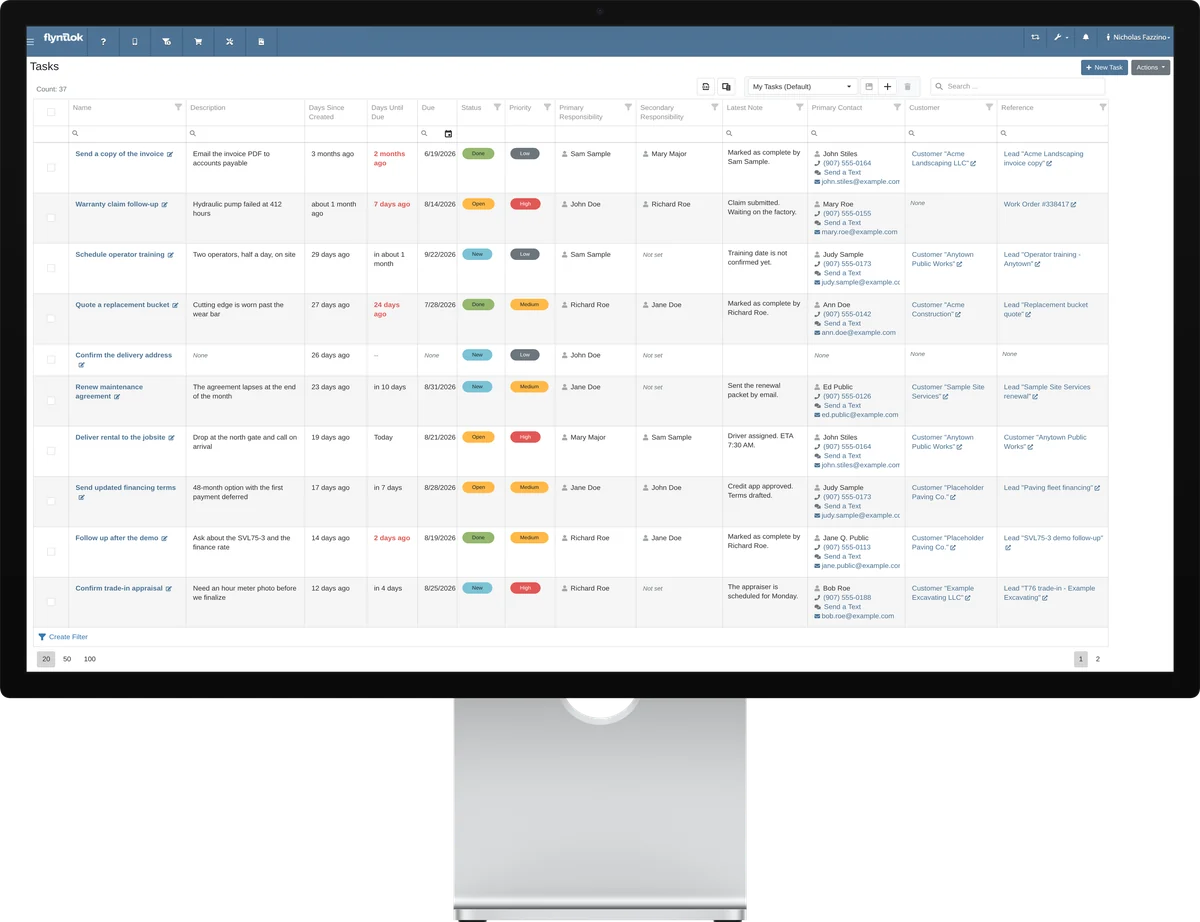
CRM Tasks is the follow-up list built into Flyntlok's CRM. Each task can carry the customer, their contacts, the machine or make and model, and the lead, so whoever picks it up has the full story.
Yes. Click a contact's number to call, and a note opens already filled in with who you called, linked to the customer and the task. Texts show in the task's Conversations tab, with quick responses you can reuse.
Promote the task to a lead. The contact, customer, machine and close date carry over, and the task can archive itself with a link back to the new lead.
.svg)



.png)

%2520(2).webp)
.webp)
.webp)
.webp)
.webp)