NEW!
Meet Flyntlok at Equip Expo 2026:
Your job notes may be telling you where revenue is slipping away.
Our new AI Review helps catch parts and supplies mentioned in job notes but missing from the parts list, so your team can review missed charges before invoicing. This release also brings clearer posting results with the new QuickBooks Online Manager, easier ways to turn customer texts into leads, Work Order layouts you can make your own, smoother rental workflows, and mobile updates that save repeat searches.
Register for everything here: https://www.flyntlok.com/resource/flyntlok-equip-expo-2026
Let’s get into it!
By Bomby K.
What’s New!
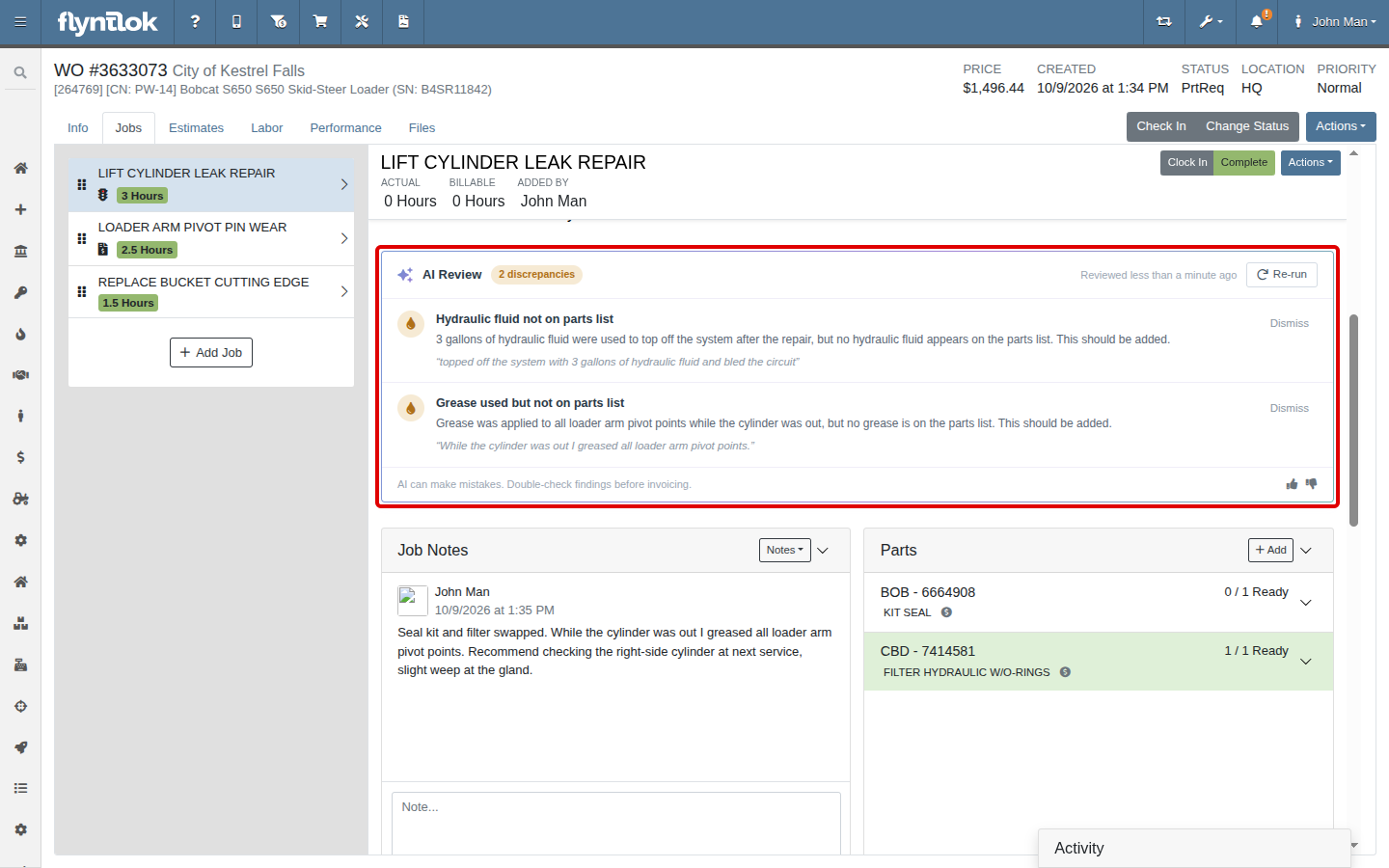
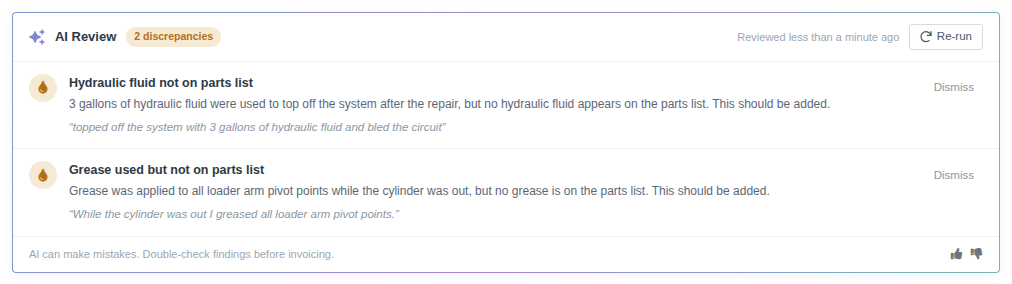
Jobs on the Work Order Dashboard now include an AI Review. Click Run review and Flyntlok reads the Job's complaint, cause, correction and technician notes, then compares them with the Job's parts list. Anything the write-up says was used but that isn't on the parts list, such as fluids, grease or other shop supplies, appears as a possible discrepancy.
It will also check the reverse, ensuring that all parts listed are referenced in the technician notes, strengthening the narrative for warranty outcomes.
You can dismiss a finding that doesn't apply, re-run the review after updating the Job, and use the thumbs up or down to tell us whether the review was helpful.
Why It Matters:
Technicians often top off fluids or use shop supplies during a repair and mention it in their notes, but those items don't always make it onto the parts list, leading to loss of revenue. Service Writers and Service Managers can now catch unbilled parts and supplies before the Work Order is invoiced, instead of discovering the gap after the Customer has paid.
By Bomby K.
What’s New!
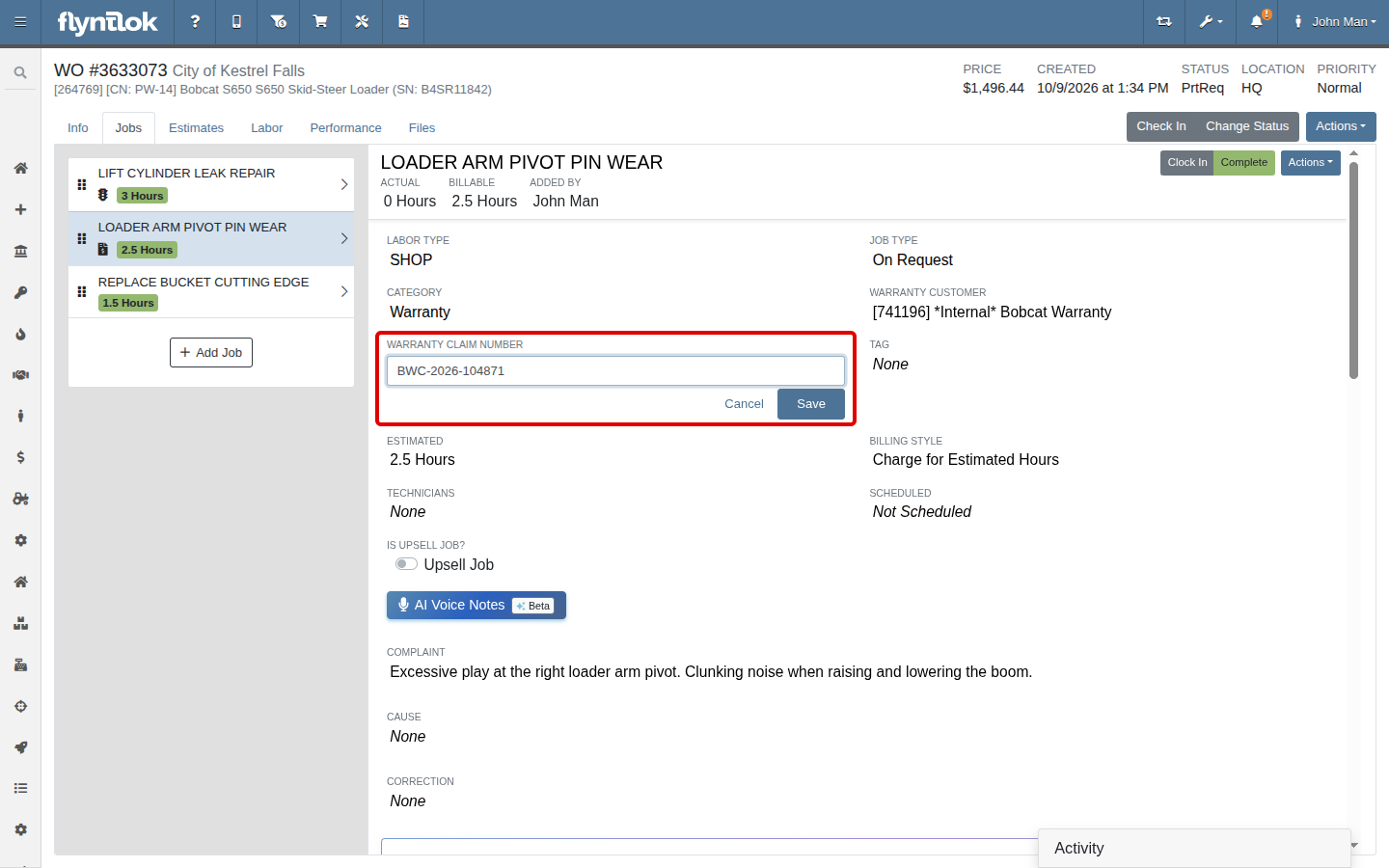
Jobs with the Warranty category now have a Warranty Claim Number field on the Work Order Dashboard. Click the field, enter the manufacturer's claim number and save. The field appears on Warranty Jobs only.
Why It Matters:
Service Writers and Service Managers had to keep warranty claim numbers in tags, notes or a separate spreadsheet. Keeping the claim number on the Job itself makes it easy to match a manufacturer's credit or rejection back to the right repair.

By Bomby K.
What’s New!
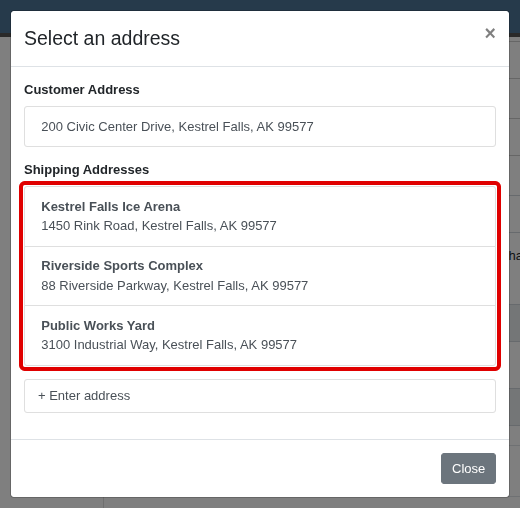
When you choose an onsite address for a Work Order, the address picker now shows the name of each of the Customer's saved sites along with the address. This works both when creating a new Work Order and when changing the onsite address from the Work Order Dashboard.
Why It Matters:
Customers such as cities and municipalities often have many job sites, and staff know them by name ("Ice Arena", "Public Works Yard") rather than by street address. Service Writers can now pick the right site at a glance, so Technicians are sent to the correct location while the bill still goes to the Customer's main address.
Note: The site name is shown while choosing the address. Once selected, the Work Order shows the street address.
By Alex E.
What's New!
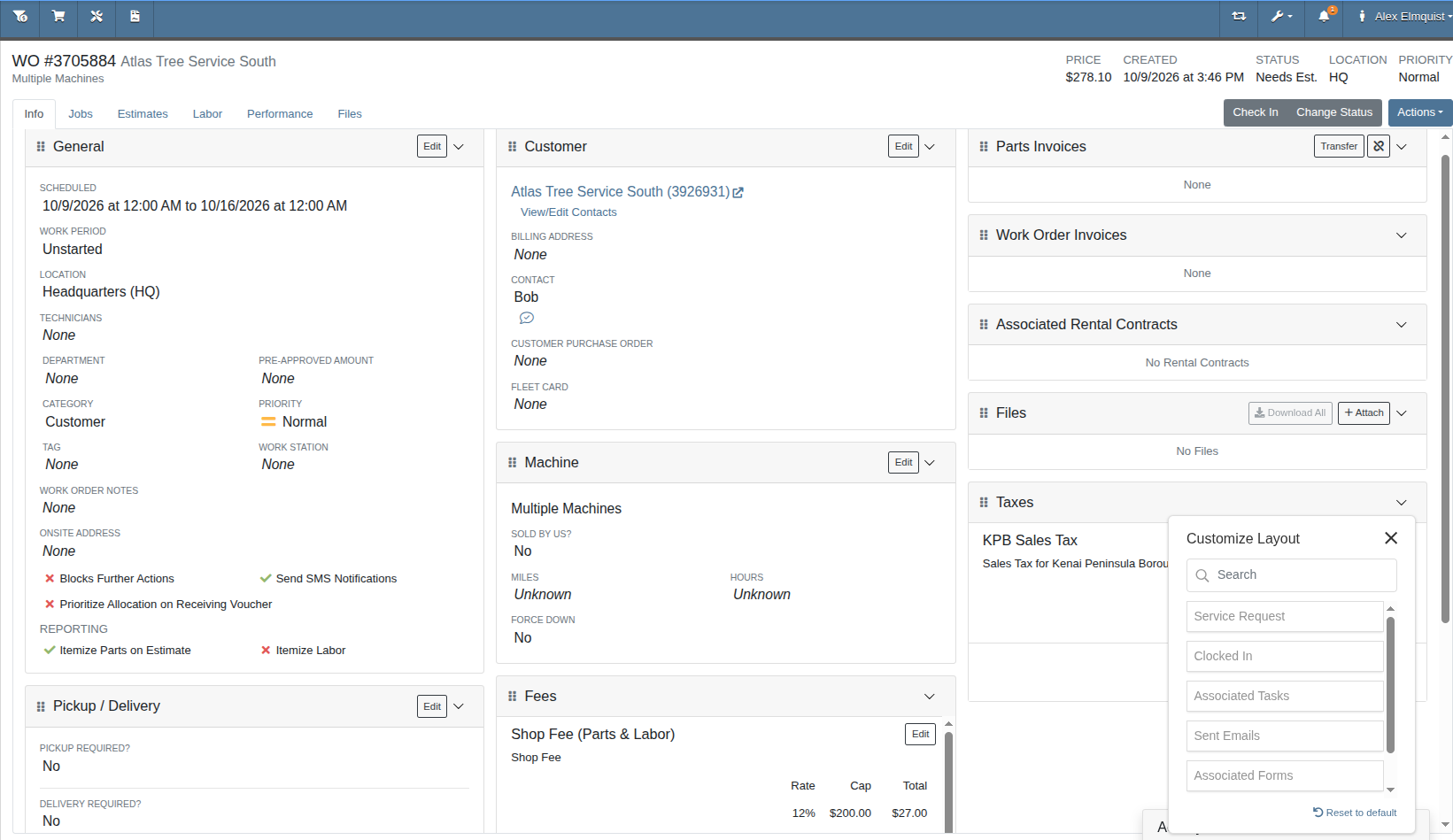
You can now set up the Work Order Info tab the way you like it. Hide the panels you don't need by opening Customize Layout from the Actions menu, and drag the rest into whatever order works best for you. Your layout carries over to every Work Order, and you can reset it to the default at any time.
The info tab also makes better use of your screen, showing three to five columns depending on its size. On wider screens, drag a panel to the edge of the tab to add another column. To remove a column, move all of its panels out, down to a minimum of three columns.
Why It Matters:
Service Writers, Technicians, Managers, and anyone else who uses a Work Order can now see just the information they care about, with less scrolling to find it.
Is Your Service Department Ready?
By Brenden B.
What’s New!
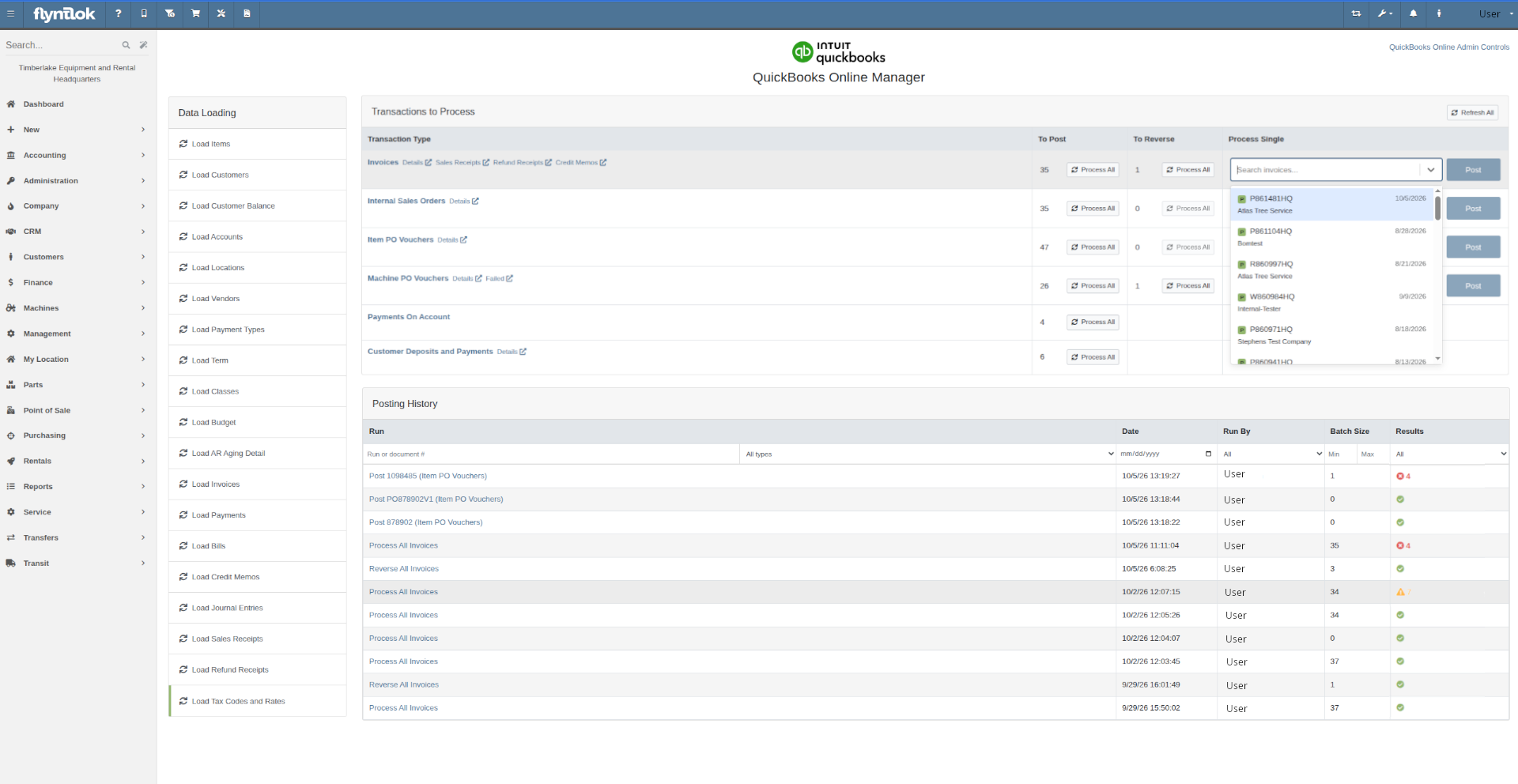
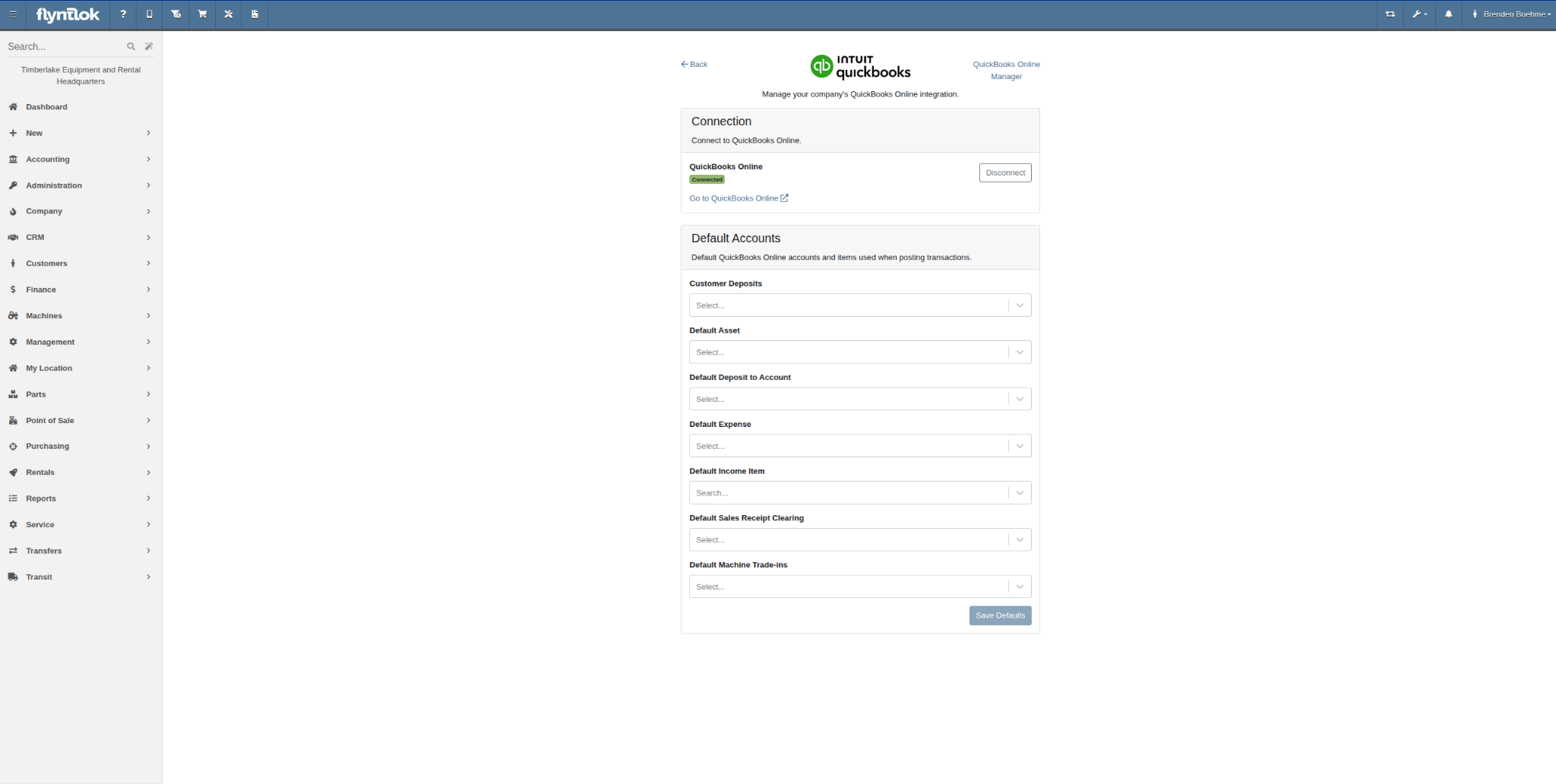
The QuickBooks Online Controls page has been replaced by the new QuickBooks Online Manager, which boasts a cleaner layout and offers the same functionality as before, but with several improvements to your workflows.
In addition to updating old workflows, the QuickBooks Online Manager page has a brand new feature, the Posting History panel. Here, a record is kept of past posting and reversal runs, and clicking a given run allows you to reopen its results. Additionally, you can keep track of whether your documents eventually posted by using the Status column to see what the most recent run of those documents resulted in.
When you first access the new QuickBooks Online Manager page, a short guided tour will be available to walk you through each new feature and improvement.
Why It Matters:
Accountants regularly reported friction with the previous QuickBooks Online Controls page. Posting outcomes were unclear, single postings would fail due to typos, and results were gone when closed. The new QuickBooks Online Manager page removes these quirks and brings the user experience in line with the rest of the Flyntlok application.
Note:
Existing links to the old QuickBooks Online Controls page will take you to the new QuickBooks Online Manager page instead. If you experience issues with the new page and would like to return to the QuickBooks Online Controls page, please submit a ticket with the support desk.
Let us know if there is anything else we could do to further improve your experience using the QuickBooks Online Manager page.
By Brenden B.
What’s New!
Just as introduced in the new QuickBooks Online Manager, the new Posting History feature has been added to the Sage Controls page. Results from your posting runs will be persisted here for your auditing purposes.
Why It Matters:
Having access to a persisted record of your accounting activities within Flyntlok allows users to revisit past attempts to identify issues with documents as well as ensure that those documents did eventually post.
Parts Inventory Reconciliation with Michael Holland: Tune in for a demo and discussion on this new tool!
By MA S.
What’s New!
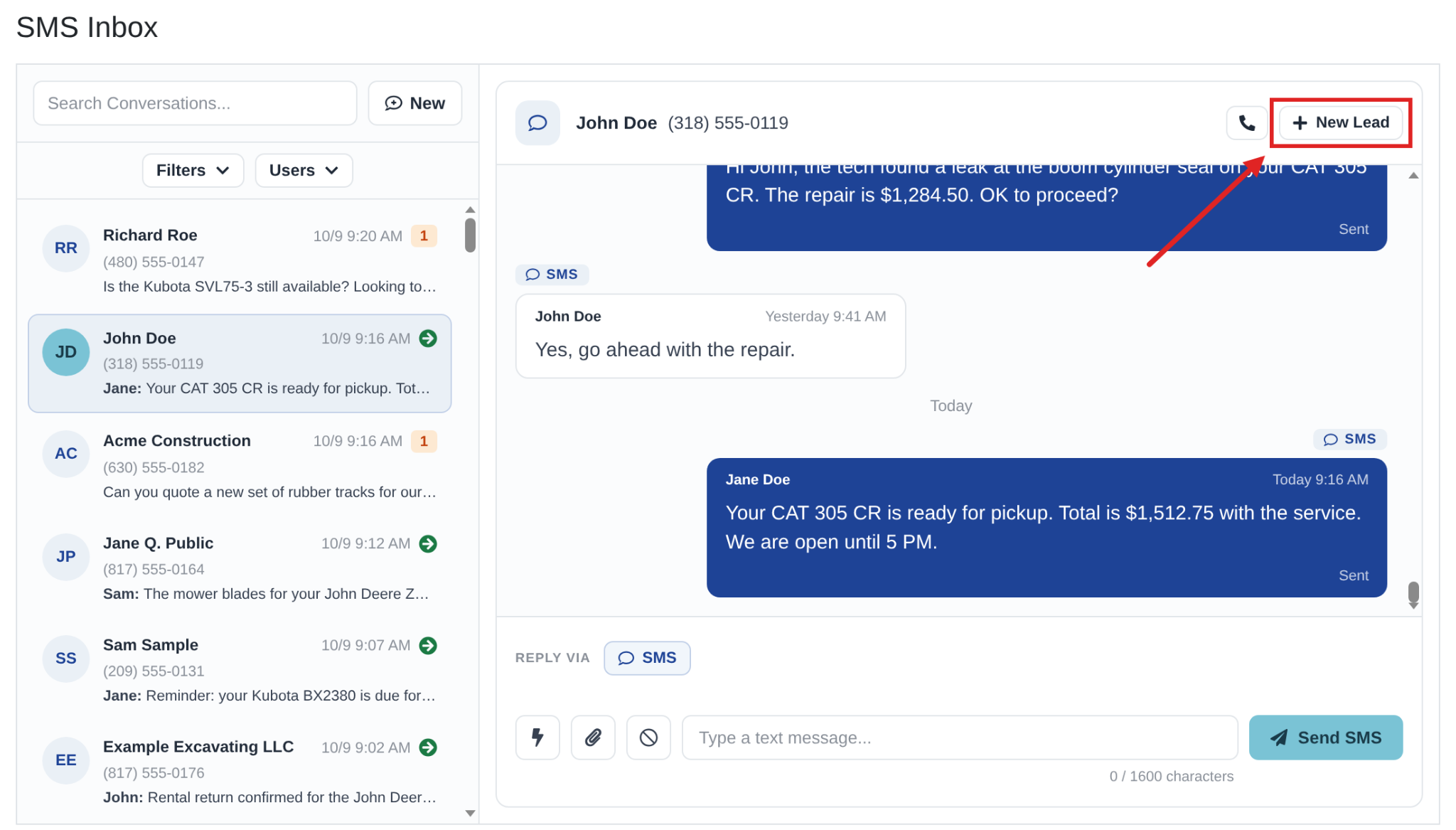
You can now create a Lead directly from an SMS conversation in the SMS Inbox. Click the new “New Lead” button at the top of the conversation to open the New Lead form. The form fills in automatically with the details Flyntlok already knows from the conversation, including the phone number, the Contact's name and email, and the linked Customer.
Why It Matters:
A text from a Customer is often the first sign of a new sale. Before this change, Salespeople had to leave the conversation, open the Leads page, and enter the Customer and Contact details again by hand. Now Salespeople can turn a text into a Lead in a few clicks, so fewer opportunities get lost between the SMS Inbox and pipeline.
By Ula L.
What’s New!
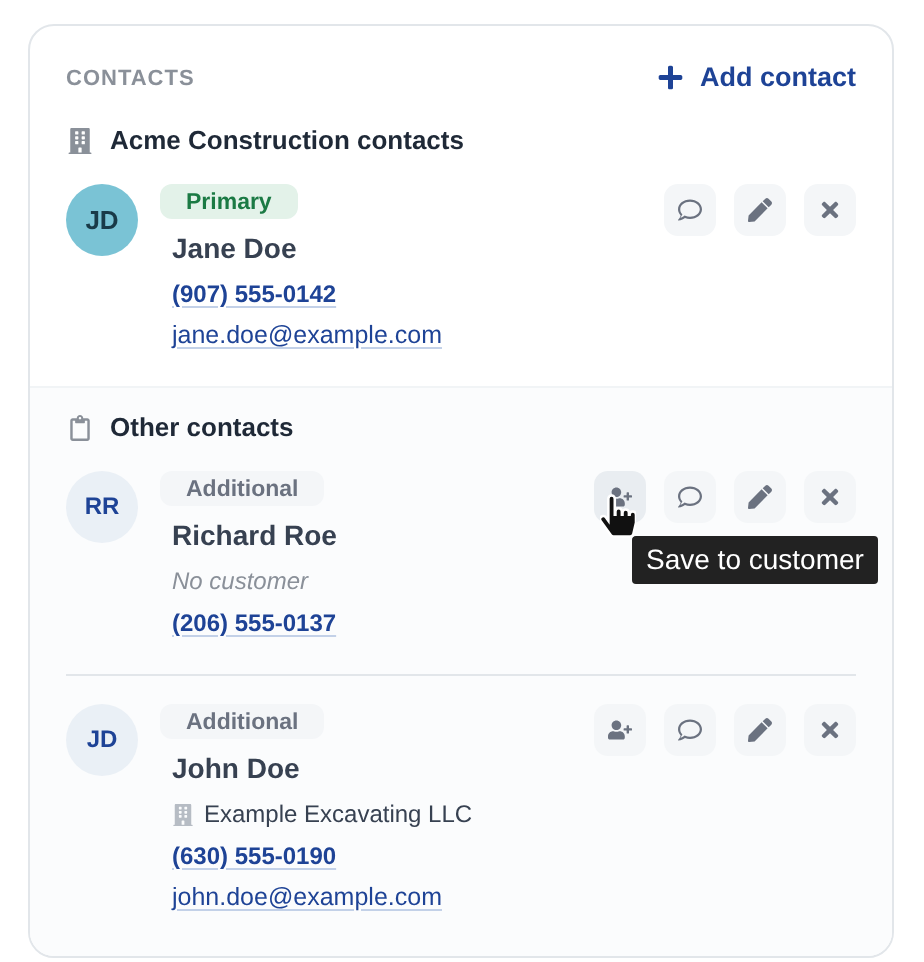
When you add a Contact to a Task, you can save it to the Task's Customer, which links the two. If you pick someone from the Customer's existing Contacts, they're linked automatically.
Once Contacts are linked, their name, email, and phone number stay in sync. Edit them on the Task and the Customer Contact updates. Edit the Customer Contact and every Task with that Contact updates too.
Why It Matters:
Before this change, a Task Contact and its Customer Contact drifted apart as soon as someone edited one of them. Salespeople who fixed a phone number or email on a Task still saw the old value on the Customer, and the reverse was also true. Now Salespeople can make the change once and trust that the Task and the Customer show the same contact details.
By Ula L.
What’s New!
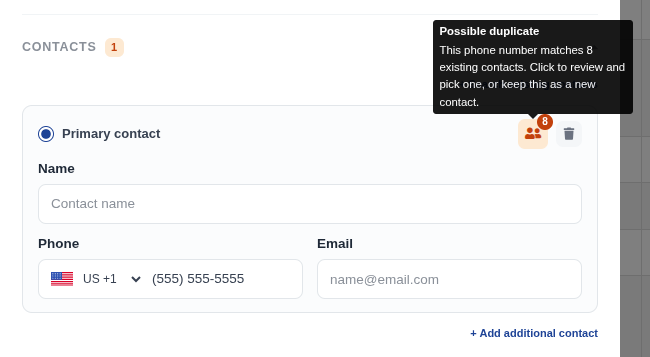
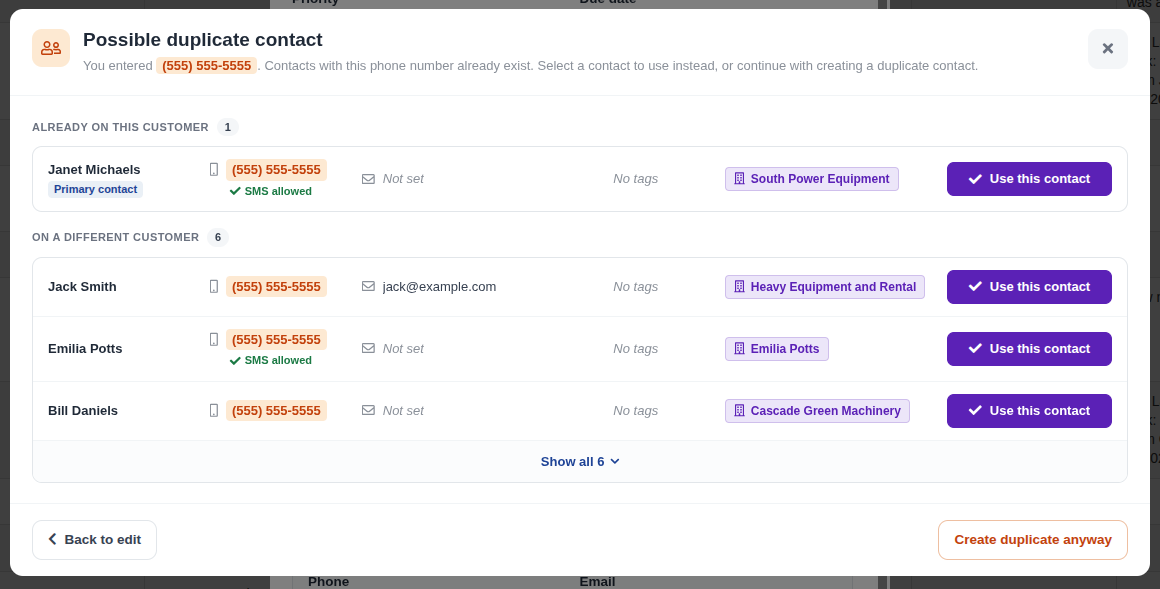
A duplicate contact warning now appears in many of the places you add contacts on Work Orders, Rental Contracts, Leads, Tasks, and customer activities, starting with the spots where duplicate contacts are most likely to be created. When a new contact's phone number or email address already belongs to an existing contact, a warning opens before the contact is saved. It shows each matching contact and the Customers they belong to. From there you can open the contact that is already on this Customer, attach an existing contact from another Customer, or go ahead and create the new contact.
Why It Matters:
Duplicate contacts split a customer's history across several records, so texts, emails, and follow-ups can go to the wrong place. When a match is caught at entry, each person keeps one clean record, no matter which page the contact was added from.
By Yara H.
What’s New!
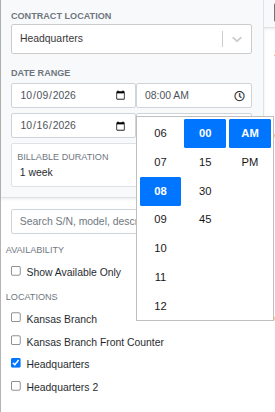
Start and end times on Rental Contracts now use a 15-minute time picker. Choosing a time shows a list in 15-minute steps (8:00, 8:15, 8:30, and so on), and a time typed by hand snaps to the nearest quarter hour.
New Rental Contracts now default their start and end time to your store's opening time for that day instead of the current time of day. If the store is closed that day or has no opening time set, the default is 8:00 AM.
When the start and end time are the same, changing the start time also updates the end time to match. Since Daily, Weekly, and Monthly contracts return at the same time of day they went out, most contracts need only one time change. For Half-Day contracts, set the start time first, then adjust the end time.
Why It Matters:
Rental Clerks were picking contract times down to the minute, which was slower than it needed to be and produced odd times like 8:47 when a contract was created mid-morning. Quarter-hour steps, a sensible default, and an end time that follows the start cut the number of clicks needed to write up a contract.
By Yara H.
What’s New!
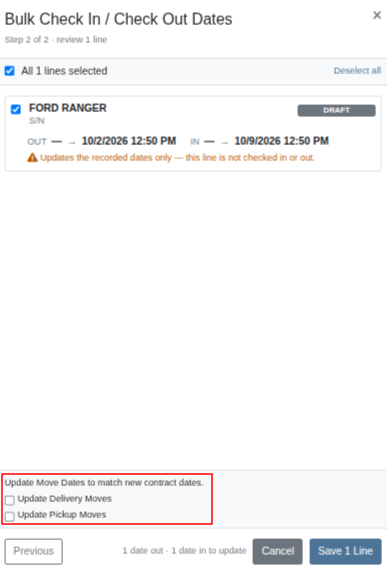
When you use Bulk Check In / Check Out on a Rental Contract with every line selected, the contract's reserved dates now update to match the check-out and check-in dates you enter. The contract's billable duration is recalculated for the new dates, and so is the duration on each line that is still out. Lines already checked in or called off keep their existing duration.
If the contract has Delivery or Pickup Moves, the window offers an Update Delivery Moves or Update Pickup Moves checkbox when the matching contract date is changing, so scheduled Moves can shift to the new dates in the same step. Only Moves that haven't started yet are moved.
Why It Matters:
Rental Clerks who checked equipment in or out on different dates than planned had to make the change twice: once on the lines, then again on the contract's reserved dates, which drive billing and duration. Now one bulk update keeps the lines, the contract dates, and the billing duration in step.
How to Grow Rental Revenue Without Growing Your Fleet
By Calvin M.
What’s New!
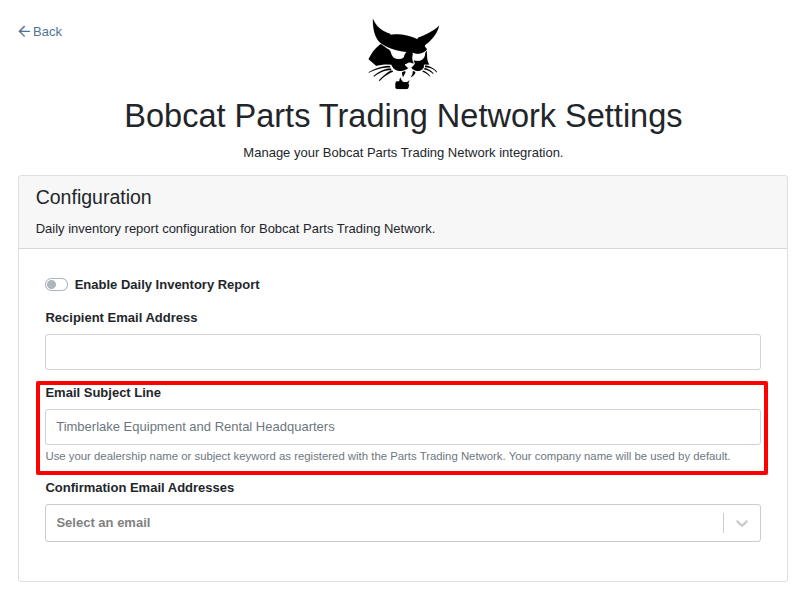
The Bobcat Parts Trading Network integration page has a new Email Subject Line field. Whatever you enter there becomes the subject line of the Parts inventory email Flyntlok sends to the Bobcat Parts Trading Network. The confirmation copy sent to your dealership uses the same subject line.
If you leave the field blank, Flyntlok uses your company name as the default subject line.
Why It Matters:
Bobcat uses the subject line to match each inventory email to a dealership. When your company name in Flyntlok doesn't match the name Bobcat has on file, your inventory may not show up on the network. Until now, fixing that meant asking Flyntlok support for a change. Now, managers can set the subject line themselves and fix a mismatch in seconds.
By Ben C.
What’s New!
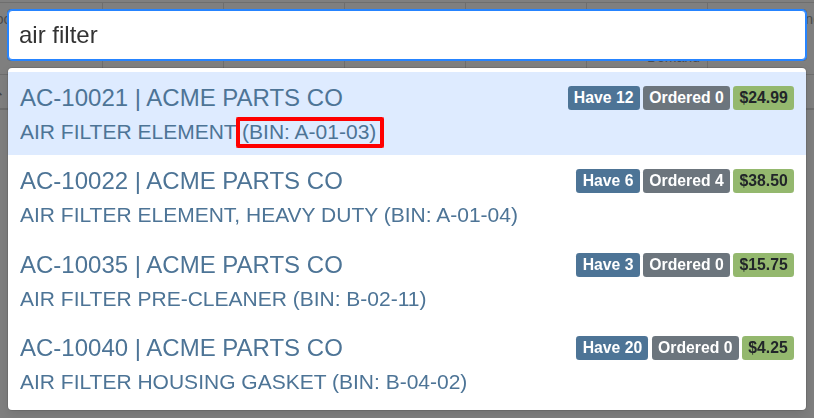
Item Search (Ctrl + S) now shows each item’s Bin Location in the search results no matter which page it’s launched from.
Why It Matters:
Salespeople and Purchasers noticed that when using the Item Search on certain pages, the Bin Location would not show in the search results. This would force them to go to the Item Dashboard for the Bin Location.
By Alex E.
What's New!
Configuring a received attachment to a Machine that is still OnOrder puts the child machine into the OnHold Status. This applies whether the attachment is added through Configure Machine or through a Work Order.
Once the parent Machine is received, the attachment goes back to following the parent Machine's status automatically. Attachments that haven't been received yet still show OnOrder, just as before.
Why It Matters:
Attachments take on the status of the Machine they're attached to. When an attachment arrived ahead of its parent Machine, it still showed OnOrder even though it was physically on the lot. Receivers and Sales Managers can now tell at a glance which attachments are already in hand and which are still on the way.
Flyntlok OEM Integrations and 400+ Price Files
Find Work Orders Faster with Saved Mobile Search Filters
By Christian E.
What’s New!
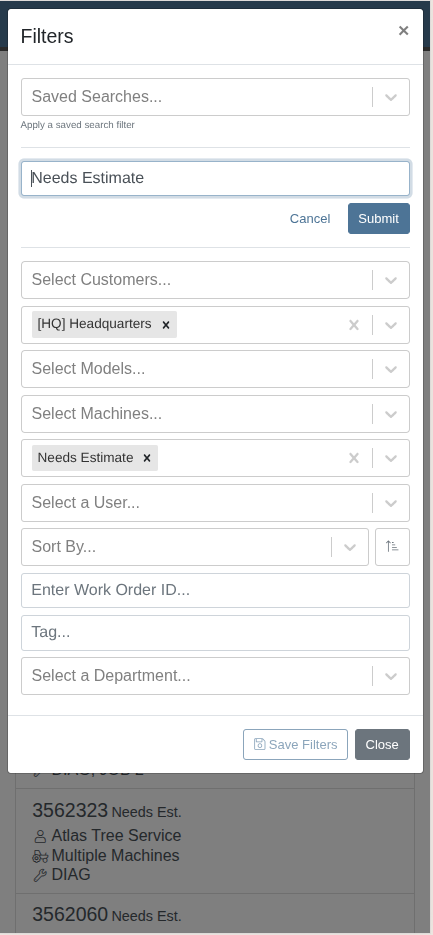
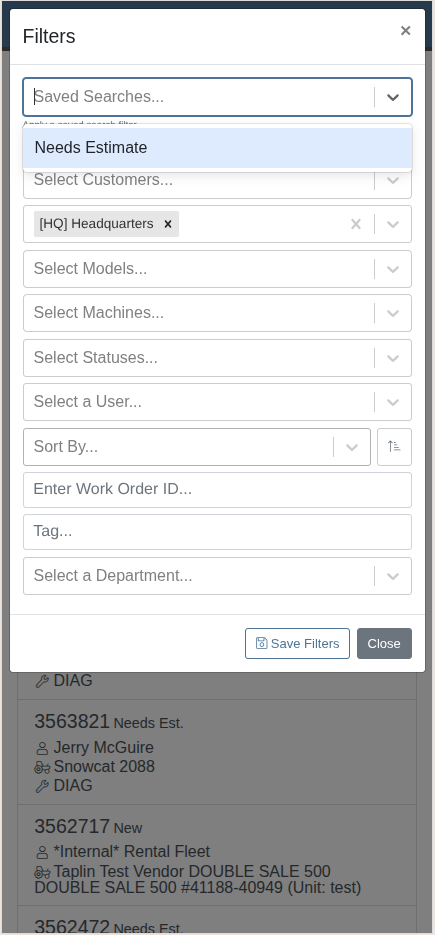
Technicians are able to save their Work Order search filters by clicking to save their currently configured search.
Why It Matters:
We’d received feedback from Service Technicians that they would like to be able to save their Work Order searches in order to more quickly find Work Orders based on saved criteria.
By Yasmine C.
What’s New!
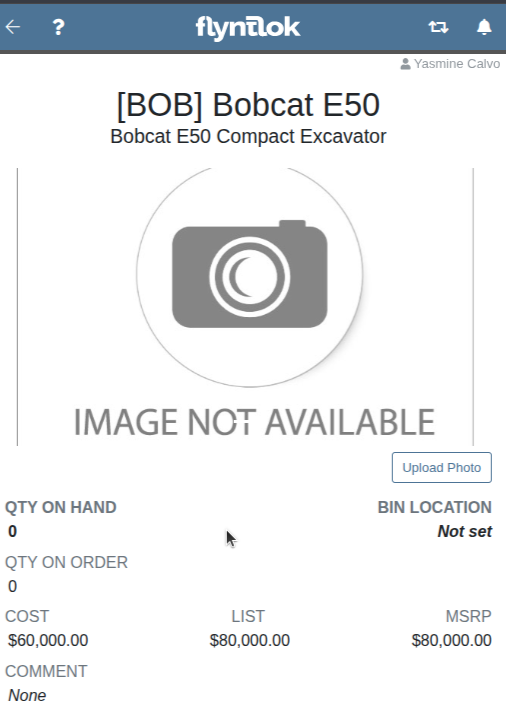
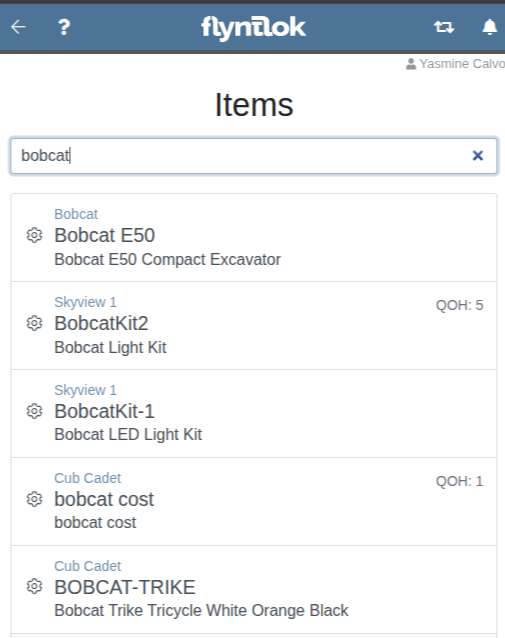
When a user searches for an Item or Machine and navigates to a dashboard, they can use the back button to go back to back to their previous search.
Why It Matters:
Users can now browse multiple machines and items as part of the same search without having to re-enter their keywords and filters.
By Yasmine C.
What’s New!
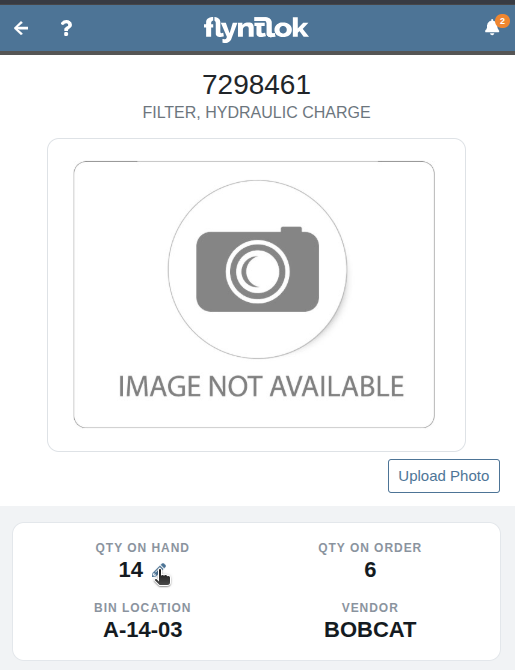
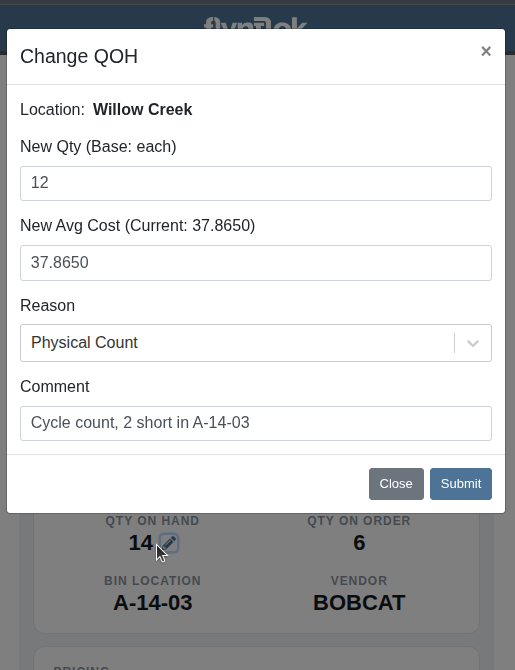
The Mobile Item Dashboard now has the same “Change QOH” dialog as the desktop version and allows users to change the QOH for Items.
Why It Matters:
This is a first step towards adding the Parts workflows to the Mobile app. With this new change, inventory counts can be recorded on Mobile devices.
By Yasmine C.
What’s New!
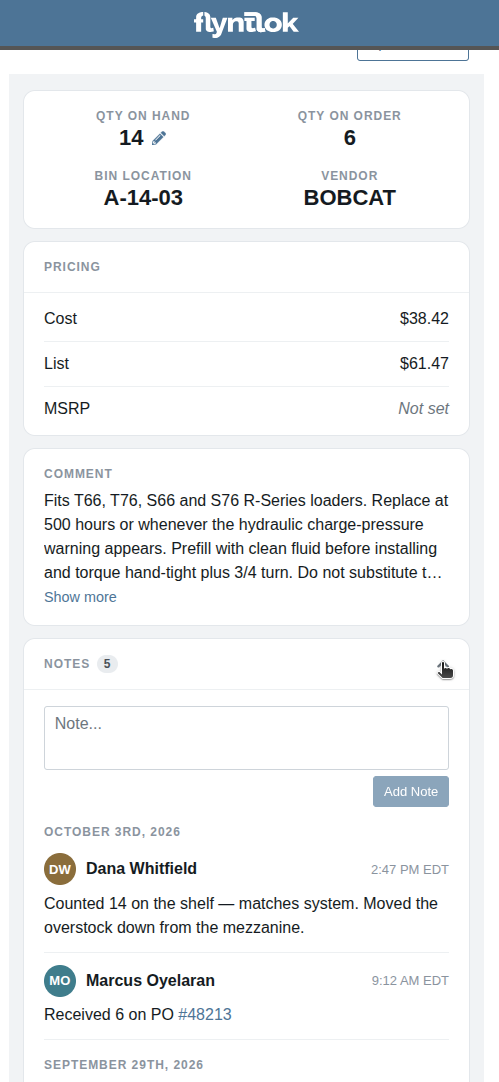
The Item Dashboard has a new look! The layout now matches the Mobile Machine dashboard.
Why It Matters:
This new design creates greater consistency and ease of use across the Mobile pages. It makes fields easier to scan and long content is now collapsible.
By Christian E.
What’s New!
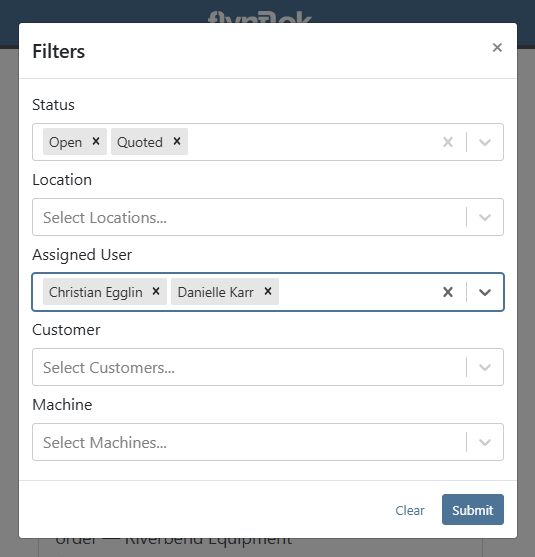
Enabling multi-select for Lead filter options.
Why It Matters:
Sales staff can more easily locate leads that might meet varying overlapping criteria to move and process their leads more easily.
By Nick V.
Complaint: Salespeople reported that on Sales Orders in another currency, the percentage discount note showed prices in the dealership's home currency instead of the order's currency.
Correction: Fixed. The discount note now shows amounts in the order's currency, matching the line prices and totals.
By Christian E.
Complaint: Reported that Machine deficiencies that were ‘deleted’ (or marked as inactive) were still showing on the Mobile Machine dashboard, while they had been removed from the Machine dashboard on desktop.
Correction: Fixed. Machine deficiencies marked as inactive are now hidden from the Mobile Machine dashboard.
By Christian E.
Complaint: It was reported that Mobile Machine dashboard permissions were differing between the desktop Machine dashboard for Machine balance sheet information.
Correction: Fixed. Updated the Mobile Machine dashboard to match the permissions of the desktop Machine dashboard.
By Yara H.
Complaint: Rental Clerks reported that a Machine already reserved on a Rental Contract still showed Status: Available in the New Rental search, most often when the search was for a single day or when the search dates were close to the start of the existing contract.
Correction: Fixed. The New Rental search now checks for conflicts across the full date and time range entered, so a Machine that is reserved, out on a Rental Contract, or on an open Work Order during any part of that range shows as a conflict.
By Bomby K.
Complaint: Managers reported that the Work total at the top of the Machine Dashboard did not match the Non-capitalized Expenses for repairs in the Machine's Income Statement.
Correction: Fixed. The Work total now includes older, archived Work Order Invoices, so it matches the Income Statement.
By Bomby K.
Complaint: Salespeople using the Bobcat OPC integration reported that some of their in-stock Bobcat parts were showing as not-in-stock in Bobcat's catalog.
Correction: Fixed.
By Bomby K.
Complaint: Managers reported that when creating a new user, the Time Zone field defaulted to their own time zone rather than the time zone of the location the new user works at.
Correction: Fixed. The Time Zone now defaults to the selected Location's time zone and updates when a different Location is chosen.
By Bomby K.
Complaint: Service Managers reported that Work Orders with rejected Jobs did not automatically move to the status set for "all Jobs completed", even after every approved Job was marked complete.
Correction: Fixed. Rejected Jobs are now left out when checking whether all Jobs are complete, so the Work Order moves to the configured status once the remaining Jobs are done. Rejecting the last open Job also triggers the check.
Note: If every Job on a Work Order is rejected, this automation does not run. Dealerships that want a status change in that case can use the automation for when all Jobs are rejected.
By Alex E.
Complaint: Service Writers reported that in the Service Scheduler's month view, on days with too many Work Orders to show on the calendar, opening one from the "+more" list and clicking its Work Order link closed the window instead of opening the Work Order.
Correction: Fixed. Work Orders opened from the "+more" list now behave the same as those shown directly on the calendar: the Work Order link, Edit Event, and SMS reminder options all work as expected. This also applies to the Job Level Service Scheduler.
By Alex E.
Complaint: Technicians reported that adding trace information to a manufacturing Work Order took a long time to save. After entering an Order Number and choosing Work Order, the window would spin for several seconds on every line, which added up quickly on orders that need many traces.
Correction: Fixed. Linking a Work Order as trace information on a manufacturing Work Order now saves promptly.
By Calvin M.
Complaint: Service Managers reported that restocking a service truck from Truck Inventory only picked up Parts on the page they were viewing. Parts with a Target Qty on later pages were left out, so restocking a whole truck meant going through the inventory one page at a time.
Correction: Fixed. Fill Available to Target Qty and Quick Transfer → Restock Truck now include every Part on the truck with a Target Qty, whichever page you're on. Each one gets the quantity needed to bring the truck up to its Target Qty, limited to what the store has on hand.