NEW!
Meet Flyntlok at Equip Expo 2026:
What can we make better in two weeks? Turns out, quite a bit.
And if you’re curious about how we build so quickly, don’t miss Flyntlok Unlocked Ep.7: Behind the Roadmap with VP of Product Danielle Karr. Hint: AI helps us build faster, but YOU (valued customers) ensure we build the right things.
It’s all about fewer clicks here… less manual work there. Across a busy dealership, those small moments add up. This release smooths out more of them, with updates that make rental, receiving, service, and CRM workflows faster and easier.
SANY Dealer TraxPlus Connects Five Locations, Gives Its Team a Better, Faster Way to Work
"We don't want to relive life before Flyntlok." -Cody Savell, Director of Operations, TraxPlus
Let’s get into it!
By Nick V.
What’s New!
After processing a Sales Order tied to a Rental Contract, you can now stay on the Sales Order instead of being sent back to the Rental Contract. Turn this on in your user settings by setting "Redirect After Processing an Invoice" to "Stay on Invoice Page."
Why It Matters:
For many rental shops, processing a Sales Order is immediately followed by sending it to the Customer. Getting bounced back to the Rental Contract added extra clicks and made it easy to forget the send when multitasking. With this setting, the Sales Order stays open and ready to send.
By Yara H.
What’s New!
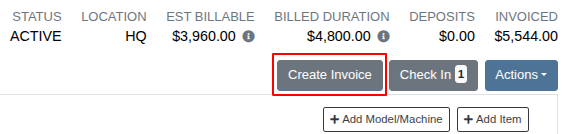
Create Invoice is now a button right in the Rental Contract header, alongside Check Out and Check In. You no longer have to open the Actions menu to bill a Rental Contract mid-rental — one click opens the same invoice window you already use.
The button appears on Rental Contracts that are reserved or active. Create Invoice also remains in the Actions menu, so nothing you do today stops working, and contracts that have already been checked in still bill from the menu as before.
Why It Matters:
Creating an invoice is by far the most common thing Rental Clerks reach for in the Actions menu — it accounts for about a third of every time that menu is opened. It was also the only heavily used action on the page still buried a click deep, while everything else of comparable use already sat in the header.
By Yara H.
What’s New!
The Contract tab of a Rental Contract now shows each Machine's physical location on its Machine line, right alongside the Machine ID. If no location is recorded for a Machine, the line looks exactly as it did before.
Why It Matters:
Rental Clerks don't want to check a Machine in until it has actually arrived at the delivery spot. Confirming that used to mean leaving the Rental Contract to pull up the moves report or the Machine dashboard, then coming back. Having it on the Machine line keeps that check in one place.

By Yara H.
What’s New!
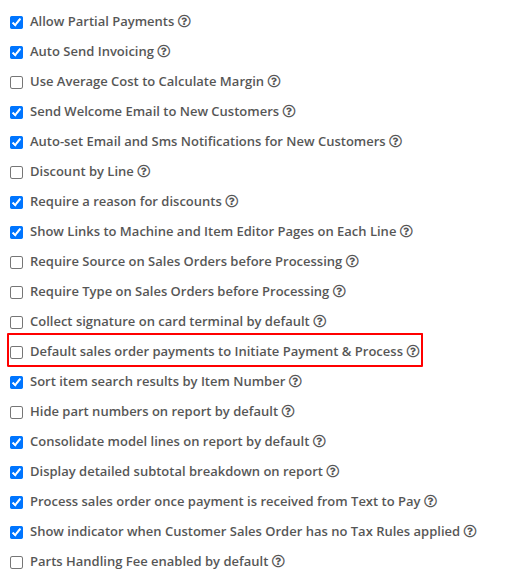
There's a new setting in Flyntlok Settings — Default sales order payments to Initiate Payment & Process. When it's turned on, "Initiate Payment & Process" becomes the primary button on the payment window for everyone at your dealership, so applying a payment also processes the Sales Order in one step. "Initiate Payment" is still there in the dropdown for the times you genuinely need to take a payment without processing.
Why It Matters:
Salespeople who accidentally chose "Initiate Payment" once would keep landing on it for weeks afterward without realizing it, leaving paid Sales Orders sitting in Draft. Sales Managers were catching missed Parts orders and inventory discrepancies only by manually reviewing Draft Sales Orders.
By Yara H.
What’s New!
The Shipping Addresses section on an Invoice now has a search bar. Type any part of a name, company, street address, city, state, or ZIP and the list narrows to the matching addresses instead of making you scroll the whole book. The default address still sorts to the top, and every column you rely on today is unchanged.
The search is available on the Shipping tab regardless of which Invoice you're on, so it works the same way for everyday sales and for the internal and warranty orders where the address list tends to be longest.
Why It Matters:
Salespeople and Service Writers writing internal or warranty orders bill against a house account, and every drop-ship over the years has added another end Customer's address to that same account. Some of those accounts have hundreds of saved addresses, which meant scrolling a small window looking for one line every time a Part needed to ship out to the Customer.

By Calvin M.
What’s New!
Smart Receive now reads a Purchase Order the way you do: by part, not by line. When the same part appears on several lines (e.g. a couple of special order or part request lines plus a stock replenishment line) your vendor likely won’t invoice it that way. Smart Receive now gathers all of a part's PO lines, reconciles the invoice against their combined quantity, and distributes the received quantity back across the individual lines for you. Special orders and part requests are filled ahead of stock lines, so a short shipment shorts your shelf rather than your Customer. Each line takes only what it still has outstanding and the remainder carries to the next line.
Why It Matters:
Splitting a part across multiple PO lines is how special orders and part requests work in Flyntlok. Before this release, trying to use the special order workflow and using Smart Receive were effectively at odds: any PO with a split part came back covered in discrepancies that weren't real, and Receivers had to work out by hand which lines were genuinely short and which were just artifacts of the matching. On POs heavy with special orders, that manual reconciliation could cost more time than Smart Receive saves.
This closes the gap. Receivers can run Smart Receive on Purchase Orders that mix special orders and part requests with stock and trust the result: the discrepancies that surface are real ones worth investigating, and quantities land on the right lines without intervention. Purchasers get the allocation they'd apply themselves (customer commitments filled ahead of shelf stock) applied consistently.
Invoice:
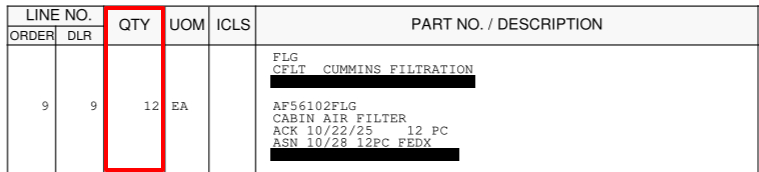
One invoice line for a part with 12 quantity
Receiving Voucher:
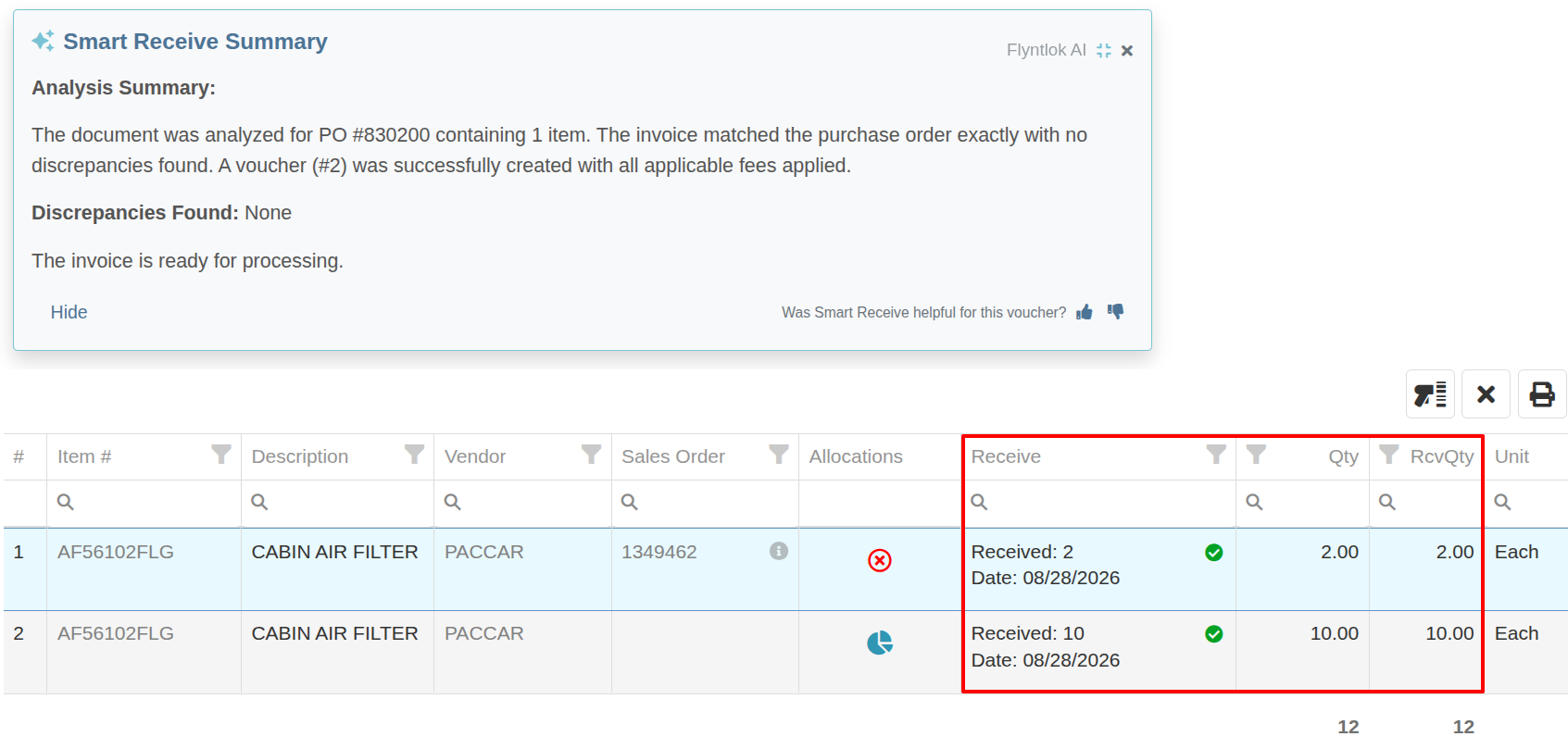
Smart Receive accurately distributes the invoice part’s quantity across the two PO lines
By Ben C. and Calvin M.
What’s New!
We have added a new dedicated model to Smart Receive to enhance how it handles Atlas Copco Compressors’ invoices. We have also updated the dedicated STIHL model so that it captures the STIHL Marketing Fee (RMF Percent).
Why It Matters:
Receivers trying to use Smart Receive with these two OEMs reported issues with costing on their Receiving Vouchers that they would have to manually correct by adjusting received costs or adding a fee line. These model enhancements make Smart Receive work better for those invoices so you can trust the findings and spend less time fixing your receiving vouchers.
By Ben C.
What’s New!
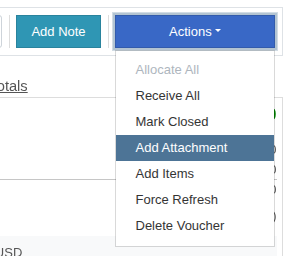
The Add Attachment window on a Receiving Voucher now calculates the Voucher Due Date from the Vendor’s terms. When you change the Invoice Date in that window, the due date updates automatically to match. A “Based on vendor terms” note appears under a calculated due date.
Why It Matters:
Receivers reported the Add Attachment window is where they enter the real Invoice Date, since that's when the Vendor's invoice is in hand. Until now, terms were only applied in the Voucher Details section, so the due date in this window had to be worked out and typed in by hand. Applying the terms here keeps dates accurate and removes a manual step.

By Bomby K.
What’s New!
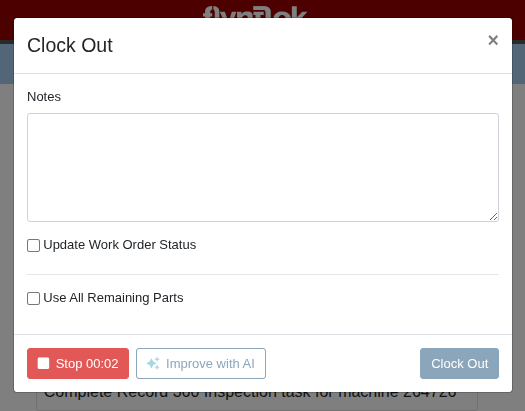
When you clock out of a Job on a Work Order, the Job Notes dialog that pops up now includes the full AI Tech Notes experience — the same voice-recording and "Improve with AI" tools you already use on the Work Order Jobs tab. You can dictate your notes out loud and let AI clean them up right there in the clock-out flow, on both the desktop and mobile Work Order pages.
Why It Matters:
Technicians finishing a Job are at the natural moment to capture what they did. Until now, the clock-out Job Notes modal was plain text only, so anyone who wanted the polish of AI Tech Notes had to skip the popup and go back to the Jobs tab to add or edit them. Bringing voice capture and AI improvement into the clock-out modal lets Technicians record richer, cleaner notes in the moment they finish work, raising the quality of documentation on every Work Order without extra steps.
Note: This will only appear alongside the clock-out note input, which is an optional setting per shop. You will need to enable this option to take advantage of this update!
Flyntlok Unlocked Ep.8: AI-Powered Smart Tech Notes with Sr. Software Engineer Bomby Kitchpanich
Listen to how service departments get the documentation they need with AI without sacrificing the technician productivity that drives service revenue.
By Bomby K.
What’s New!
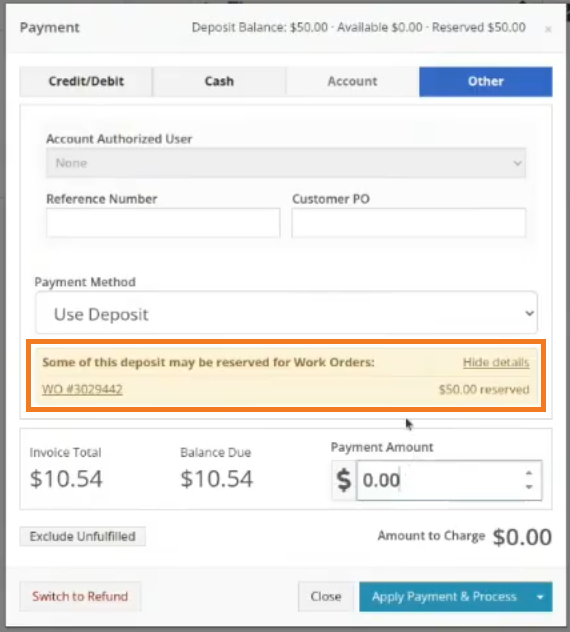
When you apply a Customer's deposit balance to an Invoice at Point of Sale, Flyntlok now checks whether any of that deposit was originally collected on an open Work Order. If it was, a clear, hard-to-miss warning appears before you take the payment, showing exactly which Work Orders that money is reserved for, how much sits on each, and how much of the balance is actually free to use on the Invoice in front of you. The Deposit Balance readout is also split into "Available" and "Reserved" so you can see the difference at a glance.
If you enter an amount larger than the free balance, the warning becomes more prominent to flag that you're about to spend money the Customer expects to cover their Work Order. Nothing is blocked — you keep full control and can still apply the deposit when that's the right call — you just aren't doing it blind anymore.
Why It Matters:
Deposits collected on a Work Order share the same Customer deposit balance as every other deposit, so it was easy to unknowingly apply money a Customer put down for a specific job to an unrelated Invoice. That left the Work Order short and created awkward reconciliation later. Salespeople now get an at-a-glance, non-intrusive heads-up at the exact moment it matters, keeping deposits with the jobs they were collected for without adding any extra steps, settings, or approvals to the sale.
Note: The warning covers deposits tied to open Work Orders. Deposits on already-Invoiced or deleted Work Orders are treated as settled and won't trigger a warning.
By Bomby K.
What’s New!
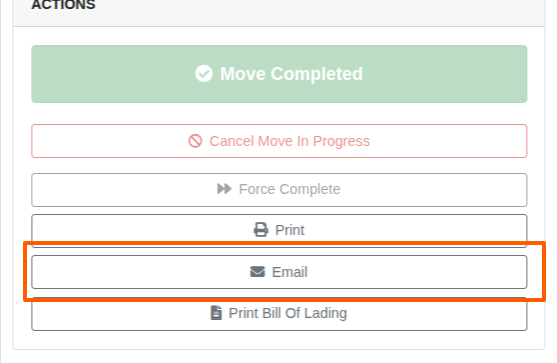
You can now email a Machine Move straight from the move page. Alongside the existing Print and Print Bill Of Lading buttons, there's a new Email button that opens a compose window with the move document already attached as a PDF. Pick a recipient — an internal team member such as a driver, or a Customer contact. Add a subject and message, and send, all without leaving Flyntlok.
Why It Matters:
Previously, getting a move to a driver meant a multi-step workaround: print the move, save it as a PDF, open your email client, and drag the file into a new message. The new Email button collapses that into a single click. As a bonus, a copy of the emailed PDF is saved to the move's Files section, so there's a record of exactly what was sent.
By Alex E.
What’s New!
We fixed a bug when attaching a form directly to a machine dashboard that would allow you to attach forms that you had removed from your list of form templates. While there, we decided to move the old forms button from the machine dashboard from its old place in the top right next to the actions drop-down. We put it more in line with the rest of the page and made a table of associated forms that you can now attach and delete at will. We also link directly to the work order if it's associated with one.
Why It Matters:
Now it’s easier to view and manage forms attached to a Machine. We also provide a more consistent and useful display of that data. Now you can properly clean up inadvertently attached forms.
By MA S. and Ula L.
What’s New!
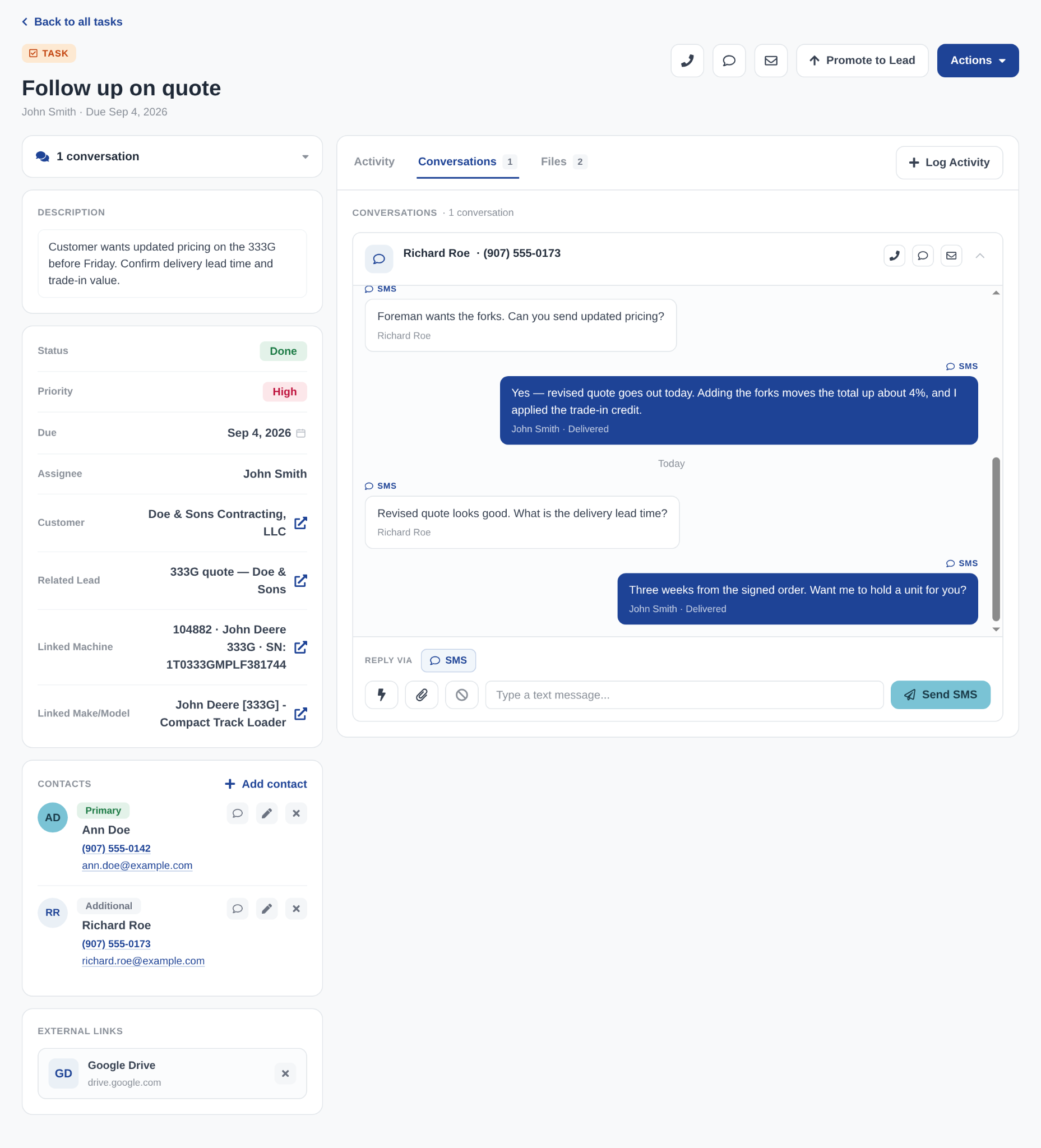
CRM Tasks now open on a dedicated Task details page instead of the old edit task dialog. One page holds the whole Task: the Customer, Lead, Machine and make/model it belongs to, every contact on it, and the status, priority, due date, assignee and secondary assignee that say what happens next. There is no separate edit screen — click a value, change it, and it saves on its own.
The page also does what the dialog could not:
Learn even more about CRM Tasks in our support article!
Why It Matters:
We’ve accelerated end-to-end Task handling. Everything about the Task - who it is for, what has been said, what happens next - is laid out in one organized view instead of buried in a form. The text thread with the Customer sits right there on the Task, so anyone who opens it can read what was actually said before picking up the phone again. Salespeople change a status or move a due date by clicking the value and typing; there is no save button to remember and no half-finished edit lost when a window closes. A Task takes seconds to update, which is the difference between a list that stays current and one that quietly goes stale.
By MA S.
What’s New!
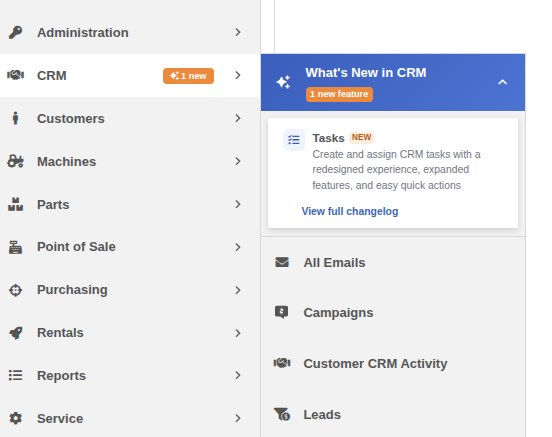
The CRM menu in the left navigation now points out new CRM features. A "new" label appears next to CRM and shows how many features are new. Open the menu and a "What's New in CRM" section sits at the top. It lists each new feature with a one-line description and a link that takes you straight to it, plus a "View full changelog" link to the full release notes.
Why It Matters:
New CRM tools are easy to miss. Now they show up right where salespeople already work, so the team can try them the week they arrive - no waiting on the next training session, and no hoping someone opened the right email.
By MA S.
What’s New!
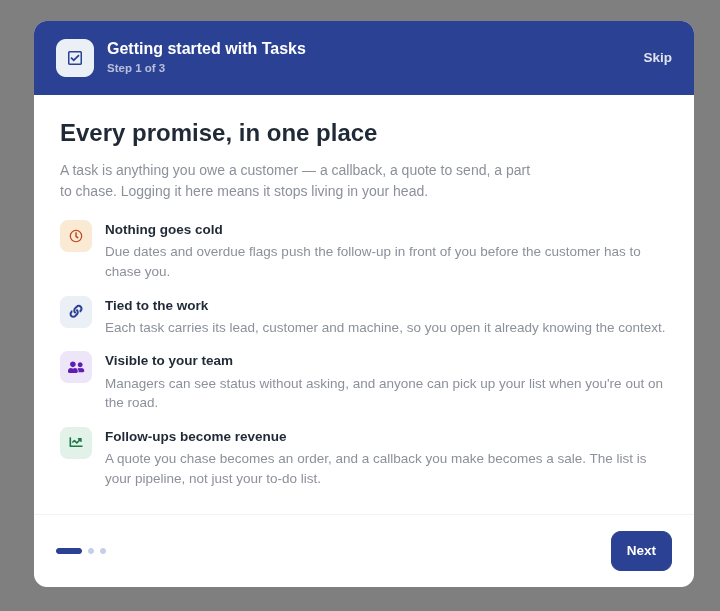
A three-step walkthrough now opens the first time a salesperson opens the CRM tasks dashboard, and a second one opens the first time they open a task details page. The tasks walkthrough explains what a Task is for, how to log one in seconds, and how to shape the table into a saved layout. The task details walkthrough explains the context the page carries, the inline edits, and how to promote a Task into a Lead. A "How Tasks Work" button on the tasks dashboard and a question-mark button in the task details header reopen the walkthrough at any time.
Why It Matters:
CRM Tasks only pay off when the sales team uses them. The walkthrough explains the page at the moment a salesperson lands on it, so follow-ups get logged instead of forgotten. Sales Managers spend less time training the team desk by desk, and fewer callbacks and quotes fall through the cracks.
By Ula L.
What’s New!
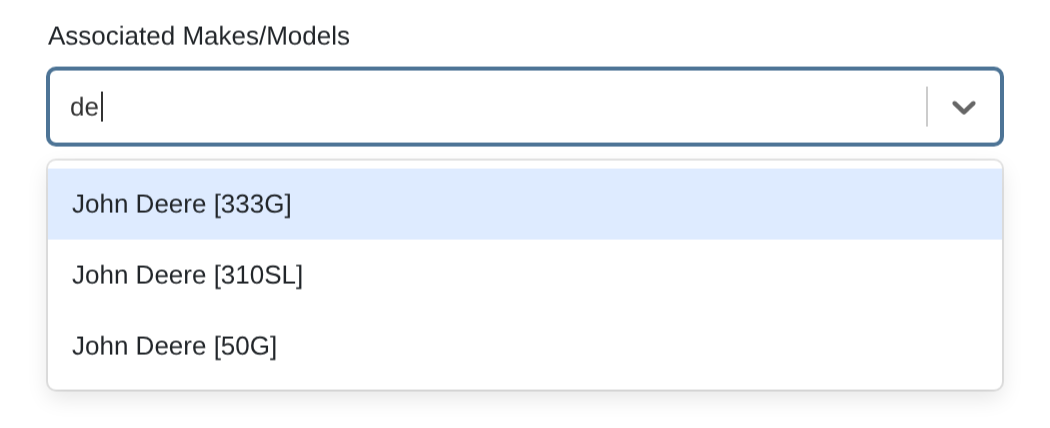
The Associated Models picker in the Add New Lead modal is now "Associated Makes/Models". Each option shows the make and the model together instead of the model alone, and the field uses the same lookup and label format as the make/model picker in the tasks modal. Options with a missing make or model now read "(Unknown Make)" or "(Unknown Model)" instead of a blank value.
Why It Matters:
Salespeople saw only a model number, so two units from different manufacturers looked identical and the wrong one was easy to pick. With both the make and model now displayed, salespeople will attach the right equipment to a Lead the first time. The picker also matches the one on tasks, so the field reads the same way on every screen.

By Ula L.
Complaint:
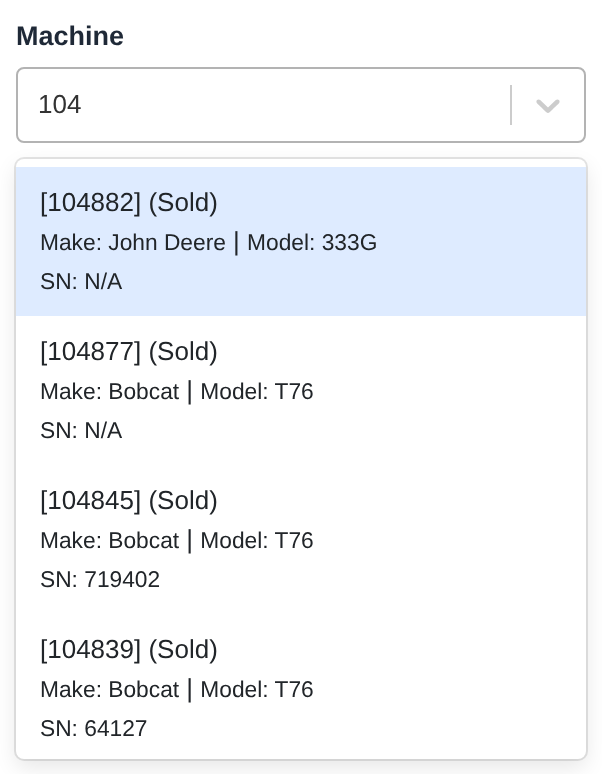
It was reported that a full machine ID typed into the machine search in the tasks modal did not bring that Machine to the top of the results. As a result, salespeople had to read through a long list of unrelated Machines to find the unit they typed.
Correction:
Fixed. The machine search in the tasks modal now puts an exact machine ID match at the top of the results. Each option shows the machine ID and the status on the first line, then the make, the model, and the serial number.
By Ula L.
What’s New!
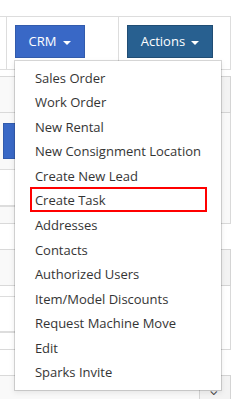
The actions dropdown on the customer dashboard and the machine dashboard now includes a "Create Task" option. It opens the new task modal with the record already linked — the Customer and company name from a customer dashboard, or the Machine with its make, model, and serial number from a machine dashboard.
Why It Matters:
Until now the only way to start a Task from a dashboard was the "Add New" button` inside the tasks widget, near the bottom of a long page. Salespeople now start a Task from the actions menu at the top, without scrolling past every other widget to find it.
By Yasmine C.
What’s New!
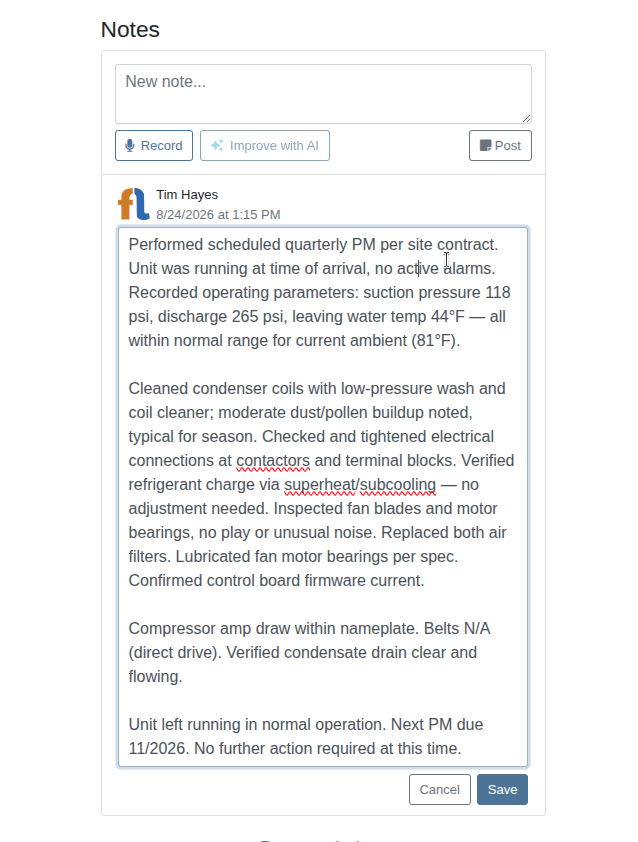
Service technicians can now edit their own job notes directly in mobile view.
Why It Matters:
Fixing a typo or updating details is now fast and effortless—no deleting and re-adding required.
By Christian E.
What’s New!
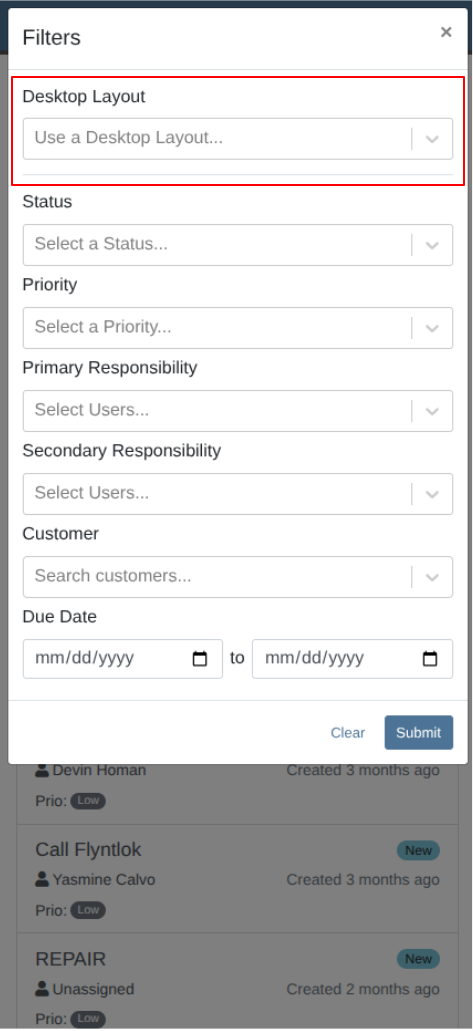
Users can apply their saved desktop custom layouts directly to the mobile tasks list.
Why It Matters:
When navigating between desktop and mobile platforms on the go, users expect to be able to search and navigate their tasks list the same way regardless of the platform they are on. This closes that gap.
By Christian E.
What’s New!
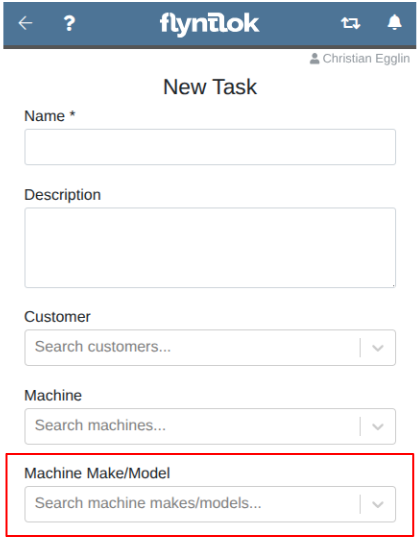
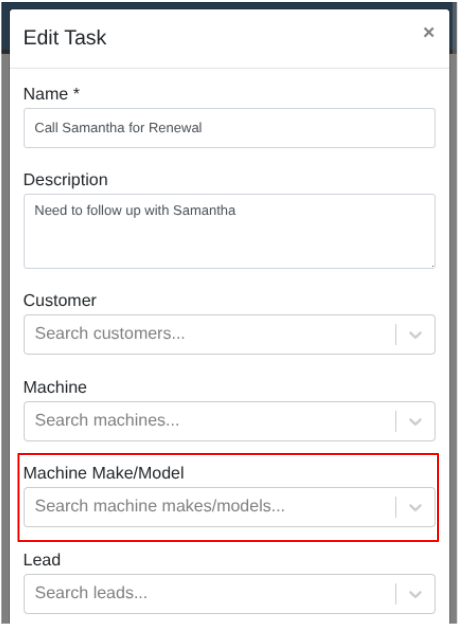
CRM Tasks can now be associated with a Machine make/model on mobile. Similar to the desktop version, the Make/Model lookup is available when Salespeople create or edit a Task, and searches by manufacturer, model number, or description.
Why It Matters:
Salespeople can now log conversations around a class of equipment instead of waiting for a unit to be chosen, and Sales Managers can filter the Tasks table by make/model to see real demand across a product line and aim outreach at it.
By Yasmine C.
What’s New!
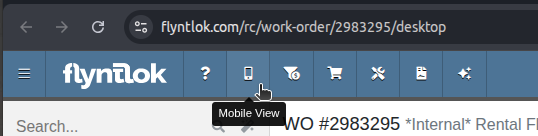
For all pages with both mobile and desktop versions, using the mobile icon on the navigation bar and the ‘Return to Desktop’ button will route users directly to the corresponding mobile/desktop page.
Why It Matters:
Pick up right where you left off when you move between mobile and desktop—fewer clicks, less hassle.
By Christian E.
What’s New!
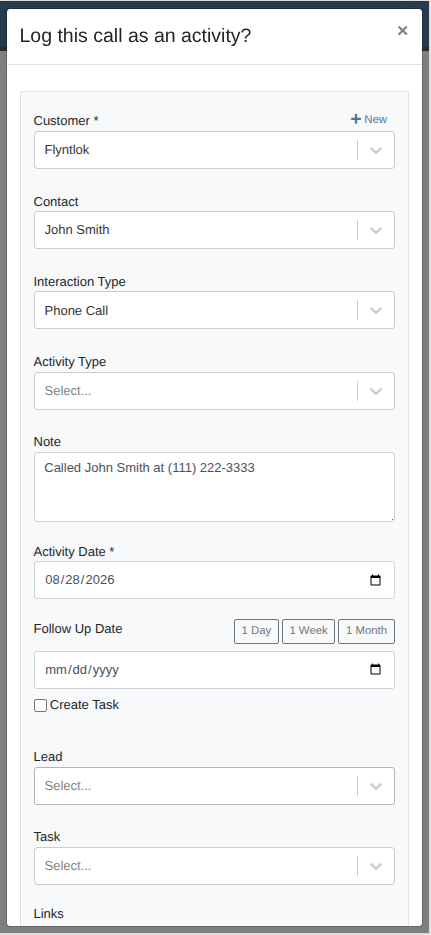
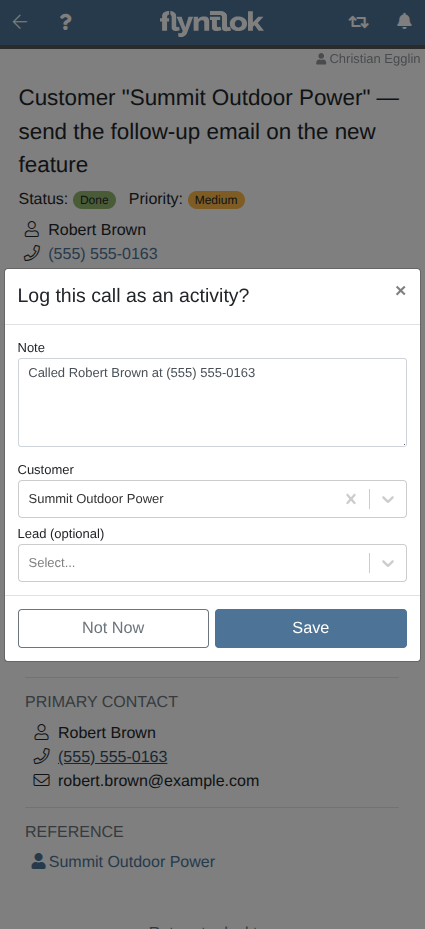
When you click to call a contact phone number from the Flyntlok Mobile view, you will be prompted to save that call as a CRM customer activity in just one click.
Why It Matters:
Sales staff will no longer need to manually go out of their way to log conversations they have had with customers, whether that be a conversation had from a lead, task or a customer’s dashboard. With one click, they can save that activity for future reference.
By Alex E.
What's New!
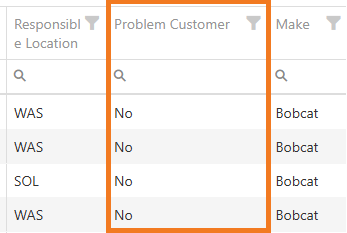
Salespeople and Sales Managers can now add a Problem Customer column to the Sold Machines report. The column reads Yes or No for each row, so the Customer behind every sold Machine is flagged right alongside the rest of the report.
Like any other column on the report, it can be shown, hidden, sorted, and filtered, and it comes along when the report is exported.
Why It Matters:
Before this, checking whether a Customer was flagged as a problem meant leaving the report and opening each Customer record one at a time. For Sales Managers reviewing a month of sold Machines, that added up quickly.
With the flag on the report itself, Sales Managers can sort or filter to see which sold Machines belong to flagged Customers, and Salespeople get that context while they're already working the list.
By Nick V.
Complaint: Rental Clerks reported that after using the rate change tool on active Rental Contracts, the Machine Dashboard's Newest Rental Actions list showed those Machines as Checked In, even though the Machines were still out on rent.
Correction: Fixed. The Machine Dashboard now shows the current rental status for the Machine, so a Machine on rent after a rate change correctly displays as Checked Out.
By Calvin M.
Complaint: Salespeople and Managers reported that a STIHL Machine could display registration details for the wrong customer when its serial number was missing or invalid.
Correction: Fixed. The Machine Dashboard now shows STIHL registration information only when it matches the Machine's serial number.
By Nick V.
Complaint: Salespeople reported that adding a Part to a Sale would hang on "loading parts," and that Sales were slow to load.
Correction: Fixed. Optimized a background process that runs when the Sale is saved to improve performance here.
By Yara H.
Complaint: Technicians reported that parts added to a Sales Order at a service truck location came back with a blank bin location, even though those same parts had bins assigned in the truck's parts inventory. Finding where a part sat on the truck meant leaving the Sales Order and opening the truck's inventory list separately.
Correction: Fixed. Parts added to a Sales Order at a service truck location now show their bin location.
By Yara H.
Complaint: Rental Clerks reported that emailing or texting a Rental Contract in Quote status used the executed agreement's wording — the subject read "Your Rental #" and the body said a lease agreement was attached — so they had to rewrite both by hand before sending a quote to a Customer.
Correction: Fixed. A Rental Contract in Quote status now sends as a quote: the subject reads "Your Quote #" and the body reads "Please find the requested quote attached."
By Yara H.
Complaint: Salespeople reported that quoting a Model on a Sales Order showed no quantity on hand badge even when a unit was in stock — and the same unit was still selectable on the allocate screen, so the Machine clearly existed. Machines whose owner had been cleared were not being counted as available, and there was no way to correct it from the front end.
Correction: Fixed. A Machine with a cleared owner now counts toward the quantity on hand badge, matching how the allocate screen has always treated it.
By Calvin M.
Complaint: Receivers reported that certain rates could not be entered when setting a custom FX rate on a Machine Receiving Voucher, and the up/down arrows wouldn’t work to change to the desired rate.
Correction: Fixed.
By Yara H.
Complaint: Rental Clerks reported that on the new rental page, the rates shown in the list view of search results stayed pinned to the location the contract started at. Switching the contract to a different store showed that store's equipment but kept the original store's rates, so the rate quoted to the Customer could differ from the rate that landed on the Rental Contract.
Correction: Fixed. The list view now looks up rates for whichever location the contract is set to, and updates every time you change it.
By Nick V.
Complaint: Salespeople reported that dragging and dropping files onto the "Add attachment" area of a Sales Order sometimes showed an error saying the file must be smaller than 15 MB, even though selecting the same file manually worked fine.
Correction: Fixed. The file size warning now only appears when a dropped file is actually over 15 MB.
By Ben C.
Complaint: Managers reported an issue in the Bobcat Parts Trading Network export where truck locations were being included when only store locations should be.
Correction: Fixed. The export now includes only store locations.
By Calvin M.
Complaint: Purchasers reported that a Machine's cost jumped up after a fee-only Receiving Voucher was entered. This happened on multi-currency Machine Purchase Orders where Vouchers alternated between a foreign-currency Vendor and a Vendor in the dealership's own currency.
Correction: Fixed. A Receiving Voucher now only updates a Machine's Vendor cost when the Vendor’s currency matches the Machine’s currency, so fees billed by a Vendor in a different currency no longer overwrite and re-convert the Machine's cost basis.
By Bomby K.
Complaint: Service Writers reported that when creating a new Work Order, searching the Customer field by phone number and clicking to add a new Customer put the phone number into the Customer Name field instead of the phone number field, unlike the Sales Order screen, which fills it in correctly.
Correction: Fixed. When you search by phone number and add a new Customer from the Work Order screen, the number now goes into the Phone field and the Customer Name is left blank for you to fill in, matching how it already works on Sales Orders. Typing an email address routes it to the Email field the same way. The related step of adding a new Contact from a Work Order was corrected as well, so a typed name no longer ends up in the phone field.
By Bomby K.
Complaint: Salespeople reported that searching for a Model to sell was slow to load when the Model had a large number of associated Machines.
Correction: Fixed. Model search and related Invoice lookups now load quickly regardless of how many Machines are tied to a Model.🪱
By Alex E.
Complaint: Service Writers reported that the red pre-approval flag at the top of a Work Order disappeared after generating a new Estimate, and would only come back after refreshing the page.
Correction: Fixed. The pre-approval banner now stays put after generating an Estimate, as well as after the other Work Order actions that were also clearing it.
By Alex E.
Complaint: Service Writers reported that changing a job's estimated hours or job type on a Work Order did not update the estimated price until the page was refreshed.
Correction: Fixed. The estimated price now updates as soon as the estimated hours or job type is changed.