NEW:
Turn Customer Data into Revenue with AI-Powered Smart Campaigns
Big news: Flyntlok is going mobile (app)!
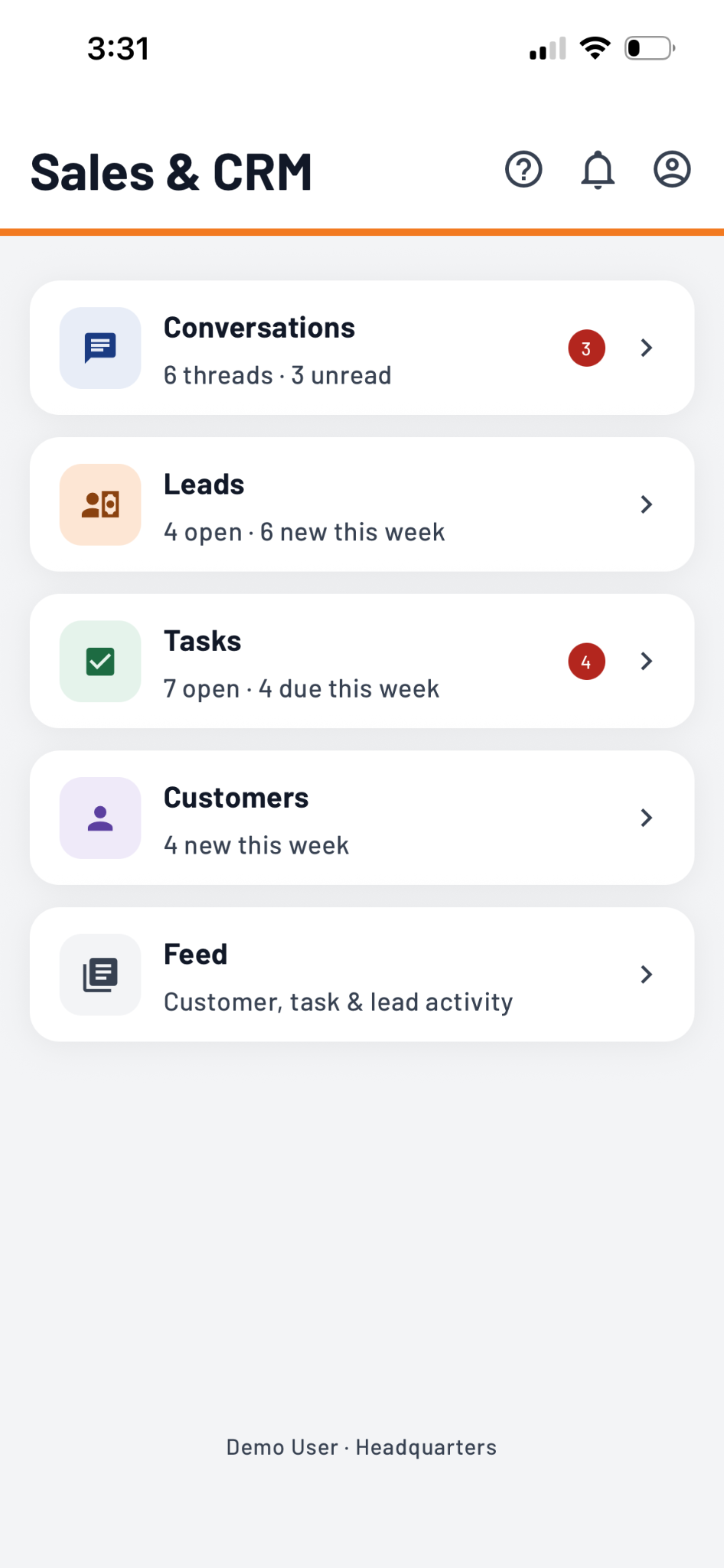
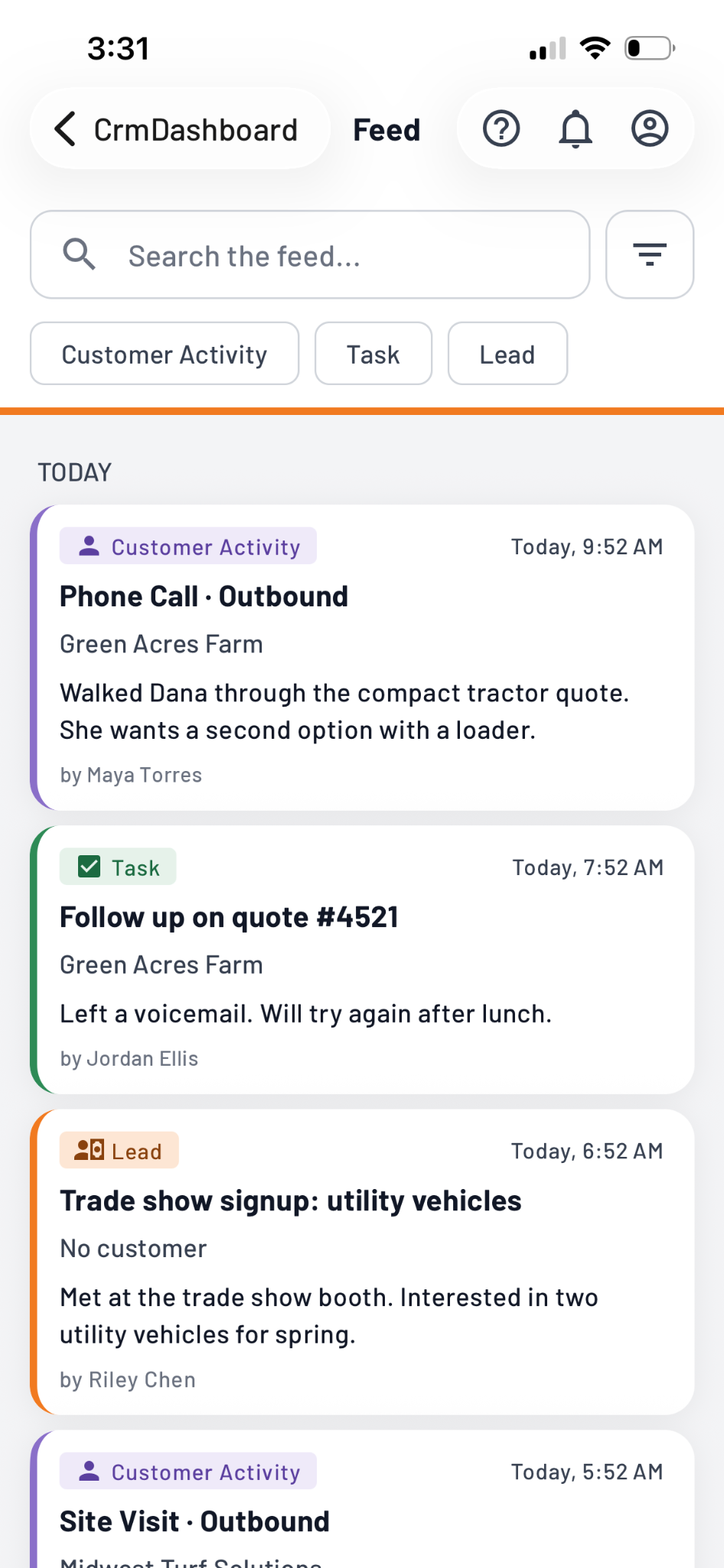
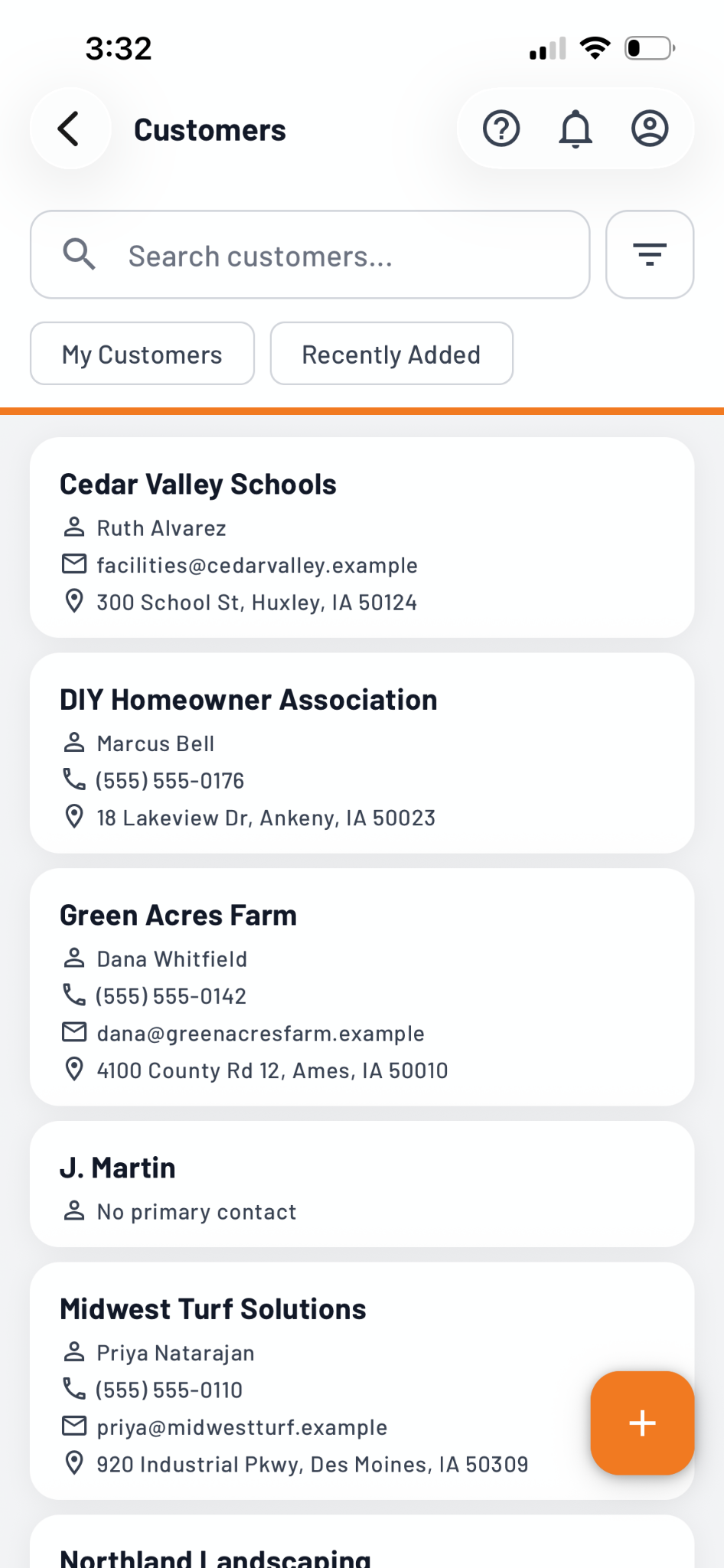
We're excited to announce that our brand-new native Flyntlok Mobile app is entering closed beta, and we're looking for a handful of dealers to help us put it to the test. Built for the way you work, the new app will make it easier to stay connected and get things done whether you're on the showroom floor, out in the yard, or meeting with a customer. We're starting with Sales and CRM workflows, with Service and more on the way.
And that's not all! This release also brings smarter customer conversations, clearer rental availability, easier warranty workflows, and more safeguards for your financial operations.
One quick heads-up: Over the next few releases, you'll see a little less in the way of new features as our team focuses on important backend and system architecture improvements (e.g., speed, fault tolerance, and security).
And don't forget to join us for Office Hours in November and December. Your feedback continues to drive what we build.
Watch AI Hype vs. AI That Works with Bob Clements, True Radius, and Flyntlok AI Demos.
Plus, we kicked off Season 2 of Flyntlok Unlocked from the Equip show floor and demo yard. Tune in here or wherever you listen to your podcasts.
Let’s get into it!
Due to continued interest and great feedback from y'all, we're hosting more office hours dedicated to specific areas of Flyntlok, giving you direct access to our product team to share feedback, ask questions, and help shape what we build next.
Sessions will cover:
Have thoughts on what you'd like to see in Flyntlok for any of these topics? Drop us a support ticket and we'll send you an invite to join the discussion with our dealer community for that session.
As always, THANK YOU for sharing your experiences with us… we love driving that feedback directly back into the product.
ICYMI: See our built-in, rapid Customer Support in action with Flyntlok Support Consultant JP Raiger, and learn more about the people, process, and high standards behind the industry’s fastest response times. Listen wherever you get your podcasts or here: https://www.flyntlok.com/events-webinars/flyntlok-unlocked-ep-4-the-industrys-fastest-customer-support.
By Christian E.
What’s New!
We're excited to announce a closed beta of Flyntlok's new native Mobile app. We're opening it to a small, exclusive group of five users: three on iPhone and two on Android.
This first release focuses on CRM. We'll be extending the app to other workflows, including Service, in the coming weeks. For now, we're looking for beta users whose teams work mainly in Sales and CRM.
If your dealership would like to be considered, please submit a support ticket letting us know you're interested and whether your team uses iPhone or Android. We'll follow up with next steps and instructions for downloading the beta app. Spots are limited, so we encourage interested dealers to reach out soon. We can't wait to hear what you think!
Why It Matters:
The Flyntlok Mobile app is being built for how you work away from your desk. The user experience is more optimized for the phone, so you can get things done on the shop floor, in the yard, or out with a customer. Easier login gets you in quickly, and notifications keep you on top of what needs your attention without having to go looking for it. As a beta participant, your feedback will directly shape what we build next, so please tell us what's working and what isn't.
By Christian E.
What’s New!
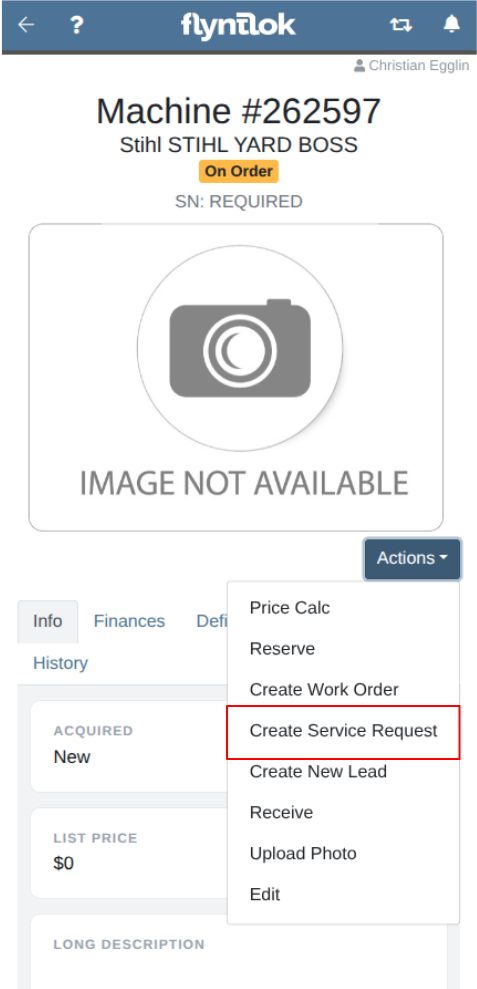
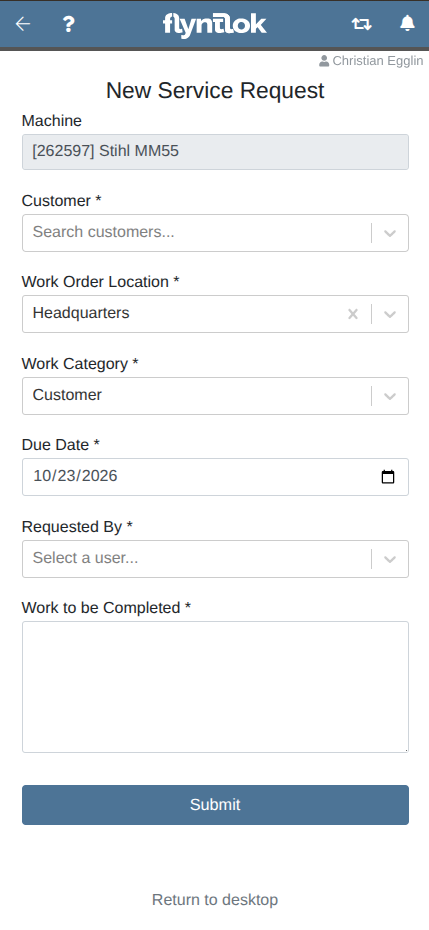
On the Mobile Machine Dashboard, there is now an action to quickly create a Service request for that machine.
Why It Matters:
Sales teams are now able to put in a request with the service department while in the field with a customer.
By Christian E.
What’s New!
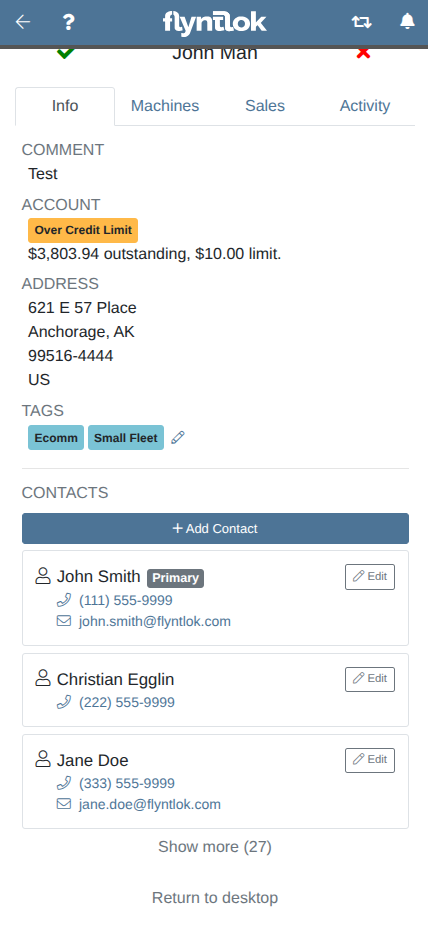
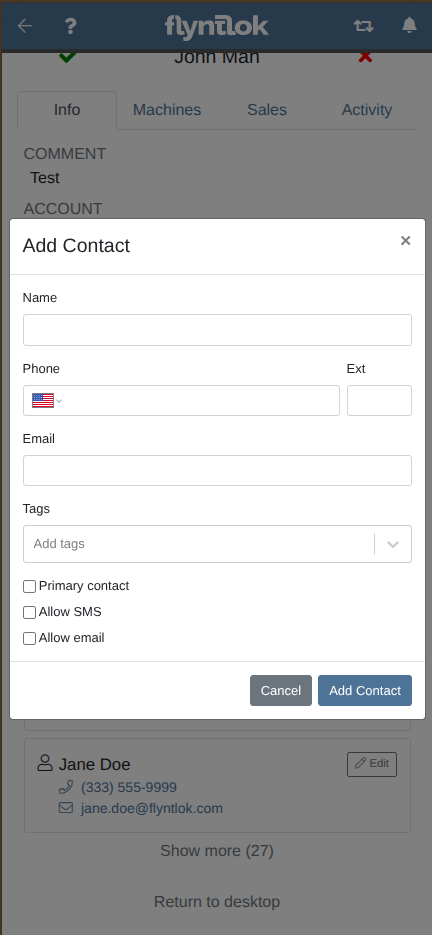
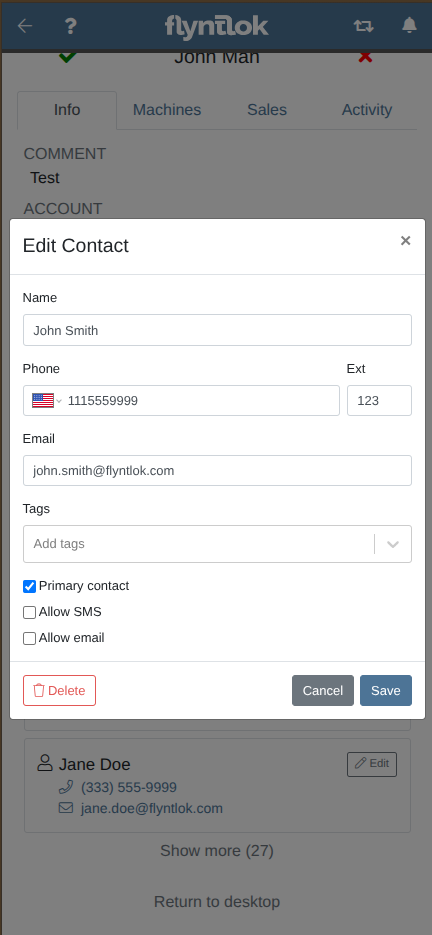
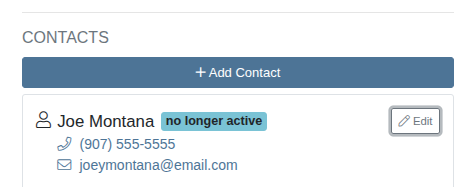
In the customer contact list on the mobile customer dashboard, individual contacts can be updated or deleted or new contacts added.
Why It Matters:
Sales teams can manage and keep up to date customer contacts on the go.
By Yasmine C.
What’s New!
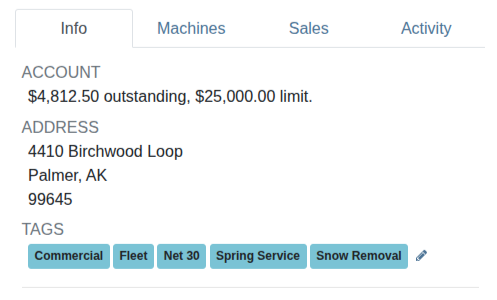
Customer tags are now displayed on the Mobile customer dashboard and can be edited directly.
Why It Matters:
Salespeople can now tag a customer from their phone right after a visit or call, instead of trying to remember it when they get back to their computer.
By Yasmine C.
What’s New!
Previously only standard Flyntlok-defined tags like ‘primary’ or ‘accounting contact' were displayed in the mobile customer dashboard, now all tags are displayed.
Why It Matters:
This allows users to access additional information about a customer at a glance, on the mobile view.
By MA S.
What’s New!
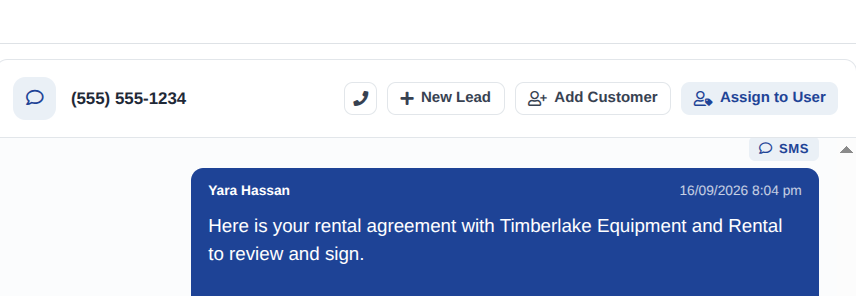
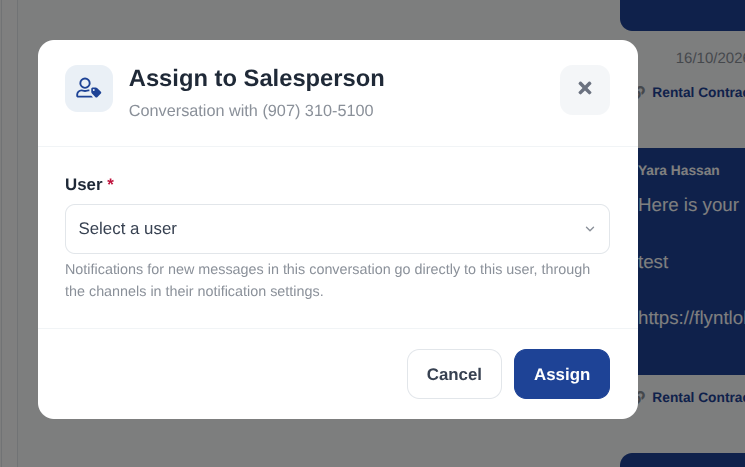
Every conversation in the Inbox now has an "Assign to User" button. Select a user and the conversation belongs to them. The button then shows their name, and you can reassign or unassign the conversation from the same place. When the contact sends a new message, the assigned user gets a notification immediately, through the channels in their notification settings.
Why It Matters:
A text or email that nobody owns is a lead that nobody answers. Assignment gives each conversation one responsible person. The right salesperson sees the reply as soon as it arrives, and nobody else has to watch the Inbox for them. A manager can also route a conversation to the person who knows that customer best.
By MA S.
What’s New!
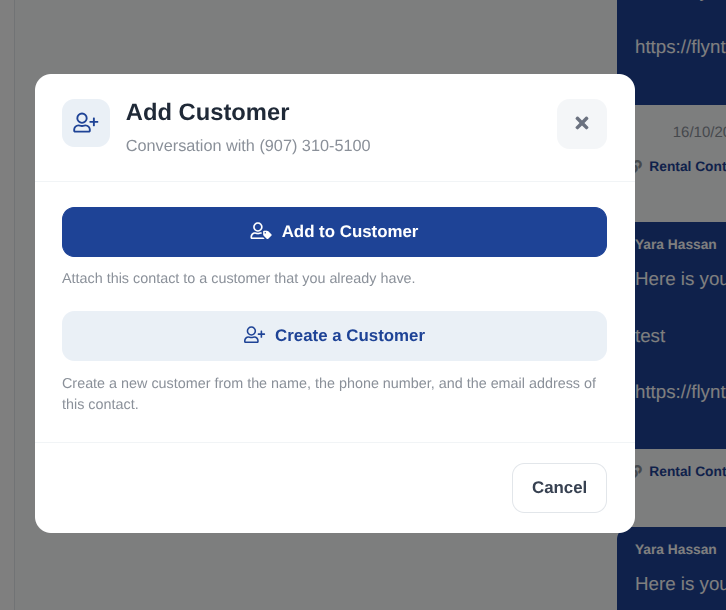
Many texts and emails in the Inbox come from people who are not on a Customer yet. Those conversations now show an "Add Customer" button. From there you can attach the contact to a Customer you already have, or create a new Customer from the contact's name, phone number, and email address in one step. If the contact already exists on another Customer, Flyntlok links the existing contact instead of creating a duplicate. Once the contact belongs to a Customer, a Customer pill shows beside the contact and links to the Customer dashboard.
Why It Matters:
New inquiries do not get lost between the Inbox and the Customer list. You can turn a cold text into a Customer record without leaving the conversation, and the duplicate check keeps your customer data clean. From then on, every message from that contact is tied to a Customer you can quote, invoice, and follow up with.
By MA S.
What’s New!
When the contact in a conversation belongs to a Customer, the conversation shows a "Last Invoice" pill under the contact's name. It lists the items on the Customer's most recent invoice and links to that invoice. Quotes, drafts, and internal parts orders are skipped. Payments and deposits with no items are also skipped.
Why It Matters:
You know what the customer last bought before you type a reply. A question like "do you have the filter for my mower?" can be answered from the conversation, with no trip to the Customer dashboard to search their history. Faster, better-informed replies mean fewer back-and-forth messages and a better experience for the customer.

By Yara H.
What’s New!
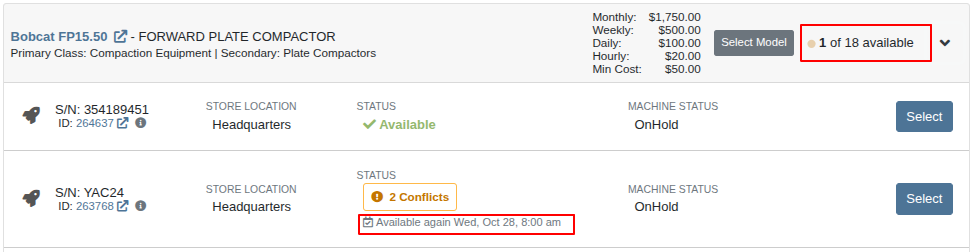
When you search for equipment on a new Rental Contract, each Model card now shows how many of its units are available, instead of only the total unit count. If no units are free, the count is highlighted so you can spot it at a glance.
Within each Model, available Machines are now listed first, followed by Machines that are already committed. For a committed Machine, the list shows the date and time it's expected back. That date comes from the Machine's existing Rental Contracts, reservations, and Work Orders. If the expected return date has already passed, the Machine is marked as overdue in red, showing how many days late it is.
Why It Matters:
Before, Rental Clerks had to open a Model and check each Machine to find out which ones could actually go out. Now they can tell right away whether a Model has a unit ready to rent. When nothing is free, they can give the Customer a realistic date on the spot instead of looking up each conflicting contract or Work Order.
By Yara H.
What’s New!
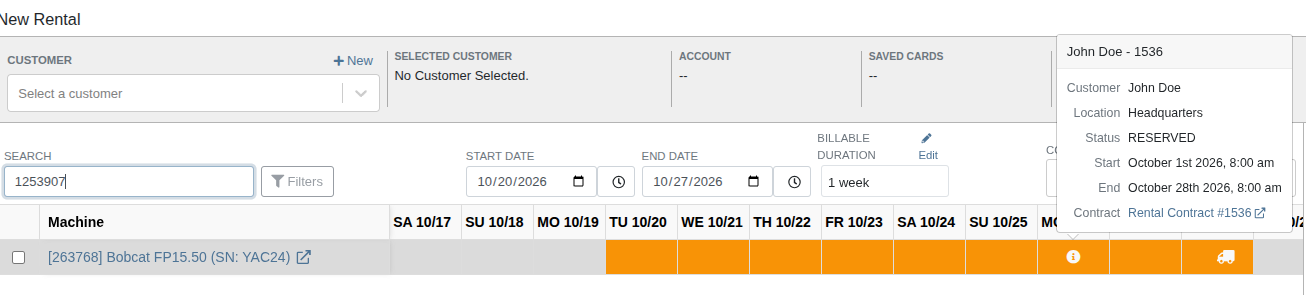
The Rental Timeline now shows the day of the week next to each date.
Hovering over a booked day opens a summary of the Rental Contract behind it, including the Customer, location, status, and start and end dates, along with a link that opens the full contract in a new tab. Clicking a day still opens the full list of conflicts for that Machine.
A truck icon now marks days with a scheduled delivery or pickup. The trucks face opposite directions so you can tell deliveries and pickups apart.
Why It Matters:
Rental Clerks plan deliveries, pickups, and returns around the work week. Before, they had to check a calendar to match dates to days. Now all of that is on the Timeline itself, so clerks can plan without leaving the page.
By Yara H.
What’s New!
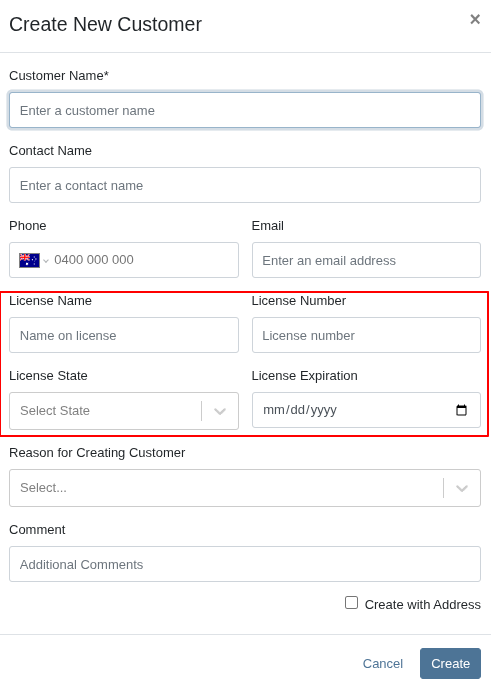
When you create a new Customer while starting a Rental Contract, the new Customer form now includes optional fields for their driver's license: the name on the license, the license number, the issuing state, and the expiration date.
Why It Matters:
Rental Clerks often collect a driver's license when signing up a new rental Customer. Before, they had to create the Customer first and then go back to add the license. Now they can enter everything in one step at the counter.
By Bomby K.
What’s New!
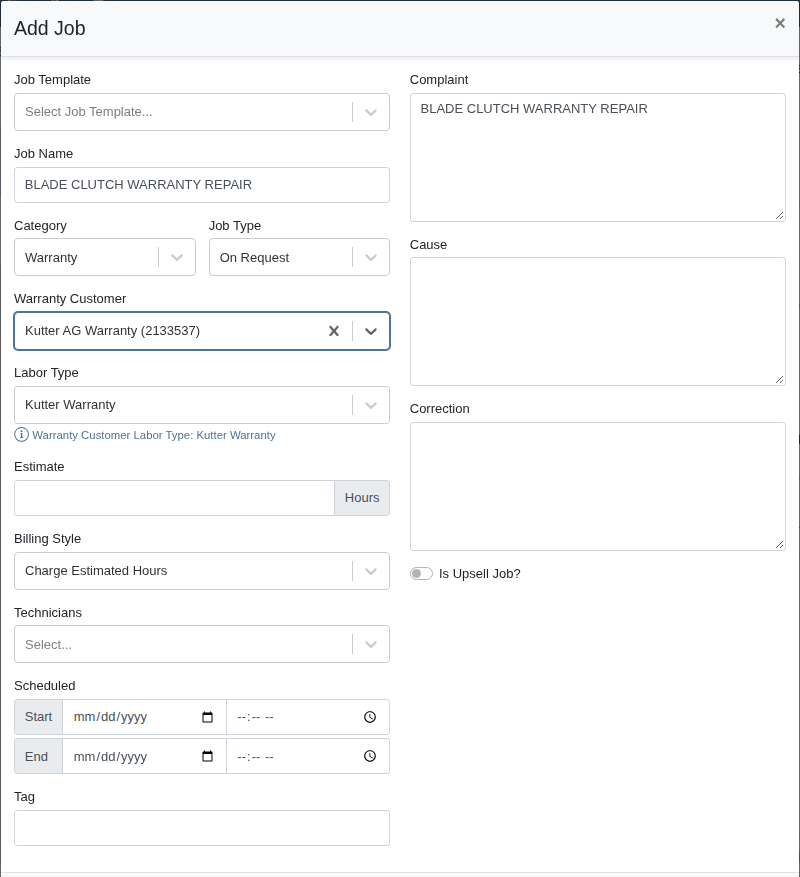
When you add a Job with the Warranty category and pick a warranty Customer, the Labor Type now fills in automatically with that Customer's default Labor Type, and a hint under the field shows where it came from. This also works when the warranty Customer is filled in for you from the Machine.
If you change the warranty Customer on an existing Job, you're asked whether to switch the Job to the new Customer's default Labor Type.
Why It Matters:
Service Writers previously had to remember to change the Labor Type by hand on every warranty Job, or create a whole separate Work Order for the warranty Customer to get the right default. Now warranty Jobs start with the right Labor Type, so labor is billed at the right rate from the start.
By Bomby K.
What’s New!
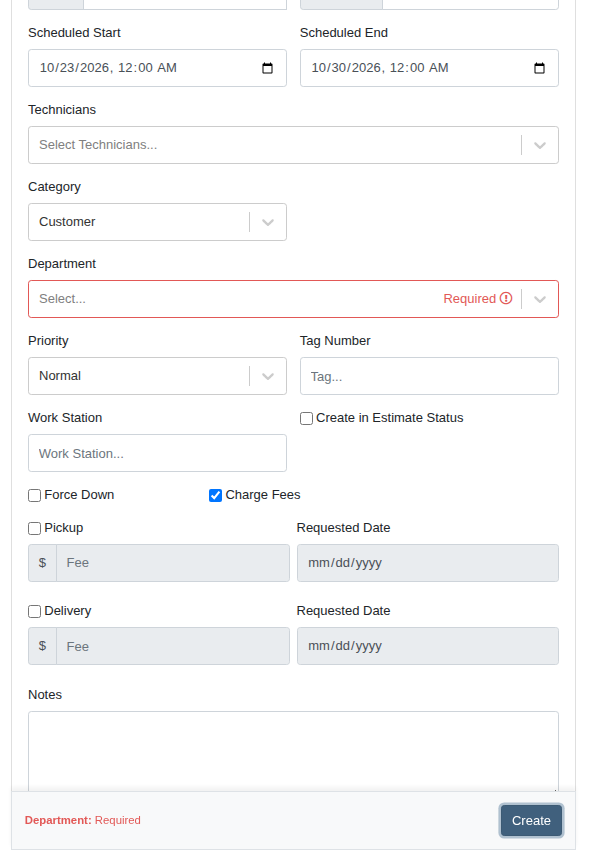
We've added a new setting, "Require department when creating work order," in Flyntlok Settings. When it's on, a new Work Order can't be created until a Department is selected. If you click Create without one, the Department field is marked Required and the form tells you what's missing.
Why It Matters:
Service Managers rely on Departments to sort, route and report on Work Orders. When a Work Order slips through without one, it drops out of department reports and has to be found and fixed by hand later. Requiring the Department up front keeps every new Work Order counted in the right place.
By Bomby K.
What’s New!
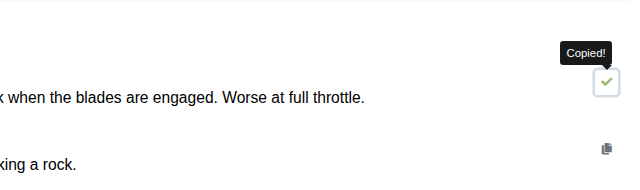
Each Job on a Work Order now has a copy button next to its Complaint, Cause, and Correction. Click it to copy that text, then paste it wherever you need it, such as a manufacturer's warranty claim. The button shows a check mark to confirm the text was copied.
Why It Matters:
Service Writers filing warranty claims had to open each field, highlight the text, copy it, and repeat for all three fields on every Job. The copy buttons cut that down to a single click per field.
By Brenden B.
What's New!
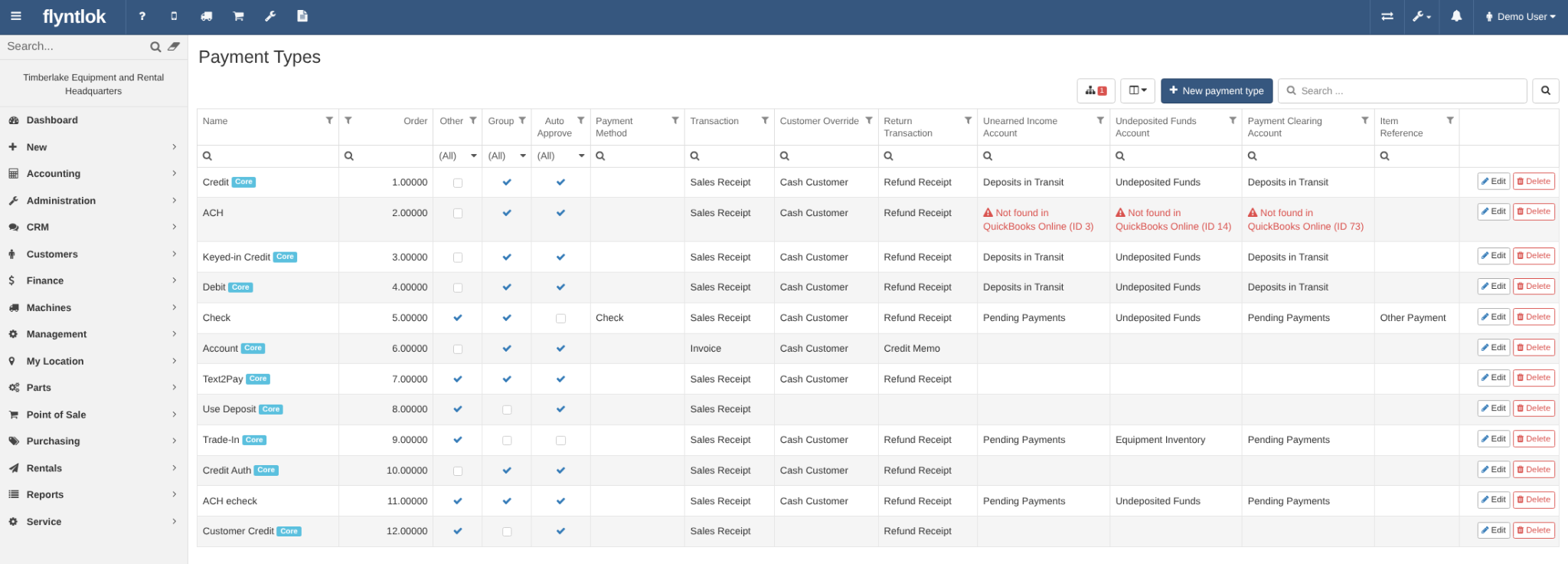
The Payment Types editor has a new page with an updated look and feel.
The primary feature introduced is the ability to flag payment types that other features depend on. A Core badge marks the payment types that things like cash payments, charge to account, Credit Auth, trade-ins and store credit refunds rely on. A Feature Status window lists each of those features and whether it's working.
If you save a change or delete a payment type and that would turn a feature off, you'll see a warning first. Payment types that point to an account or contact that no longer exists in your accounting system are now flagged as invalid.
Why It Matters:
Renaming or deleting a payment type can quietly break things elsewhere. For example, the Cash button can disappear from sales orders, or the Pending Sales Orders report can stop showing posted payments. The new warnings help managers and accountants catch these problems before they happen.
Note: The existing Payment Types menu link now opens the new editor. Only administrators can make changes.
By Ben C.
What’s New!
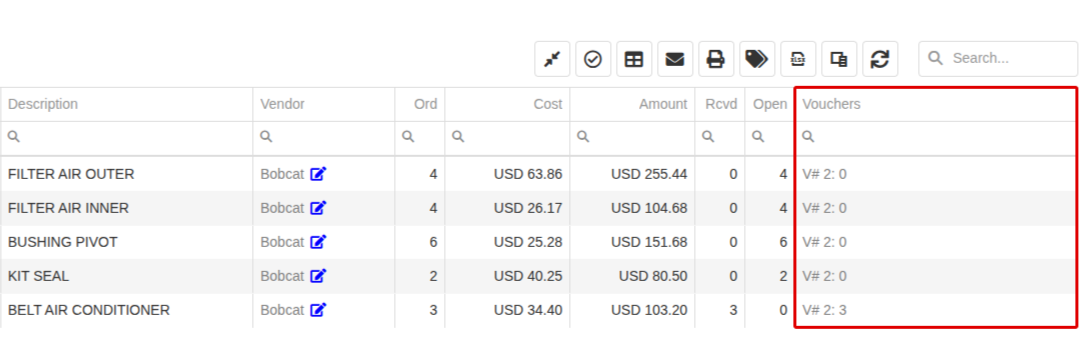
When you enter an Item’s cost on a Receiving Voucher before the Item is received, the Vouchers column on the Purchase Order now lists that Receiving Voucher right away, with a received quantity of 0 until the Item arrives. This includes vendor invoices entered with Smart Receive’s Invoice mode.
Why It Matters:
Purchasers often enter the vendor invoice before the shipment arrives. Before, those lines looked untouched on the Purchase Order until the Items were received, so there was no way to tell which lines had already been invoiced. Now each line shows the Receiving Voucher it was costed on, so Purchasers can match invoices to lines right from the Purchase Order.
`
By Calvin V.
What’s New!
Receive All and Mark Closed now have their own buttons next to the Actions menu on the Receiving Voucher. Before, you had to open that menu to find them. Both actions work the same as before. Receive All still asks you to confirm before it receives every unreceived line at Purchase Order cost and quantity.
When an action isn’t available, such as on a Receiving Voucher that’s already closed, its button stays where it is but is grayed out. The first time you open a Receiving Voucher, a quick tip shows where the buttons moved.
Why It Matters:
Receive All and Mark Closed are the steps Receivers use most often to finish a Receiving Voucher, but they were in a dropdown with actions people use much less. With both on the page, Receivers save several clicks on every voucher and finish receiving faster.

By Calvin V.
What’s New!
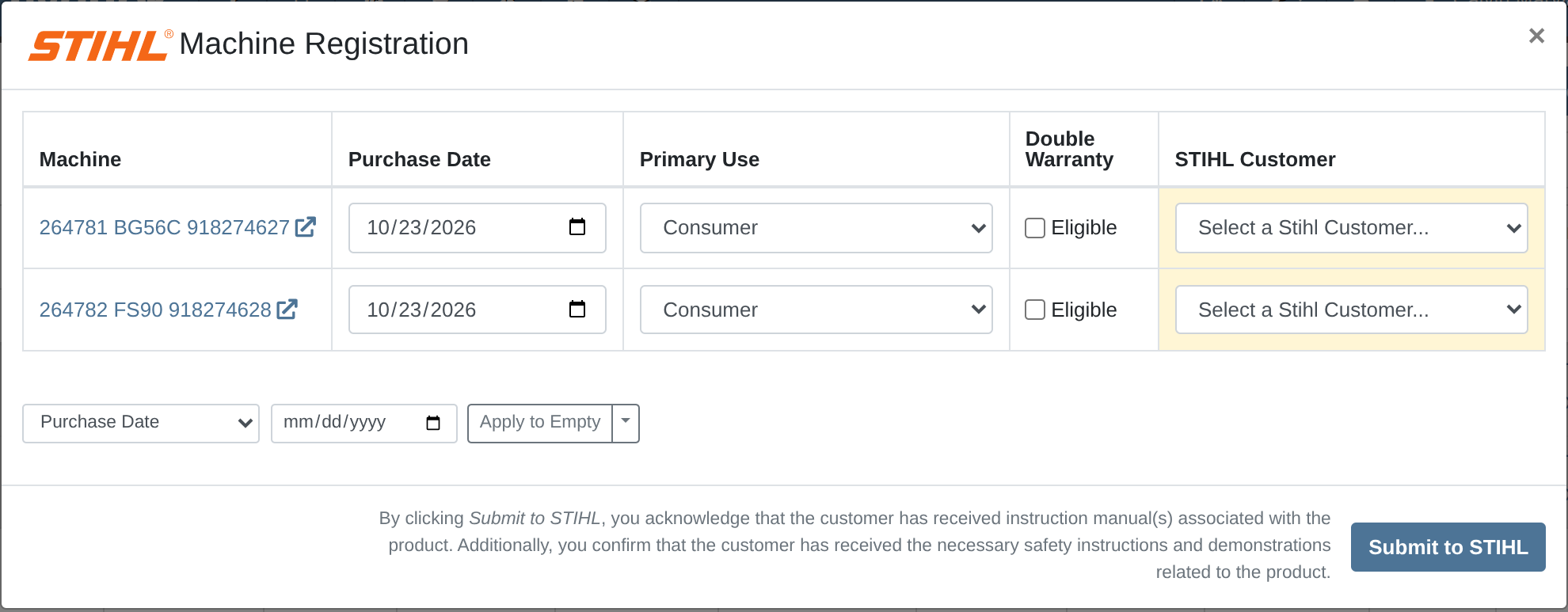
We’ve removed the STIHL Rewards Salesperson and Product Variant fields from the STIHL Machine registration forms as they are no longer supported by STIHL. This applies to registering a single Machine and to registering Machines in bulk.
Why It Matters:
STIHL has discontinued its program for tagging Salespeople on registrations, so many dealers no longer have a Salesperson to pick. Salespeople were getting stuck on a field they couldn’t fill in, and couldn’t submit the warranty registration. This change makes it so your registration submissions keep working as expected.
By Nick V.
What’s New!
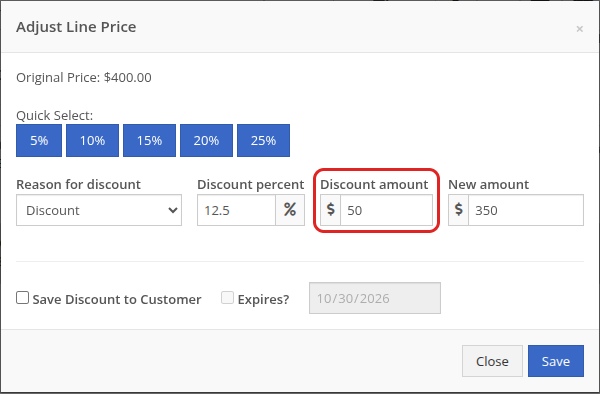
The line discount window on a Sales Order now has a Discount Amount field, so you can enter a discount in dollars. The discount percent and new amount update to match.
Why It Matters:
Salespeople who want to discount by a flat dollar amount no longer have to work out the matching percentage, or final price of the line. This process was tedious and could lead to errors when working quickly.
By Ben C.
Complaint: Salespeople reported that some STIHL Machines that had already been registered were showing as Eligible on the STIHL Machine Registrations page.
Correction: Fixed. Machines that have been Registered with that serial number now show as Registered properly.
By Ben C.
Complaint: Purchasers reported that the Department and Division columns were always blank when creating a new Purchase Order, even for Parts that had those fields set.
Correction: Fixed. The Create New Purchase Order page now shows each Part’s Department and Division.
By Ben C.
Complaint: Salespeople reported that Sales Orders for special-ordered Parts were left with an unexpected open balance when the Part arrived as a substitute with a different list price.
Correction: Fixed. When a special-ordered Part arrives as a substitute after the Sales Order has left Draft, the line now keeps the list price the Customer was quoted. Sales Orders still in Draft continue to update to the substitute Part’s list price.
By Yara H.
Complaint: Rental Clerks reported that when a rental Item with a Minimum Cost was added to a Rental Contract with a quantity greater than one, the line was charged the Minimum Cost only once, no matter how many were rented.
Correction: Fixed. The Minimum Cost now applies to each unit, so the line total is the Minimum Cost multiplied by the quantity.
By Yara H.
Complaint: Rental Clerks reported that the Customer signature time at the top of a Rental Contract was shown in the wrong time zone, so it didn't match the time the Customer actually signed.
Correction: Fixed. The signature time now shows in the time zone of the Rental Contract's location.
By Ben C.
Complaint: Accountants reported that when the Vendor Invoice Date on a foreign-currency Machine Receiving Voucher was backdated, the Machine’s cost was still converted at the exchange rate from the day the voucher was created. Because of this, the Machine’s cost in the dealership’s currency was wrong, and the asset was reduced by the wrong amount when the Machine was sold.
Correction: Fixed. When you change the Vendor Invoice Date on a foreign-currency Machine Receiving Voucher, the voucher now picks up the exchange rate for that date and recalculates the Machine costs with it.
By Brenden B.
Complaint: Accountants reported that some $0 Sales Orders wouldn't post to QuickBooks Online. They failed with a message saying the Customer had no QuickBooks ID, even when the Customer was already linked. Linking the Customer again didn't clear it.
Correction: Fixed. $0 sales orders without a payment line now post to QuickBooks Online as a $0 sales receipt, along with their cost entries. If a sales order without a payment line has a balance, it now gets a message saying the payment is missing, not a misleading message about the customer.
By Brenden B.
Complaint: Accountants reported that Parts Receiving Vouchers that had already posted to QuickBooks Online were being queued back up to be posted. This happened when a Receiving Voucher was reopened, its reversal was cancelled, and it was marked closed again. If the vendor invoice number hadn't changed, QuickBooks rejected the second bill as a duplicate, and the Receiving Voucher failed on every posting run after that. If the vendor invoice number had changed, QuickBooks accepted it, and the Vendor was billed twice.
Correction: Fixed. Cancelling a reversal now puts the Receiving Voucher back exactly as it was: closed and posted. Closing a Receiving Voucher that has already posted no longer sends it to QuickBooks again. Also, a Receiving Voucher can no longer be edited while its reversal is waiting to run. Run the reversal first, then make your changes, so the bill in QuickBooks always matches the Receiving Voucher in Flyntlok.
Note: Receiving Vouchers left open by an earlier cancelled reversal have been closed again. This fix doesn't change Receiving Vouchers that are already failing with a duplicate bill error, or that already created a second bill in QuickBooks. Please contact Flyntlok Support to get those resolved.
By Nick V.
Complaint: Salespeople reported that, in some cases, an ERP mod on a Sales Order showed an incorrect price each time it was edited.
Correction: Fixed, the Sales Order will now reflect the mod’s configured price.
By Ula L.
Complaint: Salespeople reported that typing a date without slashes on the customer edit page, such as "101620" for a license expiration date, opened an error page and cleared every unsaved change on the Customer.
Correction: Fixed. Dates on the customer edit page now fill in the slashes as you type, so "101620" becomes a full date. An incomplete or incorrect date no longer opens an error page or clears your changes.
By Bomby K.
Complaint: Service Writers reported that the Jobs on a Work Order Estimate showed out of order, and in a different order depending on where the Estimate was viewed, after Jobs were transferred in from another Work Order.
Correction: Fixed.
By Bomby K.
Complaint: Technicians and Service Writers reported that the Job Notes box on the Work Order took up too much space on the screen, even before anything was typed in it.
Correction: Fixed. The Job Notes box now starts small and grows as you type.
By Bomby K.
Complaint: Service Writers reported that emails sent from a Work Order, such as an emailed Estimate, weren't showing on the Work Order Dashboard's Emails section.
Correction: Fixed.
By Bomby K.
Complaint: Salespeople reported that the trailer's year didn't carry over from the Machine to the TC-721A form.
Correction: Fixed.
By Bomby K.
Complaint: Managers reported that a Machine's status sometimes didn't update when its Truckload move was completed.
Correction: Fixed.
By Bomby K.
Complaint: Technicians reported that Improve with AI said there was no note content to enhance, even though they had just dictated a note.
Correction: Fixed. When a note doesn't describe any work done on the Job, the message now says that no work details were found, and asks the Technician to describe the work done and try again. The note text stays in place.
By Calvin M.
Complaint: IBS reported that Contact Names and Contact Emails entered when requesting an IBS approval on an Invoice payment weren’t reaching IBS.
Correction: Fixed.