NEW!
Meet Flyntlok at Equip Expo 2026:
Lorem ipsum dolor sit amet, consectetur adipiscing elit. Suspendisse varius enim in eros elementum tristique. Duis cursus, mi quis viverra ornare, eros dolor interdum nulla, ut commodo diam libero vitae erat. Aenean faucibus nibh et justo cursus id rutrum lorem imperdiet. Nunc ut sem vitae risus tristique posuere.
Updated July 8, 2026
Smart Campaign is Flyntlok's AI-powered customer outreach tool, built to make targeted SMS marketing faster and smarter. Instead of manually building lists and writing messages, you describe who you want to reach and what you want to say — and Flyntlok helps you do the rest.
Whether you're promoting a seasonal service, following up on warranty expirations, or reconnecting with customers who haven't visited in a while, Smart Campaigns gets your message to the right people with minimal setup.
This guide serves two audiences:
Navigate to CRM → Smart Campaigns.
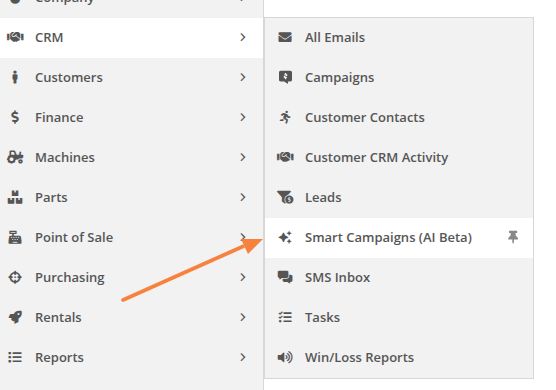
Can't see it in the menu?
You may need to add it to your navigation via the Wrench Icon → Navigation. Alternatively, go directly to:
https://flyntlok.com/rc/crm/smart-campaigns
Click the + New Campaign button to begin.

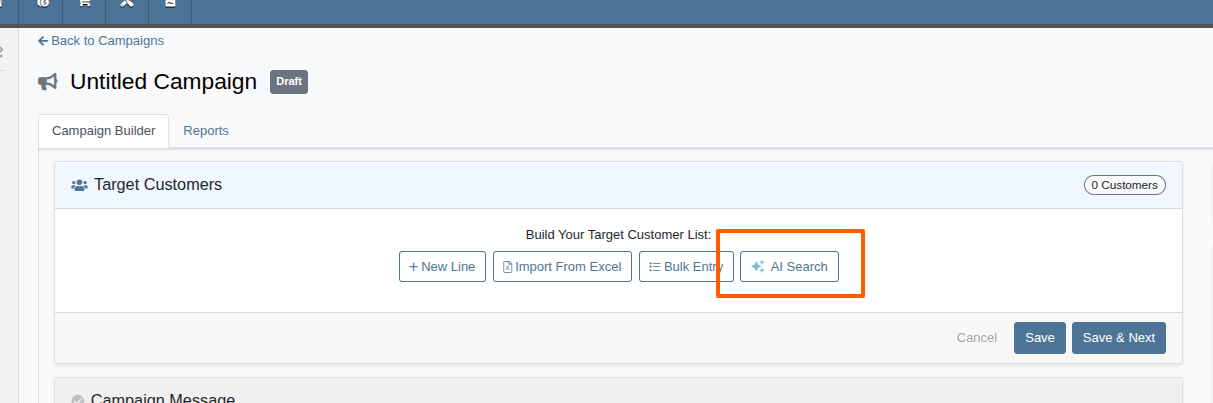
Start by choosing your audience. Click the AI Search button to use the new natural-language customer searcher.
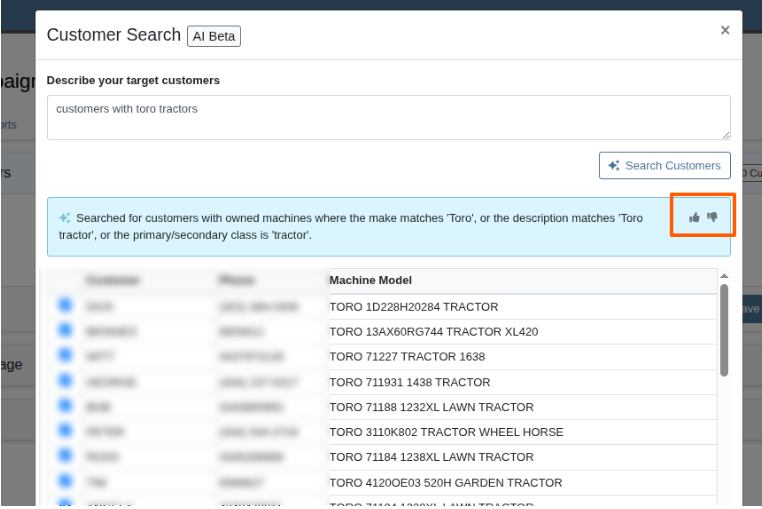
Describe the customers you want to target in plain English. You can filter by:
In the Campaign Message section, click Generate with AI to create a template from a short description.
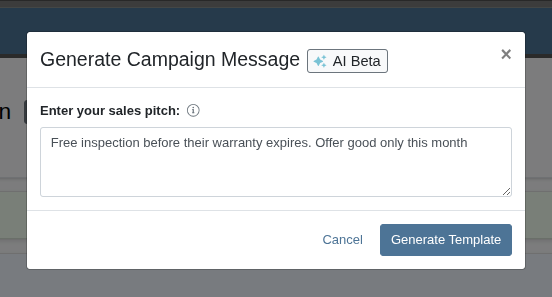
Flyntlok will populate a new template and show a live preview:
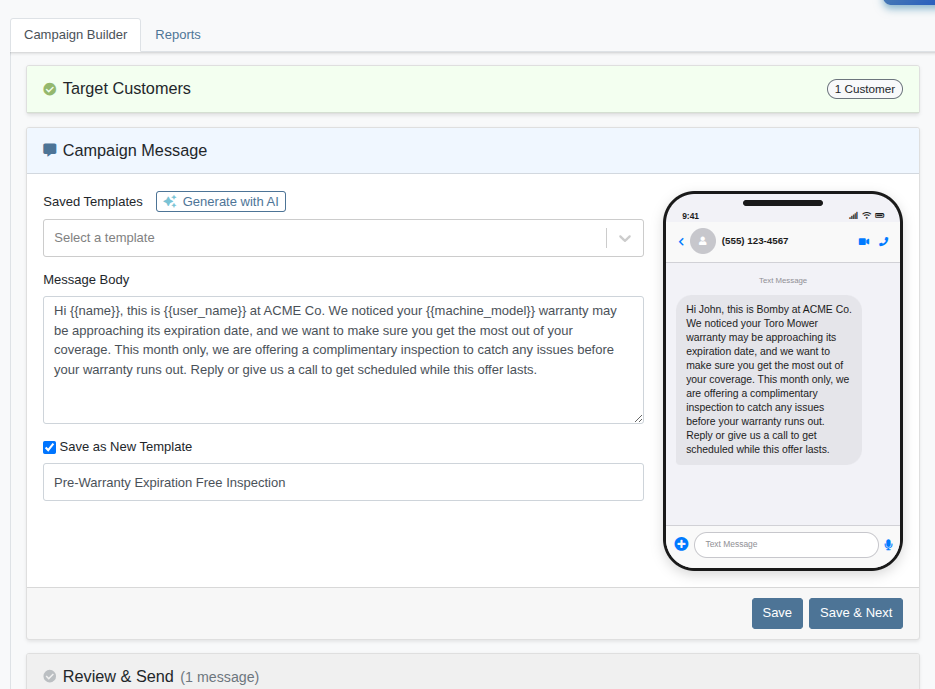
Any message — whether AI-generated or manually written — can be saved by checking the "Save as New Template" option. Saved templates are managed in CRM Settings.
The Review & Send section lets you preview every message before committing. Click AI Review to check all messages for typos, grammar, spelling, and professionalism. Suggested corrections are presented for you to edit before accepting.
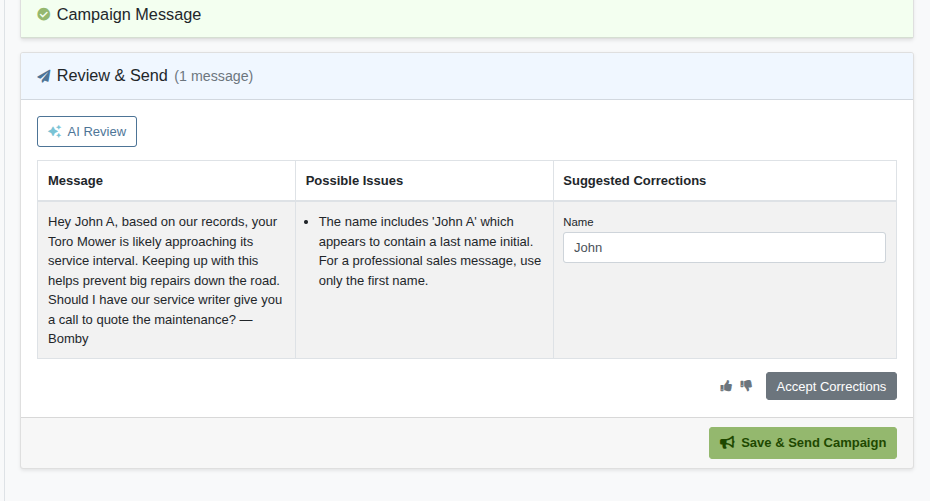
Clicking Save & Send Campaign will immediately send the SMS messages to your targeted customers. Double-check your list and message content first.
If a customer responds during an active campaign, Flyntlok generates a hand-off reply within seconds. These messages use the same SMS system as the rest of Flyntlok, so you'll see them in your SMS Hub.
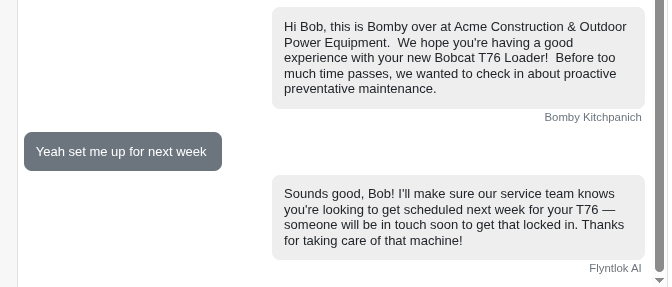
The automatic response only fires once — customers cannot converse with the AI. The goal is to acknowledge the response with a friendly, personalized reply and create a Lead for a person to follow up on.
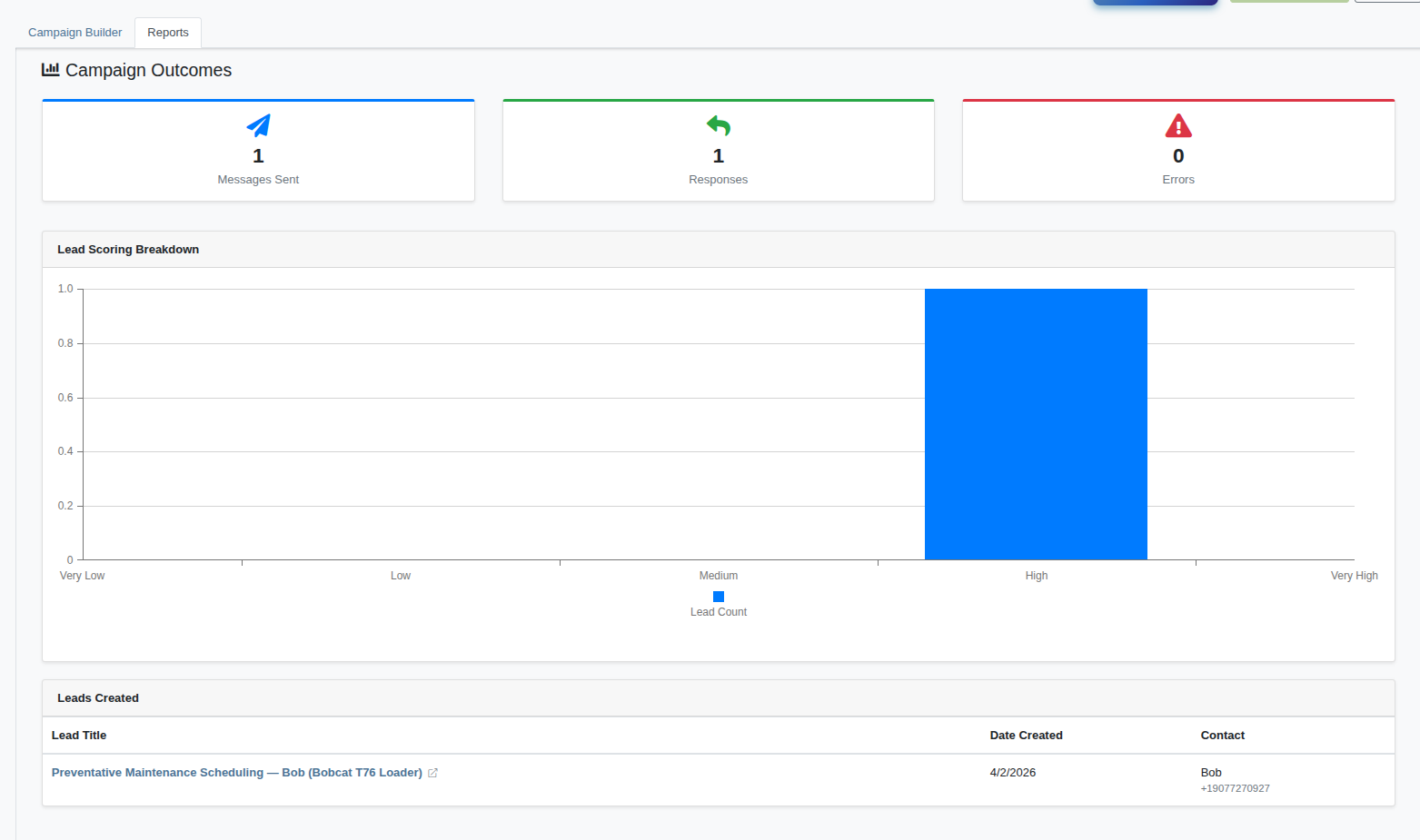
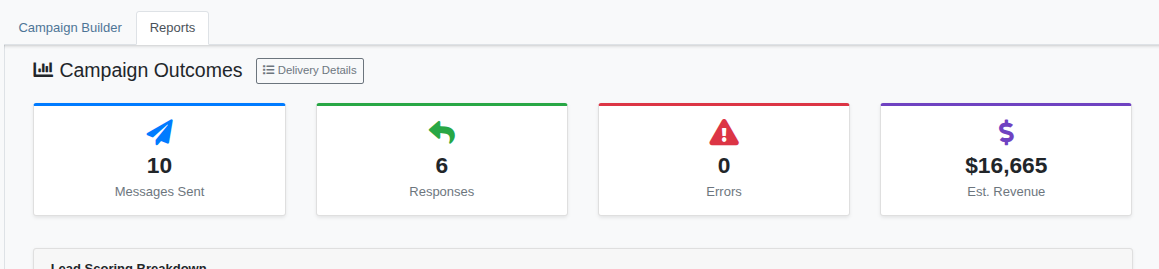
The Reports tab shows a breakdown of your campaign's response activity. All responses generate a scored Lead, visible from this section:
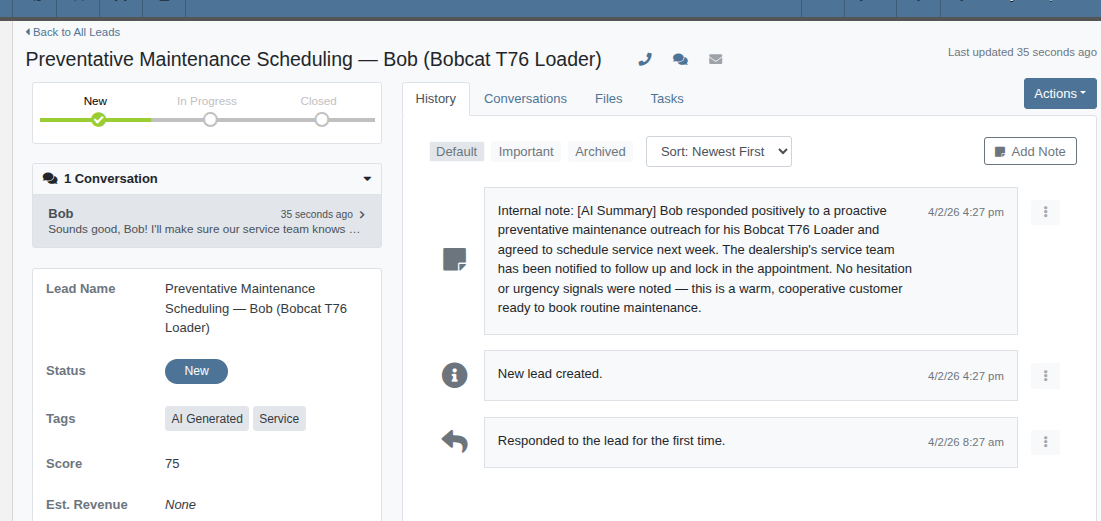
Each Lead carries the customer's name, phone number, a score based on AI-generated sentiment of their response, and a summary of the conversation — all visible in the Lead Dashboard:
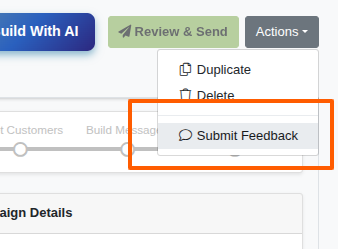
We appreciate your feedback! Let us know about any issues or suggestions. Click Submit Feedback in the Actions dropdown:
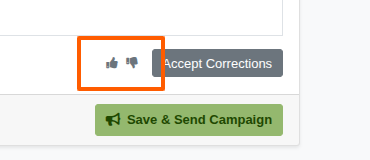
You can also use the thumbs up/down icons near any AI-generated content for instant feedback:
Since the last round of announcements on smart campaign: https://www.flyntlok.com/release-notes/may-14-2026-release-notes
Smart Campaign is now generally available as a beta to all of our users!
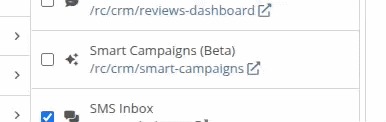
Admins can opt in their users through the Navigation settings (Top-right wrench icon -> Flyntlok -> Navigation). A menu item titled Smart Campaigns (Beta) can be enabled under the CRM menu. Or as always, submit a support ticket and your friendly Flyntlok Consultant will help you get set up!
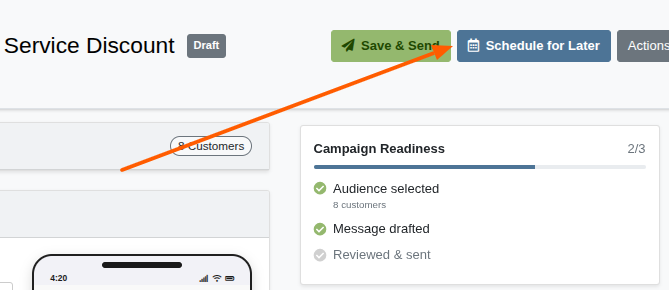
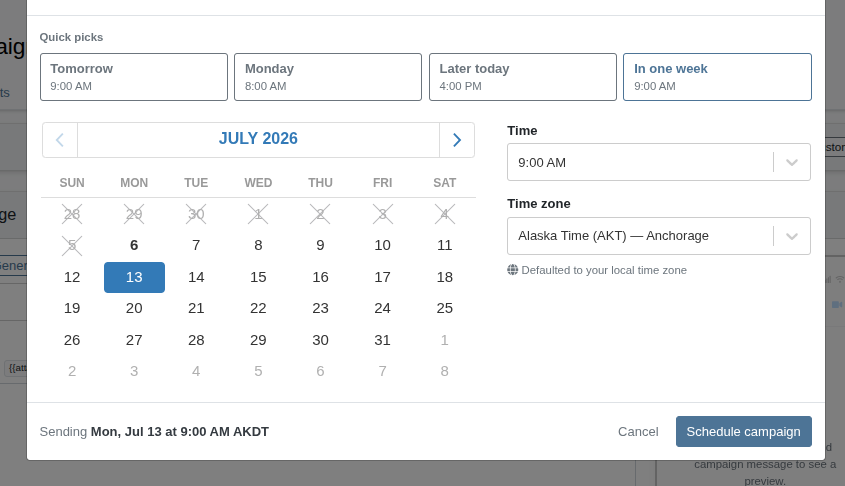
You can now queue up campaign messages instead of needing to send them manually. Look for the Schedule for Later button while building your campaign.
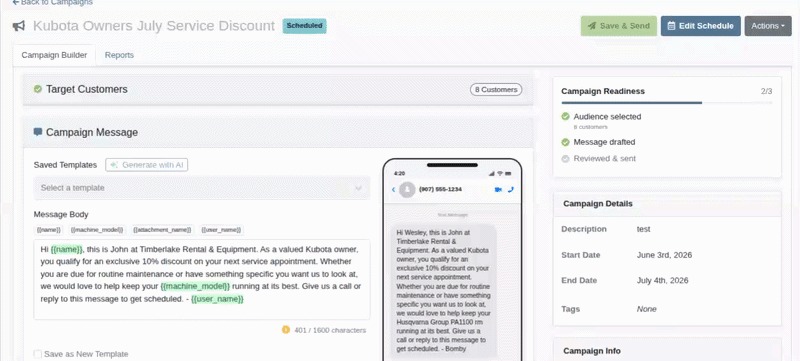
When a campaign is in Scheduled status, it is restricted from editing.
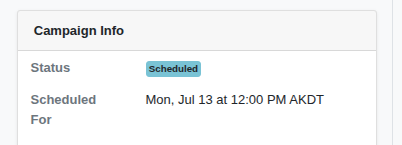
To make changes to a scheduled campaign, you can click on the "Edit Schedule" button to change the scheduled time. Click on Revert to Draft if you want to make changes to the campaign message or list, then re-enable the schedule.
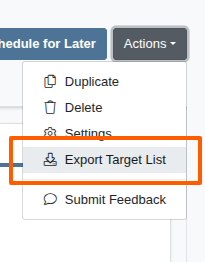
The target customer list can now be exported to a CSV file. Look for Export Target List in the campaign's Actions dropdown:
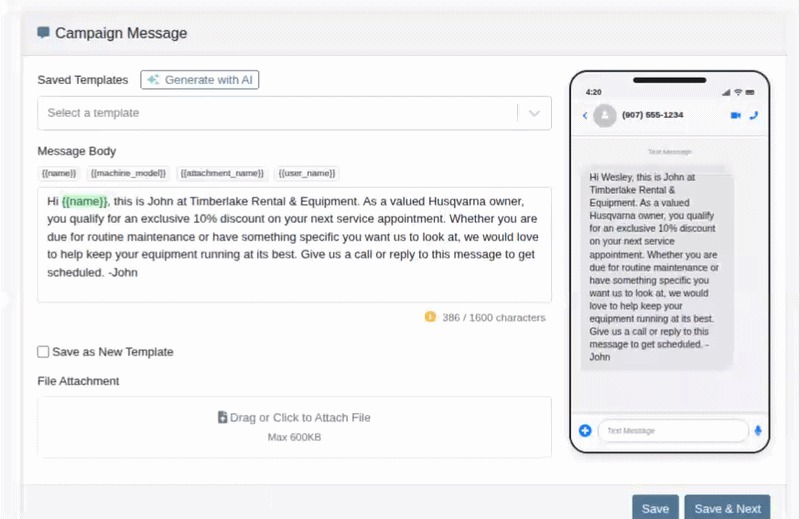
While editing a campaign message, the template variables are now highlighted. Additionally, you can simply click on any of the available variables to insert them directly.
We've added an Estimated Revenue KPI to the Smart Campaign Reports tab. It totals the Expected Revenue across every Lead a campaign generated and displays it alongside the existing activity metrics, giving Sales Managers an at-a-glance read on each campaign's revenue potential. Since the figure is built from the Expected Revenue set on generated Leads, campaigns whose Leads haven't been valued yet prompt the team to fill that in rather than showing a misleading $0.
We are continuing to make more and more data available to search on.

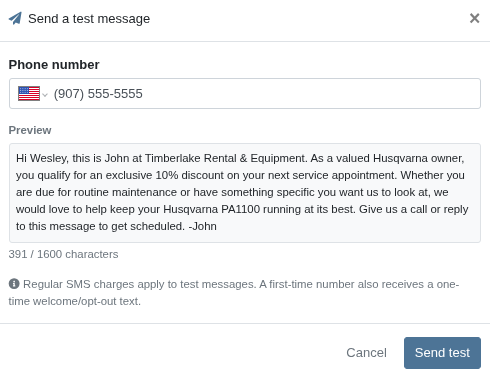
You can now send the templated campaign message to your own number for a real-world preview of the SMS that will get sent to all your customers. The message will be built based on the first target customer in your list. Look for the Send a Test Message button in the Review & Send section of the campaign builder.