NEW:
Save Technician Time and Drive More Service Revenue with Voice-to-Text, AI-Powered Tech Notes
Check out the latest updates to the Flyntlok Equipment Dealer Management System.
We have selected multiple click reduction winners. We received a record number of entries, many of which will be implemented! Here are the click reduction winners. Each suggestion was submitted by multiple people. Everyone involved will receive a gift card.
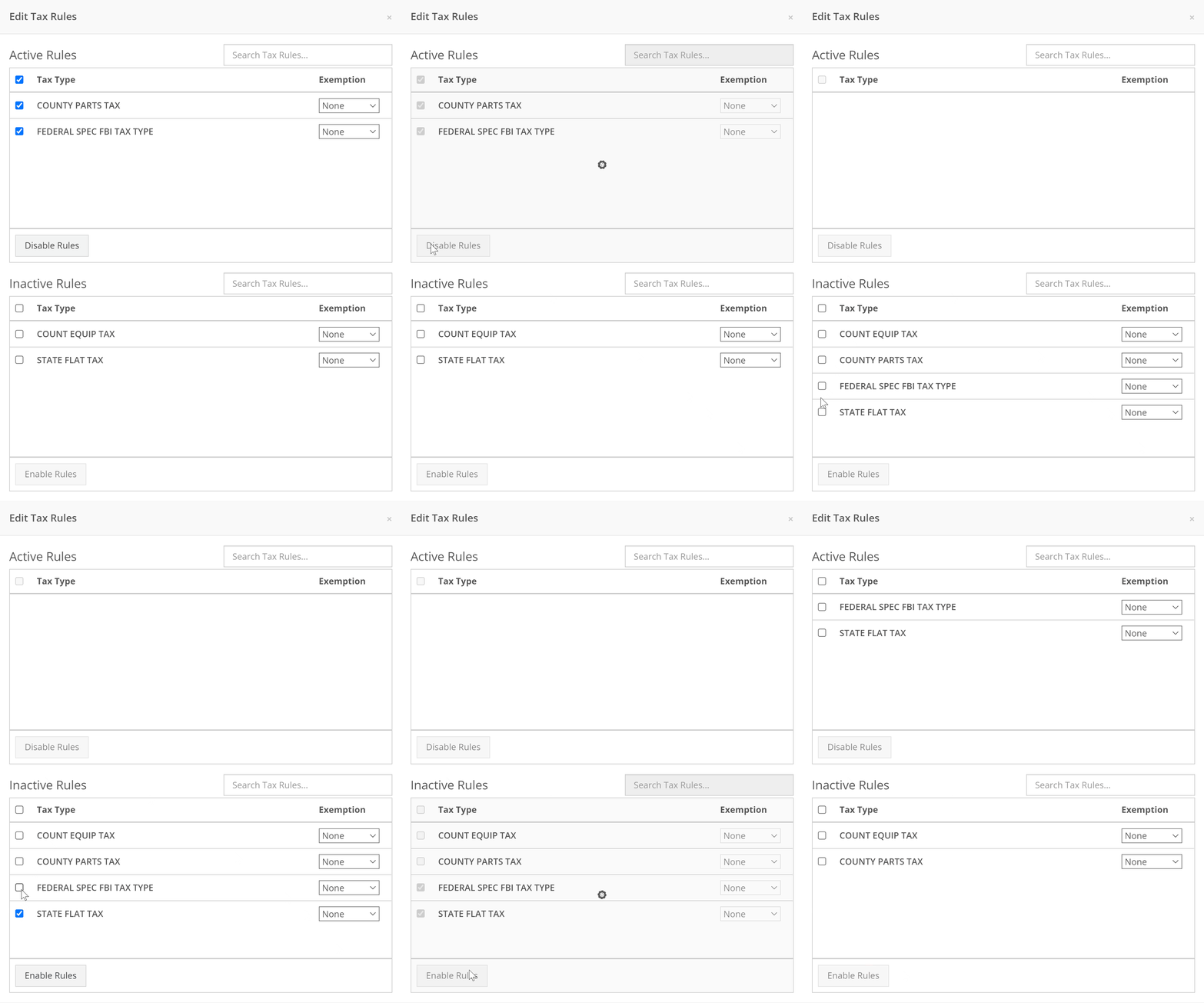
We are introducing a new tax rule editor on the point of sale. This screen will make working with a large number of tax jurisdictions much easier.The first step is to remove unwanted taxes from the sales order. Then, add the correct taxes by selecting the check mark and clicking Enable Rules
When a work order is created, Flyntlok can send a SMS welcome message to your customer. The SMS can include a custom greeting and the work order number. You can chose to send this SMS on a work order by work order basis.Example:
Welcome to Flyntlok, Your work order number is 404230. You'll get updates as they happen. Feel Free to respond to this message at anytime with questions.
If you would like to configure a custom message, please submit a support ticket and we will work with you on the configuration.
When creating a work order, you can choose whether the customer receives SMS messages by default. When this box is checked, Flyntlok will send a message at work order creation, check-in, status change, and check-out.

New field options were added to the work order creation page. If you would like any of the new fields added to your page, please submit a support ticket!Additional Fields:
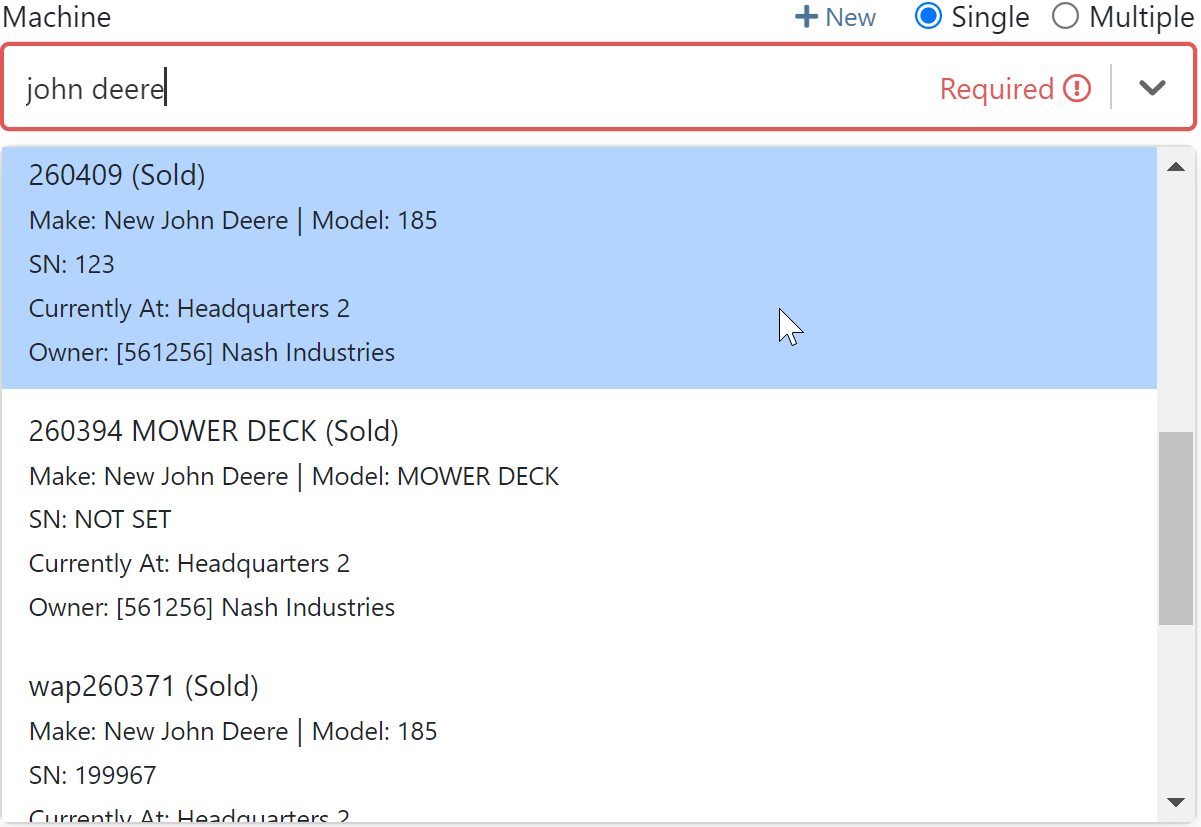
After a customer is selected on a work order the machine searcher will only search machines owned by that customer. Searching by make is now supported as well.
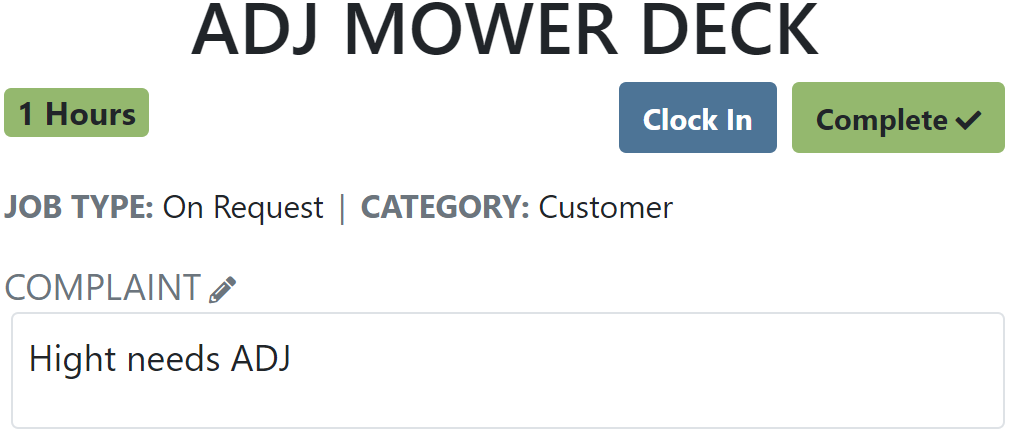
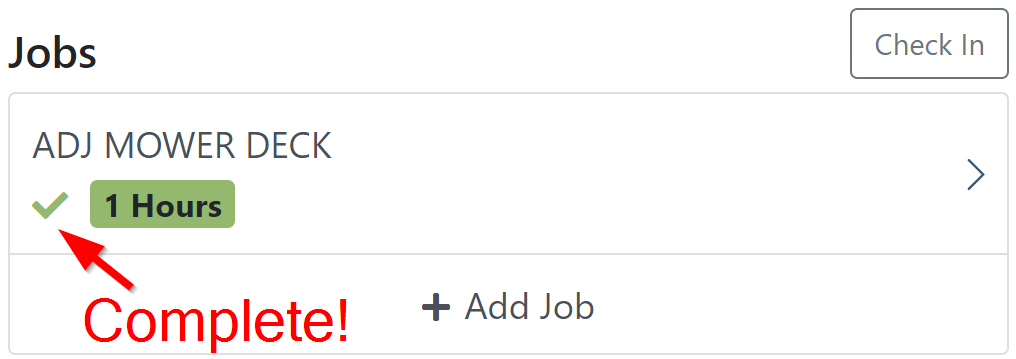
Jobs can be marked as complete using Flyntlok Mobile!
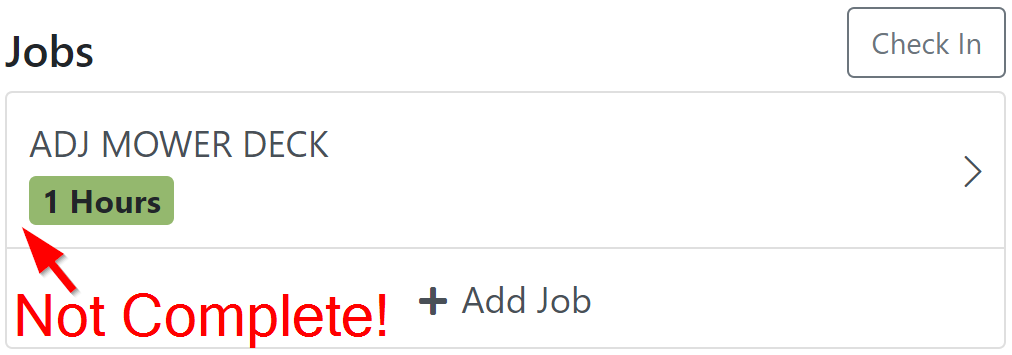
Completed jobs will have a green check!
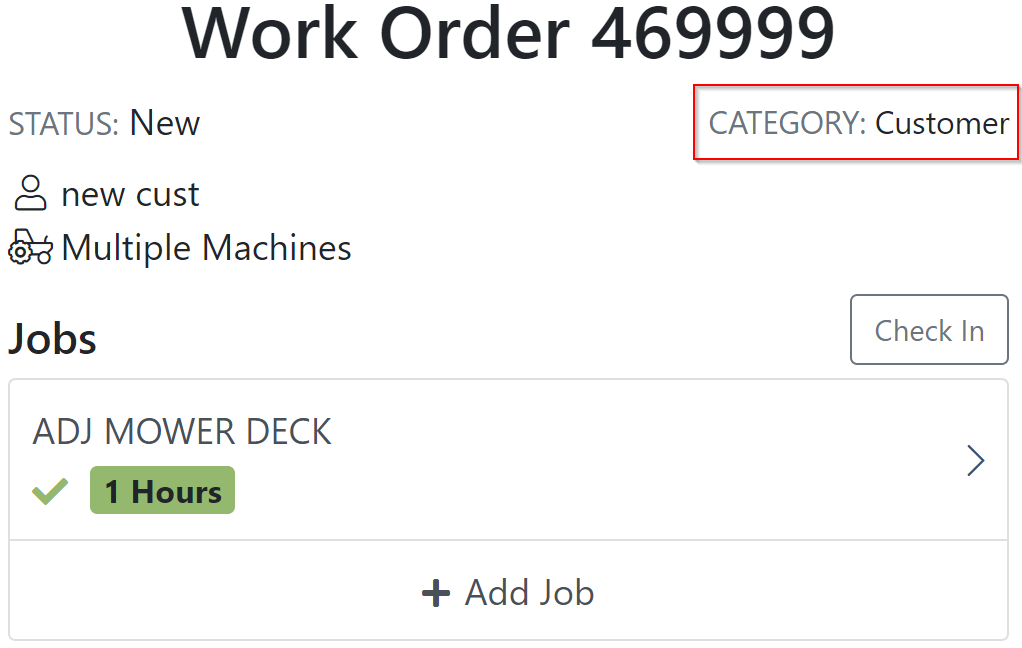
The work order category is displayed on the work order dashboard.
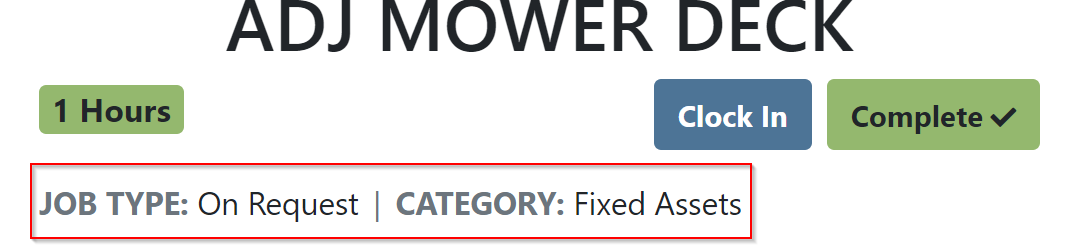
The job category and job type is displayed on the job screen.
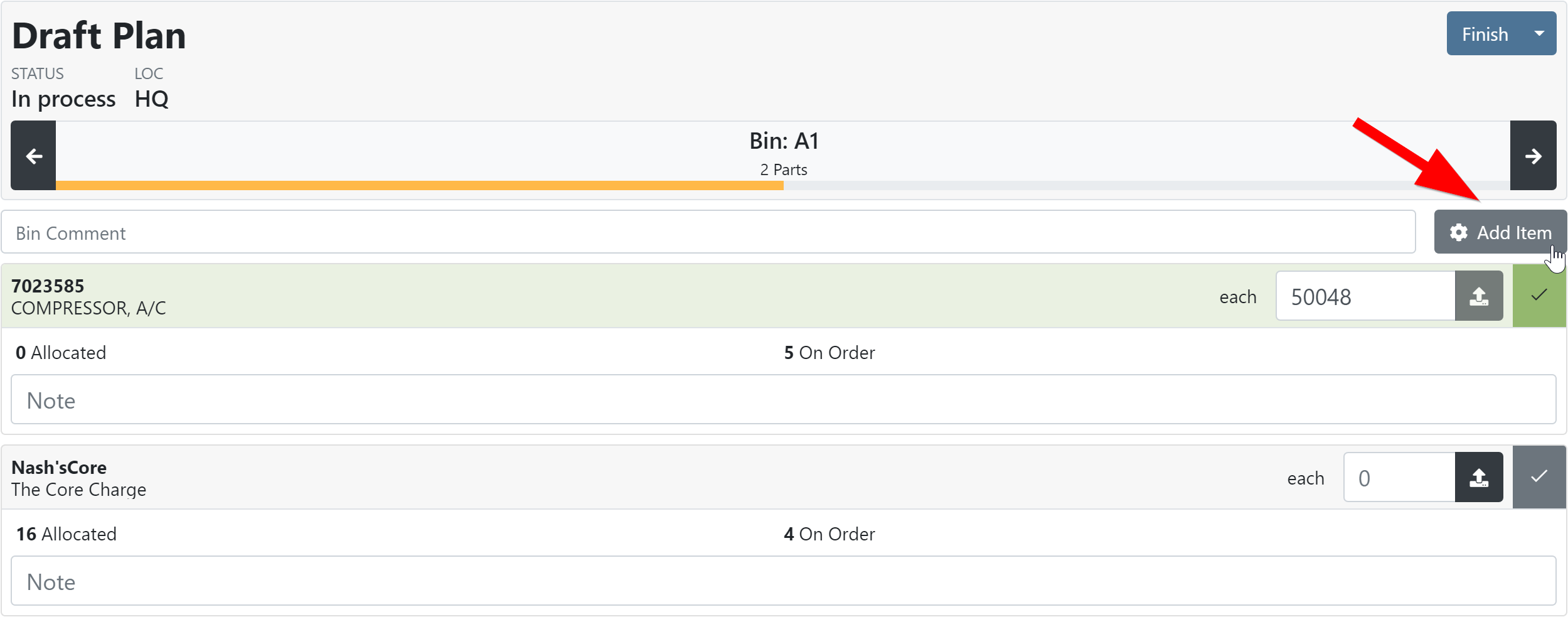
If you are counting a bin and find an additional item, click add item!
Bin locations can be created from inventory sprints. If you find a loose part, create a new bin and set it on the shelf!

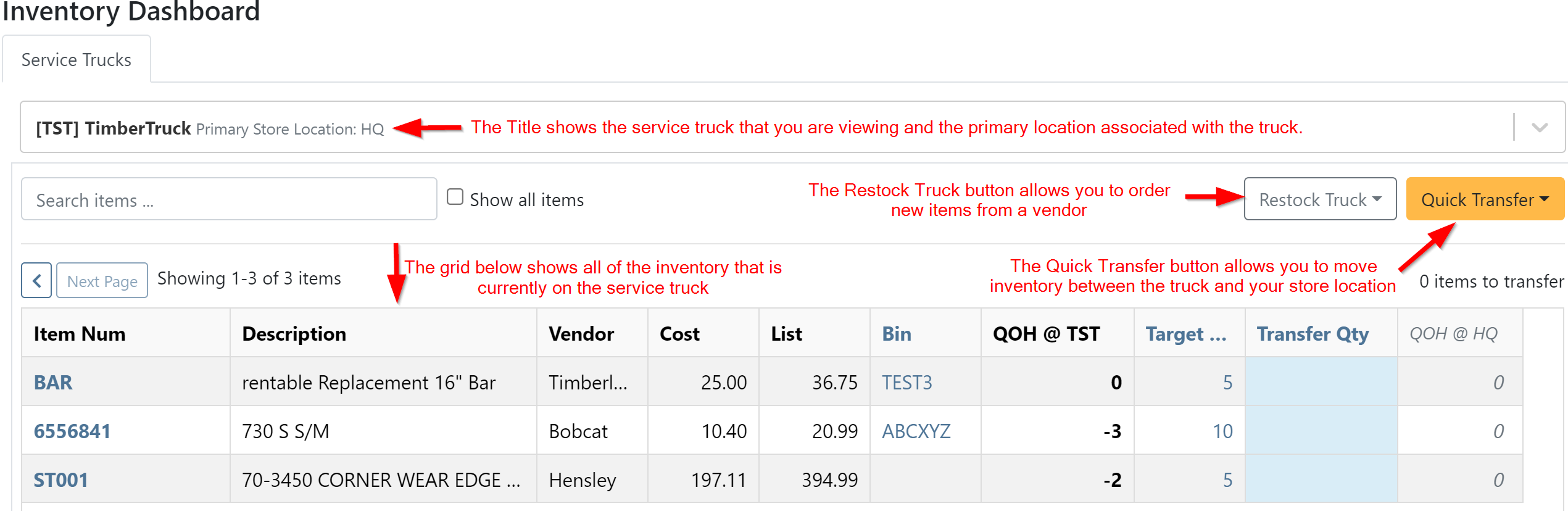
Service truck functionality will start being released. The first release allows inventory tracking and truck inventory use on work orders. In the future we will be adding additional service truck functionality. If you are interested in being part of the beta release, please submit a support ticket.
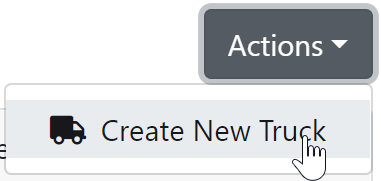
New service trucks can be added by clicking Actions -> Create New Truck.
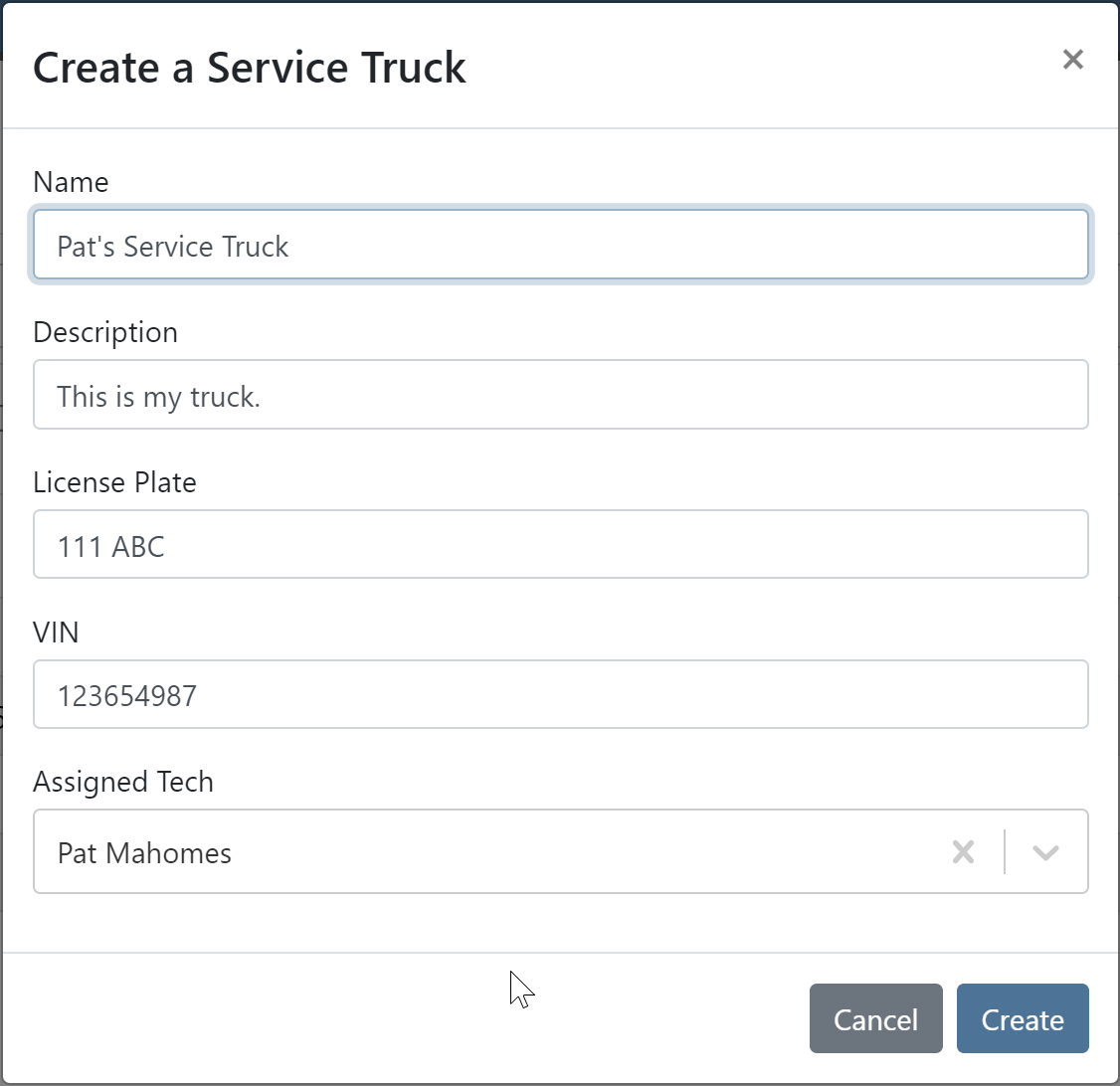
Add the truck's information and click create.
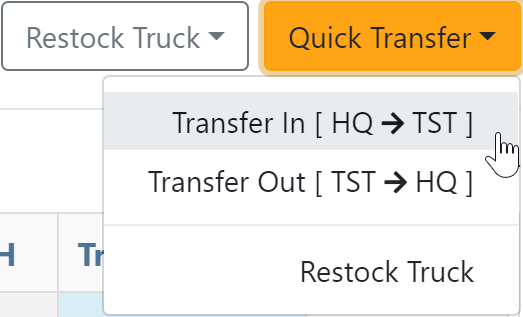
Inventory can be transferred onto and off of a service truck using the Quick Transfer button. First, add a transfer quantity to the item that you need to transfer.

Then, click Quick Transfer and select to transfer in or out.
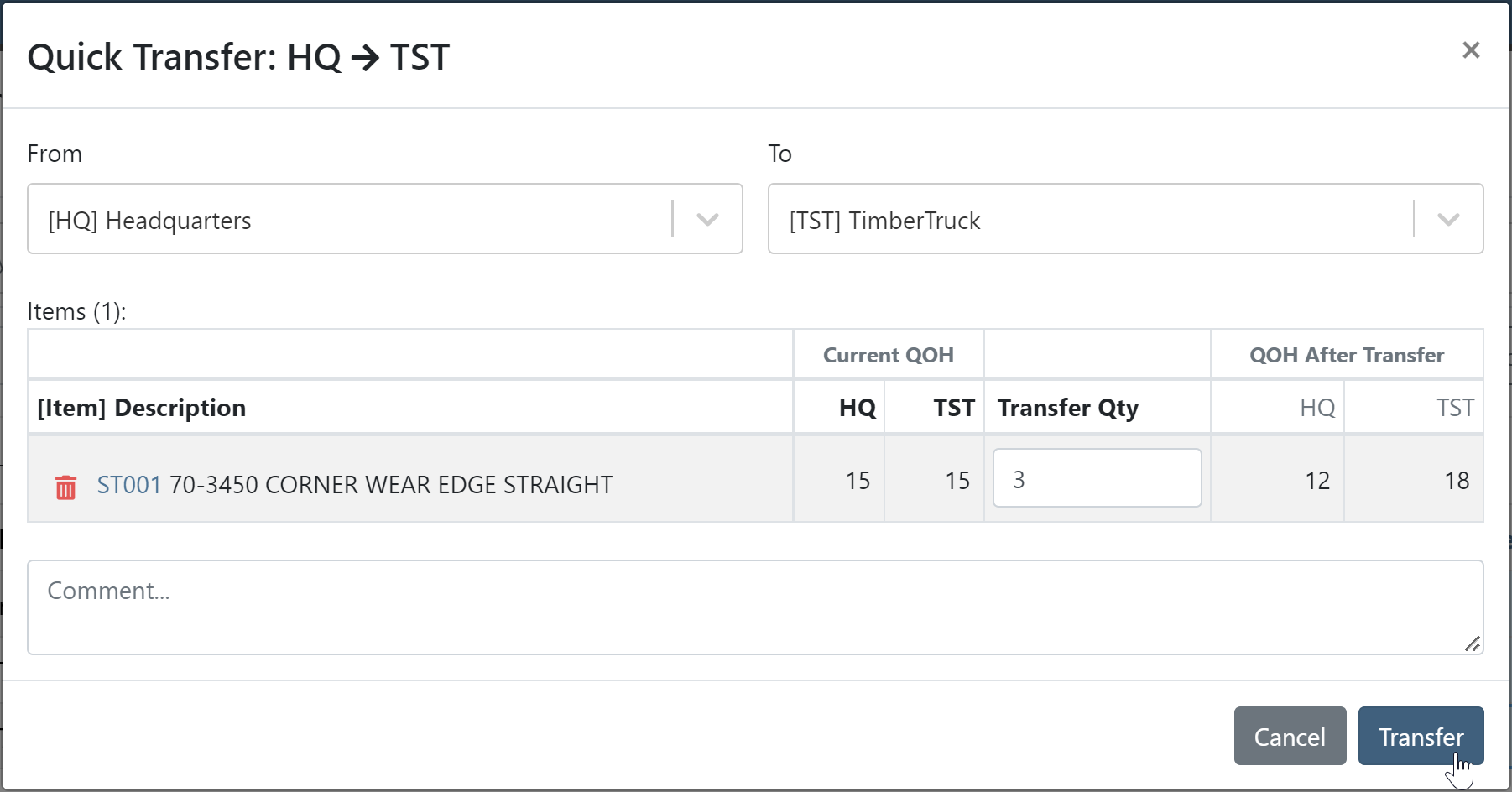
Review the transfer. Once you are ready to move the parts, click Transfer.
September 28th, 2022 Release Notes
Learn More at Flyntlok Dealer Management System
Check out our Flyntlok YouTube channel for more highlights of the application!






