NEW:
Save Technician Time and Drive More Service Revenue with Voice-to-Text, AI-Powered Tech Notes
Check out the latest updates to the Flyntlok Equipment Dealer Management System.
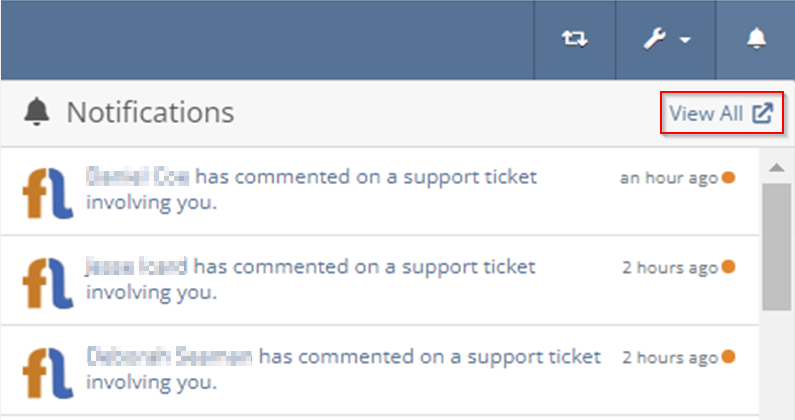
We have added a new feature to easily view and organize Flyntlok notifications. You will now see a bell icon on the top right of your home screen next to your username. When this icon is clicked you will be able to view all notifications, organized by most recent. You will no longer see notifications on your dashboard or popup in the lower right of Flyntlok. You can access the last year of historical notifications by clicking the View All.
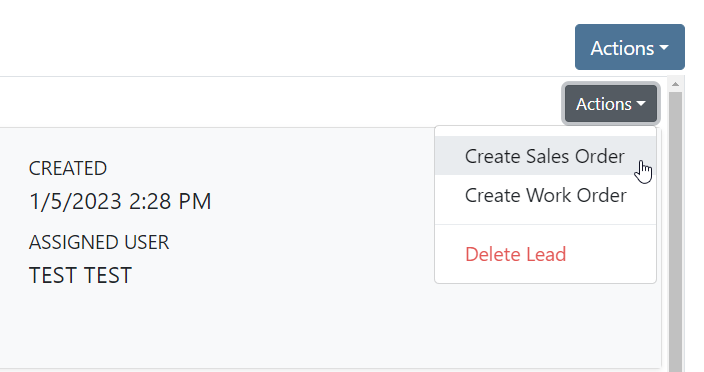
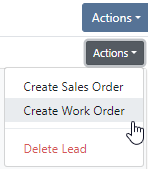
Sales Orders and Work Orders can now be created from a Lead in the CRM Hub. To do this, go from the Actions tab of the Lead view -> Create Sales Order or Create Work Order.

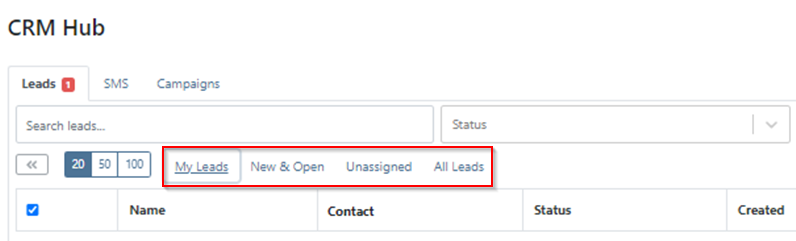
Leads will now be viewable under four new categories: My Leads, New & Open, Unassigned, All Leads. These categories allow for easy organization and quick referencing of new potential customers.
We have added a color coding scheme to status badges of the CRM Leads. This allows users to easily identify the status of their lead. The color coding is outlined below.
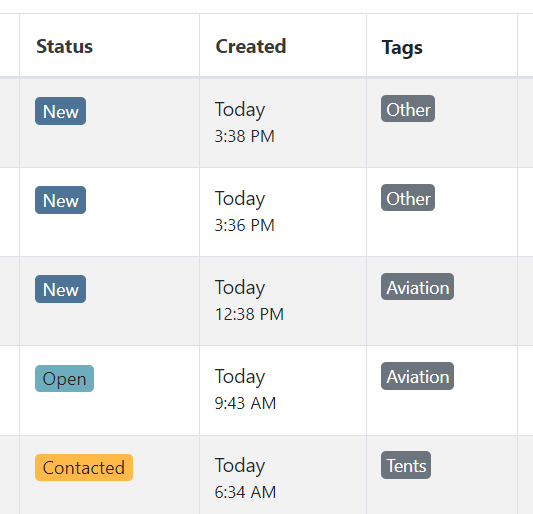
We update the searcher to look across most fields in the lead list. Any fields we are not searching by can be filtered use the selections above the list.

We have added a new CRM Leads panel on the customers dashboard, this will track and display all leads created for this customer. This allows users to easily view basic information about each lead.

If you are using the VOIP integration with Flyntlok, when any unknown number calls, the user will be redirected to the Add New Lead form of the CRM hub while auto-populating the caller's phone number. This will let you easily create a lead and ultimately a customer!

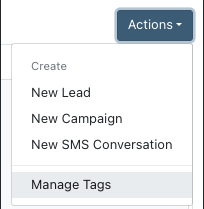
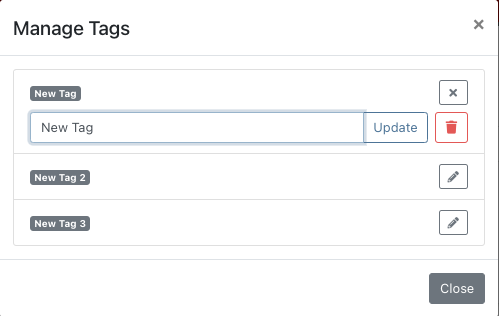
Clearing up typos, and redundant tags can now be done by clicking the Actions -> Manage Tags from the CRM Hub.
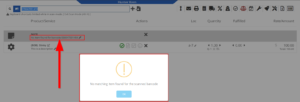
If a scan fails to find an associated Item Number, UPC, or EAN, a note line will be created in its place to help prevent unnoticed missed scans. The note line will include the barcode number which was originally scanned. We also show a warning pop-up, but if you have hotkey functionality enabled on your scanner, the popup can be missed if you continue to scan.
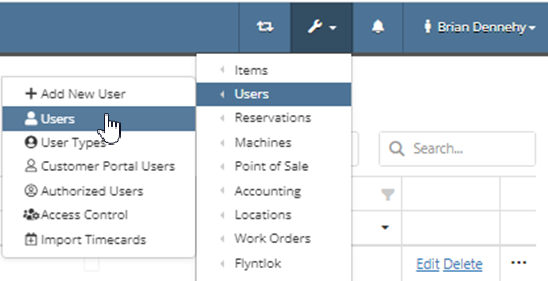
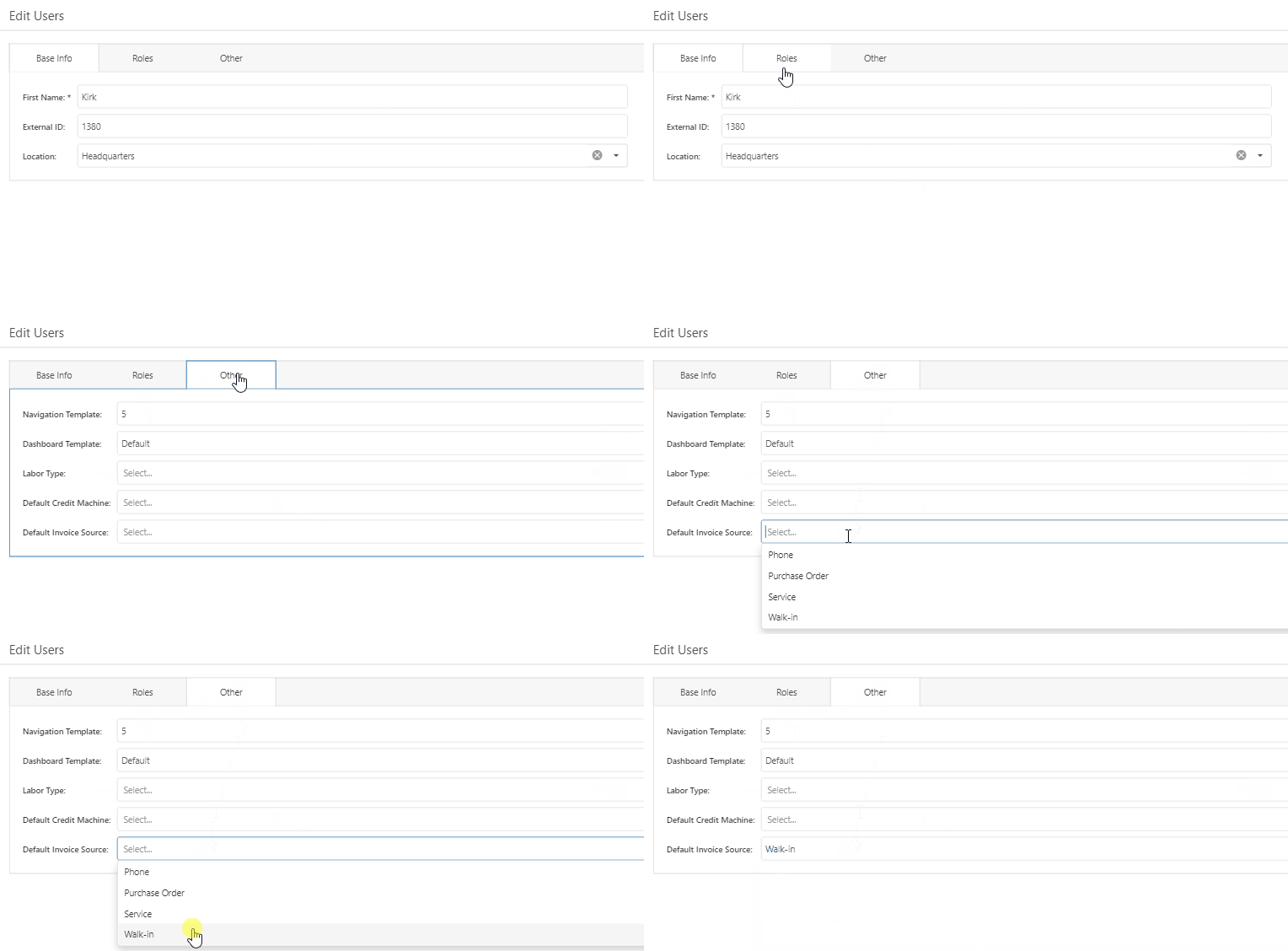
We have added a new setting to allow managers to configure a default invoice source by user. Previously, this was done at the company level.To set or edit the default invoice source for a user, navigate to Wrench->Users->Users. Locate the user you wish to set, click edit, and in the "Other" tab, assign a default invoice source.To check your current company settings, navigate to Wrench-> Point of Sale-> Invoice Sources.
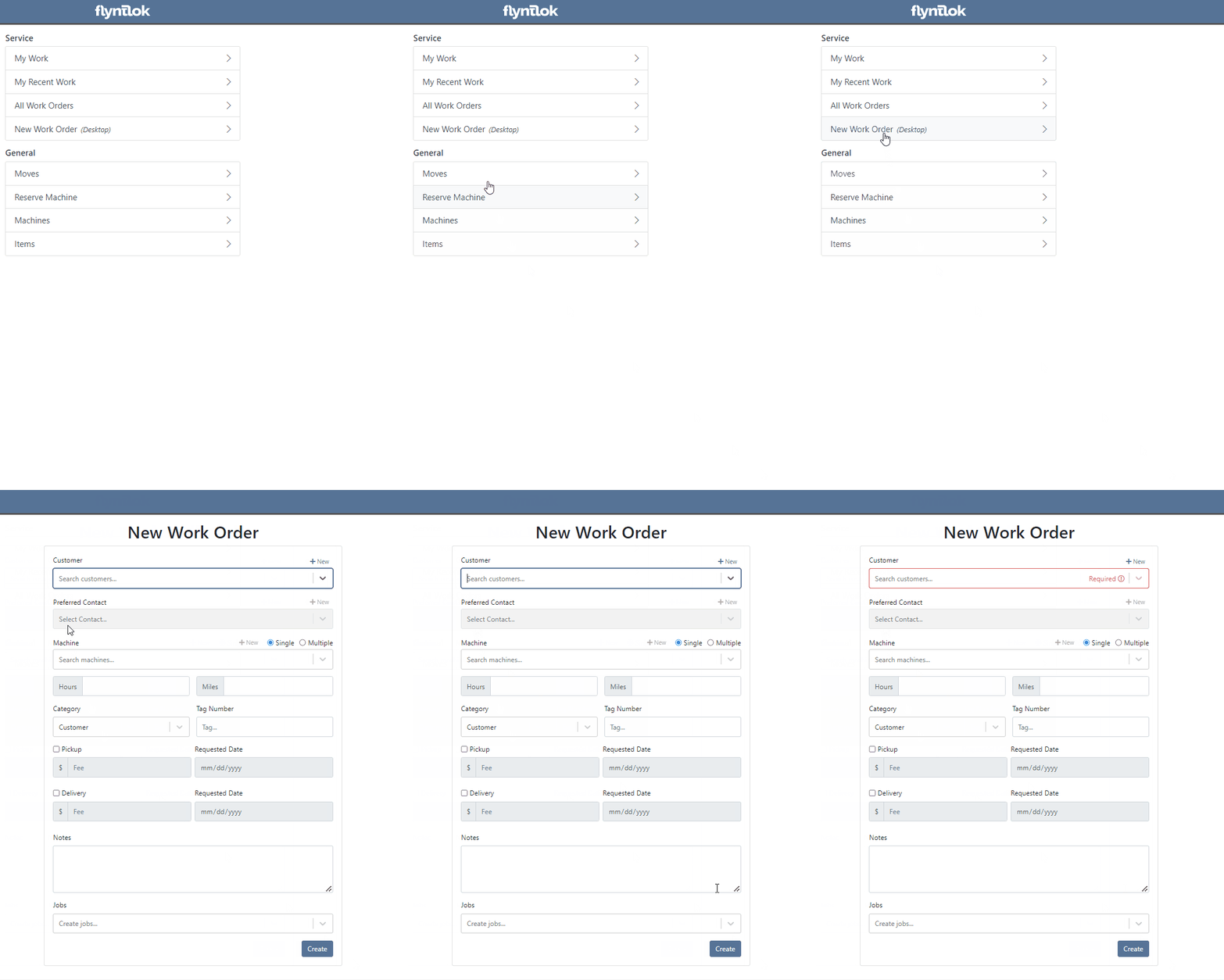
We have added a link to the mobile dashboard that will allow users to quickly create new Work Orders.
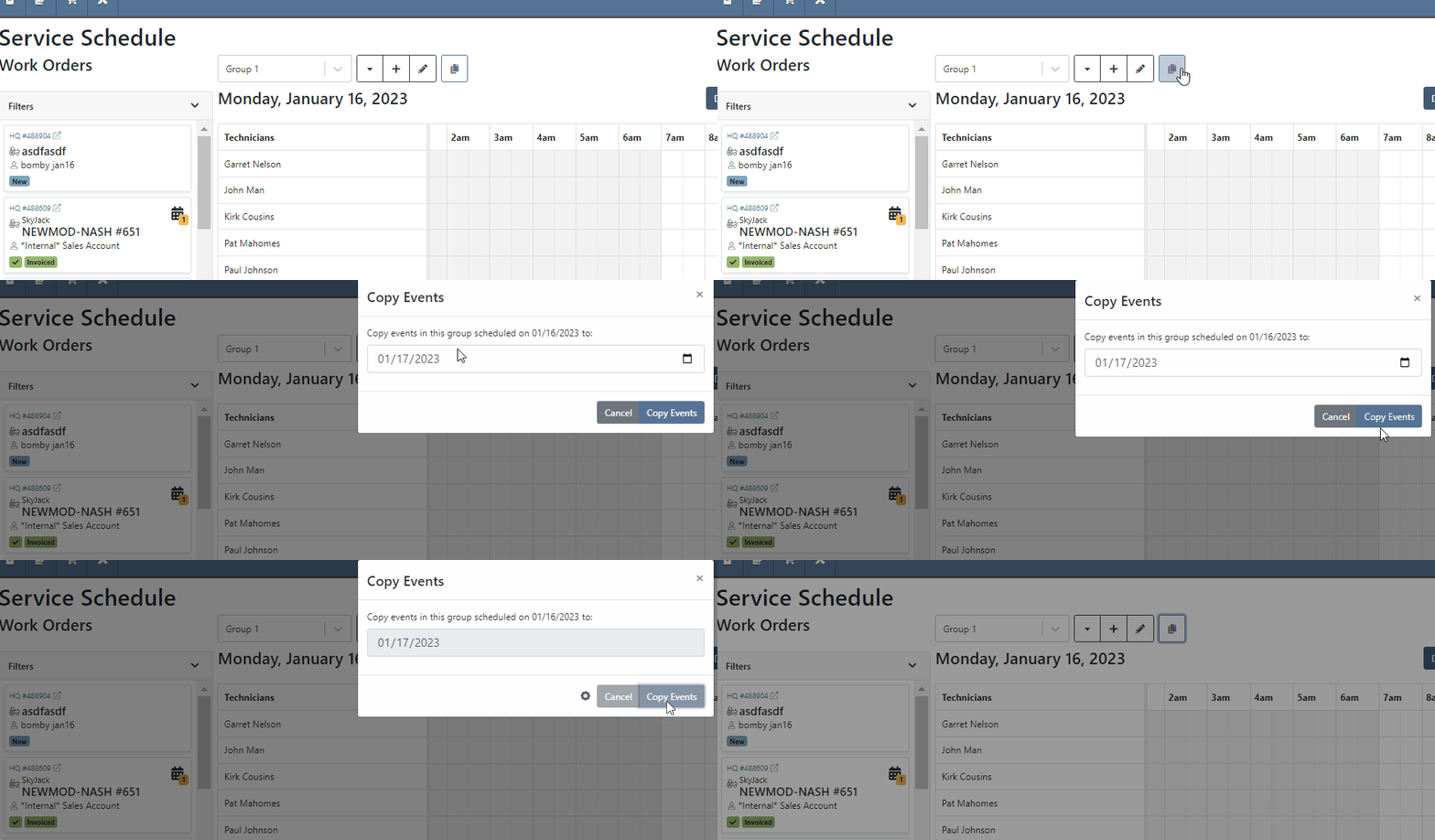
We have added a new icon to the Service Scheduler. When selected, you will be able to copy and paste the events of the group you have selected to a new date.
We will now be automatically applying work order deposits to the final invoice of a work order. Previously, you had to add these manually and the deposit was only accessible if the payment was posted to QuickBooks Online.
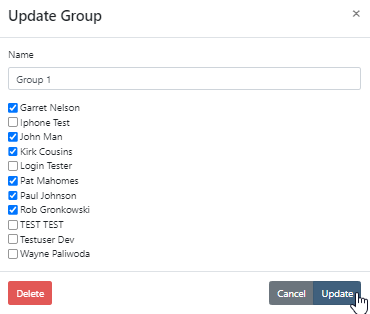
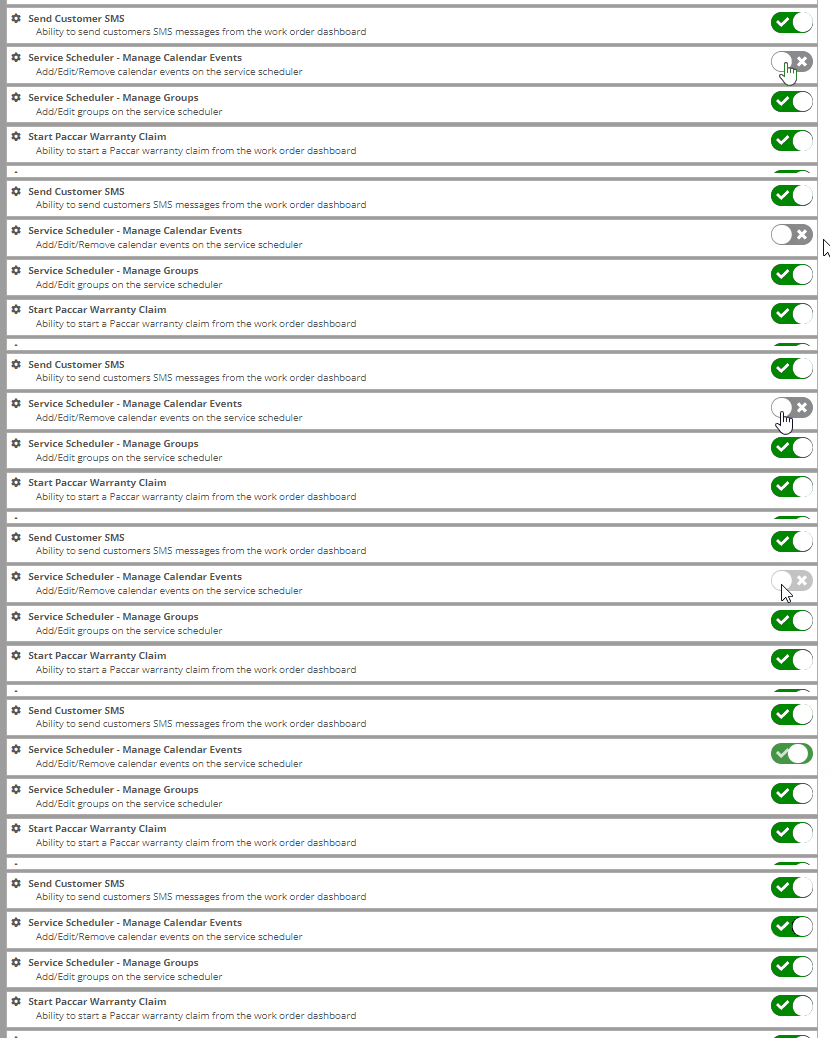
Updated user permissions now allows admins to limit users ability to make changes on the Service scheduler such as changing events, and modifying groups.
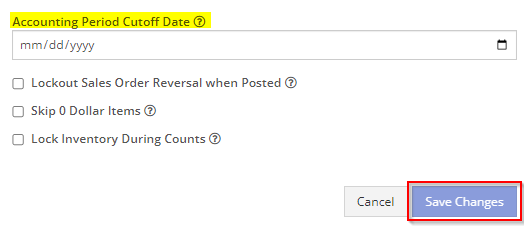
Flyntlok settings allow admins to adjust cutoff dates for transactions. This helps prevent unwanted reversals of invoices that have been posted during accounting periods already closed, as well as, backdating transactions into closed period. This should align with your QuickBooks Online Books Closed Date.
You can now restrict who is allowed to open a posted item voucher. This will add an internal control that stops users from requesting a reversal of a bill.
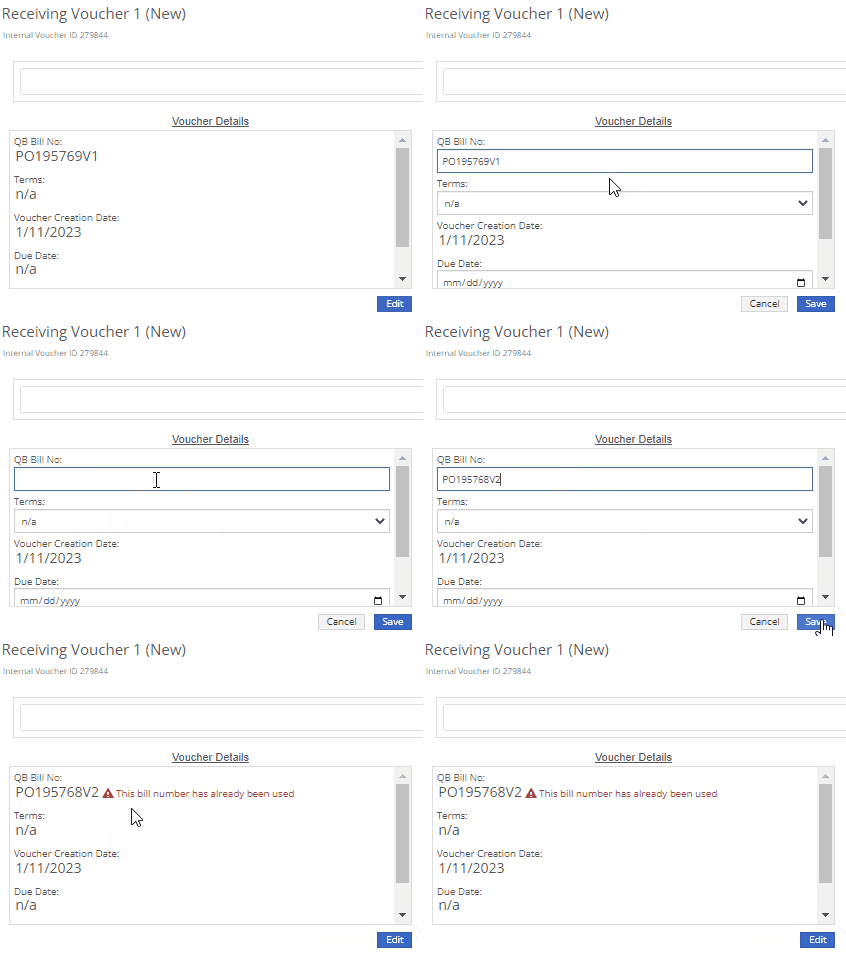
You will now see a red warning message if there is a duplicate bill number under the particular vendor. This message will be displayed in red, next to the QB Bill Number in the Voucher Details section.
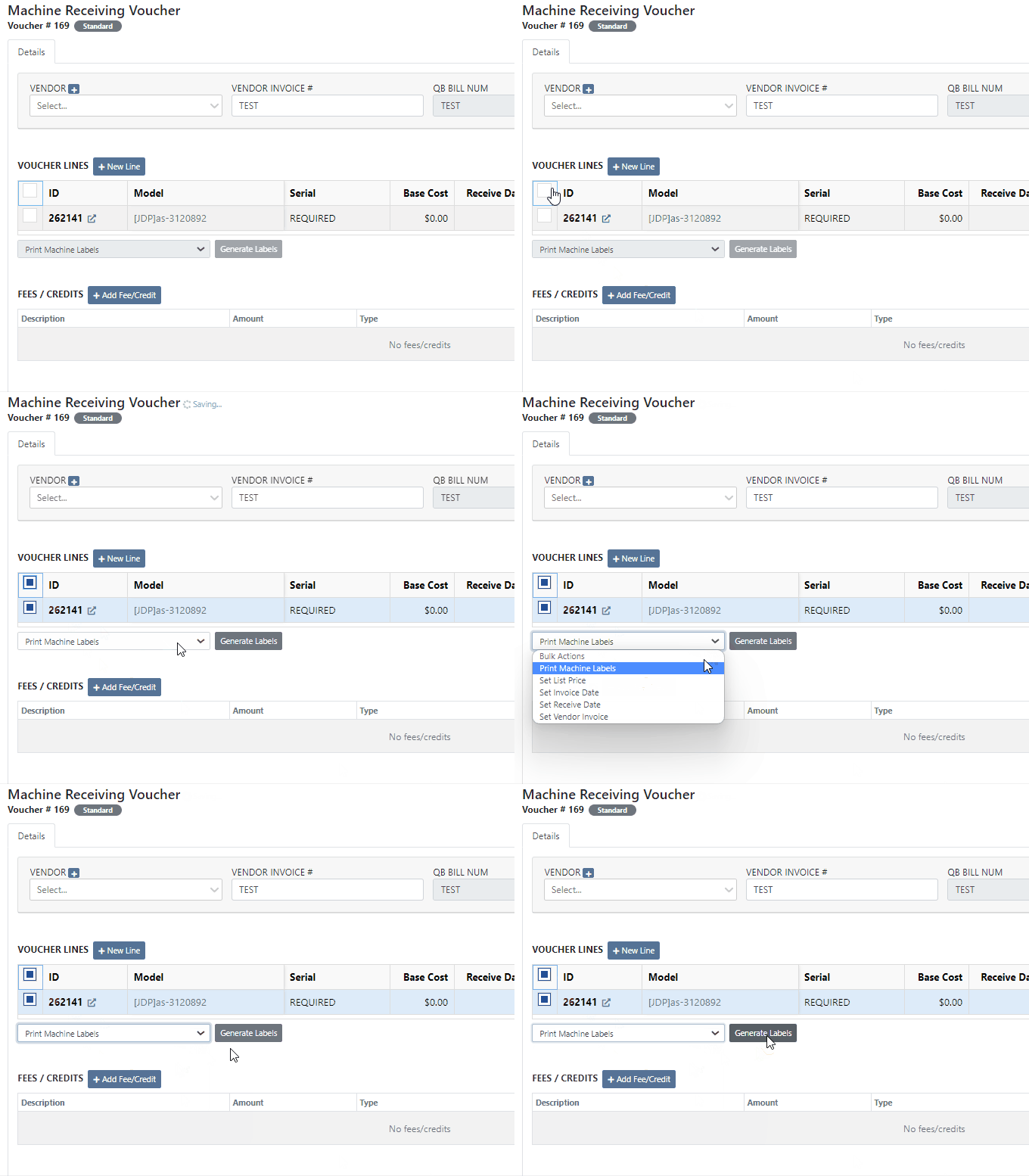
We have added a new setting to the Machine Purchase Order. Users will now be able to print labels in bulk from the receiving voucher by selecting voucher lines, selecting printing action, then clicking Generate Labels.
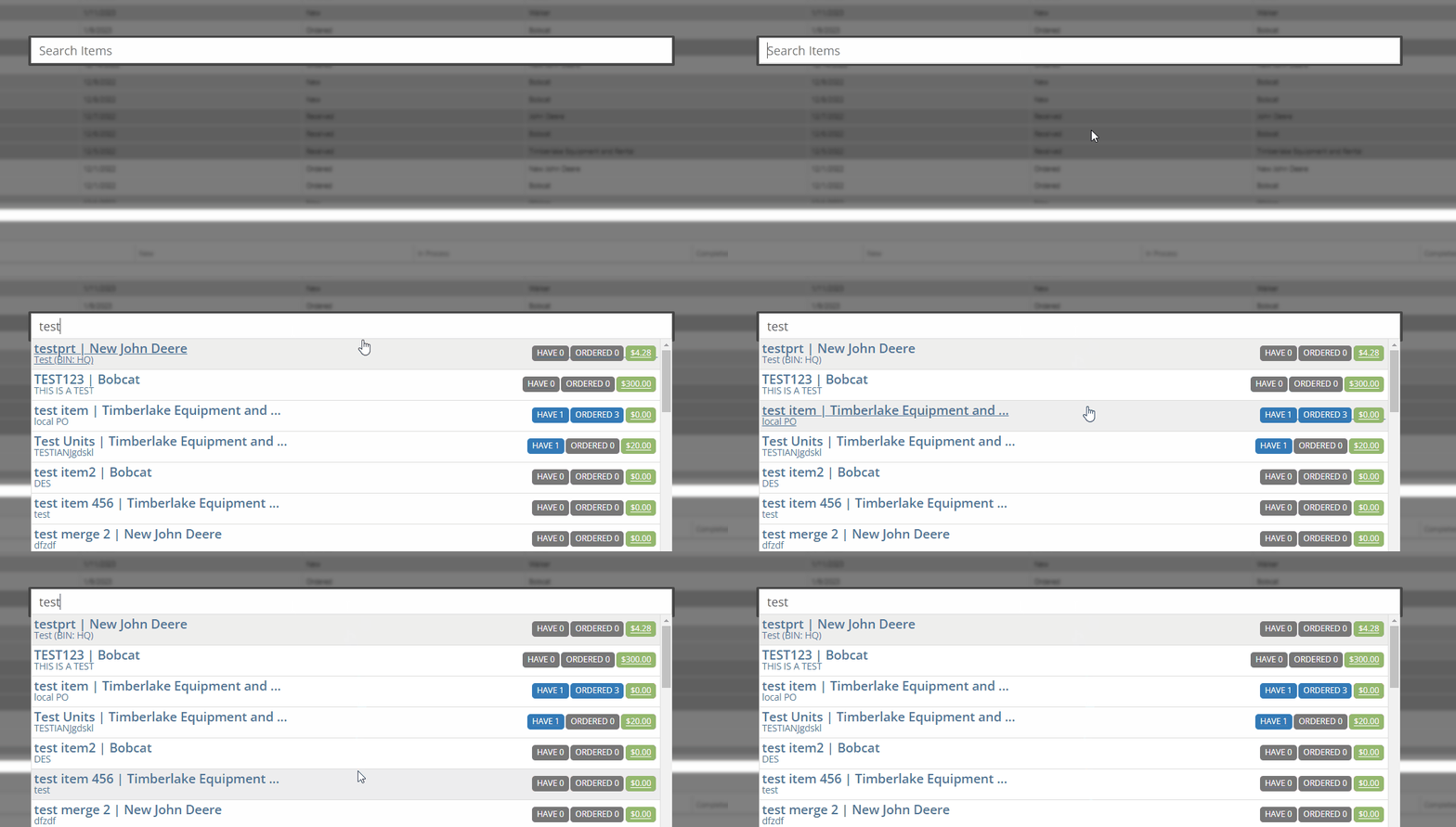
We gave the Omnisearch results a freshlook. It now allows for quick referencing of item number, vendor/make, description and bin. Also displayed, includes QOH, QOO, and List Price, which are appropriately categorized by color.
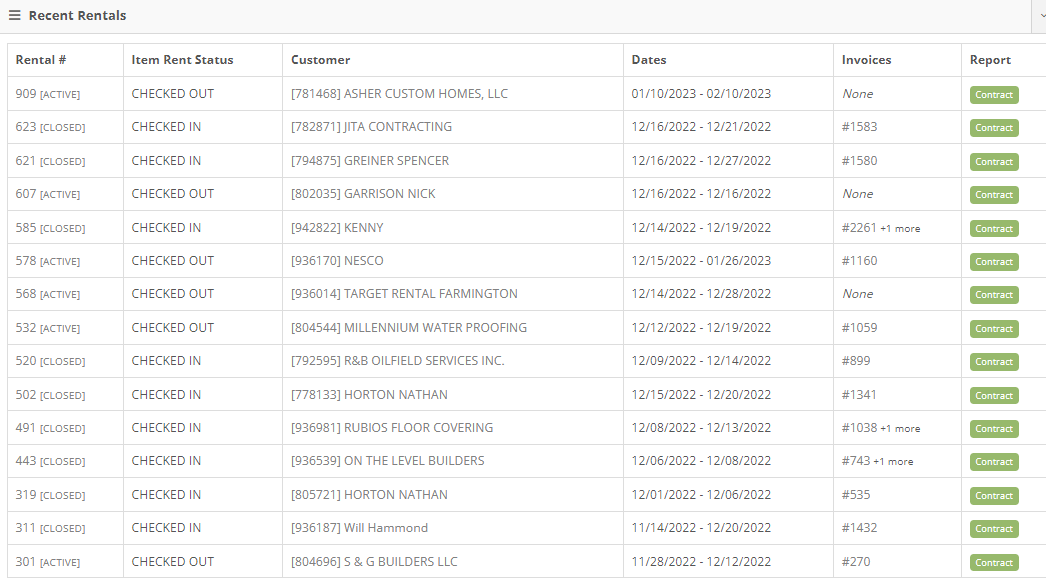
A Recent Rentals section has been added to the Item Dashboard, which displays the fifteen most recent rental contracts of the item.
We have added machine hours and miles to the Sparks Request Service Form.

Last Release NotesDecember 14th, 2022 Release Notes
Learn More at Flyntlok Dealer Management System
Check out our Flyntlok YouTube channel for more highlights of the application!






