NEW:
Save Technician Time and Drive More Service Revenue with Voice-to-Text, AI-Powered Tech Notes
Check out the latest updates to the Flyntlok Equipment Dealer Management System.
In the past, the rental system has relied on the user to keep the billing and calendar dates in line. We are working to make the system smarter. Any of the durations that we calculate will be auto-filled. You will always be able to edit them if you find yourself in a special situation. In order to auto-fill recommendations, additional setup is required.
To add the additional information needed by the rental system. Go to the Flyntlok Settings page and click Go to new Rental Settings.

From here, click on the Durations Tab. You should see something that looks like this!
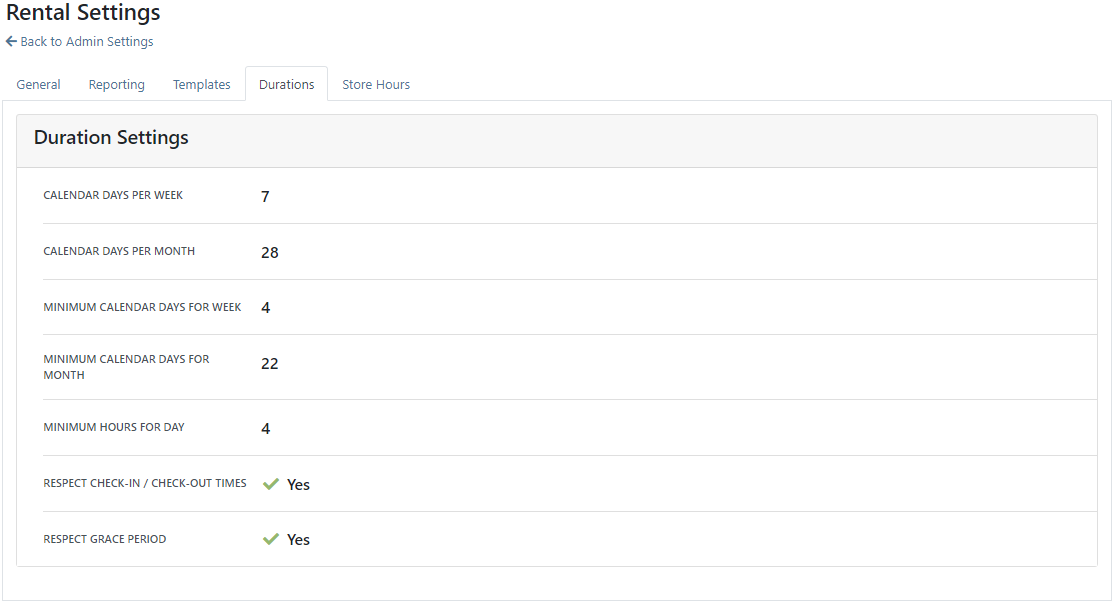
The number of days that are in a week. This will usually be set to 5 or 7
The number of calendar days are in a 1 month billing cycle. This is usually set to 28.
The number of days that can be billed before you stop billing days and instead bill for a week. This is usually set to 4.
The number of days / weeks that can be billed before you stop billing days and weeks and instead bill for a month. This is usually set to 22.
The number of hours that can be billed before you stop billing hours and instead bill for a day. This is usually set to 4.
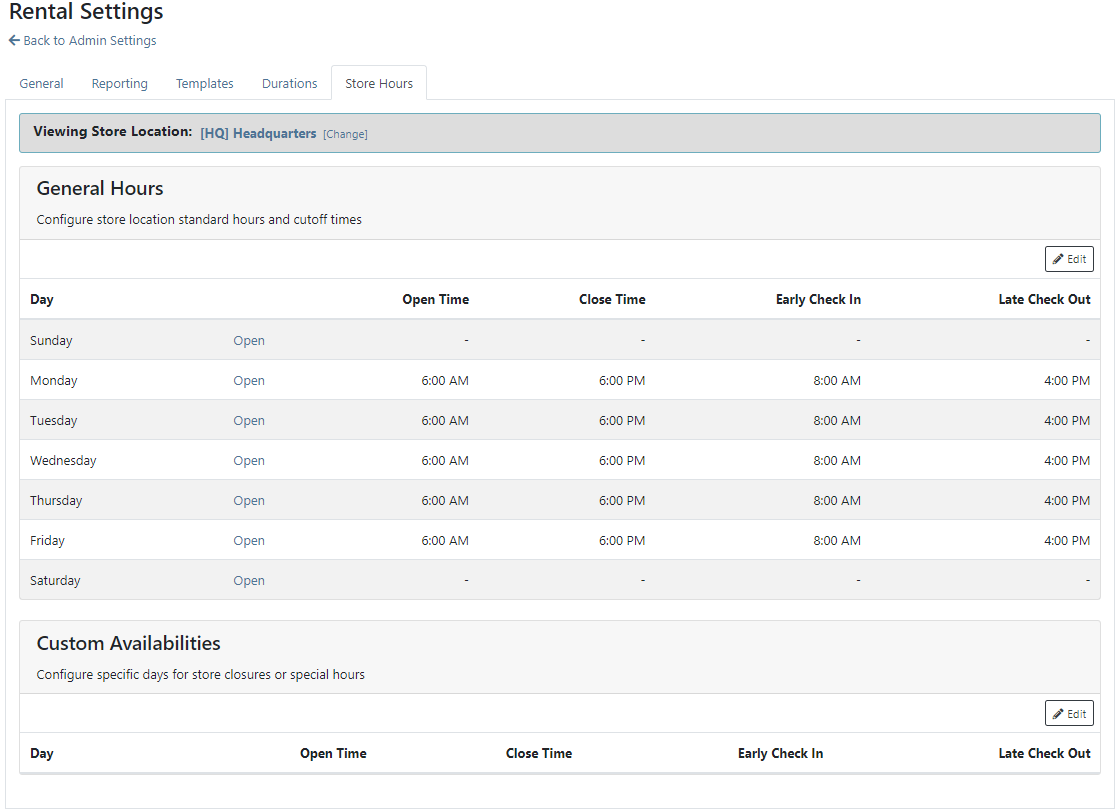
This will allow customers to return machines prior to the early check-in time without getting billed. Customers will also be able to check-out machines after the late check-out time without being billed.
Setting this to yes will not bill for days your business was closed immediately prior to the check-in date.The Check-in times, Check-out times, and the Grace Periods can all be set on the Store Hours Tab.
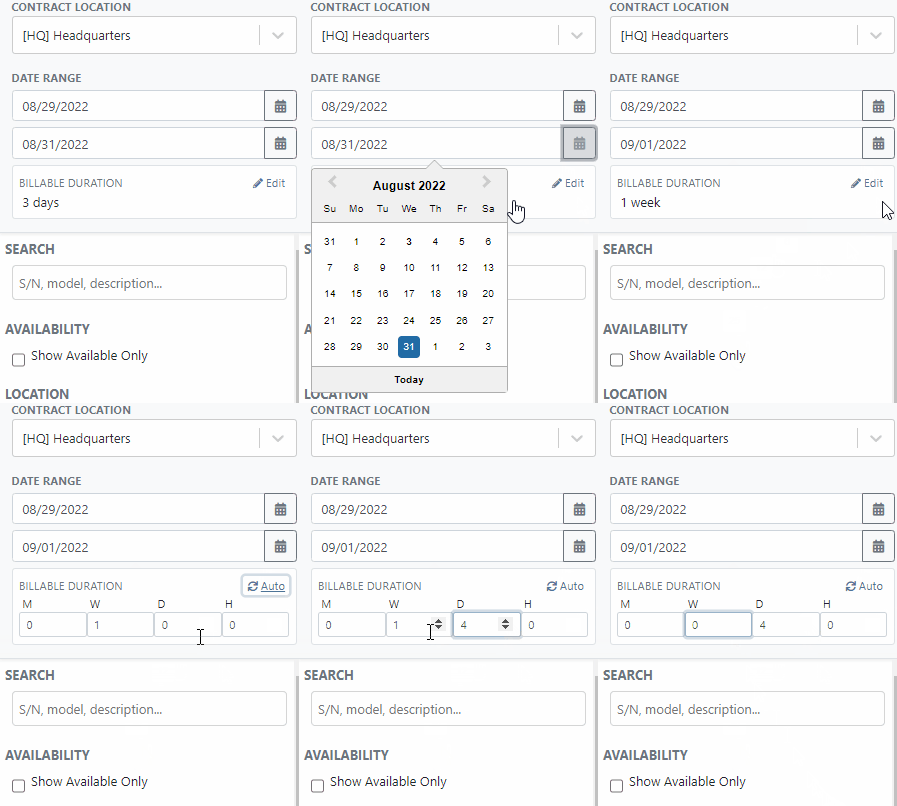
The new Date Selector makes the Billable Duration and Calendar Dates more clear. As always, you can change the Billable Duration without changing the Calendar Dates.
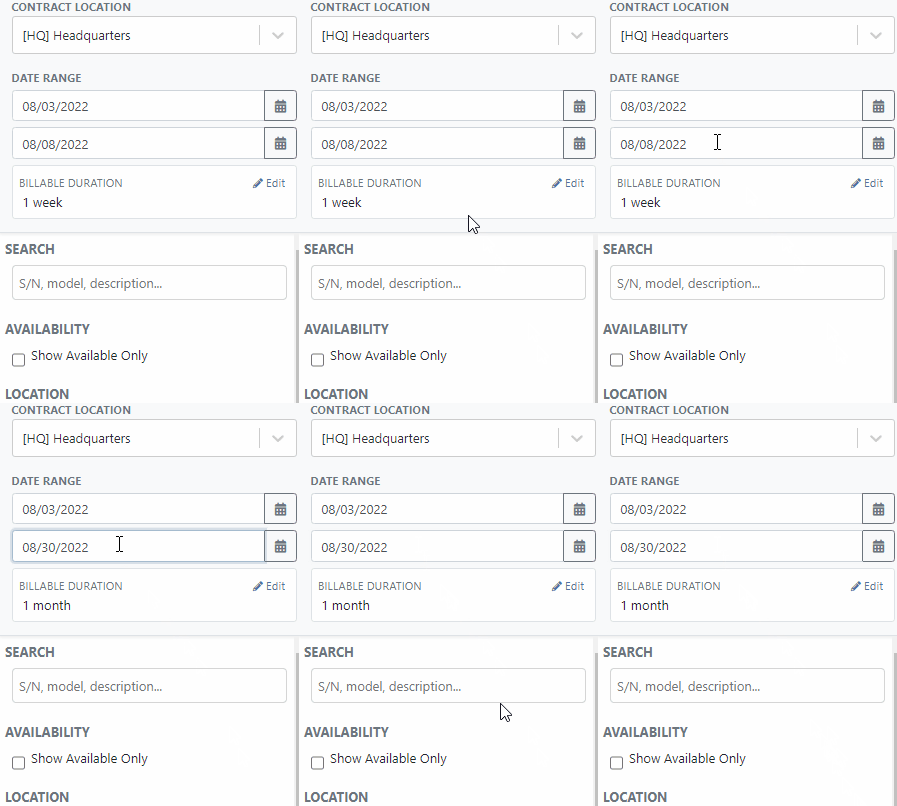
The date select will also accept free text.
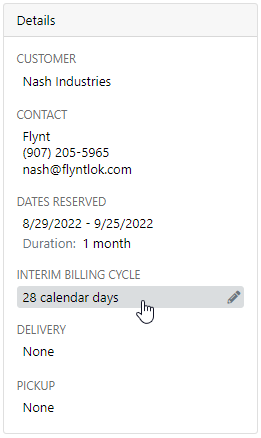
The EST.Billable Durations field has been replaced with an Interim Billing Cycle field. Use this field to define the length of your billing cycles. Submit a support ticket to edit the default value(28 calendar days).
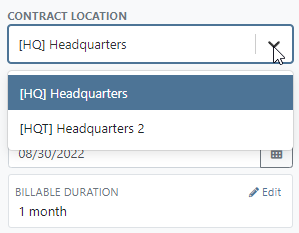
The location of the rental contract can be changed on the new rental page.
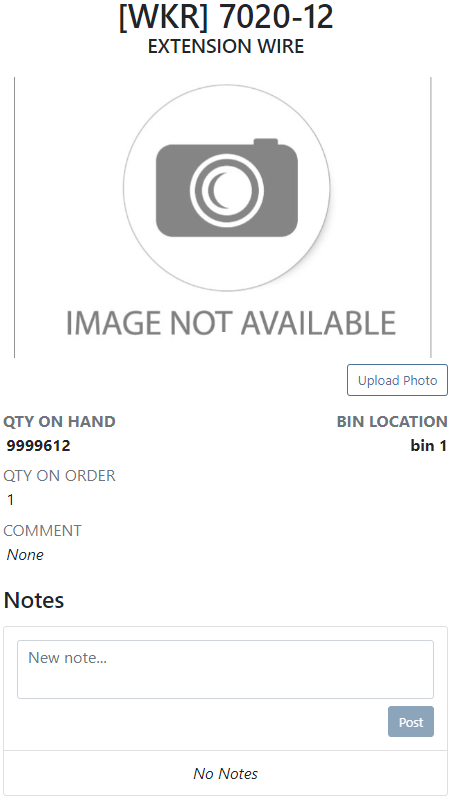
We have added a part dashboard to the mobile view! You can view the following information:
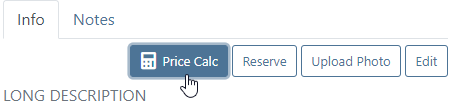
To help mobile salespeople, we have added a price calculator to the mobile machine dashboard.
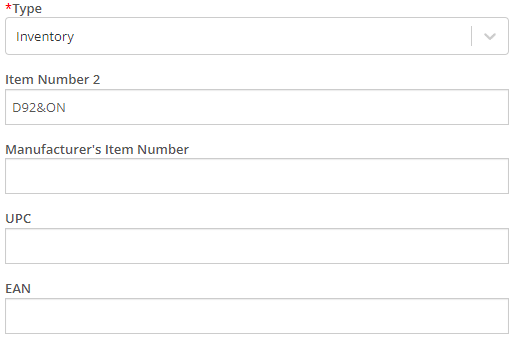
We have added EAN and UPC fields to the item edit screen.
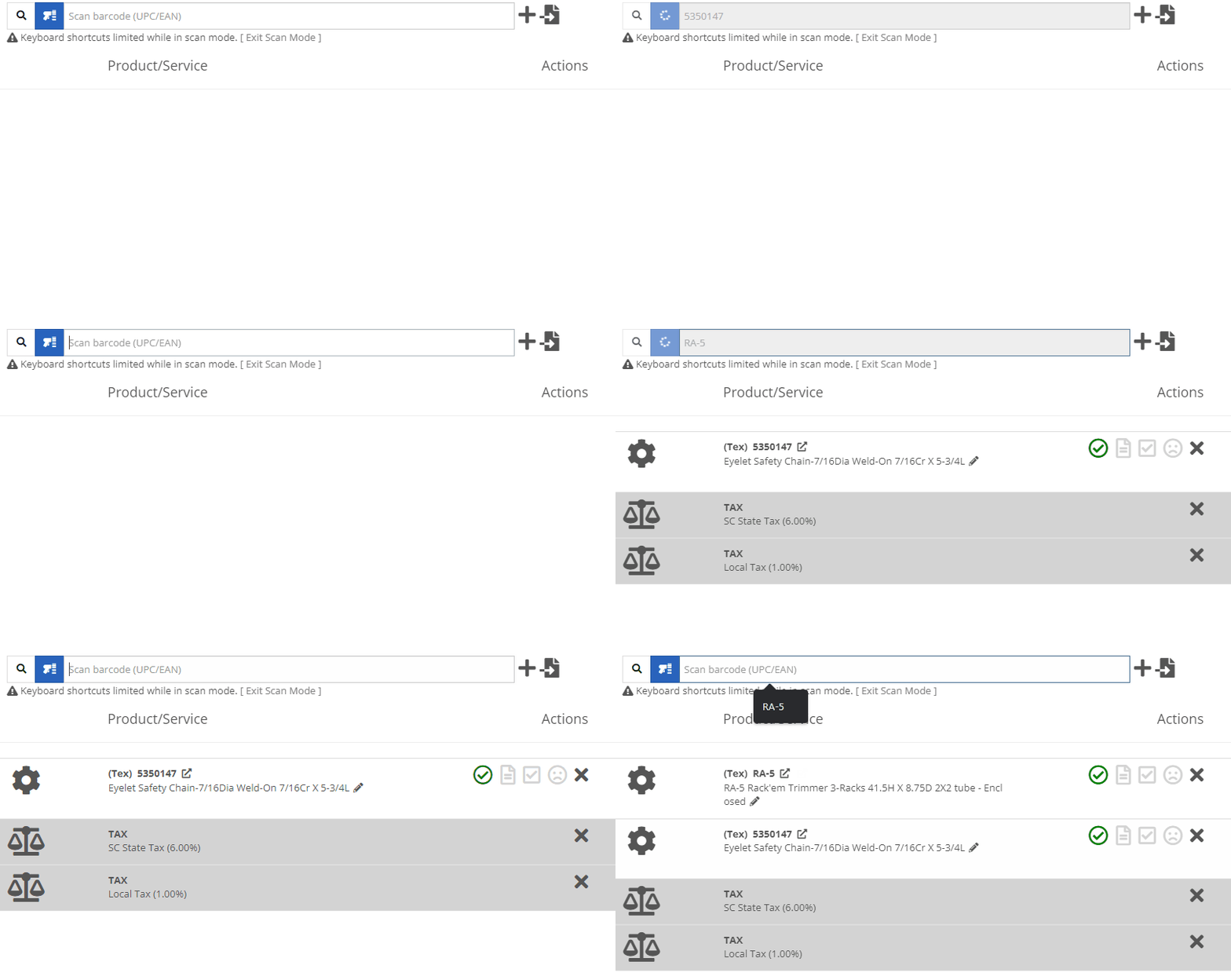
We have added a Scan Mode to the point of sale. This will work like a check-out system at a grocery store. Scan items and they will be added to the sales order. If two of the same item are scanned, the quantity will be increased on the original line. We are looking for exact matches between the barcode and the item number, EAN, or UPC fields.To enter scan mode, click the scanner or with hot key: ALT + B.

Then Scan your items:
You can create a QuickBooks Customer in Flyntlok from the customer edit screen!

You can create a QuickBooks Vendor in Flyntlok from the vendor edit screen!

Learn More at Flyntlok Dealer Management System
Check out our Flyntlok YouTube channel for more highlights of the application!






