WATCH HERE:
Our Equip Expo AI Session is Now On-Demand!
Less chasing. More getting things done.
From the Flyntlok team
Flyntlok release notes
Less chasing. More getting things done.
This release helps equipment dealership teams stay ahead of the details that can cost time, revenue, and customer trust: from automated SMS service reminders and easier-to-review AI-powered Tech Notes, to faster Toro registrations and expanded mobile CRM workflows. We’ve also added smarter controls and reporting to help your team protect margin, reduce errors, and make confident decisions without extra steps.
Let’s get into it!
Shameless plug here for our new social media profiles: Never miss an update by following us on LinkedIn, Instagram, Facebook, and YouTube.
By Alex E.
What’s New!
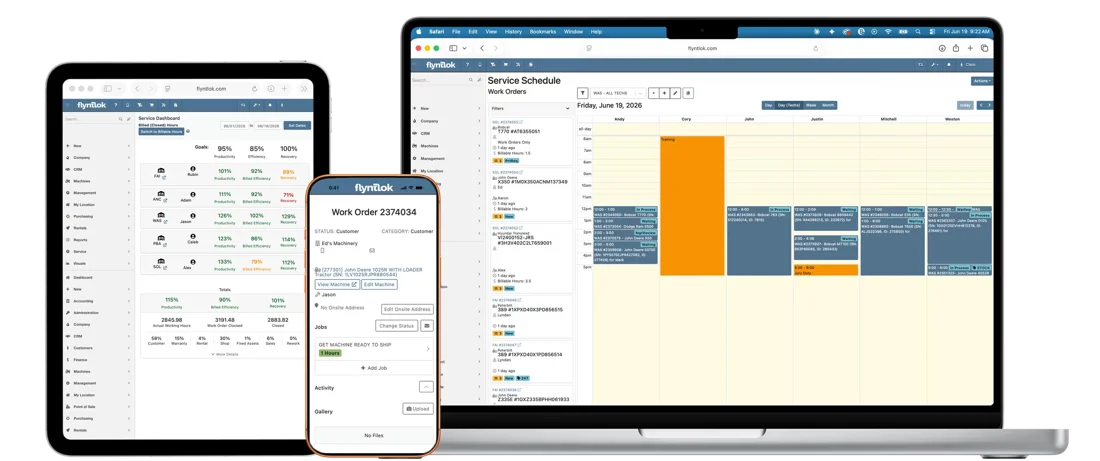
You can now send text message confirmations or schedule reminder messages for work orders scheduled on the service calendar.
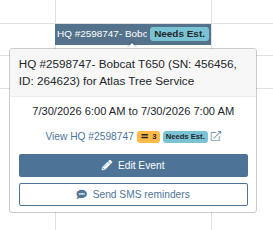
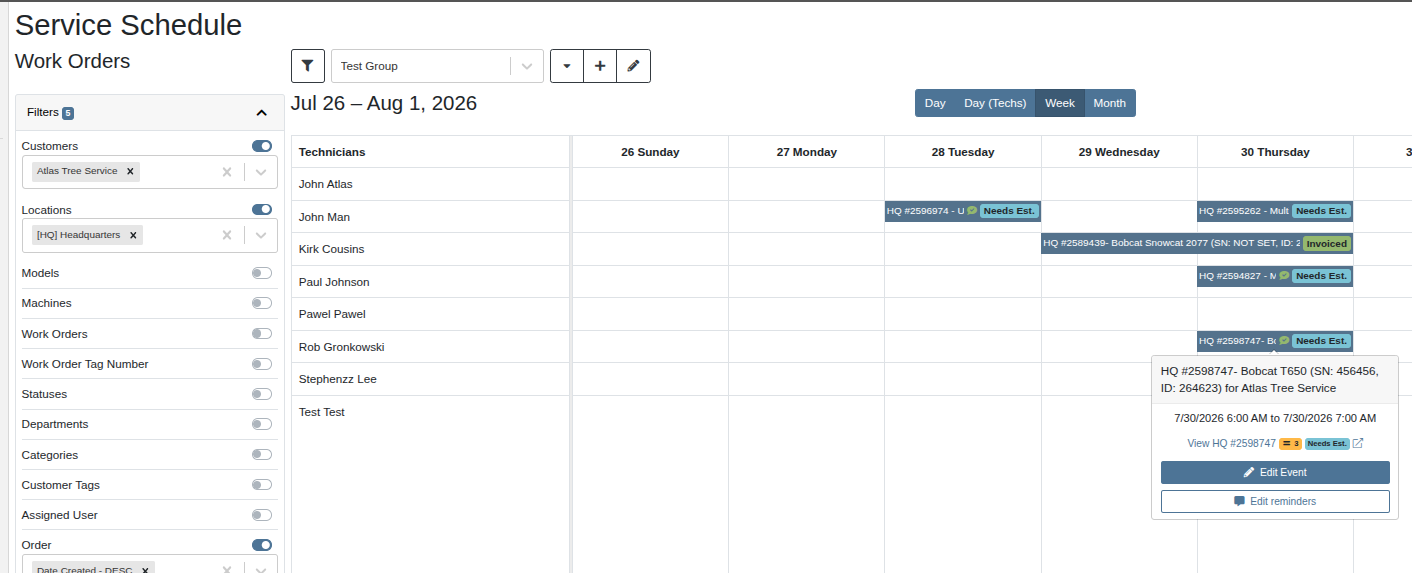
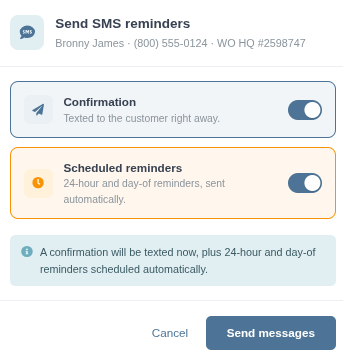
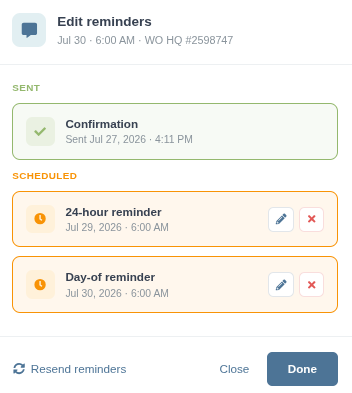
Before sending, you can toggle the notification method you want to use. And afterwards, you can click into the event to review what messages were sent and see what is still pending.
Why It Matters:
Forgotten reminders lead to forgotten appointments, forgotten appointments lead to lost revenue for you and your shop. We are releasing a new feature that allows you to send text message reminders to the customer directly from the service calendar. We allow you to set up customizable templated reminders that result in automating the reminder process, saving you time and providing a consistent customer experience. Keep the customer in the loop and aware of when they need to bring their machine in, and let your service writer spend time on things that really matter.
By Alex E.
What’s New!
With the release of the new Service Reminders feature, you can configure a variety of settings to fit your preferences and the tone of your shop. We have added a Service Settings page accessible by admin users via Flyntlok Settings. Inside, you can configure what message types are on by default and whether you see a confirmation modal before sending
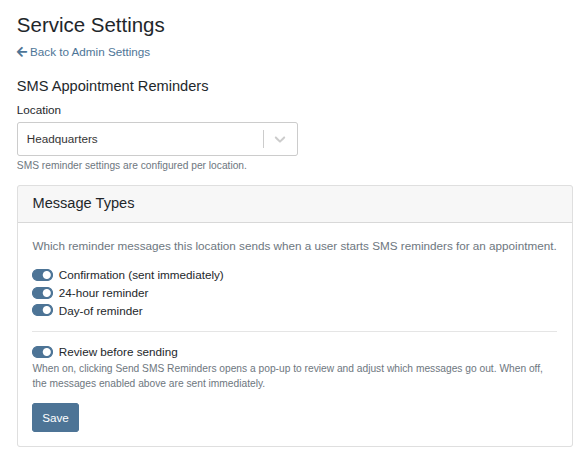
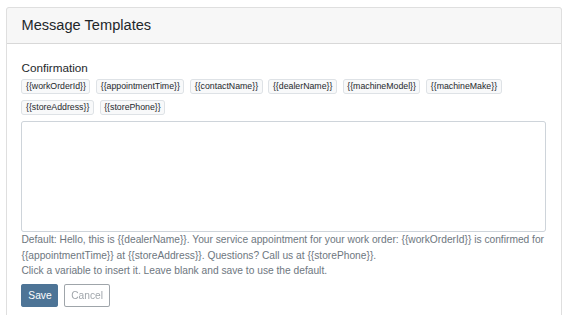
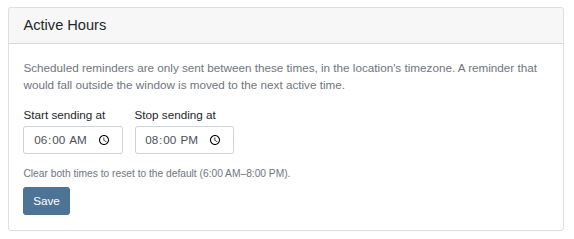
Here we also provide the ability to set up custom message templates with dynamically rendered variables like the work order ID, appointment time, and contact name. We also enforce an adjustable active hours setting to prevent scheduled reminders from texting your customers in the middle of the night. Scheduled messages are automatically sent during the next appropriate active window.
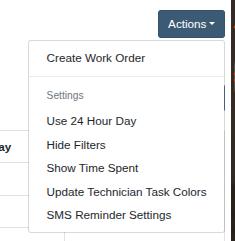
For easier access from the Service Scheduler, we have added a new option to the Actions dropdown that is enabled only for admins.
Why It Matters:
Being able to adjust your processes based on feedback is essential to good business. Finding that your customers don’t like getting three reminders to bring in their machine? Configure it to only send one.
You want text reminders but prefer calling to confirm an appointment? Disable the confirmation message.
Only want reminders going out during business hours when you can respond? Update your active hours. Want to give a personalized confirmation without hand-typing each one? Set a custom template in the service settings page.
By Alex E.
What’s New!
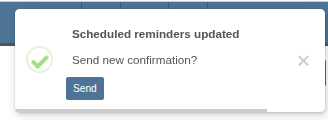
For work orders with pending scheduled reminders, when you reschedule to a new appointment time, it will automatically update the messages to reflect the new appointment time and adjust the send date relative to the new start date.
It will also automatically prompt if you would like to send a new confirmation message for the rescheduled appointment.
Why It Matters:
We want to develop intuitive and easy-to-use features for our users. If you have scheduled reminders to go out for a particular work order, and you end up rescheduling it, it should be unnecessary to both remember to update the reminders and manually go do it. We take care of that for you.
By Bomby K.
What's New!
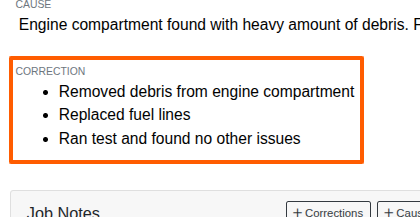
When a Technician records a Tech Note that covers several separate tasks, the suggested Correction now comes back as a bulleted list instead of one long run of short sentences. Recordings that describe a single continuous repair still come back as a plain sentence, so a one-line job doesn't turn into a one-item list. As before, the suggestion is fully editable before you apply it to the Job.
Why It Matters:
Service Managers, customers, and warranty auditors read the Correction to see exactly what was done to a Machine. When six discrete tasks are strung together as period-separated sentences, picking out any single one takes a careful read. A bulleted list makes each task scannable at a glance, which is how most Service Writers would have typed it up by hand naturally.
This release, Toro gets some love as we extend our user experience and capabilities around the warranty registration process. If your dealership offers Toro or Exmark but you’re not yet configured for the TTC Data Link connector, please drop us a support ticket.
By Ben C.
What’s New!
If your dealership has already been set up with the TTC Data Link (Toro) integration, your
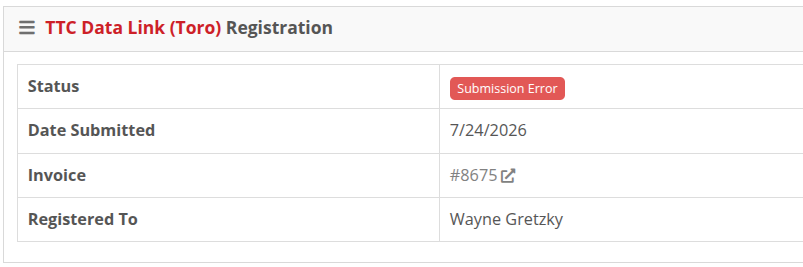
Toro and Exmark machine dashboards now include a TTC registration widget. This widget has information such as submission status, submission date, a link to the invoice, and the customer it was registered to. If an eligible machine has not been submitted, we provide a link to the registration page in that same widget.
Why It Matters:
Salespeople no longer need to remember if they registered a machine sale with Toro: the answer can now be seen at a glance on the Machine Dashboard. This makes it clear when confirming if a machine has been registered and if the submission to Toro was successful.
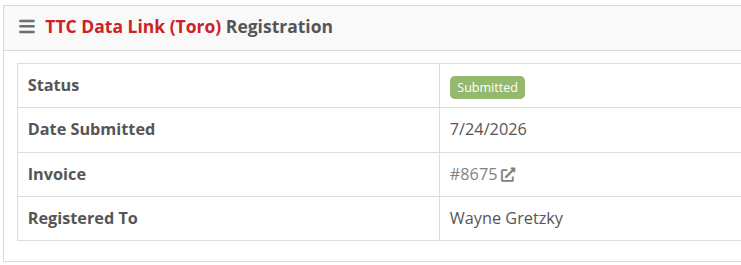
Toro and Exmark machines are considered eligible for registration when a sale has been completed in Flyntlok and the machine has a serial number on record. For machines that are eligible but have not yet been registered, the “Register Now” button will open the registration form.

By Calvin M.
What’s New!
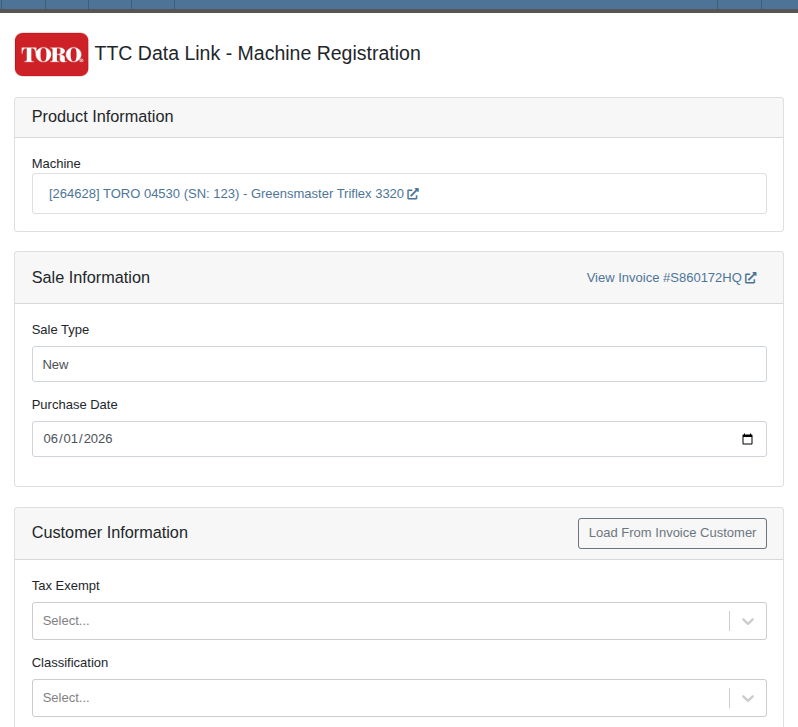
We’ve added auto-filling to the TTC Data Link registration page to fill most of the information needed in the registration form. Now, you just have to fill in the customer’s tax exemption status and classification when submitting your registration to Toro. The rest of the form is prefilled with information from the invoice and customer related to the machine’s sale.
Why It Matters:
Less manual entry saves your salespeople time and helps prevent entering the same information twice, keeping your salespeople on the floor selling instead of keying in data.
By Bomby K.
What’s New!
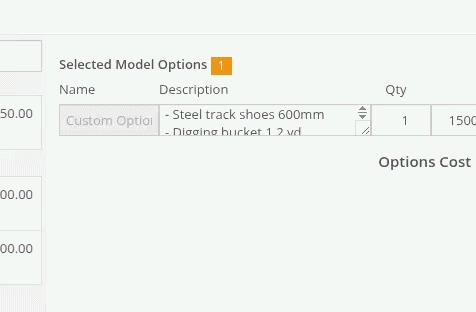
The Description field for Model Options on a Machine Purchase Order is now a resizable text box.
Why It Matters:
Purchasers often paste long option descriptions in from a manufacturer's build sheet and then trim them down to what actually applies to the unit. Expanding the box shows the whole description at a glance, making editing much faster.
ICYMI: Bobcat Dealer White's Tractor Connects Four Locations, Gains Visibility into Entire Business, with Flyntlok: https://www.flyntlok.com/resource/how-bobcat-dealership-whites-tractor-connected-four-locations-gaining-visibility-into-the-entire-business-with-flyntlok
“Taking care of our customers is at the heart of what we do. Flyntlok gives us visibility into our parts departments across all four locations, so our daily courier can get parts into customers’ hands, and into our shops, faster.” - Stephanie Smith, Owner, White's Tractor
By Ula L.
What’s New!
When a customer is selected in the Create or Edit Task dialog, that customer's contacts are automatically populated, with the primary contact clearly identified. This enhancement is available in both the standard Task dialog and the Lead Task dialog.
Why It Matters:
Users no longer need to manually enter customer contact information or search for the right person when scheduling a follow-up. The complete contact list is available at a glance and assigning the right contacts to a task now takes seconds.
By Ula L.
What’s New!
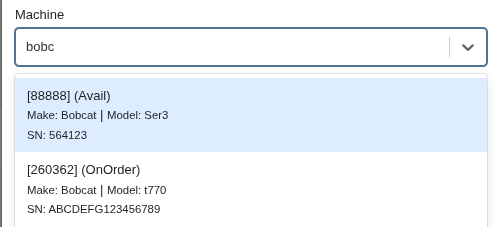
CRM Tasks can now be associated with a specific Machine. The Machine lookup is available when Salespeople create or edit a Task, so a follow-up can point at the exact unit a Customer is interested in.
Why It Matters:
Sales teams may want their follow-up work tied to the equipment that drives it. Salespeople and Sales Managers see at a glance which Machine a Task is about, track interest across the fleet, and lay the groundwork for targeted outreach instead of sifting through free-text notes.
By Ula L.
What’s New!
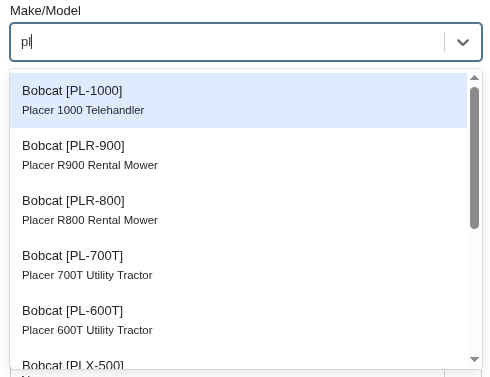
CRM Tasks can now be associated with a Machine make/model, not only a specific unit. The Make/Model lookup is available when Salespeople create or edit a Task, and searches by manufacturer, model number, and description. The linked make/model shows in the Tasks table reference column, links straight to the Model page, and is searchable and filterable like the other linked records.
Why It Matters:
Interest usually starts with a class of equipment, not a serial number. Salespeople can now log that follow-up the moment the conversation happens instead of waiting for a unit to be chosen, and Sales Managers can filter the Tasks table by make/model to see real demand across a product line and aim outreach at it.
By MA S.
What’s New!
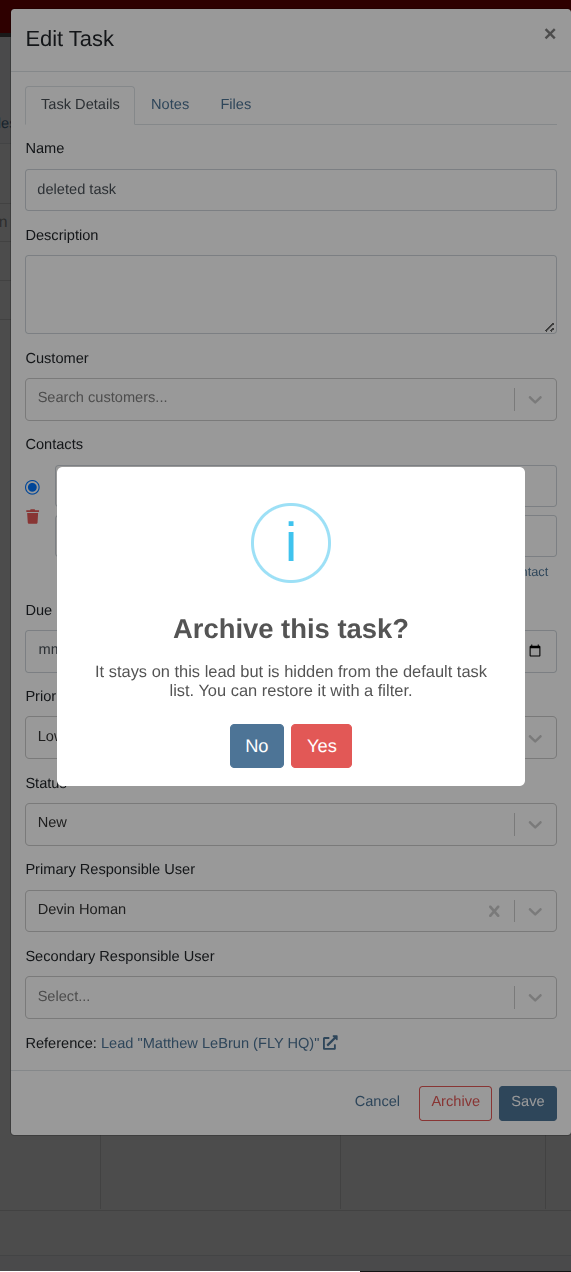
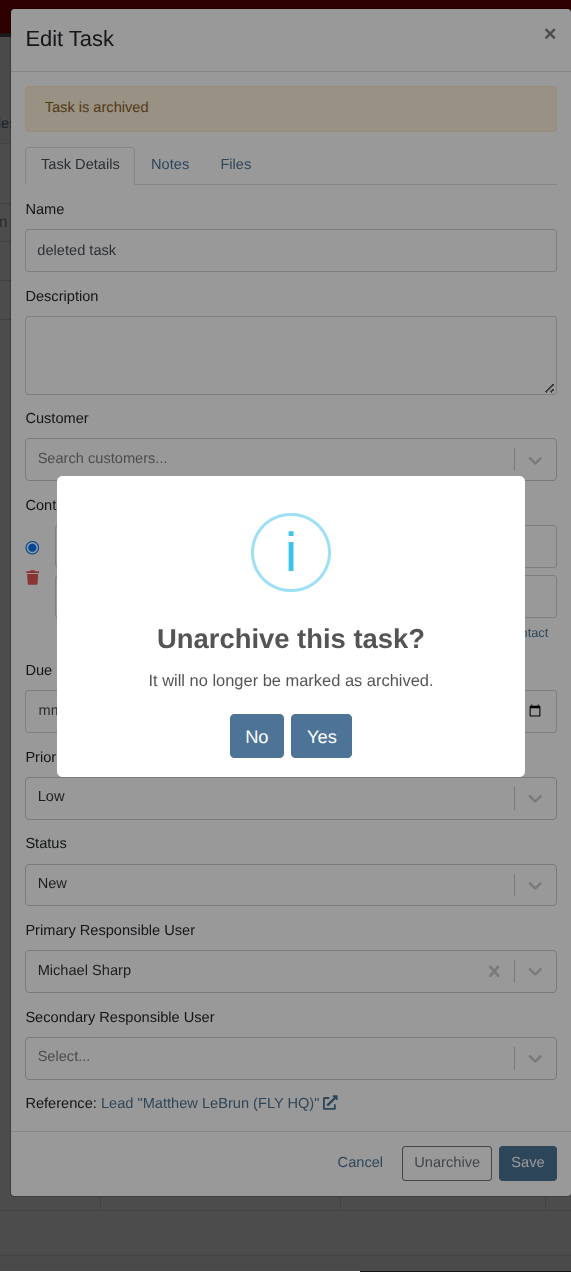
CRM Tasks can now be archived and removed from default Task Lists (“My Tasks”). Adding this functionality will allow us to expand this status and improve the user experience around managing Tasks.
Why It Matters:
This will improve the speed of common workflows and make the most important Tasks easier to find and take action on.
By MA S.
What’s New!
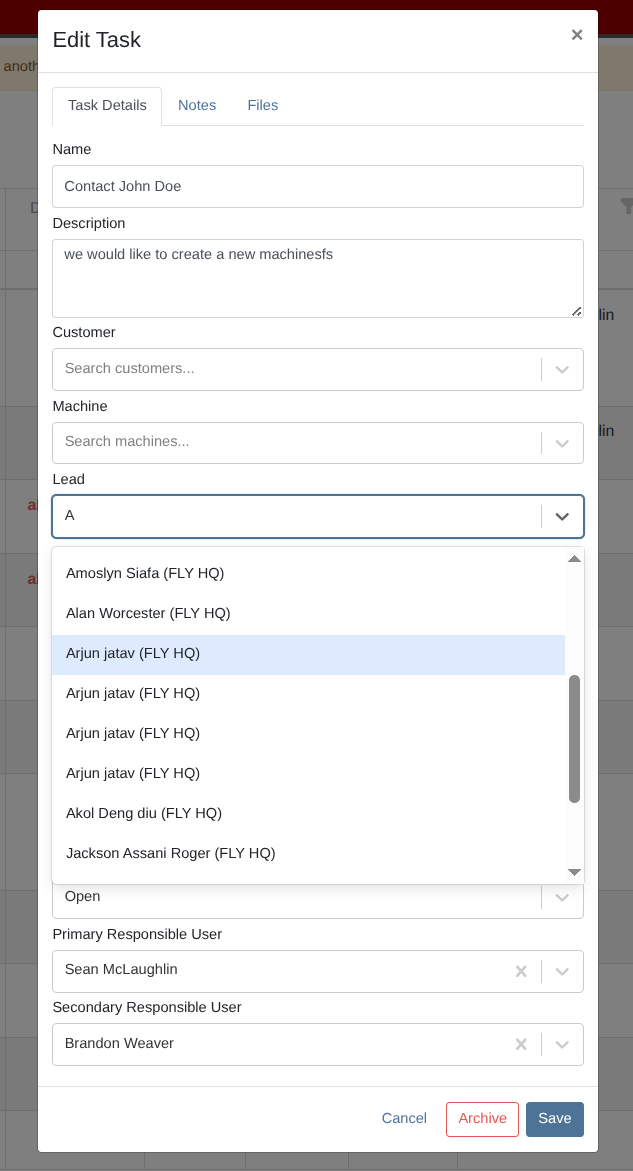
You can now link a Task to an existing Lead from the Task itself. Search for the Lead in the new Lead field on the Task and save. The Task then appears on that Lead alongside its other Tasks.
Why It Matters:
Previously a Task could only be attached to a Lead by creating it from the Lead's page, so Salespeople who started with a phone call or a walk-in had no way to connect that work to the opportunity it became. Linking after the fact keeps warm outreach and the Lead pipeline in step without re-entering anything.
By MA S.
What’s New!
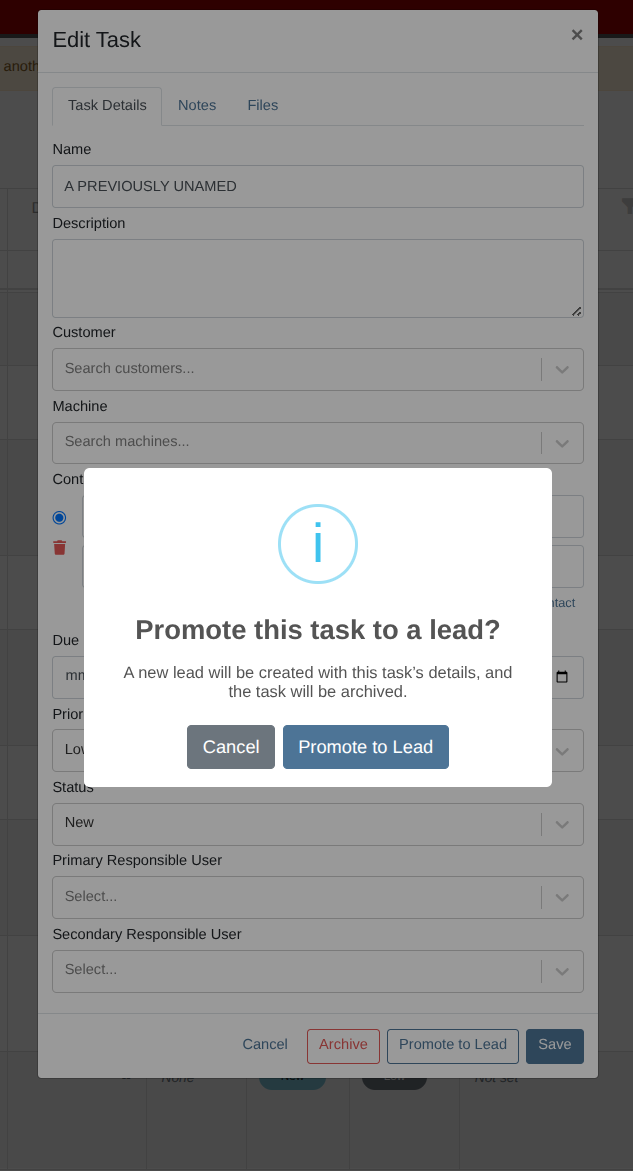
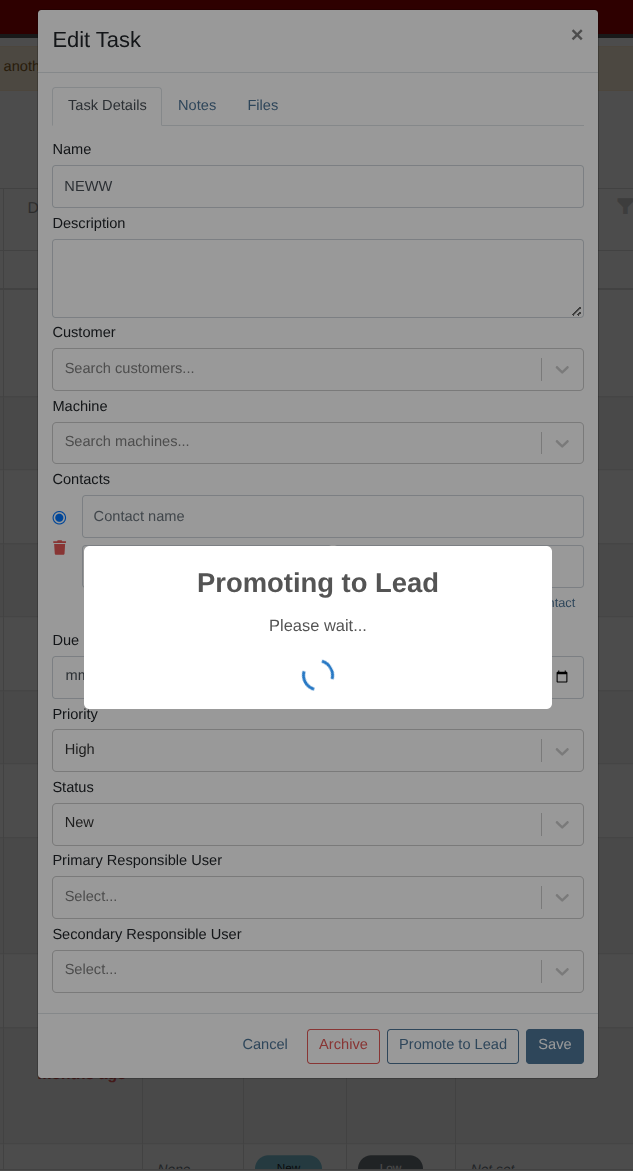
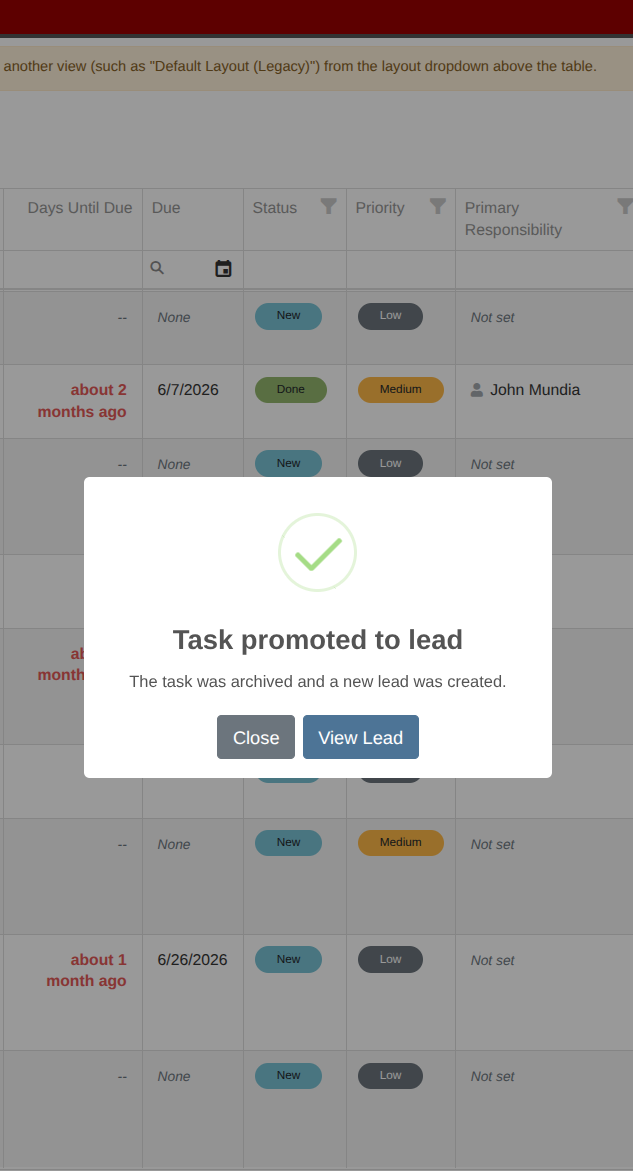
A Task can now be promoted straight to a Lead. Promote to Lead creates a new Lead carrying over the Customer, Machine, Contacts, assigned Salespeople, description and due date, links the Task to that Lead, records a note naming the Task it came from, and archives the Task.
Why It Matters:
Salespeople working larger deals run most of their pipeline as warm outreach rather than formal Leads, and converting one used to mean retyping every detail by hand. Promoting carries the details across and leaves a trail; the new Lead states which Task created it, and the finished Task drops out of the active list on its own.
By Ula L.
Complaint:
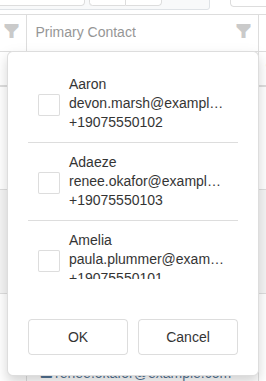
Many column filters on the main CRM Tasks table - for example latest note, reference, machine, customer, primary contact, and more - showed no values or did not filter correctly.
Correction:
Fixed. The column filters on the CRM Tasks table now show their values and filter correctly.
By Ula L.
Complaint:
It was reported that opening the Tasks list with certain saved custom layouts produced an error and the list would not load, forcing users to abandon their saved view.
Correction:
Fixed. The Tasks list now opens as expected with any previously saved layout.
By Ula L.
Complaint:
Salespeople reported an error when they tried to add a task from the Customer dashboard. The Task saved without its Customer link, and repeated attempts created duplicate Tasks.
Correction:
Fixed. A Task created from the Customer dashboard now saves with the correct Customer reference.
By Christian E.
What’s New!
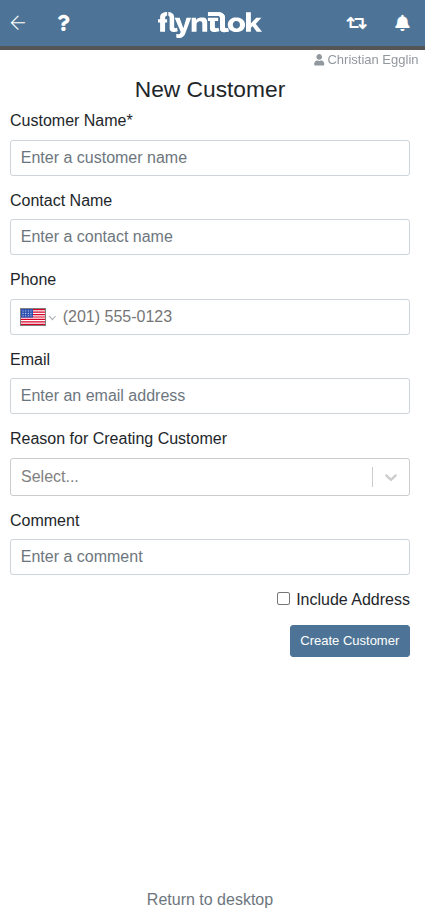
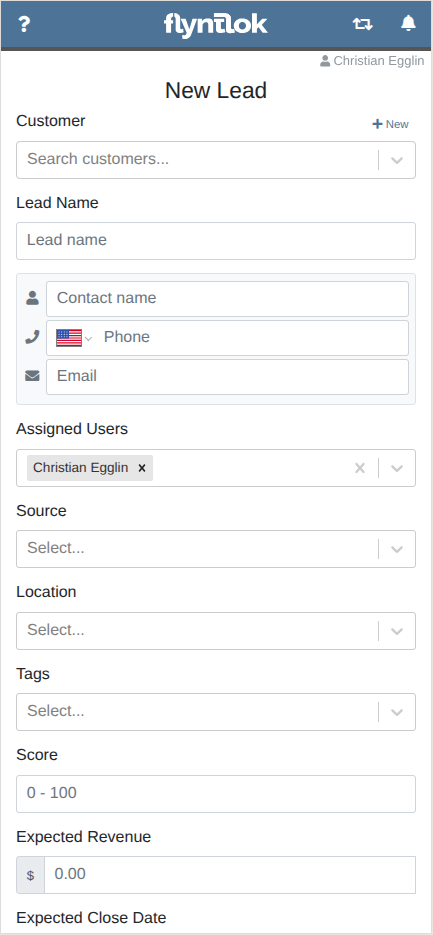
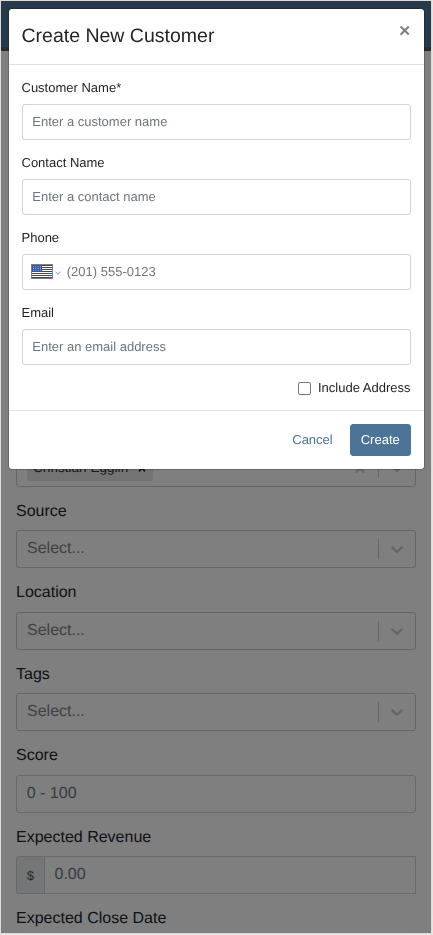
Creating a new customer directly from Flyntlok’s mobile view.
Why It Matters:
When a user needed to create a customer while on the mobile view, they first needed to change to the desktop version of Flyntlok That is no longer necessary, saving additional steps.
By Christian E.
What’s New!
In addition to the previous feature of being able to create a new customer on its own, we’ve also introduced the ability to create a new customer when creating a new lead or new CRM customer activity via the mobile experience.
Why It Matters:
When creating new leads or customer activities on mobile, users were only able to search and select existing customers and would have had to change to the desktop version of Flyntlok to create a new customer, saving time.
By Yasmine C.
What’s New!
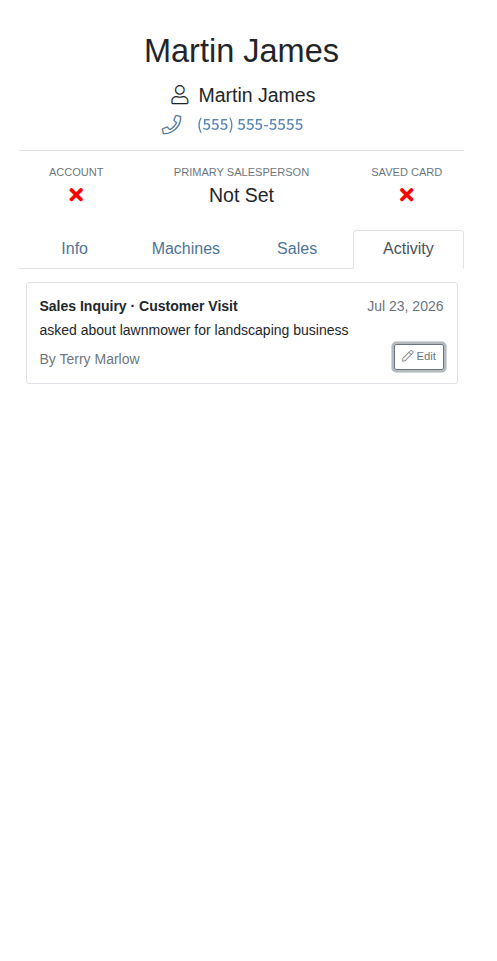
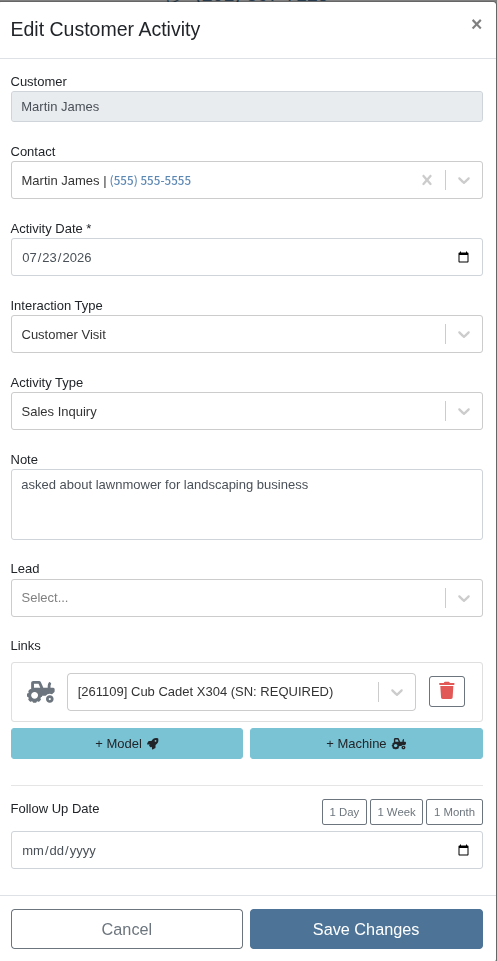
Customer activity can now be edited on the mobile customer dashboard.
Why It Matters:
This enables any corrections or additions to be made on the spot instead of having to wait–and remember!--when a user is back in front of their computer.
By Yasmine C.
What’s New!
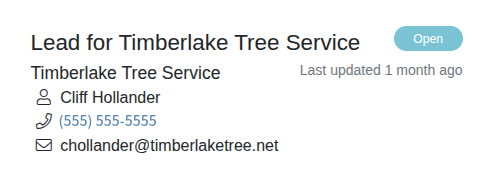
Contacts on Leads and Moves are now links that dial a number automatically when clicked!
Why It Matters:
Click-to-call phone numbers are now standard in the mobile view which means fewer clicks when contacting customers!
By Christian E.
What’s New!
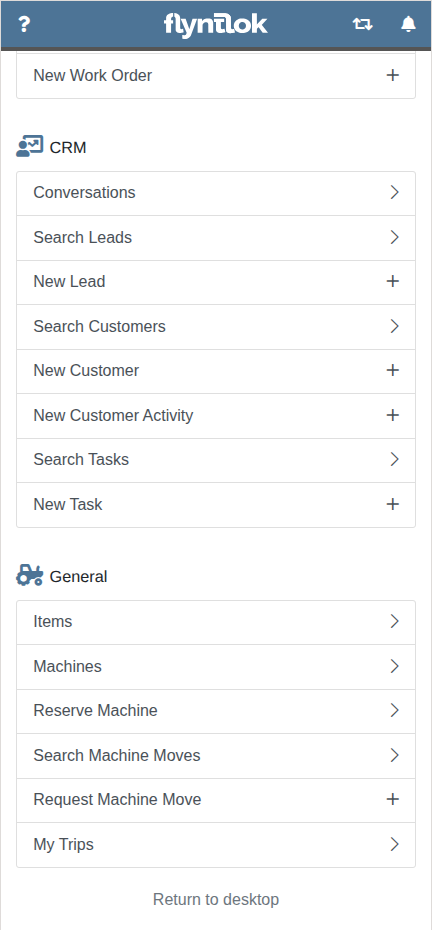
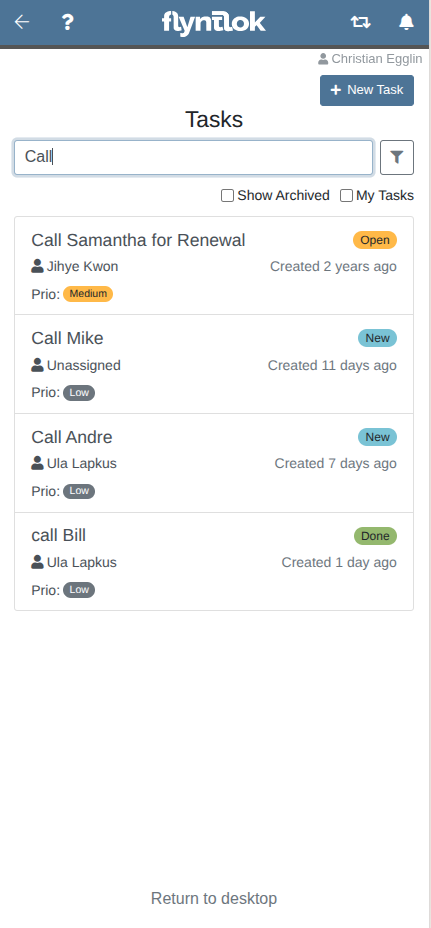
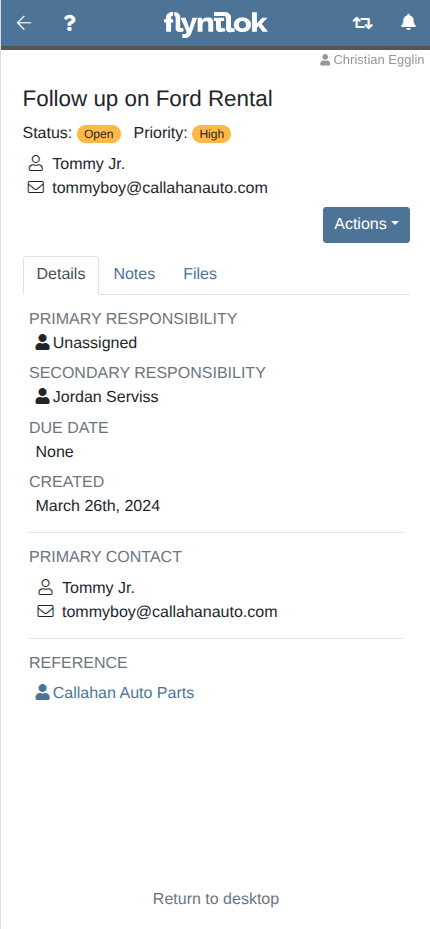
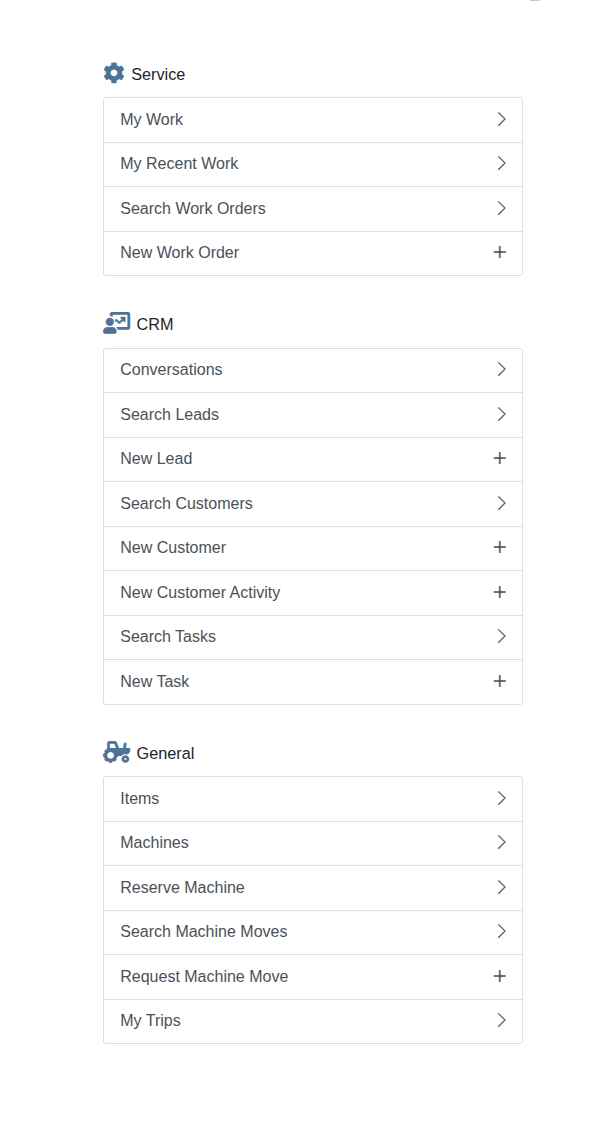
Users can now view and search their CRM tasks directly on the mobile view while on the move on the shop floor, yard, etc. Sales reps can now view full CRM task details from the mobile view as well as add notes, upload related files, and mark the task as done.
Why It Matters:
Previously there was no task functionality in any capacity on Flyntlok’s mobile view; users had to change to Flyntlok’s desktop version of the app to view and search for CRM tasks.
By Yasmine C.
What’s New!
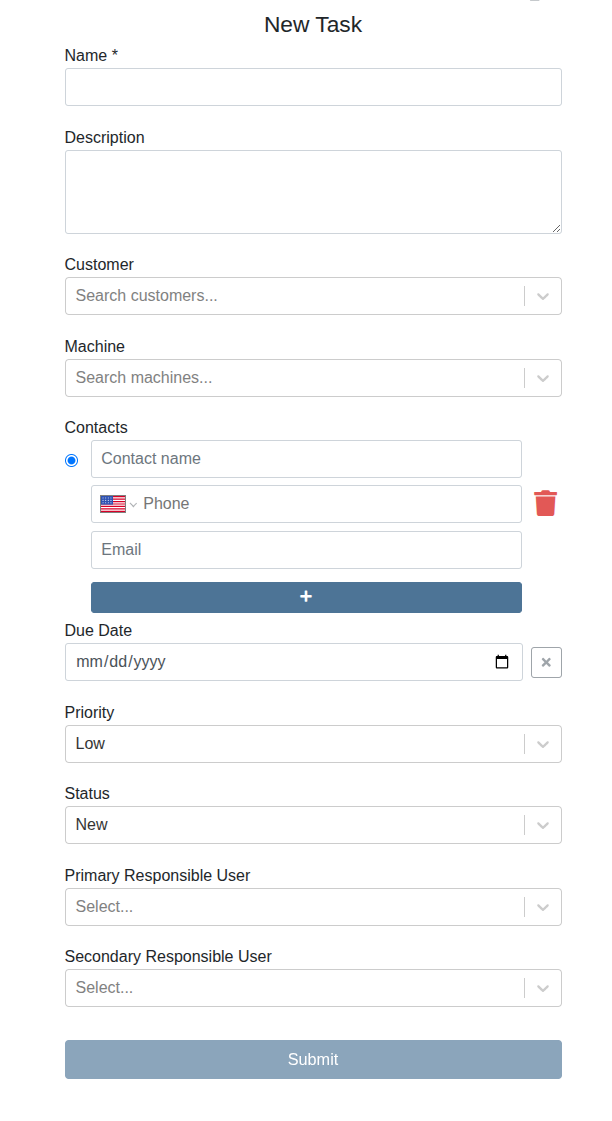
Users are now able to create tasks in the mobile view.
Why It Matters:
By bringing task creation to mobile, we remove the gap between the moment something needs doing and the moment it gets logged so nothing slips through the cracks and your team can spend less mental energy trying to remember it all.
By Yasmine C.
What’s New!
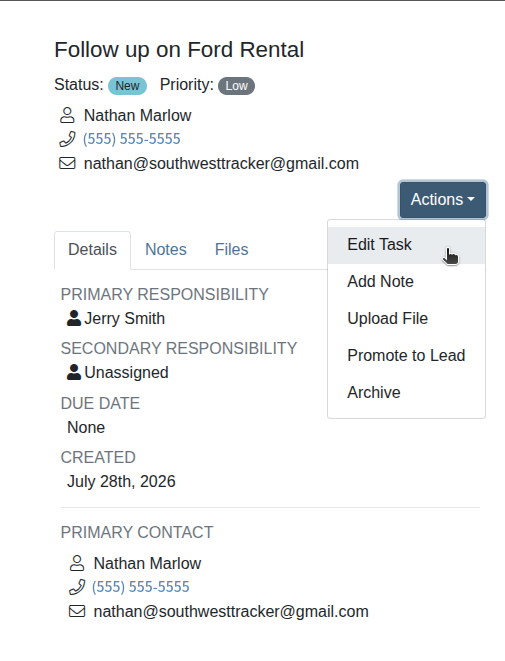
Users can now edit tasks in the mobile task dashboard!
Why It Matters:
With task editing now on mobile, salespeople can keep task details accurate and complete more easily. This means that when it's time to complete a task, they can rely on the information in front of them—no second-guessing, no stale notes.
By Brenden B.
What's New!
On the Sage Intacct Controls page, each entry in the Internal Invoices dropdown now includes its post date, matching what's already shown in the Invoices dropdown on the same page.
Why It Matters:
Accountants previously had to leave the Sage Controls page and open the separate Internal Invoices report just to check a transaction's post date before deciding whether to post or reverse it. With the date shown right in the dropdown, that extra step is gone.
How RTL Equipment Built a More Controlled, Scalable Financial Operation with Flyntlok & Sage Intacct: https://www.flyntlok.com/resource/how-rtl-equipment-built-a-more-controlled-scalable-financial-operation-with-flyntlok-and-sage-intacct
“That real-time balance sheet is amazing. It makes me feel comfortable with the numbers that I’m passing on to management.” - Katie Stephens, Controller, RTL Equipment
By Yara H.
What’s New!
Sales Orders in a Quote status now show a clear label indicating their outcome in the Sales Orders list on the Machine Dashboard. A Quote that's been turned down displays Quote Rejected, and a Quote that's been accepted displays Quote Accepted, right alongside the Sales Order.
Why It Matters:
Previously, a rejected Quote looked exactly like any other open Quote in the Machine Dashboard's sales history, so Salespeople and Sales Managers had to open each one to find out whether the deal was still alive.

By Yara H.
What’s New!
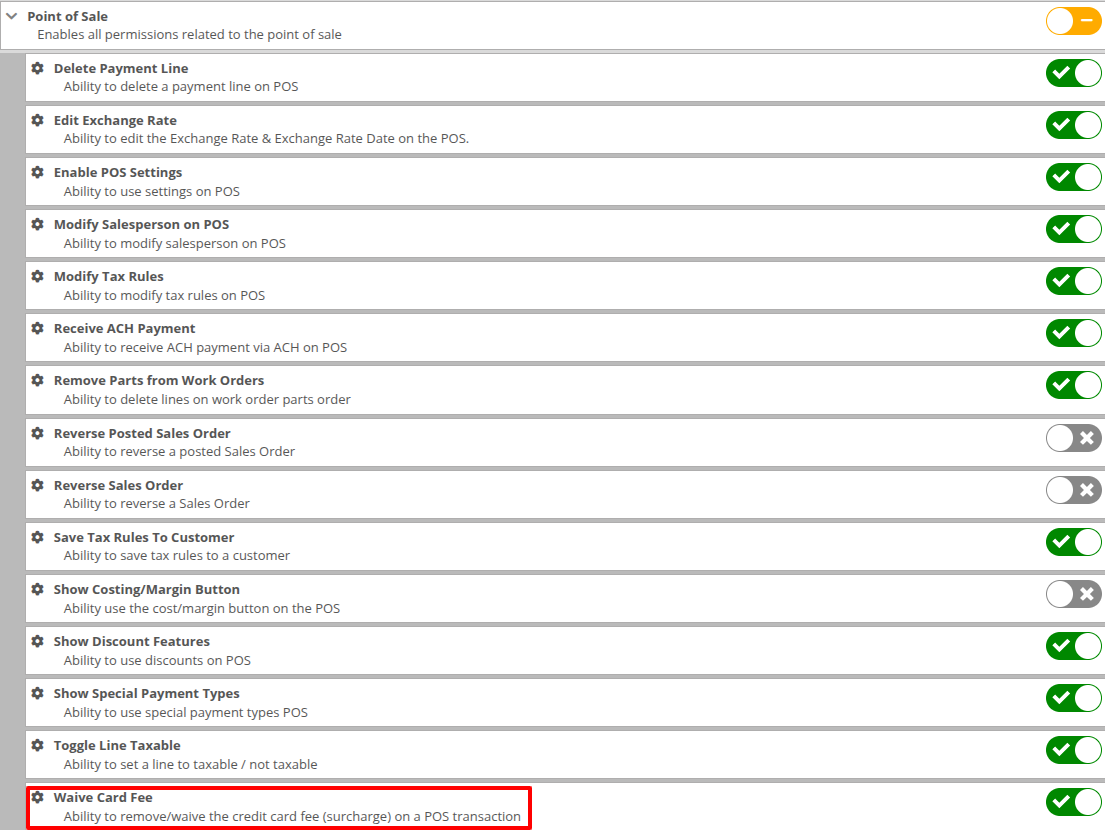
There's a new Waive Card Fee permission under Point of Sale in the Access Control console. When it's turned off for a role, the "Add Card Fee" checkbox on the payment screen is locked in place — the card fee stays on the Invoice and can't be removed at the time of payment. Anyone who still has the permission can waive the fee exactly as before.
Why It Matters:
Previously, anyone taking a payment could uncheck the card fee, and Salespeople were often put on the spot by Customers asking for it to be dropped. The dealership is still billed the surcharge by the processor, so each waived fee is an unrecovered cost.
By Yara H.
What’s New!
When searching for a Part to add to a Sales Order, the ordered figure in the item search results now reflects only the on-order quantity that's actually available. Units already committed to another Sales Order are no longer counted.
Why It Matters:
Previously, a Salesperson seeing ‘Have: 0’ and ‘Ordered: 20’ would reasonably assume 20 units were inbound and available, and quote a delivery date accordingly. If those units were already tied to another customer's order, that commitment couldn't be met.
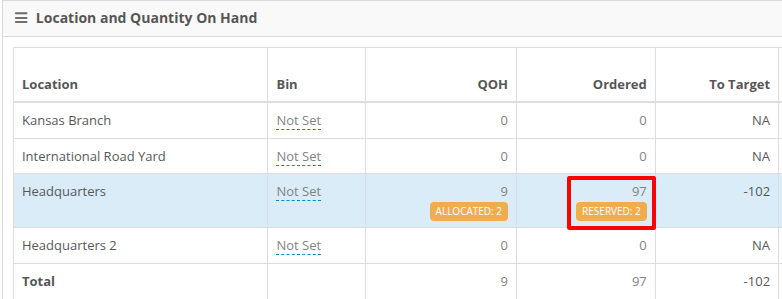

This Part has 97 units on order, 2 of them reserved for another Sales Order. The item searcher reports the remaining 95 — the quantity actually available to add to this Invoice.
By Yara H.
What’s New!
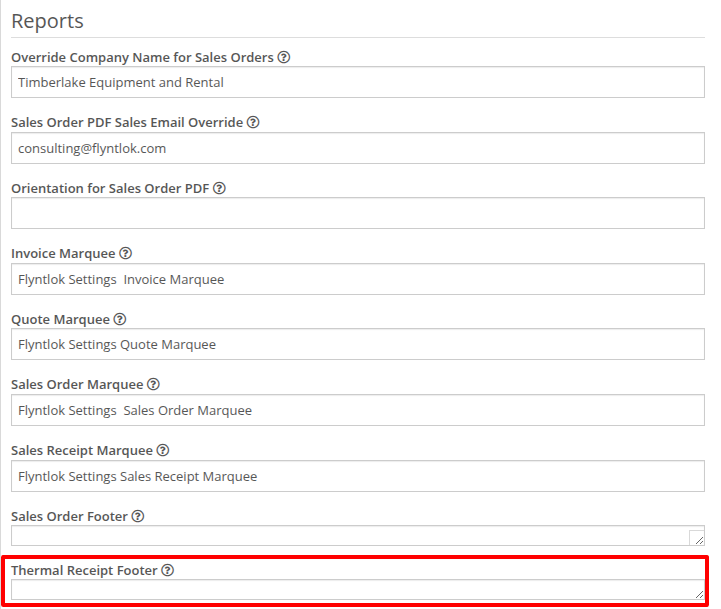
Open Flyntlok Settings and scroll to the Reports section — there's a new Thermal Receipt Footer box directly below Sales Order Footer. The text you enter there prints at the bottom of every thermal receipt. The box accepts multiple lines, so you can stack a few short policy statements — return restrictions, restocking fees, store hours — without needing anything custom built.
Why It Matters:
Thermal receipts previously had no space for dealership-specific terms, leaving counter policy undocumented on the one document customers actually take with them. Salespeople and Managers can now add this language directly and update it as policy evolves.
By Bomby K.
What’s New!
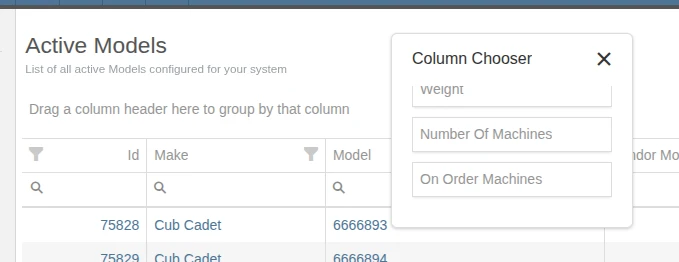
The Active Models report now shows a count of how many units of each Model are currently in stock and on order.
Why It Matters:
Salespeople reviewing pricing on in-stock or on-order units previously had to switch over to the All Machines report to see how many of each Model were on hand, since the Active Models report only showed pricing by Model without a stock count. Now that count is built right into the Active Models report, so Salespeople can review pricing and inventory levels for a Model side by side without switching reports.
You can find the new columns to add to your layout via the column chooser:
By Alex E.
What’s New!
We have added a new “Down” column to the Jobs Report, available in the column chooser.
Why It Matters:
If you want to see which jobs are associated with a down machine, now you can.
By Calvin M.
What’s New!
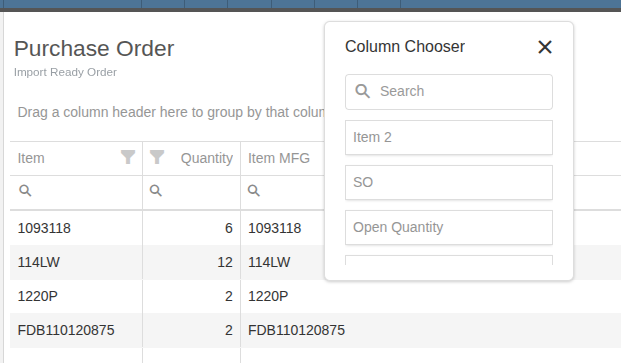
We have added a new column to the Purchase Order report that is linked to from the Purchase Order’s “Open In Dataview” button. The new column for Item Number 2 is available in the column chooser.
Why It Matters:
Purchasers tracking items with different numbers can now leverage the second item number for filtering, sorting, and reasoning about what’s on an order from this view.
By Yara H.
Complaint: Salespeople reported thermal receipts could print the payment time incorrectly.
Correction: Fixed. The payment time on thermal receipts now prints in the store location's own local time zone, so it matches the time the payment was actually taken.
By Yara H.
Complaint: Rental Clerks reported that when a rental unit was reserved or checked in, or a Rental Contract was closed at a different location, the automatically generated Equipment Condition Report Work Order was created in the location of the staff member handling the rental rather than the location on the Rental Contract.
Correction: Fixed. The automatically generated Equipment Condition Report Work Order is now created in the Rental Contract's location, regardless of which location the staff member is working out of.
By Nick V.
Complaint: Accountants reported that double-clicking the "Create" button in the Tax Rule Editor could produce duplicate child tax rules, potentially causing double taxation on Invoices.
Correction: Fixed. The Create button is now disabled while the request is processing, preventing duplicate entries.
By Nick V.
Complaint: Rental clerks reported that the rental page could become unresponsive when calculating durations for multi-day Rental Contracts at locations where store hours were missing configuration.
Correction: Fixed. The duration calculation now handles unconfigured store hours, defaulting to open.
By Ben C.
Complaint: Sales Managers reported that the Purchase Orders column on the Company Open Sales Orders report would not display all purchase orders attached to sales orders.
Correction: Fixed, the Purchase Orders column now lists all purchase orders attached to a sales order.
By Bomby K.
Complaint: Salespeople reported that duplicating a Work Order carried the original Work Order's linked Sales Project over to every copy, so copies meant for different Sales Projects had to be unlinked and re-pointed one at a time.
Correction: Fixed. A duplicated Work Order is now created with no Sales Project link, so it can be attached to the correct Sales Project from that project. Note: This applies to Work Orders duplicated from here on. Copies made before this change keep their existing Sales Project link until it's updated manually.
By Bomby K.
Complaint: Accountants reported that the Machine Valuation report showed a Machine's Cost lower than the same Machine's total on the Machine dashboard, leaving the two figures out of balance during reconciliation.
Correction: Fixed. Capitalized costs from Work Orders that cover multiple Machines are now included in the Machine Valuation report's Cost, so the report matches the Machine dashboard total. Note: This corrects how the report calculates and displays the total. No Machine costs, Invoices, or accounting records were changed, and the corrected figures appear on every run of the report, including historical dates.
By Bomby K.
Complaint: Technicians reported that requesting a Part on a Work Order Job from the desktop sent multiple duplicate notifications for the same request instead of one.
Correction: Fixed. Requesting Parts on a Work Order Job now sends a single notification per request.
By Bobby S.
Complaint: Multi-currency users reported some Items from price files did not have their Vendor’s foreign exchange rate applied when the Item was first viewed after importing.
Correction: Fixed, Items loaded from price files will now correctly have the Vendor’s foreign exchange rate applied when they are first viewed after importing the pricefile.
By Brenden B.
Complaint: Accountants reported that when a customer's existing deposit balance was applied as payment toward a new deposit, the amount used was deducted from the customer's deposit balance but never credited back, leaving the balance permanently short by that amount.
Correction: Fixed. "Use Deposit" can no longer be applied on an invoice that has nothing to pay for, such as a new deposit, which was the exact scenario that caused the shortfall. When this applies, the Use Deposit option is now shown as disabled with an explanation on the payment screen, and the system blocks the same case as a backend safeguard. Note: This prevents the issue going forward. Deposit balances already affected by this issue are not automatically corrected. Please contact support if you believe an existing balance is affected and should be corrected.
By Brenden B.
Complaint: Salespeople reported that when quick-creating a new Model from Sell Machine → Quote Model for a vendor that uses a different currency than the dealership, the Cost field was always entered in the dealership's currency. No conversion was applied, so the vendor's cost was saved incorrectly.
Correction: Fixed. When the selected vendor uses a different currency, the Cost field is now entered in the vendor's currency and automatically converted using the current exchange rate, so both the vendor cost and the dealership's cost are saved correctly. Note: This fix applies to Models created going forward. Models created before this fix may still have an incorrect vendor cost, contact support if you believe one of your Models is affected.
By Brenden B.
Complaint: Accountants reported that posting a Journal Entry as a Bill to Sage Intacct always created a bill that netted to $0, requiring them to manually edit the bill in Sage to remove an extra line after every post. They also reported that the Journal Entry screen showed incorrect "must be associated with an Asset account" / "must be associated with an Expense account" warnings on Sage-destination entries, even when the correct account was selected.
Correction: Fixed. Posting a Journal Entry as a Bill to Sage Intacct no longer includes the offsetting Accounts Payable line, so the bill now reflects the actual amount instead of netting to zero. The Asset/Expense account warnings, which didn't apply correctly to Sage account types, no longer appear on Sage-destination Journal Entries.
By Bobby S.
Complaint: Users reported that item costs were incorrect after receiving foreign-currency purchase orders. The issue occurred specifically when adjusting the Received Extended Cost (rather than the per-unit cost) on a receiving voucher — the stored item cost reflected the original PO price converted to local currency, not the actual vendor cost paid.
Correction: When editing Received Extended Cost, the system recalculated the vendor-currency cost but not the local-currency cost used to update the item record, leaving it stale. The fix ensures both values recalculate together, matching the correct behavior already used for per-unit cost edits. Existing affected records will be reviewed and corrected separately.
By Calvin M.
Complaint: Managers reporting issues with posted invoices after splitting an invoice with an approved payment from IBS.
Correction: Splitting an IBS invoice is no longer allowed as this workflow doesn’t fit the expected use of the integration. This change ensures that one approval code is only present on one invoice, matching the expectations of IBS.
We ship a release about every two weeks, so the next one isn’t far off. In the meantime, click the ? icon anywhere in Flyntlok to open a support ticket, and you can expect a reply from our help desk within minutes.
The Flyntlok team
Every release note shows what changed and why it matters. A lot of it starts with dealers, in office hours and support tickets.




%2520(2).webp)



.webp)
.webp)
.webp)
%20(2).webp)
.webp)
.webp)
%20(1).webp)
%20(2).webp)
%20(1).webp)


