NEW!
Meet Flyntlok at Equip Expo 2026:
You asked. We got to work.
Over the past two weeks, we kicked off our first round of Office Hours: focused sessions where customers sit down directly with our Flyntlok development teams to shape what comes next. The turnout was fantastic with 142 signups across 63 unique users and 32 dealerships engaged in active and productive participation in every session.
Thank you to everyone who shared a pain point, tested an idea, or challenged our thinking. You’re helping us build a better Flyntlok, one real dealership workflow at a time. Expect more of these ahead!
This release is packed with practical improvements that remove friction from the work you do every day, increasing your dealership’s speed and profitability, and driving:
Let’s get into it!
Plus, small plug here for our new social media profiles! Never miss an update again by following us on LinkedIn, Instagram, Facebook, and YouTube.
By MA S.
What’s New!
The CRM Leads and Tasks table were recently updated with primary contact information. In order to improve workflows and lower friction, we have added the ability to begin a phone call by clicking directly on the primary contact’s phone number. We have also preserved the previous functionality by adding a “Send a Text” link which sends the user to the existing SMS Inbox experience.
Why It Matters:
This change supports common workflows, lowers friction, and increases productivity by allowing the dealer to quickly place a call on their desktop via their personal VoIP software.

By Ula L.
What’s New!
The Customer Edit page now includes separate Allow SMS and Allow Email toggles for the primary contact, replacing the single combined "Allow Notifications" setting.
Why It Matters:
Salespeople can allow a text message without allowing email, or vice versa, instead of being locked into one all-or-nothing setting - and the Customer Edit page now matches the finer-grained control already available in the Contacts modal.

By Ula L.
What’s New!
The Customer search dropdown in Tasks is now more detailed: each option shows the company name along with the primary contact's name, phone, and email, instead of just a name. Selecting a Customer also autofills the primary contact's name, phone, and email into the Task.
Why It Matters:
Salespeople get more detailed search results to pick the right Customer on the first try, especially when multiple accounts share a similar name. They also no longer have to look up a Customer's contact info separately or retype it once selected.

By MA S.
What’s New!
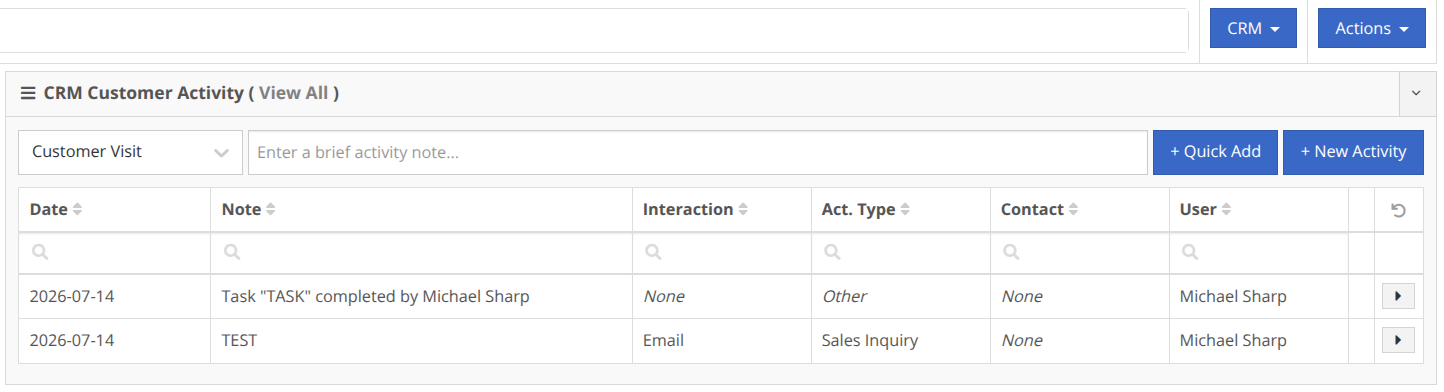
A Task that is marked as Done now automatically creates a new Activity if there is an associated Customer attached to the Task. This new Activity can be found in the Customer Dashboard, as well as the CRM Customer Activity page.
Why It Matters:
This change improves Activity tracking and allows Salespeople to better manage Tasks while also seeing a more detailed history for each Customer.
By MA S.
What’s New!
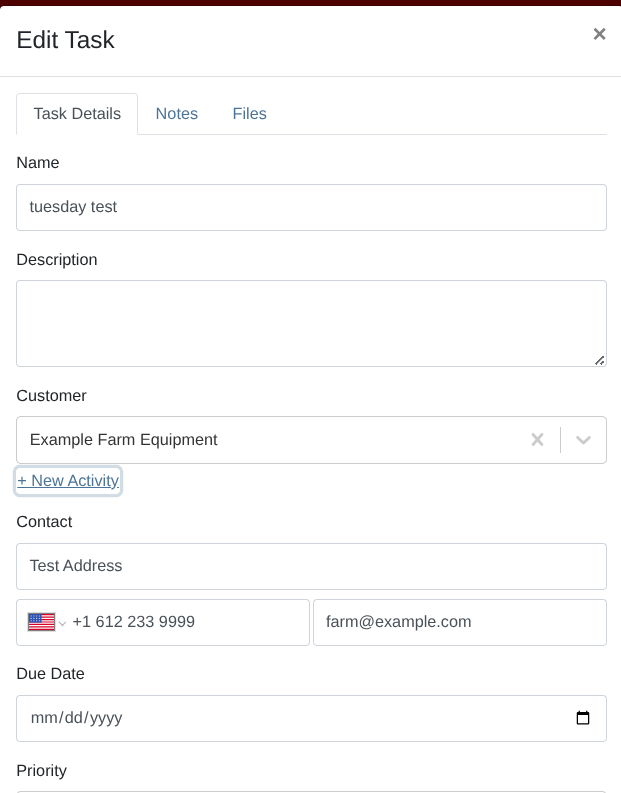
The option to add a new Activity has been added to the Edit Task modal. This option will be displayed when a Customer is attached to an existing Task. When clicked, the existing New Activity modal will be displayed while also preserving the underlying Task view in order to avoid disrupting Salesperson workflows.
Why It Matters:
This change reduces friction and improves the relationship between Activities and Tasks. It provides Salespeople with the ability to quickly add Activities without breaking common workflows.
By MA S.
What’s New!
The limit of rows that can be exported to Excel has been increased for CRM Tasks and Leads.
Why It Matters:
Before this fix the maximum number of rows that could be exported was capped at 100, even though dealership filters would result in much higher numbers. This would result in unexpected behavior, increased friction, and complicated workflows.
By MA S.
What’s New!
SMS Inbox now correctly associates phone numbers with existing Contacts.
Why It Matters:
Occasionally, looking up existing contacts by phone number would fail when the contact had more than one associated phone number. This would lead to inaccurate search results and friction for CRM users.
By Ula L.
What’s New!
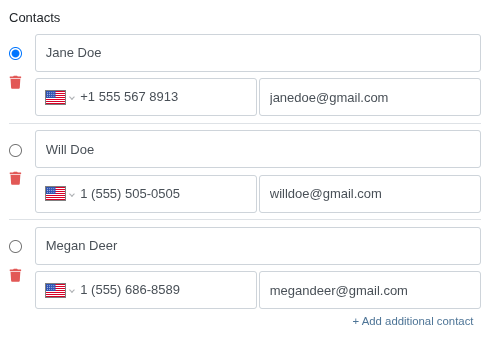
The Create Task and Edit Task modals now support adding multiple contacts to a Task, matching the contact experience already available on the Add Lead modal. Each contact can include a name, phone, and email, and any one contact can be marked as primary.
Why It Matters:
CRM users often need to track more than one point of contact for a Task - a decision-maker and a day-to-day contact, for example. Capturing all of them directly on the Task keeps follow-up calls and emails reaching the right person.
By Ula L.
Complaint:
Creating a Task from a Customer dashboard cut off the linked Customer name containing any special characters. For example, the company name "R&G" displayed as just "R".
Correction:
Fixed. Customer names now display in full on the Task creation modal, regardless of special characters like &, #, or + in the company name.
By Ula L.
Complaint:
We noticed that CRM Tasks left without a name appeared blank on the Customer Dashboard and Lead Task lists, with no visible way to open them.
Correction:
Fixed. Tasks without a name now display as a clickable "Not set" link, and new Tasks now require a name before they can be created.
By Bomby K.
What’s New!
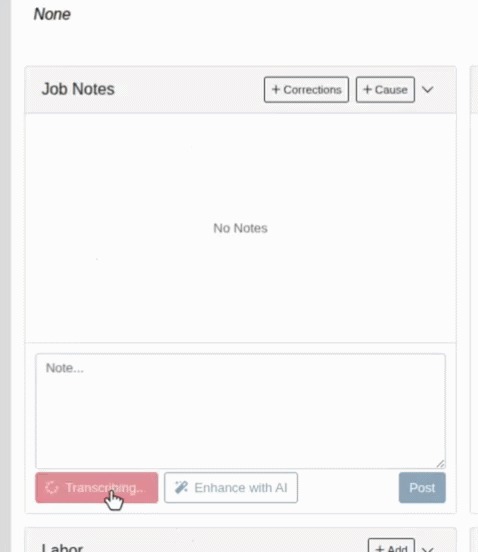
We've brought voice-to-text Job Notes to the Work Order, on both desktop and mobile. A Record button now sits in the Job Notes panel on the desktop Work Order Dashboard and on the Mobile Work Order Dashboard. Technicians record a short note with their device microphone, and the recording is automatically transcribed and posted to the Job, letting them document work hands-on without leaving the machine. No typing required!
An Enhance with AI action sits alongside the note. It rewrites a rough or dictated note into the concise voice a Service Writer would use, preserving part numbers, serial numbers, hour readings, and industry abbreviations while removing filler, profanity, and personal information. Enhancement is entirely optional, meaning technicians can toggle between the Raw and Enhanced versions and edit either before posting.
Why It Matters:
Technicians document their work in Job Notes, but typing detailed notes is slow and often gets deferred, leaving Service Writers and Service Managers with thin or missing records. This is worst on the shop floor, where technicians working from a phone or tablet at the machine are best positioned to capture what they just did, yet mobile typing is the least practical way to write a detailed note. And even a good voice transcription arrives raw: filler words, restarts, and misheard part numbers included. Because Service Managers, customers, and warranty auditors all read these notes, teams wanted quick voice capture on both desktop and mobile Work Orders, plus a fast way to turn a rough dictation into a clean, professional record.
This update came as a direct result of our beta user feedback since our first release of Tech Notes (https://www.flyntlok.com/support-articles/tech-notes-ai-voice-to-text-notes-for-work-orders). As always, feedback is appreciated and impactful. If you are interested in having your Service shop try out this feature, drop us a support ticket!
By Bomby K.
What’s New!
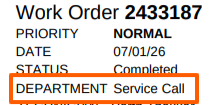
The Work Order Worksheet now displays the Department field.
Why It Matters:
Service Departments wanted the Department assigned to a Work Order to be visible on the printed Work Order Worksheet, matching what's already shown on the Work Order's Info tab, so shop staff could route and organize paperwork without checking back in the system.
By Alex E.
What’s New!
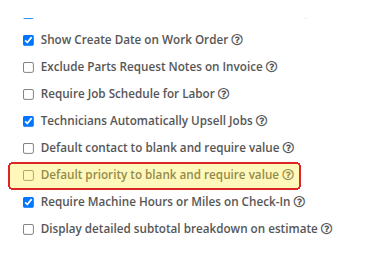
We added a new setting that, when enabled, leaves the priority field blank rather than defaulting to normal when creating a new work order.
Why It Matters:
By defaulting every work order to normal priority, the priority can lose its relevance. By forcing users to deliberately set a priority, the work orders reflect their urgency more accurately.
New Permission in Flyntlok Settings:

By Calvin M.
What’s New!
Since Smart Receive’s release, over 11,000 invoices have been received totalling more than $11.5M in inventory. We’re still not done.
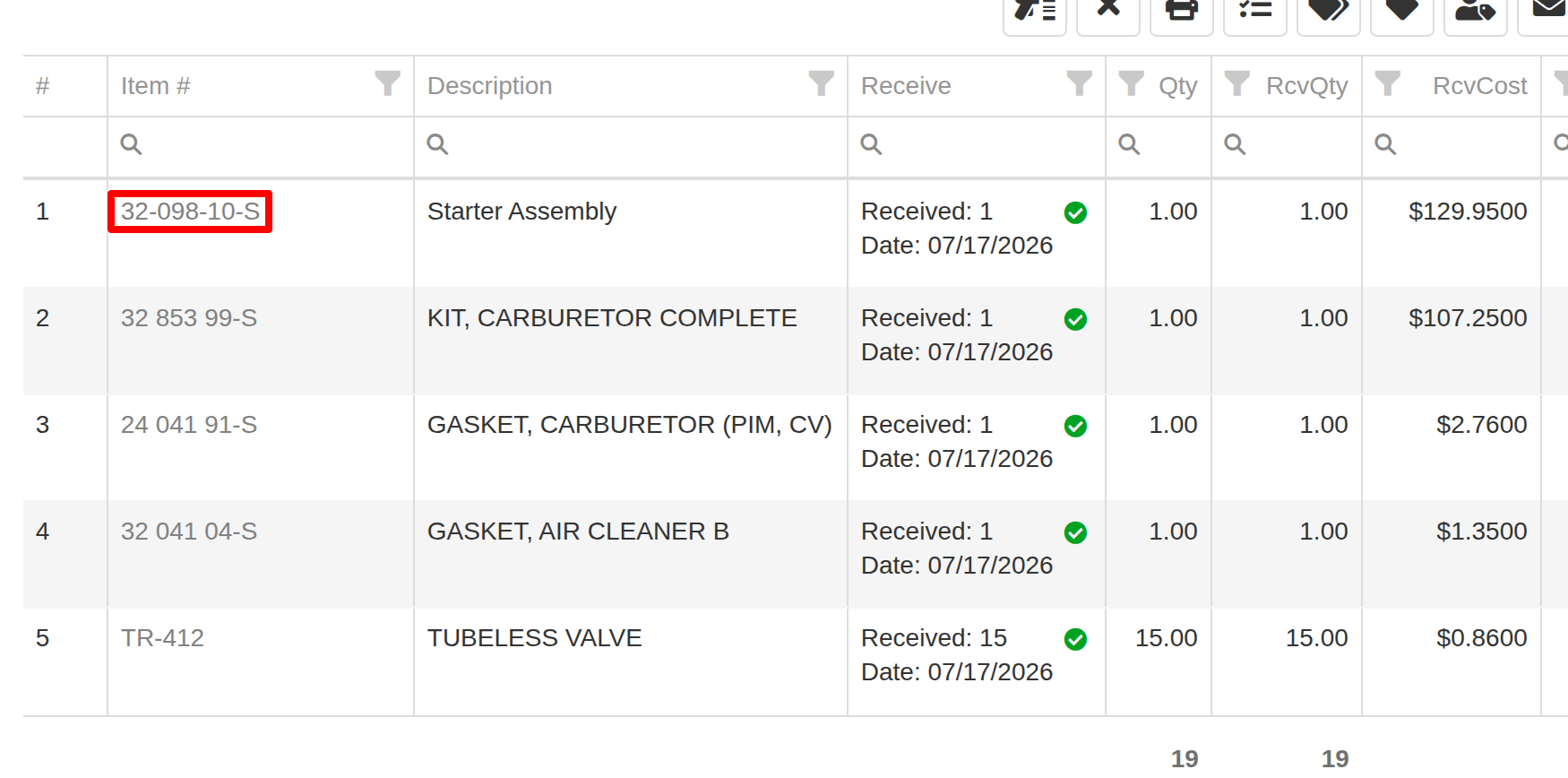
With this release we’ve enhanced Smart Receive’s part matching logic to reduce “misses” when your part numbers in Flyntlok aren’t the exact same as part numbers on the vendor’s invoice. For example, we’ve seen invoices with vendor prefixes, special characters, and manufacturer part numbers that made Smart Receive unable to match parts based on exact part numbers.
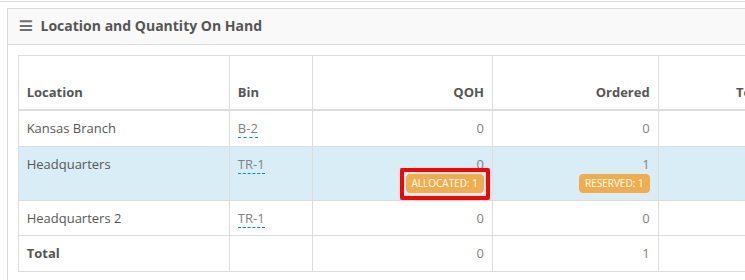
We also noticed that special ordered parts weren’t displaying allocated quantities on the Item Dashboard page after being Smart Received.
Why It Matters:
We’ve gotten feedback from receivers at multiple dealerships saying they’d love to use Smart Receive, but messy data was getting in the way. This enhancement helps cut through the noise, identifying parts that are likely the same based on their part numbers, descriptions, costs, and ordered quantities to keep your receiving operations flowing.
Vendor Invoice

Flyntlok Receiving Voucher
Smart Receiving special ordered parts has been fixed to make it clear on the Item Dashboard when you’ve got stock reserved for a customer already, this should help avoid ordering the special order again or selling reserved stock.
By Christian E.
What’s New!
When searching to add parts used or reserved on a work order job in the mobile app you will now see the full item details in a manner that matches the parts requested.
Why It Matters:
When you request parts on a work order job in the mobile app, you see the full part details. When you add items, only the item number and description are displayed. This is confusing and inconsistent for the user.

By Christian E.
What’s New!
When searching for a machine in the mobile app you now have the option to filter on additional values to work in combination with search.
Why It Matters:
When searching for a machine on mobile, users had to scroll through a list of machines if their search found many results, unlike on desktop where you can filter on more specific details.

By Yasmine C.
What’s New!
Users can now edit a machine's list price on mobile view and see a more detailed price breakdown on the info tab to inform the updated price.
Why It Matters:
This gives users more flexibility when it comes to where and when they make pricing changes, no need to wait to get in front of a computer, it can be done right then and there!


By Yasmine C.
What’s New!
Users can now record machine deficiencies in the mobile machine dashboard. Machine deficiency status is also now an editable field in the mobile machine dashboard. Clicking the status banner will open a form that allows you to choose a new status for the machine.
Why It Matters:
This means that a machine deficiency can be recorded and its status easily updated whenever a user is in front of a machine, without having to waste time going back to their desk.


By Nick V.
What’s New!
Searching for a Machine’s serial number on the New Rental page will now populate the matching machine at the top of the search results.
Why It Matters:
Previously, the exact Machine that you were looking for by serial number would appear randomly ordered in the list under its Model. To find it, you had to scan down the entire list. Putting it at the top allows you to easily locate the Machine you were searching for.

By Nick V.
What’s New!
When using the duration by hours feature on Rental Contracts, the contract PDF will now include the specific times that the rental contract has scheduled to go out and come back in.
Why It Matters:
Previously, the dates requested were only the dates of the contracts. Adding the specific times to the contract PDF makes sure the customer is informed when the Machine will become available, and that they are aware of when they are obligated to return the Machine.

By Nick V.
What’s New!
The Invoice PDF will now include the name of the individual who originally created the Sales Order, in addition to the person who printed it.
Why It Matters:
Previously, the date of the original creation was on the PDF, but it did not include who created the sale. Adding it provides clear visibility into who owns the sale, simplifying commission tracking, and making it easier to trace questions about pricing or terms back to the right person.

By Alex E.
What’s New!
Added a new column to the column chooser called “Check In Date” to the WOs with SO Customer report.
Why It Matters:
You can now sort by and reference the check-in date for a work order at a glance while looking at this report.
By Bobby S.
Complaint: Salespeople reported that Sales Orders paid by card with a surcharge could retain a small balance due when percentage-based shipping was present, requiring an additional payment after the card charge was processed.
Correction: Fixed. Card surcharge lines are no longer included in percentage-based shipping calculations, so Sales Orders with card surcharges and shipping calculate the expected remaining balance after payment.
By Calvin M.
Complaint: Managers reported that the Store Specific Information widget on the Machine Edit page was showing inactive store locations, as well as trucks. This can be confusing while managing machine inventory across multiple locations.
Correction: Fixed.
By Nick V.
Complaint: Accountants noticed that when disputing the quantity of a Part on an Invoice using the “bug” icon, the Part’s average cost wouldn’t update as expected after the quantity change.
Correction: Fixed. The system will now maintain the prior average cost while still updating the quantity.
By Bobby S.
Complaint: In the QuickBooks Online bank deposit screen, journal entries created from Customer Deposits/Z-out postings were displaying a generic daily memo (e.g., "This is a payment journal entry for [date] at Store [location]") instead of the detailed line-item description (e.g., "SO# 3893 C# 3328934 Ref:34186 Type: Check") that you rely on for reconciliation.
Correction: Customer Deposit journal entries posted to QuickBooks Online no longer include the generic header memo. This allows QuickBooks' bank deposit screen to display the detailed, line-level sale and payment information instead.
Note: This change only affects newly posted journal entries going forward. Previously posted entries will retain their existing memo in QuickBooks; affected customers can manually remove the memo on those entries in QBO if they'd like the line-level details to display instead.
By Bomby K.
Complaint: When a machine on a Sales Project had an attachment (such as a chassis) configured after the machine and attachment were purchased and modeled separately, the Sales Project cost worksheet's down cost, and any invoice generated from that worksheet, counted the attachment's cost twice: once already rolled into the parent machine's cost, and again on its own line, overstating the project's cost of goods sold.
Correction: Fixed. The Sales Project cost worksheet's down cost calculation, and invoices generated from the worksheet, now exclude attachment costs that are already rolled into the parent machine's cost, so each cost is counted once.
By Ben C.
Complaint: Accountants noticed unexpected negative dollar amounts in the total column for some machines when looking at the Sage Machine Reconciliation Report. These unexpected totals were caused by improper handling of date filters, which could present inaccurate total values for machines acquired or sold on the start or end dates. This can be confusing when reconciling machine costing between Flyntlok and Sage, which can lead to issues with accounting if not caught.
Correction: Fixed. Date filter handling has been updated to work as expected.
By Ben C.
Complaint: Receivers reported that the allocated quantity badge was not showing on the Item Dashboard after parts were received using “Receive All” workflows. This misrepresentation of stock levels and allocated quantities could lead to selling reserved inventory and incorrect stocking levels if changes were made based on this inaccurate data.
Correction: Fixed. The allocated quantity now correctly appears after receiving parts through "Receive All" workflows.
By Bomby K.
Complaint: Sales managers noted that an existing permission to hide Machine cost and margin on Machine Dashboard appeared to be hiding the Minimum List price. Additionally, there was a link to an internal machine report that contained cost and margin info.
Correction: The existing Machine Dashboard cost visibility permission now hides Cost, Margin, and access to the Management report while keeping Minimum List available within the expanded pricing details.
By Nick V.
Complaint: Salespeople reported that the “Hide part numbers on print” setting was not working properly when printing the thermal receipt from the Sales Order. Even with that setting enabled, it still displayed Part numbers directly.
Correction: Fixed. Part numbers will now be hidden when this setting is enabled.
By Nick V.
Complaint: Salespeople using Gravity credit card fees reported that the description of the card fee line on the invoice was not being populated from their CCSC item’s description.
Correction: Fixed. The card fee line’s description now properly pulls from the CCSC item and can be customized as needed.