WATCH HERE:
Our Equip Expo AI Session is Now On-Demand!
Newer guide available
This guide shows older screens. Use the newer guide for today's steps.
Read the newer guideA Rental Conflict is when a piece of equipment is already scheduled out to be rented over a period of time that conflicts with the time period that the current Rental Contract is reserved for.

The Conflict will show as a status when adding new machines onto a new Rental Contract. When adding machines onto a rental contract, the Conflict status will show in yellow under the machine line after you click the dropdown button.
Once a conflict machine has been added to a rental contract and the rental contract is reserved, then the machine's Check Out button will show a cautionary warning. This Check Out button will still allow the machine to be Checked Out.
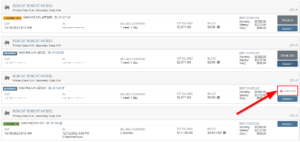
Clicking on the Cautionary Check Out button will populate the Check Out Conflicts tab and will show all conflicts on the machine such as the conflict's Source, Conflict message, and if the conflict Prevents the Check Out.

To review the exact Rental Conflict, click the yellow Conflict button and the page will display the conflict whether the machine is currently On Order, or if the machine is on a conflicting rental contract. Also, from the rental contract, click the Machine Number and the page will redirect to the Machine Dashboard and the top section of this page will show all conflicting actions taken on the machine via red and blue banners.

Still stuck?
Click the ? icon anywhere in Flyntlok to open a ticket. A link to the page you're on goes with it, so you don't have to explain where you are.
8/8 Support Guarantee
Response in 8 minutes. Solved in 8 hours.
Real people on the Flyntlok team, not a ticket queue.