What are the different searching methods in Flyntlok?
by
Dylan Timberlake
February 22, 2021
Lorem ipsum dolor sit amet, consectetur adipiscing elit. Suspendisse varius enim in eros elementum tristique. Duis cursus, mi quis viverra ornare, eros dolor interdum nulla, ut commodo diam libero vitae erat. Aenean faucibus nibh et justo cursus id rutrum lorem imperdiet. Nunc ut sem vitae risus tristique posuere.
This is some text inside of a div block.
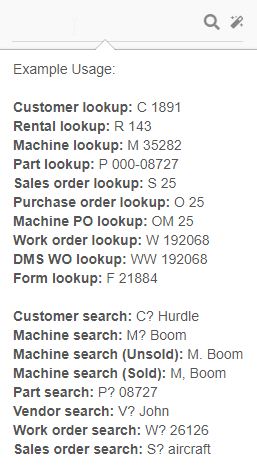
Head to the top left corner in Flyntlok to access the Quick Searcher. To use the Quick Searcher you must first tell Flyntlok what type of search to do using the examples below:
Customers (c?)
Company name
First name
Last name
Company phone number
Contact phone number
Invoices (s?)
ID
Customer
Tracking Number
Message
Internal Message
PO
Item description
Item number
Invoice detail reference IDs
Machine (m?)
ID
Machine Display/Custom ID
Model
Description
Description Long
Serial Number
Unsold Machines (M.)
ID
Model
Description
Description Long
Serial Number
Sold Machines (M,)
ID
Model
Description
Description Long
Serial Number
Part (p?)
Item Number
Description
Bin location
Comment
Vendor
Supersessions
Alternative parts
List price
QOH
Part Purchase Order (O?)
ID
Vendor PO
QB Bill
DMS Active Work Order (WW?)
ID
ERP Work Order (W?)
ID
Part number
Description
Drawing number
Serial number
Notes
Form (F?)
ID
Rental (R?)
ID
Vendor (V?)
Name
Vendor shortcode
Machine Purchase Order (OM?)
ID
Search Hotkeys
Pressing Ctrl+S or Ctrl+I will allow you to quickly search for items.
Ctrl+M lets you search models and will show the default rental rates for the model!
Table of Contents
Related Posts
AI-Powered Tech Notes: Voice to Text Notes for Work Orders
Flyntlok SMS Opt-In Compliance Overview
Smart Campaigns Guide
Iframe is blocked. Accept cookies to load it.
Thank you! Your submission has been received!
Oops! Something went wrong while submitting the form.
By clicking "Accept", you agree to the storing of cookies on your device to enhance site navigation, analyze site usage, and assist in our marketing efforts. View our Privacy Policy for more information.
The GPC signal has been honored.
Iframe is blocked. Accept cookies to load it.
Thank you! Your submission has been received!
Oops! Something went wrong while submitting the form.
You can opt out of the use of your personal information by clicking on the “Do Not Share My Personal Information” link.