NEW!
Meet Flyntlok at Equip Expo 2026:
Lorem ipsum dolor sit amet, consectetur adipiscing elit. Suspendisse varius enim in eros elementum tristique. Duis cursus, mi quis viverra ornare, eros dolor interdum nulla, ut commodo diam libero vitae erat. Aenean faucibus nibh et justo cursus id rutrum lorem imperdiet. Nunc ut sem vitae risus tristique posuere.
Documenting a repair is one of the most time-consuming parts of a technician's day. Technicians have to stop turning wrenches to type out what they did, and Service Writers then spend more time cleaning up and rewriting those notes into clear, professional language before they're fit for Customers, managers, and warranty auditors. Both steps pull skilled people away from billable work.
Work Orders now support AI Voice Tech Notes. A Technician taps record and simply talks through the job in their own words. The system transcribes the audio, then AI is used to rewrite it into a clean, structured Complaint / Cause / Correction story suggested directly on the job, ready to review and apply with a tap.
The translation layer is built to handle real shop speech, not careful dictation. It cleans up rambling, conversational recordings, handling for filler words, restarts, and mid-sentence corrections. It does all this while preserving the details that matter: part numbers, serial numbers, hour-meter readings, torque specs, and measurements are kept verbatim, and industry jargon and abbreviations (PM, DEF, PTO and the like) are left in the Technician's language rather than "corrected" away. It infers the intended term when the speech engine mishears a technical word, silently strips out PII (personal names, phone numbers, and similar) and any explicit language, and presents everything in the consistent, professional tone a Service Writer would use.
The result: Technicians capture their work by voice instead of typing it out, and Service Writers receive notes that are already clean and professional, with no rewriting required. This feature is available on both the desktop and mobile Work Order.
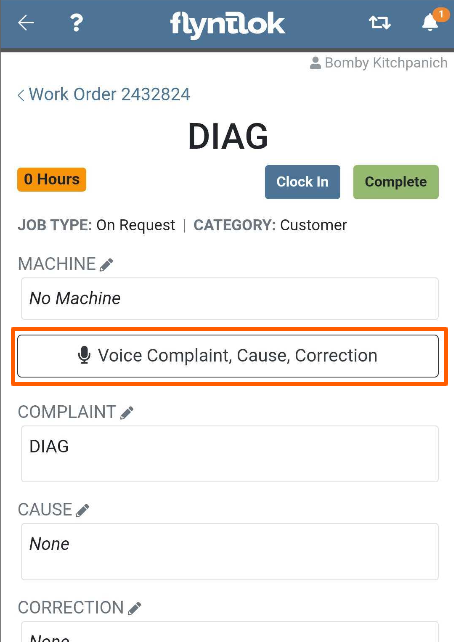
Simply click or tap on the "Voice Complaint, Cause, Correction" button from any Work Order Job:
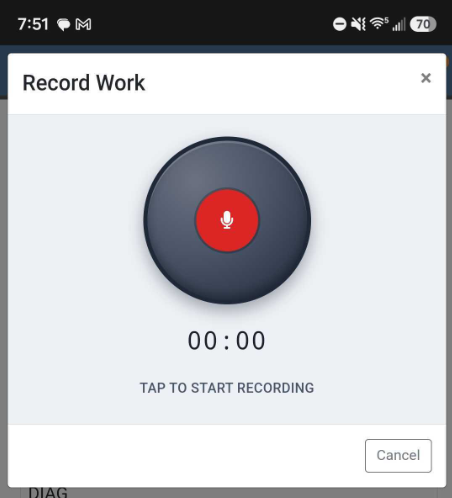
Tap on the microphone icon and start recording.
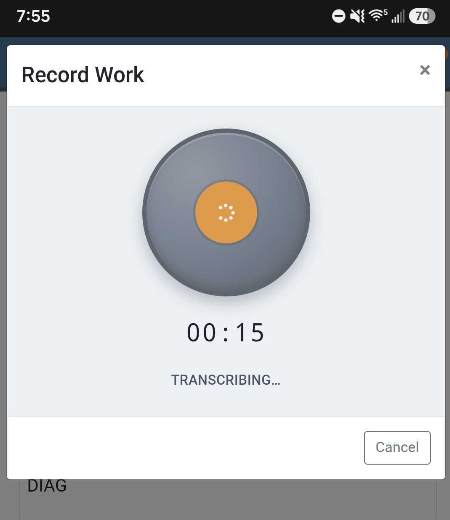
You will see your recorded transcript and the suggested complaint, cause, correction fields.
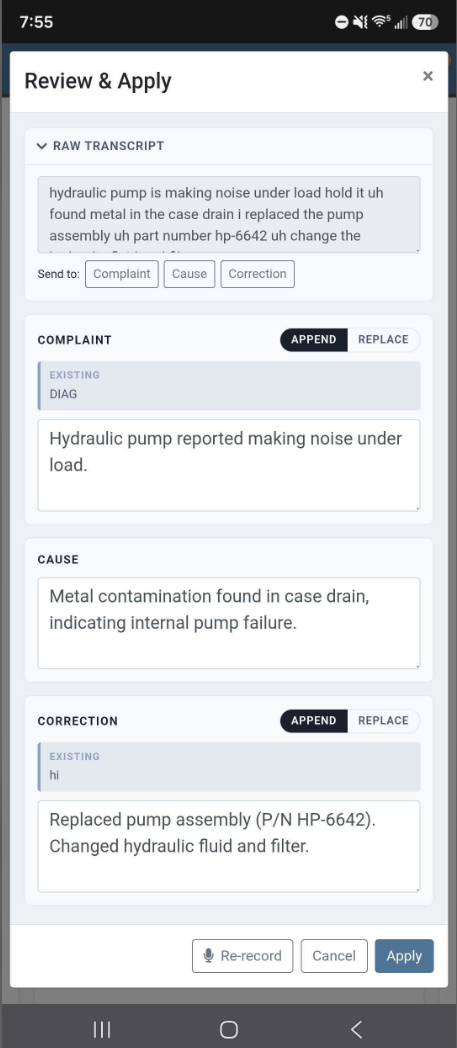
If a field already has text in it from a previous entry, you will have the option to append or replace the text.
Click on the "Re-record" button to start over.