WATCH HERE:
Our Equip Expo AI Session is Now On-Demand!
Use the Shipping tab (hotkey 1) on a sales order to add addresses, pick inbound and outbound shipping, drop ship, print labels and track packages.
Newer guide available
This guide shows older screens. Use the newer guide for today's steps.
Read the newer guideThe blue Shipping Tab (1) allows users to create, edit, and view customer Shipping Addresses, choose Shipping Methods for outbound as well as inbound, choose if Drop Shipping, Ship, view Address Label, and Track. The Shipping Tab opens automatically when hotkey 1 is pressed on the Point Of Sale.
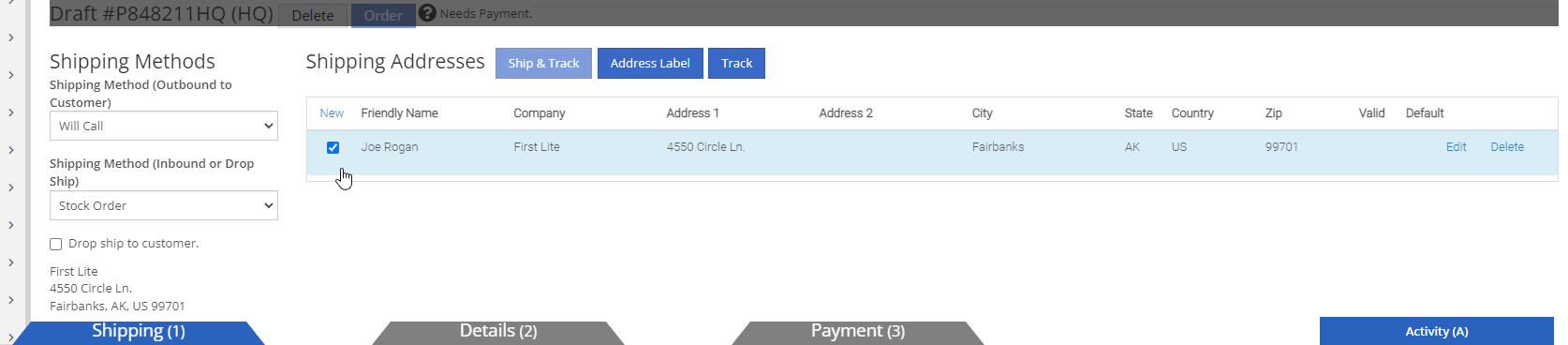
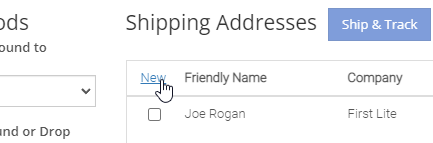
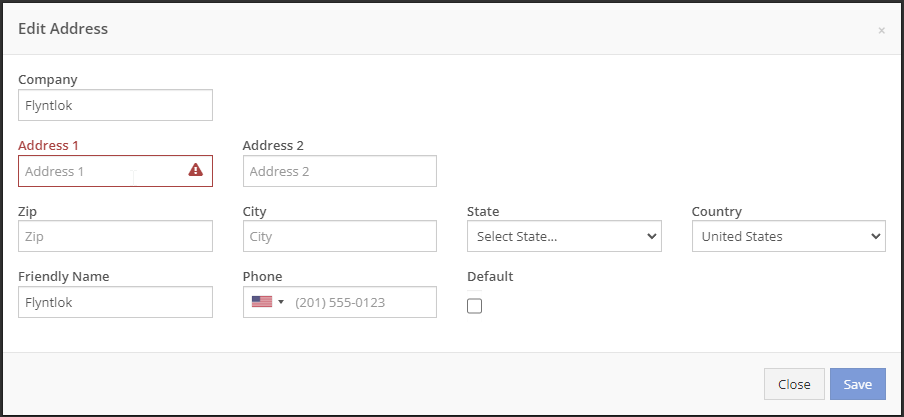
Users can add and enter addresses by clicking on the New link located in the top left corner of the shipping address table in the shipping tab. The Edit Address pop-up menu appears where all customer address information can be entered and saved. Newly created shipping addresses will appear as a new line in the shipping address table and are automatically saved in the customer’s files. To select an address for a SO, click the check mark box to the left of the desired address. The selected address will then be highlighted blue.
To edit or delete an address, click Edit, or Delete on the far right of each address line in the shipping address table.
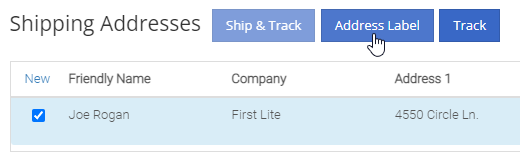
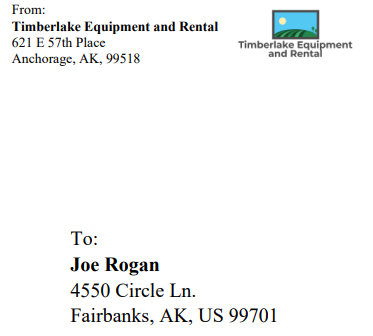
Users can make an Address Label by clicking the Address Label button located at the top of the Shipping Tab. A printable Address Label will automatically be created in a new page and will include the username, logo, and return shipping address at the top, and the customer shipping address in the middle.
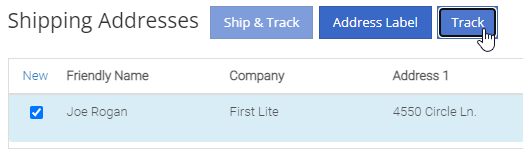
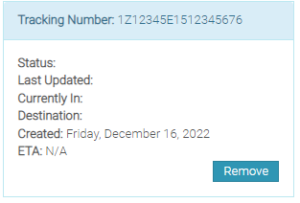
Users can track a shipment by clicking on the Track button at the top of the Shipping Tab. A separate page will appear asking for the Tracking Number along with the Carrier.
Once the Tracking Number and Carrier information is entered, press Get Tracking Info.

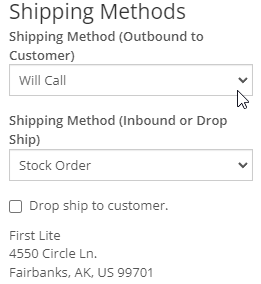
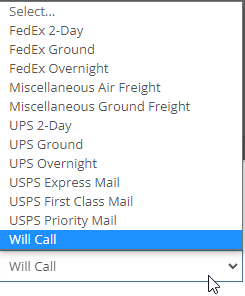
Users can change the outbound Shipping Method by selecting the desired shipping method in the tab down menu below Shipping Method (Outbound to Customer). The Inbound Shipping Method or Drop Ship can be selected by selecting the desired shipping method in the tab down menu below Shipping Method (Inbound or Drop Ship). Check the Drop ship to customer box if the customer has agreed to accept shipping responsibility from the distributor or vendor to the customer's location.
Still stuck?
Click the ? icon anywhere in Flyntlok to open a ticket. A link to the page you're on goes with it, so you don't have to explain where you are.
8/8 Support Guarantee
Response in 8 minutes. Solved in 8 hours.
Real people on the Flyntlok team, not a ticket queue.