WATCH HERE:
Our Equip Expo AI Session is Now On-Demand!
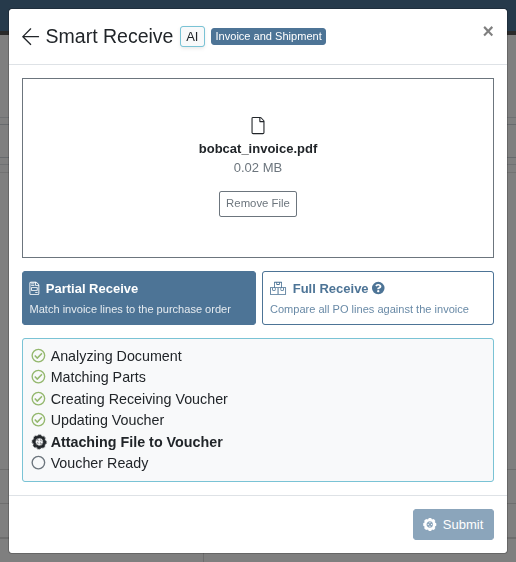
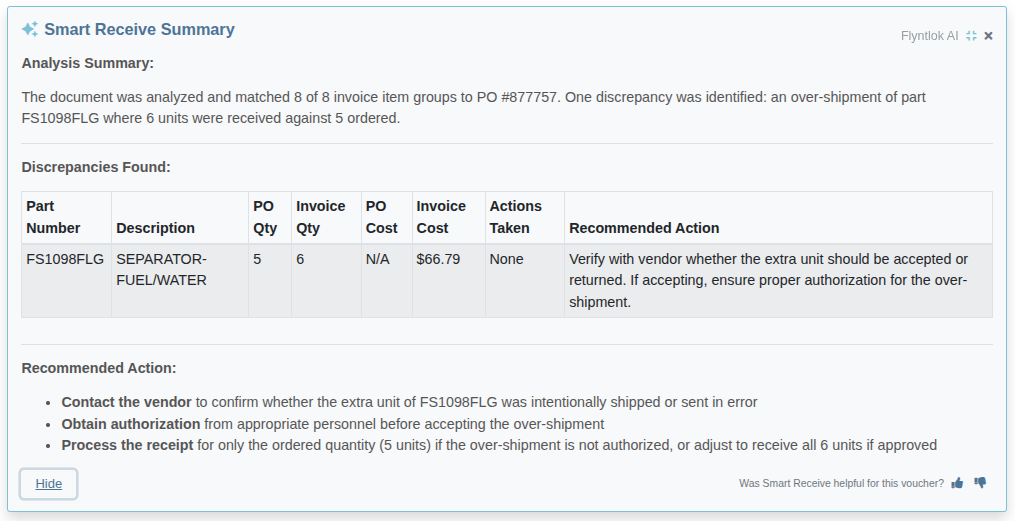
Set default freight and tax fees once, then click Smart Receive on a PO or voucher, pick the document type, upload it, check the summary and close.
Newer guide available
This guide shows older screens. Use the newer guide for today's steps.
Read the newer guideSmart Receive reads a vendor invoice or packing slip and fills in a Receiving Voucher for you, either a new one or one you already have open. It matches every line to the PO, sets costs, quantities and fees, and flags anything that doesn't match, so your team reviews and closes the voucher instead of keying it in line by line.
Nothing posts automatically. The voucher stays open, and every value on it stays editable, until you close it.
Before you start: An administrator picks a Default Freight Fee and Default Tax Fee one time, under Flyntlok Settings > Purchasing > Smart Receive Settings. Without them, freight and tax on the invoice are not added to the voucher.

From a Part Purchase Order that has been ordered: The button is next to the Actions menu and in the Receiving Vouchers section. Smart Receive creates a new voucher, or you can pick an existing one.

From an open Receiving Voucher: The button is next to Receive All. The results go onto that voucher.


Tip: Got the invoice first? Run Smart Receive on that same voucher when the parts arrive.
Good to know:
Tip: Want the details? The Smart Receive Guide covers each mode in depth, every discrepancy type, how fees are handled, receiving against an existing voucher, Sage Intacct bills, and the full list of vendors with dedicated readers.
Still stuck?
Click the ? icon anywhere in Flyntlok to open a ticket. A link to the page you're on goes with it, so you don't have to explain where you are.
8/8 Support Guarantee
Response in 8 minutes. Solved in 8 hours.
Real people on the Flyntlok team, not a ticket queue.


