Support Articles

How do I create a Batch Work Order?

by
Dylan Timberlake
February 19, 2021

Lorem ipsum dolor sit amet, consectetur adipiscing elit. Suspendisse varius enim in eros elementum tristique. Duis cursus, mi quis viverra ornare, eros dolor interdum nulla, ut commodo diam libero vitae erat. Aenean faucibus nibh et justo cursus id rutrum lorem imperdiet. Nunc ut sem vitae risus tristique posuere.
This is some text inside of a div block.
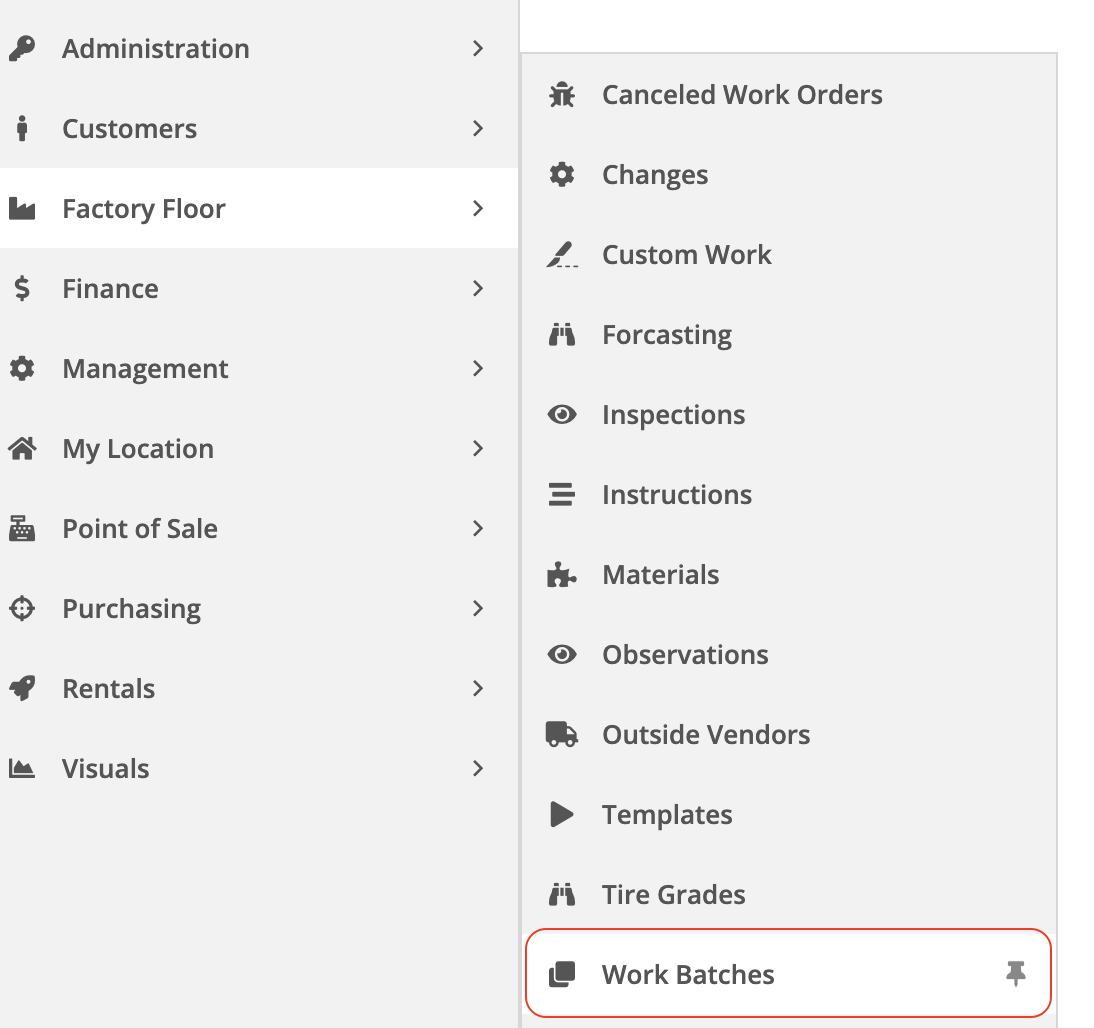
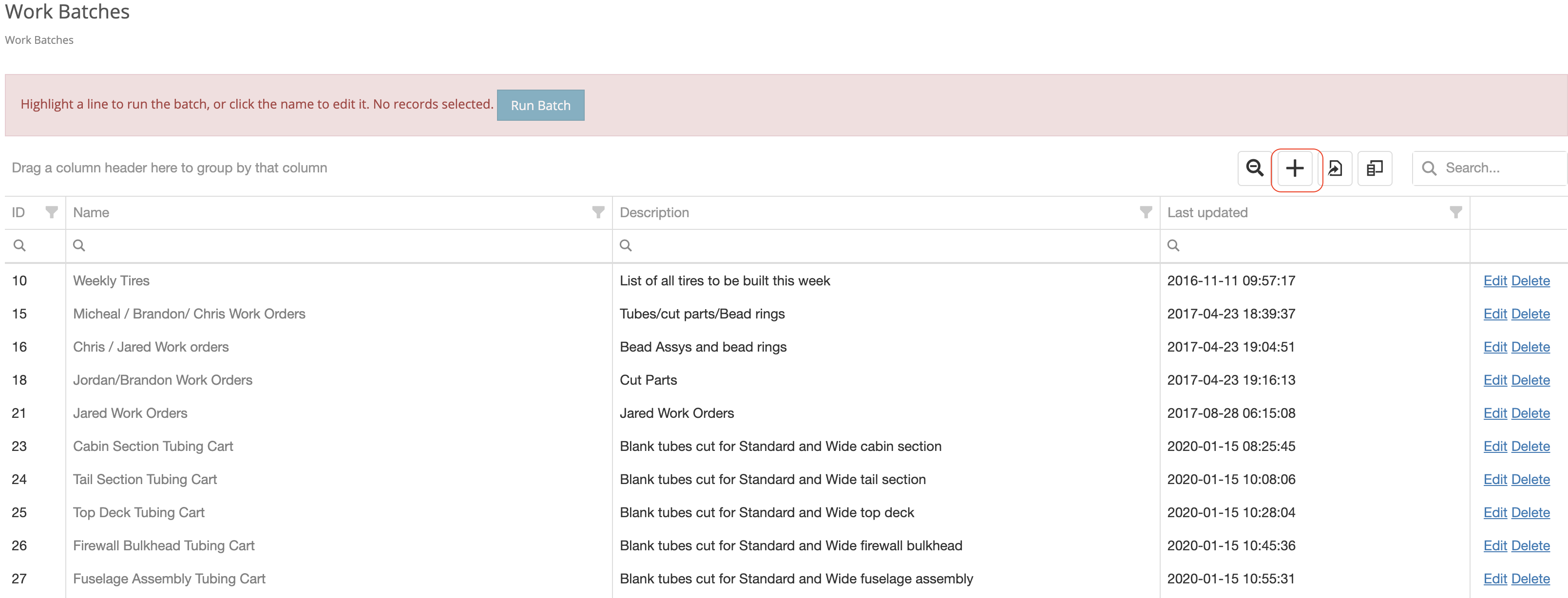
  1. On your left-hand menu, click "Work Batches" under the Factory Floor drop-down.
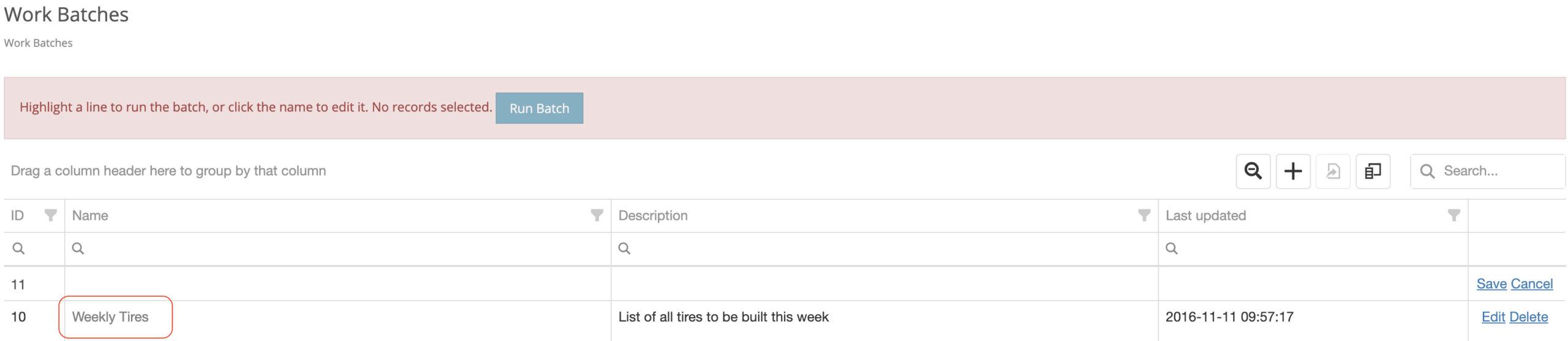
  1. Here you can add new work batches by clicking the '+' icon, which will add a new row for you to enter an ID, Name, and Description.
  1. After naming the batch order, click the name so you can add parts to be built under this batch.
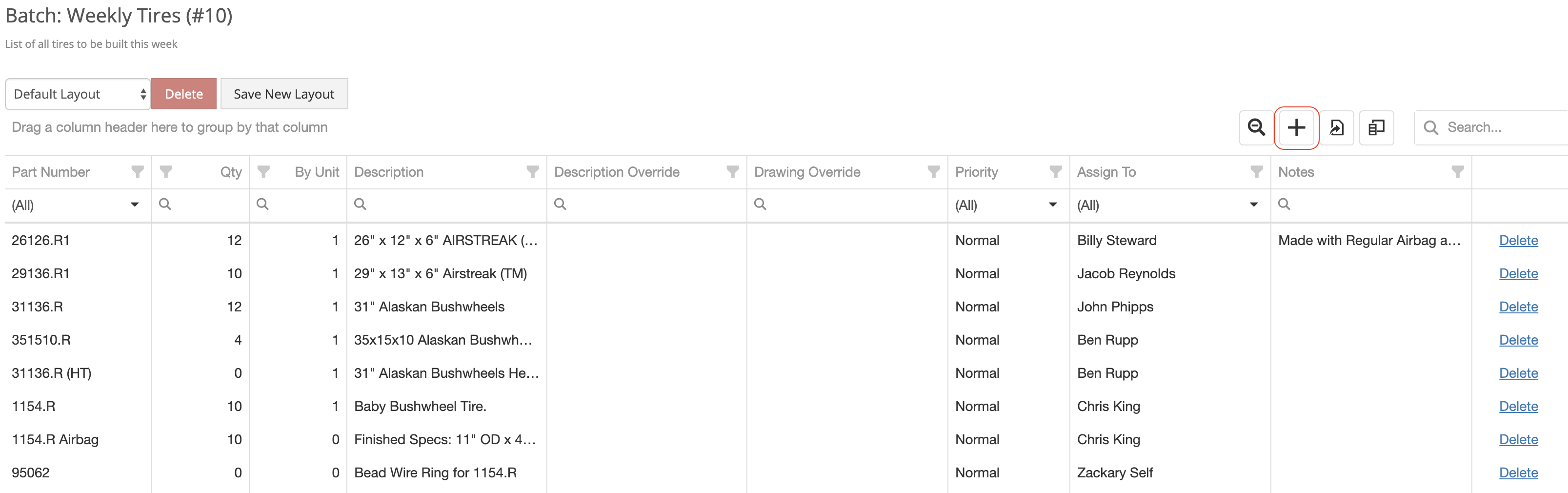
  1. Here you can add parts to be built under this batch by clicking the '+' icon. You can also add a user for this work order to be assigned under the "Assign To" column.
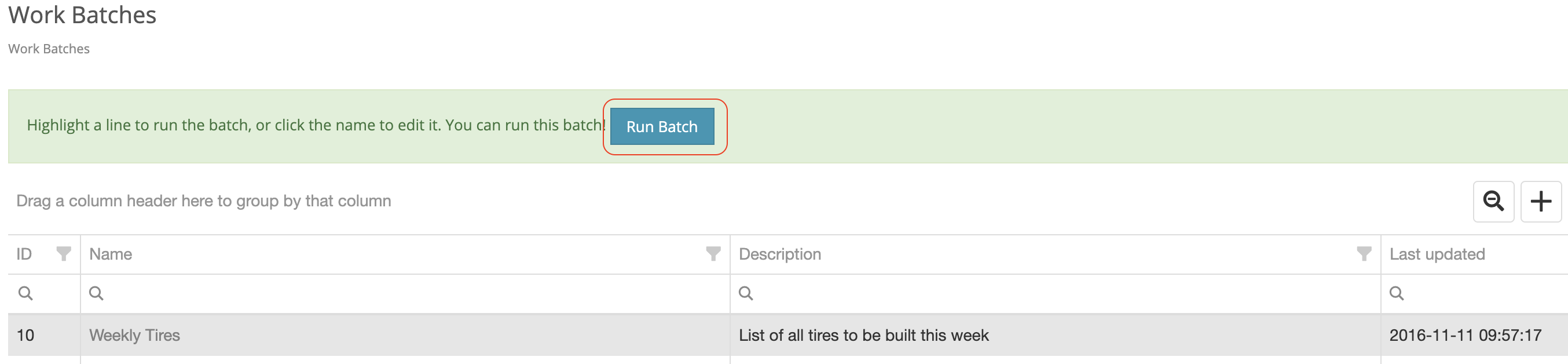
  1. To run a batch work order, go to your list of work order batches, highlight a work order batch by clicking the row and click the "Run" button. This will create work orders for all parts under this batch work order.
Want to try Flyntlok?
Speak with a specialist today
Request Demo
Table of Contents
Related Posts
Bobcat Online Parts Counter Integration Setup Guide
Pricing Rules
Rental Dashboard Options