How do I add models to my machine purchase order?

Add models to a machine purchase order with the selector under the MPO header. One MPO can hold models from different vendors.

  • Published
    February 19, 2021
  • Updated
  • By
    Dylan Timberlake

Newer guide available

This guide shows older screens. Use the newer guide for today's steps.

Read the newer guide

If you create a blank slate MPO, you will need to search through the models to choose which ones you would like to add to the purchase order. This can be done with the selector that is located just below the MPO Header.
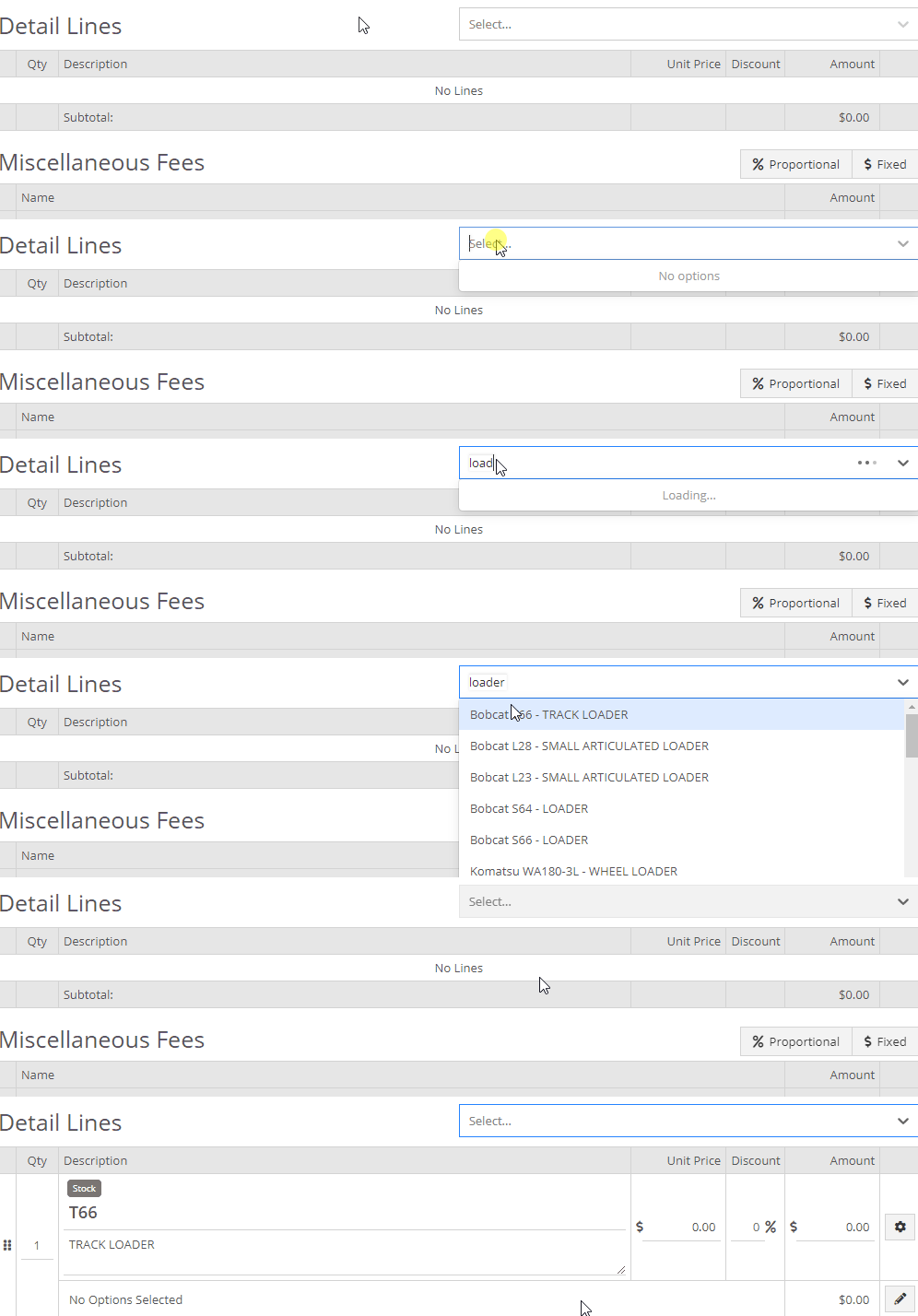
Machine purchase order with the model selector above Detail Lines and Miscellaneous Fees
Note: We allow for models from different vendors to be added to the same MPO.

When machines get added, there are a few things to take note of on those detail lines.

Machine purchase order detail line with numbered callouts for quantity, unit price, discount, the gear icon and options
  1. Qty: You can adjust the number of the type of model to be ordered.
  2. Unit Price: The unit price will default to the cost set for that model.
  3. Discount: You can assign a percentage discount that will be taken from the unit price.
  4. Gear Icon: Clicking this icon will bring you to the purchase order line editor.
  5. Pencil Icon: This brings you to the model options editor where you have the ability to add, edit, and delete model options.

When you click on the gear icon, this is the pop-up you will see when the machines have been ordered.
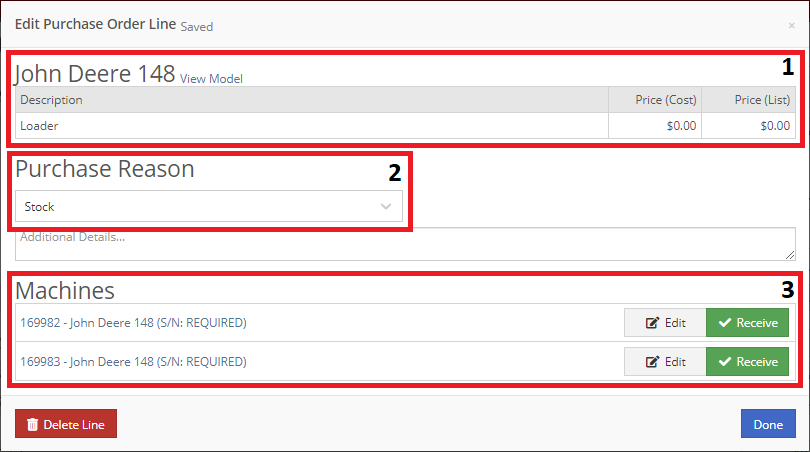
Edit Purchase Order Line window with numbered sections for the model, Purchase Reason and the ordered machines
  1. Model: Here you will see the model of the machine that is ordered along with the description, cost, and list price that are associated with the model in Flyntlok.
  2. Purchase Reason: You can specify whether the machine is being purchased for stock or for a customer.
  3. Machines: This will show the machine that has been ordered and give a link to the machine that has been created in the system (Machines don't get created in Flyntlok until after the MPO has been put into an ordered status). If there is more than 1 quantity of the model being purchased, we will list out all the machines that are getting created.

To receive a machine, you will have to navigate to the gear icon and select the green Receive button.

Green Receive button

On the same pop-up box from the gear icon, you can delete the machines off of the MPO.
Red Delete Line button
Note: Deleting a model line off of an MPO when they have already been ordered will not delete the created machines in Flyntlok. You will need to find those machines and delete them from the machine dashboard.

Still stuck?

Our support team answers in minutes.

Click the ? icon anywhere in Flyntlok to open a ticket. A link to the page you're on goes with it, so you don't have to explain where you are.

8/8 Support Guarantee

Response in 8 minutes. Solved in 8 hours.

Real people on the Flyntlok team, not a ticket queue.