NEW:
Save Technician Time and Drive More Service Revenue with Voice-to-Text, AI-Powered Tech Notes
Check out the latest updates to the Flyntlok Equipment Dealer Management System.
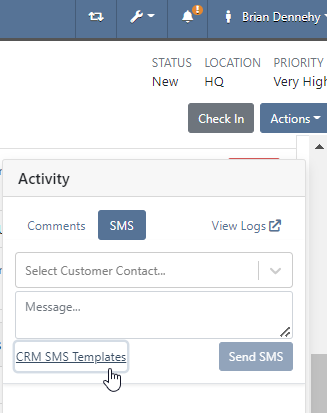
You can now use your CRM SMS templates on the Work Order and Point of Sale. To set these up you will still need to set up templates from the CRM Hub.
We have added the description of the machine on the printed label. This will make it easier for users to quickly identify and match machines to label. To print a Machine Label go to the Machine Dashboard->Actions->Print Label

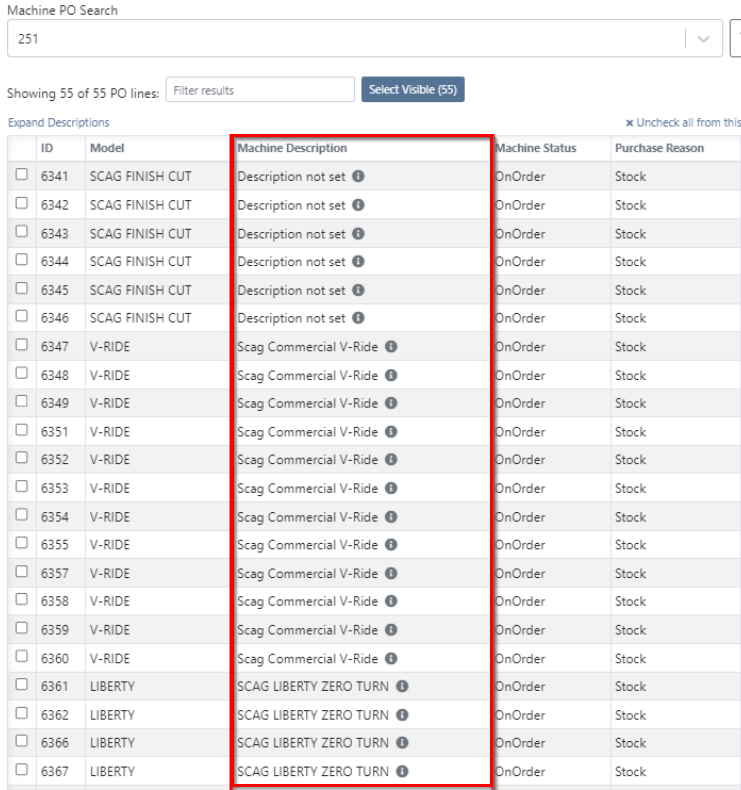
You can now search for and view a machines long description while adding machines to a receiving voucher. This will make it much easier to determine which machines need to be added to the voucher based on individual specifications.
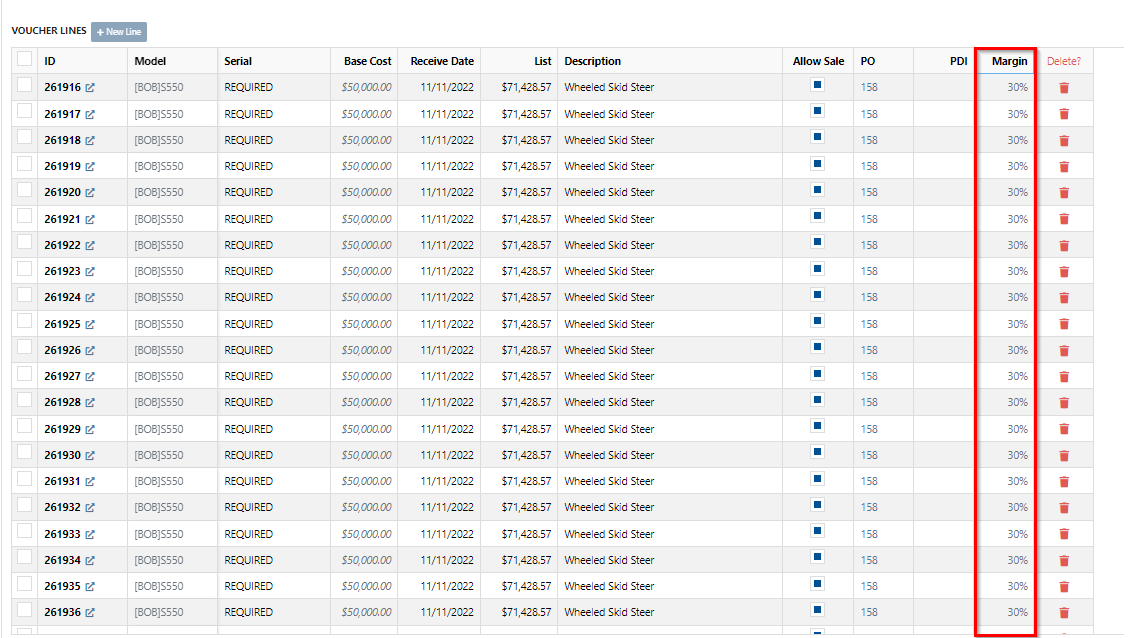
We have added a column to the machine receiving voucher, to view the margin percentage. You can add this column by clicking the gear icon on the top right of the voucher lines.
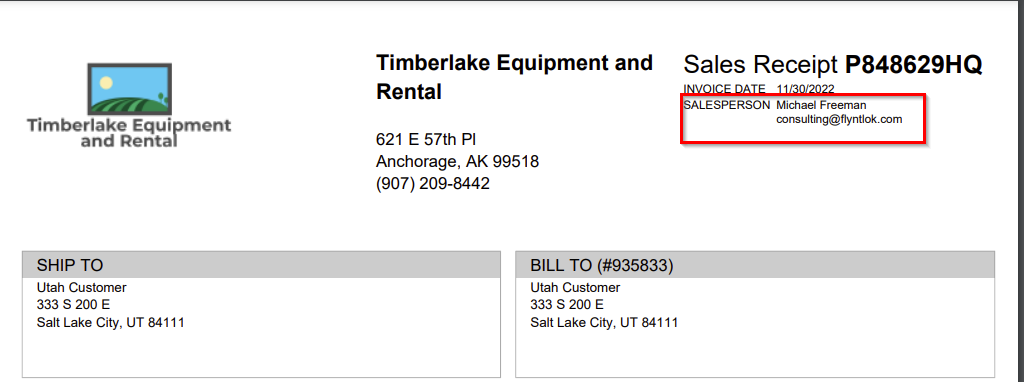
We have introduced a new company setting to override sales contact email on the PDF. If set, regardless of sales person we will always use the override. Otherwise, we will present the sales persons email. To set this new feature head to->Wrench->Flyntlok->Flyntlok Details.
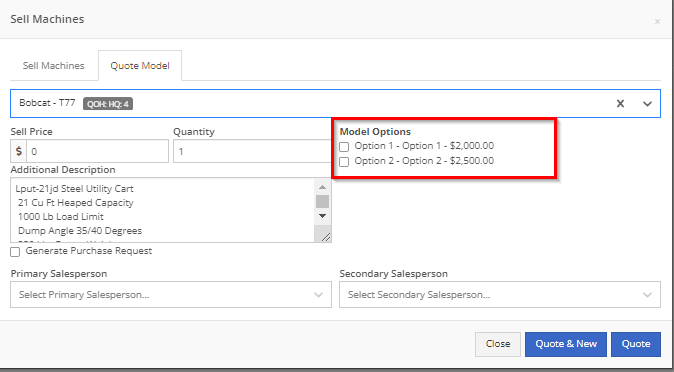
From the Point of Sale you will now be able to view model option costs when quoting a model.
We have made a fix to a rounding issue that periodically caused errors when using remaining amounts of customer deposits.
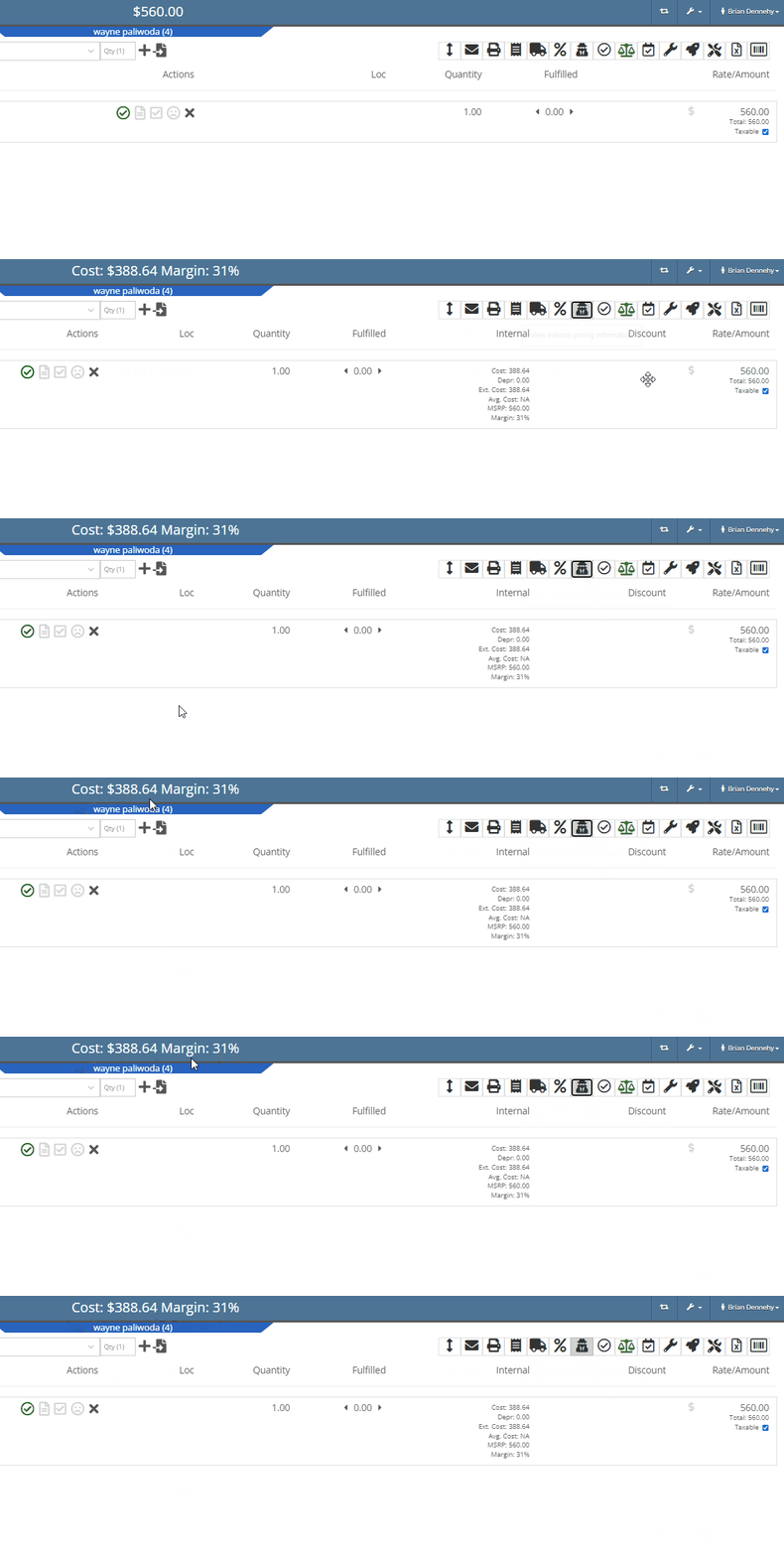
On the invoice page, users can click the “Spy Guy” to get costing/margin information. We have updated this to include the depreciation. The machines depreciation will now be subtracted from the initial cost of the lines in order to calculate a proper margin value.
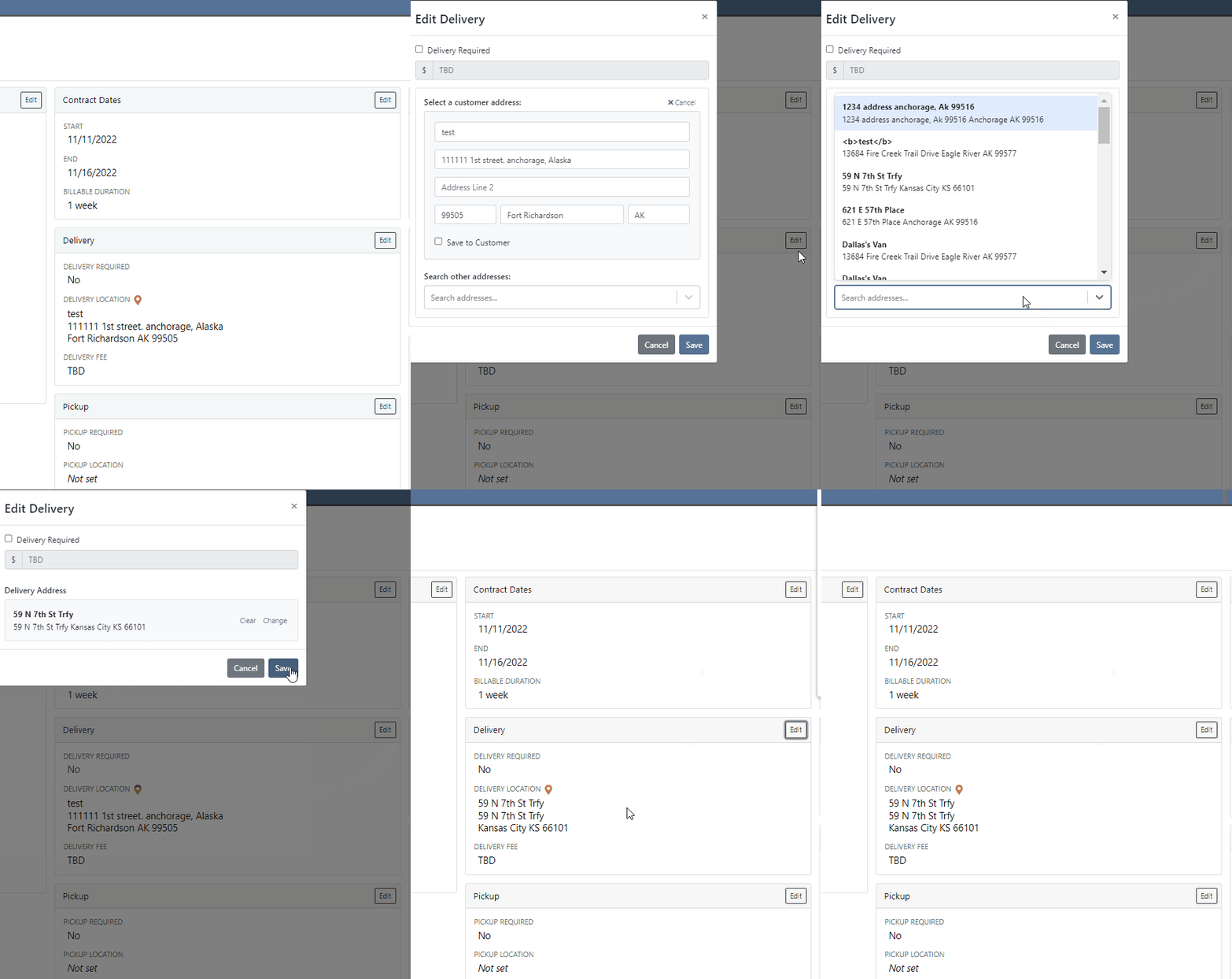
We have added the ability for users to edit the addresses currently on the rental contract. Previously you could not remove an address, only enter a new one.
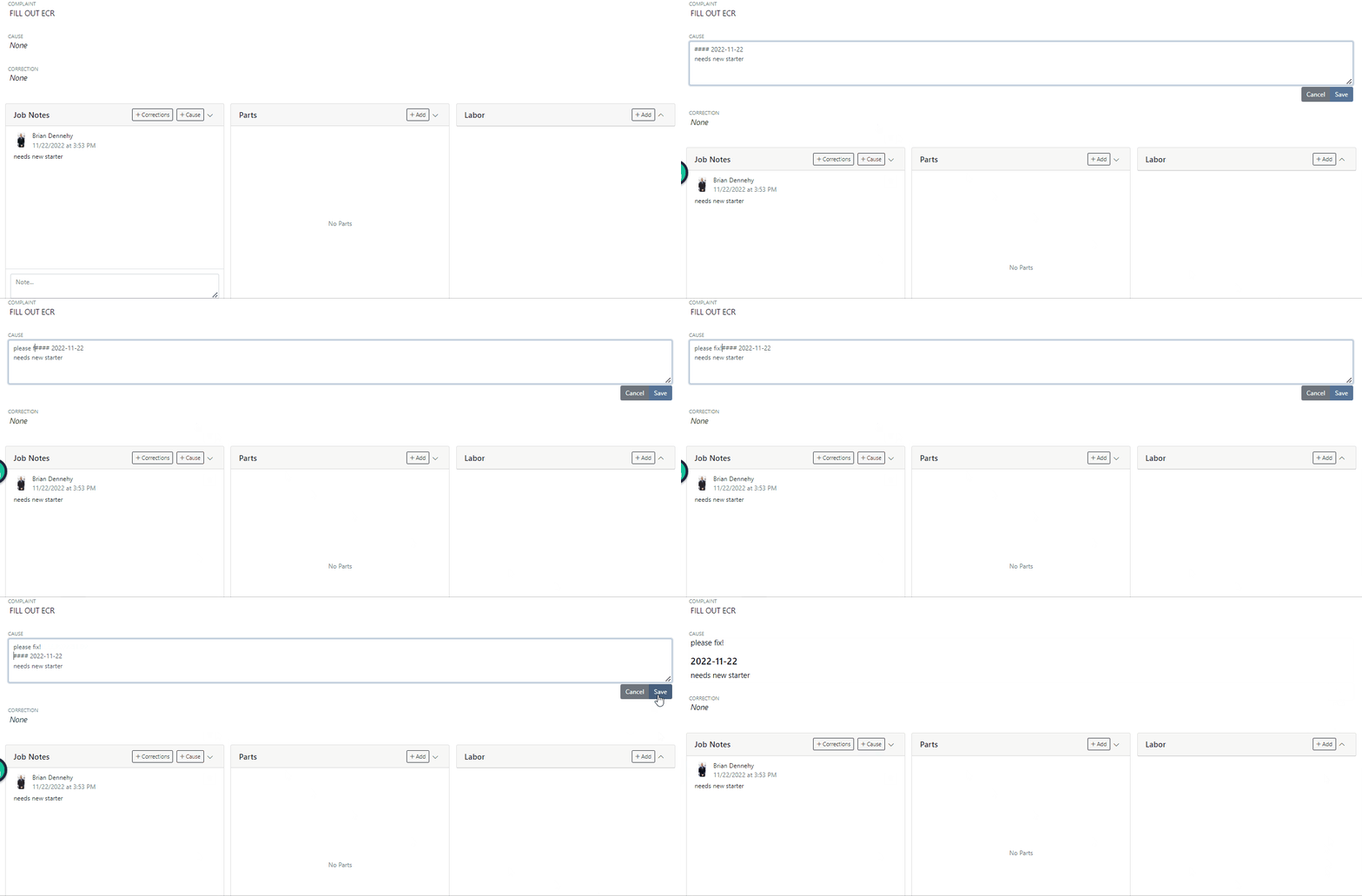
On the work order dashboard, under the “Job Notes” section, you will see a new “Add to Cause” button. When clicked, the notes on the job are pasted onto the “Cause” section. Previously you could only add to the "Corrections” field.
You can now select a status for a Work Order to move into when every job is marked complete. To select a status head to->Wrench->Flyntlok->Flyntlok Details.
We were seeing a few issues with users sometimes failing to type the date in completely, which can cause data issues downstream. We have added a few updates to the Work Order Clock In/Out function to address these issues.
On the desktop application, when a user is clocked into a work order, a “Clock” icon is present on the top left of every page to quickly navigate to the work order the user is clocked into. We have added a similar feature on the mobile view.

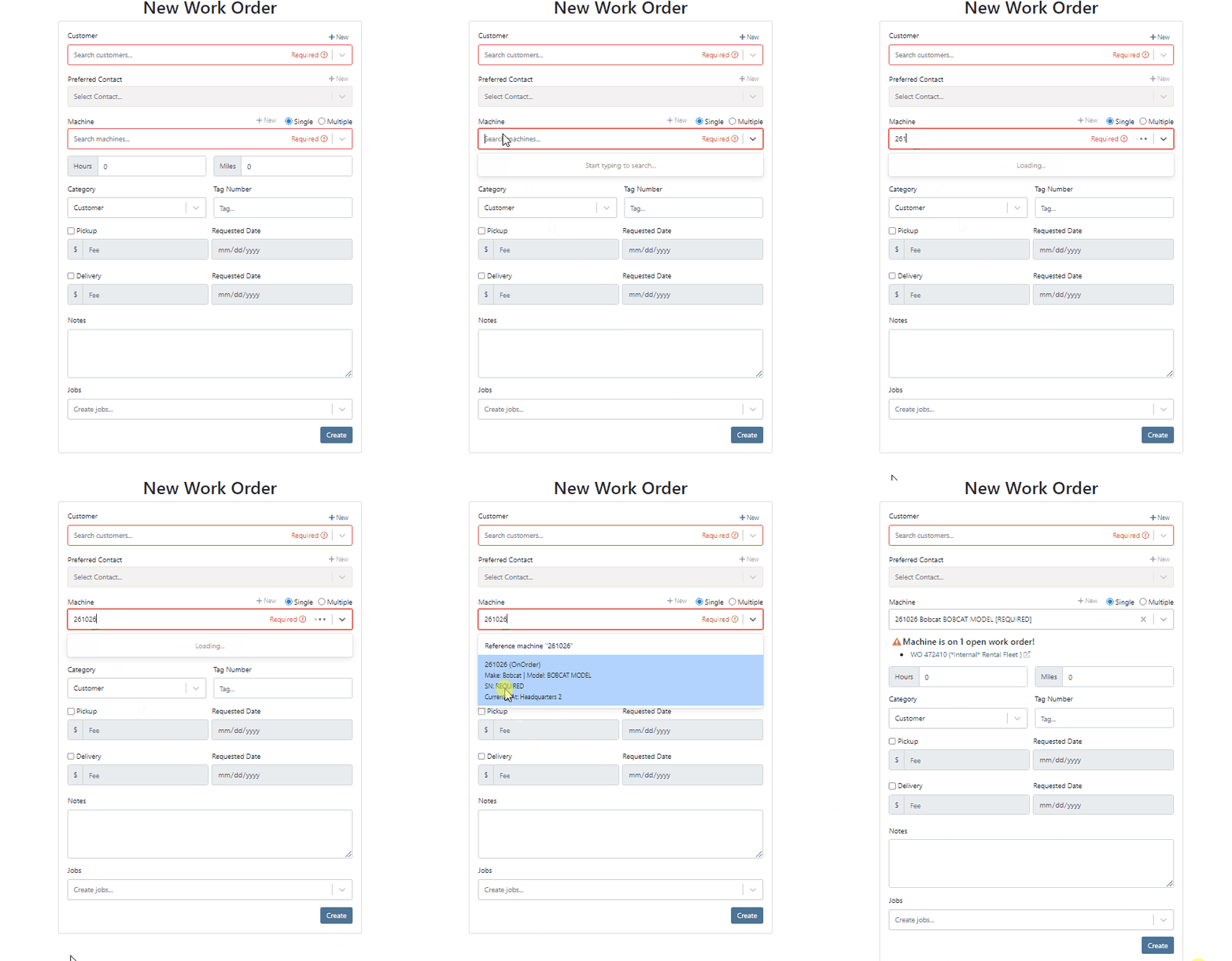
On the “New Work Order” page, when a user selects a machine, Flyntlok will now trigger a system search and notify you if the machine is currently linked to another open Work Order.
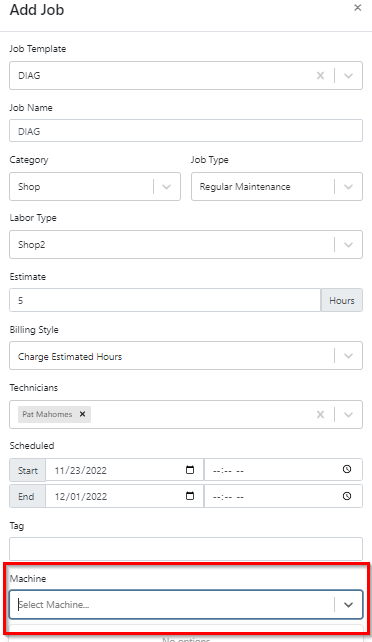
We have added two new spots to assign a machine to a job.
On work order dashboard->Info tab->Machine Section, you can now edit the machine serial number.
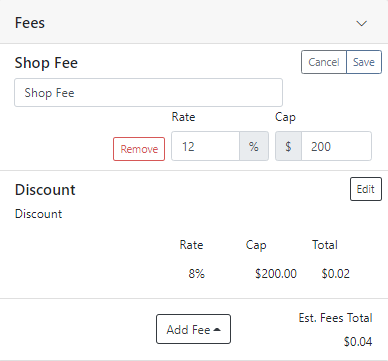
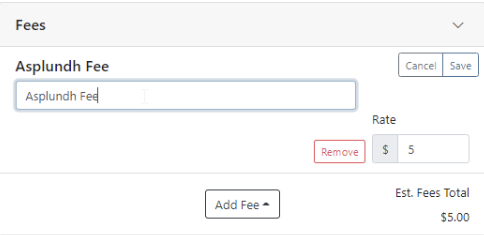
Fee descriptions are now editable on a per workorder basis!
We have added the customer unit number to the My Work section of the mobile view to make it easier to identify and differentiate multiple jobs assigned to an individual technician.

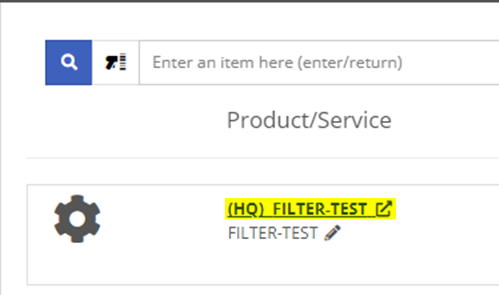
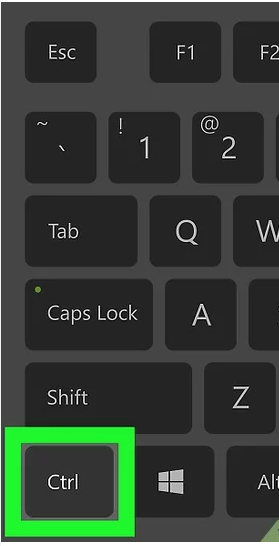
(CTRL+ Left Mouse Click or scroller wheel click) will now open item dashboard links in a new tab in the background. Just left clicking will still take you directly to the items dashboard. This is default browser behavior.

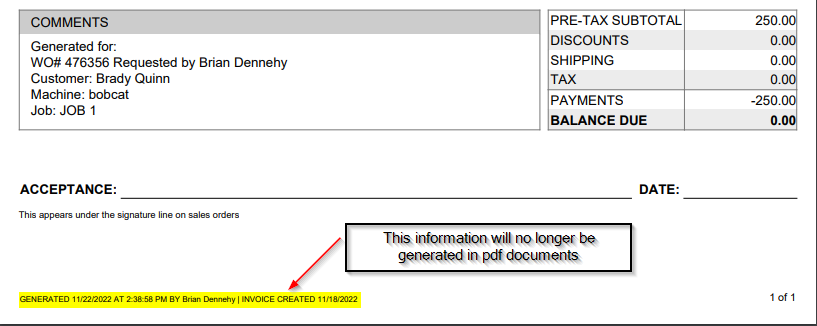
We have added a new company setting that will allow you to remove the user who created the document and the time it was created from the bottom of the Sales Orders PDFs. To access this new feature click the wrench at the top right of your homepage. Wrench->Flyntlok->Flyntlok Details.
November 9th, 2022 Release Notes
Learn More at Flyntlok Dealer Management System
Check out our Flyntlok YouTube channel for more highlights of the application!






