NEW:
Save Technician Time and Drive More Service Revenue with Voice-to-Text, AI-Powered Tech Notes
Check out the latest updates to the Flyntlok Equipment Dealer Management System.
When you sell a model, we will recognize that a purchase request needs to be generated. The workflow is very similar to selling items.First, click the rocket icon. Then select the Quote Model tab. Remember to click the Generate Purchase Request checkbox.
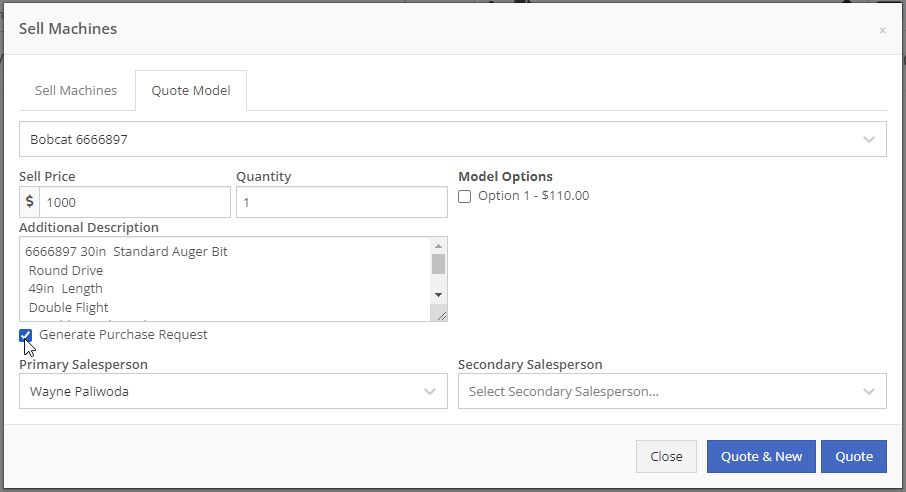
Lastly, after you click the order button, a machine purchase request will be created.

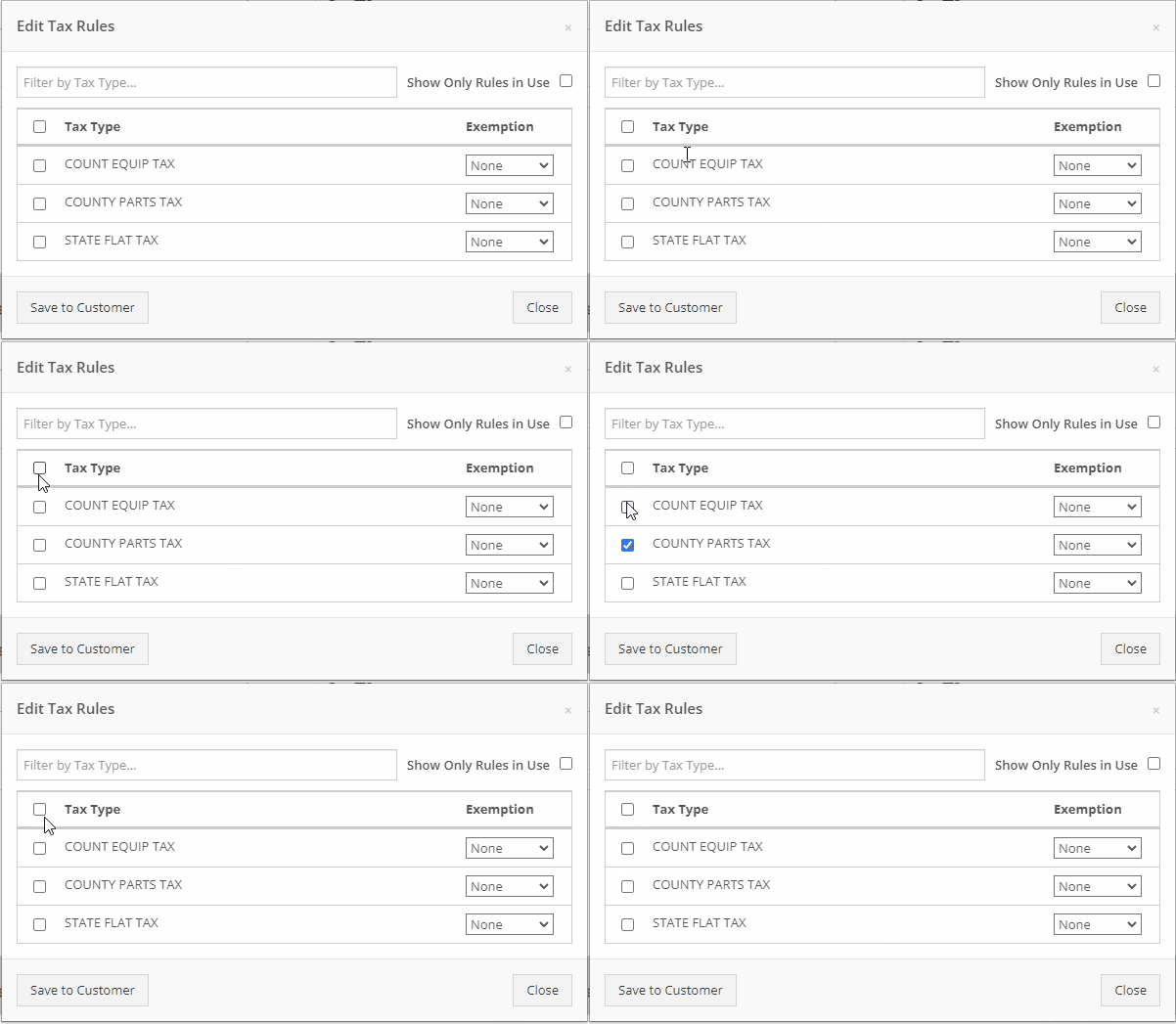
If you have a lot of taxes, it can be time consuming to configure them. We have added a select all and a de-select all function to the tax editor. This can be found on the point of sale and also on the customer dashboard.
We want to make work order creation easy. A wrench has been added to the top bar. Click the wrench and you will be brought to the work order creation screen.

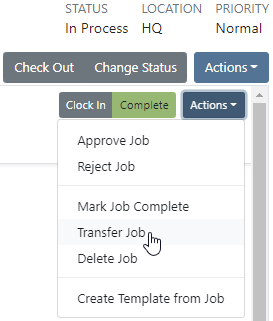
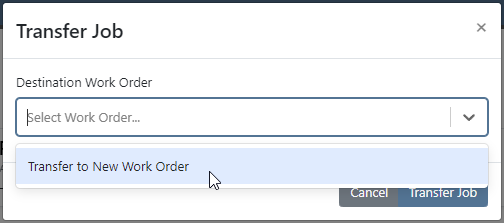
You no longer need to have an existing work order to transfer a job. Instead, if you click the Transfer to New Work Order option, a new identical work order will be generated with that job on it.
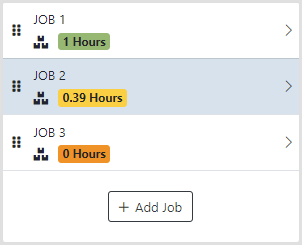
Jobs can be configured to change color based on percentage of completion. We are calculating percentage of completion based on actual time / estimated time. Currently there are two colors that can be configured, yellow and orange. You can configure when the colors change. By default, work orders will change to yellow when 75% of labor has been added and orange when 90% of labor has been added.
The Estimates Tab has been put behind a permission. If you would like to simplify your technicians dashboard or limit the users at your business can send an estimate, you can head over to the Access Control Page and turn that tab off.
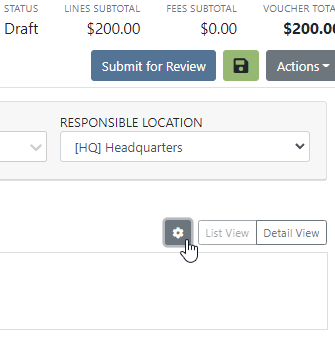
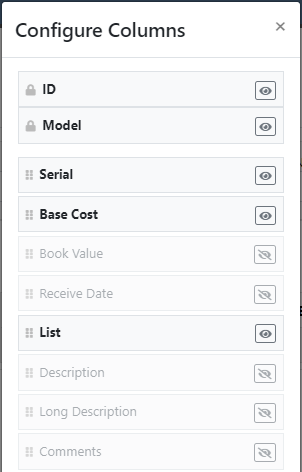
You can edit which columns you see and the order you see them by clicking the Gear icon!
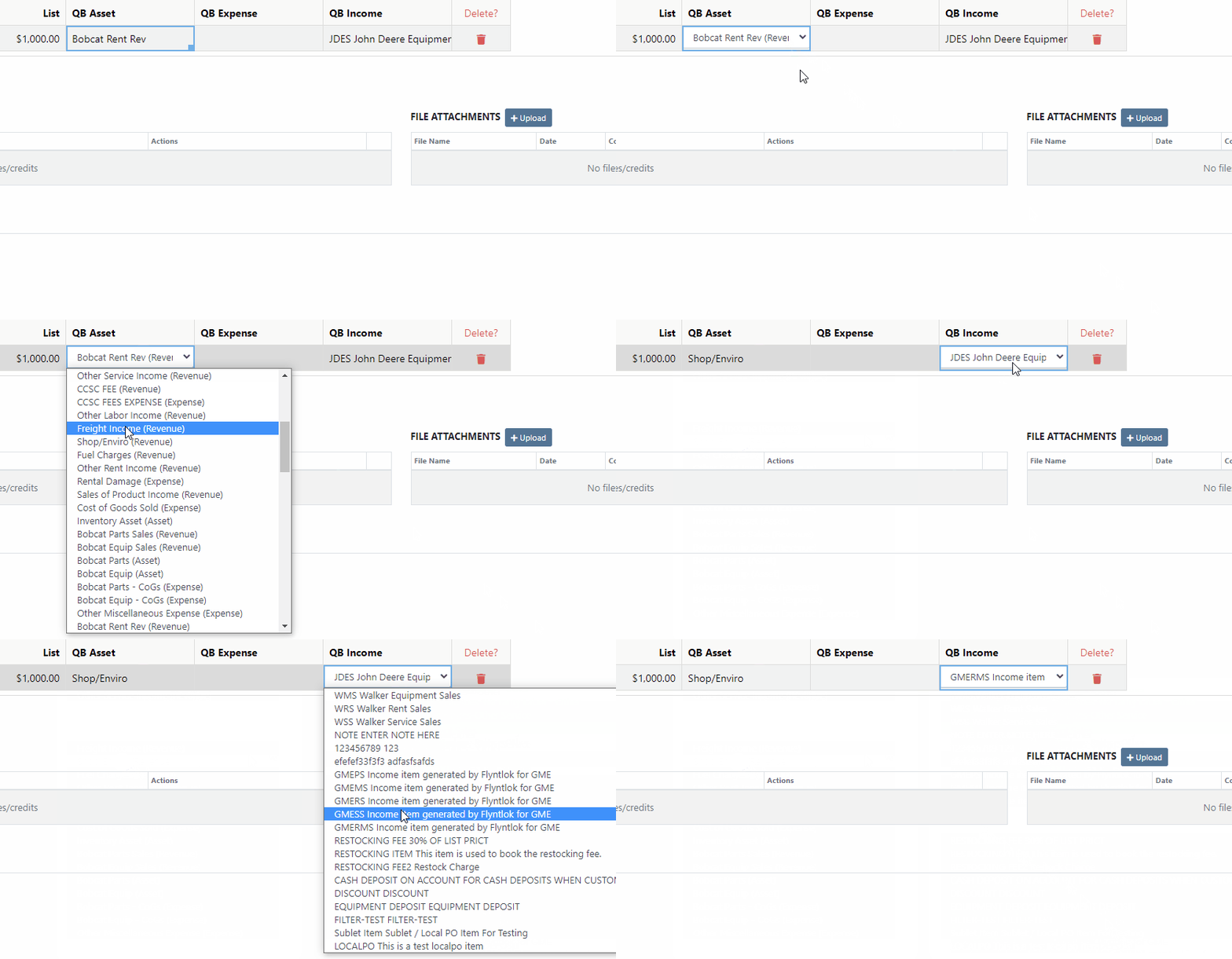
The machine income, asset, and expense account can all be set on the machine purchase order voucher.
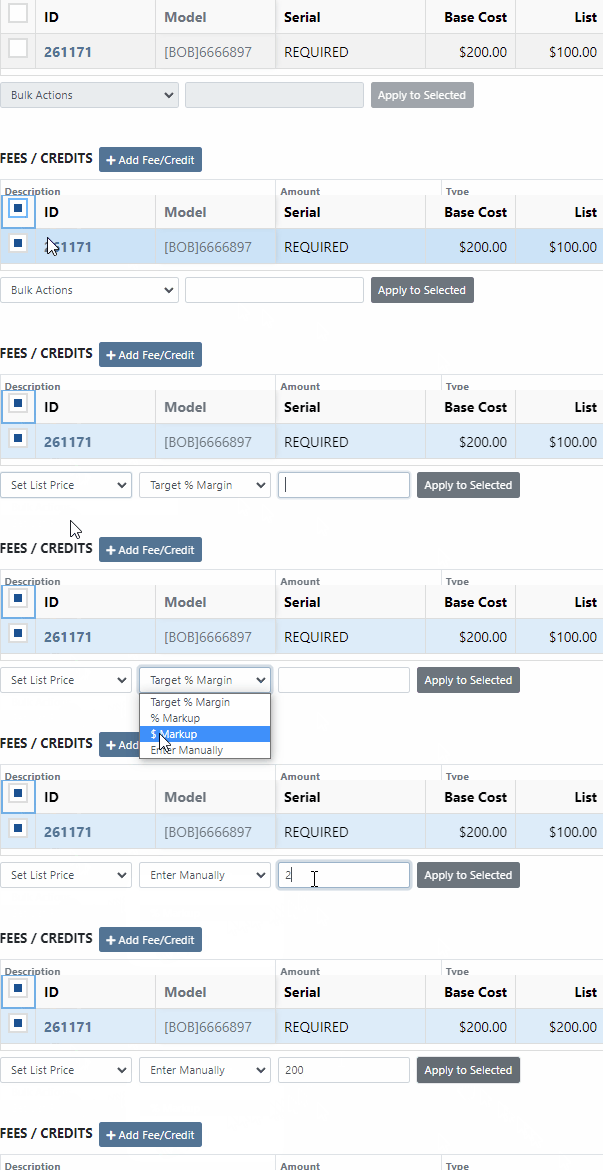
We added a bulk actions button to help fill the most common fields. We currently have the following bulk actions:
This is in addition to the corner drag and fill function.Upcoming Bulk Actions:
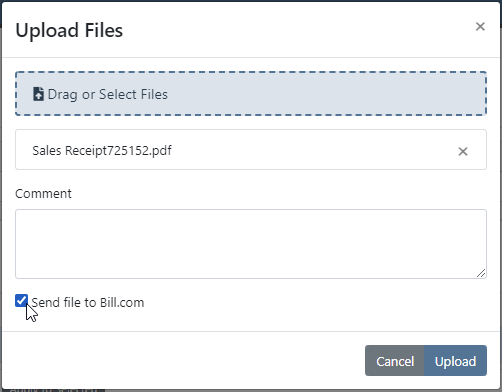
If you are using Bill.com, you can check the Send To Bill.com box to automatically send the attachment to your Bill.com email.
The detail view is ready for use. This works the same as the list view, but looks like a form.
Rental contracts can be reopened! To reopen a rental contract, delete the final sales order and you will be redirected to the rental dashboard with the rental in checked in status.
We have added a Billed and an EST Billable column to the rental contract line. Billed will tell you the amount that the line has already brought in. EST Billable is the remaining amount that should be billed during the rental based on the billable duration set on the rental contract line. In the case shown below, $20 has been billed out of the $200 expected total.

Learn More at Flyntlok Dealer Management System
Check out our Flyntlok YouTube channel for more highlights of the application!






