NEW:
Save Technician Time and Drive More Service Revenue with Voice-to-Text, AI-Powered Tech Notes
Check out the latest updates to the Flyntlok Equipment Dealer Management System.
We want to help you set the customer contact on sales orders, rentals, and work orders. The primary customer contact will solve this problem! Notice that the contacts editor has changed. If a contact is marked as primary, it will have a green check beside it.

To set a contact as primary, edit the contact and check the Primary Contact box.

Remember, there can only be one primary contact assigned to the customer. Once a primary contact has been selected, we will auto-fill that contact on all sales orders, rentals, and work orders. This is only a default and can be changed if needed.
Models can be added to a sales order, quoted, then easily swapped for a machine.To add a model to a sales order, click the Rocket and select the Quote Model tab.

Next, type in the model that you would like to add. We will autofill as much information as possible, but you can always edit any information as needed. Then click Quote.

At this point, lets say that a quote has been given to the customer and they have accepted. Its time to associate a machine to the model. Instead of the Fulfill button you will see a Rocket.

Click the Rocket, and search for the machine that you would like to link to the sale.

Once you click Associate Machine, the machine will be added to the sales order and the model will be removed automatically. At this point, you can sell that machine following your normal workflow!
You can customize the Terms & Conditions on individual sales orders.


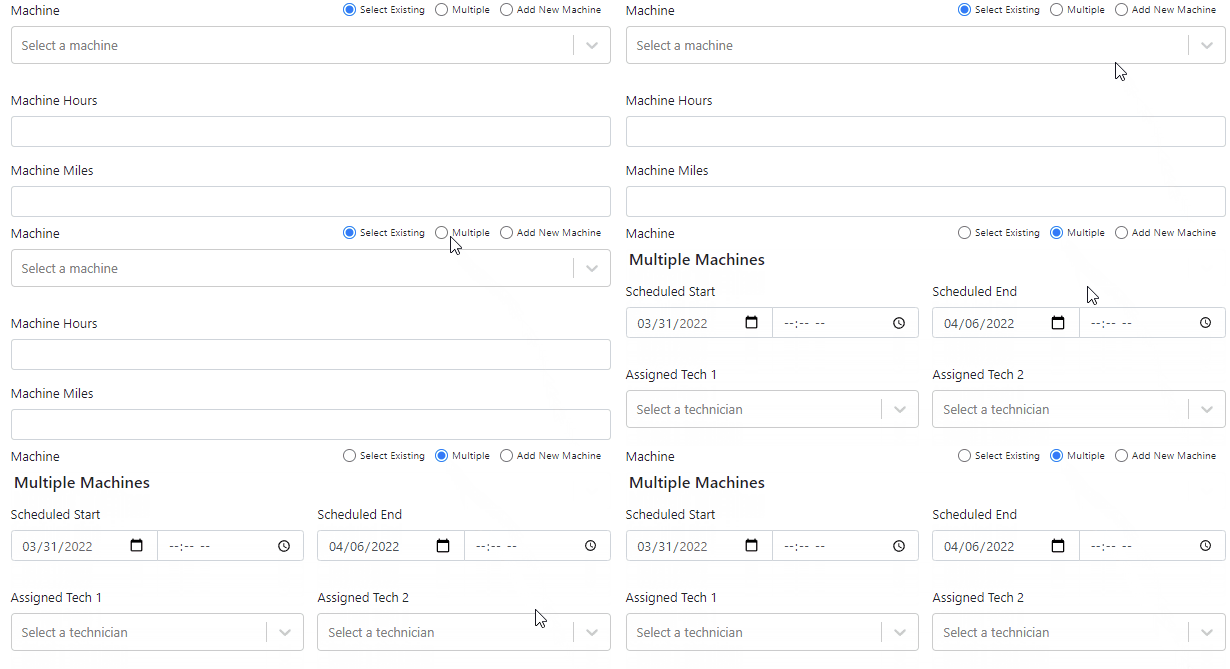
When you select Multiple on the work order creation page we will hide unnecessary information like machine hours and miles.
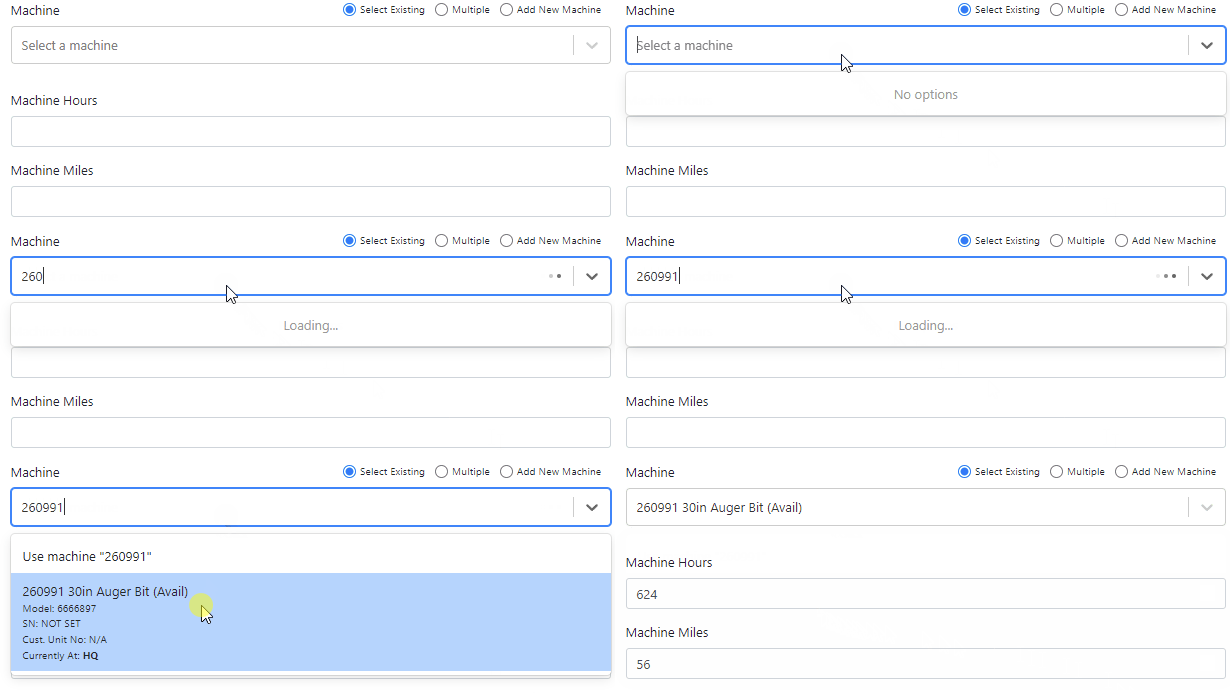
If a machine has miles and/or hours, we will auto populate that information on the work order.
When you update a labor type on a job, you will have the option to update all previous labor on the job to the new type.

We have updated the estimate email to contain the view/sign option and a PDF copy of the estimate. Previously, these came in separate emails.
Over the past couple of weeks have been adding links to Google Maps within Flyntlok, specifically in the work order and rental systems.If you click this icon

you can go directly to google maps where you will be given directions to your destination.

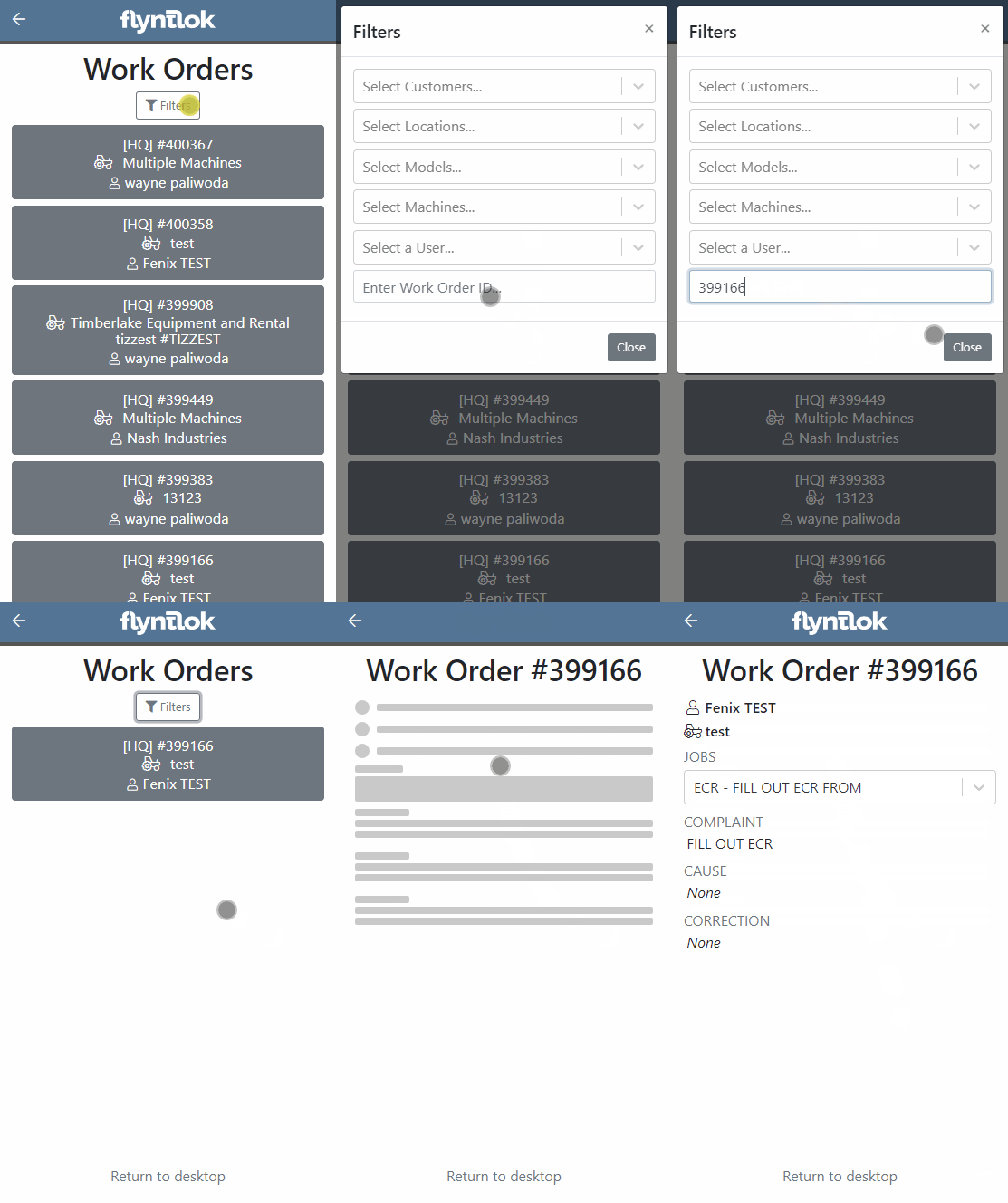
If you have a large amount of open work orders, you can use the new filter button to consolidate the list.
We are making it easy to import lead lists that you have purchased or built. When you are ready to import a list, head over to the CRM Hub!


We have added two additional permissions to the Access Control page.

When a new model is created, Allow Rent and Allow Sale can be defaulted to the value you choose. The default value is no for Allow Rent and yes for Allow Sale for both fields. The default values can be changed on the Flyntlok details page.

March 16th, 2021 Release Notes
Learn More at Flyntlok Dealer Management System
Check out our Flyntlok YouTube channel for more highlights of the application!






