NEW!
Meet Flyntlok at Equip Expo 2026:
This release gives AI a bigger job… and your people the final say. Who says you can't have the best of both worlds?
AI-powered Tech Notes is now available to every technician, making it faster to capture clean, consistent service records. At the same time, new permissions and review tools keep your team in control of what gets edited, applied, and shared.
That same principle carries across this release, with more control over machine moves, SMS reminders, sales credit, work order requirements, and more. Because smarter automation and human oversight don’t have to compete: you can have both.
Let’s get into it!
By Bomby K.
What’s New!
AI Tech Notes is moving into open beta, available to everyone. There's no longer a request or an opt-in to get it turned on. Every Technician sees it on their Work Order jobs starting with this release.
This is not a generic, run of the mill voice-to-text tool. Technicians tap the microphone on a job, talk through the repair the way they'd describe it to a Service Writer, and the note comes back transcribed and organized into Complaint, Cause, and Correction. Part numbers, specs, and shop abbreviations are preserved; filler words and false starts are not.
When a note covers several separate tasks, the suggested Correction comes back as a bulleted list so it's easy to scan. Nothing is written to the job until it's reviewed, so that the suggested text can be appended, replaced, or edited first. It works the same on desktop and on mobile.
Why It Matters:
Technicians writing or typing out documentation is usually the last thing standing between them and the next job. Talking through a repair takes a fraction of the time that typing it does, so notes get written while the work is still fresh instead of at the end of the day. Service Writers get a note they can send to a Customer with light editing rather than a rebuild, and Service Managers, warranty auditors, and anyone reviewing a job later get a consistent Complaint / Cause / Correction record on every Work Order.
Note: Open beta means the feature is on for everyone while we keep refining it. Many of the enhancements being released come directly from beta feedback, so please keep it coming!
To learn more about Tech Notes, visit this article: https://www.flyntlok.com/support-articles/tech-notes-ai-voice-to-text-notes-for-work-orders
By Bomby K.
What’s New!
AI Tech Notes cleanup is no longer limited to Technicians. Anyone with access to a Work Order, Service Writers included, can now run the cleanup on notes the Technicians have already recorded or typed, tidying up the write-up in a single step before the Work Order is invoiced.
Look for the "Improve with AI" button when editing a complaint, cause, or correction.
Why It Matters:
Service Writers are usually the last set of eyes on a Work Order before it turns into an Invoice, and they've been rewriting technician notes by hand to make them read clearly for the Customer. Running the same cleanup the Technicians already use removes that manual pass, keeps billing language consistent across the shop, and gets Work Orders out the door faster.
By Bomby K.
What’s New!
When editing the Complaint, Cause, or Correction on a Work Order Job, you'll now see a "Convert to Uppercase" button below the text box. One click rewrites everything currently in that field to all caps. You can keep typing or make further edits afterward, and the text saves the same way it always has.
Why It Matters:
Some shops require all-caps Complaint, Cause, and Correction text as standard operating procedure so it reads consistently on the printed Work Order and on the Customer's Invoice. Until now, Service Writers had to retype the text or paste it into an outside tool just to change the case, especially when notes came in from Technicians in mixed case. Now it's a single click without leaving the Job!
By Alex E.
What’s New!
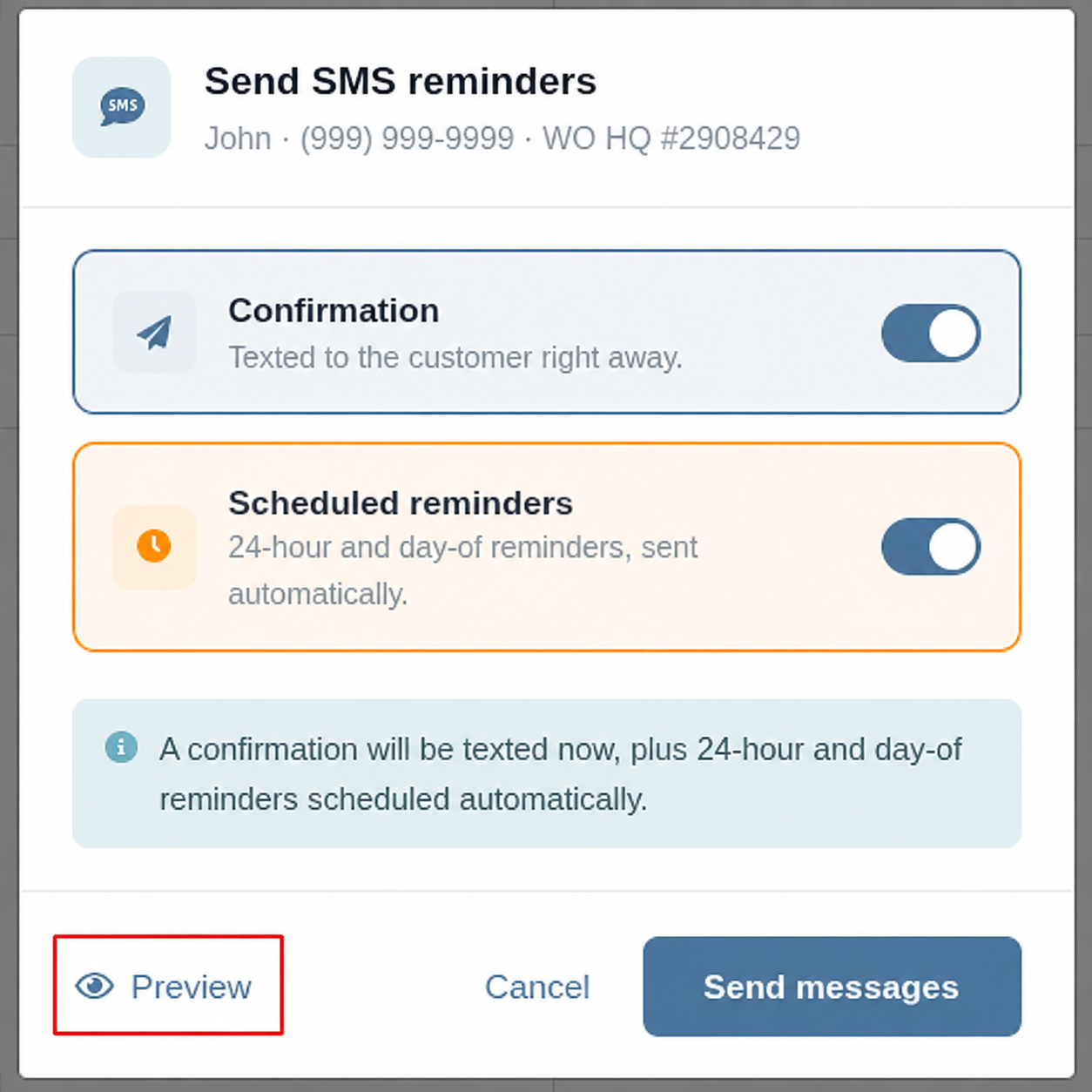
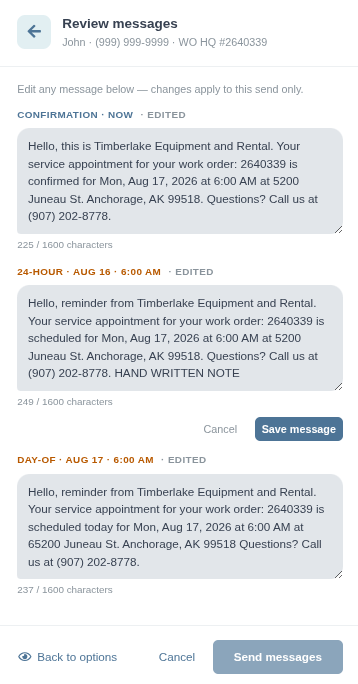
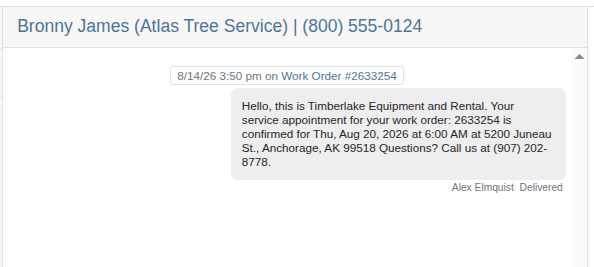
Preview the exact message generated when you send appointment reminders from the service scheduler.
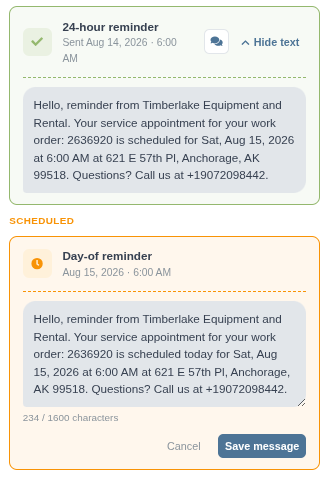
After sending/scheduling reminders, clicking into the edit reminders modal and review messages already sent or edit scheduled messages yet to go out.
Why It Matters:
We want to take the guess work out of the reminder process. Now you can have total insight into exactly the reminders you are sending before and after the fact. We also make it even easier to customize and personalize your messaging on a per-appointment basis rather than editing your set templates.
By Alex E.
What’s New!
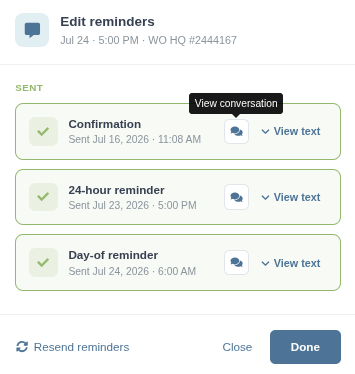
We’ve added a link from the sms reminder dialog on the service scheduler directly to the corresponding sms inbox conversation.
Why It Matters:
An appointment reminder isn’t always a one conversation, sometime you might want to follow up manually or check for a response. We’ve provided a quick and easy way to view your SMS history with the customer and keep tabs on conversation started from their appointment reminders.
By Bomby K.
What’s New!
The Commission Report now includes the vendor invoice number for each Machine.
Why It Matters:
Previously, confirming a Machine's payoff status and rebate eligibility meant leaving the Commission Report and opening each Machine individually to find the invoice number. With the vendor invoice number now on the report itself, Accountants can confirm payoffs and rebate status without leaving the report. Add this to your Commission Report layout by bringing it in from the Column Chooser.
By Bomby K.
What’s New!
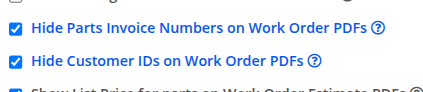
Service Writers and Service Managers can now choose whether customer-facing Work Order PDFs hide source parts Invoice numbers and Customer IDs. When source Invoice numbers are hidden, Parts for each Job are combined into a single table for a cleaner customer copy.
Work Order and Estimate PDFs now consistently show customer-facing Invoice numbers for Other Costs. Work Order PDFs also display a clear document title when opened or emailed.
Why It Matters:
Service teams can provide customers with clearer Work Order paperwork while keeping internal references out of the customer-facing copy. The new settings are off by default, so existing PDF layouts remain unchanged until a dealership chooses to enable them.
Note: These updates apply when a Work Order PDF is generated; previously downloaded or emailed PDFs are not changed.
To enable these, look for these two new options in your Flyntlok Settings under the Reports section:

By Alex E.
What’s New!
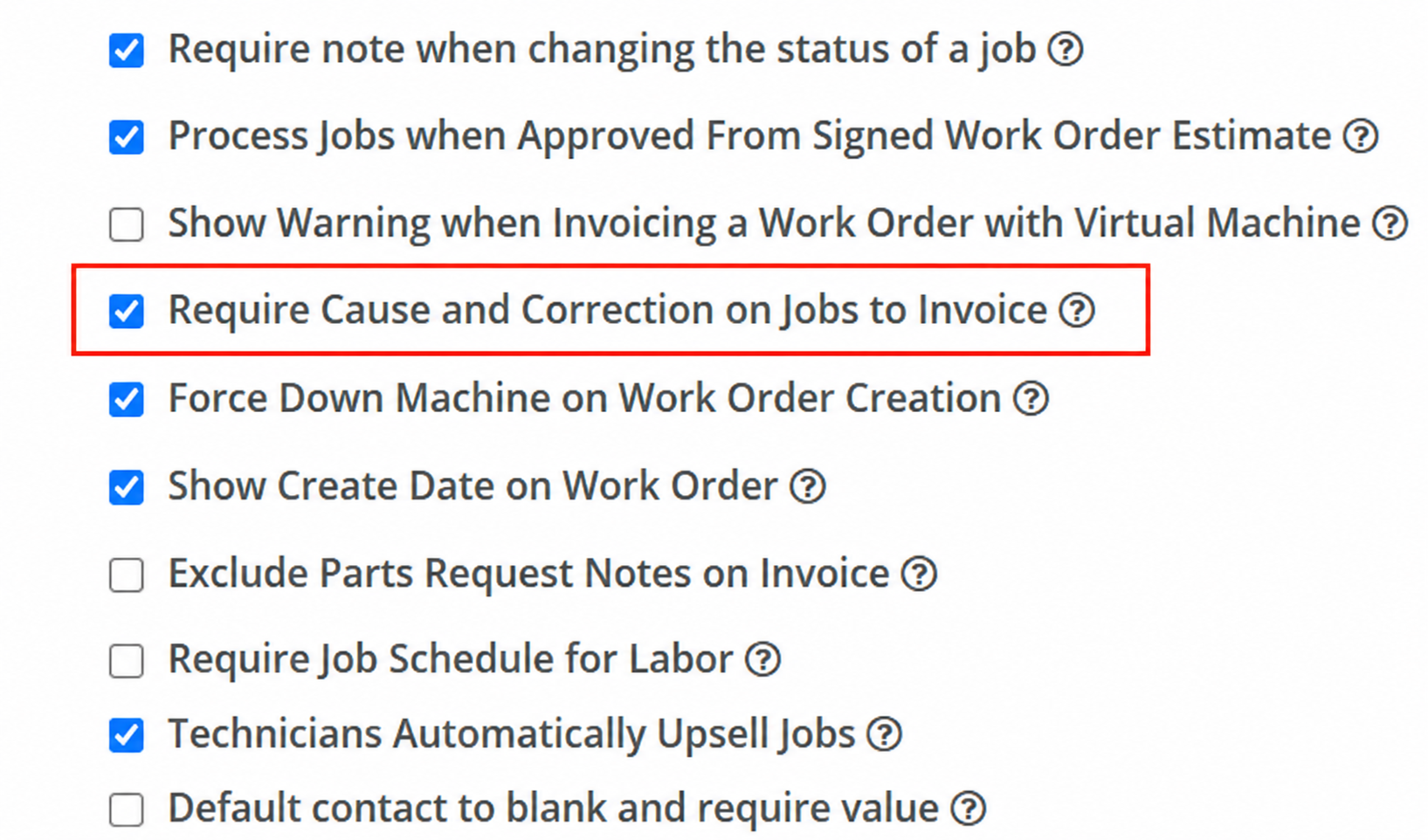
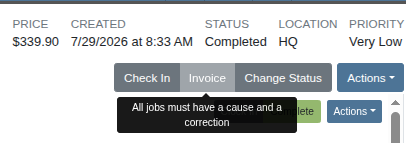
We have added a new settings option which requires all jobs on a work order to have non-blank cause and correction fields before it can be invoiced.
Why It Matters:
Service writers found it frustrating having to reverse a Work Order final invoice in order to go back to the work order and fill out incomplete or skipped information. To get ahead of that, this new option in Flyntlok Settings prevents blank or skipped cause and correction fields.
By Alex E.
What’s New!
Almost all reports in Flyntlok have the ability to save specific layouts, and now so does the Upcoming Maintenance report. We also showed it a little extra love by adding two new optional columns in the column chooser: Machine Owner Phone and Machine Owner Email.
Why It Matters:
We want to provide a consistent experience for these reports and surface key details to streamline the process of customer outreach.
By Alex E.
What’s New!
When a completed Work Order can't be invoiced, the Jobs list now marks exactly which Jobs are holding it up. Any Job with an unresolved requirement gets a red warning icon, and hovering over it lists what's missing on that specific Job — a labor type, a cause and correction, a warranty Customer, a Machine, an open Parts Invoice, or a Technician still clocked in.
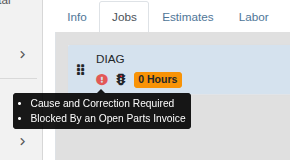
Why It Matters:
Service Writers used to see only a general warning such as "A job is missing a labor type" when they tried to bill out a Work Order, with no indication of which Job was at fault. On a Work Order with a dozen Jobs, that meant opening each one in turn to hunt for the gap. Now the blocker is visible right in the Jobs list, so Service Writers can go straight to the Job that needs attention and get the Work Order invoiced.
By Graham R.
What’s New!
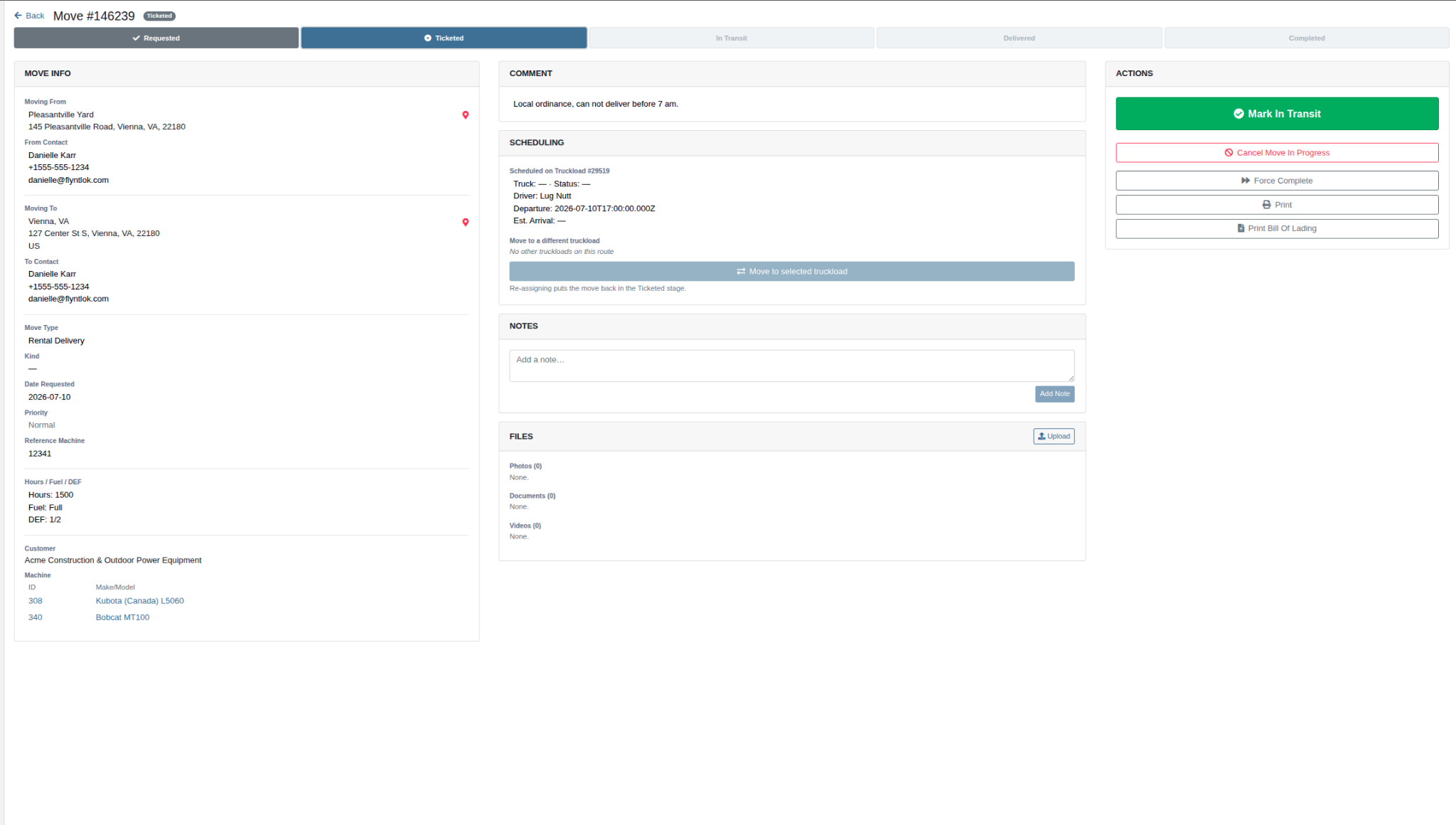
The Machine Move Detail page has been completely revamped from the ground up and includes:
Why It Matters:
The inability to edit a Move after creation was the single most common complaint related to Moves workflows. Any change — swapping out a machine, a different address, an updated date — required deleting the Move and starting over. This release gives our dealers direct control over their Moves, eliminating that workaround and making the workflow flexible enough to match how you actually operate on a day-to-day basis.
Further updates to the Moves workflow, including the Moves Scheduler and mobile experience, are planned for coming releases.
Yara H.
What’s New!
Rental Contracts now have a Bulk Actions menu above the machine lines with two options: Bulk Check In / Check Out Dates and Bulk Rate Schedule Change. Instead of opening each line one at a time, you set the values once and apply them to as many lines as you want.
Each action walks through two steps. First you enter what you want to change. For dates, that's a date out, a date in, or both. For rent schedules, it's the same set of fields you'd edit on a single line — rates, utilization allowances, minimum cost, and a percentage discount that comes off every rate — or you can start from a saved rent schedule template. Any field you leave blank keeps each line's existing value. Second, you review every line side by side, with its current value next to the new one, and check or uncheck the lines you want included before saving. After saving, a results screen shows exactly which lines went through and lets you retry any that didn't.
Why It Matters:
Contracts carrying a large number of machines or Items took considerable time to edit, since every line had to be updated on its own. Rental Clerks can now set check in and check out dates and apply a rent rate schedule across the entire Contract in one action.

Yara H.
What’s New!
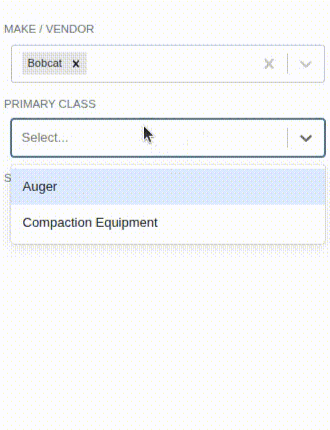
The Make/Vendor, Primary Class, and Secondary Class dropdowns on the new Rental Contract page now list only options that actually have rentable equipment behind them. Makes with nothing to rent, and classes that contain no rentable Machines, no longer appear.
The three filters also narrow each other as you go. Selecting one or more Makes limits the Primary and Secondary Class lists to the classes those Makes carry, and selecting a Primary Class limits the Secondary Class list to match.
Why It Matters:
Rental Clerks were scrolling through the full catalog of Makes and Classes to build a search — hundreds of entries, most of them belonging to equipment that was never available to rent.
By Yara H.
What’s New!
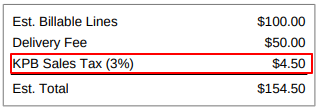
The Rental Agreement PDF now includes estimated tax in its Estimated Total section, for dealerships that calculate tax through Flyntlok. Each applicable tax appears as its own line with its name and rate, and is included in the Est. Total.
Previously, tax only appeared once the Rental Contract was invoiced — the printed agreement showed billable lines, damage waiver, and delivery, but no tax at all. You can now hand a Customer an agreement whose estimated total reflects tax, without having to create the Invoice to find out what it will be.
Why It Matters:
Rental Clerks are regularly asked "what's this going to cost me?" before a Rental Contract is closed out. Quoting that number used to mean either estimating tax by hand or creating an Invoice just to see the total, then dealing with the cleanup. Showing the estimate on the agreement itself means Customers see a realistic number up front.
Yara H.
What’s New!
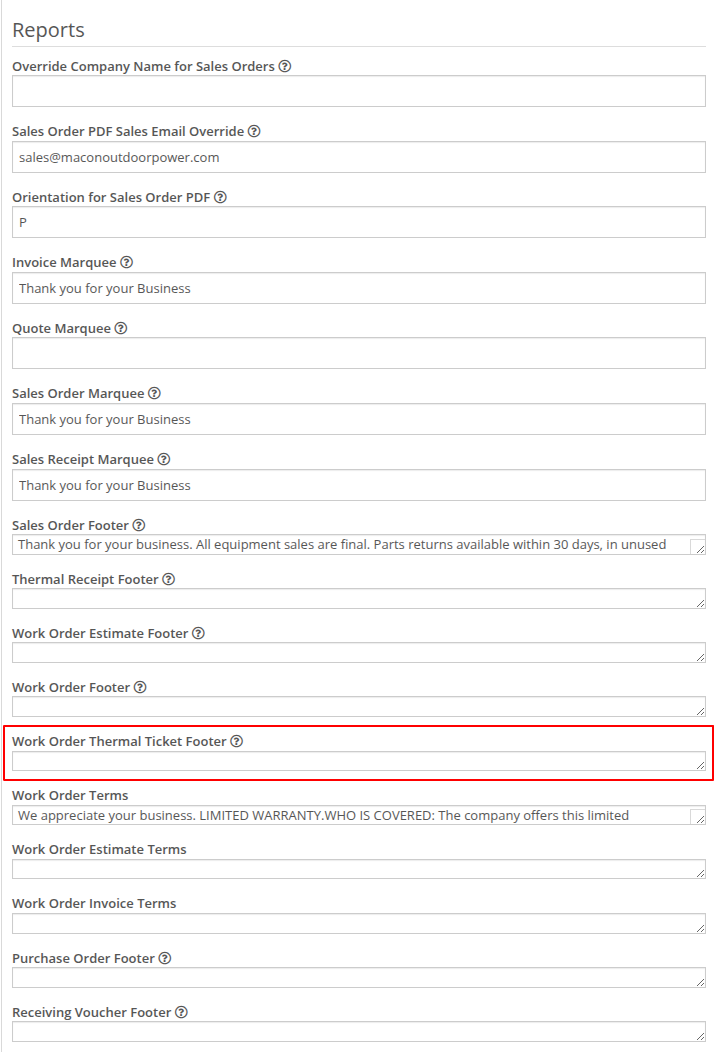
The terms text printed at the bottom of the Work Order Thermal Ticket is now a setting you control. In Flyntlok Settings, under the Work Order section, you'll find a new "Work Order Thermal Ticket Footer" field. Edit the wording, replace it with your own service terms, or clear it entirely to print no footer at all.
Why It Matters:
Service Writers and Service Managers who wanted to change or remove that paragraph had no way to do it — the text wasn't attached to any setting they could find, so the only option was to ask us to change it for them. Your drop-off terms, deposit policy, and communication preferences are dealership-specific and they change; now Service Managers can update them the moment the policy changes, without a support request.
By Alex E.
What’s New!
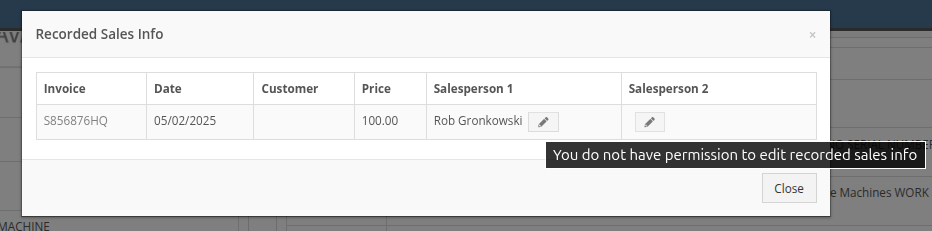
We've added a new permission that controls who can change the Salesperson 1 and Salesperson 2 fields in the Recorded Sales Info section of a Machine's dashboard. When the permission isn't granted, the edit option for those fields is disabled, and the sales credit stays exactly as it was recorded. This permission can be managed in the access control page. Users now default to having this permission and admins can now disable it for user roles they want to restrict.
Why It Matters:
Sales Managers wanted the sales credit on a sold Machine to stay locked down once the sale is on the books. Until now, the existing Machine permissions covered the rest of the Sale Information section but left the Salesperson fields open to anyone who could reach the Machine dashboard — which meant commission credit could be reassigned after the fact. Dealerships can now restrict that to the people who should be making the call.
By Ula L.
What’s New!
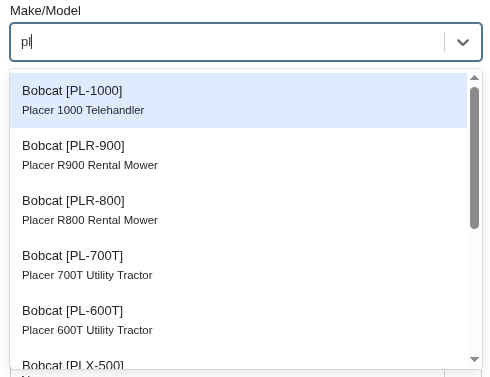
The Make/Model field on Tasks available on the main Tasks page now also appears on the Lead page. Make/Model stays separate from the Machine field, so a Task can point at a specific unit, at a Make/Model, or at both.
Why It Matters:
Salespeople can now capture the model a Customer is interested in when creating a Task from the Lead page, instead of leaving the Lead to update it later on the Tasks page. This saves time by eliminating an extra step in the task creation workflow.
By MA S.
What’s New!
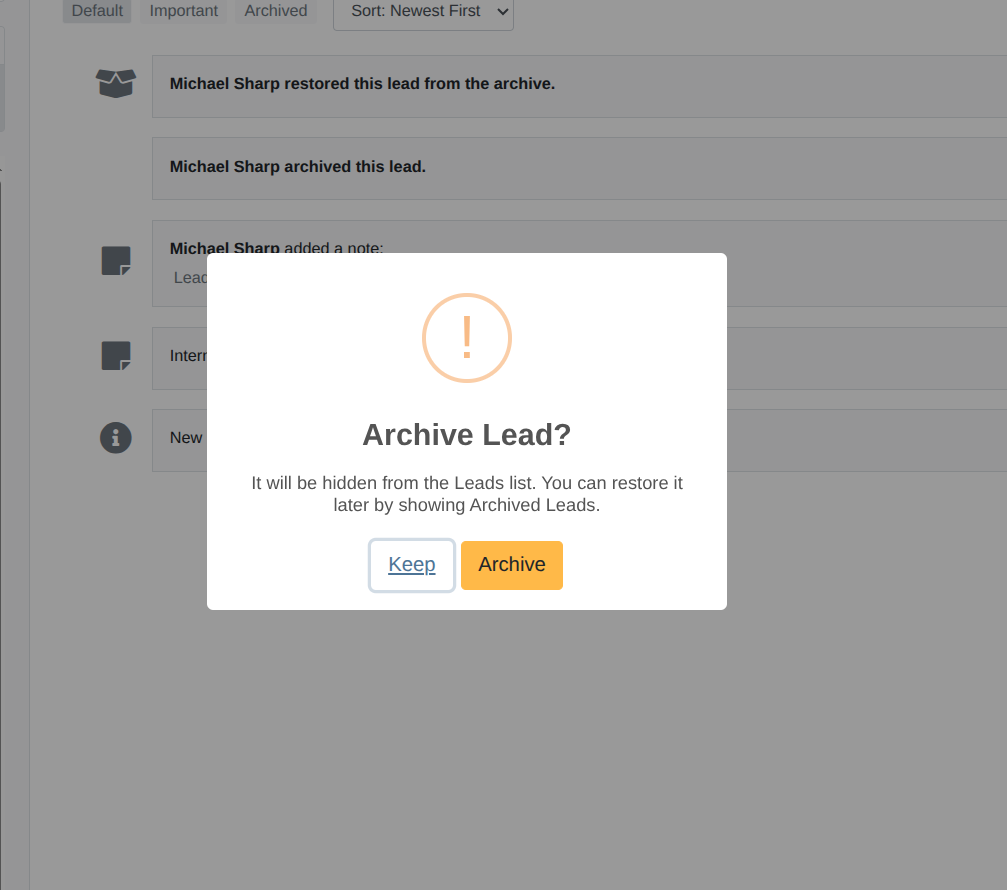
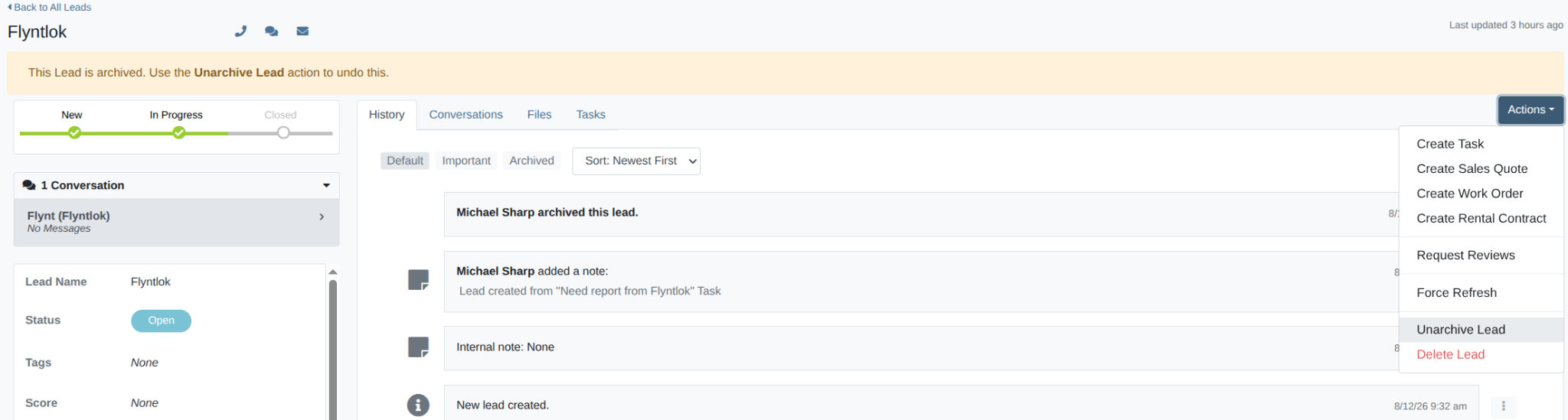
You can now archive a Lead. Open the Lead, choose Archive Lead from the Actions menu, and confirm on the prompt that appears. The Lead then drops out of your active working list. Archiving isn't deleting. The Lead and everything attached to it (Activities, Tasks, Notes, and its full history) stay exactly where they are. Unarchive Lead to put it straight back.
Why It Matters:
Salespeople collect Leads that go quiet (ex. a duplicate, an inquiry that never went anywhere, an opportunity lost to a competitor). Marking them with a status doesn't always fit, and deleting them throws away the history along with the Lead. Archiving clears them off the working list without losing anything, so the Leads in front of Salespeople are the ones actually worth working, and Sales Managers keep the complete record for reporting.
By MA S.
What’s New!
The Leads list has a new Show Archived toggle in the toolbar, just left of Export Visible. Turn it off to hide archived Leads and work only your active list; turn it back on when you need to find one. Your choice sticks between visits. There's also a new Archived column you can add from the column chooser. Turn it on to see at a glance which Leads are archived, and sort or group the list by it like any other column.
Why It Matters:
Archiving only helps if Salespeople can still get back to what they archived. The toggle and column mean an archived Lead is never lost — it's one click away, and Sales Managers can group or sort by Archived to review everything that's been set aside without leaving the Leads list.
Note: Show Archived is on by default, so archived Leads appear in the list until you turn it off. The Archived column is off by default and can be added from the column chooser.

By Ula L.
What's New!
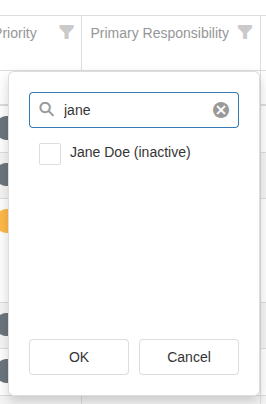
The Primary Responsibility and Secondary Responsibility filters on the Task dashboard now include inactive employees who are still named on a Task. Each inactive employee is labeled "(inactive)" in the filter list. Assignment fields on the grid and in bulk update continue to show active employees only.
Why It Matters:
Previously, if a Task was assigned to someone who had since been deactivated, you couldn't find it using those filters — and the assigned name showed as blank on the grid. Now you can filter by former employees, spot their outstanding Tasks, and reassign them without guesswork.
By Ula L.
Complaint:
A salesperson reported that a CRM Task due date read one day earlier on the Tasks grid than on the Task itself. For example, the grid showed 8/3 while the Task record correctly showed 8/4. Date Created and Date Completed columns shifted the same way.
Correction:
Fixed. Due, Date Created, and Date Completed columns now display the correct calendar date on both the Tasks grid and the Leads Tasks grid.
By MA S.
Complaint:
Salespeople reported that some Contact names showed the last name twice on the Customer Dashboard, and the same duplicate appeared anywhere else a Contact name is used, such as Invoices, Quotes, and accounting emails.
Correction:
The Contacts editor now shows and saves each person's complete name, so editing a Contact no longer repeats the last name. Contact name fields across the Customer Dashboard, Work Orders, Invoices, and Rental Contracts are now labeled "Full name" to make clear that the field holds the whole name.
By Ula L.
Complaint:
Salespeople reported that the Due column filter on the Tasks page did not work. When they picked a date in the Due column calendar, the Task list did not narrow to that date. The only workaround was to sort by due date instead of filtering.
Correction:
Fixed. The Due column filter on the Tasks page now correctly narrows the Task list to the selected date.
Have 15 minutes? That’s all you need to find out where your leads are getting lost. Get your marketing playbook and audit checklist here to make sure your marketing activity drives real revenue: https://www.flyntlok.com/resource/equipment-dealer-marketing-audit
+New podcast drop! We've been getting feedback to create more resources on how to get the most out of AI-powered Smart Campaigns…
so we went all in on episode 6 of Flyntlok Unlocked: Turn Customer Data into Revenue with Smart Campaigns with special guest Customer Success Lead Brandon Weaver. Fun fact: tune in to hear which text message Brandon considers the best he’s ever received (hint: think mom 💐).
By Calvin M.
What’s New!
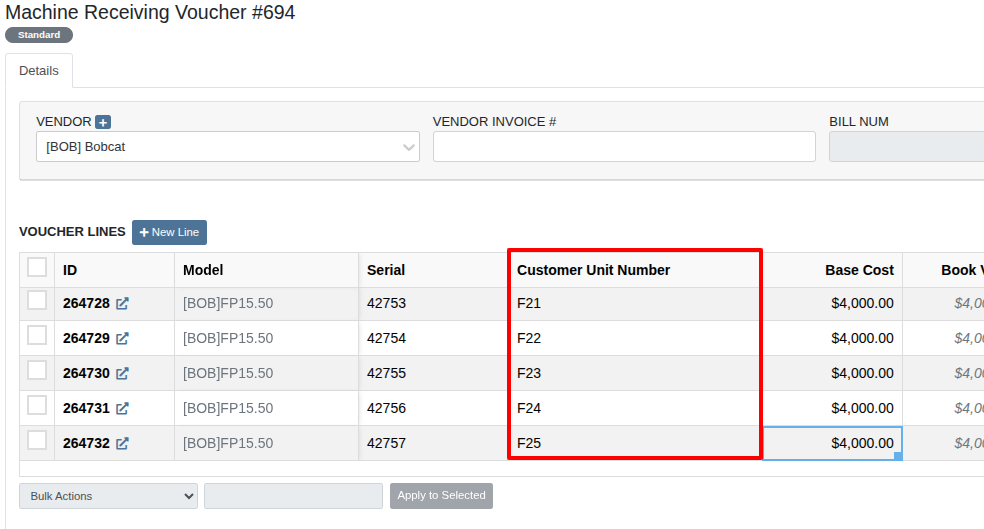
Receivers can now add Customer Unit Numbers directly on Machine Receiving Vouchers when receiving Machines. You can find this new field in the column chooser.
Why It Matters:
When receiving a fleet, Receivers no longer need to open and update each Machine individually after the Receiving Voucher is complete. This keeps Machine records accurate sooner and reduces repetitive data entry.
By Brenden B.
What's New!
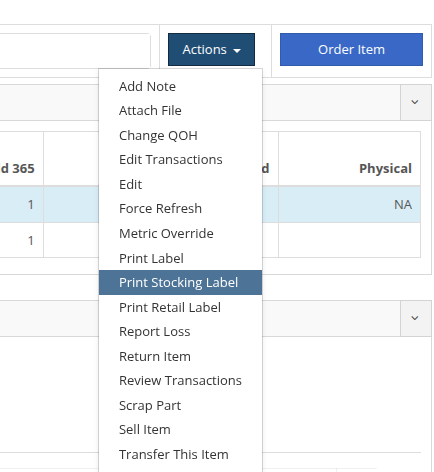
The Item Dashboard's Actions menu now includes a Print Stocking Label option. It prints the same scannable stocking label the Receiving Voucher prints — the item number as a scannable barcode with the description — for any Item, at any time, without having to open a Receiving Voucher.
The label follows whatever stocking label layout your dealership already uses on Receiving Vouchers, so anything customized for your label stock carries over automatically. The existing Print Label and Print Retail Label actions are unchanged.
Why It Matters:
There is now an additional place to access your stocking label for an item.
By Ben C.
What’s New!
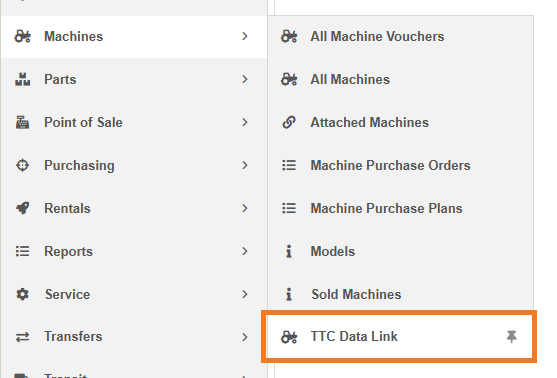
Sales Managers have a new report covering Toro and Exmark Machine sales and their TTC Data Link registration status. The report is organized by invoice and includes information such as submission status, eligibility, machine links, and a “Register Now” button that opens the registration page for that invoice.
Why It Matters:
Until now, there was no place where a manager could see all TTC Data Link eligible machine sales that have been submitted or might still need to be done. Sales Managers now have a single report that shows all important information around registration submission and an easy one-click path to the TTC Data Link registration page.
By Calvin M.
What’s New!
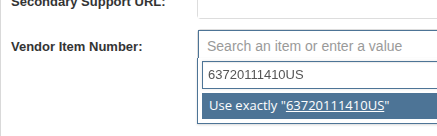
Purchasers can now type a Vendor Item Number directly on STIHL Models when the model number is not available in the searcher. The Vendor Item Number is the model number that is submitted to STIHL when combining part and machine purchase orders for submission.
Why It Matters:
Purchasers can record the correct vendor model numbers for new Models and continue submitting Purchase Orders. This avoids the need to submit an issue ticket when the model number you want to enter does not come up, making sure you don’t miss your deadlines.
By Calvin M.
What’s New!
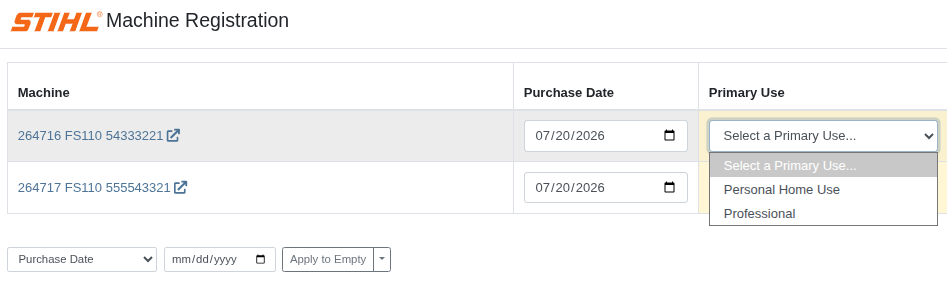
STIHL has updated the Machine Registrations integration, reducing the allowed options for the registration’s Primary Type. With this update, the only allowed Primary Types are “Personal Home Use” and “Professional”: their goal is to simplify and improve this part of the registration process.
Why It Matters:
Keeping our integration in line with STIHL’s requirements ensures that you can continue to register your machines without running into problems.
By Christian E.
What’s New!
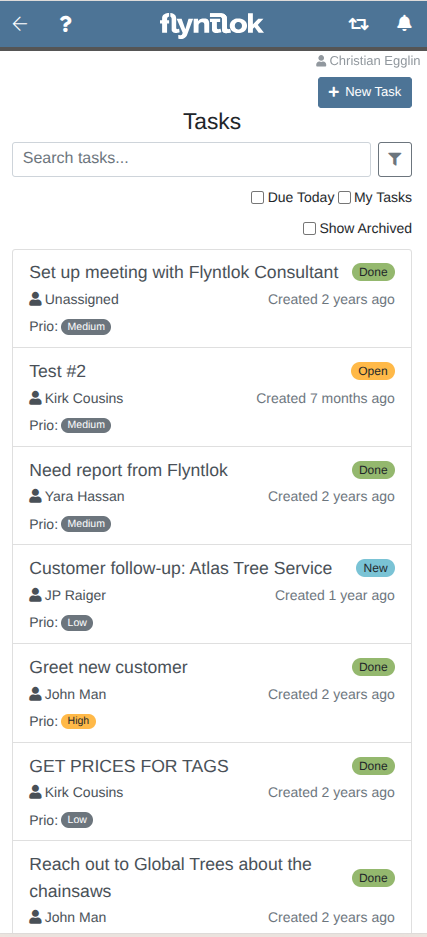
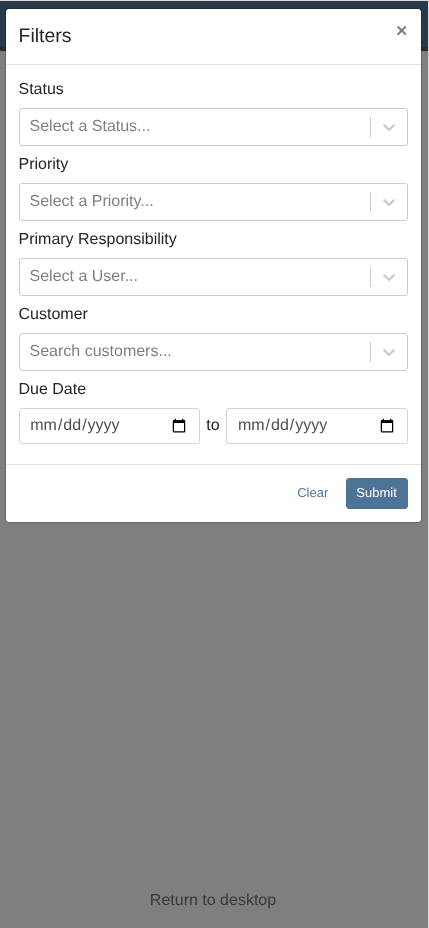
Filter tasks by customer and/or due date. Select a customer to filter the tasks list on or apply a filter on a due date for either tasks due today or those within a due date range.
Why It Matters:
Per customer request, CRM users normally want to tackle the most urgent or time-sensitive tasks on their list, signaled by due date. Previously, specifically targeting by date was not possible.
By Yasmine C.
What’s New!
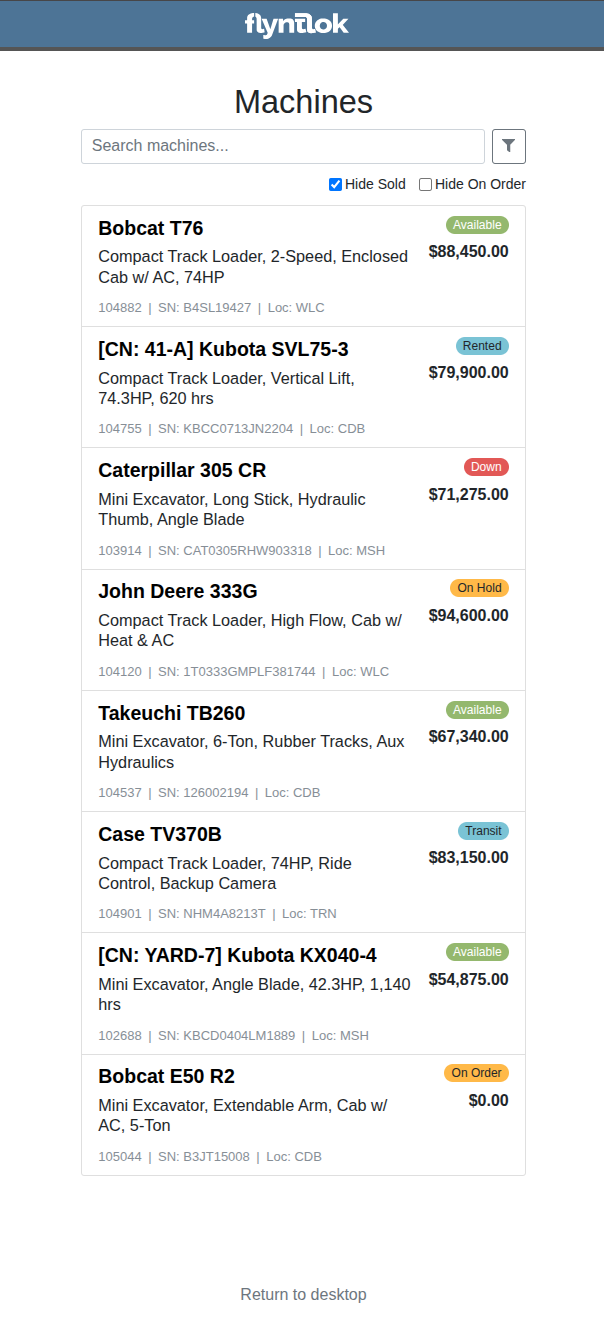
The mobile machine searcher now displays the list price of each machine and the machine list items have a new and improved layout.
Why It Matters:
The machine list page is now easier to scan and there is more information available at a glance.
By Christian E.
What’s New!
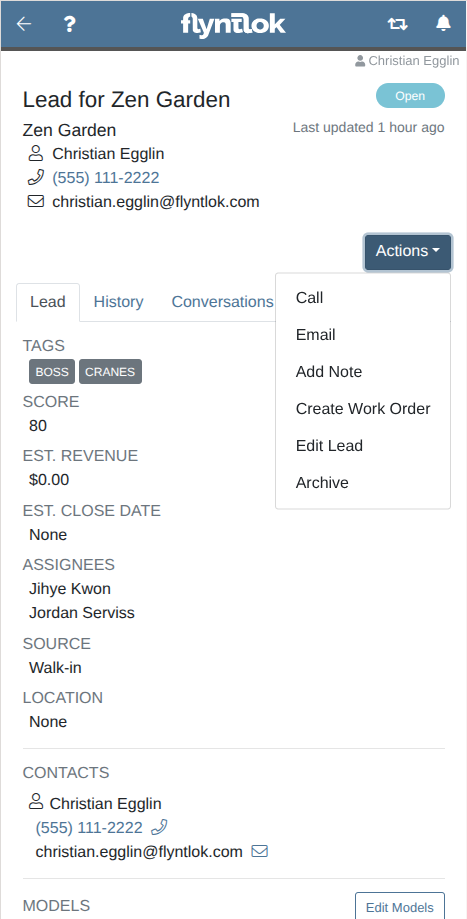
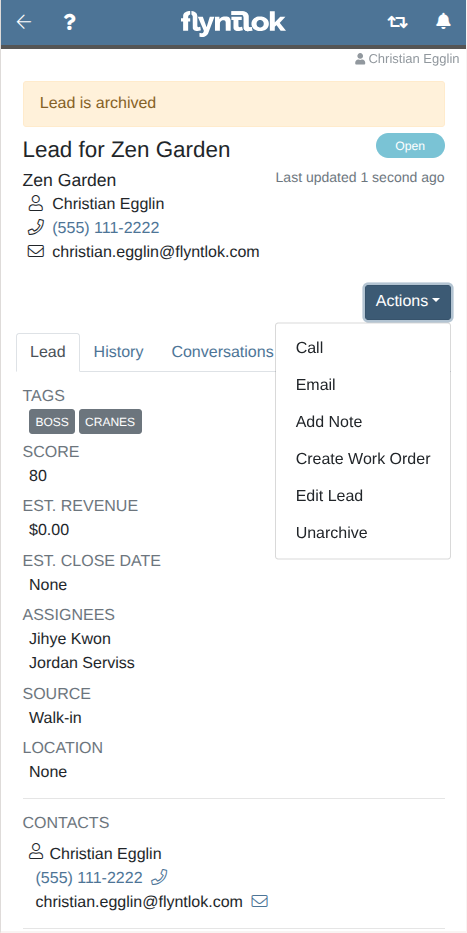
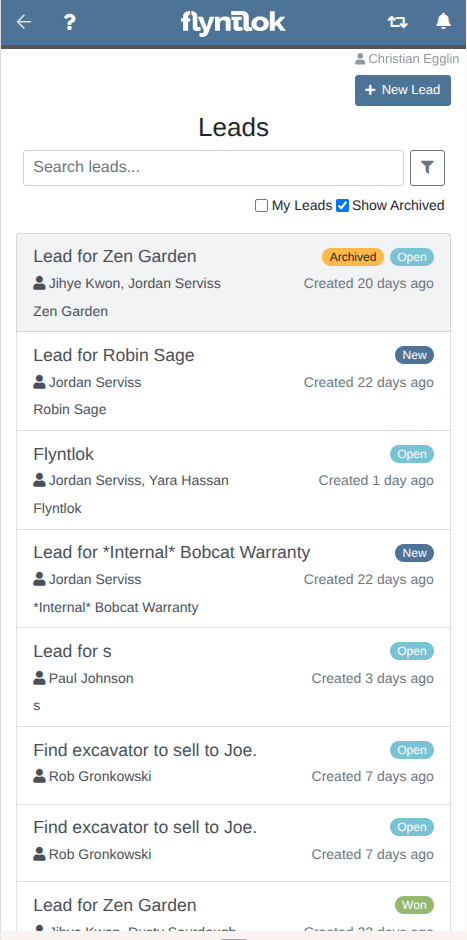
Staying in tune with the desktop CRM, added the archive option to the action dropdown for a lead in the mobile view. Also including the ability to show and hide archived leads in the list view.
Why It Matters:
Allowing sales staff to archive leads taking them off of their active list without deleting them and not needing to switch back to desktop to do so.
By Christian E.
What’s New!
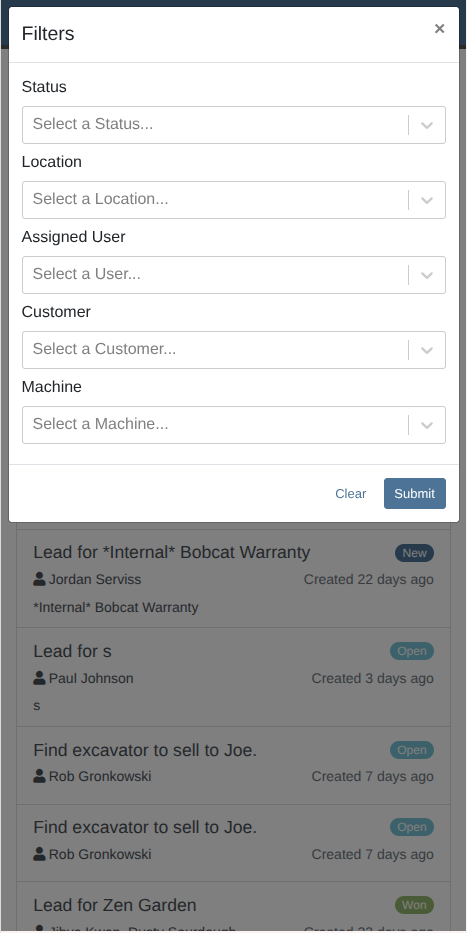
In addition to the added filter for archived leads in the list view, there is now the option to filter by the assigned user, a customer, or by a machine to better locate leads.
Why It Matters:
Sales staff can more easily find a specific lead or a set of leads.
By Yasmine C.
What’s New!
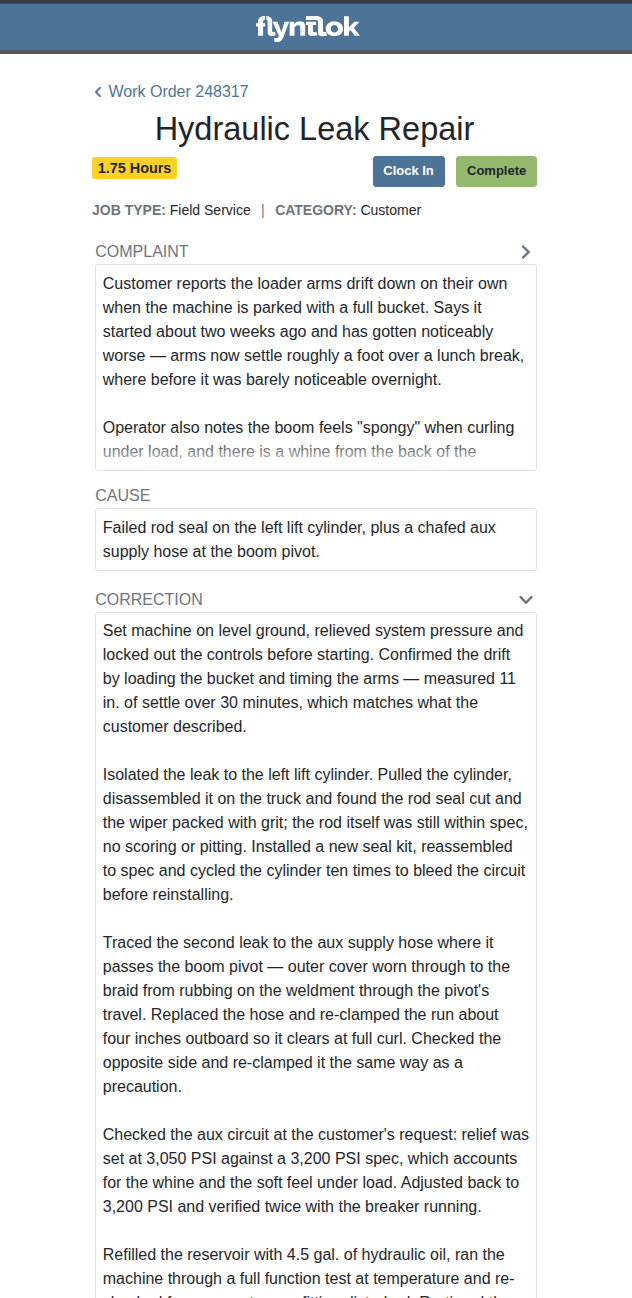
Users can now collapse and expand cause/complaint/correction Service Notes.
Why It Matters:
Allowing users to control the layout of the Service Notes will make it easier to navigate the page and increases support for more extensive Service Notes.
By Yasmine C.
What’s New!
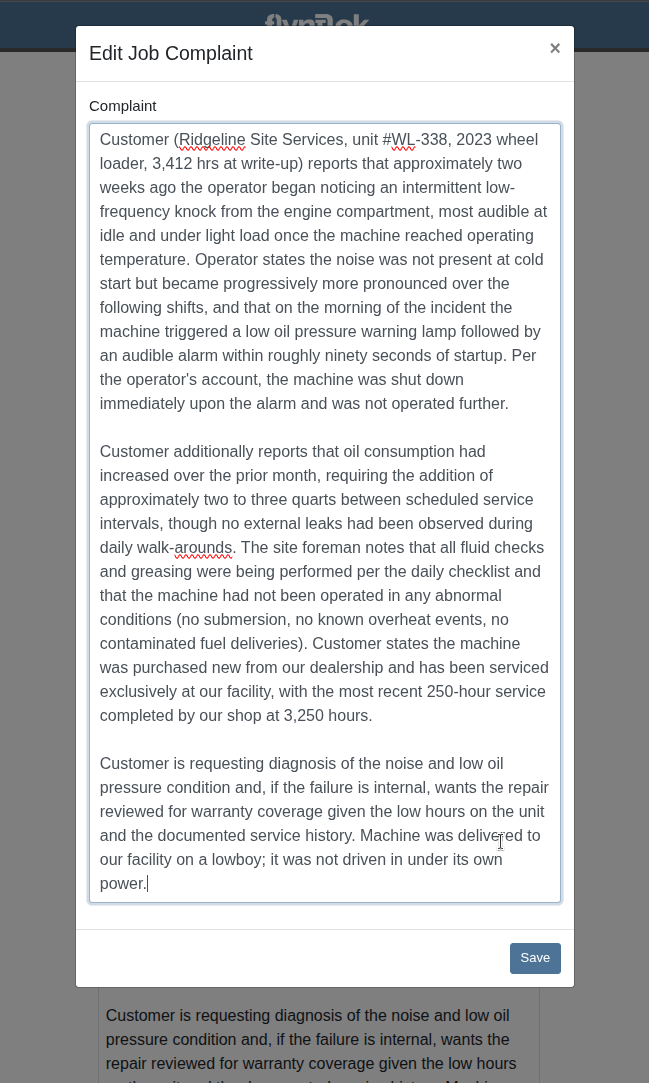
In the edit complaint, edit cause, and edit correction modals, the text is now bigger and the text input box expands to accommodate the note.
Why It Matters:
The text size makes service notes easier to read while editing and the expanded text box means that more of the note is accessible for editing, no scrolling necessary.
By Christian E.
What’s New!
Increased the number of results returned in both the leads and tasks list pages from 20 to 50 items.
Why It Matters:
Even with filters applied to either the leads or tasks lists, a specific item may not have been available in the list because the page size was not large enough. In that case the user would have to explicitly search for it or apply additional filters, slowing down the process.
By Brenden B.
What's New!
When a Receiving Voucher has already created a bill in Sage Intacct, Flyntlok now checks with Sage before letting that voucher be deleted or cancelled. If the bill is still there, the deletion is blocked and you'll see a message naming the exact bill number so you know what to remove in Sage first. This applies to both Machine Receiving Vouchers and Part Purchase Order Receiving Vouchers.
If the bill has already been removed on the Sage side, the check notices that and lets the deletion go through as normal — no extra step, no separate button to press. Vouchers that never sent anything to Sage delete exactly as they always have.
We've also improved the record of file uploads on Machine Receiving Vouchers, so uploading an attachment is now visible in the voucher's history alongside its other activity.
Why It Matters:
Accountants were ending up with bills in Sage Intacct that had no Receiving Voucher behind them in Flyntlok. Once a voucher was deleted, the bill it created stayed in Sage — and if the voucher was recreated and sent again, the result was a duplicate bill for the same vendor invoice. Cleaning that up meant hunting down orphaned bills in Sage by hand, with nothing in Flyntlok pointing to them.
Now the two systems stay in step. Sage remains the place where a bill gets removed, and Flyntlok simply refuses to let the voucher disappear from under it.
Note: This protection applies going forward. Vouchers deleted before this release may still have bills listed in Sage Intacct that need to be cleaned up manually.
Note: When Sage Intacct can't be reached, deletion is blocked rather than allowed, so nothing slips through while the connection is down. Trying again once Sage is reachable will work as expected.
By Brenden B.
What's New!
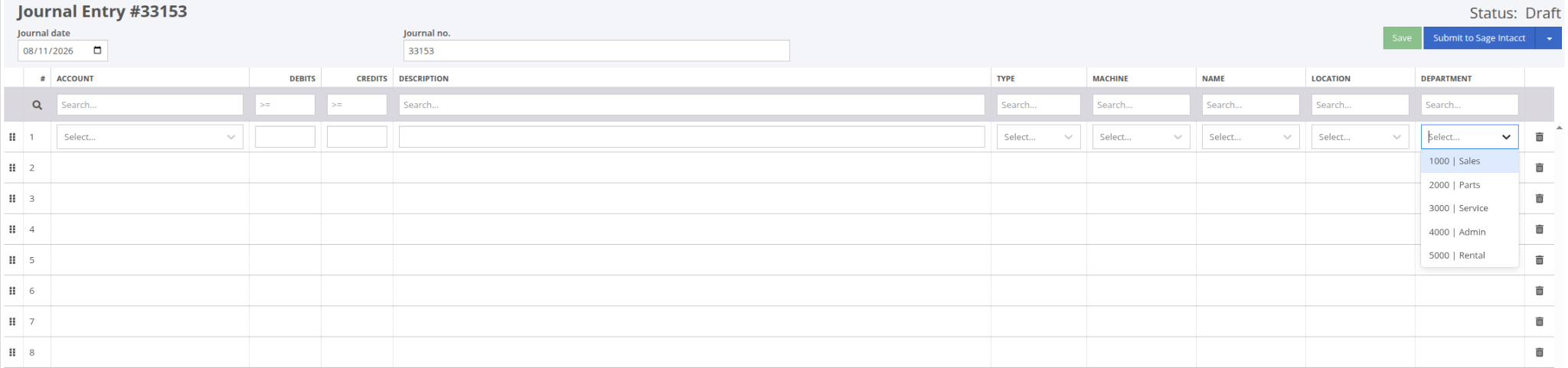
Journal Entries that post to Sage Intacct now have a Department column on every line. You can search for a Department by its ID or name right in the line, the same way you already pick an account or class, and the Department you choose is sent to Sage Intacct with the entry.
We've also added a per-dealership default Department. When one is configured, it fills in automatically as soon as you start entering content on a blank line, so a full entry only needs attention on the lines that belong somewhere else. The Department column is searchable from the filter row above the grid, so you can pull up every line assigned to a single Department while you're reviewing a large entry before posting.
Why It Matters:
Accountants posting Journal Entries to Sage Intacct had no way to tag a Department, so every entry landed in Sage with no Department attached. That meant Departmental reporting in Sage was incomplete for anything entered through Flyntlok, and the only fix was editing entries by hand in Sage after the fact. Now the Department is set once, on the line, and arrives in Sage correctly the first time — both for entries posted as journal entries and for those posted as bills.
Note: This applies to Journal Entries with Sage Intacct as the posting destination. Entries posted to QuickBooks are unchanged, since Department isn't used there. Journal Entries already posted to Sage are not updated retroactively. The default Department is configured per dealership — reach out to Flyntlok to have yours set.
By Brenden B.
Complaint: Accountants using Quickbooks Online reported that typing into the Class filter on the Journal Entry page cleared the grid entirely instead of narrowing it to matching lines, with rows only reappearing once the box was emptied.
Correction: Fixed. The Class filter now matches against the Class on each line, so typing narrows the grid as expected.
By Bobby S.
Complaint: When Avalara tax calculation was enabled, Shopify orders were imported with a draft status instead of processing to their expected status (pending, ship to, or pickup).
Correction: Shopify order import has been corrected so that orders process to their expected status as before, even when Avalara tax calculation is enabled.
By Ben C.
Complaint: Salespeople reported that Machines on the STIHL Bulk Registration page stayed selected after revisiting the page. The Select All checkbox at the top would show selections and the Bulk Register button would act on Machines chosen earlier, even when none of the row checkboxes on the left looked checked.
Correction: Fixed. Selections no longer carry over between visits, so the page always opens with nothing selected and the Select All checkbox and Bulk Register button agree with the row checkboxes.
By Calvin M.
Complaint: Receivers reported that Smart Receive was assigning an incorrect year to an invoice date when the date was presented “ambiguously” (e.g. 05/04/2026).
Correction: Fixed. Smart Receive now handles invoice ambiguous dates correctly, helping Receivers avoid incorrect transaction dates during Receiving Voucher processing.
By Nick V.
Complaint: Rental Clerks on hourly rental billing reported that creating an interim Invoice on a Rental Contract billed for more time than the Contract's billable duration. A one day rental would be billed as two days, requiring the duration to be adjusted by hand on every Invoice.
Correction: Fixed. Interim Invoices now use the Rental Contract's actual check-out and check-in times in the interim Invoice calculation, so the duration matches the Contract.
Note: This applies only to dealerships using hourly rental billing.
By Bomby K.
Complaint: Service Writers reported that parts added to a Work Order in "Awaiting Start" status through the Request Parts flow landed on a Quote instead of a Delivered Sales Order, so the parts didn't show as delivered until someone manually processed the quote.
Correction: Fixed. Parts added while a Work Order is in an in-process status, including "Awaiting Start", now correctly deliver to the Sales Order, matching how other in-process statuses already behaved.
By Bomby K.
Complaint: Salespeople reported that creating a new Model while quoting a Machine on a Sales Order failed with a technical error code that didn't say what was wrong, leaving no way to tell what needed to change.
Correction: Fixed. The Model name field now enforces its 45-character limit. This was applied to everywhere users are able to create a new Model.
By Bomby K.
Complaint: Service Managers noted that when using the Tech Notes voice recording feature, their Technicians were able to update the Complaint field, even though they had permissions set up to not allow this.
Correction: Fixed. Users without the proper permissions will no longer be able to apply the voice-based edits to their respective fields. Because the recording picks up the whole story regardless of who can enter it, showing all three suggestions means users can always read everything that was captured, while the restricted fields stay locked.