NEW!
Meet Flyntlok at Equip Expo 2026:
While your technicians are wrenching, your parts team is stocking, and your sales team is chasing deals, we're focused on making those jobs a little easier. This release is all about improving operational efficiency and removing friction from the daily workflows that keep dealerships connected and thriving.
It includes updates across Flyntlok’s major pillars, including Integrations, Sales/CRM, Mobile, Service, Parts, Rental, and Accounting/Finance, each designed to help your team work faster, avoid costly mistakes, eliminate manual processes, and spend less time managing workarounds.
Let’s look at what’s new as we head into Q3!
By Yasmine C.
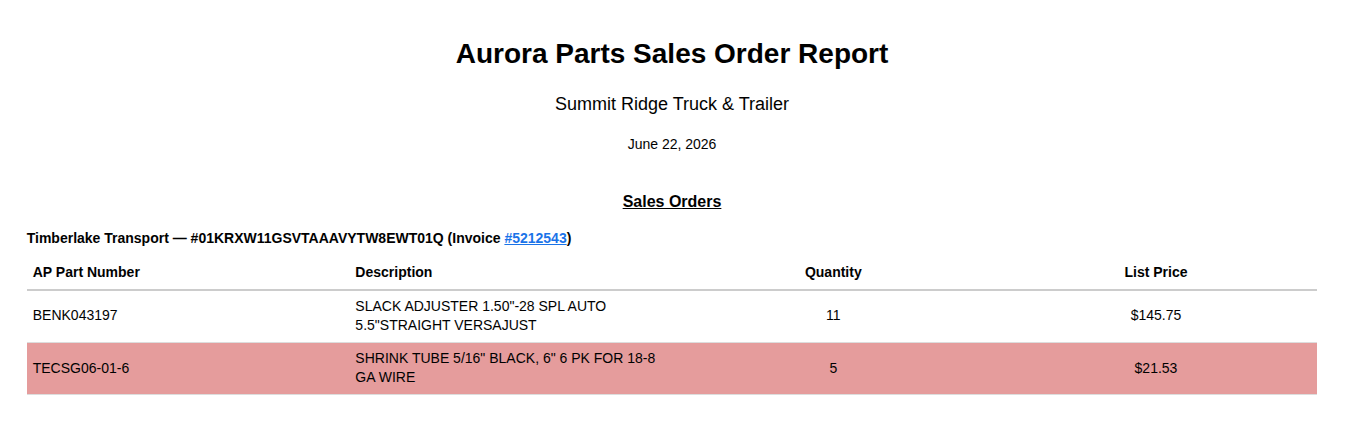
Flyntlok now integrates directly with the Aurora Parts marketplace, automatically importing sales orders into Flyntlok at regular intervals. Parts and accounting teams can now manage order fulfillment, parts processing, and final invoicing from a single system, eliminating the need for manual order transfers.
Dealerships selling through the Aurora Parts marketplace previously had to manage customer orders across two separate systems. This required teams to manually transfer sales orders from Aurora Parts into their dealer management system, slowing down parts processing and invoicing while introducing workflow inefficiencies and increasing the risk of data entry errors.
The new streamlined workflow helps dealerships take full advantage of the Aurora Parts marketplace while improving operational efficiency, such as:
By Yasmine C. and Ula L.
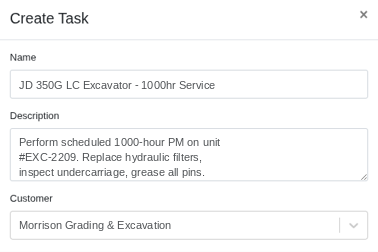
We added a customer lookup field to the CRM Task form, allowing users to associate, update, or remove the customer linked to a task at any time. The selected customer is now displayed in both the task list and task details views, with a direct link that opens the customer's dashboard in a new tab.
Sales representatives use CRM Tasks to track daily outreach and follow-up activities. While tasks created from a customer dashboard were automatically associated with that customer, users could not manually add, change, or remove a customer association after the task was created. This made it difficult to maintain accurate customer context for tasks created elsewhere in the CRM.
By Will P. [#83731]
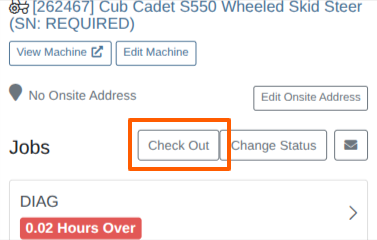
We've added a new "Check Out" button to Mobile Work Orders. This allows technicians using the mobile experience to complete the same checkout workflow available on desktop, including any status automations configured to run when a machine is checked out.
Service departments rely on accurate work order statuses to keep jobs moving through the shop. While the desktop work order view allowed users to check out a machine and automatically update the work order to a Completed status, this action was not available from the mobile work order view. This created extra steps for teams that were having to go back and forth to desktops or laptops to complete the check out step.
By Will P. [#83728]
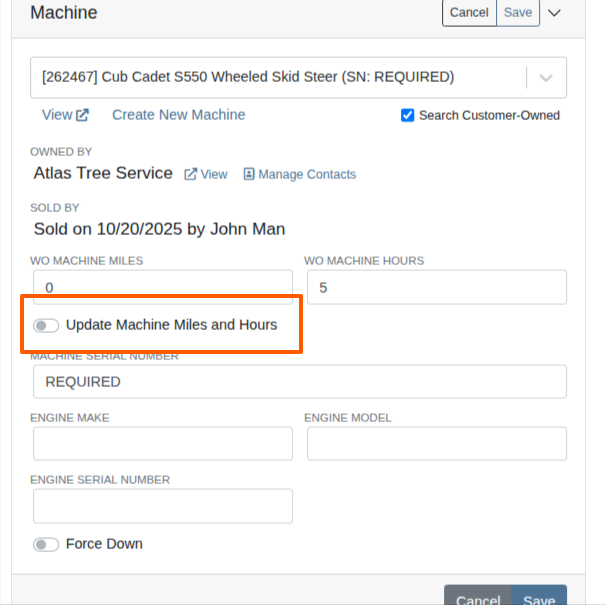
We added a checkbox below the Hours/Miles field in the Edit Machine form on the Work Order Dashboard. The checkbox is unchecked by default. When selected, updates made to the machine hours or miles on the work order will also update the machine record, keeping the machine dashboard and mobile view in sync when the user intentionally chooses to push the change.
Users could enter or edit machine hours and miles from the desktop work order view, but those changes did not update the machine record, mobile work order view, or machine dashboard. This behavior helped prevent users from unintentionally overwriting a more recent machine value, but it also made it difficult to intentionally push updated hours or miles back to the machine.
Users can now choose whether updates made on a work order should also update the machine's record to:
ICYMI: See our Service Module in action with Flyntlok Sr. Pre-Sales Consultant Alex Clementi, and learn more about the tools that find, retain, and keep customers coming back in the shop. Listen wherever you get your podcasts or here: https://www.flyntlok.com/events-webinars/flyntlok-unlocked-ep-3-growing-service-revenue.
By Alex E.
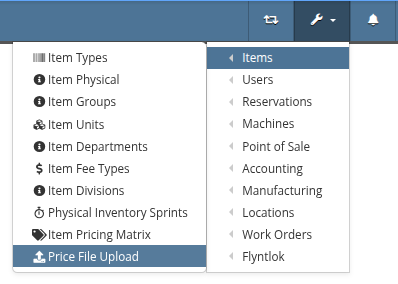
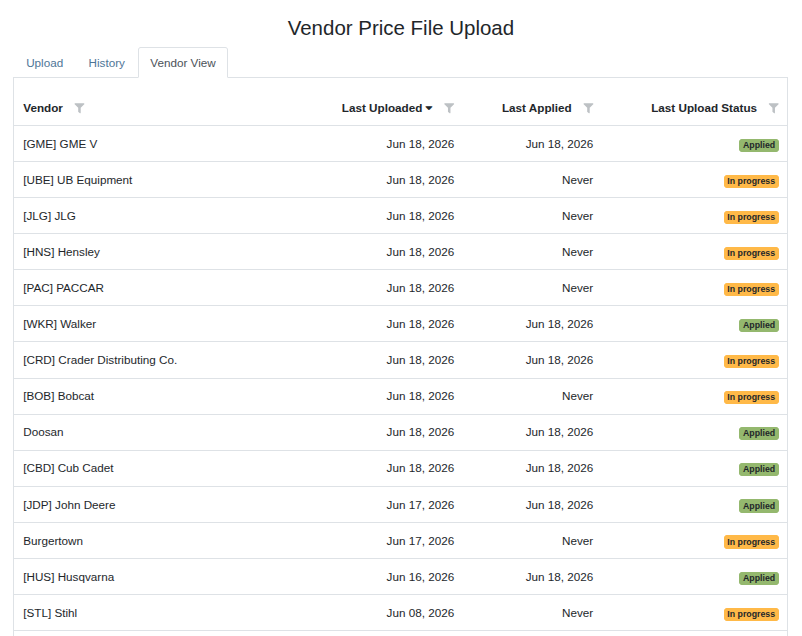
The Price File Upload Portal is now enabled for all admin users, and can be accessed by opening the wrench dropdown and finding the Price File Upload Button located under Items. We have added a new tab in the Upload Portal called “Vendor View,” which provides a convenient place to quickly see how fresh the pricing is for each of your vendors; and we also raised the max file size for uploaded Price Files from 10 MB to 250 MB.
Based on user feedback on the Price File Upload process, we implemented several changes to improve the experience and accommodate workflows, with the primary goal of adding more insight into the status of your inventory’s pricing. Additionally, we wanted to be able to handle Price Files of a much larger size to streamline the process even further to:
ICYMI: See “Smart Stocking” in action with Flyntlok Sr. Implementation Consultant Dean Frederick, and watch how smarter inventory decisions can have downstream impact on profitability. Listen wherever you get your podcasts or here: https://www.flyntlok.com/events-webinars/flyntlok-unlocked-ep-2-smart-stocking.
By Brenden B.
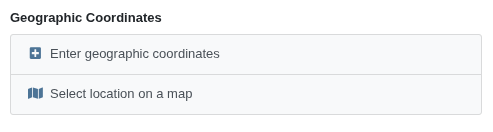
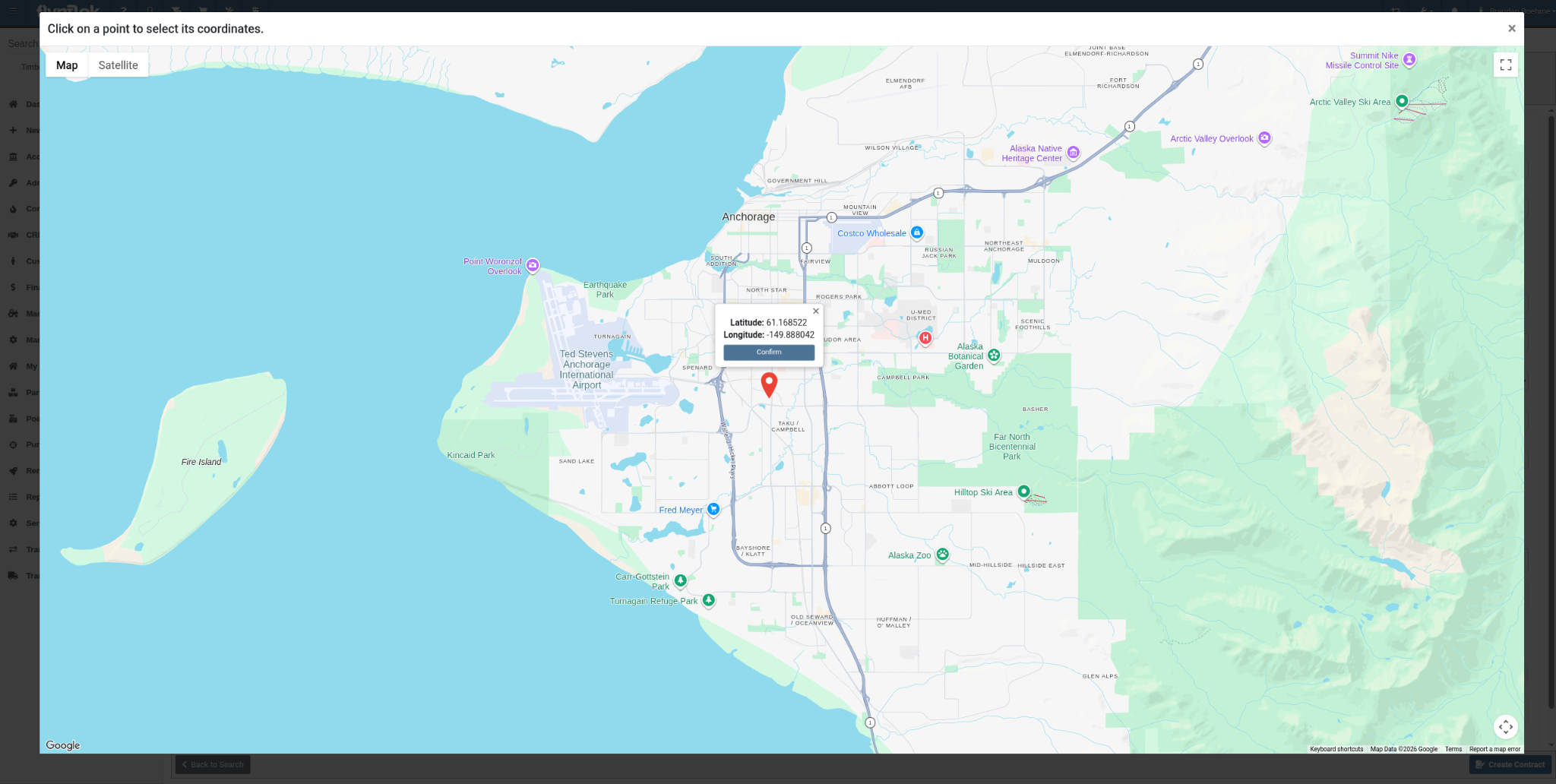
We’ve added another option to select coordinates within the Address dialog where the user can find the desired location and click it to quickly select and apply those coordinates.
Finding coordinates to submit manually when they are not readily available can be a confusing and time consuming task. Now users can:
By Brenden B. [#89260]
Shipping has been incorporated into the Out-the-Door Pricing calculation. Additionally, further improvements have been made to force mathematically challenging price distributions to meet the target Out-the-Door price. This automatically generates a discount line labeled “Courtesy Price Adjustment” that addresses the discrepancy from the target price.
The first iteration of Out-the-Door-Pricing did not include shipping calculations and could deviate from the desired price in certain cases. Now users can:
By Calvin M. [#85887]
By Calvin M. [#85201]
By Michael S. [#89143]
By Dean F. [#84361]
By Michael S. [#88933]
By Michael S. [#88861]
By Bomby K. [#88299]
By Bomby K. [#87416]
By Bomby K. [#87436]
By Nick V. [#88637]
By Nick V. [#85385]
By Nick V. [#88849]
By Alex E. [#84665]
By Bobby S.






