



Lorem ipsum dolor sit amet, consectetur adipiscing elit. Suspendisse varius enim in eros elementum tristique. Duis cursus, mi quis viverra ornare, eros dolor interdum nulla, ut commodo diam libero vitae erat. Aenean faucibus nibh et justo cursus id rutrum lorem imperdiet. Nunc ut sem vitae risus tristique posuere.
Strategic Sourcing
The Strategic Sourcing page is a bulk editor for managing purchasing and provides edit features to item purchasing metrics, and other purchasing details. Users can access this page from the left nav bar, by going to Parts ->Strategic Sourcing. This page includes a large table with many customizable classifications such as Item number, Make, Description, Minimum Order, Reorder Point, Metric Overide, Metric Expiration Date, Metric Type, QOH, and more. This table is specific to a single vendor and location.[Add pictures/videos]
Choosing a Vendor and Location
Users can choose a vendor and location by
- Using the dropdown menus at the top of the page
- Then click the Submit button
- After submitting, the page will refresh with the inquired report
[Add pictures/videos]
Accessing the Item Dashboard from the Strategic Sourcing page
Users can access the Item Dashboard from the Strategic Sourcing page by clicking on the hyperlinked item numbers in the Item column furthest left.[Add pictures/videos]Setting the Reorder PointThe Reorder Point is a changeable value that prevents the creation of recommended quantities until the quantity on hand reaches the reorder point level. [Add pictures/videos]
Setting the Metric Override
The Metric Override constraints recommended quantities from generating until the quantity on hand reaches the Metric Override level. No purchase order will be recommended until the QOH surpasses the Metric Override value. Users can set the Metric Override by manually typing the number for an individual item line in the Metric Override column.[Add pictures/videos]
Setting the Metric Expiration Date
Users can set a Metric Expiration Date for any individual item by manually typing the date for individual items in the Metric Expiration Date column. This feature terminates the Metric Override upon the expiration date. To set up a notification once the expiration date is fast approaching, do ??[Add pictures/videos]
Setting the Metric Type
The Metric Type effects how the Metric Override constraints recommended quantities from generating. To change to a different Metric Type, use the dropdown menus in individual item cells under the Metric Type column. The three different Metric Types are:Max.:
- The Max. Metric Type acts as a constraint that prevents Recommended Ordered Quantities from letting the QOH spike higher than the maximum metric value
- The Max. Metric Type overrides the recommended quantity to supply the days inventory target when the additional quantities in the suggested order cause the QOH to go over the maximum metric value
Exact:
- The Exact Metric Type decides Recommended Ordered Quantities so that the QOH never differentiates from the exact metric value, regardless of the Days Inventory Target
- The Exact Metric Type is the default Metric Type
Min.:
- The Min. Metric Type acts as a constraint that prevents Recommended Ordered Quantities from letting the QOH dip lower than the minimum metric value
- The Min. Metric Type overrides the recommended quantity to supply the days inventory target when the suggested order would keep the QOH below the minimum metric value
Packaging Quantities: (Do they, and how do they affect metrics??)[Add pictures/videos]
Other Classifications
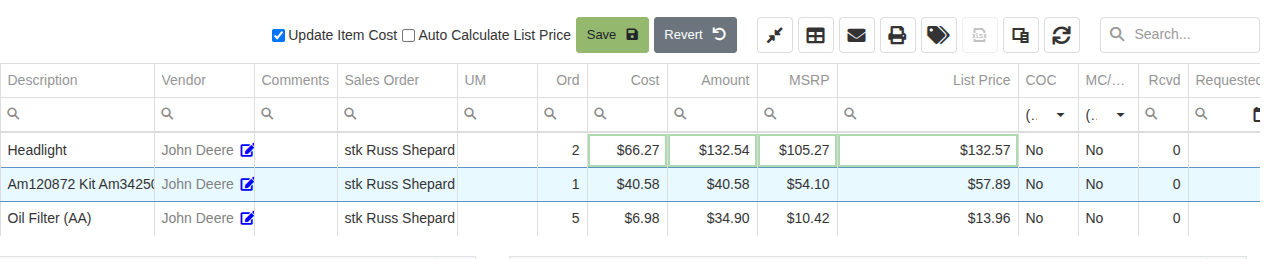
The Strategic Sourcing page includes many other classifications that are useful for managing purchasing. Along with basic item information such as Item ID, cost, base units, unit by number, and more, the Strategic Sourcing page includes quantities sold in previous time frames such as:
- Sold 90: The quantity sold in the last 90 days
- Sold 90 PY: The quantity sold in the previous 90 days in the previous year (PY)
- Gives purchasers an idea of the items sold in the previous 90 days
- Sold 365: The quantity sold in the last 365 days
- Sold 365i: The number of invoices that sold that item in the last 365 days
The Column Chooser, which is accessible by clicking [picture of button], also provides other previous time frames such as:
- Sold 90i: The number of invoices that sold that item in the last 90 days
- Sold 90PYI: The number of invoices that sold that item in last 90 days of the previous year
- 2y Sale: ??
- 3y Sale: ??
[Add pictures/videos]
How to export Strategic Sourcing tables to Excel
Users can export Strategic Sourcing tables to Excel by clicking on either of the Export buttons [picture of buttons]. These two options download Strategic Sourcing reports though displayed differently, titled either DataView-[ID Number] or Strategic Sourcing Export. The DataView report displays all columns, including ones still listed in the Column Chooser where as the Strategic Sourcing report only displays columns shown on the current table, and selected rows if the Export selected rows feature was used.[Add pictures/videos]
.svg)
.svg)
.svg)


