



Lorem ipsum dolor sit amet, consectetur adipiscing elit. Suspendisse varius enim in eros elementum tristique. Duis cursus, mi quis viverra ornare, eros dolor interdum nulla, ut commodo diam libero vitae erat. Aenean faucibus nibh et justo cursus id rutrum lorem imperdiet. Nunc ut sem vitae risus tristique posuere.
Recommended Orders
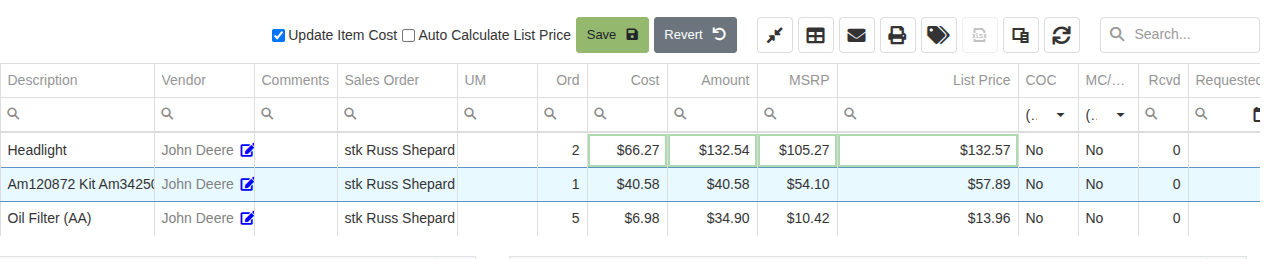
Users can view Recommended Orders for a specific location by going to Parts ->Recommended Orders, on their left nav bar. Recommended Orders include a suggested order table with a similar display as the Purchase Plans table.
- This table also includes items sold in previous time frames such as the last 90 days, 180 days, 365 days, and 90 days the previous year
[Add pictures/videos]
How Recommended Quantities are Calculated
Recommended Quantities, which appear on the Recommended Orders page, as well as in its own column on the Create New Purchase Order page [link to article that explains page] (anywhere else??), are calculated by:
- Subtracting the quantity on hand from the quantity sold in the previous Days Inventory
- The Days Inventory is the target stocking days of inventory
- The Days Inventory default is 100 days, though can be changed for all inventory at your company by:
- Clicking the Wrench -> Flyntlok -> Flyntlok Details to open Flyntlok Settings
- In Flyntlok Settings, scroll to Days Inventory, change number of days, then click Save Changes at the bottom of the page
- The default can also be changed for a per vendor basis on the vendor dashboard
- Once on the vendor dashboard, click Edit in the Actions tab
- On the Edit page, manually enter the desired target stocking days of inventory where it says Days Inventory Target
- If the Days Inventory Target is anything but 100, than this value has been previously changed
- Lastly, click Save Changes at the bottom of the dashboard
- If the specific item has a metric override, the recommended quantity will be corrected to whatever the metric override is, unless otherwise constrained by the reorder point, max, or min
- Look at the Strategic Sourcing page [hyperlink to page] for further information on the metric override (including the reorder point, max., exact, and min.)
- Default example: If the Quantity on Hand for a specific item changed from 14 to 8, because you sold 6, and the quantity sold in the last 100 days is 12, then the Recommended Order Quantity will be 4 so that there will be enough inventory to meet the projected demand in the next 100 days
- An item will have a Recommended Quantity of zero if the Quantity on Hand is greater than or equal to the Days Inventory or to the Metric Override
[Add pictures/videos]
How to Select Recommended Items for Purchasing
Users can select items from this table to create Purchase Orders by clicking the check boxes on the left side of specific item lines. After selecting all necessary items, click confirm and reaffirm the notification. Following this, the page will automatically refresh.Once confirmed, the newly created Purchase Order can be located by searching through the Company and Location Open Purchase Orders tables.[Add pictures/videos]
How to Export the Suggested Order Table to Excel
Users can export the Suggested Order table to Excel by clicking on the Export button [picture of button]. Choose either Export all data, which exports all filtered data, or Export selected rows, which exports only the rows selected on the left column. Exporting automatically downloads as an Excel file, and will include all classifications on the Part Purchases page.[Add pictures/videos]
How to Customize the Suggested Order Columns
Users can customize Suggested Order Columns by clicking on the Column Chooser button [picture of button]. After clicking, the Column Chooser tab pops-up. Users can drag classifications between the column chooser tab and the table to reorder and decide which columns are displayed and the order they are displayed in. [Add pictures/videos]
.svg)
.svg)
.svg)


