



Lorem ipsum dolor sit amet, consectetur adipiscing elit. Suspendisse varius enim in eros elementum tristique. Duis cursus, mi quis viverra ornare, eros dolor interdum nulla, ut commodo diam libero vitae erat. Aenean faucibus nibh et justo cursus id rutrum lorem imperdiet. Nunc ut sem vitae risus tristique posuere.
Part Purchases: To Be Ordered - Multi-Vendor Page
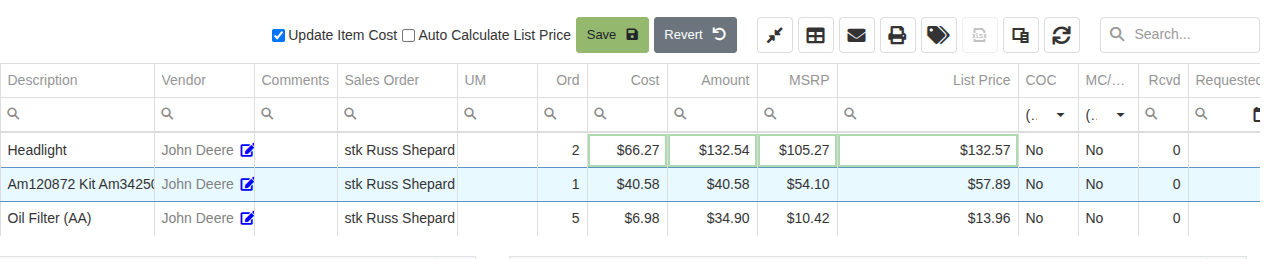
The To Be Ordered - Multi Vendor Page includes a chart that organizes Purchase Order Requests for multiple vendors with filterable columns. On the default layout, important columns include type, location, vendor, item, quantity, costs, salesperson, and more. The table’s selector and merge column is to the left. Users can create and save customizable layouts as well as choose shipping type, confirm and delete purchase requests, export table, and change chosen columns. [Add pictures/videos]
How to select bulk or specific Part Purchase Orders
The Multi Vendor Purchasing table allows creation of orders with multiple vendors. Selecting items with different vendors will combine all orders into a single purchase order of multiple vendors. When on the To Be Ordered - Multi page, users can select as many items, regardless if they are of different vendors, when creating purchase orders.
- This allows for easy ordering to distributors instead of ordering from a specific vendor
- To purchase items from one specific vendor, use the To Be Ordered - Single Vendor page
How to Filter or Search in different columns
To view a specific purchase plan, use the search tool to filter for either the SO Reference # (if created in the Point of Sale), or Item #. To view purchase plans made to multiple vendors:
- Filter by clicking on the Vendor’s filter icon
- Select the desired vendor
- And then select OK
The searches will filter for a manageable list of Part Purchase Requests ready to be all selected at once and then bulk ordered. The creator and salesperson are also a filterable classification allowing users to see which order requests they, or another user created.[Add pictures/videos]
Item, superseded Column
Users can access the item dashboard by clicking the item numbers listed in the item column. The item column includes item information such as if the item is Superseded, as well as if it is a stock order, or has a Core. [picture of icons]
- Core: A core is an item that has collateral payment, and expectation that is eventually returned dirty and renewed with a clean core.
- Superseded: A superseded item is an item that has been replaced with another updated item
[Add pictures/videos]
Reference Column
Depending on if the Purchase Plan was created using the Point of Sale or the Item Dashboard, the reference line will include links to those the Purchase Plan references. Click the cell’s line to go to the plan’s sale order or item dashboard. There will be a red icon [picutre of icon] in the cell symbolizing that the Sale Order has been deleted.The Notes column includes linked Work Orders (WO) to any Part Purchase requests that are affiliated with WOs, and the comments section includes merged information for any merged requests.[Add pictures/videos]
How to select bulk or specific Part Purchase Orders
The selecting column, located furthest left, allows users to select a specific Part Purchase Order, or select Bulk Part Purchase Orders. To select a specific Part Purchase Order, select the individual box in the selecting column and desired cell. [Add pictures/videos]
How to confirm or delete Part Purchase Orders
Users can confirm or delete a specific Part Purchase Order by first, selecting the desired Purchase Order. Then, clicking the confirm button in the top right of the page. After clicking, a notification pops up asking confirmation. Click Yes, do it! and a second notification confirms the decision. The page automatically redirects to the new Purchase Order that includes all previously selected items. To delete, click the Delete button on the Part Purchasespage and confirm by clicking delete again on the notification. Once clicked, a confirmation will appear confirming the PO Request no longer exists including on the Part Purchasespage.[Add pictures/videos]
How to export the Part Purchase Order table to Excel
Users can export the Part Purchase Order table to Excel by clicking on the Export button [picture of button]. Choose either Export all data, which exports all filtered data, or Export selected rows, which exports only the rows selected on the left column. Exporting automatically downloads as an Excel file, and will include all classifications on the Part Purchases page.[Add pictures/videos]
How to customize the Part Purchase Order Columns
Users can customize Part Purchase Order Columns by clicking on the Column Chooser button [picture of button]. After clicking, the Column Chooser tab pops-up. Users can drag classifications between the column chooser tab and the table to reorder and decide which columns are displayed and the order they are displayed in. [Add pictures/videos]
How to change Shipping Type
Users can change the shipping type of the purchase order by clicking the shipping type tab down menu to choose. The shipping type can be changed when editing the Purchase Order on the next page. [Add pictures/videos]
.svg)
.svg)
.svg)


