



Lorem ipsum dolor sit amet, consectetur adipiscing elit. Suspendisse varius enim in eros elementum tristique. Duis cursus, mi quis viverra ornare, eros dolor interdum nulla, ut commodo diam libero vitae erat. Aenean faucibus nibh et justo cursus id rutrum lorem imperdiet. Nunc ut sem vitae risus tristique posuere.
If you create a blank slate MPO, you will need to search through the models to choose which ones you would like to add to the purchase order. This can be done with the selector that is located just below the MPO Header.

Note: We allow for models from different vendors to be added to the same MPO.
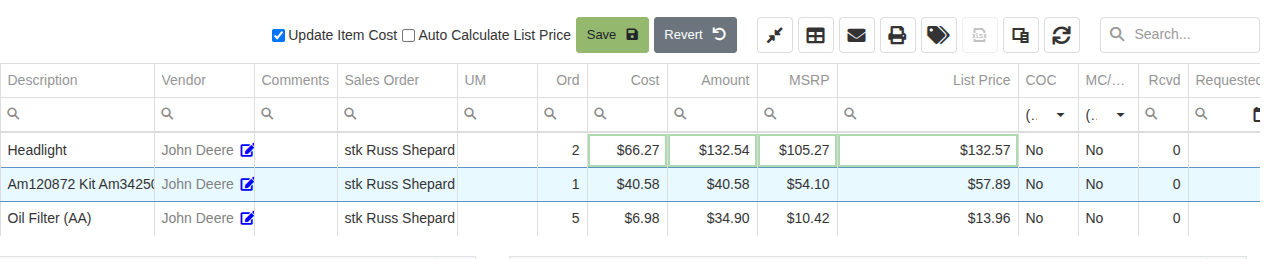
When machines get added, there are a few things to take note of on those detail lines.

- Qty: You can adjust the number of the type of model to be ordered.
- Unit Price: The unit price will default to the cost set for that model.
- Discount: You can assign a percentage discount that will be taken from the unit price.
- Gear Icon: Clicking this icon will bring you to the purchase order line editor.
- Pencil Icon: This brings you to the model options editor where you have the ability to add, edit, and delete model options.
When you click on the gear icon, this is the pop-up you will see when the machines have been ordered.

- Model: Here you will see the model of the machine that is ordered along with the description, cost, and list price that are associated with the model in Flyntlok.
- Purchase Reason: You can specify whether the machine is being purchased for stock or for a customer.
- Machines: This will show the machine that has been ordered and give a link to the machine that has been created in the system (Machines don't get created in Flyntlok until after the MPO has been put into an ordered status). If there is more than 1 quantity of the model being purchased, we will list out all the machines that are getting created.
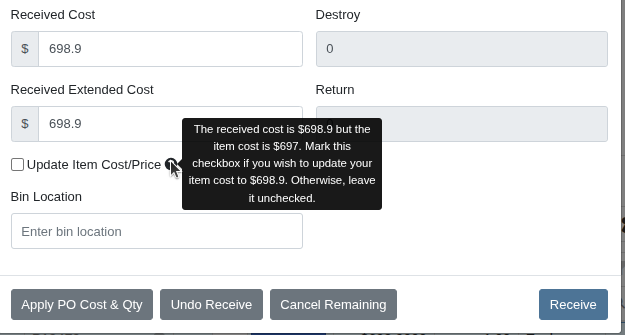
To receive a machine, you will have to navigate to the gear icon and select the green Recieve button.

On the same pop-up box from the gear icon, you can delete the machines off of the MPO.

Note: Deleting a model line off of an MPO when they have already been ordered will not delete the created machines in Flyntlok. You will need to find those machines and delete them from the machine dashboard.
.svg)
.svg)
.svg)


