



Lorem ipsum dolor sit amet, consectetur adipiscing elit. Suspendisse varius enim in eros elementum tristique. Duis cursus, mi quis viverra ornare, eros dolor interdum nulla, ut commodo diam libero vitae erat. Aenean faucibus nibh et justo cursus id rutrum lorem imperdiet. Nunc ut sem vitae risus tristique posuere.
Creating a New Purchase Order from the Vendor Dashboard
Creating New Purchase Orders from Vendor Dashboards allows for large bulk orders for one vendor to be created. This way offers an organized list of items per vendor so that users can easily select which items to order specific to a single vendor.

Accessing Vendor Dashboard
Users can access the vendor dashboard from the left nav and go to:
- Parts or Purchasing -> Vendors
- After clicking Vendors, the page will redirect to a list of all company Vendors
- Then click where it says dashboard for the desired vendor
- Once clicked, the page will redirect to the Vendor Dashboard
The Vendor Dashboard is also accessible through hyperlinks [picture of hyperlink example] throughout the ordering process most often when the vendor’s name and number are displayed.

Vendor Dashboard
The Vendor Dashboard display is organized to allow all necessary information look-up and actions easily accessible. This dashboard heads with the vendor name and number, followed by basic vendor information. Other grids include the most recent purchase orders, most popular items, part purchase statuses, shipping information, and more. For more Vendor Dashboard information, go to [link to Vendor Dashboard Article].Users can create a new purchase order here by:
- Going to the Vendor Dashboard actions bar on the right side of the page
- Then, click Create Item Order
- After clicking, a pop-up menu will prompt a receiving location as well as a filter type before clicking Select Items
- After clicking, the page will redirect to the Create New Purchase Order page.


Create New Purchase Order page
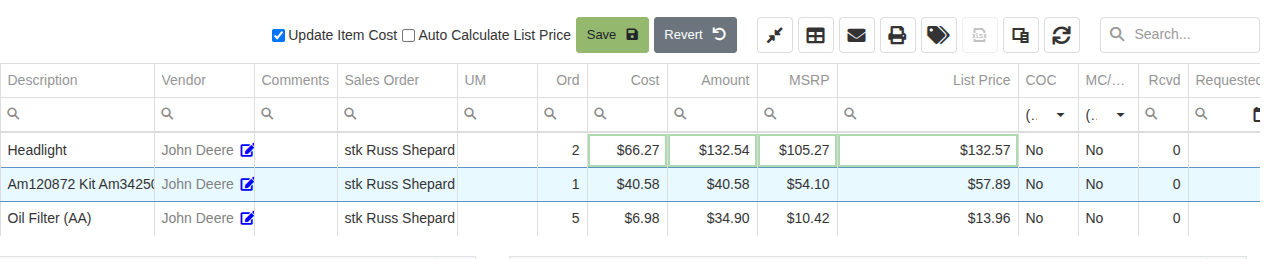
The Create New Purchase Order page allows users to organize their order for a specific vendor before finalizing it on the Purchase Order page. This page includes a filterable table with item numbers, descriptions, quantities on hand, quantities ordered, costs, totals, previously sold, and more.

This table also includes an expansion feature, in the far-left column, where a pop-down display shows the item’s data sales, inventory, and order history summaries. This display includes location and duration options, as well as graph and table options. The Create New Purchase Order main page includes all necessary purchase features such as using recommended quantities, downloading into Excel, creating purchase plans, and a powerful search bar. To download Excel data:
- Click the

To use recommended quantity:
- Click the Use Recommended Quantity button and confirm the notification
- The page automatically reloads though the Order Quantities are changed to their recommended amounts
- Users can also use the recommended quantity for a specific item by clicking the up-arrow icon [picture of icon] in the order quantity column

To access the Item Dashboard from the Create New Purchase Order page, click the hyperlink item numbers in the left column of the table. To Change Order Quantity, type quantity numbers into the Order Quantity column of the table. To Create a Purchase Order:
- Select a shipping type at the top of the page
- Then, click the neighboring Create button
- Confirm the notification, and the page will redirect to the new Purchase Order that uses all previously entered quantities
To Create a Purchase Order plan:
- Select a shipping type at the top of the page
- Then, click the neighboring Create Plans button
- Verify the notification, and a second notification will confirm that plans have been created
- After clicking Mark Completed, the page will redirect to the Part Purchases table that will include the previously entered quantities as purchase plans
- To locate newly created purchase plans, filter for most recently created plans by using the Date Requested column

.svg)
.svg)
.svg)


