


Lorem ipsum dolor sit amet, consectetur adipiscing elit. Suspendisse varius enim in eros elementum tristique. Duis cursus, mi quis viverra ornare, eros dolor interdum nulla, ut commodo diam libero vitae erat. Aenean faucibus nibh et justo cursus id rutrum lorem imperdiet. Nunc ut sem vitae risus tristique posuere.
Smart Receive Guide
Smart Receive is Flyntlok's AI-enhanced receiving tool built to streamline your parts receiving process. By uploading a vendor invoice, Smart Receive automatically extracts key data, flags discrepancies, and applies costs — so you spend less time keying in data and more time focusing on what matters.
What You Can Do with Smart Receive
Feature
Description
Invoice Data Extraction
Automatically apply invoice number, invoice date, and due date from your uploaded invoice
Cost Alignment
Set received costs to match what is analyzed from the invoice
Discrepancy Identification
Identify cost and quantity discrepancies between your purchase order and the vendor invoice
Fee Detection
Add freight and tax fees with accurate costing pulled directly from the invoice
Invoice Stamping
Uploaded invoice attachments are stamped with the invoice total for easy reference
Inventory Receiving
Optionally receive parts into inventory based on invoiced quantities
Part 1: Getting Started
Accessing Smart Receive
Smart Receive is available from within a Purchase Order. Once you have a Purchase Order past “Draft” status with a vendor invoice ready to upload, you can use Smart Receive.
To use Smart Receive:
- Navigate to your Purchase Order
- Click Smart Receive

Part 2: Smart Receiving
Step 1 — Choose Your Workflow
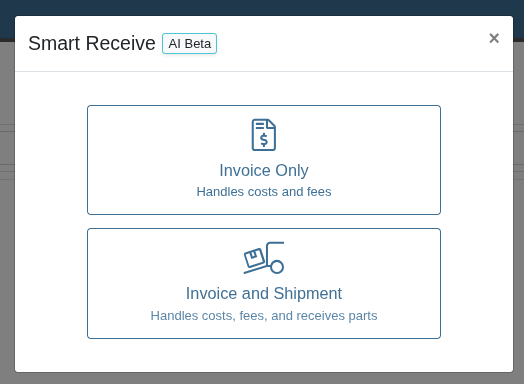
When you open Smart Receive, you will be prompted to select how you want to proceed. You can choose to apply costs only, or to also receive parts into inventory at the same time.
Workflow
What It Does
Invoice Only
Sets costs on the Receiving Voucher without receiving parts into inventory
Invoice and Shipment
Sets costs and receives parts into inventory from the Receiving Voucher in a single step
Step 2 — Upload Your Invoice
Upload your vendor invoice to begin the Smart Receive process. Supported formats are PDF and common image types.
To upload your invoice, click Select File or drag and drop your file into the upload area
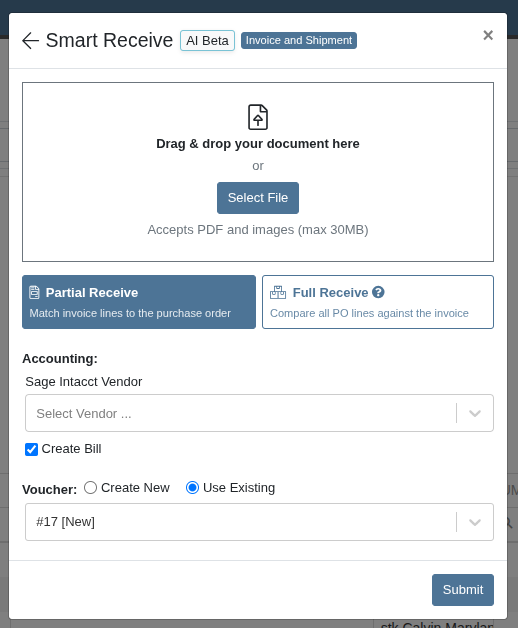
If you use Sage as your accounting solution, you can submit the invoice you’re uploading to Sage by checking the Create Bill button and selecting the appropriate account.
If you have an existing Receiving Voucher that you want to Smart Receive against, you can select the Use Existing button in the Voucher section then choose the receiving voucher you want to use. Note: Received quantities will not be changed when Smart Receiving against an existing Receiving Voucher.
What Smart Receive Does After Upload
Once your invoice is uploaded, Smart Receive analyzes the document and presents the results for your review. Here is what gets extracted and applied:
- Invoice Number, Date, and Due Date — pulled from the invoice header and applied to the Receiving Voucher
- Item Costs — matched to your purchase order lines; discrepancies are identified and mentioned in the generated summary
- Freight and Tax Fees — detected and applied as separate fee lines
- Invoice Total — the uploaded attachment is stamped with the recognized invoice total, setting the “Attached Values” in the Receiving Voucher total section
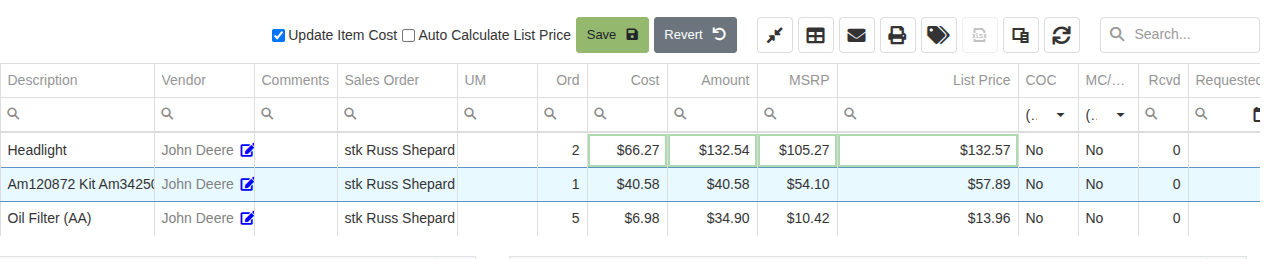
The findings from Smart Receive as well as the actions that were taken will be presented in a summary on the created Receiving Voucher.
Review any flagged discrepancies, make adjustments as needed, and then close the Receiving Voucher when ready.
⚠️ Always review the extracted results before confirming. Smart Receive surfaces discrepancies for your review, but final approval is yours.
We appreciate (and need) your feedback:
Thumbs up and down buttons will be presented on the generated summary of any Receiving Voucher created with Smart Receive. If you found issues with the Smart Receive, click the thumbs down button to indicate that (consider leaving a note on the voucher for a Flyntlok employee to review). On the other hand, if you found the Smart Receive was helpful you can let us know by leaving a thumbs up.
Part 3: Vendor Training
We have been preparing for our beta release by combining a number of technologies to support the variety of vendors’ invoices streaming across Flyntlok in order to accurately capture the right data via Smart Receive. The table below indicates the type of preparation (i.e. “training”) completed for each vendor. Any vendors not listed will be routed through our Tier III Generic Model. We are continuing to upgrade the technology Smart Receives relies on to scan invoices to become more vendor agnostic over time.
Tier I (Dedicated Models)
Tier II (Composed Model)
AA Welding
Bell Trucks America Inc
AGCO
Clarke Powered Solutions (Perkins distributor)
Astec
Cummins
Bandit
Cutting Systems Inc.
Bobcat
Engine Distributors Inc. (Deutz distributor)
Curbtender
FAE Usa Inc.
Develon
Hamilton Power Solutions (Scania, Deutz, and Isuzu distributor)
Enz
Husqvarna
Epiroc
JLG
EZGO
Kioti
Hitachi
Kobelco Construction Machinery USA Inc.
John Deere (2 document types)
Lawson
Kawasaki
Liebherr
LiuGong
Mack Boring & Parts Co.
LS Tractor
Ponsse North America Inc.
Mack Trucks
Skyjack
Manitou
Stauffer Diesel Inc. / Stadco (Deutz distributor)
Medart Engine
Superior Diesel / Bell Power Systems
Midway Ford
Terex Corporation
Moridge Manufacturing (Grasshopper)
Wacker Neuson America Corporation
NAPA
O’Reilly
PACCAR
Perkins
Power Distributors
Rapidview
Rotary
SANY
Schwarze
Stanley Black & Decker
STIHL NW
Tompkins
Toro
Volvo
Walker
YANMAR
.svg)
.svg)
.svg)


