Our Dearest Flyntlok Customers! We want to thank you all for another great year, and we wish you all the best as we head into the holiday season, and we hope you all have a very happy and successful 2026.
Holiday Hours: Flyntlok offices will be closed Dec 24-26 and Jan 1. We will respond to your tickets as soon as we can upon our return.

We will be executing a major back-end update that will make Flyntlok unavailable for about 24 hours. We will start this update at 5pm AK time on Christmas Eve, Dec 24. The system will be unavailable on December 25 and we should have it back online on the morning of December 26. We will send out an alert email prior to taking the system offline. Please plan accordingly! Any concerns? Please email us at consulting@flyntlok.com
As mentioned previously, the majority of our year-end efforts are focusing on AI features and taking on numerous system performance improvements.
We aren't going to break out in detail all the performance projects in the release notes, but just so you know what our team is working on:
Our gift to you this holiday season is hopefully a faster and more stable Flyntlok!
Opportunity
Purchasing teams shared that updating Purchase Orders took too many steps and required switching to a separate “Edit” page. This slowed down quick adjustments and made simple changes more tedious than they needed to be.
Solution
We’ve upgraded the Purchase Order page to a more modern, streamlined interface. Instead of opening a separate editor, users can now click directly on the values they want to change. Editing is faster, more intuitive, and stays on a single page.
Improvements:
Choosing a vendor now saves automatically, removing extra clicks and speeding up the workflow.

Users can now edit PO details directly on the main page. Clicking any field opens it for editing.

Line items are now editable directly in the table, making updates significantly faster. Editable fields include:

System permissions are fully enforced on the updated page. Users without PO edit access will see fields disabled and cannot modify vendor details, PO details, or lines.
Opportunity
Parts Department users needed a clear way to see which items required serial numbers before fulfillment, especially when pulling from printed sales orders and pick lists away from a computer. Without this, they often discovered serial requirements only at the fulfillment step, causing rework and repacking.
Solution
Serialized Parts now have a clear visual indicator wherever users work the order: on the Sales Order, the Sales Order PDF, and the Pick List PDF. This makes it obvious which lines require serial numbers to be captured while parts are being pulled, reducing wasted time and avoiding surprises at fulfillment.
Opportunity
The Machine Management report summarizes a machine’s financial information, but was lacking some liability information that is displayed on the Machine Dashboard, such as interest and curtailments. We also found that some financial information from attachments on the machine wasn’t being reflected on the Machine Management report as expected.
Solution
We’ve updated the Machine Management report to show interest and curtailments that are found in the liability section of the Balance Sheet on the Machine Dashboard. We also properly reflect the financial information of attachments on the parent machine’s Machine Management report.
Opportunity
For every machine, there is a Machine Dashboard with a “Configuration Description” section which provides the IDs and links to the machine’s attachments or the machine that it is attached to. This section is not included in the mobile version of the Machine Dashboard. If a user needs information about a machine’s configuration while working on a mobile device, they would have to navigate to the desktop version of the app which is less compatible with their device.
Solution
The configuration description of a machine is now available on the mobile Machine Dashboard. The attachments include links to the mobile Machine Dashboards for the attached machines, which makes it easier for users to access all the machine information they need, regardless of how they access it.

Opportunity
Users wanted to include emojis in their campaign messages, but the system rejected those messages and prevented them from being created. This made it impossible to send more expressive or branded campaign content.
Solution
Emoji support has been enabled for campaign messages. Users can now create and send campaigns that include emojis without encountering errors.

Opportunity
Users shared that it is difficult to differentiate between customers with the same name without associated phone numbers when filling out a work order. In this case, the only other available identifying information is the first line of the customer’s address which is not sufficiently meaningful to the user.
Solution
We added a popup box with the full address that appears when a user hovers over the shortened address in the customer option. The full address provides more information about the customer, including both the city and state/province, which will be helpful in determining which customer option is the right one.

Opportunity
Rental Managers need individual machine serial numbers to appear on rental invoices so they could more easily support audits and verify exactly which units and attachments were billed on each transaction.
Solution
Rental Invoices now display the serial numbers of the machines and attachments on the related line items, matching what is already shown on the rental contracts. This ensures clear traceability between rented equipment and the invoiced charges during audits and reviews.
Opportunity
Teams wanted more flexibility to automate external workflows when a Sales Order is processed, such as notifying other systems, updating records, or triggering follow-up actions. Previously, these steps often required manual effort or custom integrations.
Solution
We’ve added a new Zapier trigger that fires when a Sales Order is processed. This allows you to connect Flyntlok with any Zapier-supported app and configure custom actions that run automatically when your sales team completes an order.

Complaint: Requesting a move from a mobile device redirected users to the desktop version, disrupting the workflow.
Correction: Fixed.
Complaint: Creating a Machine Purchase Order from a Machine Purchase Request did not set the Vendor’s terms on the Machine Purchase Order.
Correction: Fixed.
Complaint: Generating the Physical Inventory Variance journal entry for certain sprints failed.
Correction: Fixed.
Complaint: Some Sage income accounts that included hyphens in the account number failed to save on the item.
Correction: Fixed. We-now-handle-hyphens---Properly.
Complaint: The message input appeared stuck when sending files through SMS, causing users to think the files weren’t sending and leading to accidental duplicates.
Correction: Added a clear upload indicator and locked the message input and send button while files upload. The UI now provides proper feedback. We also prevent duplicate sends. We also prevent duplicate sends.
Complaint: When creating customers in Flyntlok and syncing them to QuickBooks Online, the customer’s city was being overwritten with the state/province abbreviation on the QuickBooks side.
Correction: We corrected the address mapping used during QuickBooks Online customer creation. Cities now sync properly without being replaced by state/province abbreviations.
Complaint: Users noted that they were unable to send emails from their Microsoft-connected accounts. When attempting to reconnect, it would appear to disconnect immediately.
Correction: Fixed.
Complaint: Technicians reported that when creating a new Job from their mobile devices, sometimes the Job Templates selection field would show an empty list.
Correction: Fixed.
Complaint: Managers mentioned that they were receiving duplicate End-of-Day Report emails.
Correction: Fixed.
Complaint: Service Managers noted that when receiving a sublet part against a PO generated by an internal parts order, the part on the Sales Order would update the part to its list price. It should have been using the part's cost instead.
Correction: Fixed.
Complaint: Parts Managers noted that sometimes when attempting to print labels from a Receiving Voucher, they would see a blank page.
Correction: Fixed an issue where labels would not properly be generated when the Purchase Order did not have a Vendor set.
Complaint: Parts Managers reported that when viewing an ERP Part on Item Dashboard, the margin calculated against "Total Cost w/ Labor" appeared incorrect.
Correction: Fixed.
Complaint: Service Managers mentioned that an error message appeared when invoicing a Work Order. Then when attempting to invoice again, they saw duplicate invoices created.
Correction: Fixed an issue where creating work order final invoices during an active inventory sprint incorrectly displayed an error.
Complaint: Receiving Clerks noted that after updating and saving a Machine PO Voucher, when closing the tab, they would be prompted to confirm closing the tab, even though they had no unsaved changes.
Correction: Fixed.
Complaint: All Flyntlok users are automatically logged every night. After a nightly auto-logout, some open pages appeared to remain logged in, leading to errors or unexpected behavior when users attempted to make edits.
Correction: Fixed. Affected pages now correctly redirect to the login screen after auto-logout.
At the end of the regular season, Stephen stood atop the standings (despite the fact that he almost rage quit early in the season); with Calvin tied in wins/losses but behind on points. And in a shocking reversal, Ivan (last year’s winner) became like the Kansas City Chiefs and missed the playoffs entirely by finishing near the bottom.
And speaking of KC Chiefs, Isabelle’s AI selected team based on Taylor Swift/Travis Kelce memes finished in last place. No one, and I mean no one, saw that coming. But I’m sure she will Shake it Off before next year and choose her team in a different manner because she knew All Too Well that AI wasn’t going to win (She will Never Get Back Together with ChatGPT after this past Cruel Summer).
Developer Note: We'd like to mention that despite being outnumbered, all participating dev team members made it into playoffs, and three of the final four are developers. We will not be bullied by the jocks of the sales and support teams! Revenge of the nerds!
Schedule a demo to learn more.
Check out our Flyntlok YouTube channel for more highlights of the application!
Toro Dealers using Toro’s Product Registration and Warranty portal to register their sold machines requested an integration with Toro to streamline their product registration process using Flyntlok. To meet this request, we’ve released the Dealer Connectivity integration with Toro. (This integration was formerly known as “Toro EZLink”.)
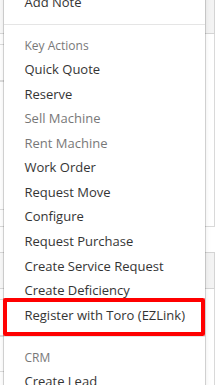
Once the integration is setup, to register a Toro machine, navigate to the Machine Dashboard and under the “Actions” dropdown select “Register with Toro (EZLink)”. The only requirements to register a Toro machine are that the machine was sold and has a serial number.
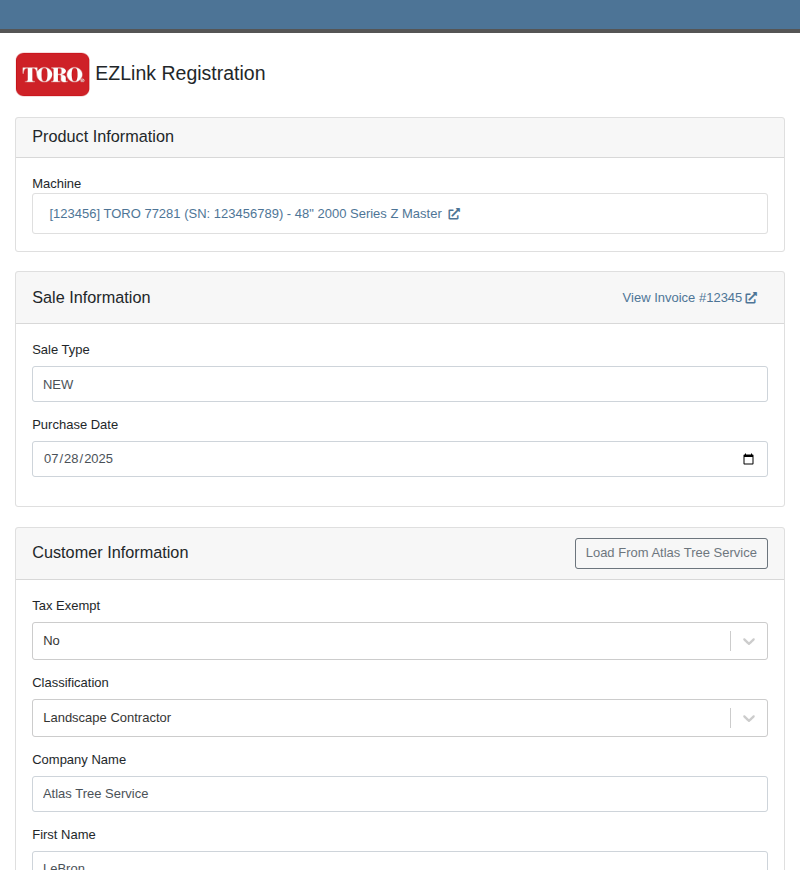
After navigating to the Toro product registration form, provide some basic information like who the machine is being registered to and what it will be used for.
Users should routinely check the registrations in the Toro portal to ensure they are being processed properly.
You can reach out to your friendly consultant to start getting set up to use this new integration.
Opportunity
Sales teams needed a streamlined way to manage and assign sets of discount structures to customers without configuring them individually. Previously, managing discounts at scale required manual updates for each customer.
Solution
We’ve introduced “Discount Tiers” as a way to define and assign a reusable set of discount structures to multiple customers.
Key Features:
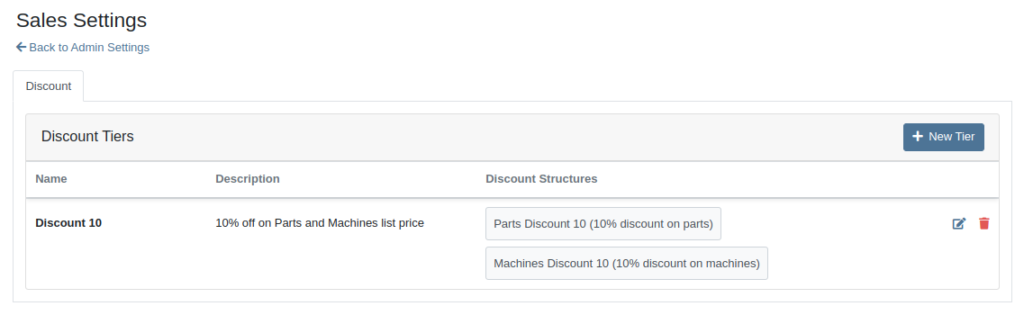
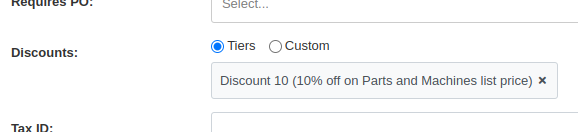
We expect this feature to roll out within a few days, but feel free to reach out to your friendly Flyntlok Consultant if you are interested in getting this feature enabled for your environment now.
Opportunity
Service Managers needed an easier way to track which Rental Contracts are tied to Work Orders. Previously, there was no simple way to connect the two without manually cross-referencing notes or opening multiple records.
Solution
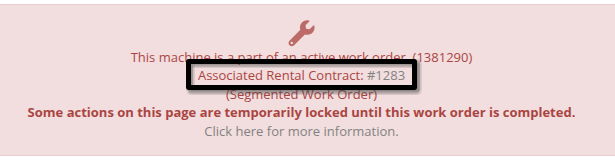
We’ve added a new widget to the Work Order dashboard: Associated Rental Contracts.
If any job on a Work Order is linked to a Rental Contract (via a form), that contract will now appear in the widget for easy access and visibility.
Opportunity
On the Machine Dashboard, Flyntlok currently displays a widget with the latest Rental Actions for the Machine. However, there was no way to dive deeper into older or cancelled/closed Rental Contracts.
Solution
We’ve added a “View All” button on the Rental Actions widget which will link to a report containing all Rental Contracts related to that Machine.
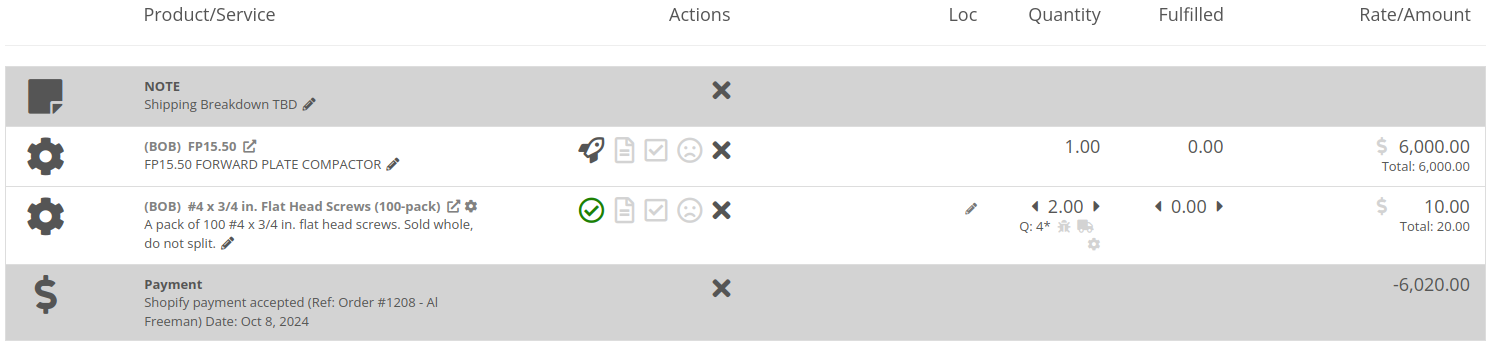
When Flyntlok ingests a Shopify Order, we build a set of payments based on how the Customer actually paid, including zero-dollar payment lines for pending payments. However, on rare occasions, we will see an Order that looks as though it was completely paid, but it also has pending payment lines on it. This makes it impossible for Flyntlok to recognize whether it needs to check for updated payment information later.
To resolve this, we’ve added a new Shopify section to the Flyntlok Invoice page. In the Details panel you’ll find the “Shopify” tab in the Actions section. Click “Queue Shopify Payment Update” and in the next 5 minutes Flyntlok will attempt to update the Invoice’s payment information from Shopify.
Opportunity
Rental Managers requested more visibility into the source of active Work Orders on Machines.
Solution
You can now see Rental Contracts associated with active Work Orders on any Machine’s dashboard.
Opportunity
Shops needed a way to categorize Work Orders more precisely by department, enabling better organization and reporting. Some users also wanted to link these departments to existing Categories for more structured workflows.
Solution
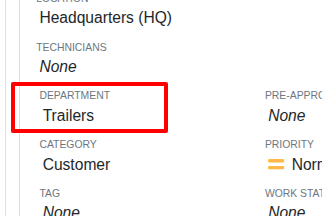
A new fully-customizable Department field has been added to Work Orders. Departments can be selected when creating or editing a Work Order:
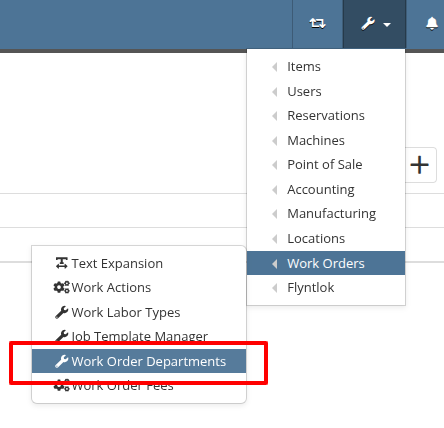
Custom Departments can be managed by navigating to the Wrench Icon -> Work Orders -> Work Order Departments. Simply provide a department name, and optionally associate a Category.
Additionally, technicians using Mobile Work Orders can search by these Departments.
Opportunity
Users previously had to create a machine from the Work Order Dashboard and then navigate to the Machine Dashboard to add a Customer Unit Number. This extra step was inefficient for busy service departments.
Solution
You can now enter the Customer Unit Number directly when creating a new machine from the Work Order Dashboard. This streamlines the process and ensures all important details are captured in one step.
Opportunity
Zapier users requested the ability to access the “Notifyee Email Addresses” field when automating workflows around “Customer Activities”. These email addresses are often needed for downstream actions like sending updates or triggering external systems.
Solution
The "Notifyee Email Addresses" field is now available when polling Customer Activities via Zapier. This gives users more complete data for automation and communication flows.
Opportunity
Users who manage multiple connected email addresses across Flyntlok's integrations needed better visibility into which address was used to send each message. This was especially important for troubleshooting, auditing, and ensuring proper communication channels.
Solution
We’ve added a "Sent From Email" column to both the “All Emails” and “My Emails” reports. This makes it easy to identify which connected email account was used to send each message, improving clarity for users who operate across multiple accounts.
Complaint: Scan mode on Part Purchase Order Receiving Vouchers was not working correctly.
Correction: Fixed.
Complaint: Users noted that there was sometimes a discrepancy between stale QOH indicators on the Item Dashboard and the Transfer dialog box on the Invoice page.
Correction: Fixed.
Complaint: Discounted parts on Work Orders sometimes did not reflect the discount on the printed PDF.
Correction: This issue has been fixed. Discounts on parts will now correctly appear on the printed Work Order PDF.
Complaint: Users reported that when creating a QuickBooks vendor, the “state/province” field would appear twice, in the place of the city.
Correction: Fixed.
Complaint: When adding a new shipping address to the Sales Order, the address was saved correctly but did not immediately appear in the interface. Users had to manually refresh the page to see the newly added address.
Correction: Fixed.
Complaint: Rental Managers calling off multiple units noticed the billable duration was not adjusting when changing the call off dates like it does when calling off a single unit.
Correction: Fixed.
Complaint: In some cases, when printing a Work Order’s final invoice, the Complaint, Cause, and Correction lines were missing from the PDF.
Correction: Fixed.
Complaint: Parts teams reported that Core Purchase Requests were not being associated with Special Orders when the base part was assigned to a sale during receiving.
Correction: Fixed.
Complaint: Technicians & Service Managers reported not being able to clock into Work Orders in “Completed” statuses from their phones.
Correction: Fixed.
Complaint: Users noticed that item prices were not being automatically calculated in some cases when editing items. This was traced back to scenarios where a buy or sell quantity of zero was allowed.
Correction: Fixed a bug that allowed zero-quantity values. The system will now prevent 0 buy/sell quantities to ensure valid and accurate price calculations.
Complaint: Rental users reported that invoices printed from rental contracts showed the internal Machine ID in the "Part" column, which was confusing for customers.
Correction: Fixed. We now display the Machine’s Display ID instead, providing more clarity on rental invoices.
Complaint: Managers experienced frequent disconnections with their company-level Microsoft email accounts, requiring repeated manual reconnections.
Correction: Fixed. Microsoft accounts should now remain connected as expected.
Complaint: Users reported that when trying to reset their password through the User Settings page, their current password was being rejected even when it was entered correctly.
Correction: This issue has been resolved. The system will now properly recognize and accept valid current passwords when updating account credentials.
Learn More at Flyntlok Dealer Management System
Check out our Flyntlok YouTube channel for more highlights of the application!

We are excited to announce that Flyntlok will be attending the Equipment Exposition October 15th-18th in Louisville, Kentucky (Booth Number C001). The Equipment Exposition is an annual event dedicated to growing landscapers', manufacturers', and equipment dealers’ businesses. Please reach out to Mike Wasserman (mwassy@flyntlok.com) or Alex Clementi (alexc@flyntlok.com) if you would like to arrange a meeting while we are there. Or just stop by to say "Hello!"
Opportunity
Salespeople have requested the ability to sell their inventory of Machines through Flyntlok’s Shopify integration. Previously, Flyntlok only supported Items (i.e. non whole-goods).
Solution
Flyntlok now allows you to link Models to Shopify "Product Variants". You can create a new Shopify Product within Flyntlok on the Model’s editor page.
You can also link an existing "Product Variant" within Shopify that has a SKU that matches the Flyntlok Model ID by prepending an "M" in front of that Model ID.

When setting up an unlinked Model within Flyntlok, you will see any Shopify Product Variants matching that SKU for quick and easy linking.


When sold through a Shopify Order, a Model will appear on the new Flyntlok Invoice as a normal Model line which can be associated with a Flyntlok Machine for fulfillment.
Opportunity
Salespeople have requested the ability to manage their Product images for their Shopify Products from Flyntlok.
Solution
Flyntlok now has a new tool for managing your Shopify Product images. Your images from Shopify Products can be viewed in the Shopify section of “Linked Items” – and now linked Models too.
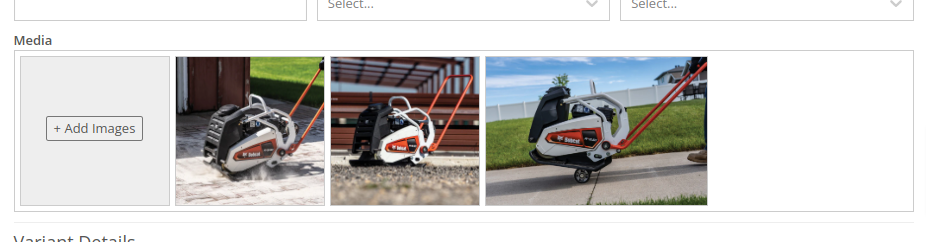
You can remove any Shopify Product image through Flyntlok by hovering over the image and clicking the trashcan icon.
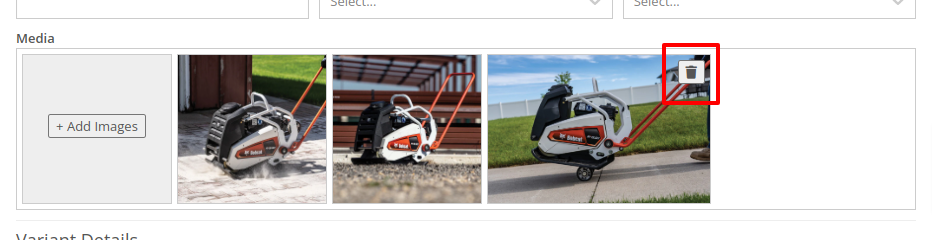
Furthermore, you can upload images to the linked Shopify Product from the Item and Model editing pages in Flyntlok.

Opportunity
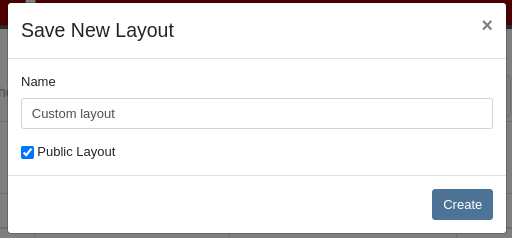
Managers have requested the ability to take a saved Grid Layout View on Leads and make it publicly available for all users in their shop.
Solution
Added the ability to make a grid layout “Public” when creating it. Selecting this option will allow other users to select it from the dropdown menu.
Opportunity
Sales Managers (and Wayne) requested the ability to sum the “Expected Revenue” field on the All Leads grid view.
Solution
Flyntlok now displays the summation of the “Expected Revenue” of all Leads in the grid.
Opportunity
Sales Managers requested the ability to view the latest correspondence on a Lead from the All Leads grid.
Solution
Added a “Latest Note” column to the All Leads grid which displays the most recent note or customer inquiry on the Lead.
Opportunity
Sales Managers requested the ability to filter Leads by ones that have no Tags.
Solution
Added the ability to filter Leads by empty Tags. This can be applied with the “(Blanks)” option under the Tags filter.

Opportunity
Managers requested the ability to see an Item’s QOH on trucks as well as at specific Locations.
Solution
Added the Item’s QOH on trucks linked to a Location on the Item Dashboard via a nifty orange badge.

Opportunity
Managers requested the ability to restrict adding labor to Work Order Jobs if the Job doesn’t have a set schedule.
Solution
Added this setting under Flyntlok Settings > Service > “Require Job Schedule for Labor.” With this feature turned on, the "Add" button for labor on Work Order Jobs will be disabled if the Job doesn't have a scheduled start and end date.
Complaint: Service Managers reported that “Inspection Tasks” created in Flyntlok and then synced to Record360 did not have matching “Due Dates”.
Correction: Fixed.
Complaint: Managers reported that Moves lasting longer than 24 hours were not showing up on the Truckload Scheduler under the Week or Day views.
Correction: Fixed. These Moves will now appear in the All Day row for their respective views.
Complaint: Accountants reported that a user was able to delete a payment line that was already posted to Sage.
Correction: Fixed. This bug only applied to companies integrated with Sage Intacct; it did not affect companies using QuickBooks Online.
Complaint: Managers reported that new Leads were not sending notifications to assigned users upon creation.
Correction: Fixed.
Complaint: Rental Clerks reported that Invoices with the “Trade-In” payment type were posting to Quickbooks with the wrong ID for the traded-in Machine.
Correction: Fixed.
Complaint: Parts Managers reported that Parts Requests from Work Orders were not sending notifications in some circumstances.
Correction: Fixed.
Complaint: Salespeople reported the Zapier integration sporadically disconnected from Flyntlok.
Correction: Fixed.
Complaint: Salespeople reported some responses to Google reviews would not display correctly on the Review Dashboard.
Correction: Fixed.
Complaint: Canadian users reported the Canadian “Half-Year Rule” checkbox in Machine Dashboard’s depreciation section would always be checked, regardless of the setting.
Correction: Fixed.
Complaint: Service Managers reported that the “Cause” and “Correction” fields were not populating on new Work Order Job templates generated from a Work Order.
Correction: Fixed.
September 25th, 2024 Release Notes
Learn More at Flyntlok Dealer Management System
Check out our Flyntlok YouTube channel for more highlights of the application!
Flyntlok offices will be closed on Labor Day, Monday, September 2. We will respond to any help requests when our offices re-open on Tuesday, Sept 3 at 8am ET. We hope all of our customers are able to find at least a little time to rest after a long, busy summer season.
Opportunity
Managers have expressed interest in being able to administer their company’s account information and settings, and in having a place to view and keep track of past and current invoices from Flyntlok.
Solution
We have created an Account Settings page that is accessible for Administrators from the Admin Settings dropdown on the top Navbar. Simply hover over the wrench to navigate to Flyntlok > Account Settings.
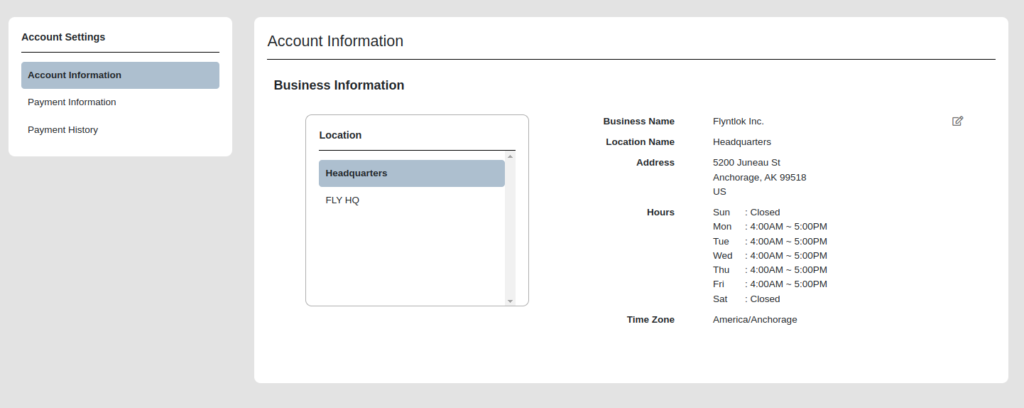
The Account Settings page currently has three subpages: Account Information, Payment Information, and Payment History.
The Account Information subpage shows the data Flyntlok has on any business locations including addresses, hours of operation, and time zone. Administrators will be able to edit any of those fields by clicking on the edit icon at the top right of the card.
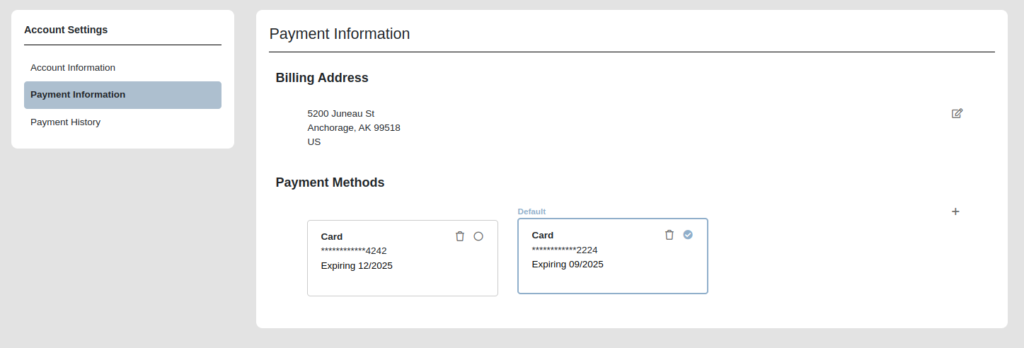
The Payment Information subpage contains the Billing Address and Payment Methods fields. Administrators can edit the default billing address and add payment methods for billing purposes. Click the edit icon on the top right of the Billing Address field to edit the Billing Address, and click the plus icon on the top right of the Payment Methods section to enter a new payment method.
To set a specific payment method as default, users can click on the circle icon on the top right corner of a payment method card. Click the trash icon next to it to delete a payment method instead.
The Payment History subpage displays the next invoice date, number of active billable users a company has, and the current amount due, as well as all current and past invoices and their statuses. Users can click on any past invoice link to view it as a pdf.

Opportunity
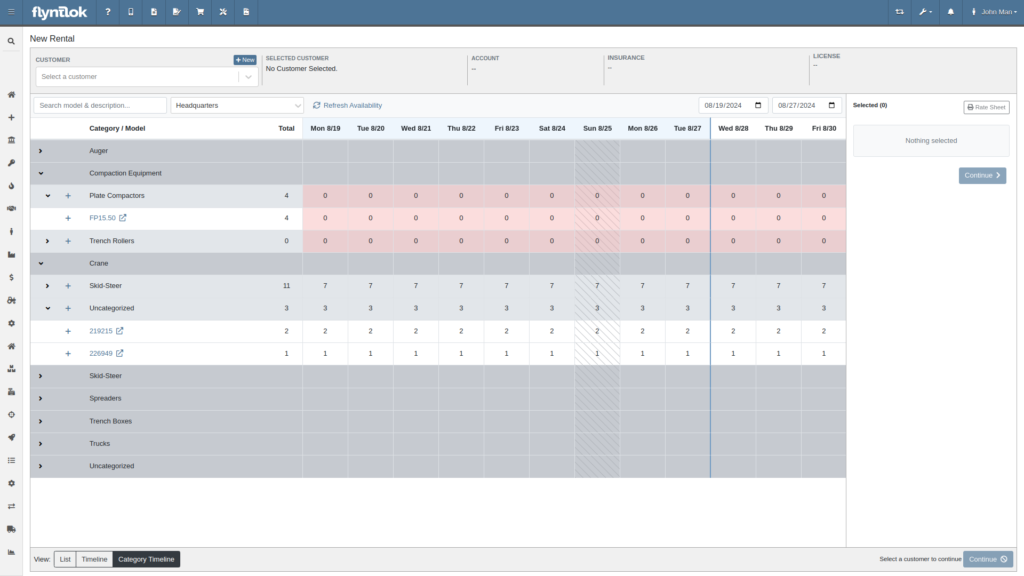
Rental Managers often manage their fleets based on the availability of Models or Classes, as opposed to tracking availability of individual machines. Despite Models and Classes being rentable in Flyntlok, there was no way for a Rental Manager to know if they were overbooking their fleet until they attempted to associate an actual machine to a contract.
Solution
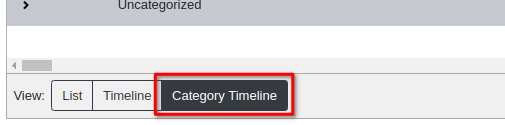
We have added a new view to the New Rental Contract page that displays your fleet’s Classes, Models, along with their availability over time. This allows you and your team to assess your fleet’s availability at a glance to avoid overbooking. You can find this new view on the New Rental Contract page by clicking “Category Timeline” in the lower left.
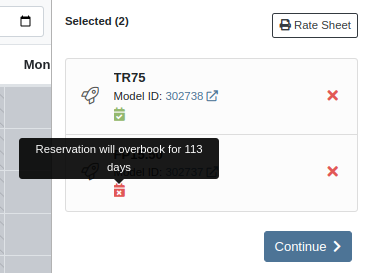
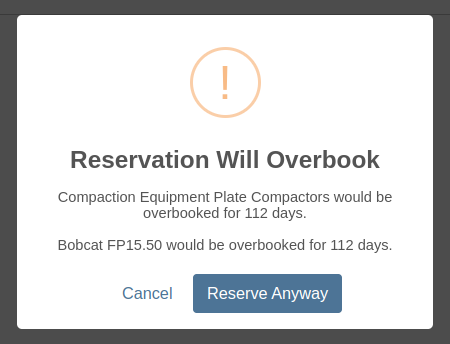
Furthermore, both the New Rental Contract page and the Rental Dashboard can now show you warnings if you are about to overbook a model or a class. These warnings are displayed when creating and reserving Rental Contracts. You can enable these warnings by navigating to Flyntlok Settings -> Rental Settings and looking under the Restrictions section. The setting is called “Class/Model Overbook Warning”.

Opportunity
Managers have requested that Signature Forms require the customer to enter their signature in order to submit the form.
Solution
When Flyntlok prompts a customer for their signature, they are now required to sign before submitting the form.
Opportunity
Rental Managers asked for more prominent alerts when any lines on a Rental Contract were missing a schedule.
Solution
The Rental Contract Dashboard will now alert you if one or more lines on a Rental Contract are missing a schedule.

Opportunity
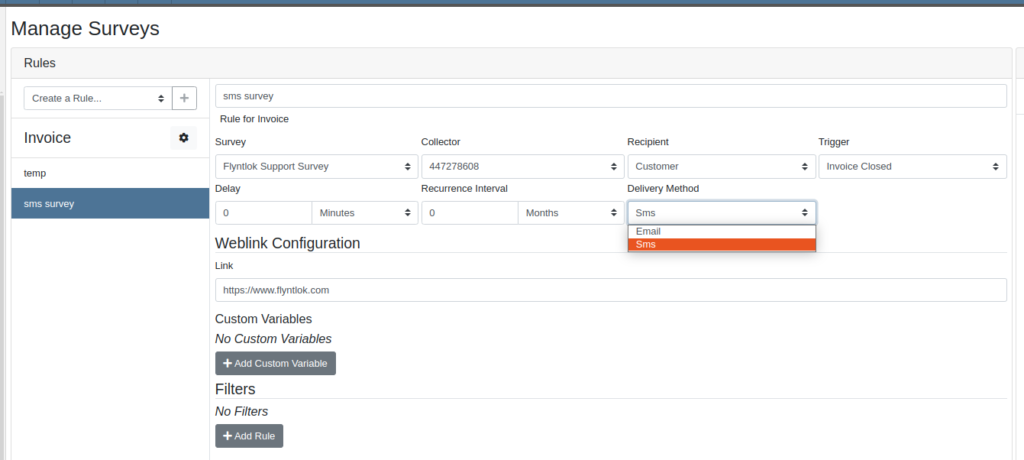
Currently, Survey Requests can only be sent via email from Flyntlok and Salespeople and Managers have requested the ability to send surveys via SMS as their customers are more likely to respond to a survey sent via SMS.
Solution
We have added a new field called ‘Delivery Method’ for a survey rule configuration on the Manage Surveys Dashboard and now the rules can be configured to send surveys via SMS or email.
Opportunity
Parts Managers have asked for logs when a Contact is deleted from a Customer.
Solution
When a Contact is deleted, Flyntlok now creates an entry in the Customer’s logs which includes the Contact’s name, phone number, and email address.
Opportunity
Salespeople have requested the ability to group leads on the "All Leads" page.
Solution
You can now group leads on the "All Leads" page by dragging column headers into the grouping section on the top left that is labeled “Drag a column header here to group by that column”. Not all columns can be grouped, such as Tags, Age, Machines, Models, etc. But honestly, any column that you would really want to group by, can be grouped by.

Users can group by multiple fields by dragging another column into that section. You can remove the column grouping by dragging the column back into the grid. Column groupings can also be saved as part of the grid layouts.

Opportunity
Salespeople have requested they be notified when someone adds a Note to a Lead.
Solution
Users assigned to a Lead now have the option to receive notifications when a note is added to one of their Leads. Users can enable this feature through their User Settings page.
Opportunity
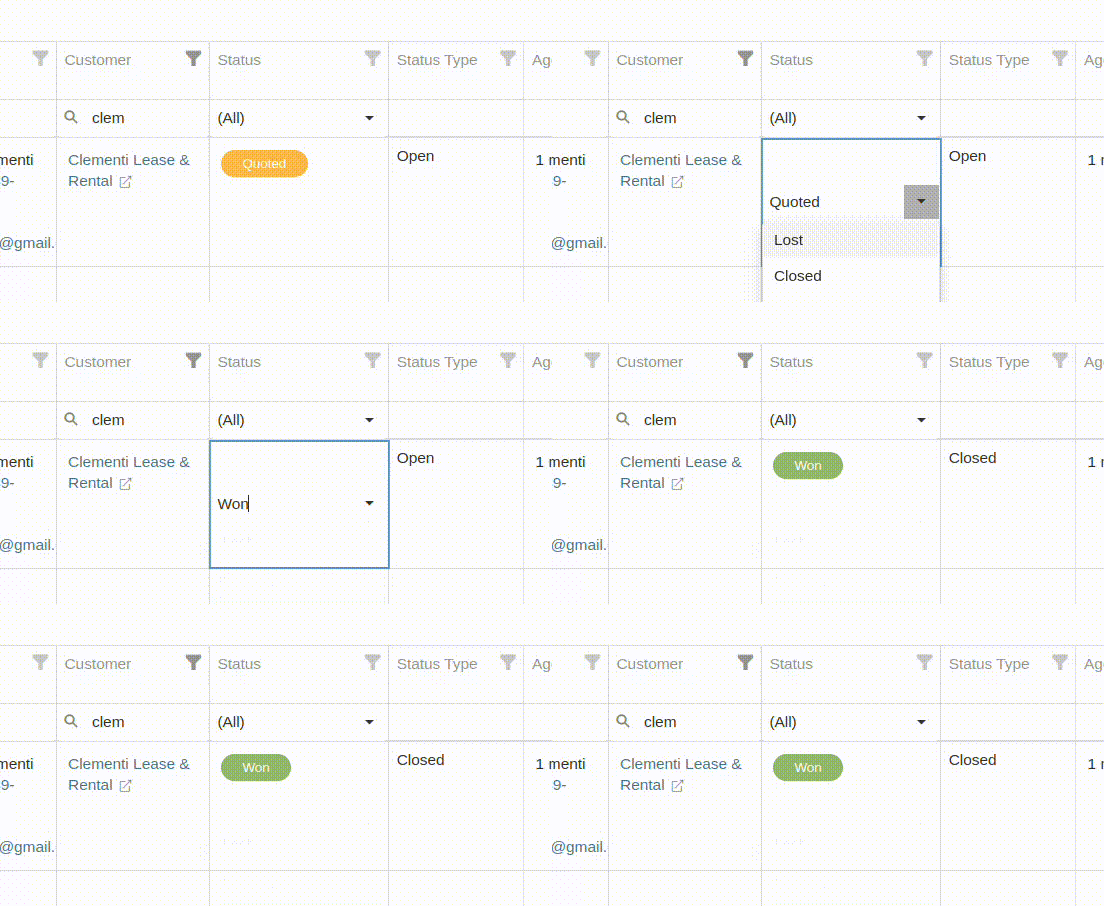
Sales Managers have requested the ability to change the Status of a Lead from within the All Leads grid-view. This would allow for quicker updates when reviewing multiple Leads.
Solution
Flyntlok’s “All Leads” grid-view now supports changing a Lead’s status without opening the Lead’s Dashboard.
Opportunity
Flyntlok’s Zapier integration did not include a “Contact Name” field on the Lead Creation action, and instead derived the Lead Contact’s “Name” from the Lead’s “Name” field.
Solution
We have updated the Flyntlok’s Zapier integration to include Contact Name field on Lead Creation.
Btw, the Zapier workflow tool is a pretty cool and flexible way to manage your incoming leads from your website. It's especially helpful if you have detailed forms with a lot of various fields (e.g. financing information, trade-in information, etc). Check it out, and if interested, contact a friendly Flyntlok consultant!
Opportunity
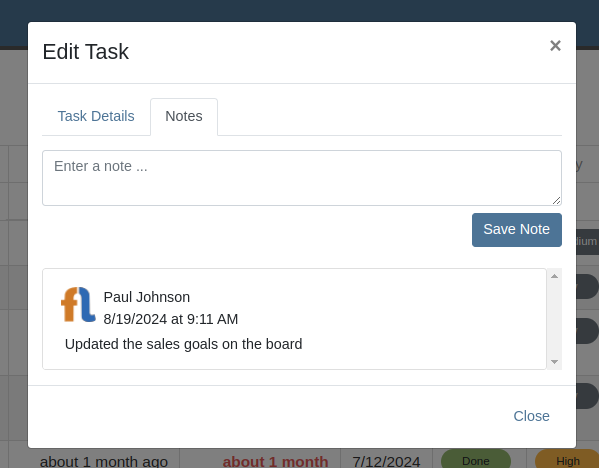
Managers have requested the ability to add Notes to Tasks.
Solution
The Tasks page has been updated to support Notes. Users can view and add a Note by editing the Task and clicking on the "Notes" tab. There is also a new column that can be added to the “All Tasks” grid called “Latest Note” so a user can see when a note was last added to the Task.
Opportunity
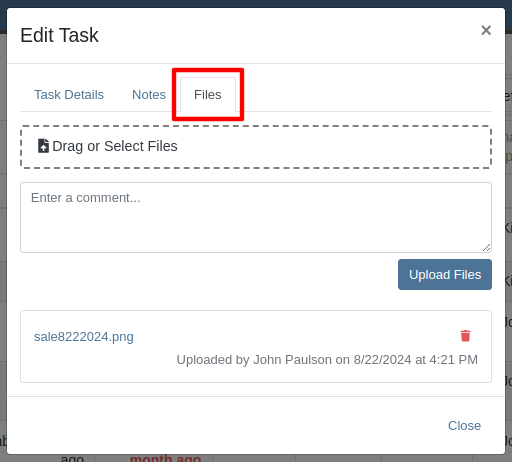
No sooner did we add Notes on tasks, than we had Managers request the ability to attach files to Tasks!! No rest for the weary. So we created a task to put files on Tasks.
Solution
And thus we now have the ability to support files on Tasks. Users can view and add files by editing the Task and clicking on the "Files" tab:
Opportunity
Were we done with Tasks for this release? Not by a long shot! Users have requested the ability to mark a Task as "Done" from a Dashboard Grid. This would allow them to quickly update the Task without needing to go to the Tasks page to manually edit the status.
Solution
The "Upcoming Tasks" Dashboard Grid has been updated to support a "Mark Done" action. This will change the Task to "Done" status and update the Completed Date with just a single click.

Opportunity
Service Managers have requested that Flyntlok warn them when they are about to tag a Work Order with a tag that has already been used.
Solution
In addition to warning you about potential duplicate tags when creating Work Orders, Flyntlok warns you on any Work Order’s Dashboard as well.
Opportunity
Service Managers have expressed the need to see tag numbers on the Job level Service Scheduler.
Solution
Added Tag Number Badges to the Job level Service Scheduler.
Opportunity
Technicians and Service Managers requested the ability to upload and view pictures in a single area on the mobile Work Order view instead of having them tied to specific jobs.
Solution
The mobile Work Order view has been updated to allow Technicians to upload files, including pictures, directly to the Work Order itself. All Job files can now be accessed in a centralized location within the mobile view, making it easier for Service Managers to review them.

Opportunity
Managers have requested the ability to make “Email” and “Phone” fields required on Customer creation.
Solution
Flyntlok now has a setting which makes email and phone fields required on Customer creation. Admins can set this setting by clicking on the Wrench Icon > Flyntlok > Flyntlok Settings > "Require Contact Info on Customer Create" Checkbox.
Opportunity
Service Managers requested a more accessible way to see when a Work Order was created.
Solution
The Work Order Dashboard has been updated to display the Creation Date directly in the header. We have added a new option in Flyntlok Settings to toggle display of Work Order Create Date. Admins can set this option by clicking on the Wrench Icon -> Flyntlok -> Flyntlok Settings -> "Show Create Date on Work Order" Checkbox.

Opportunity
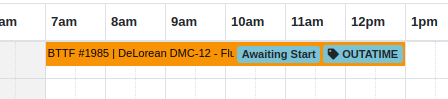
Service Managers have requested jobs with fulfilled parts requests be more visible on the Job-level Service Scheduler.
Solution
Flyntlok will now use an orange background for any jobs with fulfilled parts on the Job level Service Scheduler.
Opportunity
Service Managers have requested enhanced visibility of Work Order details on the Service Scheduler to improve efficiency in scheduling and job management.
Solution
The Service Scheduler has been updated to display the assigned technician, billing hours, and dwell time on Work Order cards

Opportunity
Service Managers have requested the ability to prevent internal Parts Order Notes from appearing on the final Work Order invoice.
Solution
A setting has been added to exclude notes made on the Internal Parts Order from the final Work Order invoice. Admins can set this setting by clicking on the Wrench Icon > Flyntlok > Flyntlok Settings > "Exclude Parts Request Notes on Invoice" Checkbox.
Opportunity
Sales Managers have requested the option to hide a Customer's “Tax ID” when printing a Sales Order.
Solution
Administrators can now choose whether or not to show a Customer’s tax ID on their company’s printed Sales Orders. You can find this setting by clicking on the Wrench Icon > Flyntlok > Flyntlok Settings, then finding the "Hide Tax ID" checkbox.
Complaint: Salespeople reported that some buttons on the Point of Sale are disabled if the Quote was Rejected.
Correction: Fixed.
Complaint: Service Managers mentioned that the Service Scheduler's “Day View” showed many hours that were outside of normal business hours. They requested to be able to view a smaller time range.
Correction: The Service Scheduler has been updated to default to a 12-hour view. This will make Scheduled Tasks easier to view and manage, especially when dealing with shorter duration Tasks. Users can still expand the time range back to 24-hours via the Actions dropdown.
Complaint: Purchasers reported that printed Vendor Purchase Orders were sometimes not properly displaying Parts with long Part Numbers.
Correction: Fixed.
Complaint: Users mentioned that when clicking on a Task from the Upcoming Tasks grid on various Dashboards, it was directing them to the All Tasks view instead of directly linking to the Task.
Correction: Fixed.
Complaint: Users reported that the Kit configuration was displaying an incorrect cost on some items.
Correction: Fixed.
Complaint: Parts Managers reported that when using the "Fill Available" action on a Service Truck’s Inventory, it would not recognize all quantities on all pages. It would limit to 50 items at a time, which is what Flyntlok defaults to on a single page display.
Correction: Fixed. This action should now fill all quantities on all items.
Complaint: Salespeople reported that when adding a discount to a Sales Order, the calculated margin shown at the top of the page would sometimes show "0%".
Correction: Fixed.
August 14th, 2024 Release Notes
Learn More at Flyntlok Dealer Management System
Check out our Flyntlok YouTube channel for more highlights of the application!
Opportunity
Bobcat dealers expressed a need to access real-time inventory data within Bobcat OPC from Flyntlok and to efficiently manage pick lists created within OPC between the two systems.
Solution
To address this need, we have integrated Bobcat OPC with Flyntlok, providing two key capabilities:
Real-time Inventory Access
Dealers can now view inventory details from Flyntylok such as bin locations, quantities on hand (QOH), quantities on order (O/O), and pricing directly within the Bobcat OPC. To view the inventory details of the parts within the Bobcat OPC go to “Parts Catalog” and select a part you want to view. The opened modal will include the “DMS Availability” section populated with inventory data from Flyntlok.

The inventory data can also be viewed from within the pick list on the Bobcat OPC.

Pick lists Export
Dealers can export pick lists created in Bobcat OPC to Flyntlok, allowing for easy creation of draft Sales Orders or Internal Parts Orders. To export a pick list from Bobcat OPC to Flyntlok, while in the pick list on Bobcat OPC, click “Export As” and select “DMS” from the dropdown.
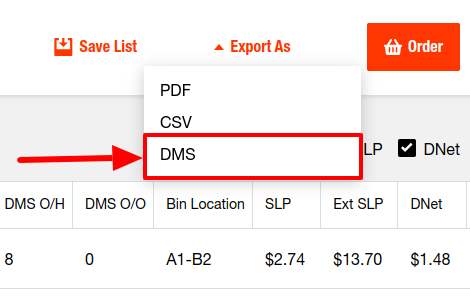
To view the exported pick lists back in Flyntlok, open the left sidebar, navigate to the “Parts” section, and click on the “Bobcat OPC Pick List” link.
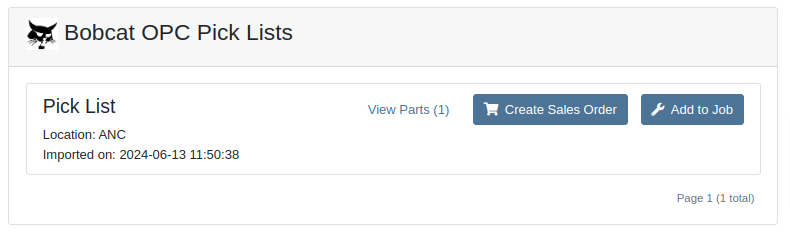
On this page, you can view the list of parts on the pick list by clicking on the “View Parts” button.

To create a draft Sales Order, click the “Create Sales Order” button and follow the prompt.

Integration Setup
To connect Bobcat OPC to Flyntlok follow these steps:
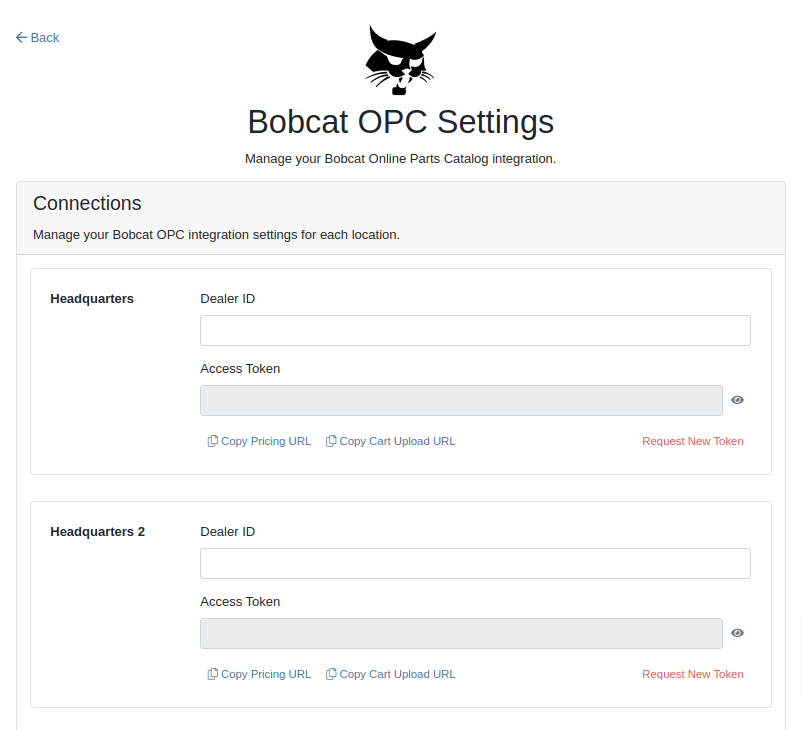
1. Access the Integrations Page within Flyntlok

2. Choose the location you want to connect to Bobcat OPC.
3. Generate token
4. Click on the “Copy Pricing URL” button to copy the Pricing URL.
5. Click on the “Copy Cart Upload URL” button to copy the Cart Upload URL.
6. Log into your Bobcat Account at https://dealer.bobcat.com/.
7. Click on “Bobcat Parts” under the “Parts” section.

8. Select Organization/Location. Use the location for the token you generated in step 3.
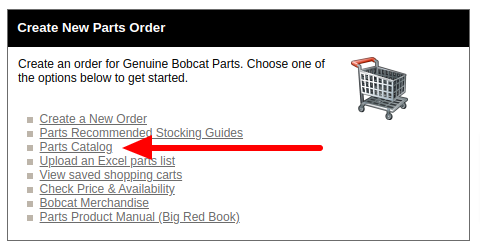
9. Under the “Create New Parts Order” section, click on the “Part Catalog” link.
/images/image9.png)
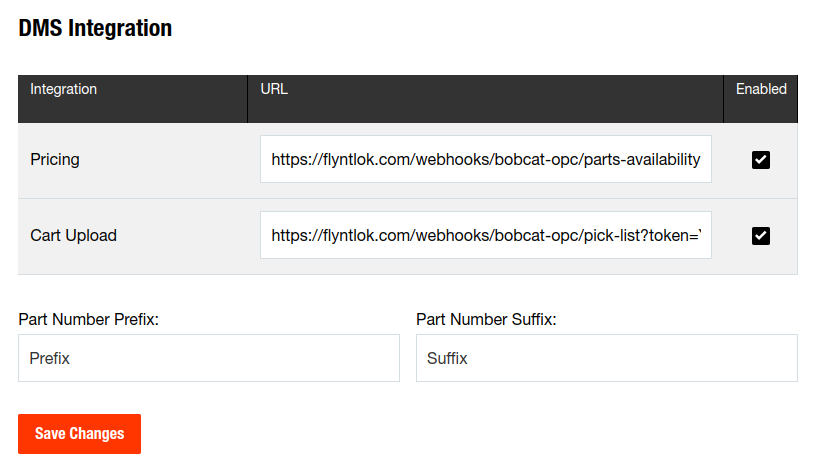
10. Open the “Settings” in Bobcat OPC and navigate to the "DMS Integration" section.
11. Provide the URL from step 4 to the “Pricing” field and enable it.
12. Provide the URL from step 5 to the “Cart Upload” field and enable it.
13. Click on the “Save Changes” button to persist your settings.
14. Repeat steps from 2 to 13 for each location you want to connect to Bobcat OPC.
Opportunity
Salespeople, who make use of the automated workflow tool Zapier, have expressed an interest in automating the process of lead creation in Flyntlok by integrating these two wicked cool products.
Solution
To address this need, an app was created in Zapier that integrates with Flyntlok. This app allows users to automate the creation of leads in Flyntlok through various triggers and actions within Zapier.
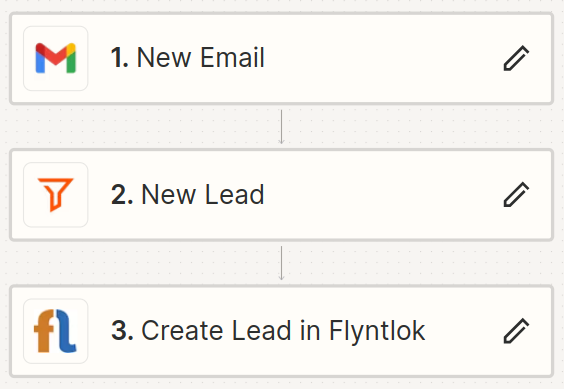
The following fields are exposed to Zapier via our interface:
Contact your friendly Flyntlok consultant if you would like to integrate us with your Zapier implementation.
Opportunity: Salespeople requested the ability to see the quantity on hand (QOH) directly on a Quote. Currently, users must approve or modify the quote to view QOH, leading to potential miscommunication about stock availability.
Solution: We added the display of QOH on the item lines within the Quote. This change will enable salespeople to accurately inform customers about stock availability without needing to approve or modify the quote.

Opportunity: Sales Managers have requested the ability to apply discounts to items based on their original list price, not the current displayed price. Otherwise, if the customer already has a discount in place, this would apply a discount to a discount (which is awesome for your customers, but not for you!).
Solution: Flyntlok introduced an option to apply discounts to each line item based on their original list price, ensuring each discount is calculated correctly from the list price rather than compounding discounts. This option is available only if the tenant is configured to calculate discounts line-by-line.
The "Apply Discount" form will now include two options for discount application:

Opportunity: Salespeople requested that when processing a Sales Order for an “Account Customer”, they would like to be able to more easily track if a signature had been collected on a Sales Order.
Solution: We have introduced a new option to display a warning when attempting to process a Sales Order. This prompt will show up when clicking on "Apply Payment & Process" if the Customer is an Account Customer, and their signature has not yet been collected.

It will also show a message by the Process button:

The warnings can be enabled via the Wrench Icon -> Flyntlok Settings

To further improve visibility, we have added a "Signed" badge at the bottom of the page. This feature is enabled for all standard Sales Orders.

Opportunity: Salespeople requested support for our more streamlined “Pay & Process” workflow when requesting payments via Text-2-Pay.
Solution: You can now select “Initiate Payment & Process” when requesting payments via Text-2-Pay.
Opportunity: Service Managers have requested the ability to copy files from one Work Order or Job to another, especially when dealing with Warranty Work Orders, which might be split off from the original Work Order or onto new Jobs.
Solution: We have introduced a dialogue box that allows users to copy both Work Order-level files and Job-level files to other Work Orders and Jobs as desired.
Click on the transfer icon on the file line:

To transfer a file from one Job to another the form requires the user to select a Work Order and a Job. Users also have an option to keep the original file.

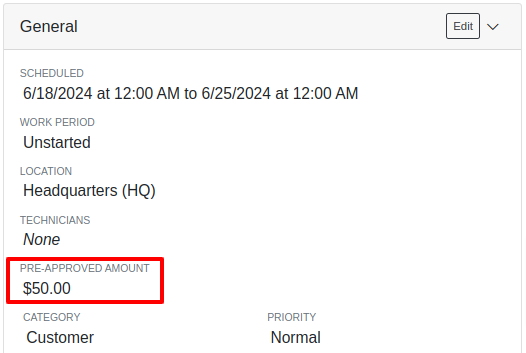
Opportunity: Service Managers requested the ability to set a customer-pre-approved dollar amount on a work order and to be informed when this amount is exceeded by the projected or actual cost of the work order.
Solution: Users can now choose to apply a work order pre-approved amount when creating a work order.

Once on the work order dashboard, this will be visible in General section of the page. It can also be edited here.
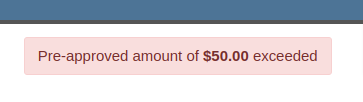
If, for any reason, the actual or projected cost of the work order exceeds this amount, a red banner will appear on the top of the work order dashboard.
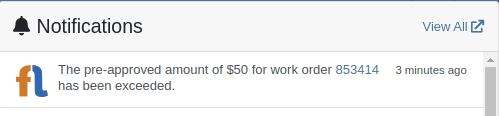
Anyone who is signed up to be notified when this happens will receive a notification.
Once the costs are equal to or below the pre-approved amount, the banner will disappear.
Additionally, users can set a default pre-approved amount on the customer edit page.

This amount will be automatically applied to work orders for this customer unless it is overridden at the time of creation.
Opportunity: Receiving Managers requested that the “Responsible Locations” of machines automatically update when the location on a Machine Receiving Voucher is changed.
Solution: Flyntlok introduced a prompt that appears when the location on a Machine Receiving Voucher is modified. This prompt asks users if they want to update the physical locations of the machines to match the updated location on the voucher.

Opportunity: Salespeople requested the ability to view and edit a Machine's comments from the mobile view.
Solution: We now show the Machine comments on our Mobile Machine Dashboard. It is editable by clicking "Edit" on the page.
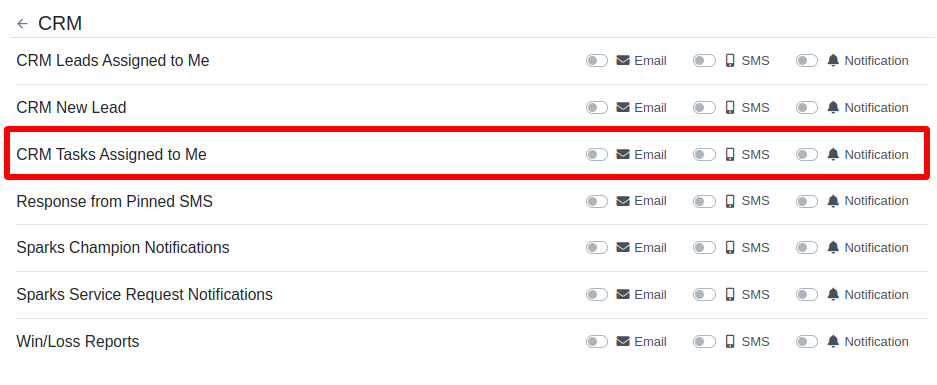
Opportunity: Sales Managers expressed the need for Task related notifications so that users are made aware when a task has been assigned to them.
Solution: Users are now able to receive notifications when they are assigned to a Task, either as the primary or secondary person on the task.
How to Enable Notifications:
Complaint: When printing out or emailing a Work Order the tax amount is not included in the total.
Correction: Fixed.
Complaint: Users reported errors when an Item was set as a Kit sub-item of itself.
Correction: We no longer allow a user to set an Item that is a Kit to be its own sub-item. Waaay too circular…
Complaint: Users reported not being able to apply an above-cost discount to some parts orders.
Correction: Fixed.
Complaint: Users reported that processing a Job that didn’t have any Parts Orders would not mark the job as “Approved”.
Correction: Fixed.
Complaint: Users reported that if you clicked into the Quantity or Fulfilled Quantity fields on the Point of Sale, the cursor would get placed at the end of the number. So if you wanted to change the value, it required that you highlight/select the whole field value first. This issue was both error prone and required extra clicks.
Correction: Fixed. If you click into either of the Quantity fields, we highlight/select the existing value so that if you type in a new value it will overwrite the previous value.
Complaint: Users reported that all Flyntlok journal entries were taking a very long time to process.
Correction: Fixed.
Complaint: Users reported that the incoming call page would crash when receiving calls from some numbers.
Correction: Fixed.
Complaint: Salespeople reported that they would accidentally change the payment amount with the mouse scroller.
Correction: Scrolling with the mouse in the payment field has been disabled.
Complaint: After accepting a Quote, users reported seeing the cost of the Quote’s Model lines change.
Correction: Fixed.
Complaint: Users reported being shown non-sellable machines when associating machines to model lines on the Point of Sale.
Correction: Fixed.
Complaint: Users reported discount structures not being correctly applied to Kits on the Point of Sale.
Correction: Fixed.
Complaint: When editing an Item Purchase Order, a shipping method would be chosen by default. However, users could not change the default that was being selected, and they may not have realized a shipping method was being chosen automatically.
Correction: Fixed. The shipping method selector now displays a prompt to select a shipping method if one is not set, making it more obvious when a shipping method has not been chosen.
Complaint: Users, particularly those in the Northeast of the US, but ultimately any real basketball fan, have complained about the fact that the Boston Celtics have not won the championship since 2008. This has been particularly frustrating some years because they clearly had the better team, especially in 2023.
Correction: Fixed. Flyntlok made sure that the most talented NBA team in recent history (probably since '86 Celts) won the championship this year in an epic manner and clearly illustrated to all of North America that they are the best team in the league. Our Boston office is currently coordinating the Duck Boat parade with city officials.

Learn More at Flyntlok Dealer Management System
Check out our Flyntlok YouTube channel for more highlights of the application!
