You: Hey Flyntlok, where ya been?
Flyntlok: Good question. You are a careful reader and have noticed that these Release Notes are a week late. Well, as Flyntlok grows, we need to be a bit more careful and thoughtful with our releases. There is an old saying for software startups: “Move fast and break things.” That works in the early startup phase, but not so much as you mature. While many of our employees’ maturity might be in doubt (including yours truly), Flyntlok as a company is maturing and now we need to “move fast, and NOT break things.”
To that end, we are changing our release cycle to every three weeks. Our goal is still to innovate every single release and provide frequent updates, but the longer period will allow us to spend more time testing and ensuring you get a solid product.
You might be sad to not get as many entertaining release notes to read with your morning coffee, but hopefully you will be happy to get an improved experience.

Recently, our beloved founder and CEO Sean “Yosemite Sam” McLaughlin and his trusty CRO-sidekick Mike Wasserman participated in a podcast with the “OPE People Podcast” by OPE+, The Power Equipment & Landscape Business News Source.
Listen to Sean discuss the future of AI in the dealer management space and opportunities it will provide. Don’t fear the future!
You can listen to the podcast directly on the OPE+ site directly, or from your favorite podcast source: Podbean, Apple Music, or Spotify. (Warning: Yosemite Sam is very passionate and occasional “not suitable for work” vocabulary is used, so maybe don’t blare over your shop’s speakers...)
Opportunity
Receiving Clerks wanted a faster way to process incoming parts, especially for large Purchase Orders with many lines. Previously, each part had to be manually received by entering quantities and costs, which felt like an extra step even when items matched the expected values.
Solution
We’ve added a new lightning bolt icon next to each Receive button on the Receiving Voucher. Clicking this icon will instantly mark the part as fully received at the Purchase Order’s expected quantity and cost.

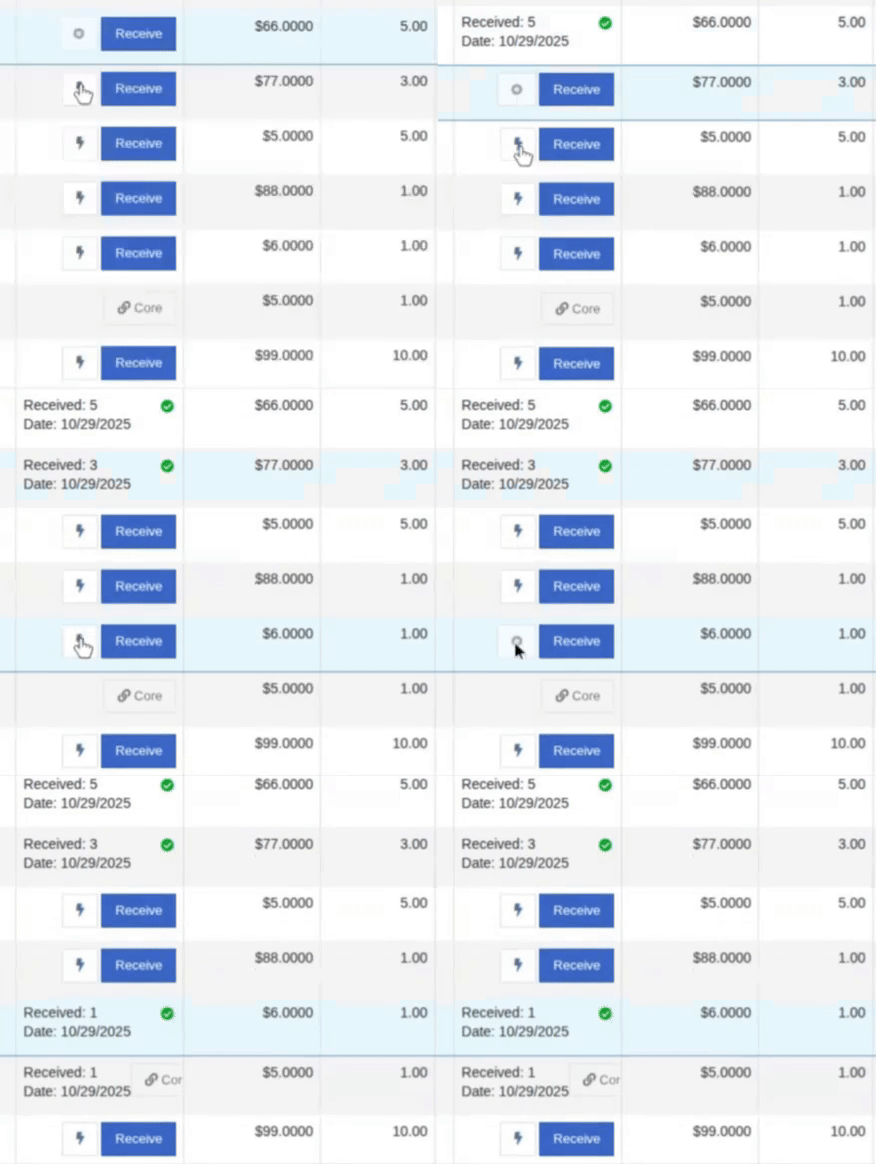
Note: Yes, it handles cores too!
This enhancement saves time, reduces clicks, and streamlines the receiving process -- particularly for orders with many items. We’ve already received many kudos for this enhancement!!

Flyntlok developers giving themselves a well-deserved pat on the back.
Opportunity
Building on the new Quick Receive enhancement, users also requested a way to process entire vouchers at once. This would be especially useful for large orders where most items are received in full. Manually clicking “Receive” for each line, even with the quick option, could still be time-consuming when handling dozens of parts.
Solution
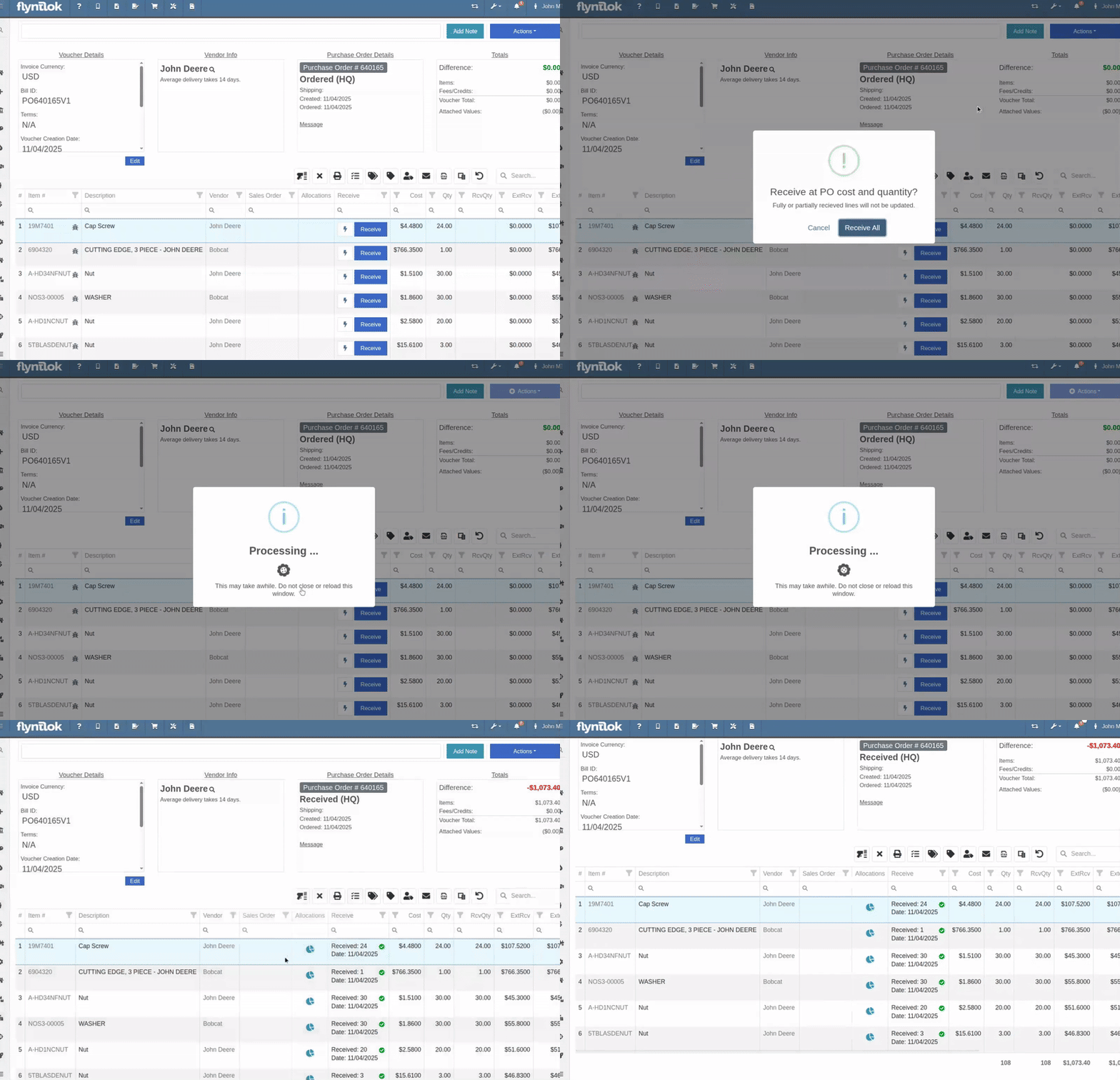
We’ve added a new “Receive All” option under the Actions dropdown on the Receiving Voucher. This feature will automatically mark all eligible lines as received at their expected quantities and costs. If there were any discrepancies, users can still go back and edit the one-off exceptions. This improvement further streamlines high-volume receiving, helping clerks process full shipments in just one click.
Note: Lines that already have a received quantity (including partials) will remain unchanged.

Opportunity
When extracting items from a Purchase Order that contained multiple identical parts, users couldn’t tell which line was linked to a Sales Order. This made it difficult to know which line to extract without risking the removal of a linked item.
Solution
The extract dialog now displays related Sales Order information for each line, allowing users to clearly identify which items are connected to a sale before extracting.

Machine Managers reported that stale data from their Volvo, Hitachi, and Samsara telematics integrations have been overwriting their machines’ miles/hours, and has been polluting their machine meter history logs.
Solution
We have improved our system to better account for stale data, so that only actual updates in machine usage are reflected on your machines in Flyntlok. Additionally, we have improved our logging to show where any change to a machine’s miles/hours have been made.

We are planning to integrate with Motive Telematics soon, so keep an eye out for that in future release notes.
Opportunity
Fleet Managers shared that the previous Move process was cumbersome to use and lacked flexibility. It only supported a single contact, didn’t allow “reference machines” not yet in the system, and couldn’t be easily accessed from other pages. Quick Transfers also used a separate process, creating inconsistencies and extra steps.
Solution
We’ve made numerous improvements to the Move experience to make it more intuitive, efficient, and consistent with the rest of Flyntlok.
New Move Page
The new Move Page features a refreshed layout and simplified workflow. You can now start a move directly from the sidebar by navigating to Sidebar → + New → Move.

Moves can also be initiated from Customer Dashboard by navigating to Actions → Request Machine Move.

Reference Machine (Virtual Machine) Support
Moves now support a Reference Machine, which serves as a placeholder that can be replaced later through the Move View page. This is helpful when coordinating moves for machines not yet entered in Flyntlok.

Additional Contact
We’ve also expanded the contact system to include two contacts per move: a “From Contact” and a “To Contact”. This ensures better clarity and accountability during transfers.
Redesigned Quick Transfer
The Quick Transfer action has also been improved. Accessed through Machine Dashboard → Actions → Quick Transfer, it now redirects to the new Move Page with the Machine, Customer, and From Location fields automatically filled in. This creates a unified and simplified transfer experience.
Moves on Customer Dashboard and Machine Dashboard
Added visibility for related moves, you can now view related machine moves directly from both the Customer Dashboard and the Machine Dashboard, making it easier to track transfer history and current activity.

"Force Complete" Action
A new Force Complete button has been added to the Move View page. This option allows users to complete a move immediately, skipping intermediate steps like truckload assignments and status transitions.

Moves on Mobile
In addition, moves can now be searched for and opened on mobile devices, providing full access to move details and updates while on the go.

Notification of Completed Moves
Finally, a new notification type has been added under Preferences → Notifications → Machines → Any Completed Machine Move. This allows users to stay informed when any machine move has been completed.

Salespeople, and Justin, want a quick way to gauge the "temperature" of a customer. One such way is knowing whether they had recently left a business review, and how good was that review.
Our existing Google Reviews integration didn't support linking a review directly to a customer, making it difficult to see which reviews belonged to which customers.
You can now associate Google Reviews with customers directly from the Reviews page using the new "Associated Customer" column. In several locations within the application we will display that customer’s most recent review, and clicking on that “*” review will take you to the CRM reviews page and open a dialog with the actual text of the Google review and your response to it (if any).
We have not added the ability to map a Facebook review to a customer yet, but will do that in the future.
We know that Justin hopes his dealer reviews are higher than his golfing reviews.

Once a review is linked, that customer's latest Google Review rating will automatically appear at the top of their Customer Dashboard, giving sales teams instant context during interactions.

Opportunity
Salespeople noted that after selecting a customer when creating a lead, if an existing lead was found for the customer, the notice was too small and would often be overlooked. This would result in users unintentionally creating duplicate leads for a customer.
Solution
We enhanced the "Found Open Leads" alert to be more prominent.

Opportunity
Salespeople often needed to create multiple similar model quotes, such as when quoting slightly different configurations or additional quantities. Previously, after creating a model quote, the configuration form would close, forcing users to start over from scratch, even if only one or two options were different. This made quoting repetitive and time-consuming, especially for large quotes approaching the previous 50-model limit.
Solution
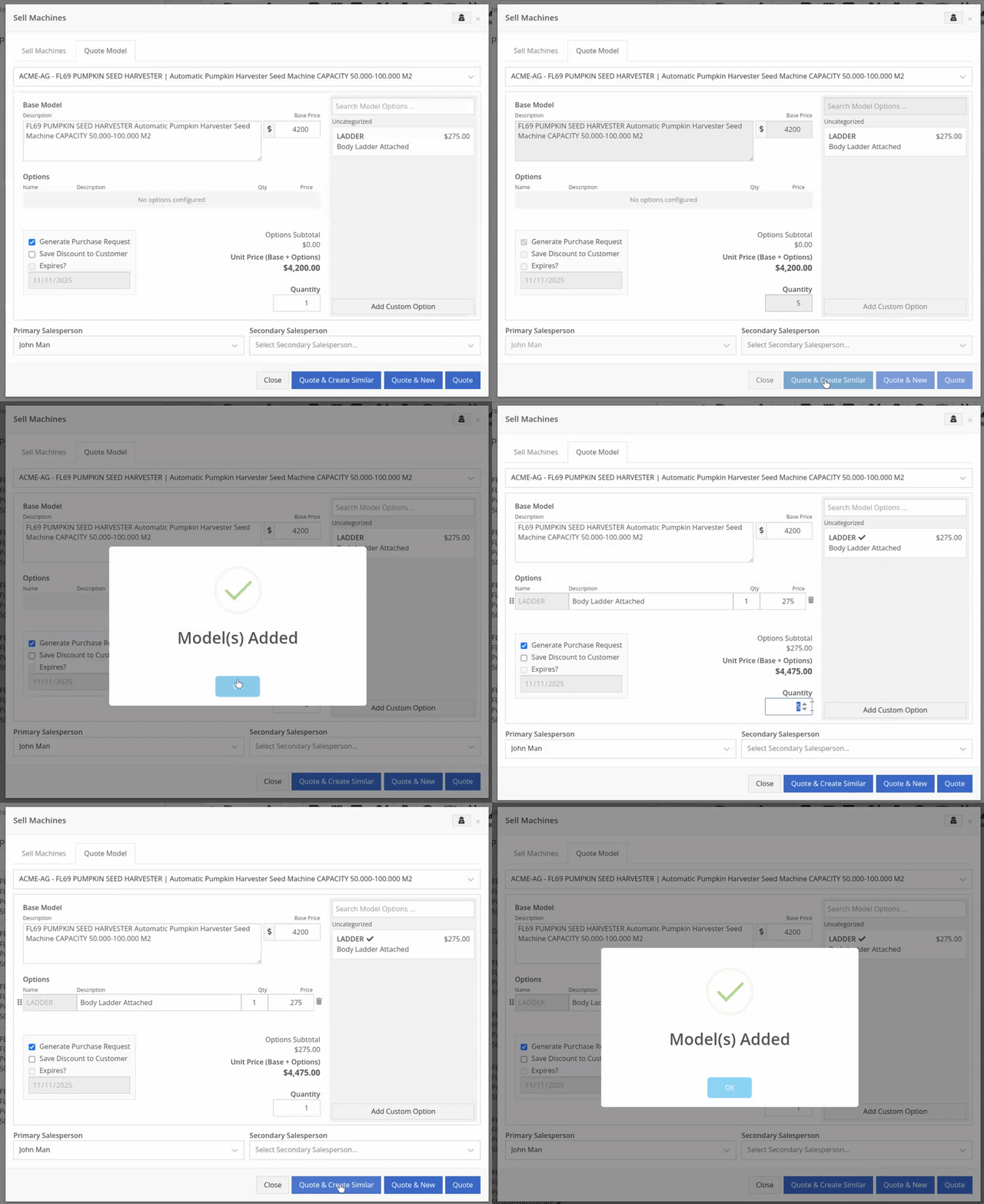
We've added a new "Quote & Create Similar" button to streamline quoting workflows. After creating a model quote, the screen will now stay open, allowing the salesperson to make small adjustments and quickly configure another model. Users quoting higher quantities can simply click the button again to add additional models with ease.
We've also increased the maximum number of models per quote from 50 to 75, giving sales teams more flexibility and reducing repetitive setup work.
Opportunity
Sales teams needed a clear and printable summary of the internal costing information for a Sales Order. Previously, there was no straightforward way to view or export this data in a single, easy-to-read format.
Solution
A new “Generate Cost Report” option has been added under Details → Actions on the Sales Order page. This feature produces a PDF showing customer details and a table of line items with part numbers, cost, average cost, sale price, and margin (based on average cost), along with totals at the bottom.

To support pre-preparing Sales Orders for pickup, you can now assign Units of Serialized Items to Invoice Lines without automatically fulfilling that Line. While associating Units on the Point of Sale, uncheck the “Update Fulfillment” checkbox to leave the fulfillment amount alone.
Opportunity
Technicians needed better visibility and control over their assigned jobs in the mobile view. Completed work orders were still appearing in “My Work,” while work orders where the technician was only assigned to the job (and not the overall work order) were not showing.
Solution
The mobile “My Work” list now properly displays jobs assigned directly to technicians and automatically hides Work Orders with completed jobs assigned to them. A new “Show Completed” toggle allows technicians to view open Work Orders with completed jobs when needed.
Opportunity
When looking at a unit via Machine Dashboard, managers wanted a more efficient way to preview the status of active Work Orders against that machine. Previously, they saw a blue banner notification with a link to the Work Order.
Solution
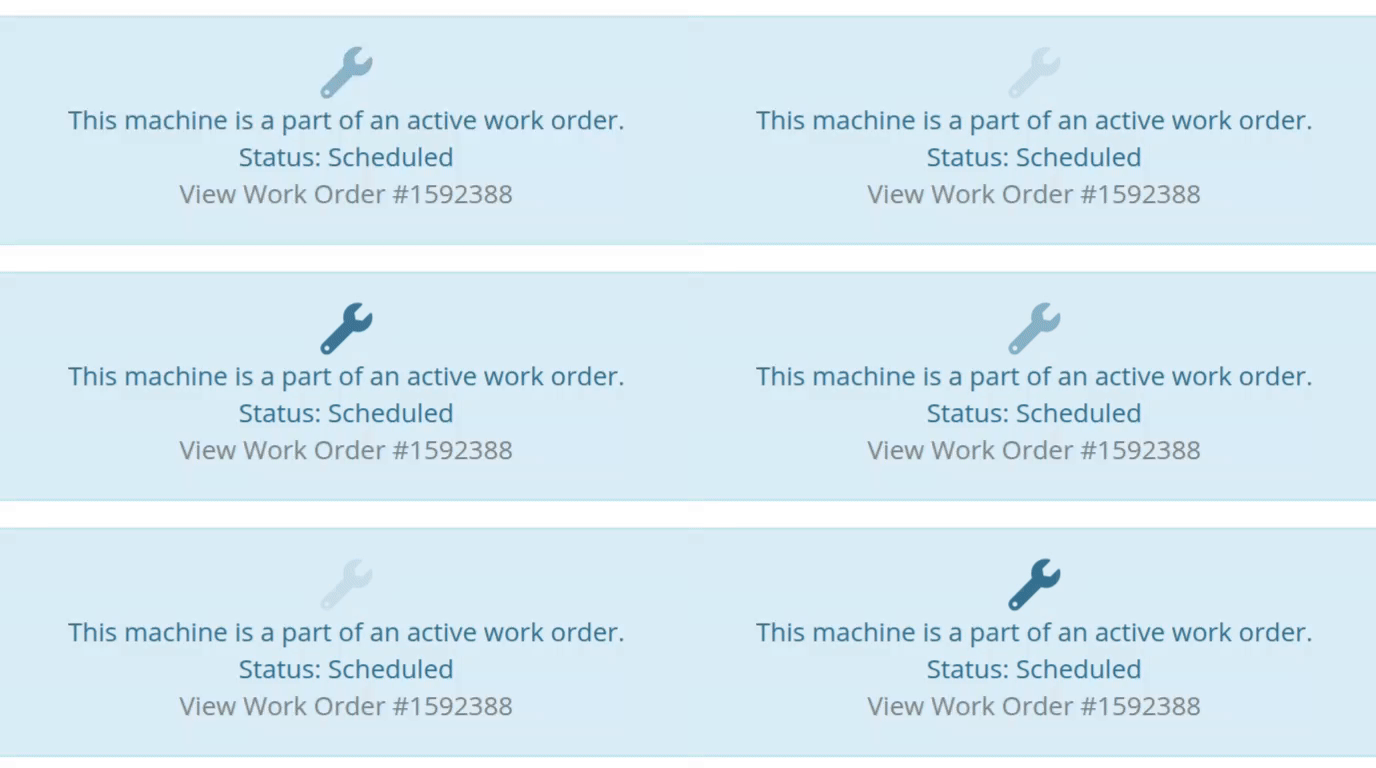
The Work Order's status is now included in the banner notification.
Opportunity
Rental Managers requested a better way to update long-term contract rates when new rates take effect. Previously, changing the rates on open contracts could have unexpected downstream consequences. For example, increasing the rates after making some billings made Flyntlok believe that underbilling had occurred, resulting in incorrect final invoices.
Solution
We’ve introduced a new feature that streamlines the updating of rental rates on active contracts without creating billing conflicts. This enhancement mimics the “Replace Machine” logic but focuses solely on updating rates. A new “Replace Rent Schedule” button has been added, opening a form similar to the existing “Edit Line Rental Schedule” form. When used, Flyntlok flags the rate change to ensure accurate billing and prevent incorrect discrepancies on final invoices.
To update the rates on an existing contract, navigate to the affected rental, and select “Replace Rent Schedule” from the “Actions” drop down:

Then, enter your new rates as well as an estimate for the duration the rates will be applied to; these set the new rates and a billable duration for them:

Once submitted, you will see a new line with the rates and billable duration you entered as well as an indication that a rate change occurred. In the event that you need to edit the rates again after replacing them, you have the same options as the first time you changed them: use the existing rent schedule editor or use the “Replace Rent Schedule” action again. If you’ve made billings after changing your rates, then you likely want to use the “Replace Rent Schedule” action again to prevent unexpected issues on the final invoice. To delete the rent schedule replacement, select “Remove Rent Schedule Replacement” from the “Actions” drop down.
This improvement makes it easy to apply new rate schedules at contract renewal time while maintaining the integrity of previous billings.

Opportunity
Parts with multiple identifiers were difficult to verify during inventory counts since the count page only displayed the primary item number. Users needed additional reference fields to easily match and confirm parts.
Solution
Inventory count page and PDF now include both the “Item Number2” and “Manufacturer Number” on the item.
Opportunity
On Flyntlok’s Journal Entry page, accountants requested the ability to submit Journal Entries to Sage Intacct as Bills just as we handle with Quickbooks.
Solution
Added this feature for Sage Intacct.
Complaint: When users partially fulfilled a sales order containing serialized items, the serialized units were not being carried over to the split invoice. This caused confusion, as the serialized record remained only on the master invoice rather than reflecting accurately across all splits.
Correction: We’ve corrected this behavior, partial fills on serialized items now correctly transfer their associated serialized units to the split invoices.
Complaint: Users were unable to process returns for serialized items. When trying to associate the original serial numbers on the return, the system displayed an error, preventing fulfillment.
Correction: Fixed.
Complaint: When fulfilling sales orders with serialized parts, the serial number assignment form did not appear when using the green check mark. Users were also able to fulfill serialized item lines without serial numbers assigned to them.
Correction: Fixed.
Complaint: Users were unable to search Sage revenue and expense accounts from the vendor edit page using the account number.
Correction: Fixed.
Complaint: Invoices where payments exceeded the total amount incorrectly displayed a zero balance instead of reflecting the overpayment as a negative balance.
Correction: Fixed.
Complaint: Salespeople noticed that changes made to Shopify Product’s from Flyntlok’s Item Edit Page were not working as expected (e.g. changing the Product’s price in Shopify); they also reported issues with creating a new Shopify Product.
Correction: Fixed.
Complaint: When saving a vendor, some items linked to that vendor had their list prices incorrectly updated or cleared. This occurred when the items did not have an MSRP set, causing the system to apply a default markup and overwrite existing pricing.
Correction: Fixed.
Complaint: Users found that when creating a new machine, if a duplicate model existed that had been previously deleted or marked inactive, the system sometimes assigned that inactive model instead of the active one. This caused confusion and incorrect model associations on new machines.
Correction: Fixed.
Complaint: Users reported that when adding items to a kit, the search tool sometimes failed to find the desired item, even though the same item appeared correctly in other searches.
Correction: Fixed. The kit item searcher now properly detects and displays items linked to price files.
Complaint: Salespeople reported that when creating a new item using Quick Add on the Point of Sale, an unknown error sometimes appeared, and the item was not created.
Correction: Fixed an issue where entering an item number longer than 45 characters triggered a generic error. The system now displays a clear validation message instead.
Complaint: Accountants reported that creating Journal Entries in Sage from Flyntlok’s Journal Entry dashboard would attempt to post with the Machine’s class information, even with that feature disabled.
Correction: Fixed.
Complaint: When transferring jobs from an existing Work Order to a new Work Order, the linked entity reference, such as Sales Order, was incorrectly carried over to the new Work Order.
Correction: Fixed.
Complaint: Sometimes customer and vendor records appeared to be changed by the “Flyntlok System” user, making it unclear who performed the edits.
Correction: Fixed.
Complaint: Sometimes newly created ECR Work Orders were not linking to their corresponding Rental Contracts.
Correction: Fixed.
Complaint: Some machines appeared eligible for registration even though they were already registered, which caused confusion among users and led them to attempt re-registration, resulting in errors.
Correction: Fixed.
Complaint: After completing a move, the machine’s “Responsible” location did not update to reflect the new location.
Correction: Fixed.
Complaint: Users were unable to locate certain work orders in the Service Scheduler, even when searching by specific work order numbers. The issue occurred because hidden or inactive filters (such as department) remained applied in the background, blocking results.
Correction: Fixed.
Complaint: When adding a part to a “Count Sheet” on the sprint, the variance report displayed an incorrect item number. Clicking the entry still opened the correct item dashboard, indicating a mismatch in the displayed data.
Correction: Fixed.
Complaint: Inactive or deleted customers were still appearing in the Sales Order customer search and could be selected, even after being marked inactive.
Correction: Fixed.
Complaint: Customers with Sage-linked accounts showed a $0.00 account limit and balance on the payment form within Sales Orders, even though correct values appeared on the Customer Dashboard.
Correction: Fixed.
Complaint: Users reported that when printing an invoice that contained a very long description field, sometimes it would cause the printed PDF to appear with small, nearly-unreadable text.
Correction: Fixed. This issue was only affecting long description fields when written as a work order job's complaint, cause, or correction.
It’s been several weeks since we provided our last update. Newcomer “Dean Dean the DMS Machine” sits alone at the top of the standings, one game ahead of 4 other Flyntlokers, including Pawel who fumes when anyone brings up the fact that he isn’t winning.
At the other end of the table sits Ivan all alone at the bottom with just 2 wins. A very tough fall from grace after winning it all last year. And just above him sits 4 other Flyntlokers with a mere 3 wins. That includes Tim who was convinced his auto-drafted team could win it all with the proper care during the season. But alas, he fell this week to bottom-of-the-barrel Ivan and previously to Isabelle’s “Taylor Swift Meme Team”.
October 15th, 2025 Release Notes
Schedule a demo to learn more!
Check out our Flyntlok YouTube channel for more highlights of the application!
Many of you might have seen our press release last week announcing the investment of $36mln made in Flyntlok by Mainsail Partners. I am sure many of you immediately said to yourself, “Self, what does that mean to my DMS and my business? If Flyntlok grows too quickly, what will happen to that stellar support that I’ve been accustomed to?”
We want to reassure you that, first and foremost, our two primary concerns are that you:
Nothing about the management team from Flyntlok will change. But this investment allows us to hire more staff to expand the business: more developers, more support consultants, more folks to help the company scale.
Finally, we are in an exciting and game-changing time where Artificial Intelligence is remaking every industry, including yours. Being a multi-tenanted, cloud-based platforms puts Flyntlok in a unique and commanding position to take advantage of this technology. Over the coming months and years we are going to make AI a central focus for our development efforts to make your dealerships more efficient and more profitable.
Don’t worry, we will continue to churn out new non-AI features, with the same regularity that you are currently used to. But you can expect to see more and more time-saving AI features in the future. And if you come to next week’s EquipExpo in Louisville, KY, you can get a chance to see our first two AI features in person!

We are excited to announce that Flyntlok will be attending the Equipment Exposition October 22-24 in Louisville, Kentucky (Booth Number C001). The Equipment Exposition is an annual event dedicated to growing landscapers', manufacturers', and equipment dealers’ businesses. Please reach out to Mike Wasserman (mwassy@flyntlok.com) or Alex Clementi (alexc@flyntlok.com) if you would like to arrange a meeting while we are there. Or just stop by to say "Hello!" and see our new AI features!
And now back to our…
Opportunity
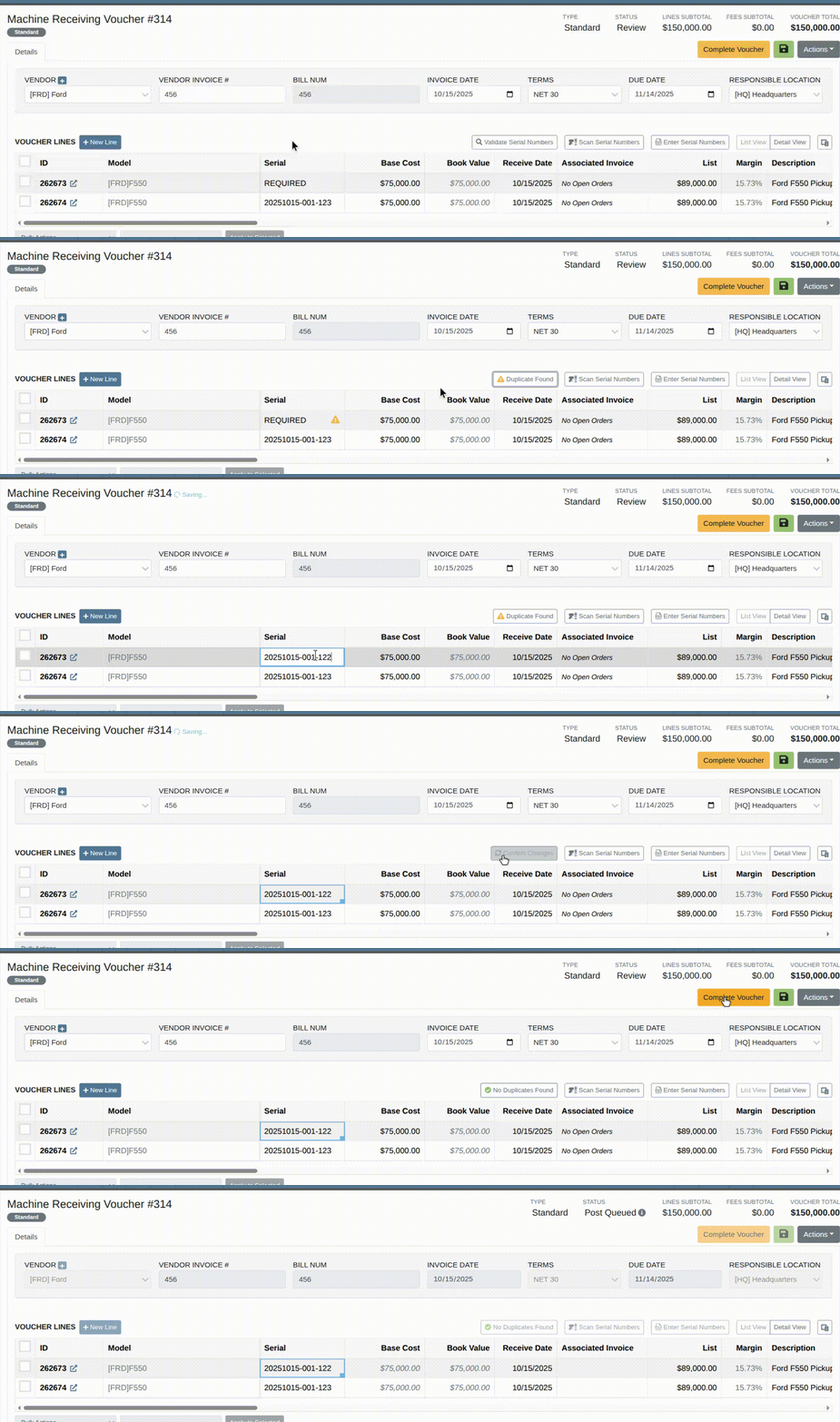
When receiving Machines, there was no way to check applied serial numbers against your machine inventory, or other machines on the same receiving voucher. This made it possible for receivers to apply duplicate serial numbers on machines, which could lead to confusion or issues later on.
Solution
We’ve added a new button on the Machine Receiving Voucher to check your serial numbers on receive; clicking it will display a warning and mark which lines have duplicate serial numbers if any machine has the same serial number as another on the receiving voucher, or another machine in your inventory.
After adjusting your serial numbers, check again to confirm that the newly applied serial numbers are good to use; assuming all serial numbers on the Machine Receiving Voucher are unique (across your machine inventory), the button will indicate that no duplicates were found.
Opportunity
Dealers working with international vendors sometimes add items to purchase orders where the PO currency differs from the item’s (vendor) currency. When received, this could overwrite the item’s base cost with a foreign-currency value and skew pricing and margins.
Solution
Flyntlok now prevents users from updating an item’s pricing when the PO currency does not match the item’s vendor currency. This safeguard ensures pricing integrity and prevents accidental updates caused by currency mismatches during purchasing.
Opportunity
Users were able to apply multiple IBS payments or apply an IBS return to an invoice that already contained an IBS payment. This could lead to duplicate payments or mismatched balances during reconciliation.
Solution
We’ve updated invoice validation to ensure accurate IBS transaction handling. Invoices can now only have one IBS payment, and IBS returns cannot be applied to invoices that already include an IBS payment.
Opportunity
Previously, when creating vendors from Flyntlok, only the vendor’s name was transferred to Sage Intacct. This limited setup required users to manually enter additional details in Sage, such as address and contact information.
Solution
The Sage vendor creation process has been enhanced to include full vendor details. Users can now provide address, city, state, zip, country, phone number, and email when creating a Sage vendor directly from the vendor edit page in Flyntlok.

Opportunity
Sales teams creating new CRM leads had to manually re-enter customer information. When a searched phone number or name did not match an existing record, the input was lost, requiring users to ask for and type the details again when creating a new customer.
Solution
We’ve updated the Add New Lead form to retain your search input. When you search by name or phone number and no existing customer is found, that information will now autofill the Create New Customer form.
Complaint: Service Managers reported that parts on Invoices in “Draft” status were not added to Job Templates created from Work Order Jobs.
Correction: Fixed.
Complaint: When technicians uploaded videos to Work Order Jobs, the mobile view attempted to generate and autoplay video thumbnails. This caused performance issues, the page would freeze, preventing techs from clocking in or out.
Correction: The mobile view now displays a static video icon instead of loading video thumbnails.
Complaint: Sales Managers reported that some information was not carrying over to Shopify when a machine was linked from within Flyntlok.
Correction: Fixed. Shopify made an unannounced change to their integration that was causing this issue.
Complaint: Machine Managers reported that they could not opt out of telematics for certain machines.
Correction: Fixed.
Complaint: Technicians reported that double clicking when clocking in to a job would immediately clock them out.
Correction: Double clicking no longer has an effect.
Complaint: Inventory Managers reported that they were not able to set the reorder point for an Item across multiple locations.
Correction: Fixed.
Complaint: Rental clerks noted that they were unable to check in a machine on a rental contract.
Correction: Fixed an issue where users were unable to check in a line via the bulk check out screen when a checked-out line did not have check out mileage set.
Complaint: Managers mentioned that when attempting to filter for Disabled users on the Edit Users page, it would always show an empty result when filtering for "False".
Correction: Fixed.
Complaint: Sales Managers reported that when bulk sending SMS messages through a CRM campaign, it would sometimes show "0 Sent" even though they were able to see via SMS Hub that some messages had been sent.
Correction: Fixed. Note that this fix may not apply to all previously-sent SMS campaign messages. Archived CRM campaign messages may still appear as "0 Sent".

Complaint: Sometimes when deleting kit items from a sales order, the kit components remained on the order and could not be removed.
Correction: Fixed.
Complaint: Accountants noted that trying to post already paid Part PO Vouchers to QuickBooks after a line had been deleted on the voucher could sometimes cause the generated journal entry to be unbalanced.
Correction: Fixed.
October 1st, 2025 Release Notes
Schedule a demo to learn more.
Check out our Flyntlok YouTube channel for more highlights of the application!
Opportunity
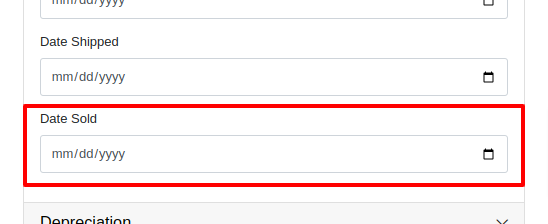
Managers requested the ability to set a Machine’s “Date Sold” when creating a new Machine. This field may be needed when entering historical data for machines into Flyntlok.
Solution
There is now an input for the Date Sold on the New Machine form.
Opportunity
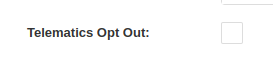
Rental and Service Managers requested the ability to opt out of receiving telematic data for certain Machines because the data was sometimes erroneous.
Solution
There is now an option to opt out of telematics in the “Information” section of the “Machine Edit” page.
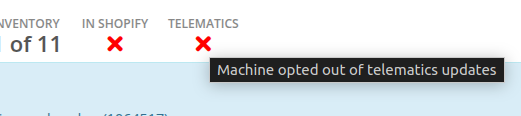
Note: All previous vendor-specific opt out functionality and data has been migrated over.
Opportunity
Service Managers requested to see the “Preferred Contact” from a Work Order on the Mobile Work Order view. The contact phone numbers and email addresses are useful for technicians doing service work in the field who need to reach out to customers.
Solution
The Work Order’s “Preferred Contact” is now visible on the Mobile Work Order.

Opportunity
Shopify Store Managers requested the date that a product was added to Shopify be added to the “Product Synced to Shopify” Report so that there is more visibility into what inventory is connected to the store and when.
Solution
There is now a “Linked On” column in the “Product Synced to Shopify” report.
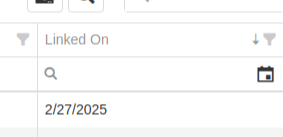
Opportunity
Salespeople requested the ability to track Quotes and Sales Orders associated to a CRM Lead. Previously, users could only create a new Quote from the Lead page, but there was not a way to manage the association, nor was there any way to link existing Quotes or Sales Orders.
Solution
On the Lead Dashboard, users can now link any Sales Order to a Lead. These can be managed by clicking on the new “Sales Order” section found on the left side of the page:
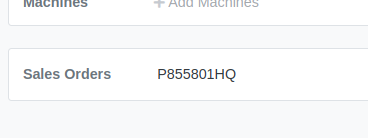

Click on the “Link Sales Order” action to search and add existing Sales Orders. Related Sales Orders can also be removed by clicking on the Trash Can.
Opportunity
Salespeople requested more invoice-specific information when reporting a loss from the Point of Sale page. Previously, only the Part or Machine was pre-filled, and quantity and sale price was not factored in.
Solution
Reporting a loss from the Point of Sale page will now pre-fill the Loss Report form with more detailed information. Quantity and price are filled from the invoice in order to more accurately reflect the estimated revenue lost. Additionally, the comments section will contain information about per-quantity pricing and the associated Sales Order.

Complaint: Machine Purchasers noted that PDI cost was incorrectly being included in fee-only Vouchers.
Correction: Fixed.
Complaint: Parts Purchasers noted that there was no longer a warning showing when two Vouchers had the same Bill ID on a given Purchase Order.
Correction: Fixed.

Complaint: Service Managers noted that the Machine search on the Job Service Scheduler was not filtering by the Customer’s machines for the Customer assigned to the WO.
Correction: Fixed.
Complaint: Salespeople received notice from their customers that their Sparks portal was not displaying Sales Orders on their “My Orders” page. This occurred when there were a large number of items.
Correction: Fixed. This page was updated to now handle Sparks Orders that contain large quantities of items.
Complaint: Salespeople complained that while attempting to use a barcode scanner on Point of Sale, not all scans seemed to be registering.
Correction: Fixed an issue for Microsoft Edge users where the browser’s auto-fill functionality was causing issues with Scan Mode. It always has to be you, Microsoft, doesn’t it…
Complaint: Service Managers noted that when their Technicians were adding a Work Order Job on mobile, it was not applying the Technician’s default Labor Type.
Correction: Fixed.
Complaint: Service Writers noted that when printing a Work Order Pick List, parts for rejected Jobs were appearing on the PDF.
Correction: Fixed.
Complaint: Purchasers mentioned that while bulk editing Machines on MPO Vouchers, the changes were not being saved immediately.
Correction: Fixed.
Complaint: Service Managers complained that when using Service Scheduler, they were not able to remove the “Assigned User” selection.
Correction: Fixed.
Complaint: Salespeople noted that they were sometimes getting an unknown error when starting a “Text to Pay” transaction.
Correction: Fixed an issue where special characters in the “Billing Name” field of the customer would cause errors.
Complaint: Inventory Managers complained that after making changes to a Part Purchase Order, sometimes its status would not change even though it was expected to. Users needed to manually click on the “Force Refresh” option for the status change to take effect.
Correction: Fixed. Clicks deleted!
Complaint: Service Managers invoicing Work Orders noticed that the transportation fees were being included in the “Parts” subtotal when using the detailed subtotal breakdown for the Invoice PDF.
Correction: Fixed. Pickup and Delivery fees will now be counted in the “Other” subtotal when using the detailed subtotal breakdown.
Complaint: Managers reporting losses from Invoices noticed the Estimated Revenue Lost wasn’t showing the extended price, only the price of one unit.
Correction: Fixed. Reporting a loss from the invoice will now factor in the quantity on the invoice line to show an extended price.
February 12th, 2025 Release Notes
Learn More at Flyntlok Dealer Management System
Check out our Flyntlok YouTube channel for more highlights of the application!
Opportunity
Salespeople have expressed interest in being able to customize the list of statuses they are able to assign to a Lead, which would allow companies to tailor their Lead process to fit their individual needs.
Solution
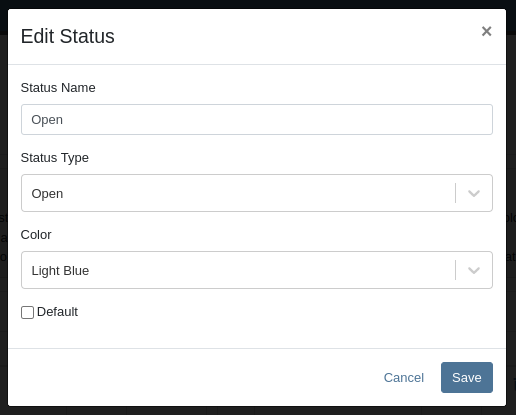
We have created a new settings page for CRM that can be accessed by those with administrator accounts via the Admin Settings page. Users can add a new status using a button at the top of the Lead Statuses tab and edit individual statuses by clicking on an individual status badge. Either of these actions will open a modal that will allow the user to edit a status’s name, type, badge color, and default status.
Users can also choose a status to be the default for all new Leads by clicking the checkbox next to a status name in the Status Pipeline columns. Statuses can be deleted as long as they are not currently set as the default. Deleted statuses will be visible on leads already using them, but will no longer be available as status options for newer leads.
Drag and drop the statuses within type columns to reorder how they show up in Lead status edit menus across Flyntlok. Within the Status field dropdown on a Lead, the statuses will be ordered first by the New values, then the Open, then Closed, and within those levels they will be sorted as ordered within those stages in the settings page.

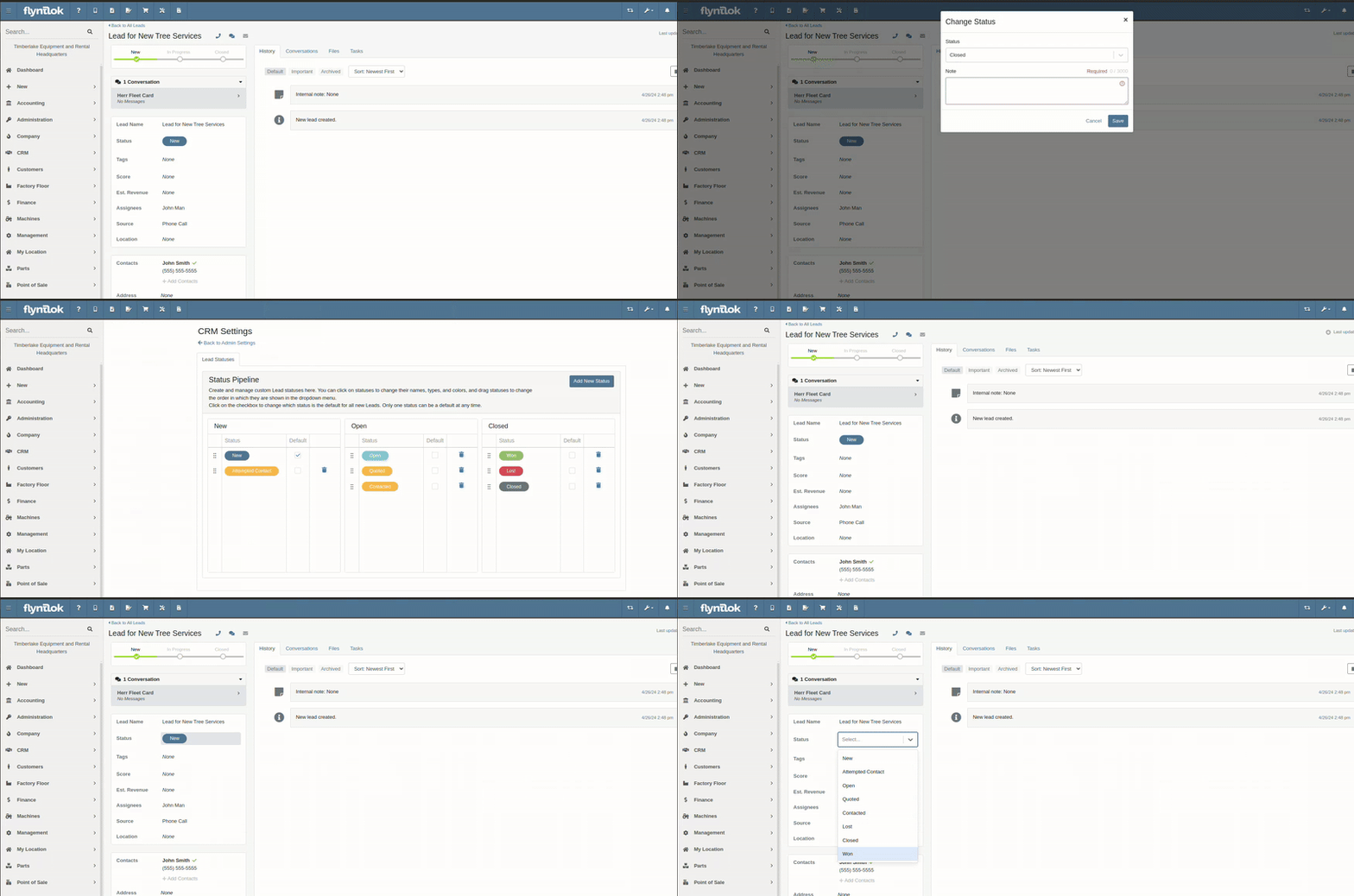
A new column called status type has been added to the All Leads table which is hidden by default and can be added to the grid from the column chooser. As the name suggests this column contains the type of the status which is one of NEW, OPEN or CLOSED. You can create custom saved grid views using this field, such as "All New and Open" leads, or "All Closed Leads".

Opportunity
Dealers that make use of texting within the context of CRM asked for the ability to block texts from certain phone numbers because they were receiving a high volume of spam.
Solution
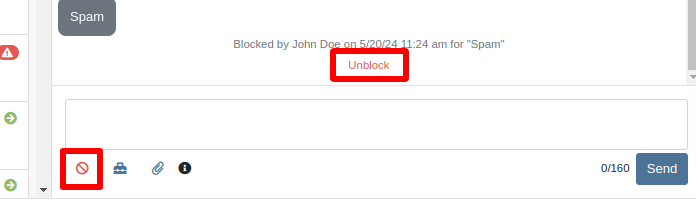
Users can now add numbers to a “Block List”. Texts from these numbers will automatically be filtered from the list of conversations, but can be viewed by toggling a filter.
To block a phone number click on the “Block” button on the left side of the footer:
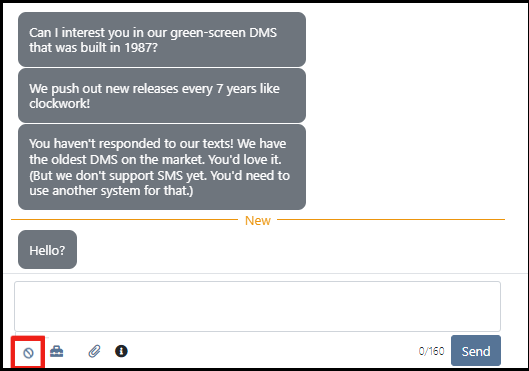
Once clicked it will open a modal where users can provide a reason for the block:

To see blocked phone numbers toggle the filter “Include Blocked Numbers”:
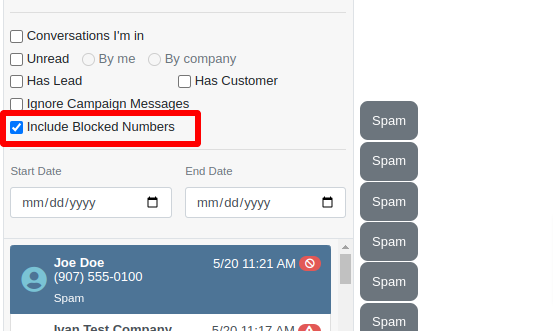
To unblock the phone number click on either “Unblock” text in the middle of the conversation or unblock button on the left side of the footer:
Opportunity
Hitachi dealerships have requested the ability to track telematics data for their Hitachi machines, for use in service, rental, and sales workflows.
Solution
We have created a link between Flyntlok and Hitachi to receive Hitachi telematics data in Flyntlok. Once connected, tenants will be able to track the last known location, miles, and hours data for any associated machines within Flyntlok.
We have added a Hitachi settings page to the “Integrations'' hub page, reachable through Editors(wrench) > Editors > Integrations > Hitachi. This page allows administrators to connect their company’s Hitachi account to Flyntlok using their credentials. Simply provide your username and password and click “Submit Credentials'' to do so.
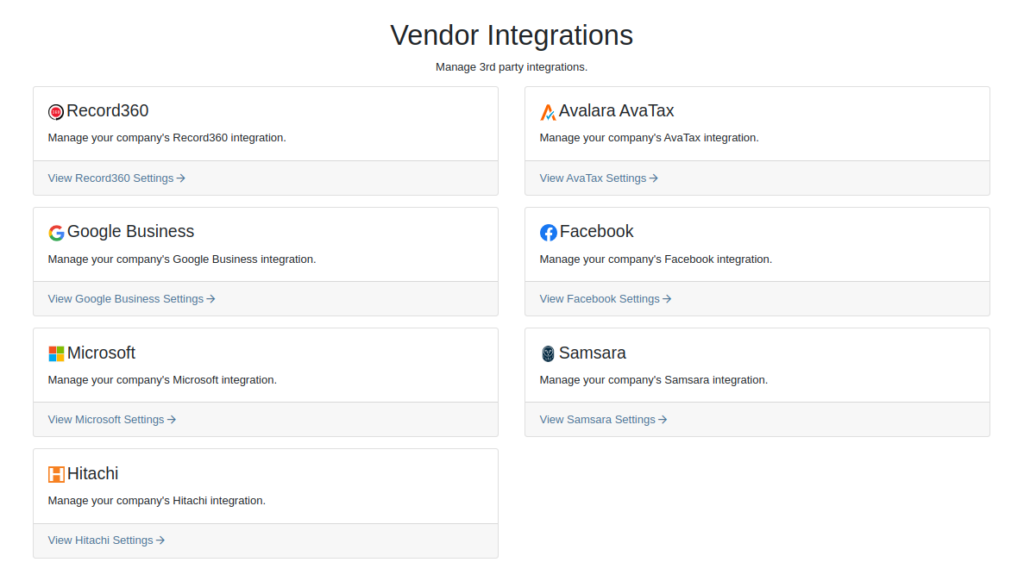
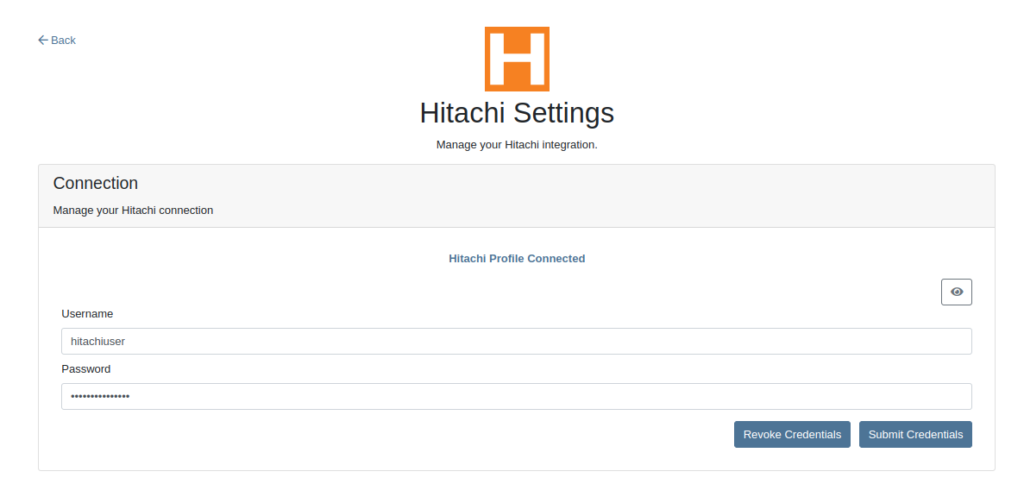
Once connected, Flyntlok will daily ingest machine miles, hours, and last known location data from Hitachi for the machines with matching serial numbers. The data is updated automatically and can be viewed on the machine’s dashboard.

Opportunity
Users requested the addition of an "Engine Make" field on the machine dashboard.
Solution
Added the "Engine Make" field to the machine dashboard.
Opportunity
Rental Managers requested that notes from rental-contract-related Reservations be added to the Rental Contracts on creation.
Solution
Notes and comments from Rental Reservations are copied over to generated Rental Contracts.
Opportunity
Salespeople asked that the available QOH shown for models on the invoice page only reflect the in-store quantity and not the amount “On Order”.
Solution
The on-order quantity was separated from the available QOH and is now displayed in separate badge details.

Opportunity
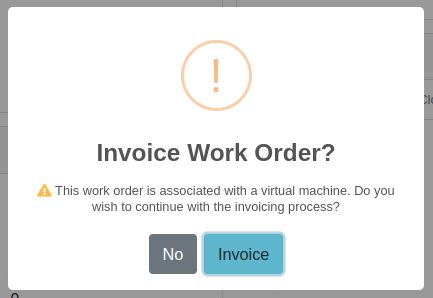
Service Managers requested a warning to be displayed when invoicing a Work Order with a Virtual Machine.
Solution
Added an option to display a warning when invoicing a Work Order with a Virtual Machine.
Opportunity
Service Managers expressed the need to see warning notes on the Work Order creation page, not just the Sales Order page.
Solution
Added customer warning notes to the Work Order creation page. Warning notes are now visible while searching for the customer and after selecting the customer.

Opportunity
Service Managers requested the ability to display separate subtotals for labor and parts on Work Order Invoices and Quote Reports.
Solution
Added a setting to display separate subtotals for labor and parts on both Work Order Invoices and Quote Reports.
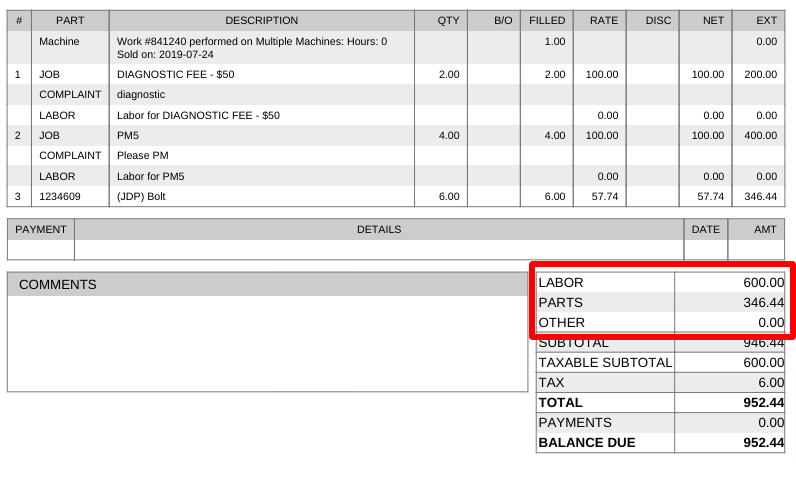
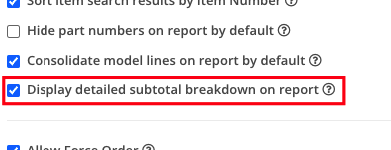
To enable the setting, open the wrench menu at the top of the screen and go to "Flyntlok" → "Flyntlok Settings". You can find this setting in the "Sales" section as a toggle called "Display detailed subtotal breakdown on report".
Complaint: Customers using Sage Intacct reported that some entries were posted multiple times. This issue occurred when multiple users initiated postings simultaneously, causing collisions and duplication of entries.
Cause/Correction: To prevent collisions and duplications, posting to Sage Intacct is now limited to one process at a time.
Complaint: Salespeople reported discrepancies in the final price shown on the Sales Order Report. When a Sales Order uses the “Consolidated Model Lines” setting and it includes the same models with different prices, the report mistakenly consolidates them, displaying the same price and leading to inaccurate calculations.
Cause/Correction: The model-consolidation was revised to ensure model lines are separated/distinct by both model and price, preventing mispricing and ensuring accurate reports.
Complaint: Salespeople noted that the links to quotes in the Quotes Expiration Notifications were not working.
Cause/Correction: Fixed.
Complaint: Users reported issues with payments for invoices from QuickBooks Online not syncing to Flyntlok consistently. Invoices in QuickBooks Online were being marked as paid, but this was not being reflected in Flyntlok.
Cause/Correction: Fixed.
Complaint: Sales managers requested that users not be able to change the customer on a paid invoice to an “Internal Customer”.
Cause/Correction: If any invoice has been paid for by an actual customer, the invoice’s customer cannot be changed to an “Internal Customer”.
Learn More at Flyntlok Dealer Management System
Check out our Flyntlok YouTube channel for more highlights of the application!
Sales Managers have expressed the need to improve the handling of high-volume quantity of Machines→Models association at the Point of Sale.
An option has been made available for all Flyntlok users to perform the association of multiple machines with their respective model lines in a single action. This should improve the sales process, reducing the time and effort required for Machine to Model associations.
To do a bulk Machines→Models association click on the  “Associate” button on one of the Model lines to open a modal window for Machine association.
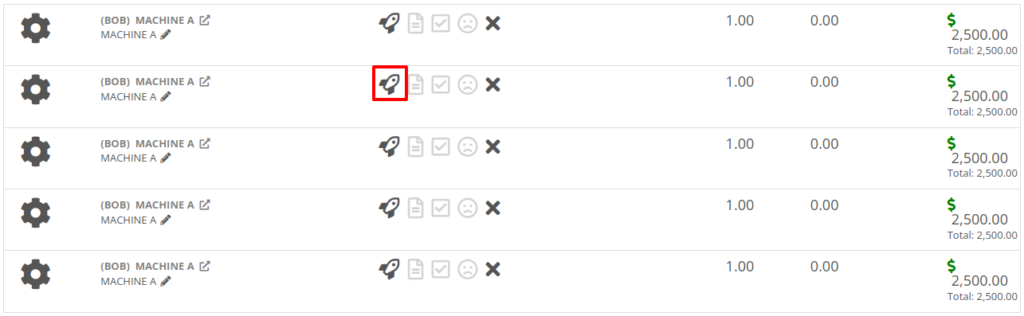
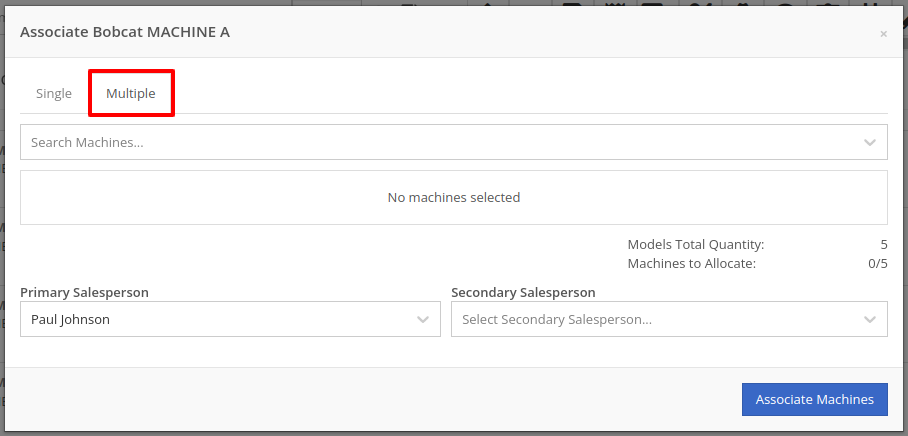
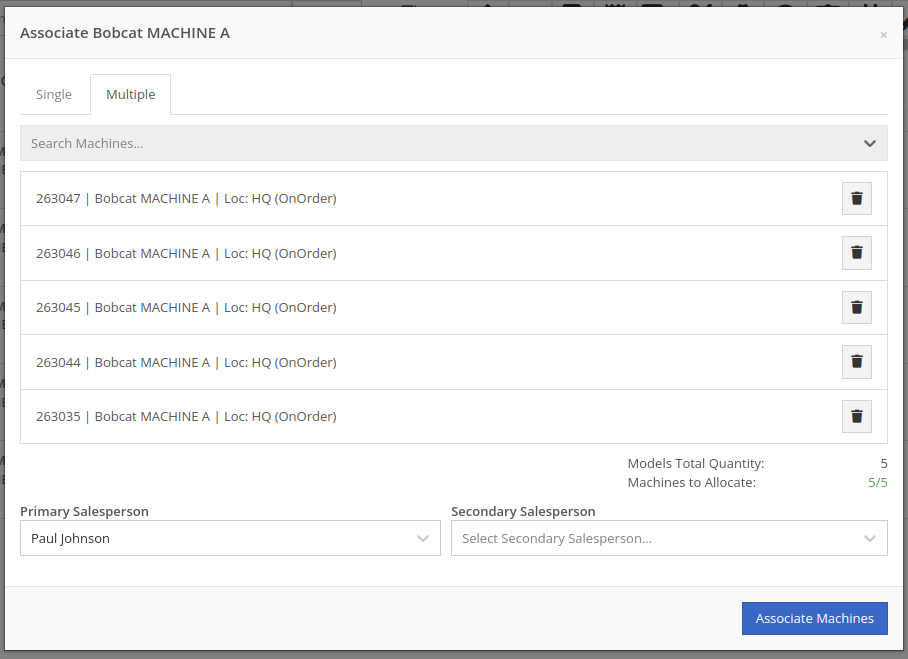
Then, once the Associate window is open, you have the option of either clicking on the “Single” or “Multiple” tab. If you click on the "Multiple" tab, you can then select the Machines that you want to associate to the specific Model. This tab will also include the Models Total Quantity as well as the number of Models that have been associated. You can also set the Salesperson. Click the “Associate Machines” button and all selected Machines will associate.

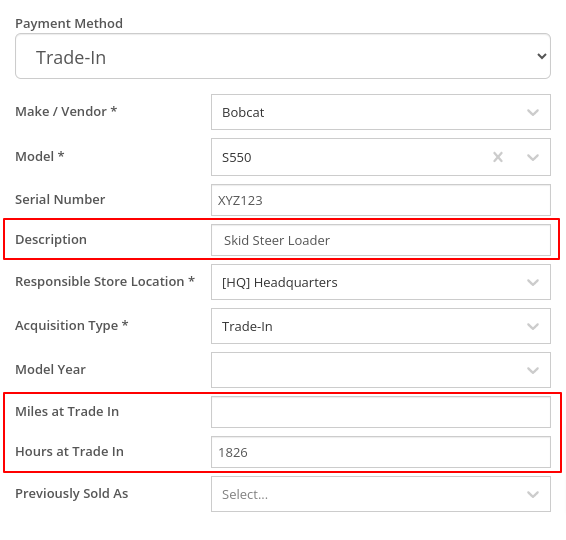
Opportunity: Salespeople have requested the ability edit additional fields when creating a machine from a trade-in, including Description, Hours, and Mileage.
Solution: The machine trade-in form has been updated to include the Description, Hours, and Mileage fields. With these, salespeople can input these details directly from the Sales Order. This will save them time as it eliminates the need to navigate to the machine’s dashboard then edit the machine.
Opportunity: Salespeople have requested that the Sales Order “Thermal Receipt” have the option to display line-level discounts. This option is already available on the full-page-print version of the Sales Order.
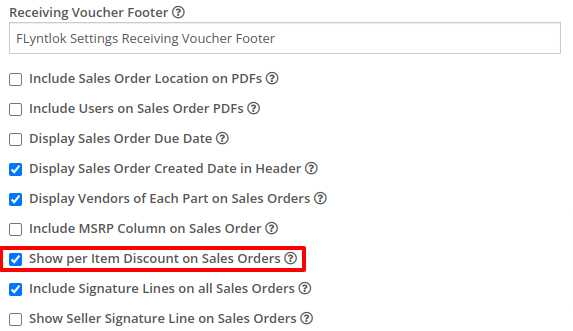
Solution: The Sales Order “Thermal Receipt” layout has been updated to include line-level discounts (percentage and dollar discount from list). The existing flag “Show per Item Discount on Sales Order” in Flyntlok Settings will now apply to thermal receipts as well.
Volvo dealerships have requested the ability to track telematics data on their machines in order to use it in sales, rental, and service workflows. Volvo will send out positioning and utilization data about every Volvo machine a dealership owns on a daily basis at a time chosen by the dealership.
Flyntlok will ingest Volvo’s daily telematics updates for a dealership that is interested in receiving this data. The interface maps the telematics data using a machine’s VIN as a reference. The dealership will need to ensure that all Volvo VIN’s are accurate and up-to-date in Flyntlok.
The updated latitude, longitude, and machine hours data will be visible on the machine dashboard as illustrated below.
If you are interested in this feature, please work with your friendly Flyntlok Consultant to get this interface setup with Volvo.

Opportunity: Fleet Managers have requested the ability to track machine hours down to the decimal, providing more accuracy when logging a machine’s utilization.
Solution: We have updated machines to support a decimal place when inputting hours. This change brings Machine Hours in line with Machine Miles, with both now able to capture a decimal place.
Machine Dashboard Warning Note
Opportunity: Flyntlok users have requested the ability to display a warning on the Machine Dashboard, similar to the warnings on Customer Dashboard.
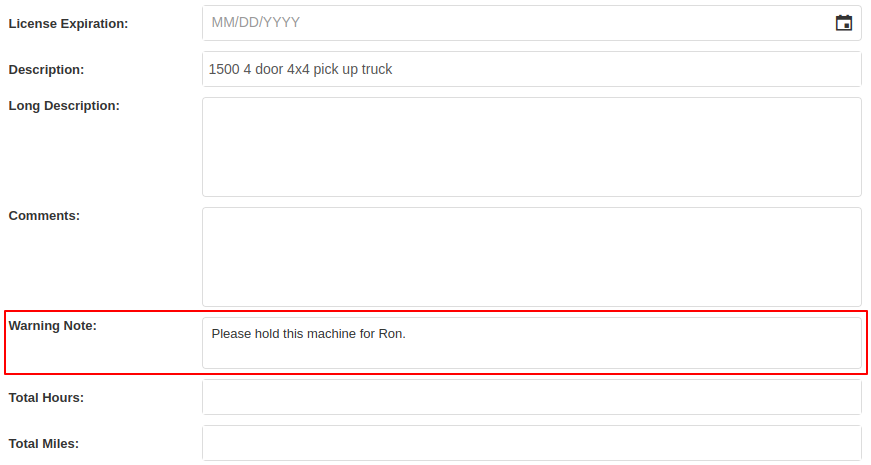
Solution: The Machine Dashboard has been updated to display Warning Notes, which can be added by editing the machine. After adding the warning note, any future visit to that machine’s dashboard will show a popup at the top of the screen presenting the entered note.

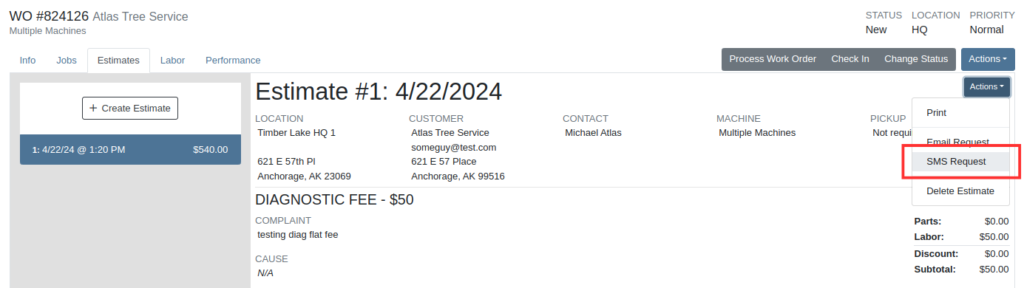
Salespeople and managers have requested the ability to send Work Order Estimate Approval links via SMS, in addition to the already existing email functionality. This would make the estimate approval process more accessible for the customers of our dealers.
A new “SMS Request” option has been made under the Estimate’s “Actions” button in the Work Order Dashboard. The original “Send Request” button has been re-named “Email Request” to differentiate it from this option.
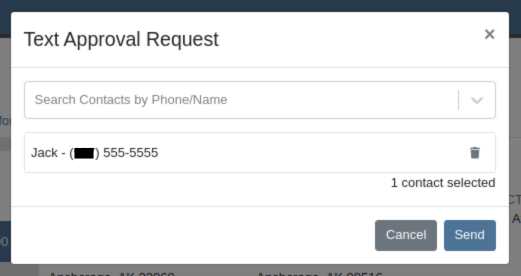
When users select the SMS Request option, they can search for contacts tied to the Work Order’s customer by name or phone number, and select contacts to send the estimate approval link to. Customers will be sent a text message from Flyntlok with a link that leads to the approval page.
Once a request has been sent via either SMS or email, a green paper plane icon will appear next to the estimate date to indicate that it has been sent to the customer.

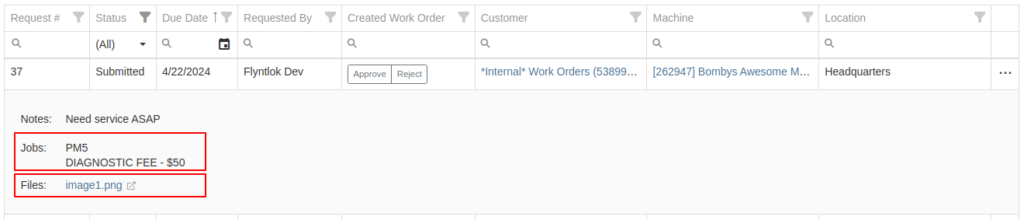
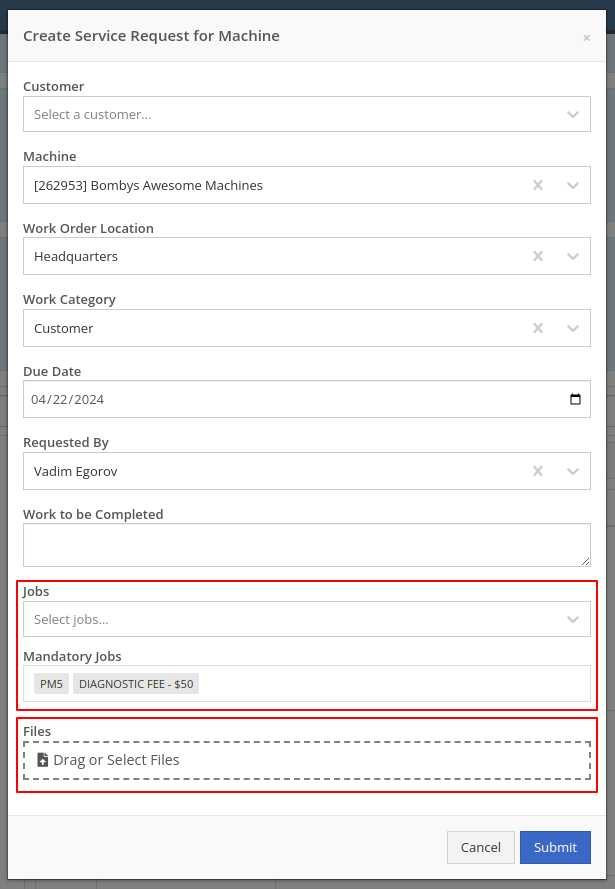
Service Managers have asked for the ability to attach files and jobs at the point of creating a Service Request. Additionally, there was a request to keep users informed about the status of Service Requests, including their creation, approval, and rejection.
Service Requests now include options to add predefined job templates and display any mandatory jobs, if applicable. These templates will be applied to the Work Order once the Service Request receives approval.
We have introduced a File Upload Capability, allowing users to attach files directly to their Service Requests. The attached files will automatically be associated with the corresponding Work Order post-approval.
Enhanced notifications will ensure that Service Managers receive alerts when a Service Request is initiated. Automated notifications will also update requesters about the approval or rejection of their requests.

Opportunity: Service Managers have requested the ability to see a Work Order’s location in the Jobs table when scheduling jobs from the Jobs Service Scheduler.
Solution: A new column has been added to the Jobs table displaying the Work Order’s location.
Opportunity: Service Managers requested the ability to use Work Order Job templates from the Work Order Mobile page.
Solution: When adding a job to a Work Order on the mobile view, there is a new field where a job template can be selected. Choosing a job template from here will work just like the desktop version of a Work Order and appropriate fields will be filled based on the selected template.
Opportunity: Service Techs and Service Managers have requested the ability to view “Configured Attachments” on machines when viewing the machine on a Work Order.
Solution: Work Order Dashboard has been updated to show a list of attached machines when selected.

Opportunity: Service and Parts Managers have requested more flexibility when setting up automated status-change rules on Work Orders. For example, while Flyntlok currently has a feature in place that can update a Work Order status when an Estimate has been signed, it would be useful if the Work Order could be placed into a specific status based on whether that signed estimate was fully approved or rejected.
Solution: Several new "Event Rules" have been added to our status-automation feature for when these events occur in Flyntlok:
Contact a consultant to have these new rules configured for your environment.
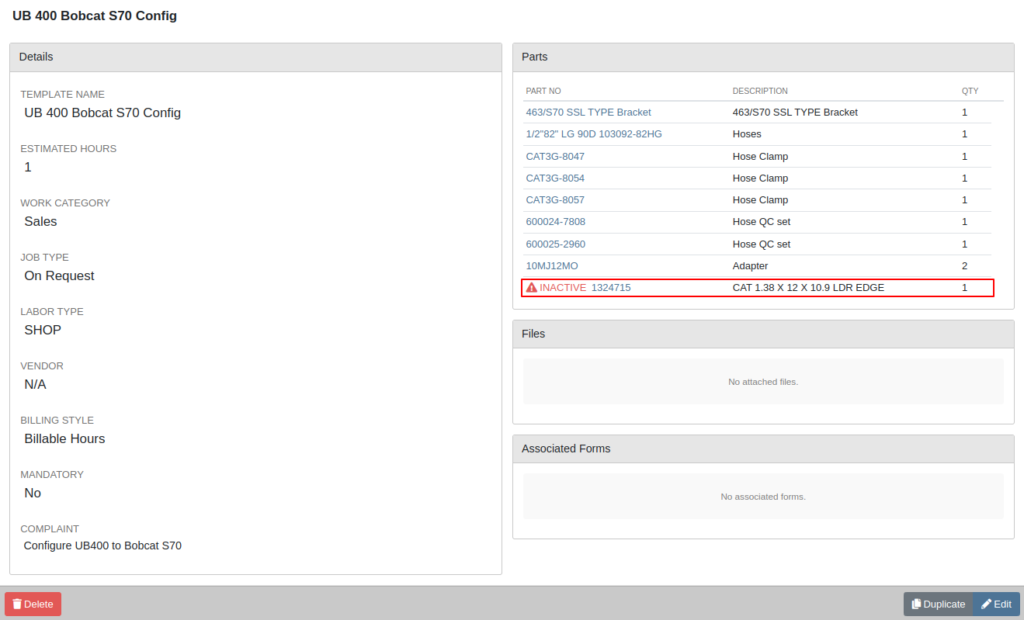
Opportunity: Service Managers have expressed confusion about the ability to add “Inactive Parts” to Work Order Job Templates.
Solution: We have updated the Work Order Job Templates editor page. Inactive parts will be excluded when editing the parts list. Additionally, any parts that were made inactive that already exist on job templates will now show an indicator that the part is currently inactive.
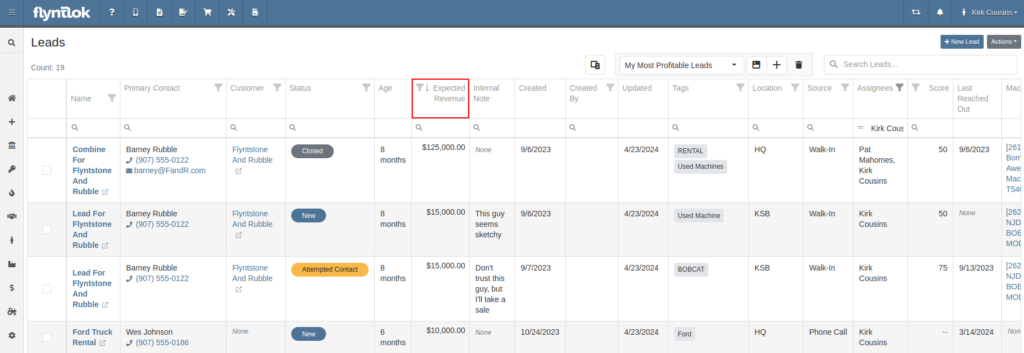
Opportunity: Salespeople have requested the ability to see “Internal Notes” as well as the “Expected Revenue” for a Lead from the “All Leads” view. Previously, these fields could only be viewed after clicking into a Lead.
Solution: The “All Leads” view has been updated to display both Expected Revenue and Internal Notes from the lead. With these columns, salespeople can now enhance their searching, sorting, and filtering. For example, these can be used to search for specific notes or to sort by the most valuable leads. Additionally, salespeople will see more information at a glance when reviewing all their leads.
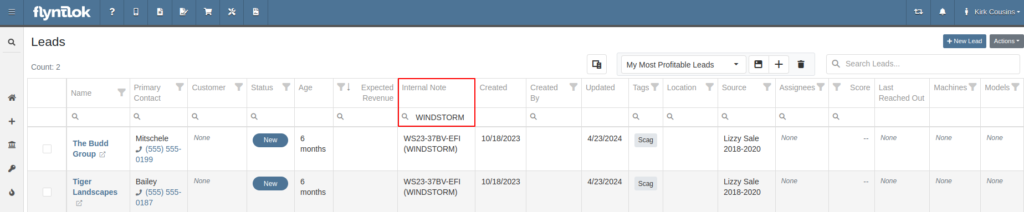
Opportunity: Salespeople have requested links to Machines and Models from the Leads table.
Solution: Machines/Models that are displayed on the Leads table now have links back to the actual Machine or Model.
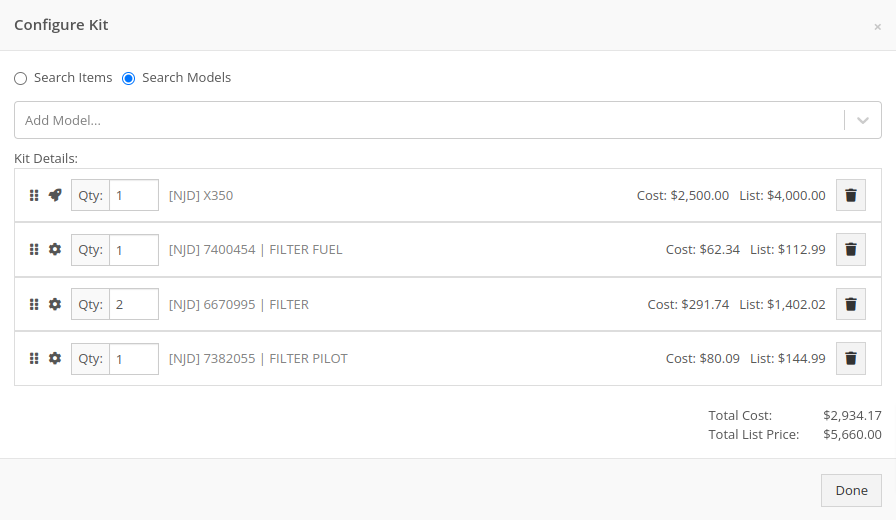
Opportunity: Inventory Managers have requested that Flyntlok display more details on the line items within the kit configuration.
Solution: The kit configuration has been updated to display the cost and list for each item, and now has links to the item’s details (whether Items or Models).
Opportunity: Purchasers have requested the ability to specify a location for their Purchase Plans when creating a purchase from the Item Dashboard.
Solution: We have updated the Order Item modal to support a location selection. Purchasers can now choose a location for their Purchase Plan at the time of creation.

Opportunity: Managers have requested the ability to limit which users can submit Machine Purchase Orders for approval.
Solution: A new permission has been added to allow/restrict the submission of Machine Purchase Orders. Administrators can configure this by navigating to the Access Control page, the new permission is named “Submit for Approval” under the Machine Purchase Order section.
Opportunity: Managers have requested the ability to limit which users can manage/use stored credit cards on a customer.
Solution: Two new permissions have been added around saved credit cards. The first permission allows viewing/adding saved credit cards on a customer via the Customer Dashboard. The second permission allows the actual use of saved credit cards at the point of sale. Administrators can configure these permissions by navigating to the Access Control page, the new permissions are named “Manage Saved Credit Cards” and “Use Saved Credit Cards” under the Customer section.
Opportunity: Flyntlok users have requested the ability to edit or delete Customer Notes that were added to a customer on the Customer Dashboard.
Solution: The Customer Dashboard has been updated with an edit and delete function for notes added. Edits and deletions are visible in the customer's logs.

#49700
Complaint: Salespeople noticed the indicator that a part had been superseded was not shown when they searched for some superseded parts.
Cause/Correction: We’ve updated the supersession indicator in the Parts Searcher to properly display when a part is superseded.
#50670
Complaint: Service Managers noticed that when processing a Work Order Job, rejected Parts Request quotes would still attempt to pull parts from inventory.
Cause/Correction: Inventory will not be pulled for Rejected Parts Request quotes.
#50838
Complaint: Our customers noticed the status column on the Quick Search page was always empty for machines that were on rent.
Cause/Correction: We’ve updated the Quick Search page to properly display the “Rented” status along with a link to the Rental Contract.
#51131
Complaint: Receivers reported that customers were being notified that their special order had been received despite not being warned ahead of time that a notification was going to go out.
Cause/Correction: We have updated the parts receiving workflow to properly display the existing Customer Notification indicator.
#51303
Complaint: Salespeople noticed that the automated “Opt Out” text message would be sent repeatedly while messaging a customer via SMS.
Cause/Correction: We have updated the SMS service to properly identify if a customer had been sent the automated “Opt Out” text message before. If a customer has received this text, they should no longer receive the automated messages.
April 10th, 2024 Release Notes
Learn More at Flyntlok Dealer Management System
Check out our Flyntlok YouTube channel for more highlights of the application!
Opportunity:
Flyntlok users purchasing equipment from an alternate system have requested the option to import these orders into Flyntlok’s Machine Purchase Order system.
Solution:
We have added an "Import" option to the  button's drop-down menu on the Machine Purchase Order page. Selecting this option will open the "Import MPO" modal allowing you to choose a file from your device to import into the Purchase Order. Flyntlok will then display the Machine information pulled from the imported file, allowing you to review the information and map columns accordingly. Selecting "Submit" will add recognized Machines from the import to the Purchase Order.
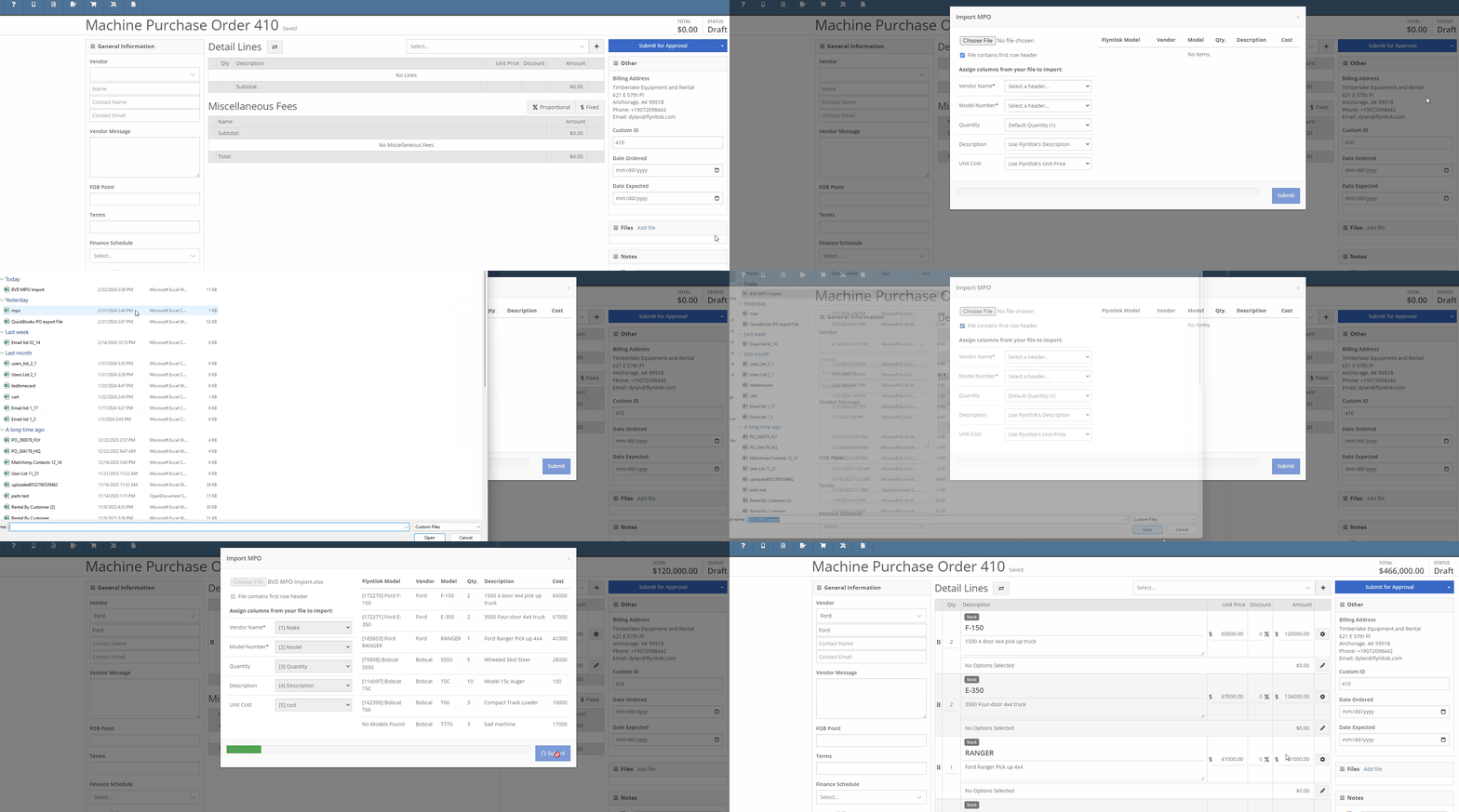
The “Import MPO” will accept CSV, TSV, XLS, XLSX, ODS file formats that contain, at minimum, a column with the desired Machine’s “Make” and a column with the Machine’s “Model.” User must check the prompted box if the imported file contains a first-row header.


Image from the Model Dashboard. Values from import file must match these from Dashboard.

Sample File.

Note: Only Machines recognized within Flyntlok will be added to the Purchase Order. Both the Make and Model fields within the file must match the fields in the Model dashboard within Flyntlok. Non-matching records will not be imported.
Opportunity:
Salespeople have requested the ability to set a custom discounted List Price on a Model for specific customers so that each time that customer buys a Machine of that Model, there is a default discounting rate set. This will save users time from having to re-add the discount from the Point of Sale and serve as a reminder that the customer has that discount available.
Solution:
To incorporate Model Specific Pricing on the customer level, we have added a “Model” option to the "Customer Discount Pricing" modal located on the Customer Dashboard page. While this modal was previously only for Item Discounts, we have renamed the option from "Item Discounts" to "Item/Model Discounts" and have added a toggle option to search Items or Models. Once you have selected "Search Models", you can add and edit individual Model discounts and set a specific expiration date for the discount.

We have also updated the discount structure of the Point of Sale to incorporate the Customer Model discounts so that you can save a new discount directly from this screen back to the Customer record. When adjusting/discounting the list price of a line item from the POS, Flyntlok will now give you the option to save that discount to the associated Customer's records.

Opportunity:
Service Managers that require their technicians to log the Hours and Miles of the associated Machine when checking-in to a Work Order Job, have requested we add a warning message to the Work Order's dashboard to indicate if the associated Machine is missing the meter history.
Solution:
We have added a new setting to the "Flyntlok Settings" page titled “Warn if Missing Machine Details”. When this setting is enabled Flyntlok will display a large warning at the top of the screen if the Work Order’s associated Machine is missing information.

Opportunity:
In our last Release, we updated the Work Order settings to auto-generate a "Machine Move" when Pick-Up/Delivery is required for the associated Machine of a WO. Our next improvement for this feature is to add an indicator of the Machine Move to the Work Order dashboard and allow for edits to be made to the WO to be reflected on the associated Move.
Solution:
We have added a "Machine Move" field to the Pick/Delivery section of the Work Order’s "Info Tab”, and Flyntlok will display the associated Move’s ID Number in this field when available. Selecting the ID Number will open the "Machine Move." We have also updated the settings of the Moves System, and Moves generated from a WO will respect all edits made to the Work Order's associated Customer, Machine, or Pick-up/Delivery schedule.


Opportunity:
On the "Customer" Tab of the Sales Order page, Flyntlok provides several fields where users can log additional Sales Order information. Sales Managers tracking the Sales Order "Source" and "Type" have requested we make these fields required.
Solution:
We have added two new settings to the Flyntlok settings page: "Require Source on Sales Orders before Processing" and "Require Type on Sales Orders before Processing." When enabled, these settings will prevent users from Selecting the "Process" button on a Sales Order unless the required field(s) are filled. Administrators can access these settings from the Flyntlok Settings page by selecting the option from the  icons drop-down menu. (Wrench-> Flyntlok-> Flyntlok Settings)


Opportunity:
Rental Managers have reported instances where unused Rental Consumables are still being represented on the contract's Invoice but with a quantity of 0. To alleviate customer confusion they have requested we remove unused Consumables from the Rental Contracts Invoice.
Solution:
We have updated the Rental Invoice settings and unused Consumables will no longer populate Rental Invoices.
Opportunity:
When associating a Machine with a CRM Lead, Flyntlok auto-adjusts the searching function of the machine searcher from available "Inventory Machines" to the specific Customer’s "Owned Machines" when a Lead is associated with a Flyntlok customer. Salespeople have requested the option to edit the search function manually.
Solution:
We have added a filter to the CRM Lead Dashboard's machine searcher that will allow you to toggle the searching function from "Sellable", which will show a list of all Available and OnOrder machines, to "All" which will show a list of all machines that are customer-owned and available.


Complaint:
Rental Managers had reported an issue where Rental Contracts created via a Machine Reservation were being generated without the requested dates from the reservation.
Cause/Correction:
Fixed. We resolved a bug that was not allowing Flyntlok to respect time-zone configurations. Rental Contracts created from a Machine reservation will generate with the Dates Reserved pulled from the reservation.
Complaint:
Service Managers had reported an issue where the "Technician" field was not populating all their available Service Techs into the drop-down menu when accessed from the "Mobile View."
Cause/Correction:
Fixed.

February 14th, 2024 Release Notes
Learn More at Flyntlok Dealer Management System
Check out our Flyntlok YouTube channel for more highlights of the application!
