Opportunity
Bobcat dealers expressed a need to access real-time inventory data within Bobcat OPC from Flyntlok and to efficiently manage pick lists created within OPC between the two systems.
Solution
To address this need, we have integrated Bobcat OPC with Flyntlok, providing two key capabilities:
Real-time Inventory Access
Dealers can now view inventory details from Flyntylok such as bin locations, quantities on hand (QOH), quantities on order (O/O), and pricing directly within the Bobcat OPC. To view the inventory details of the parts within the Bobcat OPC go to “Parts Catalog” and select a part you want to view. The opened modal will include the “DMS Availability” section populated with inventory data from Flyntlok.

The inventory data can also be viewed from within the pick list on the Bobcat OPC.

Pick lists Export
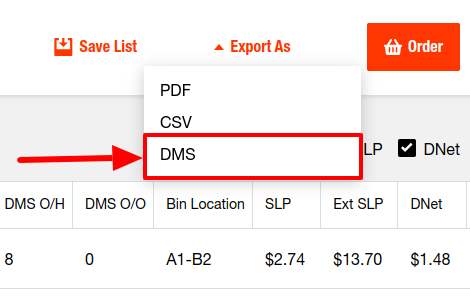
Dealers can export pick lists created in Bobcat OPC to Flyntlok, allowing for easy creation of draft Sales Orders or Internal Parts Orders. To export a pick list from Bobcat OPC to Flyntlok, while in the pick list on Bobcat OPC, click “Export As” and select “DMS” from the dropdown.
To view the exported pick lists back in Flyntlok, open the left sidebar, navigate to the “Parts” section, and click on the “Bobcat OPC Pick List” link.
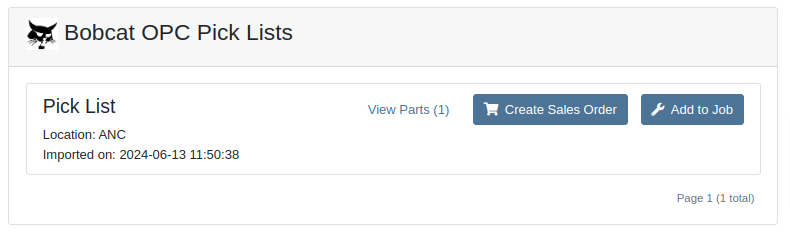
On this page, you can view the list of parts on the pick list by clicking on the “View Parts” button.

To create a draft Sales Order, click the “Create Sales Order” button and follow the prompt.

Integration Setup
To connect Bobcat OPC to Flyntlok follow these steps:
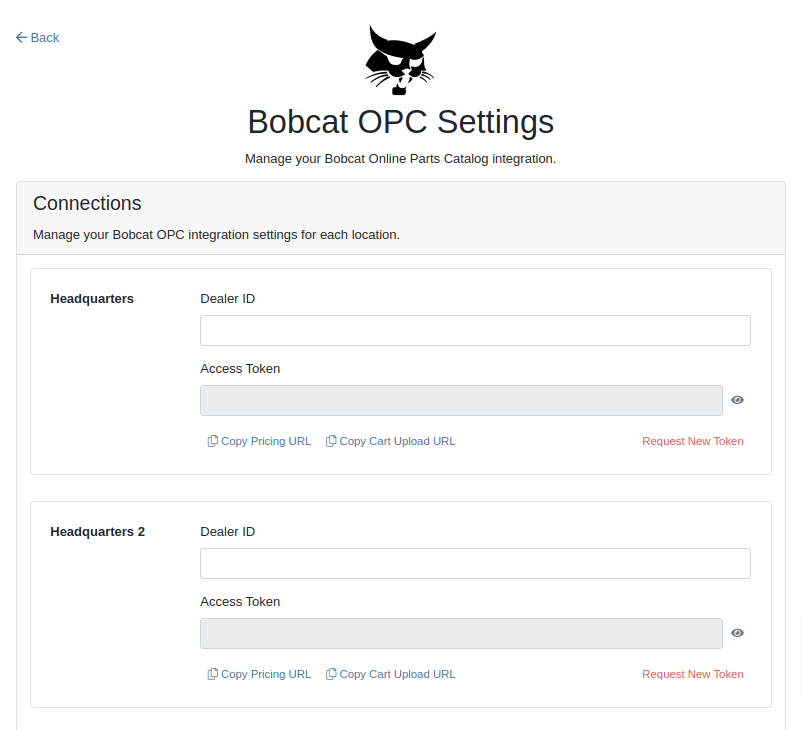
1. Access the Integrations Page within Flyntlok

2. Choose the location you want to connect to Bobcat OPC.
3. Generate token
4. Click on the “Copy Pricing URL” button to copy the Pricing URL.
5. Click on the “Copy Cart Upload URL” button to copy the Cart Upload URL.
6. Log into your Bobcat Account at https://dealer.bobcat.com/.
7. Click on “Bobcat Parts” under the “Parts” section.

8. Select Organization/Location. Use the location for the token you generated in step 3.
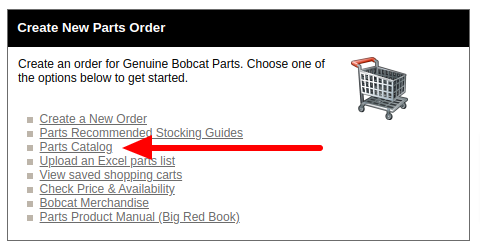
9. Under the “Create New Parts Order” section, click on the “Part Catalog” link.
/images/image9.png)
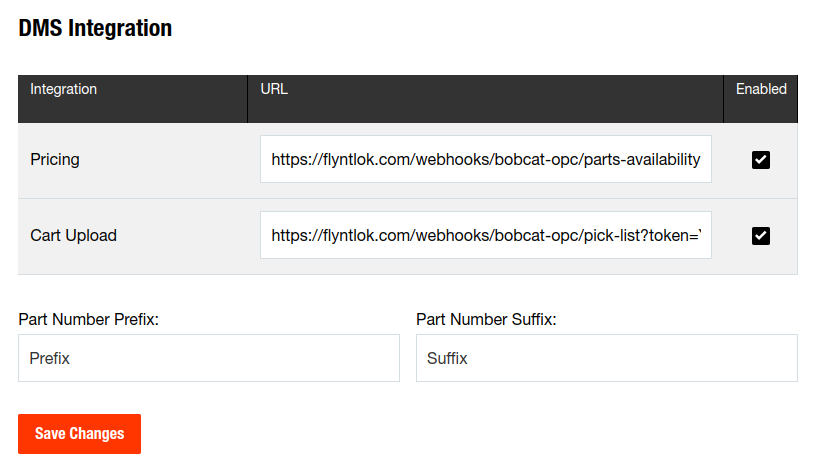
10. Open the “Settings” in Bobcat OPC and navigate to the "DMS Integration" section.
11. Provide the URL from step 4 to the “Pricing” field and enable it.
12. Provide the URL from step 5 to the “Cart Upload” field and enable it.
13. Click on the “Save Changes” button to persist your settings.
14. Repeat steps from 2 to 13 for each location you want to connect to Bobcat OPC.
Opportunity
Salespeople, who make use of the automated workflow tool Zapier, have expressed an interest in automating the process of lead creation in Flyntlok by integrating these two wicked cool products.
Solution
To address this need, an app was created in Zapier that integrates with Flyntlok. This app allows users to automate the creation of leads in Flyntlok through various triggers and actions within Zapier.
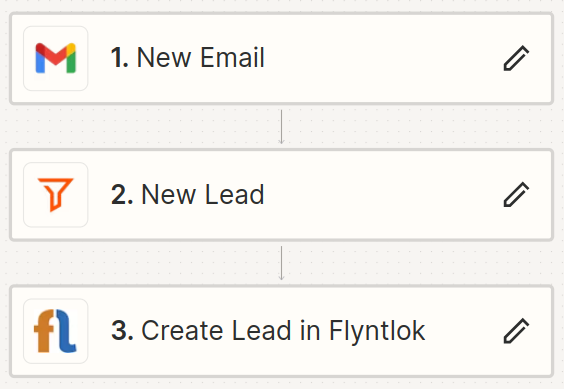
The following fields are exposed to Zapier via our interface:
Contact your friendly Flyntlok consultant if you would like to integrate us with your Zapier implementation.
Opportunity: Salespeople requested the ability to see the quantity on hand (QOH) directly on a Quote. Currently, users must approve or modify the quote to view QOH, leading to potential miscommunication about stock availability.
Solution: We added the display of QOH on the item lines within the Quote. This change will enable salespeople to accurately inform customers about stock availability without needing to approve or modify the quote.

Opportunity: Sales Managers have requested the ability to apply discounts to items based on their original list price, not the current displayed price. Otherwise, if the customer already has a discount in place, this would apply a discount to a discount (which is awesome for your customers, but not for you!).
Solution: Flyntlok introduced an option to apply discounts to each line item based on their original list price, ensuring each discount is calculated correctly from the list price rather than compounding discounts. This option is available only if the tenant is configured to calculate discounts line-by-line.
The "Apply Discount" form will now include two options for discount application:

Opportunity: Salespeople requested that when processing a Sales Order for an “Account Customer”, they would like to be able to more easily track if a signature had been collected on a Sales Order.
Solution: We have introduced a new option to display a warning when attempting to process a Sales Order. This prompt will show up when clicking on "Apply Payment & Process" if the Customer is an Account Customer, and their signature has not yet been collected.

It will also show a message by the Process button:

The warnings can be enabled via the Wrench Icon -> Flyntlok Settings

To further improve visibility, we have added a "Signed" badge at the bottom of the page. This feature is enabled for all standard Sales Orders.

Opportunity: Salespeople requested support for our more streamlined “Pay & Process” workflow when requesting payments via Text-2-Pay.
Solution: You can now select “Initiate Payment & Process” when requesting payments via Text-2-Pay.
Opportunity: Service Managers have requested the ability to copy files from one Work Order or Job to another, especially when dealing with Warranty Work Orders, which might be split off from the original Work Order or onto new Jobs.
Solution: We have introduced a dialogue box that allows users to copy both Work Order-level files and Job-level files to other Work Orders and Jobs as desired.
Click on the transfer icon on the file line:

To transfer a file from one Job to another the form requires the user to select a Work Order and a Job. Users also have an option to keep the original file.

Opportunity: Service Managers requested the ability to set a customer-pre-approved dollar amount on a work order and to be informed when this amount is exceeded by the projected or actual cost of the work order.
Solution: Users can now choose to apply a work order pre-approved amount when creating a work order.

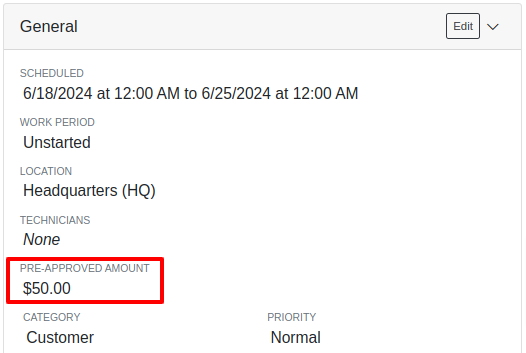
Once on the work order dashboard, this will be visible in General section of the page. It can also be edited here.
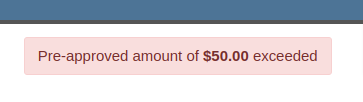
If, for any reason, the actual or projected cost of the work order exceeds this amount, a red banner will appear on the top of the work order dashboard.
Anyone who is signed up to be notified when this happens will receive a notification.
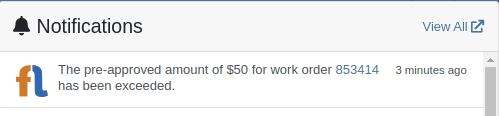
Once the costs are equal to or below the pre-approved amount, the banner will disappear.
Additionally, users can set a default pre-approved amount on the customer edit page.

This amount will be automatically applied to work orders for this customer unless it is overridden at the time of creation.
Opportunity: Receiving Managers requested that the “Responsible Locations” of machines automatically update when the location on a Machine Receiving Voucher is changed.
Solution: Flyntlok introduced a prompt that appears when the location on a Machine Receiving Voucher is modified. This prompt asks users if they want to update the physical locations of the machines to match the updated location on the voucher.

Opportunity: Salespeople requested the ability to view and edit a Machine's comments from the mobile view.
Solution: We now show the Machine comments on our Mobile Machine Dashboard. It is editable by clicking "Edit" on the page.
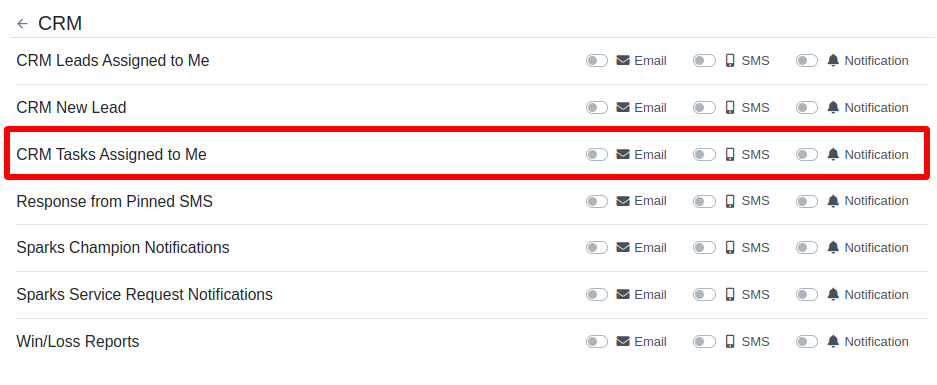
Opportunity: Sales Managers expressed the need for Task related notifications so that users are made aware when a task has been assigned to them.
Solution: Users are now able to receive notifications when they are assigned to a Task, either as the primary or secondary person on the task.
How to Enable Notifications:
Complaint: When printing out or emailing a Work Order the tax amount is not included in the total.
Correction: Fixed.
Complaint: Users reported errors when an Item was set as a Kit sub-item of itself.
Correction: We no longer allow a user to set an Item that is a Kit to be its own sub-item. Waaay too circular…
Complaint: Users reported not being able to apply an above-cost discount to some parts orders.
Correction: Fixed.
Complaint: Users reported that processing a Job that didn’t have any Parts Orders would not mark the job as “Approved”.
Correction: Fixed.
Complaint: Users reported that if you clicked into the Quantity or Fulfilled Quantity fields on the Point of Sale, the cursor would get placed at the end of the number. So if you wanted to change the value, it required that you highlight/select the whole field value first. This issue was both error prone and required extra clicks.
Correction: Fixed. If you click into either of the Quantity fields, we highlight/select the existing value so that if you type in a new value it will overwrite the previous value.
Complaint: Users reported that all Flyntlok journal entries were taking a very long time to process.
Correction: Fixed.
Complaint: Users reported that the incoming call page would crash when receiving calls from some numbers.
Correction: Fixed.
Complaint: Salespeople reported that they would accidentally change the payment amount with the mouse scroller.
Correction: Scrolling with the mouse in the payment field has been disabled.
Complaint: After accepting a Quote, users reported seeing the cost of the Quote’s Model lines change.
Correction: Fixed.
Complaint: Users reported being shown non-sellable machines when associating machines to model lines on the Point of Sale.
Correction: Fixed.
Complaint: Users reported discount structures not being correctly applied to Kits on the Point of Sale.
Correction: Fixed.
Complaint: When editing an Item Purchase Order, a shipping method would be chosen by default. However, users could not change the default that was being selected, and they may not have realized a shipping method was being chosen automatically.
Correction: Fixed. The shipping method selector now displays a prompt to select a shipping method if one is not set, making it more obvious when a shipping method has not been chosen.
Complaint: Users, particularly those in the Northeast of the US, but ultimately any real basketball fan, have complained about the fact that the Boston Celtics have not won the championship since 2008. This has been particularly frustrating some years because they clearly had the better team, especially in 2023.
Correction: Fixed. Flyntlok made sure that the most talented NBA team in recent history (probably since '86 Celts) won the championship this year in an epic manner and clearly illustrated to all of North America that they are the best team in the league. Our Boston office is currently coordinating the Duck Boat parade with city officials.

Learn More at Flyntlok Dealer Management System
Check out our Flyntlok YouTube channel for more highlights of the application!
Opportunity
Salespeople have expressed interest in being able to customize the list of statuses they are able to assign to a Lead, which would allow companies to tailor their Lead process to fit their individual needs.
Solution
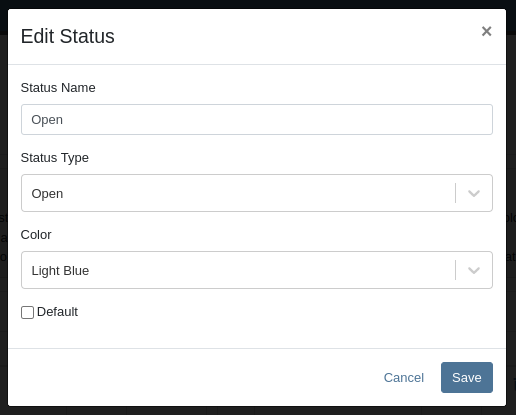
We have created a new settings page for CRM that can be accessed by those with administrator accounts via the Admin Settings page. Users can add a new status using a button at the top of the Lead Statuses tab and edit individual statuses by clicking on an individual status badge. Either of these actions will open a modal that will allow the user to edit a status’s name, type, badge color, and default status.
Users can also choose a status to be the default for all new Leads by clicking the checkbox next to a status name in the Status Pipeline columns. Statuses can be deleted as long as they are not currently set as the default. Deleted statuses will be visible on leads already using them, but will no longer be available as status options for newer leads.
Drag and drop the statuses within type columns to reorder how they show up in Lead status edit menus across Flyntlok. Within the Status field dropdown on a Lead, the statuses will be ordered first by the New values, then the Open, then Closed, and within those levels they will be sorted as ordered within those stages in the settings page.

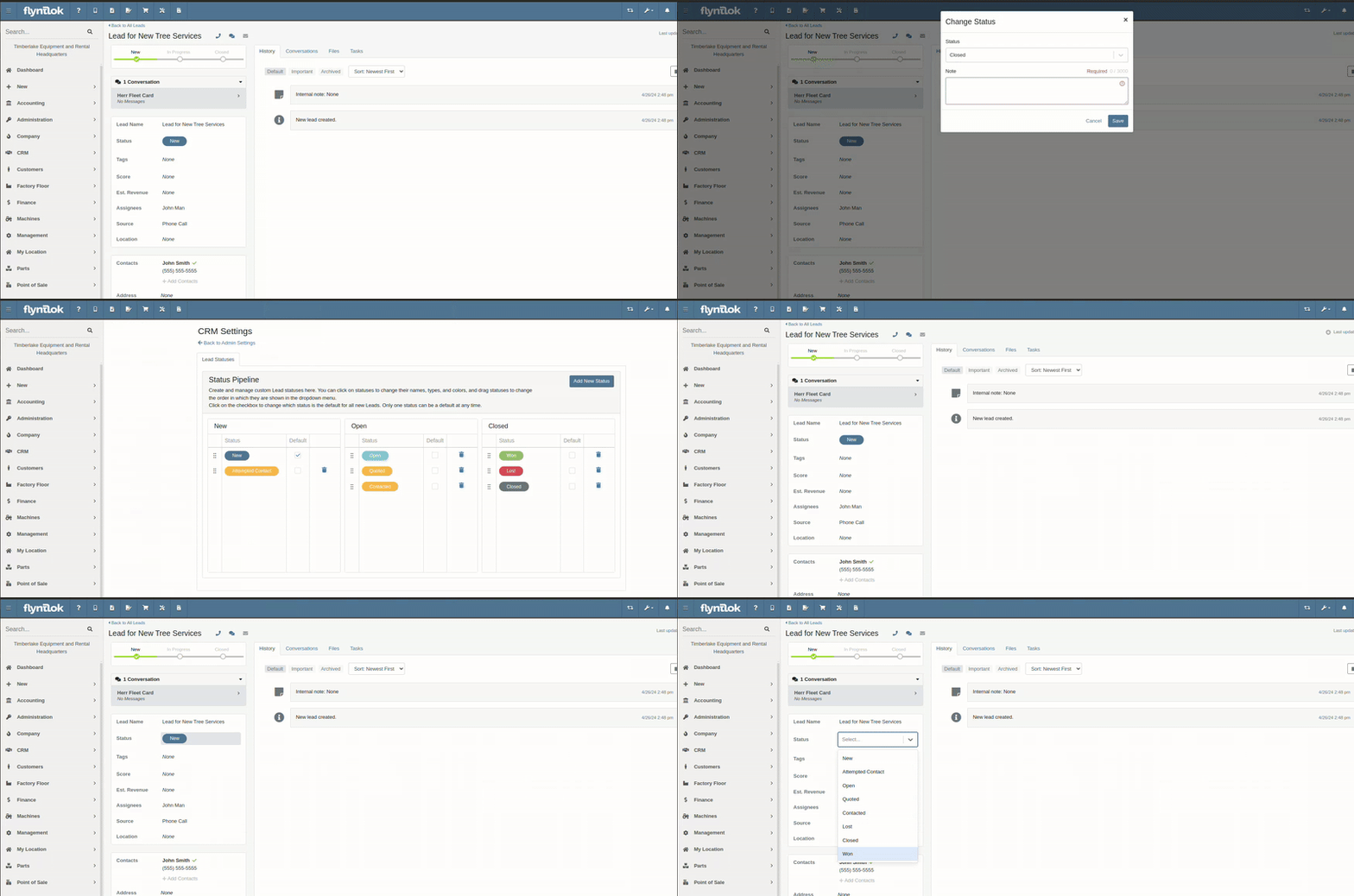
A new column called status type has been added to the All Leads table which is hidden by default and can be added to the grid from the column chooser. As the name suggests this column contains the type of the status which is one of NEW, OPEN or CLOSED. You can create custom saved grid views using this field, such as "All New and Open" leads, or "All Closed Leads".

Opportunity
Dealers that make use of texting within the context of CRM asked for the ability to block texts from certain phone numbers because they were receiving a high volume of spam.
Solution
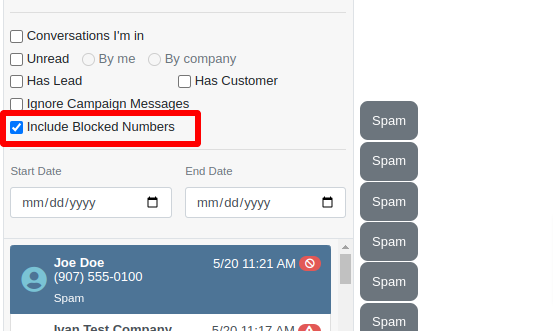
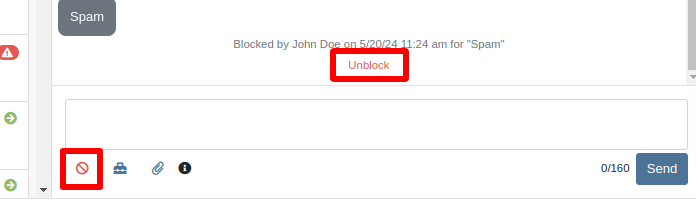
Users can now add numbers to a “Block List”. Texts from these numbers will automatically be filtered from the list of conversations, but can be viewed by toggling a filter.
To block a phone number click on the “Block” button on the left side of the footer:
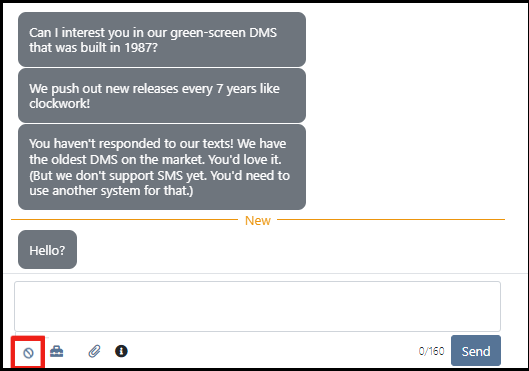
Once clicked it will open a modal where users can provide a reason for the block:

To see blocked phone numbers toggle the filter “Include Blocked Numbers”:
To unblock the phone number click on either “Unblock” text in the middle of the conversation or unblock button on the left side of the footer:
Opportunity
Hitachi dealerships have requested the ability to track telematics data for their Hitachi machines, for use in service, rental, and sales workflows.
Solution
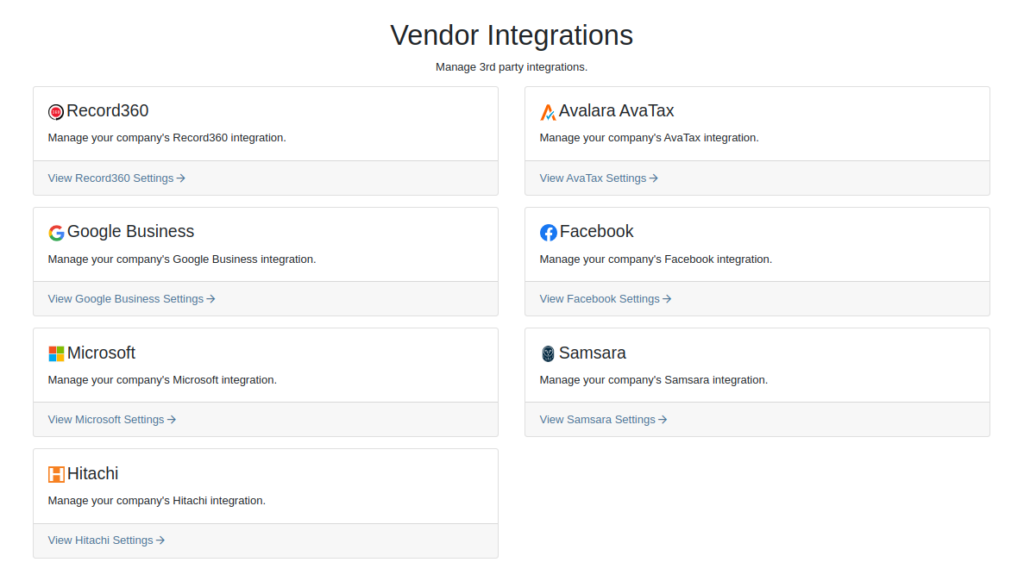
We have created a link between Flyntlok and Hitachi to receive Hitachi telematics data in Flyntlok. Once connected, tenants will be able to track the last known location, miles, and hours data for any associated machines within Flyntlok.
We have added a Hitachi settings page to the “Integrations'' hub page, reachable through Editors(wrench) > Editors > Integrations > Hitachi. This page allows administrators to connect their company’s Hitachi account to Flyntlok using their credentials. Simply provide your username and password and click “Submit Credentials'' to do so.
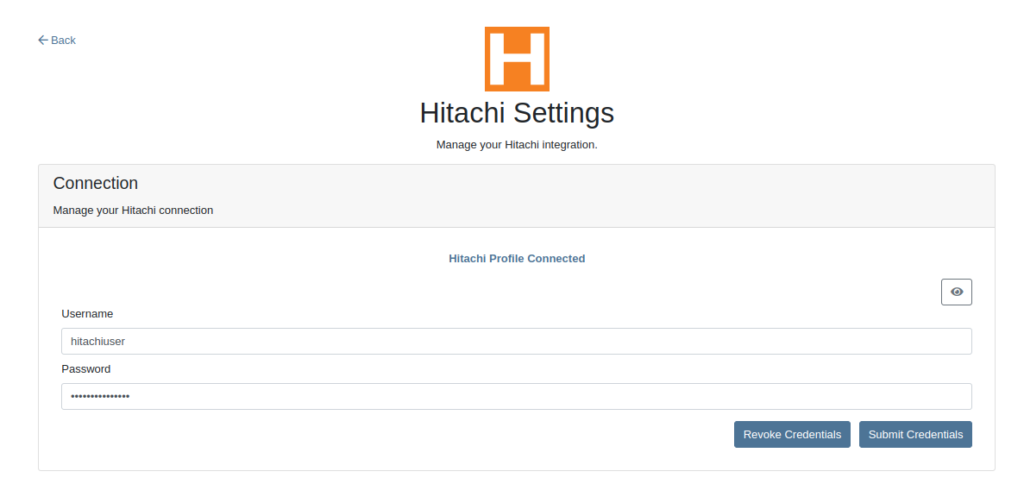
Once connected, Flyntlok will daily ingest machine miles, hours, and last known location data from Hitachi for the machines with matching serial numbers. The data is updated automatically and can be viewed on the machine’s dashboard.

Opportunity
Users requested the addition of an "Engine Make" field on the machine dashboard.
Solution
Added the "Engine Make" field to the machine dashboard.
Opportunity
Rental Managers requested that notes from rental-contract-related Reservations be added to the Rental Contracts on creation.
Solution
Notes and comments from Rental Reservations are copied over to generated Rental Contracts.
Opportunity
Salespeople asked that the available QOH shown for models on the invoice page only reflect the in-store quantity and not the amount “On Order”.
Solution
The on-order quantity was separated from the available QOH and is now displayed in separate badge details.

Opportunity
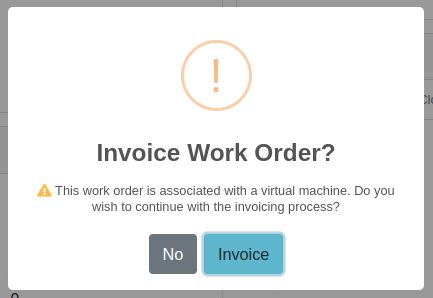
Service Managers requested a warning to be displayed when invoicing a Work Order with a Virtual Machine.
Solution
Added an option to display a warning when invoicing a Work Order with a Virtual Machine.
Opportunity
Service Managers expressed the need to see warning notes on the Work Order creation page, not just the Sales Order page.
Solution
Added customer warning notes to the Work Order creation page. Warning notes are now visible while searching for the customer and after selecting the customer.

Opportunity
Service Managers requested the ability to display separate subtotals for labor and parts on Work Order Invoices and Quote Reports.
Solution
Added a setting to display separate subtotals for labor and parts on both Work Order Invoices and Quote Reports.
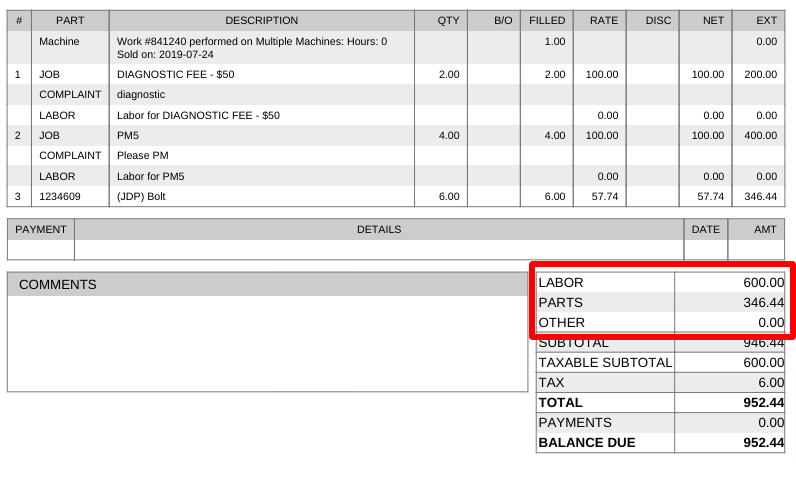
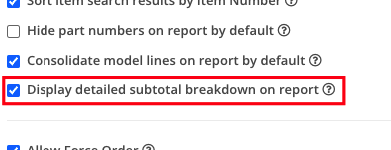
To enable the setting, open the wrench menu at the top of the screen and go to "Flyntlok" → "Flyntlok Settings". You can find this setting in the "Sales" section as a toggle called "Display detailed subtotal breakdown on report".
Complaint: Customers using Sage Intacct reported that some entries were posted multiple times. This issue occurred when multiple users initiated postings simultaneously, causing collisions and duplication of entries.
Cause/Correction: To prevent collisions and duplications, posting to Sage Intacct is now limited to one process at a time.
Complaint: Salespeople reported discrepancies in the final price shown on the Sales Order Report. When a Sales Order uses the “Consolidated Model Lines” setting and it includes the same models with different prices, the report mistakenly consolidates them, displaying the same price and leading to inaccurate calculations.
Cause/Correction: The model-consolidation was revised to ensure model lines are separated/distinct by both model and price, preventing mispricing and ensuring accurate reports.
Complaint: Salespeople noted that the links to quotes in the Quotes Expiration Notifications were not working.
Cause/Correction: Fixed.
Complaint: Users reported issues with payments for invoices from QuickBooks Online not syncing to Flyntlok consistently. Invoices in QuickBooks Online were being marked as paid, but this was not being reflected in Flyntlok.
Cause/Correction: Fixed.
Complaint: Sales managers requested that users not be able to change the customer on a paid invoice to an “Internal Customer”.
Cause/Correction: If any invoice has been paid for by an actual customer, the invoice’s customer cannot be changed to an “Internal Customer”.
Learn More at Flyntlok Dealer Management System
Check out our Flyntlok YouTube channel for more highlights of the application!
Opportunity
Salespeople have requested more effective filtering in the SMS Inbox to help them better respond to Customers in a timely fashion. Additionally, they requested more information be shown about a conversation to help them understand what a Customer may be asking about.
Solution
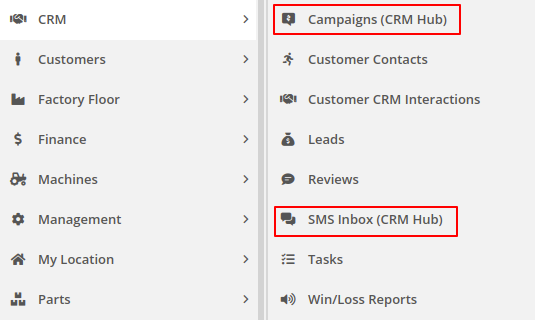
First, we have split what was previously the "CRM Hub" into 2 pages: the SMS Inbox and Campaigns. You can find both in the CRM section of the sidebar as “SMS Inbox (CRM Hub)” and “Campaigns (CRM Hub).”
In the SMS Inbox, open the updated Filters section and you’ll find several new options to narrow down what conversations you’re viewing. Filters within the new “Sent message about'' section allows you to find conversations with messages sent from elsewhere in Flyntlok. For example, "Campaign" lets you find conversations containing messages from a specific campaign and "Customer" lets you find conversations with messages sent from a specific customer’s dashboard. Invoice, Lead, Rental Contract, and Work Order allow you to only see conversations with messages sent from any of the indicated pages.
We’ve also added 4 more general filters to help limit the number of Conversations shown to you:

SMS messages sent from the following pages will now be marked in a conversation to provide a better idea of what that conversation is about:
You can click the link to view the page that message was sent from.
Opportunity
Salespeople have expressed interest in being able to see more data associated with a phone number when a new call comes in, which will allow them to have more context upfront before they decide on a course of action.
Solution
We have extended the capability of our integration with the RingCentral desktop application. We have an updated URL that will support the ‘name’ parameter, and can be entered into RingCentral’s settings under the ‘Manage external apps or URLs for incoming calls’ section. The new URL is - “https://flyntlok.com/ajax/phoneCall?phone=%E&name=%N”. Now when a phone call comes in, a new tab will open in Flyntlok that will display a dashboard with centralized information about any leads or customers associated with that phone number.
The “New Call” page will show the phone number and name of the caller at the top of the page as passed on from RingCentral. If a phone number has been associated with any customer in the past, the most recent actions related to the customer will show up in the Associated Customer Card, along with a link to the Customer Dashboard. If more than one customer is associated with this phone number, information about those other customers will be shown in a collapsible list below the primary Customer Card. Leads associated with the phone number will also show up in a similar manner.
Users will be able to choose to open any of the customers or leads associated with the phone number to continue working with the existing item, or they can create a new lead by clicking on the “Create New Lead” button at the top of the page.
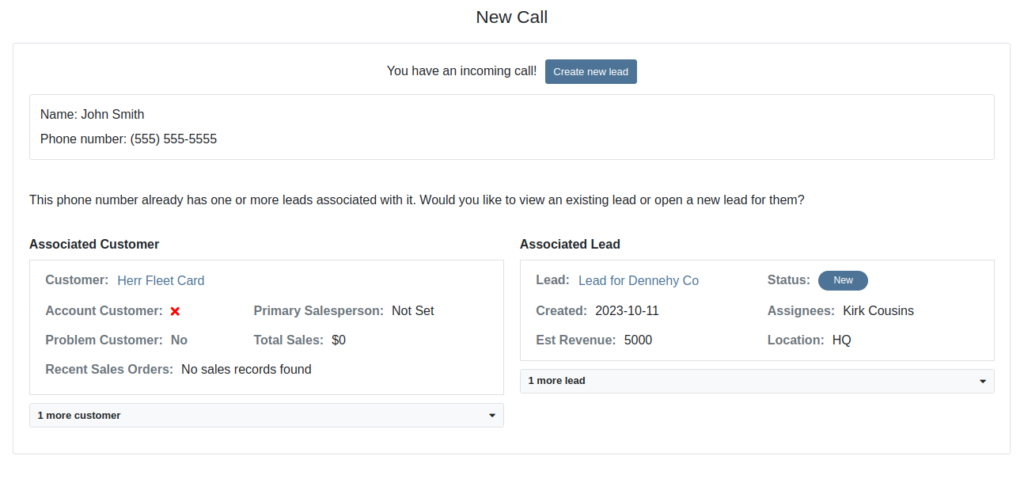
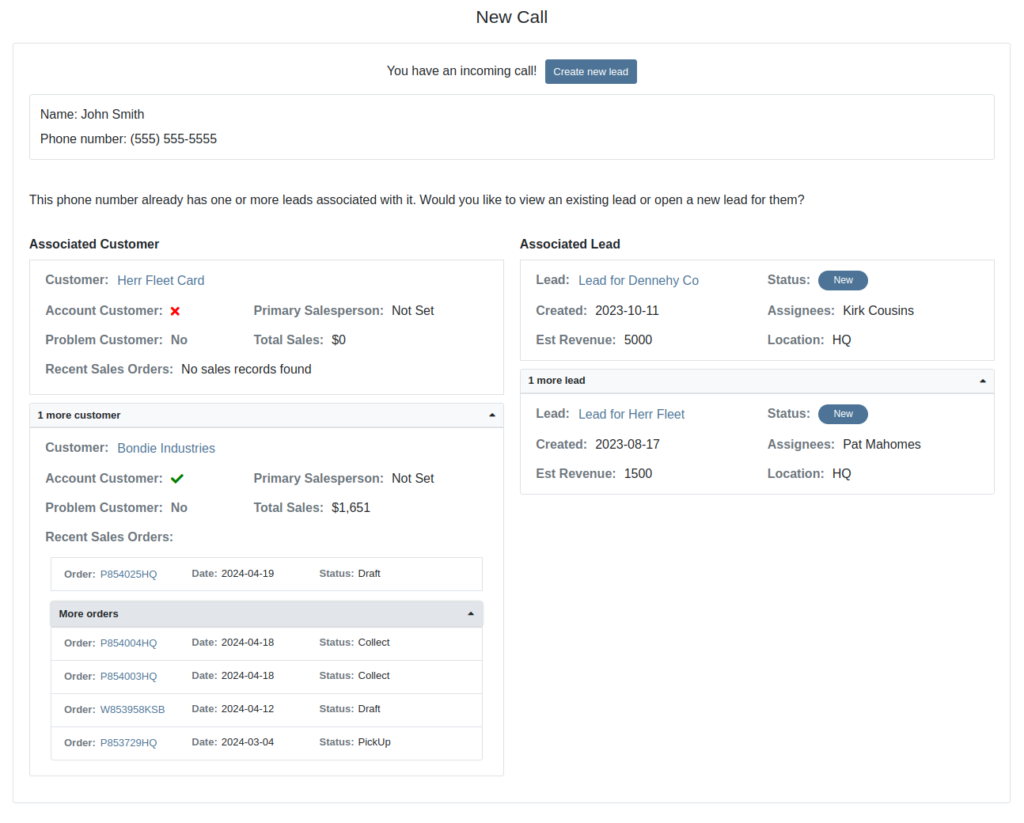
The Incoming Call Page after expanding the collapsible data elements.
Opportunity: Sales Managers have requested the ability to attach images to CRM Campaigns. Including a photo or file with a Campaign would increase the attractiveness of a message and could result in a higher conversion rate for potential sales.
Solution: We have updated CRM Campaigns to support file attachments. Users can attach a file when creating or editing a Campaign. A full preview of the text and attachment can be reviewed before and after sending.

Opportunity
Salespeople have expressed a need to request signatures from customers on a Sales Order via email, which would simplify their signature gathering process.
Solution
Salespeople now have the ability to send signature requests via email from the Point of Sale. Click the Request Signature button and fill out your customer’s information to get started.

You can view previously signed versions of an Invoice by clicking “View Collected Signatures” in the Details section.

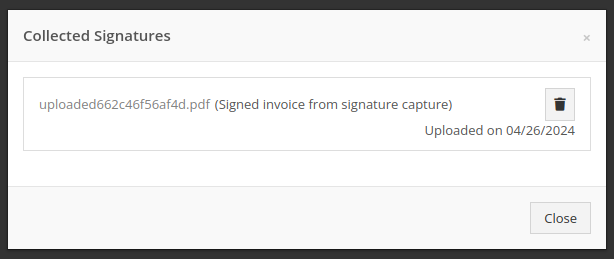
Signatures collected manually and via a card machine will now also save a signed copy of the invoice that can be viewed here.
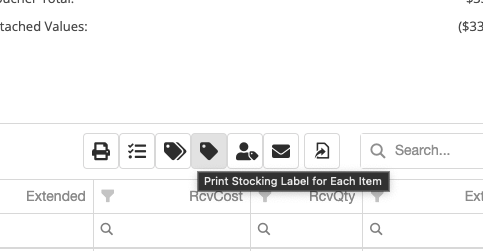
Opportunity: Receiving Clerks and Parts Managers have requested the ability to limit the amount of labels that were being generated on Receiving Voucher label printing. For parts departments who, for example, use bins instead of individually labeling each part, reducing the number of labels would save costs and paper waste.
Solution: We have added a button to the Receiving Voucher page called "Print Stocking Label for Each Item". This will generate one label per item, regardless of its received quantity. Additionally, you now have the option to exclude Special Order item labels from being printed.
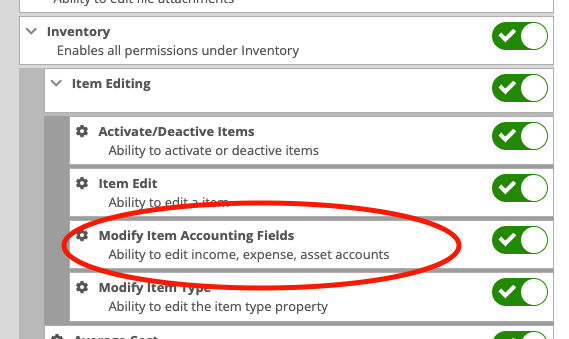
Opportunity: Managers have requested the need to restrict editing of accounting fields when editing or creating items.
Solution: We have updated the Item Dashboard to lock editing based on a new permission. Admins can find this new permission in Access Controls -> Inventory -> Item Editing. This will toggle editing on Item Income, Expense, and Asset Account fields.
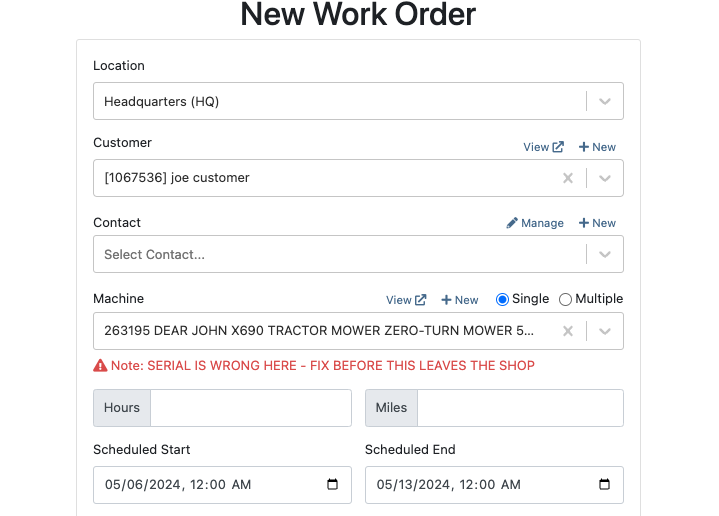
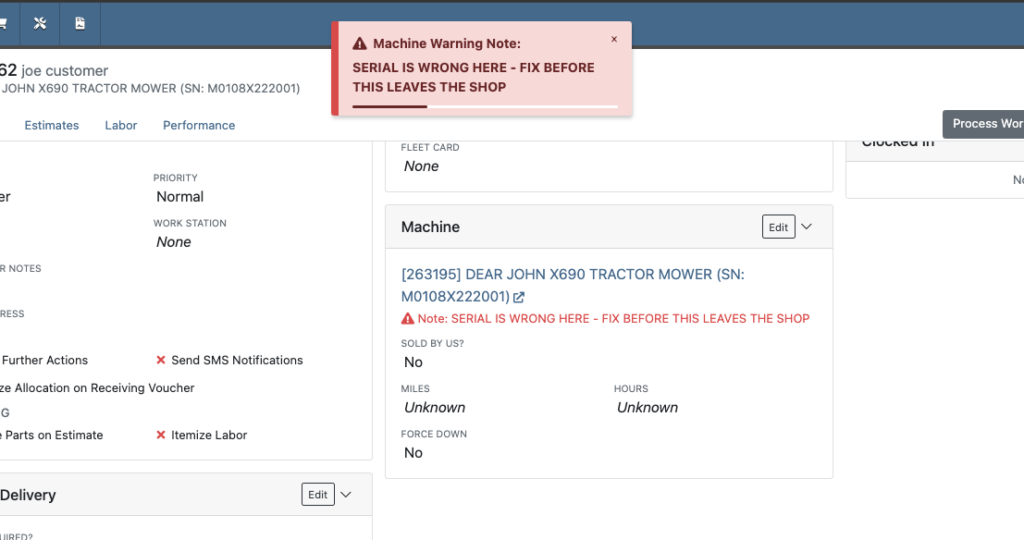
Opportunity: Managers using the recently-released Machine Warning Note feature have requested that this note be visible on Work Order pages.
Solution: We have updated the Work Order Dashboard and Work Order creation to display this note when the machine is selected.
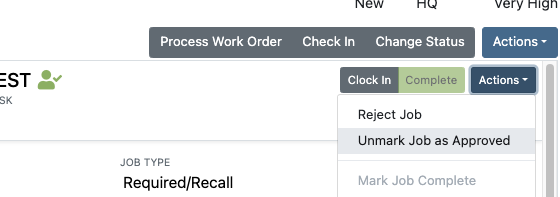
Opportunity: Service Managers have stated the need to undo a job Approval or Rejection. Previously, a user could only change an Approved job to Rejected, or vice versa.
Solution: We have added additional actions to Work Order Dashboard Jobs. If the job has been previously Approved or Rejected, the status can now be cleared.
Opportunity: Rental Managers have requested the need to quickly view invoices that were returned against a previous Rental Contract invoice. This would help them reduce the possibility of the costly mistake of missing a billing period for a customer if a return was not immediately visible.
Solution: We have updated Rental Dashboard to clearly display when a returned Invoice is recognized against a previously billed contract. The returned invoice will be shown underneath the original Sales Invoice.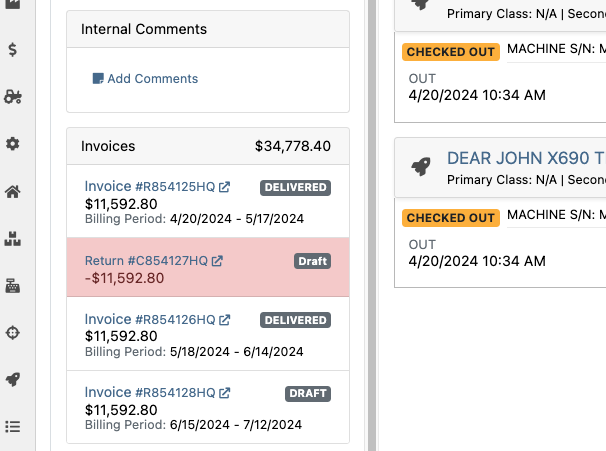
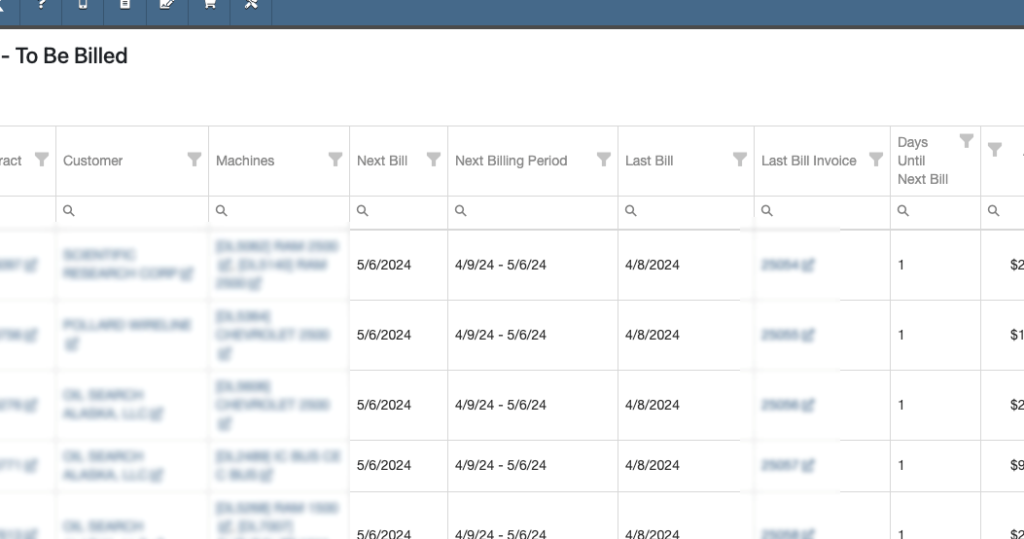
Opportunity: Rental Managers have requested to have more specific billing information at-a-glance when reviewing Rental Contracts to be billed. We previously only showed Next Bill and Last Bill dates.
Solution: We have added two new columns: Next Billing Period and Last Bill Invoice. Next Billing Period will show the billing period of the next upcoming billing cycle for each Rental Contract. The Last Bill Invoice column is a link to the most recently generated Invoice for each Rental Contract.
Complaint: Purchasing Managers mentioned that when using MPO Vouchers and reviewing machines to allocate to Sales Orders, sometimes a line would show as having available Sales Orders to associate when there were actually none available.
Cause/Correction: Fixed. Additionally, all MPO Voucher users should now have been moved over to the latest version of Machine Allocation.
Complaint: Technicians using the Work Order Parts Request feature noted that the Parts Searcher was not pulling in all available parts, and displaying incorrect item identifiers.
Cause/Correction: We have made several updates to this feature: the Parts Searcher should now be searching the complete parts catalog, and the parts displayed should now be showing its proper item numbers. We have also made improvements to the layout.


Complaint: Rental users in multi-location dealerships mentioned that when searching for machines to rent, they would notice some "Available Machines" incorrectly marked as “Conflict” status.
Cause/Correction: We have updated the Rental Searcher to correctly display availability for multi-location dealerships.
Complaint: Accountants using QuickBooks Online stated that loading Payments into Flyntlok was taking a lot more time than usual, and would sometimes fail after an extended period of time.
Cause/Correction: We identified that this was caused by attempting to load in a large number of payments. We have made significant improvements to this functionality to handle larger loads.
Complaint: Rental users who bill by the hour noticed that the start and end times they would enter into the New Rental page would sometimes carry over the wrong date and duration to the Rental Contract.
Cause/Correction: Fixed.
Complaint: Rental Managers mentioned that when invoicing a rental for a machine configured with attachments, its attachments were not showing on the invoice.
Cause/Correction: Fixed.
Complaint: Purchasing Managers noted that when a machine is received on a voucher, and the voucher is then canceled, some of the machine data from the canceled voucher remained on the machine.
Cause/Correction: We now clear the serial number, vendor PO associations, and date received of machines on a canceled voucher.
April 24th, 2024 Release Notes
Learn More at Flyntlok Dealer Management System
Check out our Flyntlok YouTube channel for more highlights of the application!
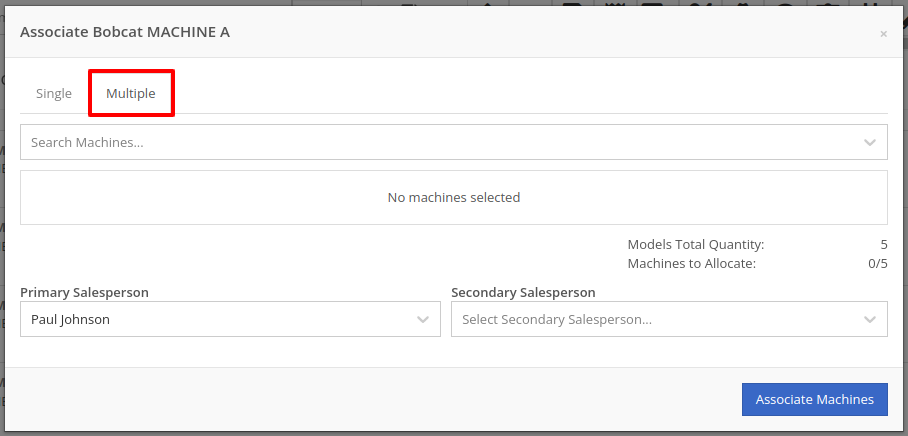
Sales Managers have expressed the need to improve the handling of high-volume quantity of Machines→Models association at the Point of Sale.
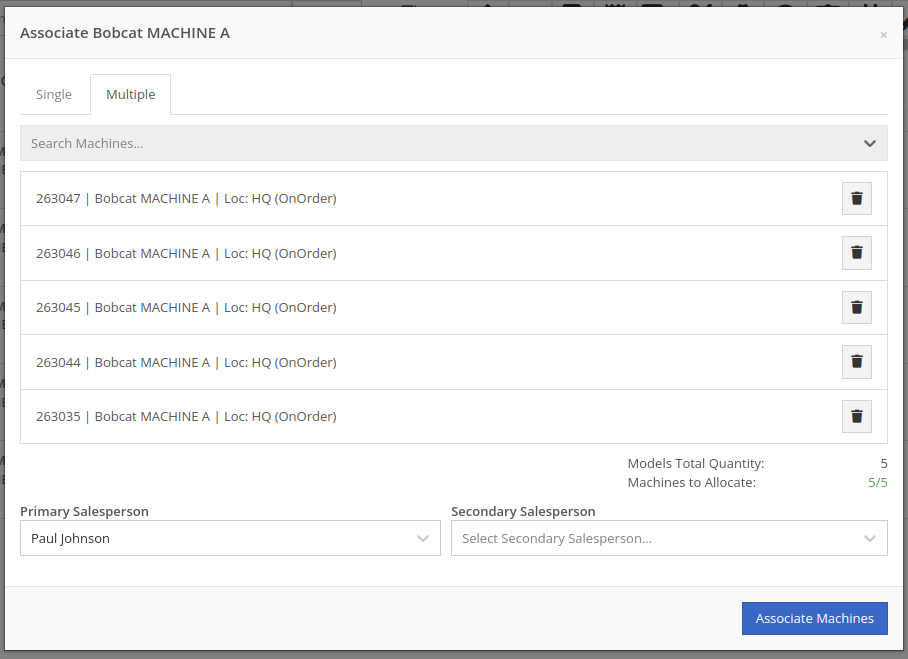
An option has been made available for all Flyntlok users to perform the association of multiple machines with their respective model lines in a single action. This should improve the sales process, reducing the time and effort required for Machine to Model associations.
To do a bulk Machines→Models association click on the  “Associate” button on one of the Model lines to open a modal window for Machine association.
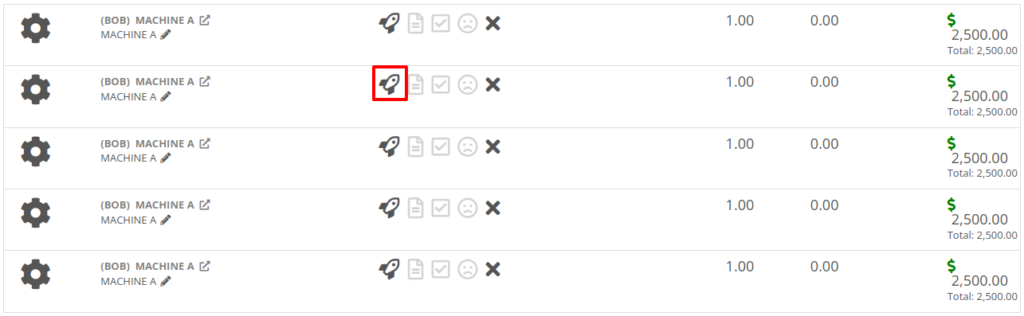
Then, once the Associate window is open, you have the option of either clicking on the “Single” or “Multiple” tab. If you click on the "Multiple" tab, you can then select the Machines that you want to associate to the specific Model. This tab will also include the Models Total Quantity as well as the number of Models that have been associated. You can also set the Salesperson. Click the “Associate Machines” button and all selected Machines will associate.

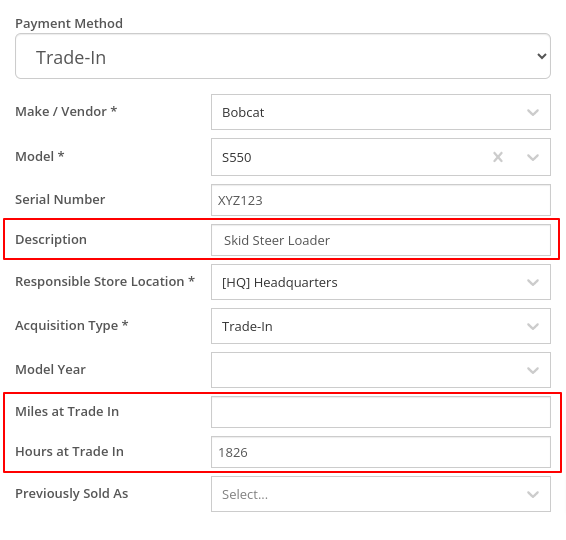
Opportunity: Salespeople have requested the ability edit additional fields when creating a machine from a trade-in, including Description, Hours, and Mileage.
Solution: The machine trade-in form has been updated to include the Description, Hours, and Mileage fields. With these, salespeople can input these details directly from the Sales Order. This will save them time as it eliminates the need to navigate to the machine’s dashboard then edit the machine.
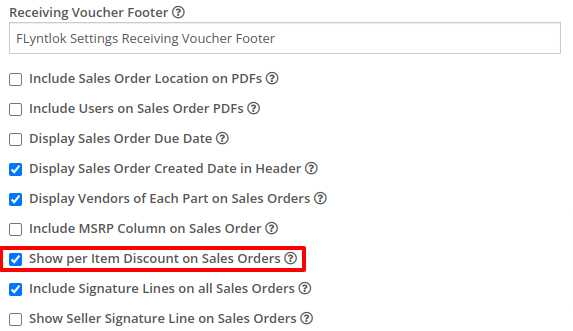
Opportunity: Salespeople have requested that the Sales Order “Thermal Receipt” have the option to display line-level discounts. This option is already available on the full-page-print version of the Sales Order.
Solution: The Sales Order “Thermal Receipt” layout has been updated to include line-level discounts (percentage and dollar discount from list). The existing flag “Show per Item Discount on Sales Order” in Flyntlok Settings will now apply to thermal receipts as well.
Volvo dealerships have requested the ability to track telematics data on their machines in order to use it in sales, rental, and service workflows. Volvo will send out positioning and utilization data about every Volvo machine a dealership owns on a daily basis at a time chosen by the dealership.
Flyntlok will ingest Volvo’s daily telematics updates for a dealership that is interested in receiving this data. The interface maps the telematics data using a machine’s VIN as a reference. The dealership will need to ensure that all Volvo VIN’s are accurate and up-to-date in Flyntlok.
The updated latitude, longitude, and machine hours data will be visible on the machine dashboard as illustrated below.
If you are interested in this feature, please work with your friendly Flyntlok Consultant to get this interface setup with Volvo.

Opportunity: Fleet Managers have requested the ability to track machine hours down to the decimal, providing more accuracy when logging a machine’s utilization.
Solution: We have updated machines to support a decimal place when inputting hours. This change brings Machine Hours in line with Machine Miles, with both now able to capture a decimal place.
Machine Dashboard Warning Note
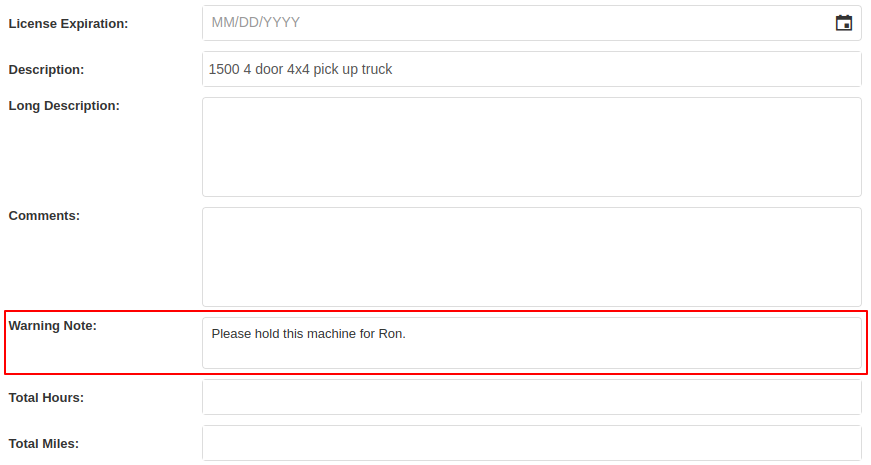
Opportunity: Flyntlok users have requested the ability to display a warning on the Machine Dashboard, similar to the warnings on Customer Dashboard.
Solution: The Machine Dashboard has been updated to display Warning Notes, which can be added by editing the machine. After adding the warning note, any future visit to that machine’s dashboard will show a popup at the top of the screen presenting the entered note.

Salespeople and managers have requested the ability to send Work Order Estimate Approval links via SMS, in addition to the already existing email functionality. This would make the estimate approval process more accessible for the customers of our dealers.
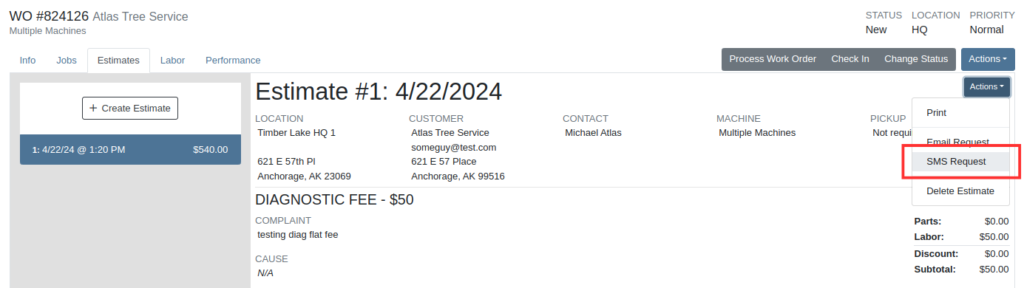
A new “SMS Request” option has been made under the Estimate’s “Actions” button in the Work Order Dashboard. The original “Send Request” button has been re-named “Email Request” to differentiate it from this option.
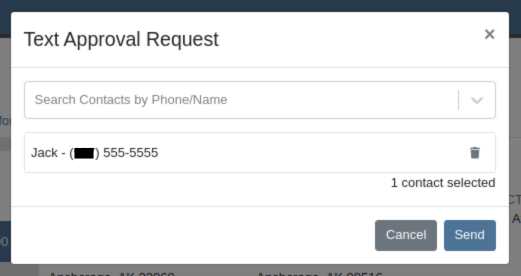
When users select the SMS Request option, they can search for contacts tied to the Work Order’s customer by name or phone number, and select contacts to send the estimate approval link to. Customers will be sent a text message from Flyntlok with a link that leads to the approval page.
Once a request has been sent via either SMS or email, a green paper plane icon will appear next to the estimate date to indicate that it has been sent to the customer.

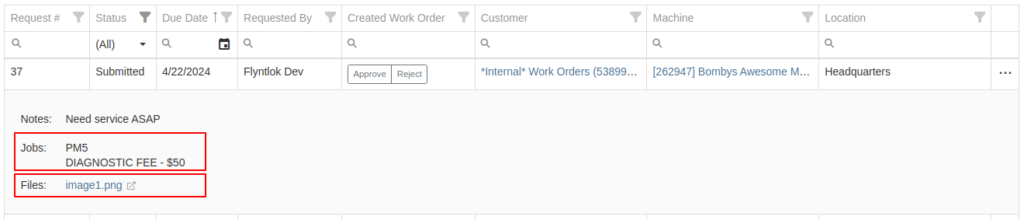
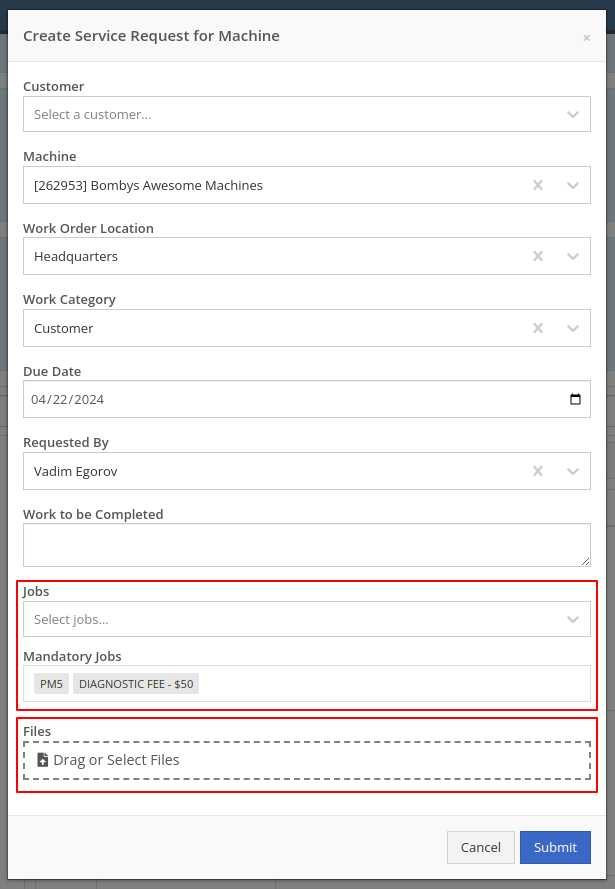
Service Managers have asked for the ability to attach files and jobs at the point of creating a Service Request. Additionally, there was a request to keep users informed about the status of Service Requests, including their creation, approval, and rejection.
Service Requests now include options to add predefined job templates and display any mandatory jobs, if applicable. These templates will be applied to the Work Order once the Service Request receives approval.
We have introduced a File Upload Capability, allowing users to attach files directly to their Service Requests. The attached files will automatically be associated with the corresponding Work Order post-approval.
Enhanced notifications will ensure that Service Managers receive alerts when a Service Request is initiated. Automated notifications will also update requesters about the approval or rejection of their requests.

Opportunity: Service Managers have requested the ability to see a Work Order’s location in the Jobs table when scheduling jobs from the Jobs Service Scheduler.
Solution: A new column has been added to the Jobs table displaying the Work Order’s location.
Opportunity: Service Managers requested the ability to use Work Order Job templates from the Work Order Mobile page.
Solution: When adding a job to a Work Order on the mobile view, there is a new field where a job template can be selected. Choosing a job template from here will work just like the desktop version of a Work Order and appropriate fields will be filled based on the selected template.
Opportunity: Service Techs and Service Managers have requested the ability to view “Configured Attachments” on machines when viewing the machine on a Work Order.
Solution: Work Order Dashboard has been updated to show a list of attached machines when selected.

Opportunity: Service and Parts Managers have requested more flexibility when setting up automated status-change rules on Work Orders. For example, while Flyntlok currently has a feature in place that can update a Work Order status when an Estimate has been signed, it would be useful if the Work Order could be placed into a specific status based on whether that signed estimate was fully approved or rejected.
Solution: Several new "Event Rules" have been added to our status-automation feature for when these events occur in Flyntlok:
Contact a consultant to have these new rules configured for your environment.
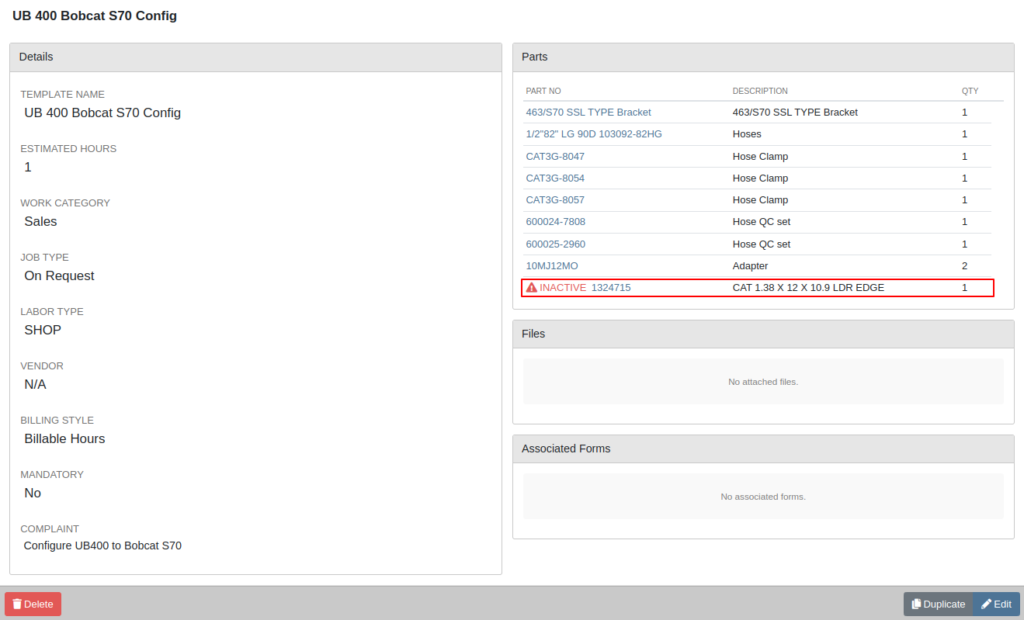
Opportunity: Service Managers have expressed confusion about the ability to add “Inactive Parts” to Work Order Job Templates.
Solution: We have updated the Work Order Job Templates editor page. Inactive parts will be excluded when editing the parts list. Additionally, any parts that were made inactive that already exist on job templates will now show an indicator that the part is currently inactive.
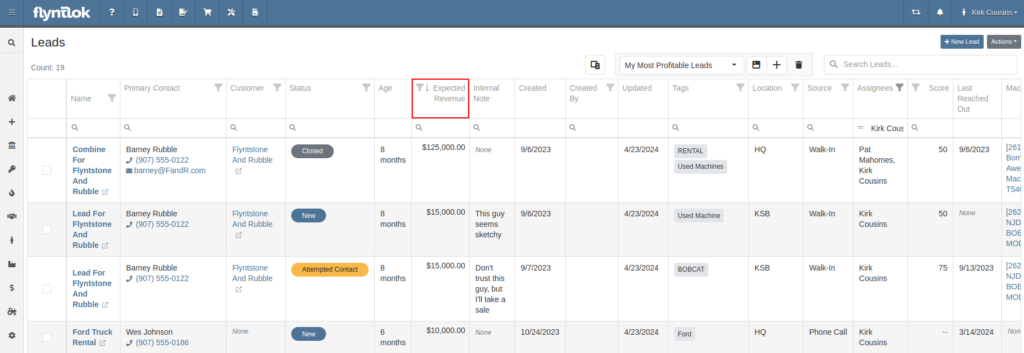
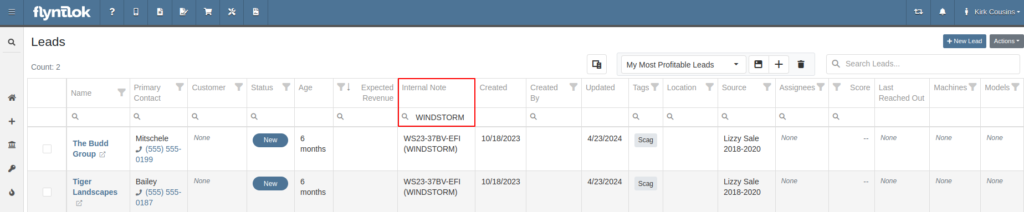
Opportunity: Salespeople have requested the ability to see “Internal Notes” as well as the “Expected Revenue” for a Lead from the “All Leads” view. Previously, these fields could only be viewed after clicking into a Lead.
Solution: The “All Leads” view has been updated to display both Expected Revenue and Internal Notes from the lead. With these columns, salespeople can now enhance their searching, sorting, and filtering. For example, these can be used to search for specific notes or to sort by the most valuable leads. Additionally, salespeople will see more information at a glance when reviewing all their leads.
Opportunity: Salespeople have requested links to Machines and Models from the Leads table.
Solution: Machines/Models that are displayed on the Leads table now have links back to the actual Machine or Model.
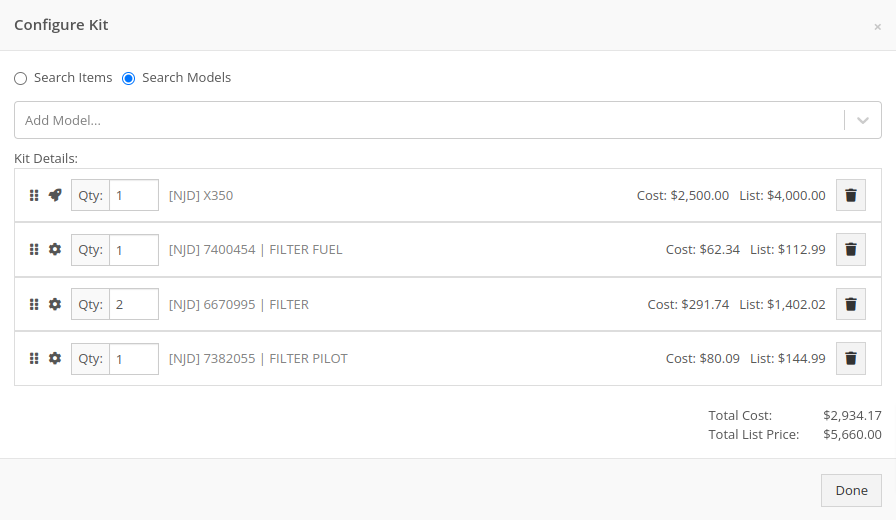
Opportunity: Inventory Managers have requested that Flyntlok display more details on the line items within the kit configuration.
Solution: The kit configuration has been updated to display the cost and list for each item, and now has links to the item’s details (whether Items or Models).
Opportunity: Purchasers have requested the ability to specify a location for their Purchase Plans when creating a purchase from the Item Dashboard.
Solution: We have updated the Order Item modal to support a location selection. Purchasers can now choose a location for their Purchase Plan at the time of creation.

Opportunity: Managers have requested the ability to limit which users can submit Machine Purchase Orders for approval.
Solution: A new permission has been added to allow/restrict the submission of Machine Purchase Orders. Administrators can configure this by navigating to the Access Control page, the new permission is named “Submit for Approval” under the Machine Purchase Order section.
Opportunity: Managers have requested the ability to limit which users can manage/use stored credit cards on a customer.
Solution: Two new permissions have been added around saved credit cards. The first permission allows viewing/adding saved credit cards on a customer via the Customer Dashboard. The second permission allows the actual use of saved credit cards at the point of sale. Administrators can configure these permissions by navigating to the Access Control page, the new permissions are named “Manage Saved Credit Cards” and “Use Saved Credit Cards” under the Customer section.
Opportunity: Flyntlok users have requested the ability to edit or delete Customer Notes that were added to a customer on the Customer Dashboard.
Solution: The Customer Dashboard has been updated with an edit and delete function for notes added. Edits and deletions are visible in the customer's logs.

#49700
Complaint: Salespeople noticed the indicator that a part had been superseded was not shown when they searched for some superseded parts.
Cause/Correction: We’ve updated the supersession indicator in the Parts Searcher to properly display when a part is superseded.
#50670
Complaint: Service Managers noticed that when processing a Work Order Job, rejected Parts Request quotes would still attempt to pull parts from inventory.
Cause/Correction: Inventory will not be pulled for Rejected Parts Request quotes.
#50838
Complaint: Our customers noticed the status column on the Quick Search page was always empty for machines that were on rent.
Cause/Correction: We’ve updated the Quick Search page to properly display the “Rented” status along with a link to the Rental Contract.
#51131
Complaint: Receivers reported that customers were being notified that their special order had been received despite not being warned ahead of time that a notification was going to go out.
Cause/Correction: We have updated the parts receiving workflow to properly display the existing Customer Notification indicator.
#51303
Complaint: Salespeople noticed that the automated “Opt Out” text message would be sent repeatedly while messaging a customer via SMS.
Cause/Correction: We have updated the SMS service to properly identify if a customer had been sent the automated “Opt Out” text message before. If a customer has received this text, they should no longer receive the automated messages.
April 10th, 2024 Release Notes
Learn More at Flyntlok Dealer Management System
Check out our Flyntlok YouTube channel for more highlights of the application!
